换一换
换一换 


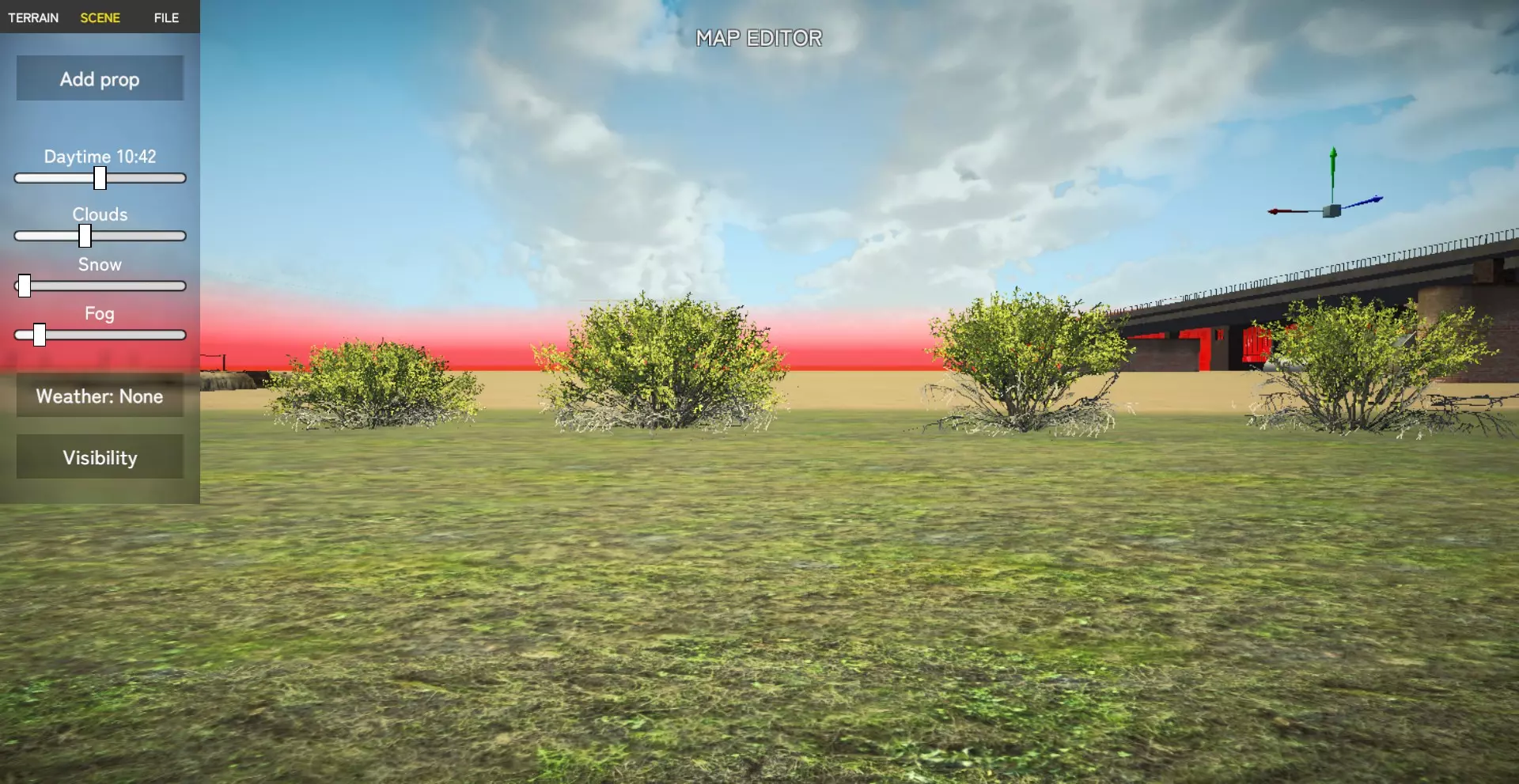
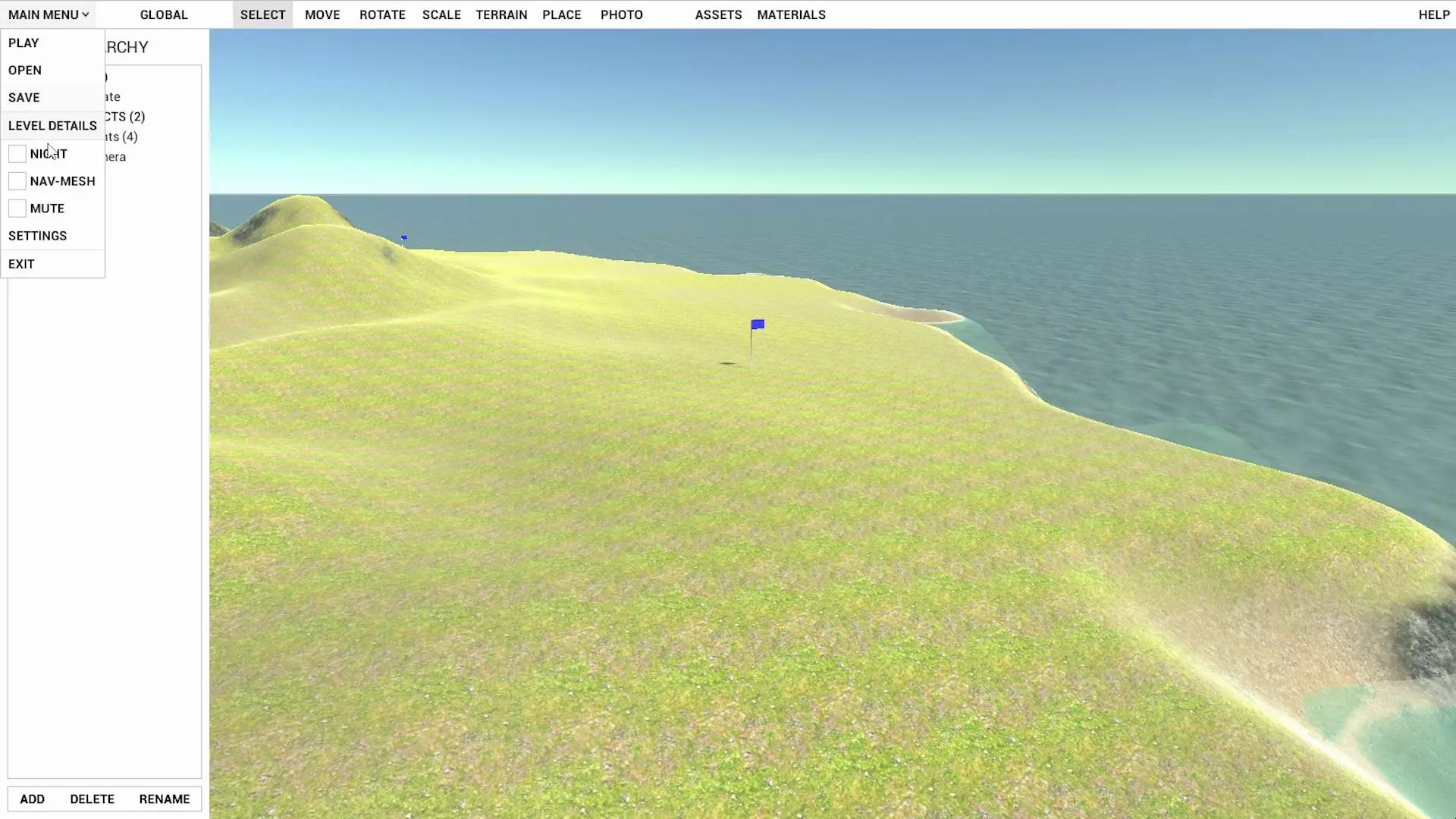
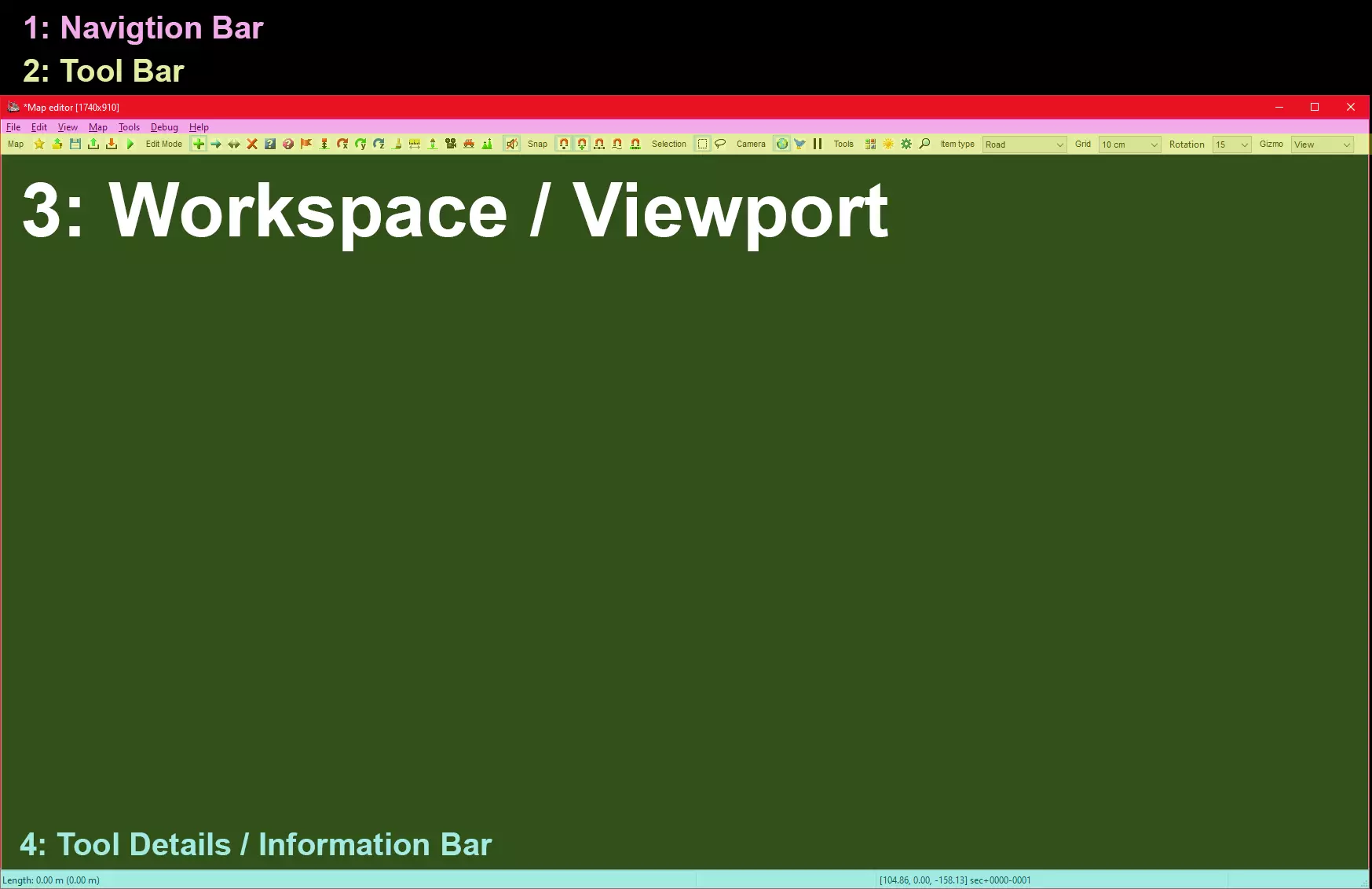
A tutorial written by someone who has no idea what they are doing in an attempt to help people with getting into mapping in American Truck Simulator. Introduction and Author's Notes At the time of writing I am running ATS version 1.46 with a VERY modded game. I do NOT have any map mods however so I'm not sure how this would effect things like Reforma, C2C, and other map mods and thus cannot help you if you are having issues with any of these. I should also mention that I have multiple monitors and I use all 3. Trying to manage documentation, the map editor, Photoshop, spotify, and other nonsense is a PAIN with just on monitor. If you can save yourself the headache use at least 2 monitors, preferably 3, otherwise be prepared to do a lot of Alt + Tab. For the purpose of being as thorough as possible, I'm going to include information in this guide that DID NOT work for me just in case they DO work for someone else. I'll try to provide links to the relevant sources when possible. With that said, a lot of the information I'll be including here can be found in other places online Things like The SCS Forums and Reddit can be useful, but seem to have pretty partial information or are straight up outdated. I will try and keep up with the guide as much as I can, but be warned I'm only writing this guide because I got fed up with scouring the internet for bits and piece of information on the map editor. In other words, this is my attempt to stitch the collective knowledge on the map editor together in an organized and comprehensive guide. Lastly, to keep things as organized as possible without cluttering up sections of the guide with links, I'll be linking to different resources like Wikipedia, using superscript numbered references. TL:DR Forgive me if the guide is messy, its hard trying to create a guide. I'll do my best to keep this as relevant and organized as possible. Quick Links and References [1] SCS Software Forum[forum.scssoft.com] [2] SCS Software Map Editor Wiki[modding.scssoft.com] Setup and The Dev Console First things first: We need to get access to the map editor. This is what most guides well tell you to do and apparently SHOULD just work. Make sure your game is NOT RUNNING. Find and Edit config.cfg. Should be located in 'Documents/American Tuck Simulator/' On line 107 and 162, Change both values of "uset g_developer" and "uset g_console"' to '1'. Save. Open your game and click tilde, "~ / ` ". Type 'edit' in the console to open the map editor. Profit?Now if your as lucky as I am, Your map editor didn't open. Don't panic yet. Try this: Close your game again. Go to your steam library and right click on American Truck Simulator. Open properties and in the 'Launch Parameters' type '-edit' Close the properties menu and run the game again. You should launch into the map editor.Now at this point, if it STILL doesn't open. You can panic. Cause I don't know how to help you. try asking for help on the SCS Forums.[forum.scssoft.com] Now the very last step. (Not sure if you can do this before hand, I'm sure you can but this is just me playing it safe.) Open you game directory, not the Documents/.American Truck Sim, but the actual game directory in your steamapps folder. and create two folders. First one is 'base', and the second folder should be called 'map'. You'll know you did it right if your file structure look something like "steamapps/common/American Truck Simulator/base/map/" FORGETTING THIS STEP WILL SCREW YOU, SO DO IT The Map Editor If you've made it here, Congrats! This is where the magic happens. This is also where my knowledge about everything gets exponentially worse. Luckily, I'm really good at using google and the internet as a whole and can send you off in the right direction. Here is a link[modding.scssoft.com] if you want to teach yourself the map editor and whatnot. You can also get to the documentation by clicking on Help > Online Documentation in the map editor itself and it'll open via the steam overlay. For a super basic quick start guide you can check this website out too.[scsmoddingguide.github.io] I'm not sure how updated any of the information is here though so if you choose to follow that guide, you are on your own. I WOULD recommend giving it a look still as I am using it to help me learn the map editor for the firs time. Navigation and TerminologyAlright... this is the part where I tell you you're kinda on your own... sorta. I can't make a map for you obviously. But I can explain what certain tools do, and how to use them. So lets get some terminology down. (I'm going to use the correct names for things when I can, but for other things, I'll call them what I wanna call them.) 1: Navigation Bar Used to change views, manage files, debug stuff, change options, stuff like that. 2: Tool Bar This is the "meat" of the map editor, its how you add things to the map, delete them, use placement tools, and change the properties of things displayed on the workspace / viewport. 3: Workspace / Viewport it lets you... view things. Its where you click to place stuff, select things you've placed, and gives you a visual representation of your map. 4: Tool Details / Information Bar. Contextual information. It changes based on what tool you have active or what you have selected.
我会在未来的某个时候编辑本指南,加入保存和加载的方法,但现在你可以先使用这些内容。 保存,加载,(高级)热编辑。 地图编辑器:实际操作 好了,我们来深入了解一下。 点击工具栏上的+号,你应该会看到一个类似这样的新窗口:
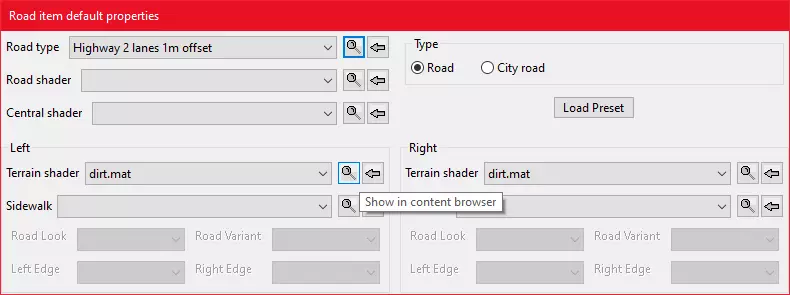
这个简洁的小界面就是用来放置道路的!很有趣吧。 现在如果你想亲自尝试,点击【道路类型】下拉菜单,然后点击你想要道路开始的位置,再点击你想要道路结束的位置。搞定,第一条道路就放置好了。 这里有关于这个菜单的更多信息。
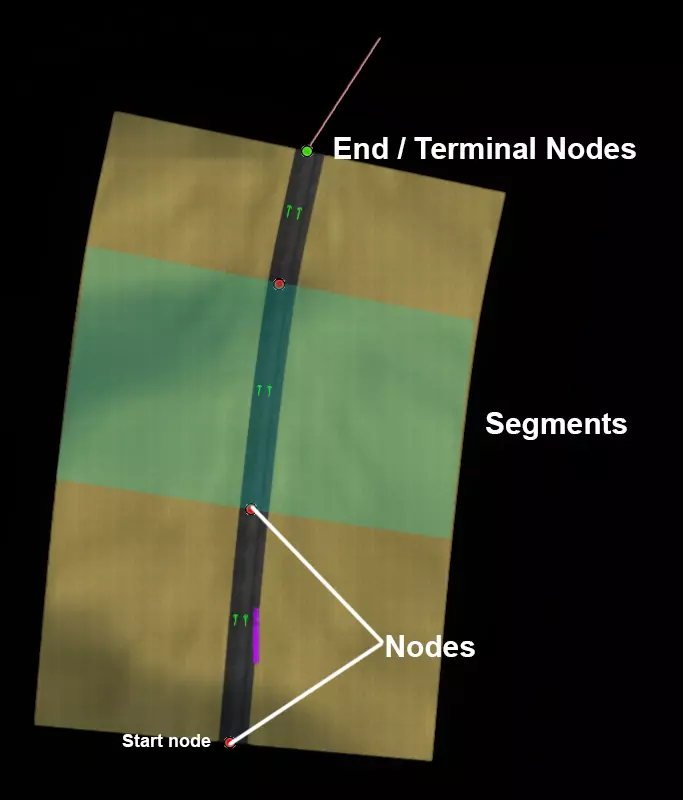
好吧。不确定这些名称是否准确,但只要能传达意思就好。接下来,我会用这些名称来指代各个部分。 以下是一些能帮助你实际使用道路工具的技巧: 当道路工具处于激活状态(鼠标旁会显示线条跟随)时,再次左键点击终点节点可以停止道路绘制。再次点击终点节点可以继续绘制道路。点击其他任何位置(除了另一个节点)则可以开始绘制新的道路。 若要删除路段,需直接删除该路段**之前**的非终点节点。你想要删除的路段会以蓝色高亮显示。在非终端节点上右键点击,可以更改该节点正后方的道路路段。对终端节点执行此操作将影响放置在终端节点之后的任何节点。 地图编辑器:互通式立交、出口及其他功能 好了,我已经打这份指南有一阵子了,现在有点懒了。所以我会给你们一点额外的帮助,之后在我再次更新指南前,你们就得靠自己了。 互通式立交、出口以及几乎所有不只是单纯道路的设施,都可以通过点击【新建项目】,然后在工具栏最右侧找到【项目类型】并点击【预制件】来访问。此时会弹出一个新菜单,里面包含大量不同的内容,目前实在太多了,难以一一整理。我会尝试在未来对它们进行分类或提供一个可搜索的列表(也许吧,我肯定需要一些帮助)。