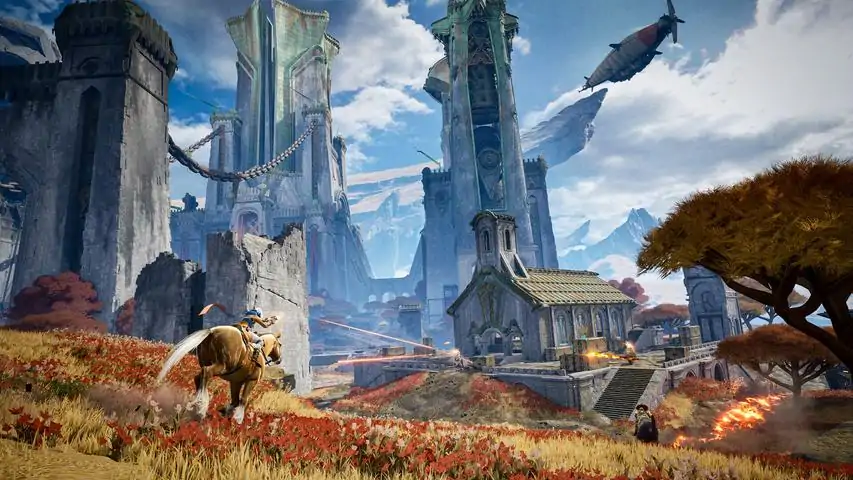
Highguard


由于某些原因,最大帧率设置在部分系统上无法正常生效。 1. 打开路径:C: Users USERNAME AppData Local Highguard Saved Config WindowsClient 2. 编辑GameUserSettings.ini文件 3. 将所有FrameRateLimit数值修改为你想要的最大帧率值
如何通过Highguard 流程 结束

游戏发售即凉
Many players are facing technical hurdles due to security requirements. I’ve put this guide together to help you ensure your PC is 100% ready and to solve that specific BIOS reporting bug that prevents the game from launching. Step 1: The Essential Requirement (GPT Partition) Secure Boot will not function if your drive is using an older partition style (MBR). Right-click the Start Button and select Disk Management. Right-click on Disk 0 (where Windows is installed) and select Properties. In the Volumes tab, look for Partition Style. It MUST say GUID Partition Table (GPT). If it says MBR, Secure Boot cannot be enabled without converting the drive first! Step 2: Enabling TPM 2.0 (PTT/fTPM) Before fixing Secure Boot, make sure your security module is active. Most modern anti-cheats require this hardware handshake to verify your PC. Enter BIOS and look for Settings or Advanced. Find Intel Platform Trust Technology (PTT) or AMD fTPM and set it to Enabled. If you don't see these, look for a "Security Device Support" option. Step 3: Solving the BIOS Reporting Bug (Secure Boot) Many users face an issue where the BIOS says "Enabled" but Windows reports it as "Disabled". This usually means the BIOS is stuck in "Setup Mode". Here is how to force it to "Active": Restart your PC and enter the BIOS (tap the Delete key). Under the Boot tab, ensure CSM Support is set to Disabled. Open the Secure Boot menu. Change "Secure Boot Mode" from Standard to Custom, then immediately change it back to Standard. When the prompt "Install Factory Default Keys" appears, select YES. Press F10 to Save and Exit. [/list] Step 4: Final Verification in Windows Don't wait for a crash to find out if it worked. Check your status now: Press Win + R, type msinfo32, and hit Enter. Look for Secure Boot State. It should say On. Also, verify that BIOS Mode says UEFI. Frequently Asked Questions (FAQ) Q: What exactly is UEFI mode? A: Think of it as the modern "brain" of your motherboard. It replaced the old-school BIOS. It’s faster, supports larger drives, and is required for the security features (Secure Boot) that this game needs to run. Q: Will switching to UEFI break my other games or apps? A: No. Most modern apps and games don't even know it's there once Windows starts. In fact, many newer games (like Valorant) already require it. It can even give you a slight FPS boost in some cases! Q: Does EVERY drive need to be GPT? A: No, but it's safer. Some motherboards allow storage drives to be MBR as long as the boot drive is GPT, but others are pickier. However, if you are stuck with a "Disabled" Secure Boot status despite turning it "On," those MBR drives are the likely culprits. On many Gigabyte/Aorus boards, the BIOS may force CSM Support to stay active if it detects any MBR drive, which blocks Secure Boot from working. If you're stuck, use the diskpart command to check all your disks and convert the ones without an asterisk! Q: My BIOS says Secure Boot is "Enabled," but the game still won't launch. Why? A: This is usually because your BIOS is in "Setup Mode" instead of "User Mode." Follow Step 2 of this guide to refresh your Factory Keys. Q: Can I turn Secure Boot off after the game starts? A: No. The game’s anti-cheat checks for this constantly. If you turn it off, the game will either refuse to launch or kick you back to the menu. Q: What if my PC won't boot after I switch to UEFI? A: This only happens if your Windows was installed on an old "MBR" partition. If that happens, just go back into BIOS and turn CSM Support back to Enabled. Then, follow Step 1 of this guide to convert your disk to GPT first. Q: I use a Linux dual-boot setup and the UEFI thing would mess with my distro. Any other way? A: If you don't want to mess with your main UEFI settings every time you switch between OSs, here are possible workarounds: Separate Drive: Install Windows on its own separate SSD while keeping your Linux drive untouched. When you want to play Highguard, you just enable Secure Boot in your UEFI and boot into that specific SSD drive. It keeps your Linux partition safe from Windows updates! Dual BIOS (check if your MB support this): Many modern motherboards support multiple UEFI profiles. You can set Profile 1 to Legacy/CSM for your Linux setup and Profile 2 to UEFI Mode with Secure Boot enabled for Highguard. Just swap the profile in your UEFI dashboard and you're good to go! Q: Does UEFI mode affect how Linux runs on my PC? A: Most modern Linux distros (Ubuntu, Fedora, etc.) run perfectly fine in UEFI mode. The issue is usually only with Secure Boot. By using the methods above, you can keep your UEFI environment stable for work while still meeting the requirements for the game. Q: Why do I need to do all this? Is the game bugged? A: The developers intentionally required Secure Boot and TPM 2.0 to prevent "bootkit" cheats. This is a design choice to ensure a fair experience, with less cheaters, not a bug. The only bug this guide fixes is a common reporting issue where your BIOS says a setting is "Enabled," but Windows still sees it as "Disabled" or "Setup Mode". Q: Is this anti-cheat too invasive? A: Like Valorant, Highguard uses kernel-level protection. If you aren't comfortable with these deep-level requirements, that’s totally fair.


我制作本指南是为了帮助你确保电脑100%准备就绪,并解决那个烦人的导致游戏无法启动的BIOS错误。 步骤1:基本要求(GPT分区) 如果你的磁盘采用旧格式(MBR),安全启动将无法正常工作。右键点击开始菜单并选择磁盘管理。右键点击你的磁盘0(Windows安装所在磁盘),然后进入属性。在卷选项卡中,查找分区样式。它应该显示为GUID分区表(GPT)。如果显示为MBR,则必须转换磁盘才能启用安全启动! 步骤2:修复“已禁用”错误 我自己也遇到过这种情况:BIOS中显示“已启用”,但在Windows中却显示“已禁用”。以下是强制激活的技巧:重启电脑并进入BIOS(按Delete键)。在启动选项卡中,确保CSM支持已禁用。进入安全启动菜单。将“安全启动模式”从标准更改为自定义,然后立即改回标准。当出现“安装出厂默认密钥”消息时,选择是。按F10保存并退出。 步骤3:Windows中的最终验证 不要等到游戏出错才知道是否成功:按Win + R,输入msinfo32并按Enter。查找安全启动状态,应显示已激活。同时确认BIOS模式显示为UEFI。
点击左键 重要提示 点击左键
玩这款游戏。 步骤1 安装完成后点击开始游戏。
这将告诉你如何玩游戏 你唯一需要的指南 获得高分,然后防御
伙计们,这是最烂的游戏,说真的,我还不如去注册个协和式飞机账号呢。别玩这个!
你可能已经注意到,在游戏过程中鼠标会出现抖动,或者移动幅度远超预期。别担心,我会指导你如何解决这个烦人的问题。相信我,这会极大地改善游戏体验! 在哪里找到配置文件? 找到配置文件。它们通常位于以下路径之一(将<YourUsername>替换为你的Windows用户名): C: Users <YourUsername> AppData Local Highguard Saved Config WindowsNoEditor(或WindowsClient/类似变体) 有时也可能在Steam用户数据文件夹下:C: Program Files (x86) Steam userdata <YourSteamID> HighguardID remote 关键文件通常是: GameUserSettings.ini(最常用于输入调整)或Engine.ini。 打开相关的。用记事本等文本编辑器打开ini文件(如果存在GameUserSettings.ini则优先使用该文件,否则尝试Engine.ini)。(右键点击文件,选择“用记事本打开”) 开始调整设置! 滚动到文件底部(或如果已有[/script/engine.inputsettings]部分,则在其下方): [/script/engine.inputsettings] bEnableMouseSmoothing=False bViewAccelerationEnabled=False bEnableMouseSmoothing=False用于禁用鼠标平滑(可能会产生加速感)。 bViewAccelerationEnabled=False用于直接关闭视角/瞄准加速。 部分设置还可能包含RawMouseInputEnabled=Enabled或bUseMouseForAim=True,以获得更原始的输入。 保存文件。为防止游戏覆盖该文件: 右键点击文件→选择“属性”→勾选“只读”。在游戏内测试(之后可能需要重启游戏或调整灵敏度)。