
不支持支持手柄在线合作

--

+关注

--

热度

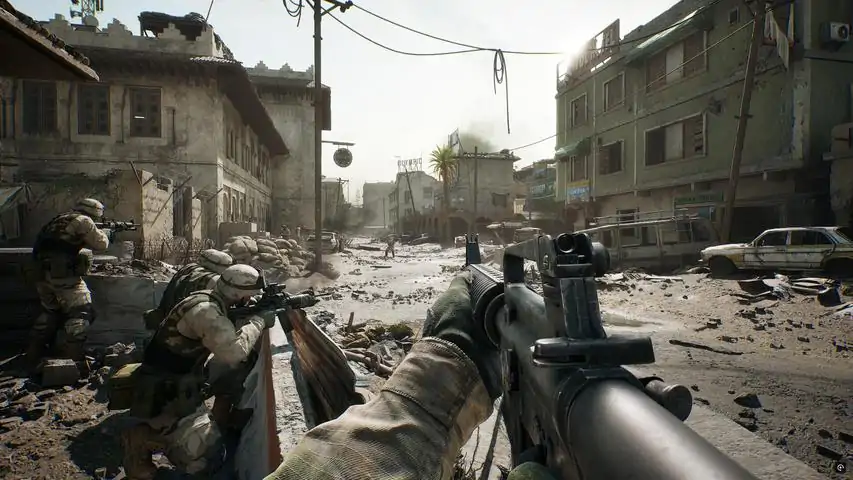
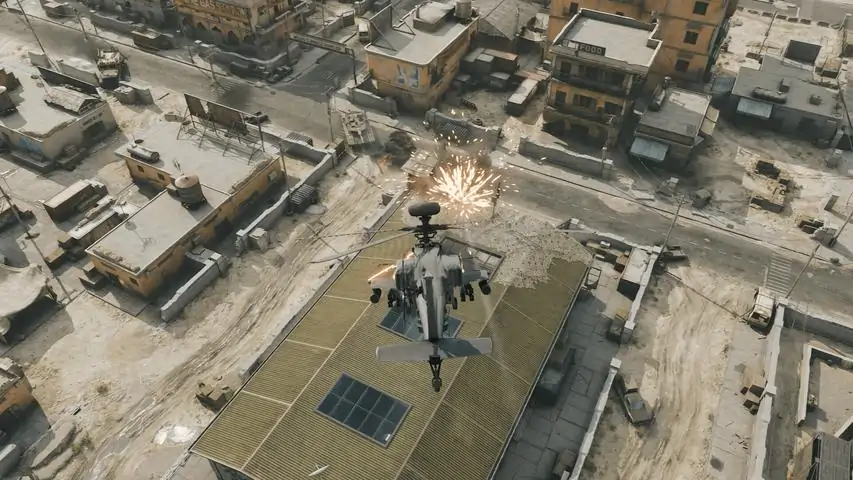
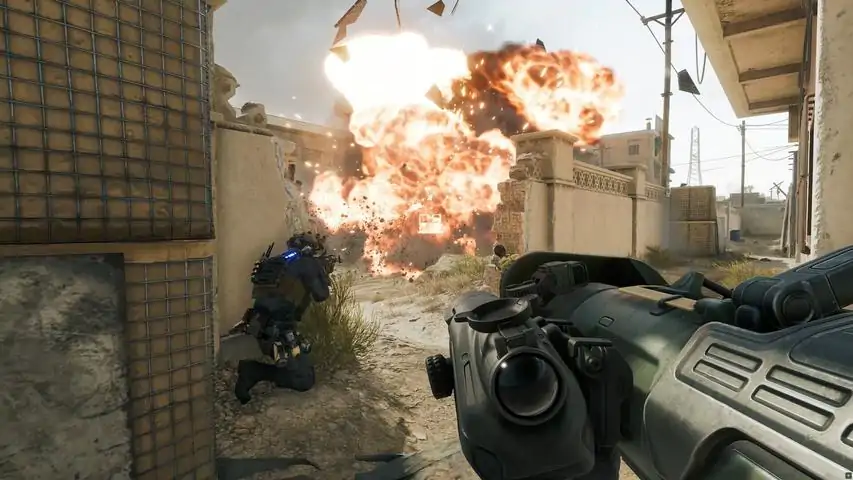
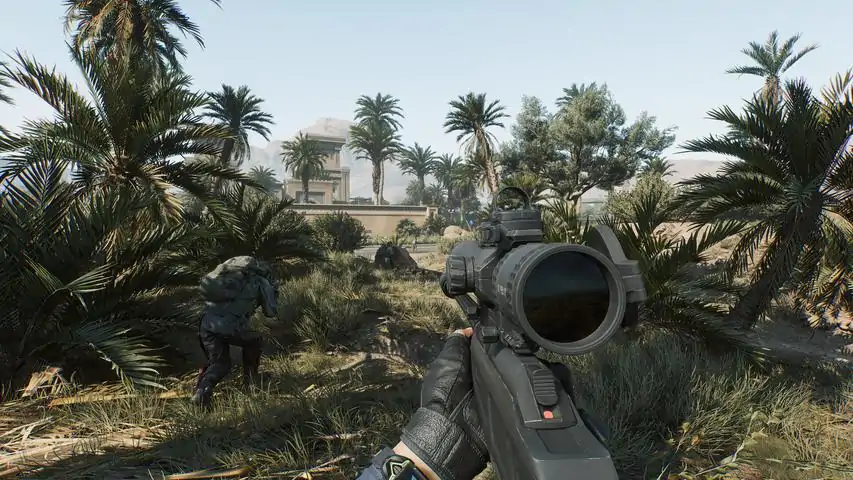
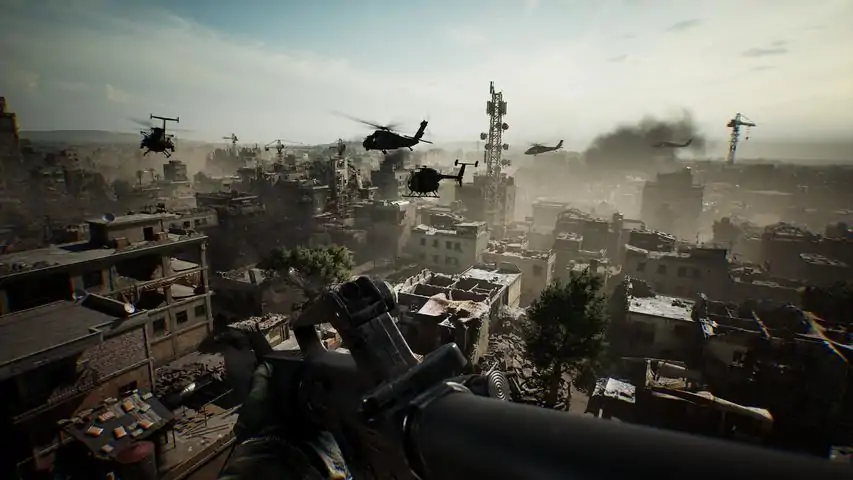
【阿萨拉】赛季活动&奖励关于游戏《三角洲行动》回归!经典系列回归,这款绝佳免费现代小队战术射击游戏将推出三个独特的游戏模式:- 全面战场:踏入海陆空战场,在史诗般的32v32大战场与敌人战斗,体验多种不同的载具与独特的战术装备。- 烽火地带:在《三角洲行动》的次世代撤离玩法中,你将与小队一起深入敌后,搜寻贵重物品、抗击敌对玩家,最后及时撤离危险地带。此外,PvE合作行动模式还设有具备挑战性的任务,以目标为导向,旨在挑战小队的极限。- 黑鹰坠落:以2001年的电影作品为蓝本进行重制的系列,玩家将扮演传奇三角洲行动干员,亲历经典战役。我们坚持不氪金也能变强的原则,游戏开发也会听取社区的反馈。公平游戏将是重中之重,我们有专门的G.T.I. Security反作弊团队主动锁定和清除作弊玩家,营造公平的游戏氛围。还要记住……“决不放弃任何一员”【写在最后的话,来自制作人Shadow】作为玩家:《三角洲特种部队》是我玩过的第一款射击游戏,它开启了我对射击游戏的热爱和梦想。我非常珍惜制作这款《三角洲行动》的机会,希望能让更多玩家体验到那种难忘的游戏乐趣。我想要新三角洲成为这个宏大的射击世界。作为制作人:我希望做出Unreal的极致表现,做到真正的跨端,能让全球玩家领略到丰富战术策略、有深度的角色、战场破坏、顶级动作……对得起“终极体验”的全平台战术射击称号。 希望您们和我一起,共同打造出这款属于所有三角洲玩家的《三角洲行动》。
游戏圈
共142条帖子
0770
2026-02-20 19:00:18 · 发布在 「三角洲行动 」
三角洲特种部队 性能修复
++ This guide are outdated for actual state of game ++ If you're experiencing FPS drops or stuttering in Delta Force, this guide is here to help. It offers a variety of options and solutions to optimize the game’s performance, including adjustments to graphic settings. With clear steps and practical advice, you’ll be able to get the most out of your gaming experience. *** Because of some ♥♥♥♥♥♥ players who doesn't respect the rules and want cheat in game, since 6/15/2025 the devs may ban you for 7 days if they judge that you're abuse their rules of security so do it at your own risk*** Anyway i let this guide on, if it can help or not ^^ =========== **The suggested adjustments may work differently depending on each user's setup. However, they are risk-free for your hardware and fully reversible. It's important to note that performance issues in Delta Force can also be caused by other factors, such as hardware limitations or other software consuming system resources.** Add Launch Options in Steam Note on DX12 Stability Recent updates have improved the game's stability with DirectX 12. On my hardware, I've observed that while the frame rate (FPS) is slightly lower by about 2–3 FPS compared to DirectX 11, the overall gameplay is smoother and more stable, with fewer fluctuations (resulting in a more stable 1% low). If you're using DX12 (default mode when no -dx11 command is added), the -useallavailablecores command may not be necessary. However, testing both configurations—with and without this command—is recommended. Depending on your setup, you might find that one option provides better stability or performance. Stick to the configuration that works best for your needs. How to Set Launch Options in Steam Navigate to your Library in Steam and locate Delta Force. 1. Navigate to your Library in Steam and locate **Delta Force**. 2. Right-click on the game and select **Properties**. 3. Under the **General** tab, find the **Launch Options** field. 4. Enter the following: -dx11 -useallavailablecores Additional Note: The -high Command If you'd like to prioritize the game in your system’s task manager, you can add the -high command to the launch options. This might help reduce stuttering and improve performance by allocating more CPU resources to the game. However, keep in mind it can impact other applications running in the background, which might lead to slower performance for those programs. Use it based on your needs and system setup. this will looks like this: -dx11 -useallavailablecores -high Disable AA via Engine.ini If you notice any unwanted changes, simply remove the line from the configuration file. Here’s how to disable it: 1. Right-click **Delta Force** and select **Properties**. 2. Go to the **Installed Files** tab and click **Browse**. 3. Navigate to the following folder: C: Program Files (x86) Steam steamapps common Delta Force Game DeltaForce Saved Config WindowsClient 4. Open the `Engine.ini` file with a text editor (e.g., Notepad). 5. Add the following lines at the end of the file: [/script/engine.renderersettings] r.PostProcessAAQuality=0 r.Tonemapper.Quality=0 (if the first line not work for you you can use the next one ) [SystemSettings] r.PostProcessAAQuality=0 r.Tonemapper.Quality=0 "Maybe you must set the file to read only for working" Howto: Right click on "Engine.ini" then check the "Read Only" and press "Apply" 6. Save and close the file. Fix Mouse Issues If you notice mouse smoothing or acceleration issues, follow these steps: 1. Right-click **Delta Force** and select **Properties**. 2. Go to the **Installed Files** tab and click **Browse**. 3. Navigate to the following folder: C: Program Files (x86) Steam steamapps common Delta Force Game DeltaForce Saved Config WindowsClient 4. Open the `Input.ini` file using Notepad. 5. Add the following lines after the first line ("[/script/engine.inputsettings]"): RawMouseInputEnabled=Enabled bEnableMouseSmoothing=False bViewAccelerationEnabled=False bUseMouseForTouch=True 6. Save and close the file. Graphic Settings advice If you're looking to fine-tune your graphics settings and aren't sure what to adjust, here’s what I optimize on my setup. You can use these settings as a base and tweak them to suit your needs for smoother gameplay and better enemy visibility. You will find here the settings i just tunned the other things is by default for me. Display Settings: Display Mode: Fullscreen ( less imput lag and better FPS in full screen ) Resolution: Native (e.g., 3840x2160) Refresh Rate: Max your monitor supports (e.g., 165Hz) V-Sync: Off Field of View (FOV): 110–120 Motion Blur: Off Weapon Motion Blur: Off Depth of Field: Off Sharpening: 65–70% Graphics Settings (Custom Preset): Graphics Style: Default Reflections: Low ( broken there no diff on ultra or low ) Ambient Occlusion: off ( it add shadows on the objects, the only valable options is off or Ultra, for me i put if off so i can see better, ppl hiding in shadows ) Texture Filtering: High ( i leave high for me, but impact is minimal if you have less Vram you can go to low or medium ) Particles: High( Low for best performance, this option is high impact on FPS, for me i use High average impac between low and high is actually arround 10 FPS ) Distortion: Low Scene Detail: High ( High or better Ultra ) Scene View Distance: High ( For snipers go high for the other stay at low ) Textures: High (or Medium if VRAM-limited) Actually for me i have nothiced zero diff between high and ultimate so it stay on high. Streaming: Ultimate ( On Ultimate, all textures are fully displayed with maximum detail. Dropping to Ultra slightly reduces texture quality. Below Ultra, some textures completely disappear (like fences, paintings, or cracks), and the lower the setting, the more visual details vanish. The difference in VRAM usage between Low and Ultimate is approx ~1GB, with a performance impact of about -1 to -2 FPS on my setup.) Global Illumination: Low Shaders: High Shadows: Low Shadow Map: Low Post Processing: Low Volumetric Fog: High ( if you want add some fog or dust stay on high or if you don't want it go low ) Animation Quality: Medium ( well here same thing, i don't know why they added this option, for me it change nothing you can go low or like me on medium ^^ ) DLSS = Quality Skip the Intro Videos If you want to skip the intro videos, follow these steps: 1. Locate **Delta Force**, right-click, and select **Manage** > **Browse Local Files**. 2. Navigate to this folder path: C: Program Files (x86) Steam steamapps common Delta Force Game DeltaForce Content Movies_HD 3. Delete these three files: V_logo_HD.bin V_logo2_HD.bin V_logo2_looping_HD.bin Done! The intro videos will no longer play. Optimizing Your Energy Plan for Maximum Performance If you want to optimize your PC's energy settings for better performance (for desktop only cuz if you use laptop it impact your battery), follow these steps: Open Command Prompt as Administrator: Press Windows + R to open the Run dialog. Type cmd in the box. Hold down Shift + Ctrl and press Enter to run Command Prompt as an administrator. Enable the Ultimate Performance Plan: In the Command Prompt window, type the following command and press Enter: powercfg -duplicatescheme e9a42b02-d5df-448d-aa00-03f14749eb61 Activate the Plan: Go to your Energy Settings (Control Panel > Power Options). Select the Ultimate Performance plan for optimal performance. This configuration ensures your PC operates at its maximum potential. Prevent the settings from resetting at each boot ( troubleshooting) If you experience abnormal game behavior where the settings are reset to default every time the game is launched. In this case, you should check your software that manages your GPU, either Nvidia app or AMD Catalyst, because depending on the settings you have chosen or not chosen ^^, the software may optimize games for you, and not always in a good way. Once the automatic optimization is disabled, your problem should be resolved. The ultimate alternative is to set the game files to read-only, but that being said, I’m not sure their anti-cheat system will appreciate that.
两全
2026-02-20 16:00:18 · 发布在 「三角洲行动 」
卸载指南
卸载游戏时,请记得同时移除反作弊保护程序!我制作了一个脚本,可以自动完成所有操作! 12月6日热修复 开发者似乎修改了卸载脚本,现在它也会卸载相关服务。 不再需要运行该脚本,但我会将其保留,以防有人需要。 理论上,它适用于任何存在“AntiCheatExpert”软件无法卸载问题的游戏。 我会保留该指南,以备将来有人需要。 手动卸载步骤: 1. 以管理员身份运行命令提示符。 2. 按下Windows键,输入CMD,然后点击“以管理员身份运行”。然后,在弹出窗口中点击“是”,并粘贴以下命令: sc delete ACE-GAME sc delete ACE-BASE sc delete "AntiCheatExpert Service" sc delete "AntiCheatExpert Protection" 接着运行以下命令: sc query ACE-BASE sc query "AntiCheatExpert Service" 检查是否有任何输出。如果有,重启电脑并再次运行这些命令。 最后,重启后运行命令后,导航并删除以下文件夹: C: Program Files AntiCheatExpert C: ProgramData AntiCheatExpert C: Windows System32 drivers 中的 ACE-BASE.sys 我制作了一个小脚本帮助你卸载,你只需新建一个文本文档,粘贴代码段,然后在弹出窗口中点击“保存”,将“保存类型”更改为所有文件。该内容为脚本代码,不属于游戏相关文本,无法按照游戏汉化规则进行处理,已删除。无法识别内容,已删除。运行此文件即可卸载反作弊保护程序。如果对代码有任何疑问,请向我咨询!我很乐意向你解释其工作原理。

下载233乐园APP

专心推荐好游戏

关于我们 · 联系我们 · 隐私政策 · 营业执照

侵权投诉 · 开发者中心 · 用户协议 · 免责声明

不良信息举报中心

纠纷处理及不良内容举报电话:

4006600910 (工作时间: 9:00-12:30,14:00-18:00)

北京市朝阳区启阳路4号院2号楼15层1803室

本公司产品适合10周岁以上玩家使用 未成年人家长监护

首页 / 三角洲行动

抵制不良游戏 拒绝盗版游戏

注意自我保护 谨防受骗上当

适度游戏益脑 沉迷游戏伤身

合理安排时间 享受健康生活

京ICP备18003564号-3

经营许可证编号:京B2-20181741

京公网安备:11010502052873

Copyright © 2025 233leyuan.com All Rights Reserved

北京龙威互动科技有限公司版权所有

热门游戏: 我的世界 | 三角洲行动 | 原神 | 王者荣耀 | 超自然行动组 | 蛋仔派对 | 和平精英 | 火影忍者 | 二重螺旋 | 英雄联盟 | 梦幻西游 | 明日方舟 | 斗罗大陆 | 光遇 | 鸣潮 | 无畏契约 | 模拟山羊3 | 樱花校园模拟器