


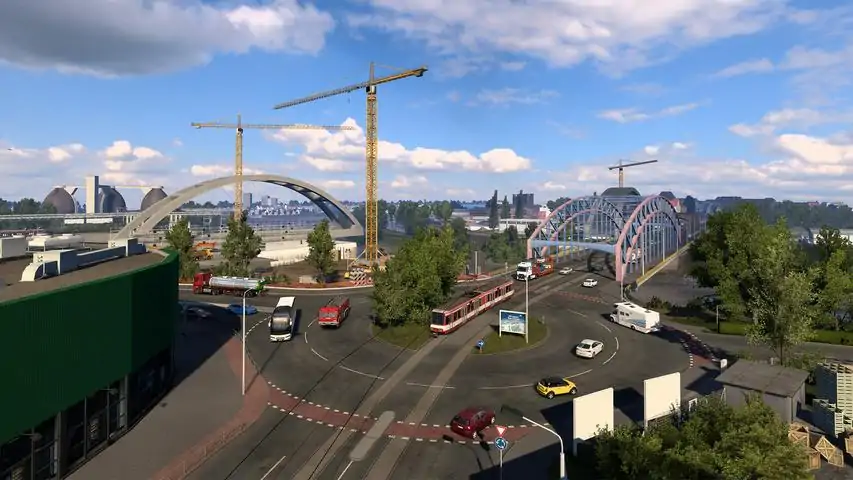

双显示器使用指南
本指南将介绍如何配置双屏显示设置。 简介 在本指南中,我将展示如何配置操作系统和游戏以使其在双屏环境下正常运行。由于当前版本的游戏已不再支持DX9,本指南已于2021年年中更新。 让我们开始吧。 本指南包含两个主要部分。 第一部分是将两个屏幕合并为一个虚拟屏幕,因为游戏(目前)无法识别多个屏幕。 第二部分是调整摄像头,使方向盘不会位于两个屏幕之间。 以我为例,主屏幕显示驾驶舱及左侧后视镜,副屏幕显示驾驶舱右侧部分及右侧后视镜。 效果如下:
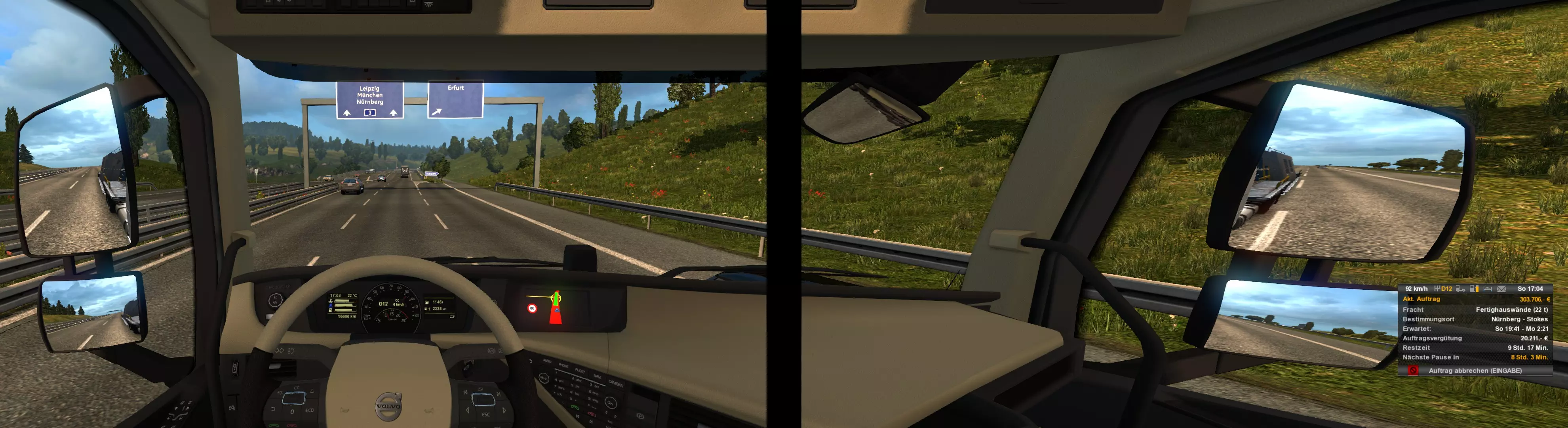
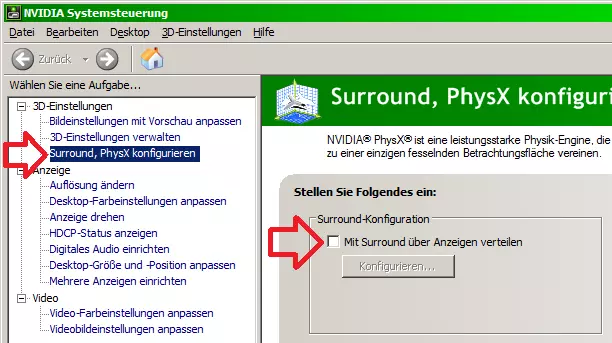
步骤1 - 虚拟屏幕 正如我之前所说,第一步是将两个屏幕合并为一个虚拟屏幕。 在我制作本指南的过去,这款游戏运行在DX9上。对于DX9,有一个简单的解决方案可以将多个屏幕合并为单个应用程序使用——Soft TH[www.softth.net]。 遗憾的是,游戏的最新版本不支持DX9。不过,我会保留旧章节供仍在玩旧版本的玩家参考。 现在唯一的方法是使用Surround(英伟达)或Eyefinity(AMD),详见选项B。 我会说明如何针对英伟达显卡实现自动化设置。 选项C已移除,现并入选项B,因为它依赖于英伟达Surround。 所有选项都有一个共同点:将屏幕合并为一个大屏幕后,需要在游戏内更改分辨率。步骤1,选项A - Soft TH - 已弃用 我在本指南中保留此选项是为所有游玩《欧洲卡车模拟2》旧版本的玩家准备的。使用此功能需要以DX9模式启动游戏! 感谢Mr Stevens提及这个出色的工具。 你可以从Soft TH官网[www.softth.net]获取“最新”版本。 它仅更改单个应用程序的屏幕显示。 你必须将d3d9.dll文件放入可执行文件所在的同一文件夹中(例如:SteamApps common Euro Truck Simulator 2 bin win_x86)。 以DirectX 9模式启动游戏,然后再次退出游戏。 此时会生成一个新文件“config.SoftTHconfig”。 使用你选择的任何文本编辑器对其进行编辑。 我有两台24英寸屏幕,运行高清分辨率,边框厚度为1.8厘米。我用尺子测量了屏幕之间的间隙,将尺子放在其中一个屏幕上,以像素为单位进行测量,我的情况是120像素。我的最终分辨率为3960x1080(3960=1920+120+1920)。第二个屏幕从2040像素处开始(1920+120)。Soft TH有一份很棒的指南[www.softth.net],介绍如何计算所有这些数值。我的配置: [main] renderResolution=3960x1080 nonlocalFormat=RGB16D keepComposition=0 smoothing=1 debugD3D=0 zClear=1 vsync=0 tripleBuffer=0 screenshotFormat=jpg dllPathD3D9=auto dllPathDXGI=auto dllPathD3D11=auto [overrides] forceResolution=0 antialiasing=0 processAffinity=0 FOVForceHorizontal=0 FOVForceVertical=0 [debug] compatibleIB=0 compatibleTex=0 compatibleVB=0 enableVBQuirk=0 [head_primary] sourceRect=0,0,1920,1080 screenMode=1920x1080 [head_1] devID=1 sourceRect=2040,0,1920,1080 transportResolution=1920x1080 transportMethod=auto noSync=0 fpsLimit=0 步骤1,选项B - NVIDIA Surround(英伟达环绕)/ AMD Eyefinity(AMD宽域) 这是将两个屏幕合并为一个虚拟屏幕的唯一可靠方法。我只拥有NVIDIA显卡,所以无法告知你在哪里设置Eyefinity。对于NVIDIA Surround(英伟达环绕显示),请打开NVIDIA控制面板。打开“Surround, PhysX”(环绕显示、物理加速)类别。通过勾选复选框启用环绕显示:
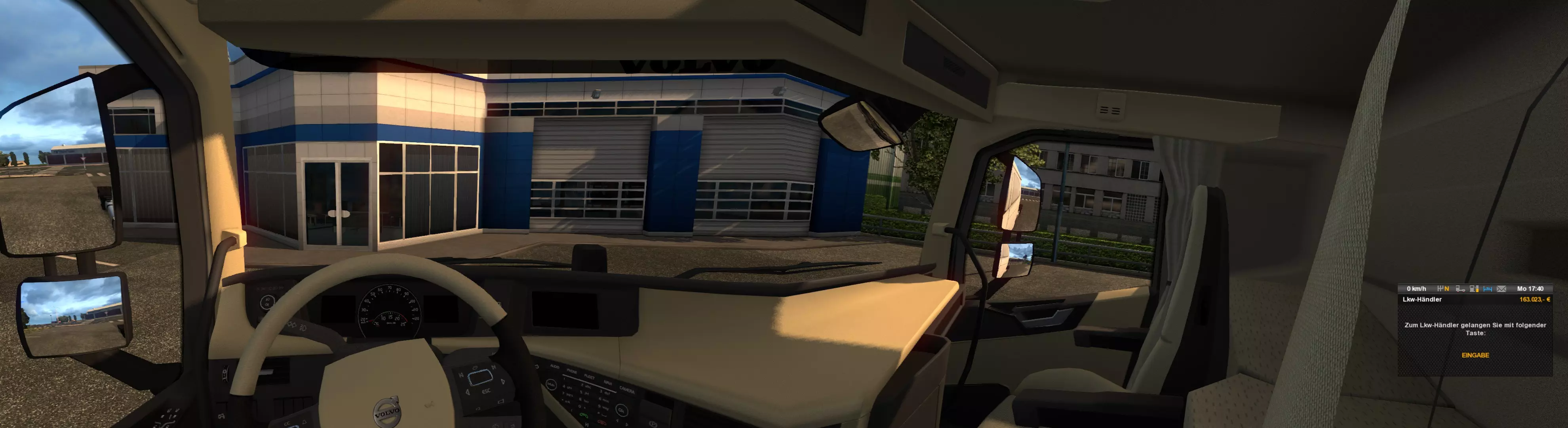
在高级设置中,你可以像选项A那样添加边框。只有当你计划使用单一视图(步骤2中的选项A)时,才需要边框。 如前所述,我不清楚AMD的设置方法,但我猜应该不会太难。 警告!这会弄乱你的桌面。它会移动你的图标,也会移动你的应用程序。全屏模式会横跨两个屏幕,这除了极少数特定游戏外,并不适合其他任何场景。我对此非常反感。 步骤1,选项B扩展 - 显示管理器:为避免全天候运行NVIDIA Surround带来的问题,可以使用显示管理器。该管理器会在你启动游戏时启用NVIDIA Surround,并在游戏关闭后立即切换回默认的桌面设置。它适用于任何DX版本、OpenGL以及任何图形API。前段时间我提到过Helios Display Manager[github.com],但开发者当时比较忙,产品尚未完成。另一个选择是Helios的分支版本DisplayMagician[github.com]。我测试过DisplayMagician,它运行良好。 这两款显示管理器都仅支持NVIDIA Surround。 Display Magician现在已支持NVIDIA和AMD显卡! 这两款显示管理器(DM)都有使用指南。归根结底,步骤如下: 安装显示管理器 在显示管理器中将当前桌面保存为新配置文件 在NVIDIA控制面板中启用Surround环绕显示 将Surround环绕显示保存为显示管理器中的第二个配置文件 切换回默认配置文件(可选) 在显示管理器中添加新快捷方式 选择游戏——DisplayMagician可以启动任何Steam游戏,只需从列表中点击一个即可 将其与Surround显示配置文件关联 将快捷方式保存到桌面——准备启动 步骤2 - 多显示器配置 现在我们的两个屏幕上都有画面了。但遗憾的是,在默认设置下,游戏会将视角居中,导致方向盘被分割在两个屏幕上。 首先,我们必须启用自定义多显示器配置。 进入你的用户ETS2文件夹(即保存游戏存档等文件的文件夹),用文本编辑器打开“config.cfg”。找到“r_multimon_mode”这一行,并将其值设置为4。其他模式在《欧洲卡车模拟2》多显示器支持[www.eurotrucksimulator2.com]中有说明。 启动游戏一次以生成“multimon_config.sii”文件。 根据屏幕的摆放方式,我们可以选择不同的设置。 在文本编辑器中打开同一文件夹下的“multimon_config.sii”文件。 步骤2,选项A - 单视图/摄像头 - 平面屏幕 在此模式下,我们会大幅增加视野(FOV)并将摄像头移至第一个屏幕的中心。 效果如下:
长话短说,这是我的最终配置: SiiNunit { multimon_config : _nameless.0000.0000.0472.B1D0 { normalized_ui_x: 0.000000 normalized_ui_width: 0.500000 monitors: 1 monitors[0]: _nameless.0000.0000.06F3.CE30 } monitor_config : _nameless.0000.0000.06F3.CE30 { name: main normalized_x: 0.000000 normalized_y: 0.000000 normalized_width: 1.000000 normalized_height: 1.000000 horizontal_fov_relative_offset: 0.000000 vertical_fov_relative_offset: 0.000000 heading_offset: 0.000000 pitch_offset: 0.000000 roll_offset: 0.000000 camera_space_offset: (0.000000, 0.000000, 0.000000) horizontal_fov_override: 145.000000 vertical_fov_override: 60.000000 frustum_subrect_x: 0.333000 frustum_subrect_y: 0.000000 frustum_subrect_width: 0.666000 frustum_subrect_height: 1.000000 render_interior: true render_exterior: true } } 基本上,我创建了一个具有超高视野(FOV)的视图用于3个屏幕,并使用“frustum_subrect”参数只截取中间和右侧屏幕。 步骤2,选项B - 双视图/摄像头 - 倾斜屏幕 为防止视图远端出现“鱼眼”效果,可以设置第二个视图。如果第二个屏幕是倾斜的,并且你以直角观看它,这种方式效果最佳。
你可以一直从右侧窗户向外看。另外,你需要调整右侧后视镜,因为你能看到很多自己卡车的部分。 SiiNunit { multimon_config : _nameless.04A6.56A8 { normalized_ui_x: 0.000000 normalized_ui_width: 1.000000 monitors: 2 monitors[0]: _nameless.0714.5590 monitors[1]: _nameless.0714.5618 } monitor_config : _nameless.0714.5590 { name: center normalized_x: 0.000000 normalized_y: 0.000000 normalized_width: 0.500000 normalized_height: 1.000000 horizontal_fov_relative_offset: 0.000000 vertical_fov_relative_offset: 0.000000 heading_offset: 0.000000 pitch_offset: 0.000000 roll_offset: 0.000000 camera_space_offset: (0.000000, 0.000000, 0.000000) horizontal_fov_override: 90.000000 vertical_fov_override: 0.000000 frustum_subrect_x: 0.000000 frustum_subrect_y: 0.000000 frustum_subrect_width: 1.000000 frustum_subrect_height: 1.000000 render_interior: true render_exterior: true } monitor_config : _nameless.0714.5618 { name: right normalized_x: 0.500000 normalized_y: 0.000000 normalized_width: 0.500000 normalized_height: 1.000000 horizontal_fov_relative_offset: 0.000000 vertical_fov_relative_offset: 0.000000 heading_offset: -90.000000 pitch_offset: 0.000000 roll_offset: 0.000000 camera_space_offset: (0.000000, 0.000000, 0.000000) horizontal_fov_override: 90.000000 vertical_fov_override: 0.000000 frustum_subrect_x: 0.000000 frustum_subrect_y: 0.000000 frustum_subrect_width: 1.000000 frustum_subrect_height: 1.000000 render_interior: true render_exterior: true } } 步骤 2,选项 C - 混合模式 - 屏幕呈 40° 角 我对这两个选项都不太满意。 在我的设备设置下,这两个选项看起来都不太好:两个屏幕呈 40° 角。 我想使用选项 B,同时将相机仅旋转 40° 而非 90°。 这样的话,我就能在两个屏幕上看到很多内容了。因此,我必须将右侧屏幕进一步向右偏移。我利用了选项 A 中的知识来实现这一点。这就是解决方案:
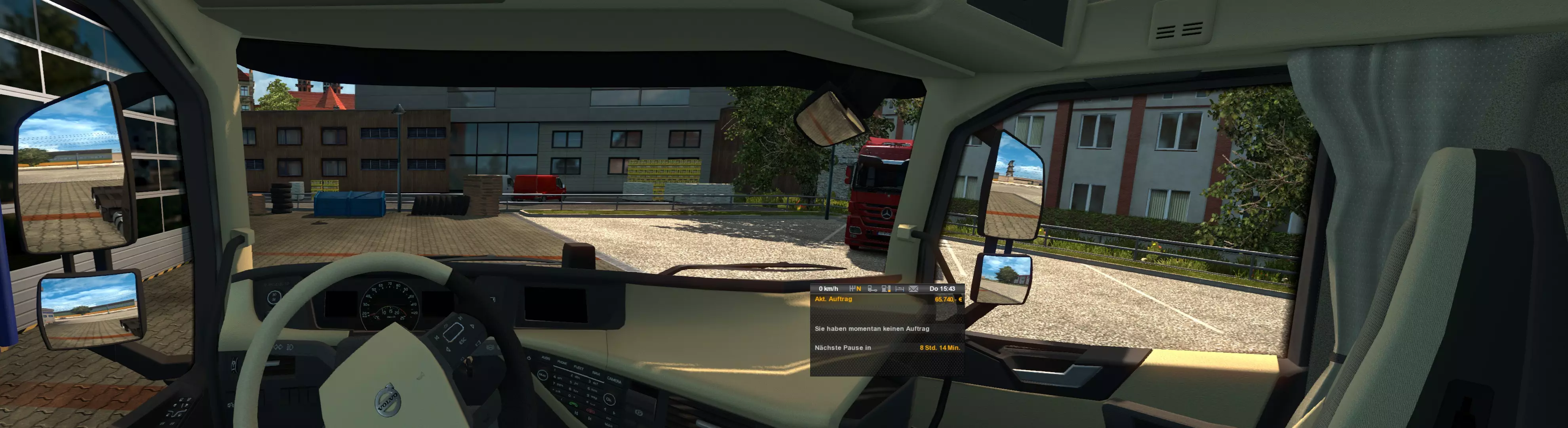
It took some serious math. Then it took some more math since I had some errors in my calculation. At the end I had my final values. This is my current configuration: SiiNunit { multimon_config : _nameless.04A6.56A8 { normalized_ui_x: 0.000000 normalized_ui_width: 0.625000 monitors: 2 monitors[0]: _nameless.0714.5590 monitors[1]: _nameless.0714.5618 } monitor_config : _nameless.0714.5590 { name: center normalized_x: 0.000000 normalized_y: 0.000000 normalized_width: 0.500000 normalized_height: 1.000000 horizontal_fov_relative_offset: 0.000000 vertical_fov_relative_offset: 0.000000 heading_offset: 0.000000 pitch_offset: 0.000000 roll_offset: 0.000000 camera_space_offset: (0.000000, 0.000000, 0.000000) horizontal_fov_override: 93.200000 vertical_fov_override: 60.000000 frustum_subrect_x: 0.000000 frustum_subrect_y: 0.000000 frustum_subrect_width: 1.000000 frustum_subrect_height: 1.000000 render_interior: true render_exterior: true } monitor_config : _nameless.0714.5618 { name: right normalized_x: 0.500000 normalized_y: 0.000000 normalized_width: 0.500000 normalized_height: 1.000000 horizontal_fov_relative_offset: 0.000000 vertical_fov_relative_offset: 0.000000 heading_offset: -40.000000 pitch_offset: 0.000000 roll_offset: 0.000000 camera_space_offset: (0.000000, 0.000000, 0.000000) horizontal_fov_override: 115.290000 vertical_fov_override: 43.500000 frustum_subrect_x: 0.536650 frustum_subrect_y: 0.000000 frustum_subrect_width: 0.463350 frustum_subrect_height: 1.000000 render_interior: true render_exterior: true } } I had some issues with my right mirror, not being able to adjust it to how I wanted it. No issues with current game version, so that was fixed! For custom setups I've published my spreadsheet with the calculations: https://docs.google.com/spreadsheets/d/1LNAIA2uqw-3_Zj2zY5lnxc8n9qXvwfresYllwtJziH8 Green are input fields, orange are outputs. Right hand wheel The settings above are for most part of europe where the steering wheel is on the left side. For an UK truck, you probably want to mirror the settings. For Step 2 you have to mirror the settings. For example option C (only different settings listed): monitor_config : _nameless.0714.5590 { normalized_x: 0.500000 } monitor_config : _nameless.0714.5618 { name: left normalized_x: 0.000000 heading_offset: 40.000000 frustum_subrect_x: 0.000000 } Use this example if you want to know what you need to change if you are using your own config. To make it easier, that's how the finished config should look like: ( UI moved to right screen ) SiiNunit { multimon_config : _nameless.04A6.56A8 { normalized_ui_x: 0.500000 normalized_ui_width: 0.500000 monitors: 2 monitors[0]: _nameless.0714.5590 monitors[1]: _nameless.0714.5618 } monitor_config : _nameless.0714.5590 { name: center normalized_x: 0.500000 normalized_y: 0.000000 normalized_width: 0.500000 normalized_height: 1.000000 horizontal_fov_relative_offset: 0.000000 vertical_fov_relative_offset: 0.000000 heading_offset: 0.000000 pitch_offset: 0.000000 roll_offset: 0.000000 camera_space_offset: (0.000000, 0.000000, 0.000000) horizontal_fov_override: 93.200000 vertical_fov_override: 60.000000 frustum_subrect_x: 0.000000 frustum_subrect_y: 0.000000 frustum_subrect_width: 1.000000 frustum_subrect_height: 1.000000 render_interior: true render_exterior: true } monitor_config : _nameless.0714.5618 { name: left normalized_x: 0.000000 normalized_y: 0.000000 normalized_width: 0.500000 normalized_height: 1.000000 horizontal_fov_relative_offset: 0.000000 vertical_fov_relative_offset: 0.000000 heading_offset: 40.000000 pitch_offset: 0.000000 roll_offset: 0.000000 camera_space_offset: (0.000000, 0.000000, 0.000000) horizontal_fov_override: 115.290000 vertical_fov_override: 43.500000 frustum_subrect_x: 0.000000 frustum_subrect_y: 0.000000 frustum_subrect_width: 0.463350 frustum_subrect_height: 1.000000 render_interior: true render_exterior: true } } Links, Source http://steamcommunity.com/app/227300/discussions/0/458604254443869880/ http://steamcommunity.com/app/270880/discussions/0/458605613410501954/ http://steamcommunity.com/app/227300/discussions/0/618459931319837947/ http://www.softth.net/ http://www.softth.net/forum/index.php?topic=2966.0 http://www.eurotrucksimulator2.com/multimon_config.php https://github.com/falahati/HeliosDisplayManagement https://github.com/terrymacdonald/DisplayMagician
2026-02-11 08:30:47 发布在  Euro Truck Simulator 2
说点好听的...
收藏
0
0