


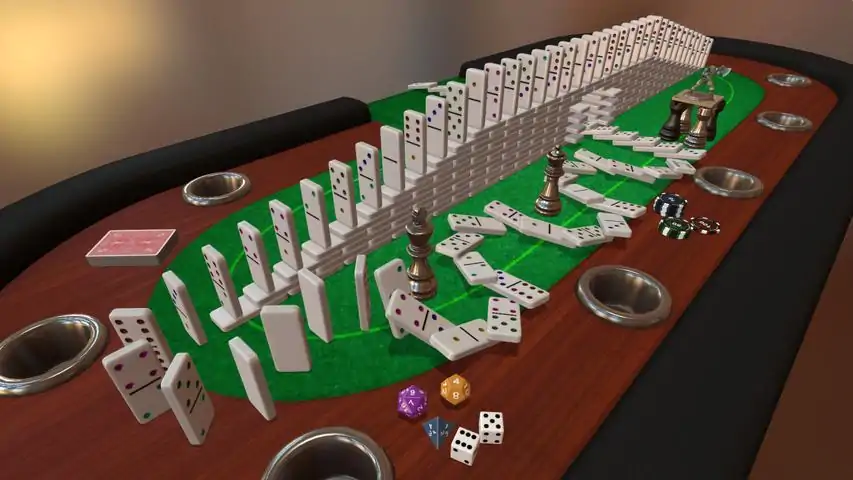

桌面模拟器速成课程
这是一套视频速成课程,能让你从对游戏一窍不通的纯新手,在约2小时内通过《桌面模拟器》模组快速制作出自己的游戏原型。 关于本教程 我教授一些游戏设计课程,由于新冠疫情,我不得不将所有作业转移到线上。作为一名狂热的《桌面模拟器》模组制作者,让学生使用《桌面模拟器》进行快速原型制作是显而易见的选择。不过,由于我的部分课程面向纯新手——其中有些人甚至只选修了这一门游戏设计课——我需要一套快速教程系列,帮助学生从对游戏一无所知,快速掌握在《桌面模拟器》中制作游戏原型的能力。我认为我整理的这个系列内容很好地达成了预期效果,所以想分享给社区,说不定其他人也会觉得有趣。 第一集 - 设置语音合成(TTS) 这部分主要面向新手。首先从安装Steam开始。如果你是资深玩家,建议直接进行语音合成(TTS)教程,或者查看视频的YouTube时间戳,挑选你可能不了解的主题。但如果你完全是游戏新手,这里就是你的起点。 学习目标:在电脑上安装Steam和《桌面模拟器》。熟悉《桌面模拟器》的操作控制。 时间戳:0:12 为什么要学习桌面模拟器?1:01 通过Steam安装《桌面模拟器》 2:52 关闭烦人的音乐 3:10 选择使用何种输入设备 3:56 在《桌面模拟器》与其他应用间切换 4:42 修复游戏加载时资源无法加载的问题 5:40 加入他人主持的《桌面模拟器》游戏会话 6:06 创建自己的游戏会话并寻找可玩游戏 7:08 订阅DrBo6的《桌面模拟器》教程游戏 7:58 加载教程房间 8:26 任务:完成官方教程
Episode 2 - Manipulation Objects While the Tabletop Simulator tutorial provides you with most of the basic controls needed to play a game, you will quickly find that there is a lot more to it. This video features a training room that will help you practice the skills that you used in the tutorial, while showing you some more advanced yet commonly used features of Tabletop Simulator. While the video provides a detailed look into each one of its exercises, you are welcome to skip it and move directly to the room. As always, you can use the timestamps in the YouTube description to skip to specific sections. Learning GoalsSetting up players and solving mistakes Manipulating and duplicating cards, decks and dice Picking up multiple objects Editing common object properties such as states, rotational values, color tints, etc. Playing games with hidden information Understanding the camera perspectives Communicating through interface tools such as lines and ping Timestamps0:27 Loading DrBo6's TTS Tutorial room again. 0:56 Moving around with middle mouse 1:32 Zooming with ALT and M 2:12 EXERCISE 1: Assigning player colors and seating 2:54 Spectators and game masters 3:44 EXERCISE 2: Manipulating cards and decks 5:34 EXERCISE 3: Picking up multiple objects 7:00 EXERCISE 4: Shuffling, drawing and dealing 7:37 Player hands and hand visibility 8:36 Drawing and dealing cards 10:55 EXERCISE 5: Duplicating items with copy-paste 11:52 Adding the value of multiple dice 12:10 EXERCISE 6: Grouping and searching 13:24 Searching a container 13:50 EXERCISE 7: Locking objects 14:37 EXERCISE 8: Drawing on Objects 16:29 EXERCISE 9: States and colors 18:40 EXERCISE 10: Hidden zones 20:38 EXERCISE 11: Whispering to other players 21:40 EXERCISE 12: Blindfold and perspective 22:12 Changing the camera perspective 23:45 EXERCISE 13: Pinging and lines 24:19 Lines and calculating distance between objects 24:54 EXERCISE 14: Undo 25:15 Table flip 26:25 ASSIGNMENT: Load a game and play it Episode 3 - Collaborating as a Group Tabletop Simulator is designed for social interaction. After all, it mimics the inherently collective experience of playing board games as well as it possible can in an online environment. Unfortunately, this focus on multiplayer does not extend to its creative tools. As a tool for making games, Tabletop Simulator is a mostly solitary one, and there are a few caveats for any group attempting to build a game collaboratively. This video details how collaboration in Tabletop Simulator is possible and offers a step-by-step guide towards collaborative online game design in Tabletop Simulator that is essential to complete some of the assignments that are part of this course. Learning GoalsConnecting to your colleagues on Steam Hosting a Tabletop Simulator server and allowing others to collaborate Downloading better tables to create Saving your work Efficient collaboration with a group Timestamps00:27 Adding friends on Steam 01:15 Steam chat, voice chat and Steam groups 1:57 Creating an online server and inviting friends 5:30 Seating, becoming the game master and promoting collaborators 6:20 Joining a public or a friends-only server 7:47 Setting up the room for collaboration 8:35 Downloading custom tables from the TTS workshop 10:37 Creating some assets to make a game with 12:09 Saving your creation 13:26 DrBo6's Tabletop Simulator Collaboration Guide 13:40 Initial Setup 14:45 JSON and PNG files 16:08 Procedure after working on your mod 17:28 Procedure before comtinuing work 18:35 Summary Episode 4 - Playing Paperback This is a bit of a weird episode. I recorded it at a later time since some of my students were still struggling to actually play a game. To fix that, I made a video in which I show them how to play the first game that they are required to play for my class, Tim Fowers' excellent deck builder Paperback[www.fowers.games]. Learning GoalsLearn to play a game of Paperback Timestamps0:20 Setting up the room 1:13 Loading the mod 2:26 How to find the rules in the mod 2:53 Getting the starter decks 3:13 Shuffle the decks 3:28 Drawing 5 cards simultaneously 4:45 Wildcards and scoring points 4:58 Buying cards with the points 5:30 The common card 5:45 Victory points 6:26 Chloe's first turn 8:12 Selecting your entire hand 11:04 When your deck runs 12:35 Chloe uses a P-card 13:10 Bob uses an N and an ES-card. Episode 5 - Assets (and Where to Get Them) Whether you want to build a board game, design a physical game or create a paper prototype for a video game, you will often need assets, components of objects to capture the game state and communicate relevant information to your players. Thankfully, Tabletop Simulator has many options for all of the above, and it even adds a wonderful physics engine to them as well. Learning GoalsCreating a game board Importing your images into Tabletop Simulator for cards, decks and figurines Adding custom 3D models Understanding the difference between local and cloud assets Create the DrBo6 Custom Assets bag as a saved object Combining 3D meshes with the attach tool Timestamps0:53 Overview of the components 1:31 Game boards and grids 3:22 Getting custom assets from other games on TTS 4:41 Making custom 2D assets of your own 9:59 Importing custom 3D models (with Blender) 10:39 DrBo6's Custom Assets Pack 14:00 Using saved objects to move assets across game rooms 15:04 Uploading custom images and meshes to your own Steam cloud 15:27 Combining assets with the attach tool Episode 6 - Creating a Game Once you have completed the conceptual design of your Tabletop Simulator game, you are ready to dress up your game room to make it look attractive and clearly communicate the game's rules and its components' affordances to your players. This tutorial will guide you through this process, after which it will show you how to publish the first version of your game to the Tabletop Simulator workshop. Learning GoalsPositioning game objects precisely Setting up a snapping system Communicating the game rules to your players Uploading your mod to the Tabletop Simulator workshop Visibility settings for mods Timestamps0:35 A look at a completed game (Dags of War) 1:48 General snapping using the grid 2:50 Detailed snapping with the snap tools 3:59 Precise positioning with the gizmo tools 7:58 Placing snapping points precisely and attaching them to objects 13:54 Adding information for your players (with the note, notebook and text tool) 15:29 Creating a rulebook in TTS using states 18:41 Uploading your game to the TTS Workshop 21:57 Setting the visibility of your mod 22:15 Getting the page URL in the Steam overlay to share your game Episode 7 - Programming in Tabletop Simulator A lot of Tabletop Simulator's features are about trying to recreate the experience of playing board games in a virtual setting. However, when it comes to its built-in scripting capabilities, Tabletop Simulator leverages the processing power of computers to create board game experiences that you would not be able to do in the offline world. Some mods features scripts that will do the table setup in mere seconds, while other mods have rudimentary computer opponents built in. In any case, the programming aspects of Tabletop Simulator are part of what makes the software special, and no tutorial series would be complete without addressing them. However, this class is not a programming class and its scope and time frame prevent me to go in-depth into programming Tabletop Simulator. This video is therefore just an introduction on how you can add code to Tabletop Simulator, with some helpful tips towards the end for those interested in giving it a closer look. Learning GoalsAdding code to your Tabletop Simulator mod to optimize gameplay Knowing where to find the unofficial API documentation for Tabletop Simulator Joining the online Tabletop Simulator community of Discord Timestamps1:04 Installing Atom from Atom.io 1:46 Importing LUA scripts in Atom 2:31 onLoad() and onUpdate() 3:24 The official documentation 3:40 The unofficial documentation (by the TTS community) 5:16 Start of the improvised coding example 10:44 Creating a button with createButton() 18:29 Printing "Hello World" when pressing the button 19:43 Accessing the deck of cards using its GUID 22:08 Shuffling a deck and dealing cards using code 24:17 Making a second button without losing our work 26:41 Taking a card from the top of the deck and moving it 29:19 Tip #1: Everything in TTS mods is open source 30:43 Tip #2: The difference between objects and containers 31:42 Tip #3: Don't try to turn a TTS mod into a video game 32:19 Tip #4: Don't put all your code in the onUpdate() main loop 33:05 Tip #5: Get a LUA tutorial and learn about LUA tables 33:25 Tip #6: Make good use of the GMNotes field 33:58 Tip #7: LUA can parse the JSON files of every object 34:54 MrStump's Tabletop Simulator Tutorials 36:01 Where to get help for TTS coding online Episode 8 - Promoting and Submitting The final video in this series recaps how to get your game on the workshop and how to promote your game so that people can find it. Learning GoalsSubmit your game to class Timestamps00:28 Uploading your game to the steam workshop (recap) 01:33 Using prefixes for your cloud manager files 02:53 Changing the visibility so people can find your mod 03:02 Getting people to play your mod 05:30 Submitting your games to class Final Remarks I hope the series was helpful for you! To wrap everything up, I wanted to add some quick notes in case you might be interested in more of my work. Some of my ModsAs I mentioned in the intro, I enjoy modding TTS and I use it to prototype my own games. Some of my mods might be inspiring if you are looking to learn more. My Dags of War mod was made as I learned everything I needed to make this tutorial series and I commented it heavily. If you want to see some scripting in action, it is a good resource. My Rising Sun Ultimate Edition mod uses some scripts made by a third party, but I also added my own code for a force calculator and even a utility-based AI. I am not really a programmer, but I do think that it is a cool feature worth checking out if you are into scripting TTS. Other CoursesI am putting more and more of my classes fully online and on YouTube. If you are interested in learning about how to make applied games - games for non-entertainment purposes - then check out my Applied Game Design series. This is actually the class for which I made this TTS tutorials. Other GamesFinally, if you made it all the way down here, I am sure you don't mind that I do a quick plug for my game Brukel. It's a first-person exploration game based on the actual memories of my 92-year-old grandmother, told to players in her own voice. It has nothing to do with Tabletop Simulator, but I am really proud of it. And looking at the thumbnail, I am pretty happy I got rid of that bun. Yikes... Anyways, thanks for reading and checking out the tutorial!
桌面模拟器速成课程
2026-02-13 10:00:35 发布在  Tabletop Simulator


说点好听的...
收藏
0
0