换一换
换一换 




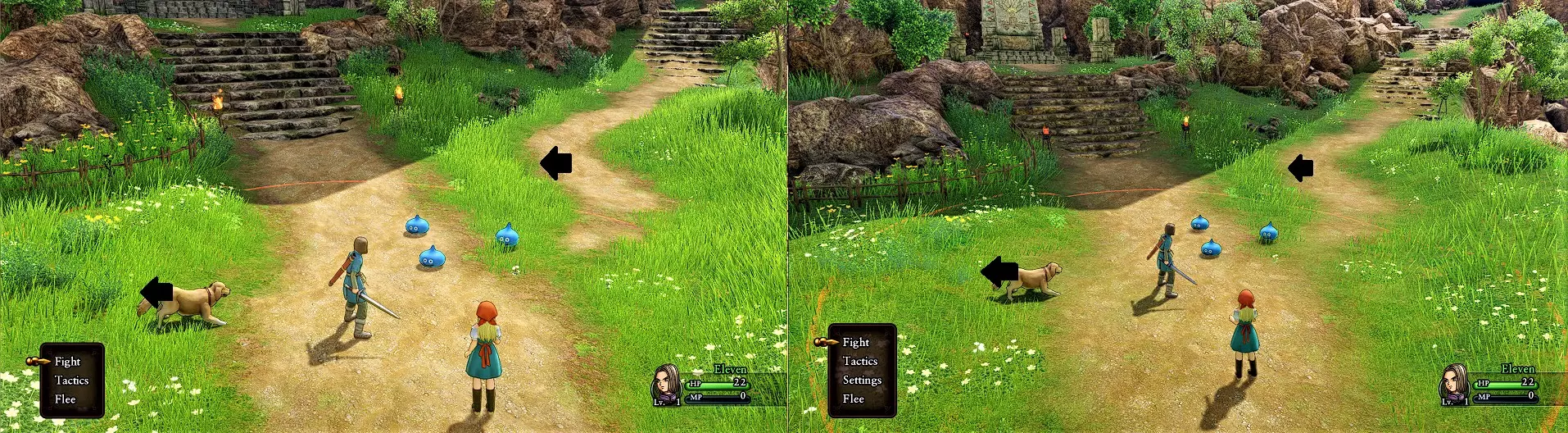
☆━━━━━━━━━━━━━━━━━━━━━━━━━━━━━━━━━━━━━━━━━━━━━━━━━━☆ I've been tinkering with both the in-game and my pc settings trying to fix a minor ( but annoying) lag/stutter issue i had while i was playing and ,since i managed to solve the issue, i've decided to make this short ( but very clear/informative) guide to help out people that are experiencing the same issue and are currently unable to enjoying this great game as it was intended ( without headaches). Please remember to drop a like if this guide helped you smooth your experience. A like, favourite or a share helps increasing the guide's visibility so it can reach more people in need. Right, enough with the intro and let's just get into it. ☆━━━━━━━━━━━━━━━━━━━━━━━━━━━━━━━━━━━━━━━━━━━━━━━━━━☆ Disclamer Let's make absolutely clear that i found these optimal settings/ fixes while fiddling with the Nvidia control panel, so this guide is strictly reserved for Nvidia users . There might also be other ways to fix this, but i can testify that ,after tinkering for a while with all the in-game graphics and display settings, i could not find a single in-game setting combo that could have neither bettered the fps drop & stutters problem. These might also help you play the game decently if you are just below the minimum requirements but i actually haven't tested yet so just take it "as is". If any of these settings don't work for you specifically it might be due to different hardware, specs etc... I've also added a short list of minimum to recommended requirements to play the game smoothly in the next section. Thanks to these setting listed in my guide i've , personally, turned a eye-hurting experience into a very smooth and enjoyable one. > Do however, take note that the game might still occasionally lag in big crowded cities only during your first visit. i actually experienced massive lag myself the first time i visited Gallopolis but the next time i loaded the game, the lag was completely gone, i'm also pretty sure it wasn't due a problem in my own hardware, windows updates, open windows on the background or the duration of my playing session ( a heated up pc is usually can be a cause for in-game lag) because i could exit the city and i had 60 constant fps ( like normal) but re-entering the city would still lead to massive lag, which suggests it's not specifically an issue on my end, the game might behaving like this ONLY on your first visit, because it's probably poorly optimized and it just tries to load everything together immediately, leading to that massive first-time lag. No matter how many times i reload or exit ( or the game) and re enter the city now, it still won't lag, so i'm lead to believe this strange behavior might be just the game " working as intended". I'll update this if something if this strange occurrence happens in the next big city too. I would also actually appreciate your could leave your feedback/comment on how well these settings work on a high-end pc Edit: I've reached Sniflheim ( i'm basically side-tracking to get all the orbs instead of following the normal intended flow of the game, because that's just how i play dragon quest) And i've never, ever had any lag or slow performance issues again. So far i've noticed that i'm only getting some very rare frame/fps skips ( half a second jump) when i partake in very long/extended play sessions, so it's very possible that this happens due to me having a old pc/overheating issues slowing it down, not the game itself. So if you're over ( even barely) the hardware requirements it shouldn't be even ever be an issue for you. After applying my own settings ( since the start of my first playthrough) i've never lagged again, even returing to those 2 cities and discovering far bigger/full of activities ones, never lead to my game lagging ever again. Just to remind you, my pc is barely able to fit into the recommended ( not even ideal) hardware requirements for this game and , after applying these settings, i'm having close to no issues with the game now. So if i can do it with my 6 years old pc that barely fits the recommended requirements, you should technically have no issues. If you still seem to have some, please also be sure to read/test the advices i've left in the " Additional Tips " section of this guide. I'm making this guide hoping to reach and help out people that might be experiencing the same annoying issue. So, carefully check out the next section and please do not get angry with me if these fixes don't do anything for you because you're below the stated requirements. Hardware and Software requirements. I'm adding this section just in case you just got hyped and bought the game without checking the Store requirements to run DX XI. Just skip this section if you're already aware/meet the minimum hardware requirements to apply this fix. Minimum requirements for the game are: Requires a 64-bit processor and operating system OS: Windows® 10 64-bit Processor: AMD Ryzen™ 3 1200 / Intel® Core™ i3-3330 Memory: 8 GB RAM Graphics: AMD Radeon™ R7 260X / NVIDIA® GeForce® GTX 750 / 1 GB VRAM / Shader Model 5.0 or higher graphics card is required DirectX: Version 11 Storage: 40 GB available space Sound Card: DirectX Compatible Sound Card Additional Notes: 60 FPS @ 1280x720. This game is compatible with XINPUT gamepads. Recommended requrements are: Requires a 64-bit processor and operating system OS: Windows® 10 64-bit Processor: AMD Ryzen™ 3 1200 / Intel® Core™ i5-6500 Memory: 8 GB RAM Graphics: AMD Radeon™ R7 370 / NVIDIA® GeForce® GTX 960 / 2 GB VRAM DirectX: Version 11 Storage: 40 GB available space Sound Card: DirectX Compatible Sound Card Additional Notes: 60 FPS @ 1920x1080. This game is compatible with XINPUT gamepads. If your specs don't match or are lower any of these i've listed up there, i'd still advise you to quickly try all the fixes listed in this guide anyway to check and see if it manages to do something. However, if you still can't properly run the game after applying these fixes/settings then it means your specs are just too low to run the game and you'll either gonna need to refound the game or wait until you can afford the proper/required hardware. If You bought the game in a rush without checking any of these please, be aware that you can only refund a game purchased on Steam if you request the refund within two weeks of purchase, and have played the game for less than two hours total. I'm personally running it on a old ( 10 y/o) pc with a Nvidia Geforce GXT 750 Intel Core i3-4150 CPU @ 3.50GHz 3.50 GHz with 8gb of ram with 64-bit processor and a Windows 10 Os. So if you have anything over these, it should actually work even better on your end than mine's. In my case, the game used to have costant frame drops and the occasional stuttering( even worse in towns) but, after discovering my current settings the game runs smoothly at 60fps ( with the best graphic settings on). Note that you cannot hope to fix these fps/stuttering and performance issues just by fiddling with the in-game settings alone. In-Game Settings First thing first, the in-game settings. These alone won't really fix anything major on their own, but they might actually improve smoothness after you apply the main setting setup in the Nvidia control panel. I'm sharing them just in case. First thing first, press start > miscellaneous >Display Mode and quickly change to "Borderless"
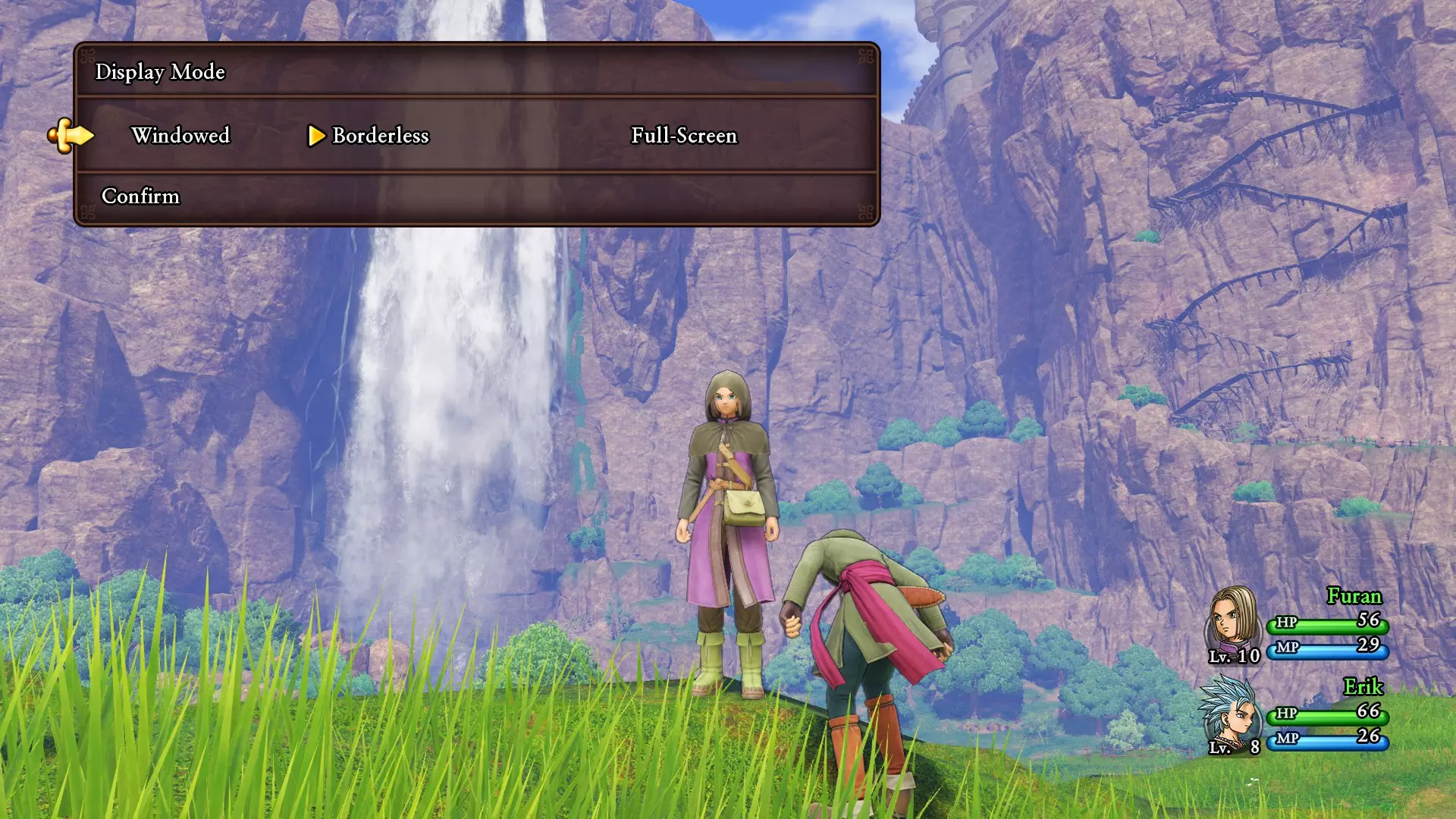
完成上述操作后,按键盘上的Alt+Enter键,使无边框窗口适应你的全屏。顺便说一下,Alt+Enter这个技巧也适用于大多数普通游戏和RPG制作大师制作的游戏,所以下次你想让游戏全屏时可以试试这个快捷键!接下来,进入3D设置,将所有选项调至最高,但垂直同步除外,为了应用此修复,你需要将垂直同步完全关闭,操作如下:
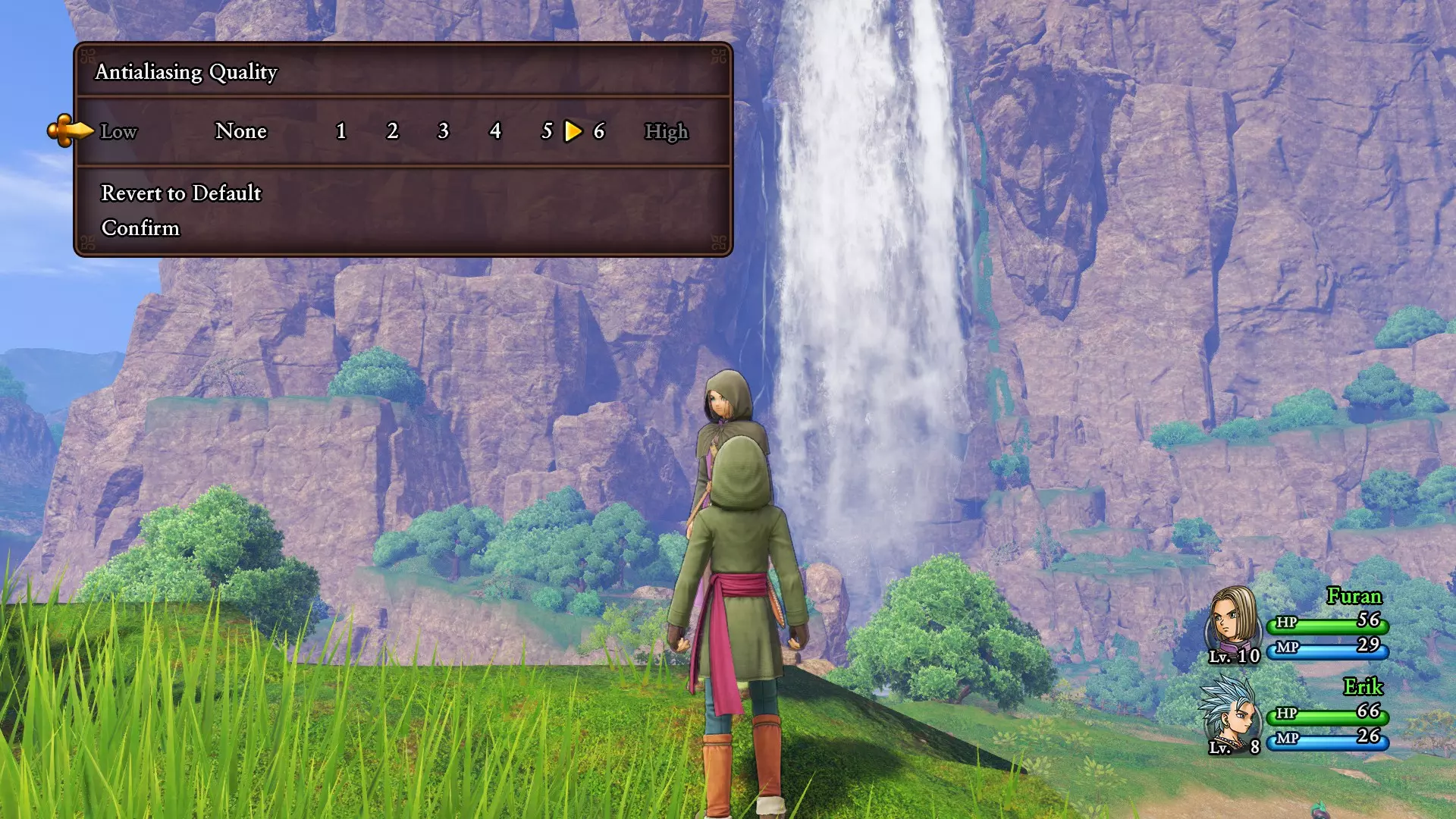
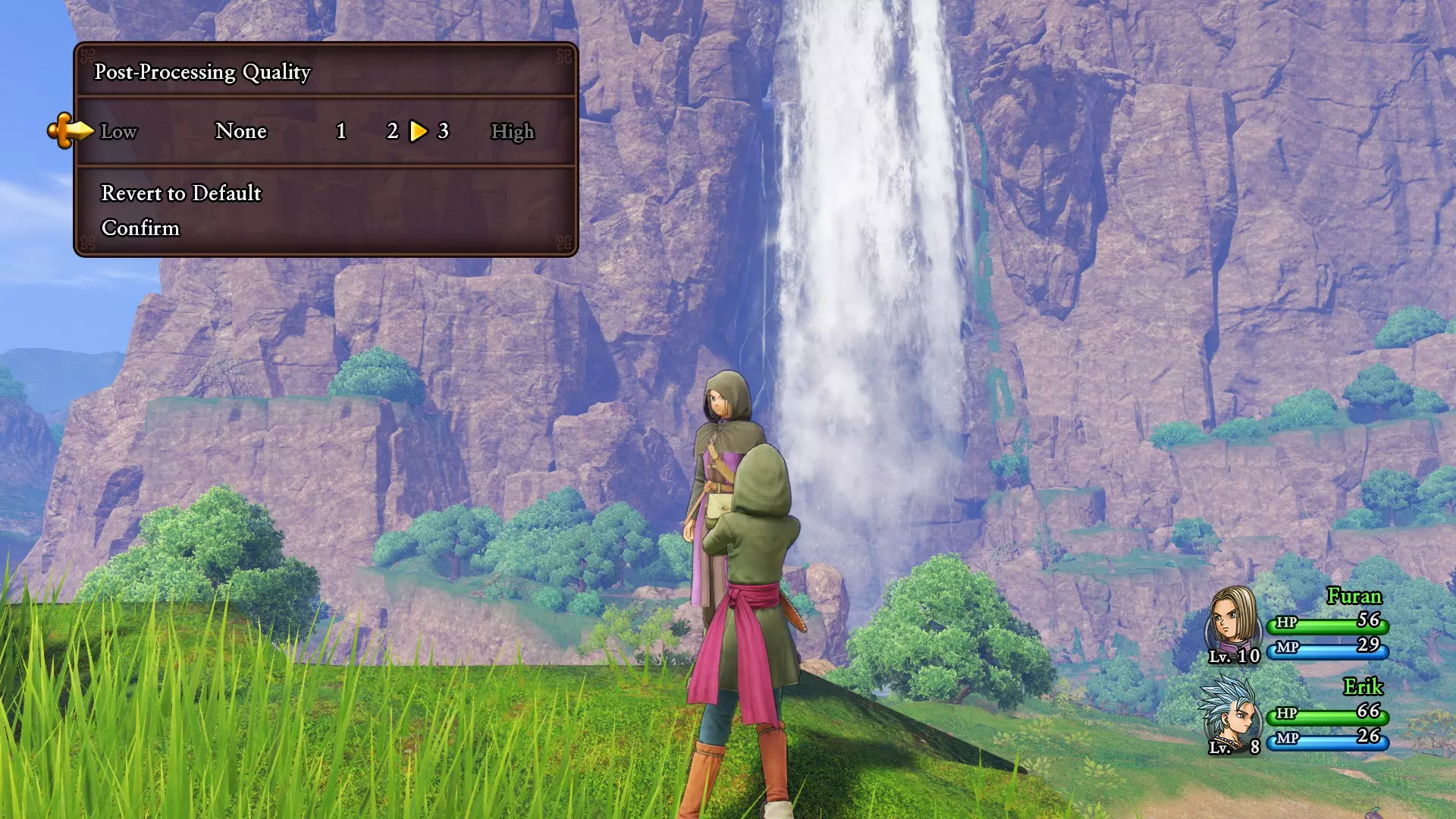
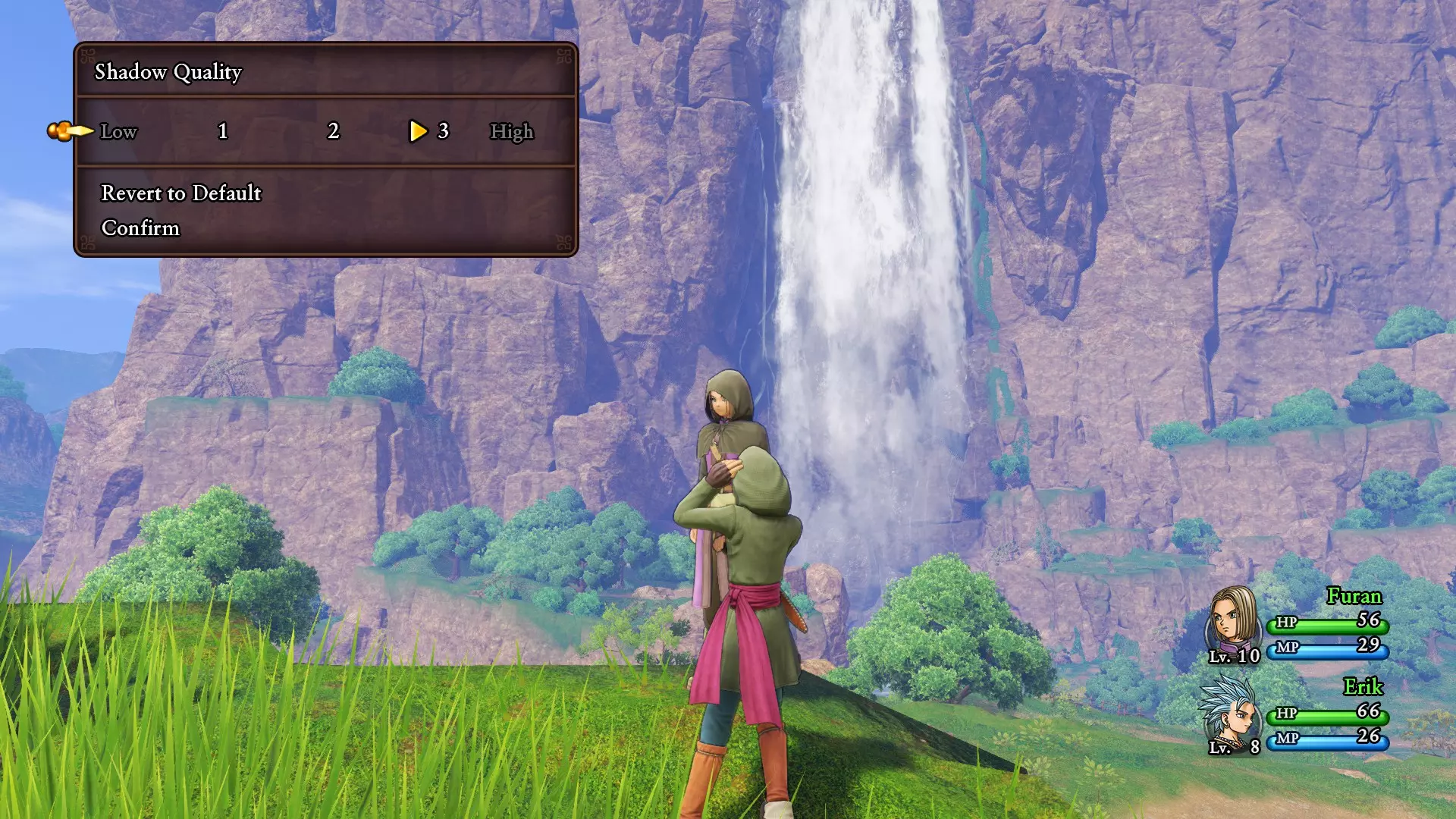
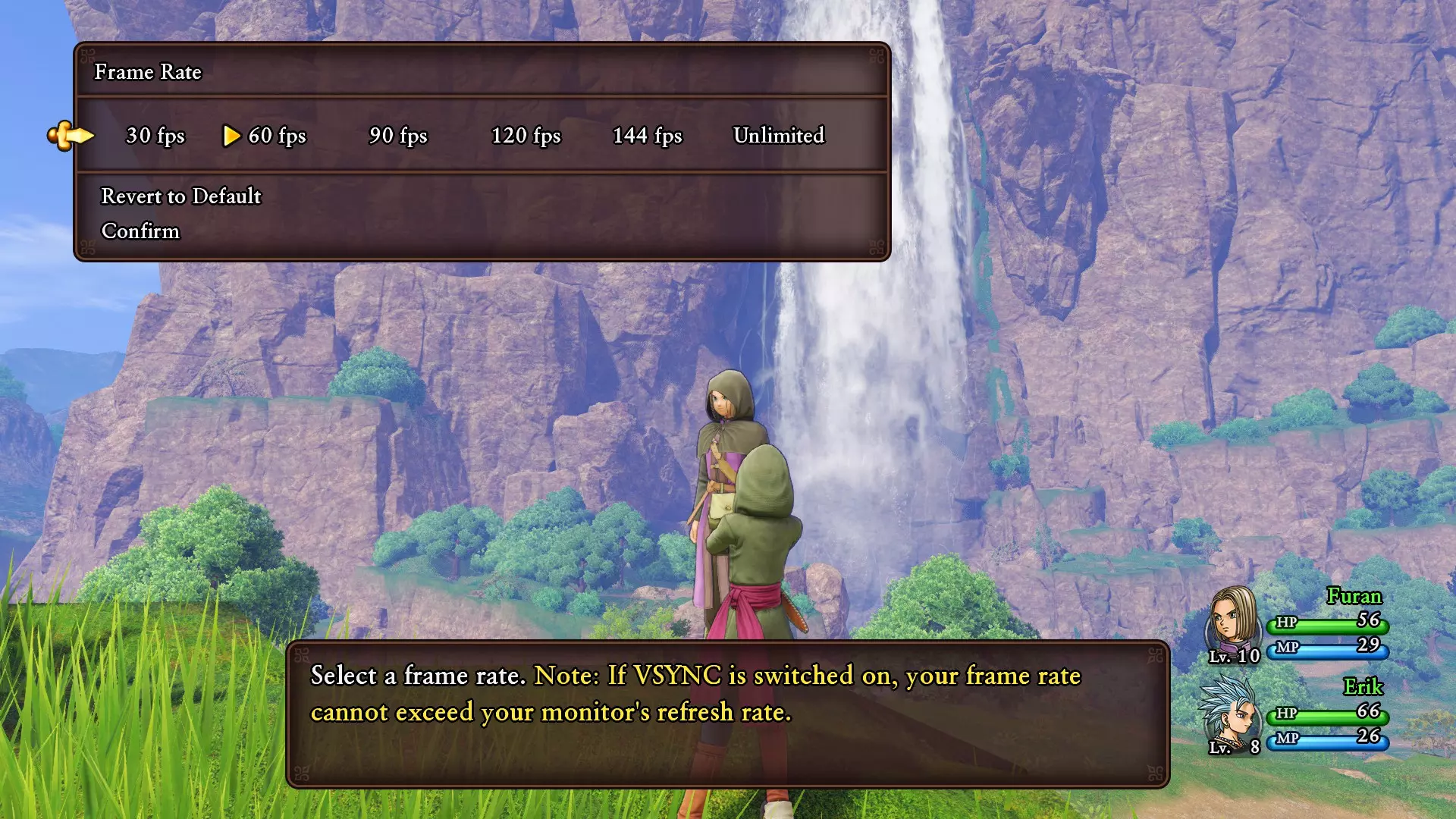
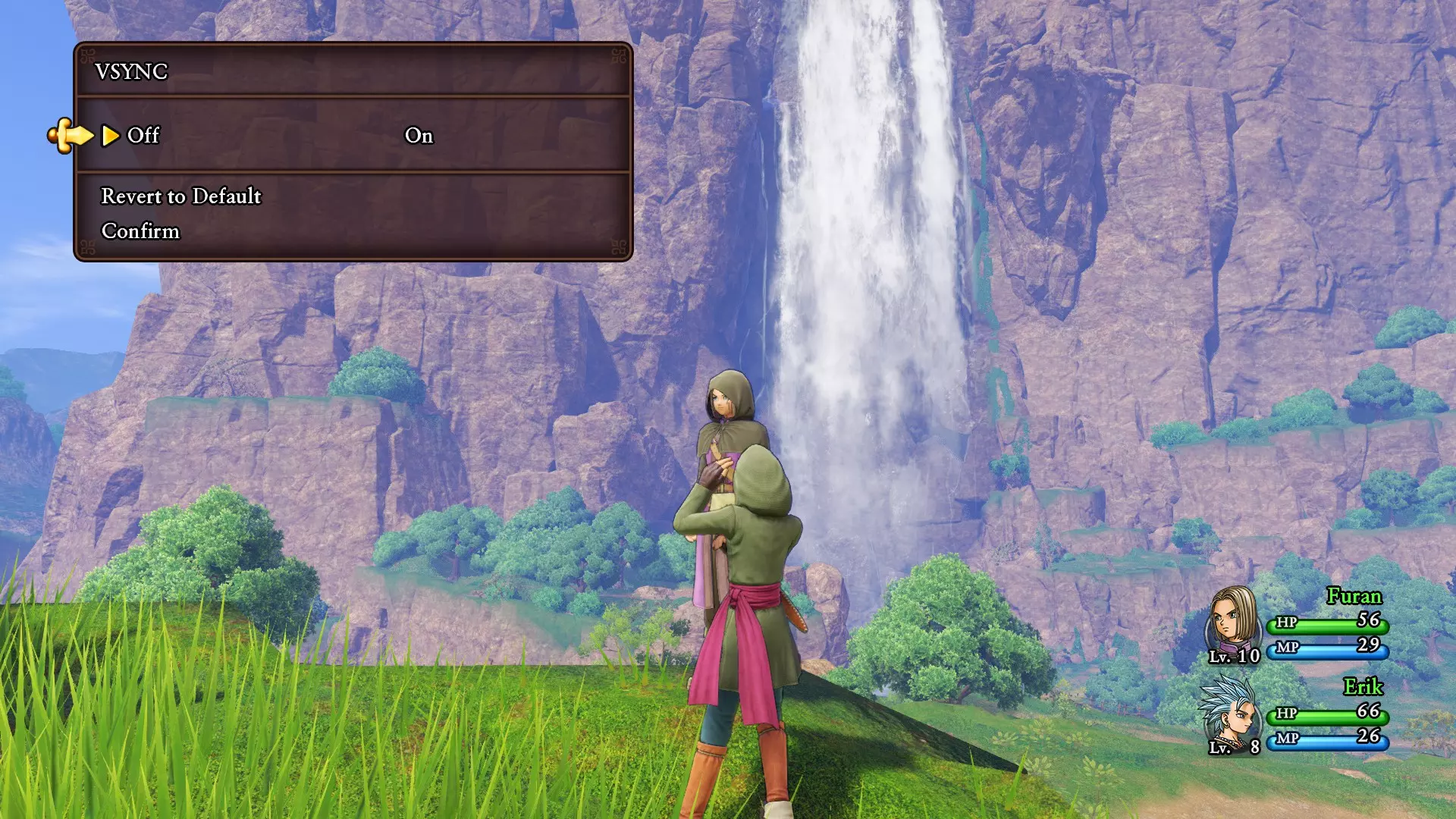
完成所有操作后,确认更改,然后按alt+tab键切出游戏(或直接关闭游戏)。接着,右键点击桌面并选择【NVIDIA控制面板】选项,或者点击任务栏中的小箭头【>】以显示隐藏图标,然后打开NVIDIA控制面板。 NVIDIA控制面板设置: 1. 打开NVIDIA控制面板后,找到【3D设置】并选择【管理3D设置】。 2. 将选项卡从【全局设置】切换到【程序设置】。 3. 如果列表中没有显示或找不到DQXI.exe,点击【添加】并从弹出的列表中手动选择该程序。 4. 完成后,复制以下所有设置:
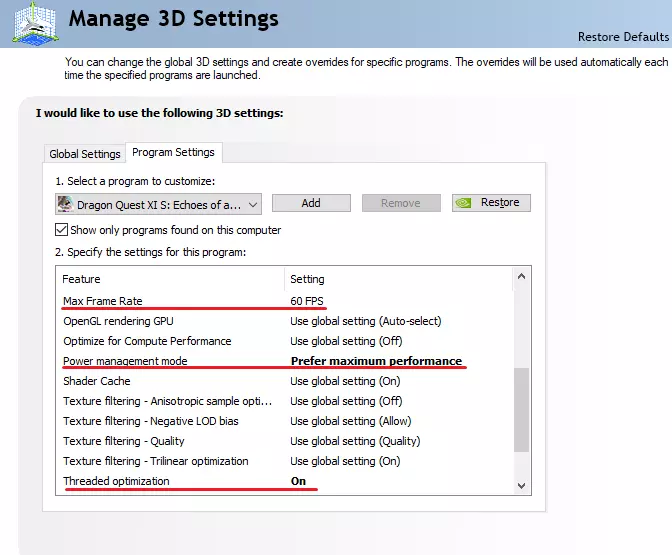
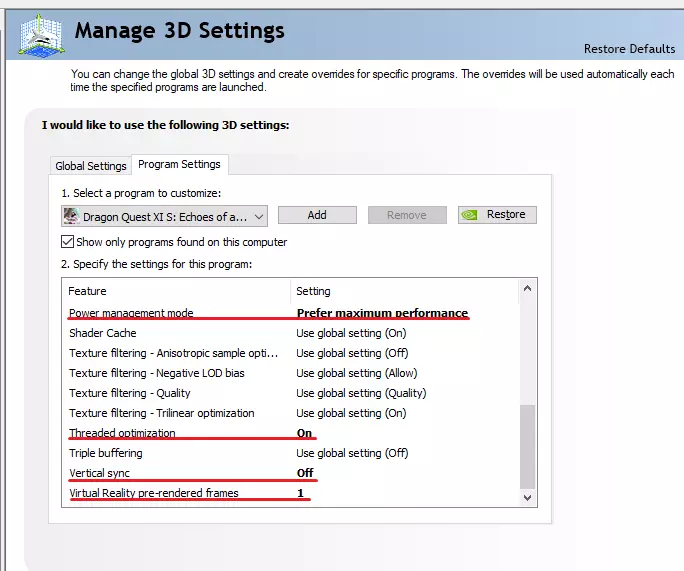
操作完成。 享受更流畅的体验,告别烦人的帧率下降和卡顿问题。 从完全无法游玩到异常流畅。 额外提示 除了上述方法,你还可以尝试: 1. 将《勇者斗恶龙11 S:寻觅逝去的时光 - 决定版》的优先级设置为“高”(打开游戏 > 任务管理器 > 详细信息 > 找到游戏进程 > 右键设置优先级为“高”); 2. 更新你的显卡驱动; 3. 清理电脑空间,磁盘空间不足可能会影响整体性能(释放空间或许能提升性能); 4. 确保电源设置调至最高性能; 5. 禁用微软的后台垃圾程序(地图、应用商店、小娜等)。这款游戏似乎不太喜欢频繁使用Alt+Tab切换窗口。如果你发现多次最小化游戏后,游戏突然莫名卡顿,建议保存进度,然后按Alt+F4关闭游戏并重启。 检查是否有病毒,它们可能是导致性能异常问题的原因。 最后想说的话:希望我的这份快速指南能帮到大家。我也是最近才买了这款游戏,所以这些问题都得自己想办法解决。当我成功快速修复了这些虽小但烦人的游戏问题时,真的很高兴,现在我可以专心享受游戏了。我写这篇指南是为了让你不必花费时间去排查问题到底出在哪里。另外请注意:如果你在游戏中仍然遇到问题,可以在本指南下留言,我会尽力帮助你。如果你知道其他我可能遗漏的、能提升游戏流畅度的方法,也请留言告诉我,我会很乐意测试并添加到指南中或更新指南。如果列出的任何解决方案因某些原因未能解决你的问题,请不要表现得粗鲁。这些设置可能对某些人有效,但对你可能无效,原因有很多。因此,请再次留下评论说明你的问题,我会尽力帮你解决。

祝你愉快。感谢阅读我的指南,祝你度过美好的一天!
(内容无法识别,已删除)

无法识别或无法翻译,已删除。