换一换
换一换 




《龙珠:超宇宙2》Linux平台游玩与模组安装技术指南(含Revamp、ReShade等) 简介 本指南旨在为Linux(及Steam Deck)平台的《龙珠:超宇宙2》玩家提供一站式技术参考,内容编写尽量兼顾新手用户。无论你是游玩原版游戏、安装模组、降级游戏版本,还是使用Revamp,本指南都能涵盖你需要了解的内容。 开始前注意事项 1. 你需要安装并配置Protontricks。 2. 如果你使用的是flatpak版本,请务必按照别名设置说明进行操作,以确保终端命令能正常运行。 3. 提供的命令、路径等通常并非直接可用,因为它们取决于你的具体设置。请使用您自己的具体信息替换各个占位符(如“<steam_library>”“<login_name>”等)。 《龙珠:超宇宙2》所使用的EAC(EasyAntiCheat)Windows客户端需要内核级访问权限,而Proton不具备该权限,Linux系统本身也不允许此类访问。因此,必须绕过其安装检查才能启动游戏。基于此,本指南中的说明仅适用于离线游玩。 需要注意的是,社区内对游戏版本的表述方式并不统一。例如:“1.25.02”“1.25.2”“1.25.2.0”和“1.25.0.2”均指同一版本。本指南将仅使用游戏主菜单显示的版本格式(例如“1.25.02”),因为这是玩家最常接触到的格式。启动《龙珠:超宇宙2》 虽然将Steam设为离线模式并断开WiFi可以暂时跳过EAC安装检查,但一个适用于更多场景的更好解决方案是添加以下启动参数之一(右键点击Steam中的游戏>属性>常规>粘贴到启动选项),这样Steam会直接运行游戏,而不是通过包含EAC的启动器。
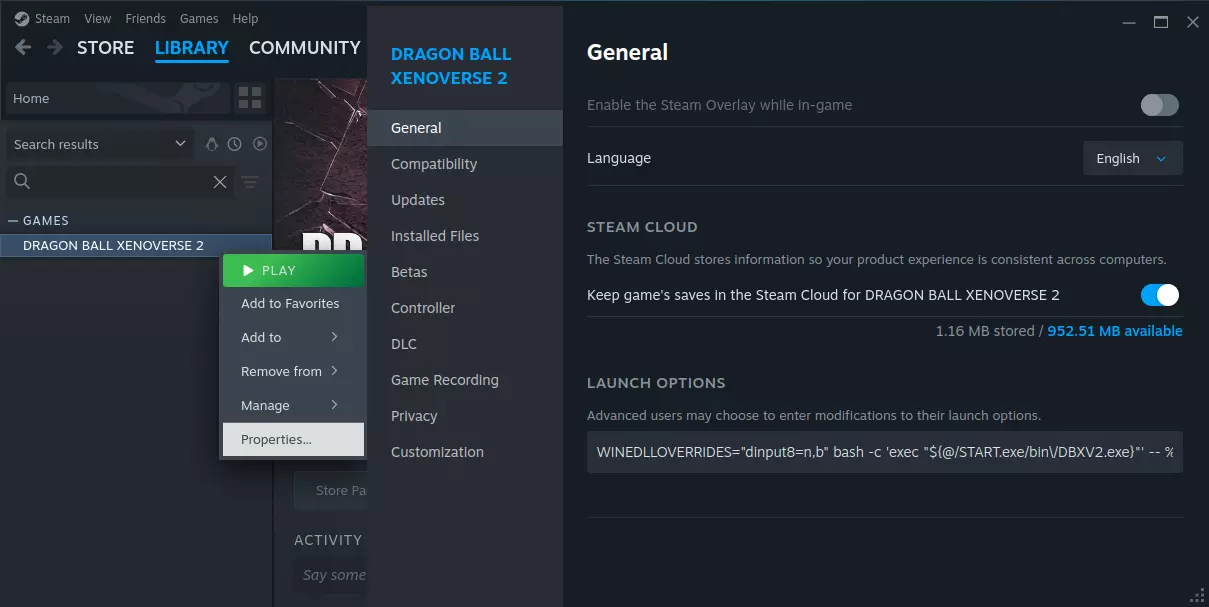
纯净版(未打mod): bash -c 'exec "${@/START.exe/bin /DBXV2.exe}"' -- %command% 纯净版+ReShade: WINEDLLOVERRIDES="d3dcompiler_47=n;dxgi=n,b" bash -c 'exec "${@/START.exe/bin /DBXV2.exe}"' -- %command% mod版: WINEDLLOVERRIDES="dinput8=n,b" bash -c 'exec "${@/START.exe/bin /DBXV2.exe}"' -- %command% mod版+ReShade: WINEDLLOVERRIDES="d3dcompiler_47=n;dxgi=n,b;dinput8=n,b" bash -c 'exec "${@/START.exe/bin /DBXV2.exe}"' -- %command% mod基础 注意事项:《龙珠:超宇宙2》的mod社区主要集中在相关平台。所有mod安装都需要根据游戏版本安装相应的XV2INS和XV2Patcher工具。XV2INS(xv2ins.exe)必须在添加任何mod前至少运行一次。mod通常仅适用于特定的游戏版本。注意它们各自的说明/要求。 游戏版本1.25.02(2025年12月)是所需模组工具支持的最新版本。 改版需要将游戏降级至1.22.02版本(2024年7月)。2025年12月26日更新:改版已更新至支持1.25.02版本。 v1.25.02版本(当前支持版本)下载: XV2INS+XV2Patcher:官方 安装XV2Patcher:将xv2patcher#_#.rar中的“XV2PATCHER”文件夹解压到游戏根目录。 将“-- alternative dll --”中的dinput8.dll解压到游戏的/bin/文件夹。如果不小心同时解压了xinput1_3.dll,请将其从/bin/中删除,因为它会导致控制器检测问题。
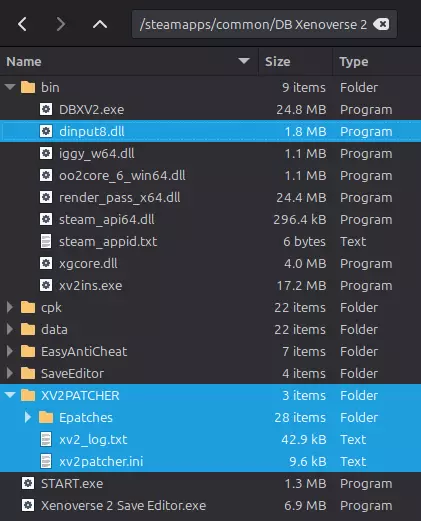
检查/XV2PATCHER/xv2patcher.ini中的设置并根据需要进行修改。默认设置通常可以正常使用,但建议至少进行以下更改: offline_mode = true ai_extend = true ui_enemy_portrait = true fs_event_offline = true 游戏的启动选项需要包含以下内容,但有关完整详细信息请参阅【启动龙珠:超宇宙2】部分,因为还需要其他参数: WINEDLLOVERRIDES="dinput8=n,b" 安装XV2INS,将XV2INS.rar中的xv2ins.exe解压到游戏的/bin/文件夹中。
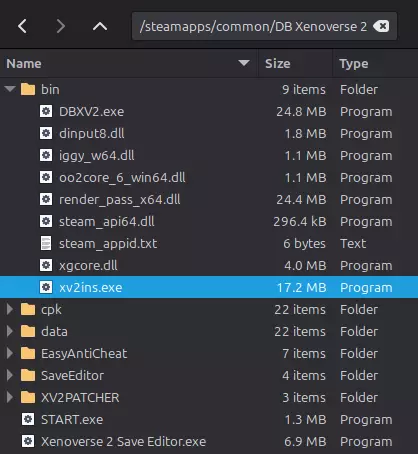
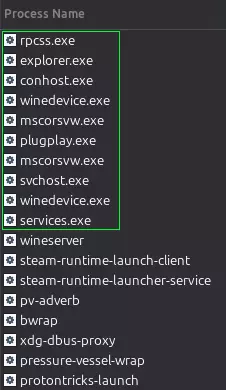
使用Protontricks运行xv2ins.exe,例如:protontricks-launch --appid 454650 "<steam_library>/steamapps/common/DB Xenoverse 2/bin/xv2ins.exe" 使用.x2m格式模组:可将其放在任意位置,然后再次通过Protontricks启动xv2ins.exe来安装或卸载模组。 使用松散文件模组:大多数非.x2m格式或.exe安装程序的模组是松散文件,需将其添加到游戏的/data/目录中。务必查看模组作者提供的任何说明、自述文件等,以获取模组特定的安装指南。 使用安装程序类模组(包括Revamp):这类模组的兼容性参差不齐,但有一些通用建议:将其.exe等文件放在游戏根目录下,以便游戏自动检测。安装程序中包含的“浏览”功能通常无法完全正常工作。如果需要手动输入游戏的安装等位置,请记住使用Windows语法和Proton的虚拟Z:驱动器。例如:“Z:homeusernamepath to location”而非“~/path/to/location”。大多数安装程序无法浏览隐藏文件夹(即任何以句点开头的文件夹),但将必要的文件夹/文件符号链接到可访问的位置是一个可靠的解决方法。按住Ctrl+Alt+Shift键拖动文件夹可以实现此操作,也可以使用“ln”终端命令:ln -s <现有位置> <新符号链接位置>。如果从安装程序所在位置以外的地方启动,带有.installinfo文件的安装程序将无法检测到这些文件。请确保在使用Protontricks执行前,先cd进入相应目录。进入"<steam_library>/steamapps/common/DB Xenoverse 2"目录 运行protontricks-launch --appid 454650 "<installer.exe>" 部分安装程序(例如Revamp 5.1.0的安装程序)在完成时无法彻底关闭各种Proton进程,这可能会阻止任何依赖Proton的程序启动。如果发生这种情况,请检查系统/进程监视器,并在确认安装等实际进程确实完成后,(如有需要)强制结束残留的相关.exe进程!
防止更新 注意事项 重要提示:如果尚未操作,请务必关闭游戏的自动更新!(在Steam中右键点击游戏>属性>更新>自动更新:“等待我启动游戏”)
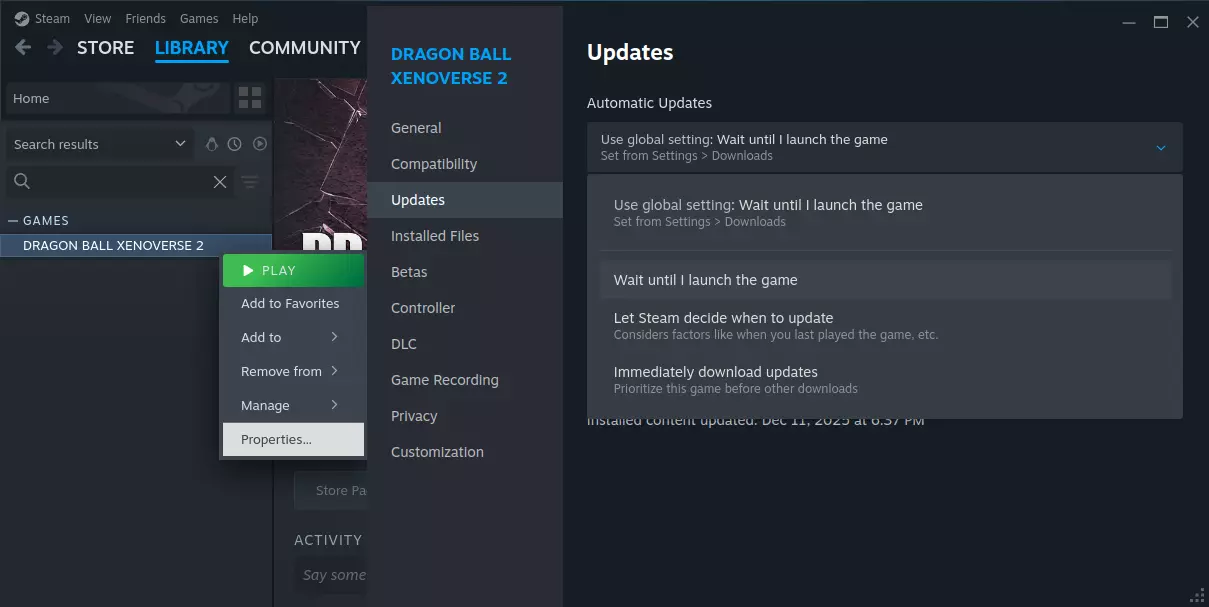
如果你正在使用模组,请不要随意更新游戏,因为必要的工具是特定于每个游戏版本的。 当游戏发布更新时,游戏仍会被标记为需要更新,并且必须执行以下操作之一才能启动:a) 更新游戏;b) 按照下方的【更新绕过】说明操作。 如果更新已经开始,最好让它完成,然后按照【降级】部分的说明操作。为避免麻烦,请尽量不要让这种情况发生。 【更新绕过】 1. 关闭Steam 2. 打开游戏的appmanifest文件(路径:<steam_library>/steamapps/appmanifest_454650.acf) 3. 将“StateFlags”的值更改为“4” 4. 将“manifest”的值更改为从相关数据库找到的最新manifest ID保存并关闭。Steam 现在会将游戏视为已更新,即使实际上并未更新。每当有新更新时,请重复此过程。另一种方法是将游戏文件的完整副本保存在其他位置,让游戏更新,然后用旧文件替换新文件……但这会浪费带宽和磁盘空间。 保存编辑器 所有游戏版本:使用 Protontricks 为游戏的前缀安装 dotnet472。这可能需要几分钟时间,因为它还需要(自动)安装多个旧版本的 dotnet。所有关于 32/64 位兼容性等的警告都可以安全忽略。protontricks 454650 dotnet472 Steam's xalia。之后启动游戏时,程序会提示缺少dotnet48,因此最好也安装它:使用protontricks 454650 dotnet48。将下载的存档编辑器解压到游戏根目录,以便其位置能被自动检测到。
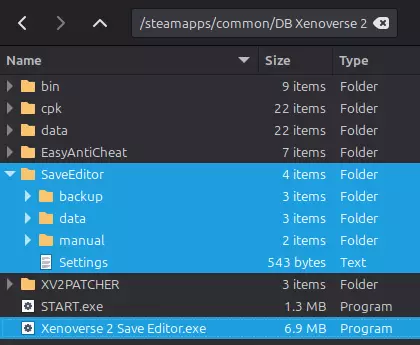
游戏的存档位于~/.steam/steam/userdata/<steam_id>/323470/remote/DBXV21,由于这是一个【隐藏文件夹】,工具无法显示。最简单的解决方法是将存档文件夹创建符号链接到工具可以访问的位置。你可以按住Ctrl+Alt+Shift键,同时点击并拖动该文件夹到目标位置来创建链接,或者使用终端命令。例如:ln -s ~/.steam/steam/userdata/<steam_id>/323470/remote/DBXV21 ~/Documents/DBXV21 使用方法:通过Protontricks启动工具,例如:protontricks-launch --appid 454650 "<steam_library>/steamapps/common/DB Xenoverse 2/Xenoverse 2 Save Editor.exe" 点击【文件】>【打开】来加载存档,然后导航到之前创建的符号链接文件夹,选择其中的DBXV2.sav文件。请记住,在通过Proton启动的应用程序中,你的Linux文件系统不会显示在C:驱动器下!
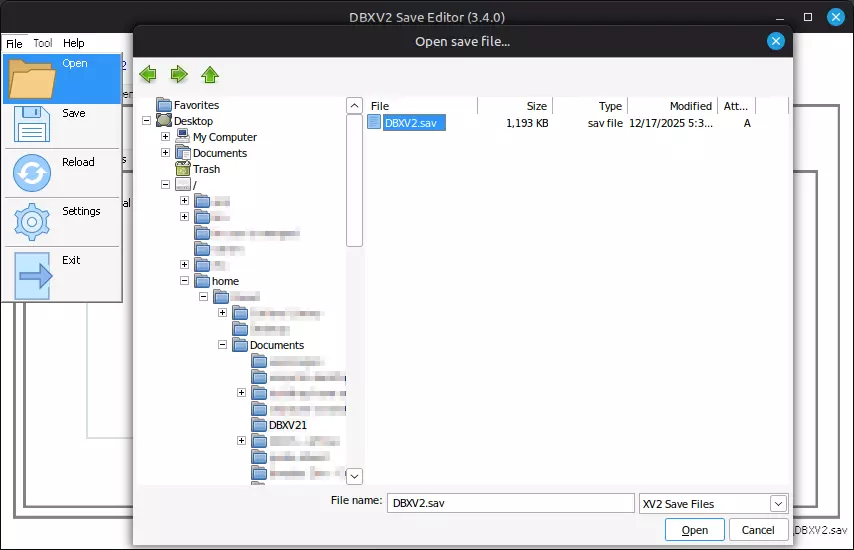
Edit what you like and if you've removed any mods be sure to use Tool > Remove Unused IDs to clean the save. File > Save, then exit the editor. By default your previously used save will be auto-loaded the next time you use the tool. ReShade Notes Using others' presets probably won't work. Because of how different the locations, shader selections, case-sensitivity, and ReShade versions tend to be it's way more hassle than it's worth. An oddity found in my testing is that if you press any buttons on a controller while the ReShade menu is open it will make the thumbsticks unresponsive for that session. Restarting the game fixes it. DownloadRecommended method: https://github.com/kevinlekiller/reshade-steam-proton/blob/main/reshade-linux.sh Installation Download/save the reshade-linux.sh script somewhere Set the script to be executable and run it from your terminal, or more simply: bash "/path/to/reshade-linux.sh" Answer the script's prompts as follows: Do you want to (i)nstall or (u)ninstall ReShade for a DirectX or OpenGL game? (i/u): i Supply the folder path where the main executable (exe file) for the game is. Game path: <steam_library>/steamapps/common/DB Xenoverse 2/bin Is this path correct? "<steam_library>/steamapps/common/DB Xenoverse 2/bin" (y/n): y Do you want reshade-linux.sh to attempt to automatically detect the right dll files to use for ReShade? (y/n): y We have detected the game is 64 bits, we will use dxgi.dll as the override, is this correct? (y/n): y The game's launch parameters will need to have the following added, but see the "Launching DBXV2" section for the full details since additional/altered parameters are required: WINEDLLOVERRIDES="d3dcompiler_47=n;dxgi=n,b" UseageBy default pressing "Home" in-game will open the ReShade overlay and allow the usual shader editing. Downgrading Notes Before downgrading make sure you turn off the game's auto-updates (right click the game in Steam > Properties > Updates > Automatic Updates: "Wait until I launch the game"), and follow the instructions in the "Preventing Updates" section when the game is flagged for needing one. Two methods exist to "downgrade" a Steam game you own to an older version. Both require owning the game legitimately and knowing the app, depot, and manifest IDs of the specific version you want. In the case of DBXV2: app=454650, depot=454651, and the manifest depends on what version you want and can be found at https://steamdb.info/depot/454651/manifests/ Examples: v1.25.02 (Dec 2025): manifest=7238901667150908628 v1.22.02 (July 2024): manifest=6619716261412161299 For this guide I'll be using v1.22.02 as an example, but the instructions would be the same for any version you need... just swap out the manifest ID. Method A) DepotDownloader (recommended) Close Steam Delete the contents of the game's folder (<steam_library>/steamapps/common/DB Xenoverse 2). Download and extract the Linux (x64) version of the latest DepotDownloader[github.com] somewhere Run DepotDownloader with the applicable IDs, your account login name, and the location of the freshly emptied game folder. Using the 1.22.02 manifest ID as an example: ./DepotDownloader -app 454650 -depot 454651 -manifest 6619716261412161299 -username <login_name> -dir "<steam_library>/steamapps/common/DB Xenoverse 2"Optional: add "-validate" to perform a check of already-downloaded files Optional: add "-no-mobile" if you prefer to enter your 2FA code manually You'll be prompted for your password and 2FA code (if you have it enabled). DO NOT use the "-password" method that other guides suggest, otherwise you'll be fully exposing your password in numerous unprotected ways. Wait for the game to download. Progress will update as files finish, so if it appears frozen it most likely isn't... you can always check your network traffic to be sure. Method B) Steam Console Close Steam Delete the contents of the game's folder (<steam_library>/steamapps/common/DB Xenoverse 2). Re-launch Steam from your terminal with: steam steam://open/console Click the "CONSOLE" link that is now part of the main navigation (where it says "STORE LIBRARY COMMUNITY", etc.) Run the following command in the Steam Console (using 1.22.02's manifest ID as an example): download_depot 454650 454651 6619716261412161299 Let the game download and keep Steam running even if the connection goes out because the download can resume so long as you don't close it. Progress won't be indicated until completion so keep an eye on your network traffic if you want to be sure it's working. Once finished it will notify you as to the location of the new files. Move them to the emptied game folder (<steam_library>/steam/steamapps/common/DB Xenoverse 2) Close the console-enabled version of Steam Regardless of which method used the game can now be launched from Steam like normal, only it will be the newly downgraded version. Revamp 5.0 (outdated) UPDATE DEC 2025: Revamp has been updated to support game version 1.25.02, so downgrading is no longer necessary! Follow the "Modding Basics" section's details on installer-based mods to install the up-to-date version. Those already on Revamp 5.0 or higher can follow my upgrading guide: https://steamcommunity.com/sharedfiles/filedetails/?id=3632486338 The now-outdated instructions below will remain in place for anyone still wanting to revert to the older version, but it's not recommended. The rest of the sections cover in more detail what you need to know (and you should definitely read those first since this won't reiterate everything), but to summarize the process for a fresh installation: Prevent game from auto-updating (right click the game in Steam > Properties > Updates > Automatic Updates: "Wait until I launch the game") Close Steam Delete the contents of the game's folder (<steam_library>/steamapps/common/DB Xenoverse 2) Downgrade to 1.22.02 (manifest=6619716261412161299) with DepotDownloader[github.com] ./DepotDownloader -app 454650 -depot 454651 -manifest 6619716261412161299 -username <login_name> -dir "<steam_library>/steamapps/common/DB Xenoverse 2" Download and extract XV2Patcher's "XV2PATCHER" folder to the game's root folder. Extract the dinput8.dll from "-- alternative dll --" to the game's /bin/ folder. Delete xinput1_3.dll from /bin/ if you accidentally extracted it as well. XV2Patcher for 1.22.02: Mirror 1[drive.google.com], Mirror 2[mega.nz] Configure /XV2PATCHER/xv2patcher.ini with the settings you prefer. I recommend to at least set the following: offline_mode = true ai_extend = true ui_enemy_portrait = true fs_event_offline = true Download and extract XV2INS's xv2ins.exe file to the game's /bin/ folder XV2INS for 1.22.02: Mirror 1[drive.google.com], Mirror 2[mega.nz] Run xv2ins.exe at least once with Protontricks protontricks-launch --appid 454650 "<steam_library>/steamapps/common/DB Xenoverse 2/bin/xv2ins.exe" Download and extract the Revamp 5.0[videogamemods.com] installer's .exe and .installinfo files to the game's root folder Open/cd into the game's folder in your terminal and run the installer with Protontricks cd "<steam_library>/steamapps/common/DB Xenoverse 2" protontricks-launch --appid 454650 "Revamp Xenoverse 2 Installer.exe" Pick the options you want and let the installer complete Change the game's launch parameters (right click game in Steam > Properties > General > paste in Launch Options) WINEDLLOVERRIDES="dinput8=n,b" bash -c 'exec "${@/START.exe/bin /DBXV2.exe}"' -- %command% If/when game updates occur and the game is flagged as requiring one before it can be launched, close Steam and edit the game's appmanifest (<steam_library>/steamapps/appmanifest_454650.acf) Change the "StateFlags" value to "4" Change the "manifest" value to the most recent manifest ID found on https://steamdb.info/depot/454651/manifests/