换一换
换一换 


需要随时随地畅玩游戏?这里有一大堆技巧,助你(至少尝试)在Steam Deck上获得《环世界》的最佳体验。 所有图片均经过压缩,以适应有限的带宽。未经允许,禁止重新上传本指南。 前言 本指南基于1.6更新版本编写,该更新包含大量优化和性能改进,有望提升便携游戏体验。 本指南最终将包含DLC专属技巧,其中大部分将在《奥德赛》DLC发布后添加! 归根结底,即使经过此次更新,Steam Deck的性能仍无法与你家中的游戏专用电脑相媲美。 而且,尽管触控板的手感相当不错,但它还是无法取代普通的键盘和鼠标。对于便携版殖民地游戏,建议降低预期,因为加载大型存档或运行大量大型模组可能不会像你希望的那样顺利。 当然,如果你在其他网站看到我的指南,那都是未经我允许被复制或盗用的。我的指南将始终免费(且无广告)! ☆ 基本要点 要真正开始便携游玩,有几件事需要注意,尤其是如果你是新入手Steam Deck的玩家。 我需要做什么?幸好不需要太多操作!你的Steam账户不仅会同步云存档数据,还会自动记住你的账户详情,其中最关键的包括你的创意工坊订阅内容。得益于社区布局标签页,你甚至可以跳过手动配置控制器布局,非常方便! 不过需要注意,游戏模组菜单中保存的模组列表仅为本地文件。 你可以通过传统的保存方法来解决这个问题,即创建一个保存的殖民地存档槽,并将你想要加载的特定模组集注入其中。 注意云存档!当你外出执行各种“战争罪行”时,可能并不总是能连接到互联网。 为避免心痛,请记住多设备使用的黄金法则:先同步最新的存档。 Steam并非完美无缺,如果你在Steam Deck上有新的存档数据待同步时过早启动PC,有时可能会导致那些宝贵的新游戏时长在同步过程中丢失。这种情况虽然少见,但在你已经投入了额外数百小时之后,真的值得冒这个险吗? 我的游戏时长没有更新?!这是Steam另一个非常令人遗憾的缺陷。 当你离线玩游戏时,尤其是在其他设备上(比如第二台电脑或你的Steam Deck),在无网络会话期间投入的游戏时长通常不会被计入你的库统计数据中。 这只是使用Steam Deck时你必须克服的诸多烦恼之一,唯一的解决办法是始终在线游玩,这对于便携式掌机来说显然有违其设计初衷! 救命,游戏卡死了!/ 模组导致游戏崩溃! 哦不。 如果你在首次便携游玩时随意添加模组,可能会遇到这个复杂且令人头疼的问题。简单来说:当你在Steam Deck(Linux系统)上运行《环世界》时,游戏会读取一个名为“交换文件”的文件,它充当游戏文件的临时存储,本质上就是虚拟内存(VRAM)。 问题在于:默认情况下,《环世界》仅分配了1GB的虚拟内存。这意味着即便是小型模组列表也可能导致游戏崩溃! 解决方法如下: 选项A:接受命运 有时候最简单的方法也是最无奈的方法。 为避免内存过载问题,最简单的解决方案就是在Steam Deck上游玩时不使用模组,或者大幅精简你的模组列表。 或许体验一下纯净版《环世界》也是个不错的选择?选项B:CryoUtilities 如果你对Linux有一定了解,或者不介意学习新知识,这个Github工具可以让你调整Deck的显存分配大小(建议为16GB,但在1.6版本上你可能想尝试8GB)。 我无法直接链接到Github页面,但感谢Reddit用户u/Scriblon提供了一个相当详细的入门指南。 这需要一些技术操作,如果你对编辑文件没有信心,可能只能选择选项A。☆ 全局快捷键 对于刚入手Steam Deck的玩家,在深入了解任何游戏特定控制之前,你应该尽快将Steam Deck的全局快捷键牢记于心。 参考表
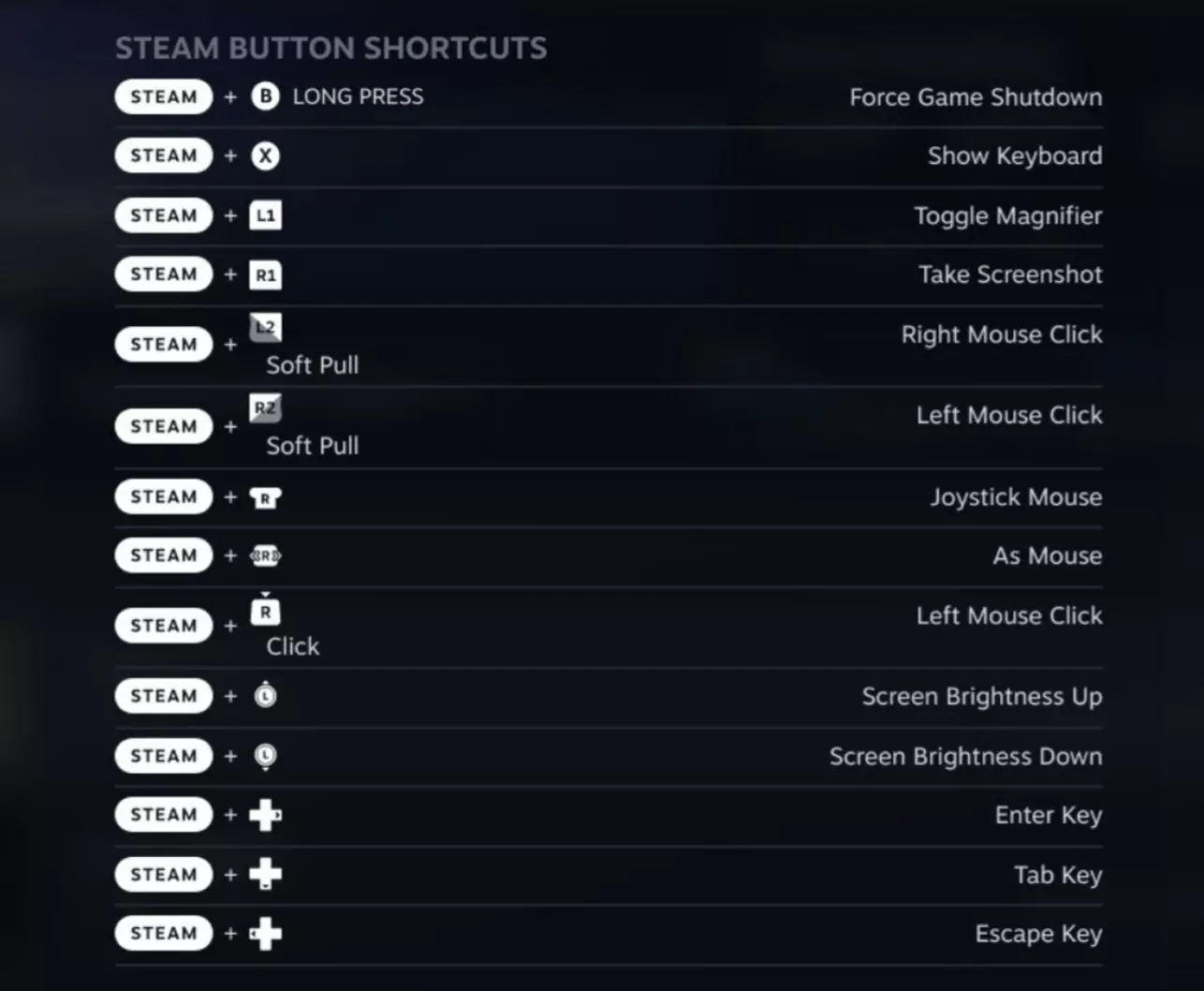
你可以通过长按Steam键或快速访问(...)按钮几秒钟来调出此功能。 键盘:这是最常用的输入方式,在《环世界》的文本框中经常需要用到!同时按下Steam键和X键即可调出。 截图:用于快速分享兰迪突然送来500个鸡蛋之类的惊喜时刻。同时按下Steam键和R1键即可截图。 关于Steam Deck的更多特定使用指南,Af Chronos编写了一份内容丰富的用户手册,其中包含大量直观的演示片段,几乎涵盖了熟悉其所有功能的各个方面。控制器配置 如果你想直接使用我的控制器布局并跳过手动设置流程,可以在Steam Deck的控制器配置菜单中找到【社区布局】选项卡,直接获取我的【Comfier Rimworld Keybinds】布局! 游戏启动时的默认控制设置其实还不错,包含了所有游玩所需的功能,随时可以使用。 要访问控制器菜单来更改热键,你可以在游戏中按下Steam键打开侧边菜单,或者在库中查看《环世界》时点击控制器图标。如果你和我一样,在适应新操作的最初几个小时里感到吃力,这里有一份操作说明——你可以通过按下Steam键,在控制器子菜单中找到它。不过你也可以拿纸笔记录下来,甚至打印出来,制作一本属于自己的小手册。默认设置
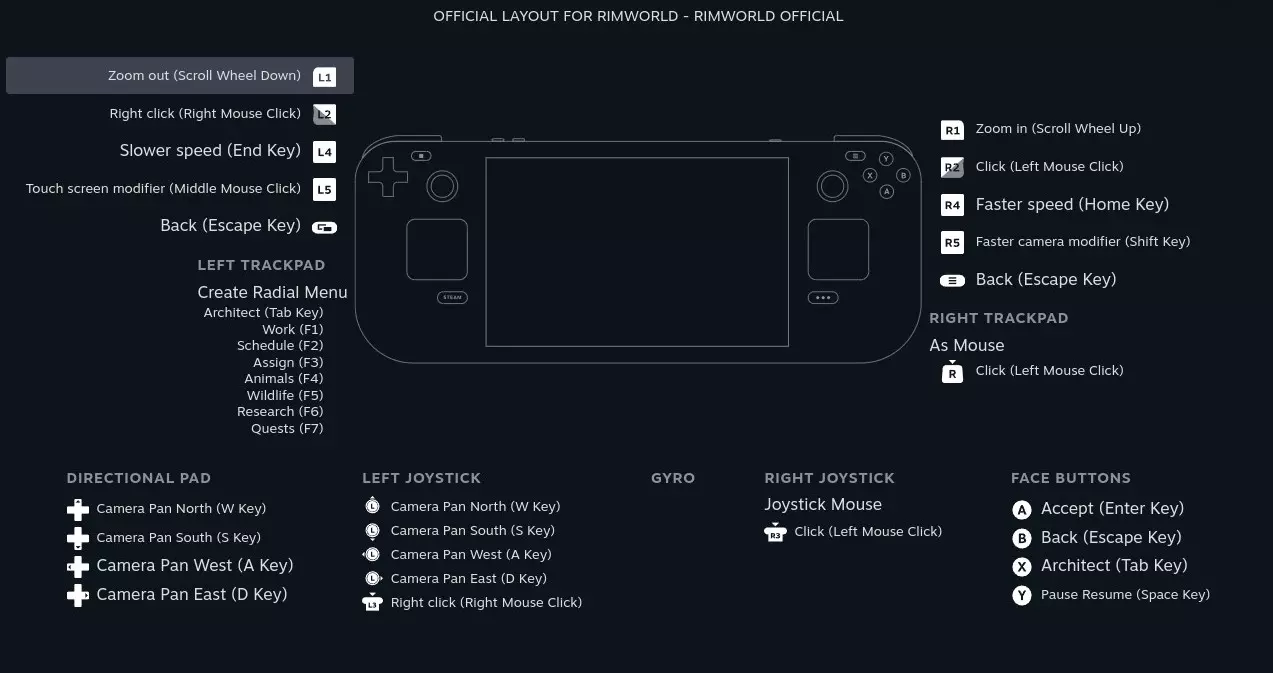
Buttons Bound to.. A Accept (Enter) B Cancel (ESC) X Architect Menu (TAB) L1 Zoom Out/Scroll down (Wheel Down) R1 Zoom In/Scroll up (Wheel Up) L4 Slower Speed (End) R4 Faster Speed (Home) L5 Touch Screen Modifier (Middle-mouse click) R5 Faster Camera Modifier (Shift) Back (Left) Cancel (ESC) Back (Right) Cancel (ESC) D-Pad Bound to.. Up Camera Pan North (W) Down Camera Pan South (S) Left Camera Pan West (A) Right Camera Pan East (D) Triggers Bound to.. R2 Click (Left mouse click) L2 Click (Right mouse click) Joysticks Bound to.. Right Joystick Joystick Mouse R3 Click Click (Left mouse click) Left Joystick Directional Pad (Camera) L3 Click Click (Right mouse click) Trackpads Bound to.. Right Trackpad Behaviour As Mouse R-Trackpad Click Click (Left mouse click) Left Trackpad Behaviour Unnamed Create Radial Menu* *I strongly advise not to change the trackpad functions until you know what you're wanting to do with them! The built-in radial menu is extremely useful just from the getgo. ☆ My Controller Layout ..So, that's fine and all, but there are quite a few redundant keys on the default layout, such as ESC and the Camera, so let's take a look at some tweaks that I've cooked up to make this feel a little more comfortable. You can find this uploaded as "Comfier Rimworld Keybinds" on the Community tab when looking at your Controller Configuration menu! My Configurations Buttons Bound to.. A Accept (Enter) B Cancel (ESC) X Architect Menu (TAB) L1 Zoom Out (Scroll wheel down) R1 Zoom In (Scroll wheel up) L4 Slower Speed (End) R4 Faster Speed (Home) L5 Touch Screen Modifier (Middle-mouse click) R5 Faster Camera Modifier (Shift) Back (Left) Open World Map (F8) Back (Right) Cancel (ESC) D-Pad Bound to.. Up x10 Amount Modifier (Ctrl) [1] Down x100 Amount Modifier (Shift) [2] Left Rotate Thing Left (Q key) Right Rotate Thing Right (E key) Triggers Bound to.. R2 Click (Left mouse click) L2 Click (Right mouse click) Joysticks Bound to.. Right Joystick Joystick Mouse R3 Click Select Next Colonist (.) Left Joystick Directional Pad (Camera) L3 Click Select Last Colonist (,) Trackpads Bound to.. Right Trackpad Behaviour As Mouse R-Trackpad Click Click (Left mouse click) Left Trackpad Behaviour Unnamed Create Radial Menu [1] & [2] are changes explicitly with bill making and trading in mind, not so much for regular Shift use. R5 feels comfortable enough as the default camera speed-up keybind! ☆ Optimisation (& Battery) Congratulations if you went with Option B earlier, as having CryoUtilities* bump up your VRAM will make a good amount of impact should you reach (or load) a lategame colony while on the go! However, there are a couple of other tricks we can make use of, namely in respect to battery life. While in-game, hit the Quick Access (...) button on your SDeck to open an extra side menu! Here you can change various Performance ranges, like lowering your Brightness, FPS, and TDP Limit (your power draw in Watts) to stretch out game sessions. Brightness tends to have the strongest effect, though playability with low settings will depend on if you own an LCD or OLED model. The following data was collected on a 256GB LCD model with 100% battery charge, and a small earlygame colony with a short, tailored list of mods. *CryoUtilities allegedly doesn't affect battery life. ☆ Eye Health WarningPlaying on low brightness just to eek out more battery life will not always be the best option! Playing at low system brightness in a room without a lot of light can cause eye strain and headaches, so do what's best by you, not your machine! ☆ Best Battery Life Setting Value Brightness 0% FPS 20-45 TDP Limit 3-5 Watts Battery Life Estimate 8:30hr - 9hr ☆ Performance/Gameplay Balance Setting Value Brightness 15-50% FPS 45 TDP Limit 5-10 Watts Battery Life Estimate 7:30hr - 8:30hr ☆ Best Gameplay & Visibility Setting Value Brightness 60-100% FPS 60 TDP Limit 15 Watts Battery Life Estimate 6hr - 7hr ☆ DLC Under construction! This will focus on tips around parts of each of the DLCs that the SDeck may need extra consideration for! Royalty(psycast menuing/targeting, empire/merchant interact QOL options) Ideology(navigating the preamble as easily as possible, L1/R1 help to scroll, Steam button + X for keyboard) Special Mentions: Instead of worrying about having to set up all your ideoligion settings when changing styles/memes, this mod forces the game to remember your custom precepts - what a timesaver! https://steamcommunity.com/sharedfiles/filedetails/?id=2944765939 BiotechPrior to 1.6, you couldn't really scroll through modded gene lists because the menu was static, only designed to accomodate the vanilla selection. 1.6 has baked in a scroll bar to fix this - use L1 and R1 by default as your mousewheel! Anomaly(any camera/speed considerations, Event notification sizing?) Get used to tapping Pause, seriously. Odyssey(TBA, likely World Map management, considerations for more frequent travel/trade as nomads, potentially new shortcuts in respect to gravship travel) I highly recommend my Comfier Rimworld Keybinds preset, or at least rebinding F8 (World Map) as it's not available on the default radial menu! ☆ Suggested Mods These are 1.6 compatible mods I've tested together that won't cause issues on a Steam Deck that has not had CyroUtilities set up. Setting up Cryo will just increase your theoretical install-ceiling for modlists. These have been picked out exclusively with the SDeck in mind; from custom UI changes, input reduction, key quality of life, to simple timesavers. Your personal mileage may vary, and make sure to always check your load order! Mod Name What it Do? Workshop Link Useful Marks My new #1 Recommendation! This mod allows you to set up manual and automatic icons to place on colonists and enemy pawns - out of the box, it marks melee/ranged enemies, and marks who gets sick during Illness Events! Cuts down on micromanagement somethin' fierce! https://steamcommunity.com/sharedfiles/filedetails/?id=3506573327 Dubs Mint Menus Lets you replace menus with SDeck-friendly UI, mostly to combat overflowing text and pop-ups - changing the Architect and Research menus is a must! https://steamcommunity.com/sharedfiles/filedetails/?id=1446523594 UI Not Included For the perfectionist, and seemingly compatible with Dubs Mint Menus! Gives you full control over shown information, and the ability to make your own tabs. https://steamcommunity.com/sharedfiles/filedetails/?id=2588873455 Drag Select Drastically cuts down on individual inputs on Trade menus by letting you hold down your left-click button and drag down to select multiple items. Especially useful with the right joystick in mind! https://steamcommunity.com/sharedfiles/filedetails/?id=2599942235 Character Editor* Absolute classic, and a must for pawn customization. Allows you full control over stats, appearances, family ties, faction ties, and most critically allows you to save your favourite pawns - no do-overs because you had to put the Deck down! https://steamcommunity.com/sharedfiles/filedetails/?id=1874644848 Map Preview Another classic, gives a minimap-sized popup on the "select starting area" world menu. Not too critical for practicality, but it can save a lot of time with setting up new games! https://steamcommunity.com/sharedfiles/filedetails/?id=2800857642 *ChEd's menu seems to get squashed out with either Dub's Mint Menus or UI Not Included, so with these additional mods, you can only bring up the Editor at colony creation, or by selecting a custom hotkey through your Mod Options. Health Considerations for You And finally, the "boring" part where I talk about Taking Care of Your Meat Suit. Given Rimworld is a timesucker and a half, if you're planning to travel, or load your colonies frequently on the go, one of the most important things to remember is that you are not a machine. Take a break every half hour to an hour. Don't wait until you start feeling sore. Eyestrain and HeadachesAlso see: Optimisations. Never underestimate how much a headache can stand to ruin your day. Stay hydrated! For extended sessions - and you'll know your personal limits - make sure to play in a well-lit room, or at least increase your Brightness so that it's easier to see (yes, even if it costs you some battery life!). Wrist PainWhile the Steam Deck's wide form reduces "claw gripping" and associated pains in the thumb/finger joints, it weighs considerably heavier than most other handhelds. If you suffer from any level of existing wrist pain, or simply want to reduce the stress on your tendons, consider resting the SDeck on a lap pillow (reading book position to avoid blocking vent flow) or other mildly elevated surface. For the long-term, you may even want to find a decent stress ball, or low-level handgrip strengthener. Seriously, don't knock this one straight off. General Ergonomic RemindersRemember: posture your back correctly. Support the device in your palms, not by your fingers. Your elbows shouldn't be taking the weight, use chair arms, flat surfaces, and/or pillows. If reclined, try to prop yourself to a low-seated position. Fully flat can hurt your neck. Whatever's comfortable for you works? Then, it works!