换一换
换一换 


Performance, and Modern Limits (2026 Edition) Purpose of this GuideTo provide a clear technical but approachable understanding of how Total War: Rome II operates on modern 64-bit operating systems (Windows 10/11 & Linux) and hardware. As hardware has leaped forward, the 2013-era engine remains bound by legacy constraints that cause performance slumps, "VirtualAlloc" crashes, and visual downgrades. This isn't a doom and gloom document. Rome II is a great game, and considering its age, it is impressive how well it can run on today's hardware with the right tweaks. My hope is that this guide helps players on modern systems enjoy the vanilla experience and the incredible work of the modding community (Divide et Impera, 1100AD, etc.). The 32-Bit LegacyRome II uses Creative Assembly's TW Engine 3 (Warscape Engine) 32-bit. This specific branch of the engine powered the series from Empire through Attila. It wasn't until Total War: Warhammer 1 that the engine was fully rebuilt for 64-bit architecture. Note: While the core engine logic is very similar, Attila has its own specific UI and lighting bugs. For the Attila-specific differences of these 2026 fixes, see my standalone guide here: 👉 The 2026 Technical Master Guide: Total War: Attila Because Rome II is 32-bit, it exists in a "sealed box" where it can only address a maximum of 4GB of memory, no matter how much RAM or VRAM your modern PC actually has. Understanding how to manage that small "box" is the key to a stable game. Technical Support & Visibility: If these fixes improved your stability or FPS, please consider giving this guide a Thumbs Up and a Favorite. Steam requires 25 ratings to become visible in the "Top Rated" search. Your vote helps other players find these 2026 fixes rather than wasting time on outdated 2013 forum posts. Guide Directory: 2026 Technical Standards 🚀 Section 1: Quick-Start: Fix Your Game Essential Basics ℹ️ Section 2: The 32-Bit Engine: CPU vs. GPU Realities 🛠️ Section 3: The VirtualAlloc Crisis: Why 32GB RAM Can’t Save You 🛠️ Section 4: Windows 11: The Synchronization Crisis (Patch 24H2) ℹ️ Section 5: The Draw Call Bottleneck: Engine Performance Ceilings 🛠️ Section 6: Advanced Performance: GPU Offloading & VRAM Risks 🛠️ Section 7: Essential 2026 Technical Overrides[ 💡 Section 8: Vulkan & ReShade (OPTIONAL) ℹ️ Appendix A: The Science of the 4GB CPU Wall ℹ️ Appendix B: The Cardcaps.txt Database (Reference Material) 🛠️ Appendix C: Optimal CPU Affinity & Hex Codes 🧪 Appendix D: Breaking the Transparency Bottleneck (AOIT) 📊 Appendix E: Test Bench / Technical Validation 🌐 Appendix F: Multiplayer Stability & Network Architecture 🎨 Appendix G: Vulkan & ReShade [Removal & Reverting] Part 1 🎨 Appendix G: Vulkan & ReShade Part 2 (Technical Configurations) 🔗 Appendix H: External Software Links ❓ Frequently Asked Questions (FAQ) 💬 Comments / 🚀 Section 1: Quick-Start: Fix Your Game Essential Basics 🚀 If you only perform one set of actions in this guide, make it these three. These steps address the primary "handshake" issues between the legacy 2013 engine and 2026 operating systems. 1: The 4GB Memory Ceiling & Fragmentation The Reality: Rome II is natively Large Address Aware (LAA), but it is still a 32-bit engine limited to 4GB of Virtual Address Space. The Problem: Memory fragmentation causes the engine to crash when it cannot find a contiguous block of memory. 🛠️ Direct Fix: See Section 3 (Primary Windows 10/11 Fixes) for the VirtualAlloc overrides required to stabilize the memory heap. 2: The Windows 11 "Thread Shunting" Bug The Issue: Windows 11 patch 24H2 changes how threads move across hardware boundaries (CCDs or P/E-cores), causing the engine to hang or crash at battle loading screens. 🛠️ The Action: You must manually align the game to a single cluster of physical cores to maintain synchronization. See Section 4 for the step-by-step fix. 3: Disabling the "Accountant" Logic & 32-bit Reporting Bug The Issue: The legacy engine uses 32-bit logic to "count" VRAM, which fails on modern cards and triggers the "Accountant" logic to downgrade your settings to Low. 🛠️ The Action: You must bypass the reporting bug and disable the internal memory accountant by script injection in your preferences.script.txt file. Section 7: Essential 2026 Technical Overrides This just covered the super essentials fixes, the following sections provide a deeper drive ℹ️ Section 2: The 32-Bit Engine: CPU vs. GPU Realities The 32-Bit Straitjacket & Memory Fragmentation The 4GB CPU Wall: Rome II is a 32-bit app. Its "brain" (AI, scripts, pathfinding) is confined to a 4GB Process Address Space. (See Appendix A). Memory Fragmentation: Even if the game uses only 3GB of RAM, it can crash. Over time, the address space becomes "fragmented"—tiny gaps prevent the engine from finding one continuous block for a new asset. If it needs 100MB and only finds fifty 2MB gaps, it triggers a "VirtualAlloc" crash. The GPU Bypass: Modern GPUs use 64-bit addressing. Data in VRAM (textures) does not have to be mapped into the CPU's tiny 4GB window. This is why you can see 7GB+ VRAM usage on an RTX 3060 Ti. The "TAG" Memory Bug: Why Your 8GB Card Reports 3GB ❗ The Reporting Issue: Legacy TAG-reporting APIs use 32-bits. When memory exceeds 4GB, the counter can "roll over." Many 8GB cards will be incorrectly reported as having only 3072MB (3GB). The Result: The engine thinks you are out of memory and degrades your textures to "Low." 🛠️ The Override: Using a value of -1 (or -2000) in the script file forces the engine to bypass this check. A -1 tells the engine to use the maximum possible value (2^32), uncapping your VRAM access. See Section 7: Essential 2026 Technical Overrides for how 🛠️ Section 3: The VirtualAlloc Crisis: Why 32GB of RAM Can’t Save You If you have encountered the error "VirtualAlloc (at place 2) returned NULL!", you have witnessed the engine’s mathematical "end of the road." This is the primary cause of crashes during massive 40v40 battles or after long, multi-hour play sessions. 📖 What is VirtualAlloc? The Request: VirtualAlloc is the command the game sends to the OS to request a new "desk" to work on. The game says: "I need a 50MB block of space for these new Roman Legionary skeletons." The OS Response: If it finds the space, it returns an address. If it cannot find a continuous block of space, it returns NULL (Zero). The Panic: The engine is not programmed to handle a "Zero" response; it panics and shuts down to desktop (CTD).📖 The "Swiss Cheese" Problem (Memory Fragmentation) The Limit: Even with 64GB of RAM, the game is physically incapable of seeing past the 4GB mark. The Fragmentation: As you play, the game loads and unloads assets, leaving "holes" in that 4GB space. Over time, your memory looks like Swiss Cheese. The Crash: If the game needs a single continuous 100MB block and your largest gap is only 90MB, the game crashes—even if you technically have 1GB of "total free" memory.📖 Why 40-Unit Battles Trigger This The Cascade: In 40v40 battles or intensive mods like DeI, the demand for memory doesn't just increase; it cascades. The engine is forced to cram three times as many "workers" into the same rigid 4GB office space. The Logic Bottleneck: Eventually, the workspace becomes so cluttered that movement is impossible and the application fails. 📖 The "Long Session" Degradation Rome II has a legacy "Memory Leak" where it doesn't clean up its "holes" perfectly. Battle 1: Perfectly stable. Battle 2: Stable. ⚠️ Battle 5: Sudden crash on the loading screen.💡 TIP: Restarting the game every 2-3 hours is the only manual way to "defragment" this 32-bit space and reset the clock. 🛠️❗❗ Primary Windows 10/11 Fixes ❗❗🛠️ The Static Pagefile Fix The Issue: Windows "Automatically managed" paging files resize dynamically. When this happens during a loading screen, the engine loses its memory hook, triggering the "Place 2" NULL error. 🛠️ The Action: Manually set your Virtual Memory (Pagefile) to a fixed size of 16384 MB (set both Initial and Maximum to the same value). The Result: Prevents Windows from shifting the memory pool while the engine is loading battle assets.How to Change the Static Pagefile (Windows 10/11) Press Win + R, type sysdm.cpl, and hit Enter. Go to the Advanced tab. Under the Performance section, click Settings. In the new window, go to the Advanced tab and click Change under "Virtual memory." Uncheck "Automatically manage paging file size for all drives." Select your C: Drive (or your fastest SSD). Select Custom size. Enter 16384 in both Initial size (MB) and Maximum size (MB). Click Set (crucial step!), then click OK and Restart your PC.A video showing how to set this NOTE: Set the initial and maxium the same value ie 16384 The 5-Battle Rule The Issue: The engine's internal memory manager fragments RAM over long sessions. 🛠️ The Action: Completely restart the game client every 3 to 5 battlesWhat mods you use are most likely to impact this The Result: Flushes the memory heap and prevents crashes during campaign-to-battle transitions. Compatibility Overrides 🛠️ The Action: Right-click Rome2.exe > Properties > Compatibility > Disable fullscreen optimizations. The Reason: Prevents modern Windows 10/11 overlays from clashing with the game’s critical memory space. Borderless Windowed Mode 🛠️ The Action: Check "Run in Window" in the game settings and set the resolution to match your monitor. The Reason: Prevents the GPU from failing to re-allocate memory during an Alt-Tab—the #1 cause of mid-campaign crashes on modern OS builds. 🛠️ Section 4: Windows 11 : The Synchronization Crisis (Patch 24H2) The "Race Condition" Explained The Issue: Windows 11 (24H2/25H2) aggressively "shunts" threads between mismatched cores (P/E) or across high-count CPU clusters. The 2013 engine was designed for low-core environments and lacks the logic to synchronize data across these complex modern hardware layers. The Result: Moving threads between cores creates a timing delta the legacy engine cannot reconcile. One thread "outruns" the other, triggering a fatal synchronization hang—the primary cause of the 0–1% Battle Loading Screen Freeze. Technical Reference & Context: For a deeper dive into how recent Windows updates have impacted core application stability and thread management, refer to this January 2026 report: Windows 11 24H2 25H2 Core apps error messages and freezes🛠️ Action: Performance Core Isolation (The Temporary Solution) The Rule: Force the game to only utilize stable, high-speed cores and skip Core 0 (which Windows 11 uses for heavy OS background tasks). The Fix: Open Task Manager (Ctrl+Shift+Esc) > Details tab > Right-click rome2.exe > Set Affinity. (Consult Appendix C for your specific CPU). Synergy: This works in tandem with the number_of_threads 6; fix, ensuring no game threads are left "homeless" or fighting for resources.🛠️ How to Apply a Permanent Workaround (Using a Windows Shortcut) Since every CPU has a different number of cores, you must use the correct Hexadecimal Mask if creating a Windows shortcut to the launcher. See Appendix C: 2. How to Apply (Permanent Fix) Note: If you are an AMD Ryzen 9 user, this same method is required to lock the game to a single CCD to prevent high-latency inter-chiplet communication. ℹ️ Section 5:The Draw Call Bottleneck: The Warscape Engine's Performance Ceiling If you have ever wondered why your FPS drops during a massive siege while your hardware utilization remains low, you are hitting the "Draw Call" bottleneck. This is an architectural limit of the 2013-era Warscape engine. The "Single File" Line The Draw Call: Every time the game needs to render an object (a shield, a tree, a soldier), it sends a "Draw Call" from the CPU to the GPU. The Bottleneck: The engine processes these instructions in a "single file" line on one primary CPU core. The game is physically limited by how fast that one core can talk to the graphics card. Bored Hardware In massive 40v40 battles, the CPU becomes overwhelmed by the sheer number of individual unit assets. Because the CPU cannot send instructions fast enough, your Graphics Card sits idle, waiting for work. This is why you may see low FPS despite only 30-50% GPU usage. Your hardware isn't weak; it is being "under-fed" by the engine.
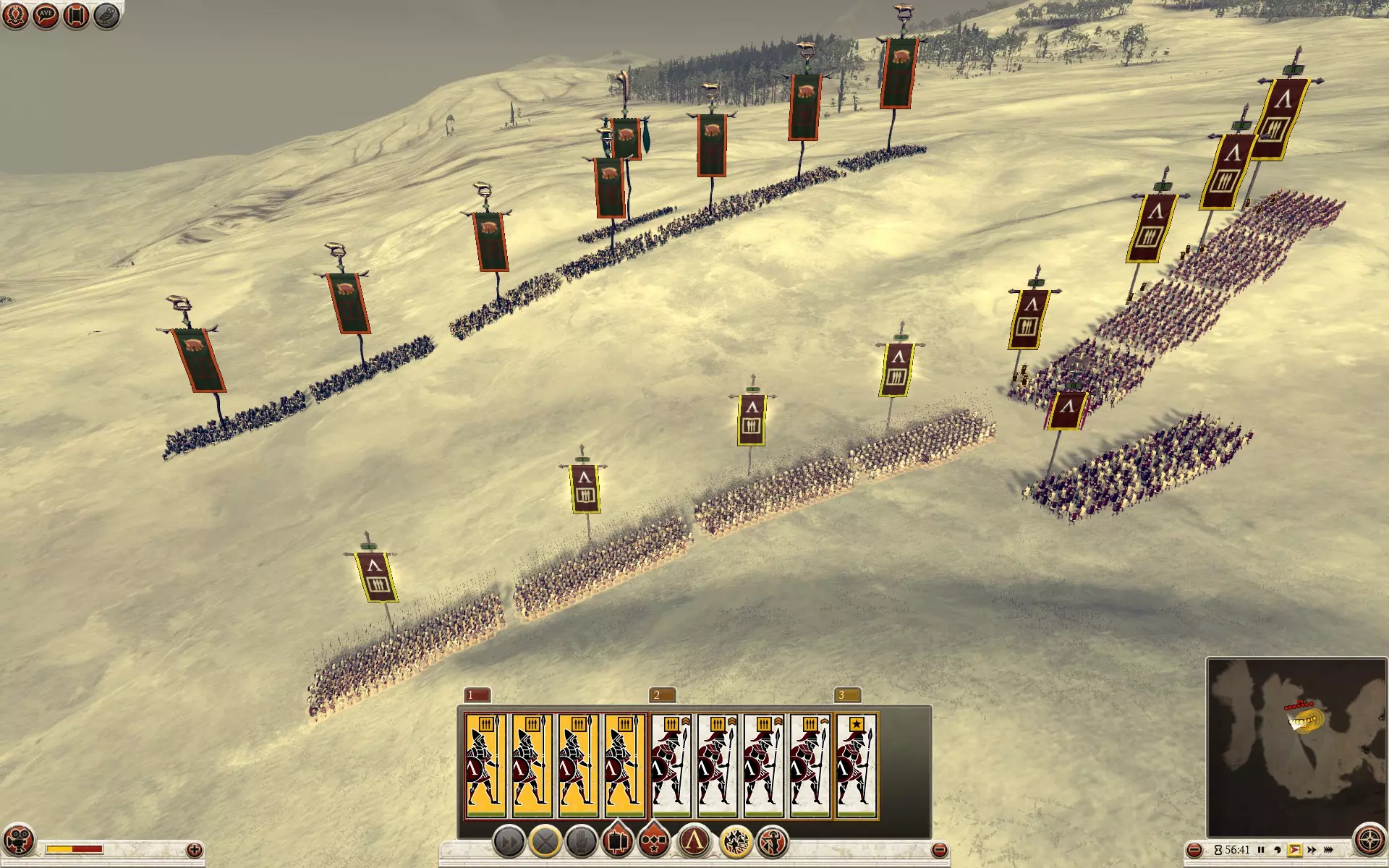
Visualizing the Bottleneck: Even a high-end GPU can't run faster than the CPU's primary thread allows. The "K" Key: The Invisible UI Performance Hit The Test: During a performance dip in a large battle, press K to hide the UI. The Result: Most players see an immediate jump of 10-15 FPS. The Lesson: The more unit cards and UI elements the engine has to track, the less "room" there is in the draw call pipe for the actual battle.🛠️ Technical Setting: Vegetation Alpha (Mode 0 vs. Mode 2) Vegetation transparency is the single biggest "Draw Call" hog in the Warscape engine. Normally, your CPU has to manually sort every leaf and blade of grass from back-to-front before rendering. On modern hardware, you have two ways to bypass this: Option A: The Performance King (Mode 0 - Alpha Test) gfx_alpha_blend 0;This disables transparency sorting entirely. It provides the highest possible FPS in forests, but foliage will look "jagged" at the edges. Use this if you are on a lower-end CPU. Option B: Hardware Acceleration (Mode 2 - Recommended) gfx_alpha_blend 2;This enables Adaptive Order-Independent Transparency (AOIT). This is the "Modern Fix." The Reality Check: Setting this to 2 effectively "unloads" the vegetation math from your CPU, freeing up headroom and preventing FPS "tanking" when zooming into forests. Hardware Support: This uses Rasterizer Ordered Views (ROV), supported by almost all modern hardware: -- NVIDIA: GTX 900 series and all newer (RTX 🛠️ Section 6: Advanced Performance: GPU Offloading & VRAM Risks The "Extreme Shadows" Paradox The Low/Medium Trap: At lower settings, the engine often uses legacy shadow techniques that rely on CPU-side calculations. This adds more weight to your already struggling CPU "primary thread." The Extreme Offload: By pushing Shadows to Extreme, the engine switches to more complex shader-based shadows handled almost entirely by the GPU. The Result: Since modern GPUs are usually "under-fed" by this engine, giving it the heavy lifting of Extreme Shadows removes that task from the CPU. This results in smoother frame delivery even if the raw FPS doesn't skyrocket. 🛠️⚠️ 2. The Danger of the Unlimited Memory Override The gfx_video_memory -1 fix is essential, but combining it with gfx_unlimited_video_memory true carries a specific risk in the 2026 modding landscape. The 4GB Wall: Rome II is a 32-bit application. The engine cannot address more than 4GB of memory at once, regardless of how much VRAM is on your card. Mod-Heavy Usage (DeI): Massive overhaul mods like Divide et Impera (DeI) significantly increase texture load. While the engine has a 4GB limit, modern drivers may report "in-use" VRAM as high as 7GB+. ⚠️ The "Hard Wall" Crash: By using the Unlimited override, you disable the engine's "Safety Valve." Normally, the game would blur textures to stay within the limit; now, it will attempt to force the render. The Result: If a massive battle pushes the engine past its ability to manage these addresses, the game will Crash to Desktop (CTD) instantly. ⚠️ Warning: If you experience crashes in 40v40 battles while using DeI, your first step should be disabling Unlimited Video Memory. This allows the engine to protect its 32-bit memory space by downscaling textures slightly instead of crashing your entire session. 🛠️ Section 7: Essential 2026 Technical Overrides ⚠️ IMPORTANT: STABILITY WARNING Before applying the VRAM Overrides below, please ensure you have read the stability risks in Section 6. Combining unlimited_video_memory with the -1 override can cause the 32-bit engine to exceed its memory ceiling and crash if not managed correctly. To apply these fixes, navigate to your AppData folder: %AppData% The Creative Assembly Rome2 scripts Open preferences.script.txt with Notepad. 1. The "Read-Only" Shield 🛠️ Action: After saving your edits, right-click preferences.script.txt > Properties > Check Read-only. Reason: Prevents the game from resetting your 2026 fixes if you touch the in-game settings menu.2. Graphics Engine Overrides 🛠️ Action: Set gfx_video_memory to -1 and gfx_unlimited_video_memory to true. Reason: Bypasses the 32-bit bug that misreports modern VRAM. (See the Technical Deep Dive for the logic). 🛠️ Action: Set gfx_alpha_blend to 2. Reason: Offloads foliage transparency to the GPU. This is the fix for the Draw Call Bottleneck in Section 5. 🛠️ Action: Set gfx_shadow_quality to 5. Reason: Forces a more stable vertex path on modern GPUs, reducing CPU overhead.3. CPU Threading & Core Affinity 🛠️ Action: Set number_of_threads to 6 (or half your total thread count if you have more than 12). Reason: Prevents the "24H2 Synchronization Crisis." Rome II's engine crashes or stutters when it tries to manage too many modern threads at once. 🛠️ Quick Fix (Core Affinity): While the game is running, open Task Manager > Details > Right-click rome2.exe > Set Affinity > Uncheck CPU 0. Reason: CPU 0 is where Windows processes your mouse and background tasks. Moving the game off Core 0 removes that "heavy mouse" feeling and input lag.(Note: For the optimal settings and a permanent alternative see Appendix C).Master Summary: Recommended Script Values Use Ctrl + F to find these lines and match these values exactly: gfx_video_memory -1; gfx_unlimited_video_memory true; gfx_alpha_blend 2; gfx_shadow_quality 5; number_of_threads 6; gfx_device_type 1; write_preferences_at_exit false; 💡Section 8: Vulkan & ReShade (OPTIONAL) ⚠️ READ BEFORE PROCEEDING: IS THIS NECESSARY?Vulkan (DXVK) is not required for the 2026 Technical Standard. It is a specialized compatibility layer for specific hardware issues. If your game is already stable after completing Section 7, stay on DirectX 11. The Reward: Can solve persistent micro-stutter and high driver overhead (primarily for AMD users). The Risk: DXVK adds a translation layer that consumes a portion of your limited 4GB Address Space. On Windows, this increases the risk of "Out of Memory" crashes in long sessions or with heavy mods like DeI.TECHNICAL NOTE: Vulkan does not add any "visual magic" to ReShade. In fact, running ReShade through Vulkan is actually more difficult because the Vulkan translation layer (DXVK) often hides the depth buffer, requiring you to manually find and "fix" it in the ReShade settings. In native DX11, ReShade usually finds the depth buffer automatically.Who is this for? AMD GPU Users: If you experience "driver-level" stuttering native to DX11. Unresolved Stutter: If the fixes in Section 4 and 7 did not smooth out your frametimes. Visual Customization: If you want to use ReShade to improve lighting/color (Vulkan is optional for this).The Three Paths: Configuration A: Just Vulkan (Fixes stuttering). Configuration B: Vulkan + ReShade (Fixes stuttering + adds visuals). Configuration C: Just ReShade (Adds visuals while staying on stable DX11). See Appendix G for specific technical details on Vulkan and ReShade. See Appendix H: External Software Links for links on how to install ReShade and Vulkan. ℹ️ Appendix A: The Science of the 4GB CPU Wall The Binary Limit 32 Bit programs A memory address is a 32-digit binary number (a string of 0s and 1s). The maximum value that can be represented by 32 bits is exactly 4,294,967,296 bytes. This translates to exactly 4GB of "Virtual Address Space." The 2013 Hardware Context When Rome II launched, the "Gold Standard" for gaming was an Intel i5-4670K and a GTX 770 (2GB VRAM). Most users were still on 8GB of total System RAM. Because most GPUs of that era only had 2GB of VRAM, "overflowing" the 4GB engine limit was difficult with vanilla assets. Developers designed the game to fit inside a "box" that modern mods (like DeI) and 4K textures have completely outgrown. The "Shared Room" Problem The 4GB limit isn't just for the game's data; it’s the total space the CPU uses to talk to everything related to the process. The OS Overhead: Windows reserves a portion of that 4GB just to manage the application. The VRAM Shadow: Even if you have a modern RTX 4090 with 24GB of VRAM, the 32-bit engine must "map" every texture into that same 4GB window to see them. The Bottleneck: While your modern PC has massive "highways" of memory, the game engine is a 12-year-old toll booth that only allows 4 cars through at a time. ℹ️ Appendix B: The TAG Reporting Bug & Cardcaps Database The 32-bit Reporting Overflow (TAG) Technical Note: NVIDIA documentation confirms that legacy 32-bit APIs "do not properly report available graphics memory when the TAG exceeds 4GB." Technical Note: When your VRAM (like an 8GB 3060 Ti) exceeds the 4GB (4096MB) 32-bit integer limit, the counter "wraps around." This explains why modern cards often report values like 3072MB (the 3GB "safe" remainder) or even lower values like 1259MB.The 3072MB "Ceiling" Observation Technical Note: In many cases, the engine appears to hard-cap its internal reporting at 3072MB (3GB). This acts as a "Safety Valve" to ensure the 32-bit process (which has a total limit of 4GB) still has 1GB of "breathing room" for the OS, CPU instructions, and engine overhead. Technical Note: If your game reports exactly 3072MB, it is likely the engine hitting its architectural safety ceiling.The Hardcoded "Address Book" (Cardcaps.txt) Technical Note: The engine cross-references your GPU against a lookup table called cardcaps.txt (inside boot.pack). This database was last updated in 2018 and has no knowledge of RTX 20, 30, 40, or 50-series cards. Technical Note: If your card is missing from this list AND the API reports a weird overflowed value (like 3072MB), the engine assumes an error and defaults to a "Generic VGA" profile (0MB VRAM).Why the "-1" Override is Mandatory for cards with 4GB+ Technical Note: Using the -1 override in your preferences script forces the engine to ignore both the obsolete database and the broken 32-bit reporting. Technical Note: This injection prevents the "Accountant" logic from panicking over the 3072MB limit. For cards with 4GB or more, this setting forces the engine to utilize the maximum 4GB (4096MB) architectural limit. Technical Note: Caution: If used on cards with less than 4GB, the engine may attempt to "pad" the missing VRAM with slower system memory, potentially causing performance stutters. 🛠️ Appendix C: Optimal CPU Affinity & Hex Codes This appendix provides the specific "Target" values for your desktop shortcut. By using a Hexadecimal mask on the Launcher, you ensure the game inherits a stable core configuration, bypassing the 24H2 Synchronization Crisis. The Hex Code Cheat Sheet CPU TypeHex MaskActive CoresStrategy4-Core / 8-ThreadD42, 4, 6, 7Skips Core 0 (OS interrupts).6-Core / 12-ThreadD542, 4, 6, 8, 10, 1124H2 Physical Fix. Locks to physical cores only.8-Core / 16-Thread55542, 4, 6, 8, 10, 12, 14Maximum physical isolation for 8-core dies.AMD Ryzen 9 (Dual CCD)D54CCD 0 PhysicalsPrevents high-latency "CCD Hopping." 🛠️ How to Apply (Permanent Fix) Step 1: Navigate to your Rome II install folder, then open the launcher folder. Step 2: Right-click launcher.exe > Create Shortcut. Move this shortcut to your desktop. Step 3: Right-click the new shortcut > Properties. In the Target field, paste this before the existing path: cmd.exe /c start "" /affinity [HEX_CODE] Step 4 (Critical): In that same launcher folder, create a new text file named steam_appid.txt. Step 5: Open that file, type 214950, and save. This allows the launcher to communicate with Steam while under a manual affinity mask. Example Target Path (For 6-Core / 24H2 Optimized) cmd.exe /c start "" /affinity D54 "C: Steam steamapps common Total War Rome II launcher launcher.exe" Why target the Launcher? Inheritance: Windows passes CPU affinity from parent to child. By locking the launcher to specific cores, rome2.exe is forced into the same "stable lane" the moment it spawns. Core 0 Logic: Shifting the entire stack off Core 0 ensures no background OS interrupts interfere with the game’s primary simulation thread. 🧪 Appendix D: Breaking the Transparency Bottleneck (AOIT) In preferences.script.txt, the setting gfx_alpha_blend can be used to shift one of the engine's heaviest CPU tasks—transparency sorting—over to your GPU hardware. The Reality Check: Setting this to 2 is not a "magic fix" for the engine's 32-bit CPU bottleneck. Rome II will still be limited by single-core performance for AI, pathfinding, and unit logic. However, it effectively "unloads" the vegetation math from your CPU, freeing up headroom and preventing FPS "tanking" specifically when zooming into forests or grass-heavy fields. The Modes: 0 (Alpha Test): Binary transparency. No CPU sorting cost, but foliage looks jagged and pixelated at the edges. 1 (Standard OIT): The default mode. The CPU manually sorts every leaf and blade of grass from back-to-front. This is a primary cause of low GPU usage/low FPS on modern rigs. 2 (Intel Accelerated AOIT): Stands for Adaptive Order-Independent Transparency. Hardware Support: Despite the "Intel" branding, this uses Rasterizer Ordered Views (ROV), a feature supported by almost all modern dedicated hardware: NVIDIA: GTX 900 series and all newer (RTX 20/30/40/50 series). AMD: GCN 2+ architecture (R9 290/390 through all RX 7000+ series). Intel: HD 4000 series and all Arc GPUs. Technical Edit: Find and modify the following line in your preferences.script.txt: gfx_alpha_blend 2; // Offloads foliage transparency sorting to the GPU Note: If you experience rare visual glitches like "black flickering boxes" on trees with modern drivers, revert this setting to 0 or 1. 📊 Appendix E: Test Bench/Technical Validation(2026 Reference) To ensure technical reproducibility, the findings in this guide were validated using a specific hardware and software "Test Bench." This environment is designed to monitor how the Warscape Engine behaves across different operating systems. Hardware Specifications CPU: AMD Ryzen 5 5600 (6-Cores). A modern, single-die chip used to monitor thread behavior and single-core bottlenecks. GPU: NVIDIA RTX 3060 Ti 8GB (GA104). Used to verify the 32-bit TAG-reporting bugs and VRAM overrides. RAM: 32GB DDR4 @ 3200MHz. Used to prove that system RAM cannot bypass engine-level memory limits. OS Environment: Windows 10 The primary testing was conducted on Windows 10. This serves as the stable control group, allowing us to confirm that issues like the "4GB Wall" are inherent to the game's engine and not caused by modern OS features. (Note: References to Windows 11 24H2 in this guide are based on documented scheduling conflicts specific to that OS version). OS Environment: The Linux "Silo" (Shared Library Setup) The Linux testing (Pop!_OS) was conducted using a specialized Shared Library configuration for players who dual-boot and run the same Rome II installation files from both Windows and Linux to save space. The Challenge: The game resides on a Windows-formatted NTFS drive. When Linux runs the game via Proton, the NTFS driver often rejects Windows-specific file locks, leading to crashes. The Symlink Solution: We use Symlinks to redirect the game's critical configuration folders (the compatdata and pfx) away from the NTFS drive and onto the native Linux drive. The Result: The game runs from the shared library, but its "brain" is stored safely on the Linux partition. This prevents the file-system corruption common in dual-boot setups.*Note: This is only required if sharing a library. Native Linux installations do not need these extra steps.* Technical Logic: Why These Errors Occur To understand the 2026 stability meta, we have to look at how the engine communicates with your hardware. The hex data and byte offsets reveal a "chain of command" for memory that explains why even high-end PCs crash. The Chain of Command Level 1 (The OS): Windows manages the total pool of RAM and the Pagefile. Level 2 (VirtualAlloc): The engine's "request" to Windows for a large block of workspace. Level 3 (dlmalloc): The engine's internal "waiter" that takes that block and carves it into tiny pieces for units, textures, and UI.Logic: VirtualAlloc (Place 1) vs. (Place 2) Binary offsets 119405 and 119449 confirm the engine uses a two-stage check: Place 1 (Initialization): This is the startup request. If this fails, the OS has blocked the game from launching entirely. Place 2 (Dynamic): This happens during loading screens. If Windows is busy resizing a "System Managed" Pagefile at the exact microsecond the game calls Place 2, the function returns NULL and the game immediately closes (the "Oops!" crash).Logic: The Fragmentation Trap (dlmalloc) The presence of dlmalloc strings at offsets 157788 - 158085 confirms that ROME II uses an internal heap manager. Over long play sessions (3-5+ battles), this manager creates "holes" in your allocated memory (fragmentation). Eventually, the engine tries to load a new unit but cannot find a continuous gap big enough to fit it—even if you have 32GB of RAM free. This is why restarting the game client is the only way to "defragment" the engine's internal workspace.Final Verdict 🛠️ The Static Pagefile Fix works because it removes the "resizing lag" from the OS level. It ensures the Place 2 request always finds an open door. 🛠️ The Restart Rule works because it resets the dlmalloc heap before it becomes too fragmented to function. 🌐 Appendix F: Multiplayer Stability & Network Architecture Rome II’s multiplayer "heartbeat" is extremely sensitive to timing. If one player’s system processes a logic check differently—whether due to CPU thread shifting or network packet delay—the game states diverge, resulting in a "Desync" kick to the lobby. Windows 24H2 Synchronicity & Affinity In the 24H2 era, "Desyncs" are usually caused by timing gaps between systems. To prevent this, both players must remain in lock-step: The Symmetry Rule: Both players must use the same Appendix C affinity strategy (e.g., both on D54). If one player uses a mask and the other doesn't, the OS will "park" cores differently on each PC, creating a millisecond timing gap (Clock Drift). ❗ The Focus Rule: Windows 24H2 puts the game into "Efficiency Mode" if it loses focus. If you Alt-Tab, your CPU downclocks while your partner's stays at full speed, causing a crash. Stay focused on the game window until the cycle is 100% finished. Network Architecture: Steamworks P2P Integration (Link) Rome II relies on Steamworks P2P to bridge connections. The Relay Factor: If a direct P2P connection fails, Steam routes your game through a relay server, adding latency. If ping exceeds ~200ms, the engine will desync. 🛠️ The Port Fix: To force a direct connection, ensure UDP Port 4380 and UDP Ports 27014-27030 are allowed through your Windows Firewall on both machines. Data & DLC Synchronization Mismatched game data is the #1 cause of battle-load desyncs: Blood DLC: Both players must have "Blood & Gore" enabled or both must have it disabled. Mismatched blood rendering causes an instant state divergence in combat. 🛠️ Redistributables: Both players should run vcredist_x86.exe in the game’s redist folder to ensure math libraries are identical. Manual Save Synchronization (The Nuclear Option) If the built-in "Resync" button fails, you must force a byte-for-byte match: Step 1: The Host locates the save at: %AppData% The Creative Assembly Rome2 save_games_multiplayer. Step 2: The Host sends this file manually to the partner (via Discord/Email). Step 3: The Partner places it in their own folder, overwriting the old copy. Step 4: Re-host using that file. For a more detailed explanation of player drift see this discussion post 🎨 Appendix G: Vulkan & ReShade [Removal & Reverting] Part 1 If your game fails to launch, crashes instantly, or you simply want to return to the 2026 Technical Standard (DX11), follow these steps. This process is safe and will not affect your save games or active mods. 1. The "Emergency Fix" (Restores DX11) To stop the game from using Vulkan/ReShade and fix launch crashes, you only need to remove the "hooks." Delete these two files from your Rome II Main Directory: dxgi.dll d3d11.dll Note: Deleting these will instantly disable both Vulkan and ReShade. 2. The "Full Cleanup" (Optional) If you do not intend to use ReShade or Vulkan again and want to clean your folder, remove these as well: dxvk.conf (Vulkan settings) ReShade.ini (Your ReShade presets/preferences) reshade-shaders (The folder containing the actual visual effects) Rome2.dxvk-cache (The shader cache file created by Vulkan) 3. Clear Steam Launch Options Right-click Total War: ROME II in Steam > Properties. Under General, find the Launch Options box. Clear the box completely. Any leftover commands here can prevent the native engine from starting correctly once the DLLs are gone. Once these steps are complete, your game will default back to the native Windows DirectX 11 drivers. 🎨 Appendix G: Vulkan & ReShade Part 2 (Technical Configurations) ⚠️ REQUIRED READING: Before applying these settings, ensure you have read the Section 8 Warning. Everything in this Appendix is strictly optional and intended only for advanced users troubleshooting specific stuttering or visual issues. This section provides the technical reasoning behind the specific settings required for the 2026 Technical Standard. These adjustments ensure that external layers like Vulkan and ReShade don't crash Rome II's 32-bit engine. 1. Defining Your Configuration (From Section 8) Configuration A (Just Vulkan): DXVK installed to fix stutters; no ReShade. Configuration B (Vulkan + ReShade): DXVK for performance and ReShade for visuals. Configuration C (Just ReShade): Native DirectX 11 with ReShade visuals. 2. Must-Have dxvk.conf Settings If you are using Configuration A or B, you need a dxvk.conf file in your Rome II main folder. This file tells Vulkan how to talk to an old 32-bit game without causing a memory overflow. Recommended dxvk.conf Content: # --- Performance HUD --- # Shows if Vulkan is active. (Change to 'none' once setup is confirmed) dxvk.hud = compiler,fps,devinfo # --- Visual & Image Quality --- d3d11.samplerMipLODBias = 0 d3d11.forceSampleRateShading = false dxgi.syncInterval = 1 # --- Hardware & Engine Stability --- # Disables Nvidia-specific bloat that eats 32-bit address space. dxgi.nvapiHack = false d3d11.samplersUpperLimit = 16384 # --- Memory Management (CRITICAL) --- # Limits textures to prevent the 4GB "Out of Memory" crash. d3d11.maxSamplerAllocationCount = 4000 Why the 4000 limit? Rome II has a "3GB Reporting Bug." If Vulkan tries to allocate more than 4000 samplers, it will quickly exceed the 4GB limit of the 32-bit engine, causing an instant crash to desktop during loading screens or large battles. 3. The "Unlimited Video Memory" Logic In the Rome II Graphics menu, ensure "Unlimited Video Memory" is UNCHECKED when using Vulkan. Why? Vulkan handles VRAM much more efficiently than the 2013 engine. If you check this box, the game might try to bypass Vulkan's memory management and request a pool of memory that doesn't exist within the 32-bit ceiling. 4. Configuration B & C: ReShade & The Depth Buffer ReShade effects like Ambient Occlusion (MXAO) require access to the game's "Depth Buffer." The Manual Fix (Essential for Config B): 1. Open the ReShade menu in-game (Home key). 2. Go to the Add-ons tab. 3. Find the Generic Depth section. 4. Check the box: "Copy depth buffer before clear operations." 5. Select the resolution with the highest number of "Draw Calls." Visual Guide: How to setup the ReShade Depth Buffer (Video) 5. Performance Verification Vulkan: Open the ReShade Statistics tab. If it says "Vulkan," the layer is active. Depth Buffer: Enable the shader "DisplayDepth." If you see a clear black-and-white image of the 3D world, your depth-based effects are active.See Appendix H for download links to the pre-configured dxvk.conf and ReShade presets. 🔗 Appendix H: External Software Links This section serves as a centralized hub for third-party tools. To keep things simple, I have categorized them so you know what is mandatory and what is for advanced users only. Category 1: Essential Utilities (Recommended for All) 7-Zip[www.7-zip.org] (Use this to extract .tar.gz and .zip files without corrupting the data).Category 2: Advanced Performance [OPTIONAL] Official DXVK GitHub[github.com] (The Vulkan bridge. Download the .tar.gz and use the x32 DLLs). ReadShade: Using ReShade with DXVK[readshade.github.io] (Essential documentation if you plan on using both Vulkan and ReShade together).Category 3: Visual Enhancements [OPTIONAL RECOMMENDED] Official ReShade Website[reshade.me] (The main injector for post-processing lighting and depth effects). VIDEO GUIDE 1: Fixing the Depth Buffer (Essential for Vulkan Users) VIDEO GUIDE 2: How To Install & Use ReShade (Rome II Walkthrough) ReShade for Linux (Proton Script)[github.com] (Automated installer for Steam Deck and Linux users).Operating System Resources[Very Advanced Technical Users] Pop!_OS by System76[system76.com] (The recommended Linux distro for the 2026 Technical Standard). Video Guide: Setting up Pop!_OS for Gaming Note: Rome II is a 32-bit application. When downloading any of the performance tools above, ensure you select the x32 / x86 versions or the game will fail to launch. 💬 Frequently Asked Questions (FAQ) Frequently Asked Questions Q: Why doesn't Creative Assembly (CA) just patch the game to 64-bit? A: ROME II was built on a 32-bit version of the Warscape engine. Patching it to 64-bit would require rewriting the core architecture and breaking every mod ever made. While a 64-bit macOS version exists, the PC version remains on the legacy 32-bit branch. This guide provides the "manual" stability that the official build lacks.Q: My PC has 32GB+ of RAM and an RTX GPU. Why does ROME II still crash? A: ROME II is a 32-bit application. Regardless of your physical RAM, the engine is hard-capped at 4GB of address space. Our Hex analysis confirms the game is hardcoded to "commit suicide" (the Oops! crash) the moment a memory request returns NULL.Q: What exactly is "Memory Fragmentation" and why do I need to restart? A: Imagine your 4GB of memory is a parking lot. Over time, loading/unloading battles leaves small gaps (fragmentation). Eventually, you try to load a large unit, but there isn't a single continuous gap big enough to fit it—even if the lot is half-empty. A restart is the only way to "repave" the parking lot and clear those gaps.Q: Why is Windowed Mode better for stability than Fullscreen? A: The engine is notorious for "losing focus." In Fullscreen, an Alt-Tab or notification often causes the engine to fail to re-acquire the display hook. 🛠️ The Fix: Windowed mode keeps the game in the Windows Desktop environment. Using the x_pos 0; y_pos 0; fix in your script gives you a "Borderless" look with the stability of a window.Q: What is the "Flip Model" and how does it help? A: Modern Windows (10/11) uses the DXGI Flip Model, allowing the GPU to hand over frames directly. This removes the lag associated with Windowed mode and allows G-Sync/FreeSync to work properly. 🛠️ Action: Ensure "Disable fullscreen optimizations" is UNCHECKED in Rome2.exe properties to let the OS "upgrade" the game.Q: I have an RTX 40/50-series GPU. Why is my FPS still low in sieges? A: You are hitting the Draw Call Bottleneck. The engine is limited by the speed of a single CPU core. Optimization via DXVK is the only way to modernize how the engine communicates with your hardware.Q: Can I use these fixes with massive mods like Divide et Impera (DeI)? A: Highly recommended. Overhauls increase script load and unit counts. The VirtualAlloc and CPU Affinity tweaks are practically mandatory for a stable DeI campaign.Q: Will using DXVK or ReShade get me banned by VAC? A: No. Rome II does not use Valve Anti-Cheat (VAC). These tools are local rendering bridges and are 100% safe for Multiplayer use.