back-top

未验证抢先体验创意工坊可用手柄

--

+关注

--

热度

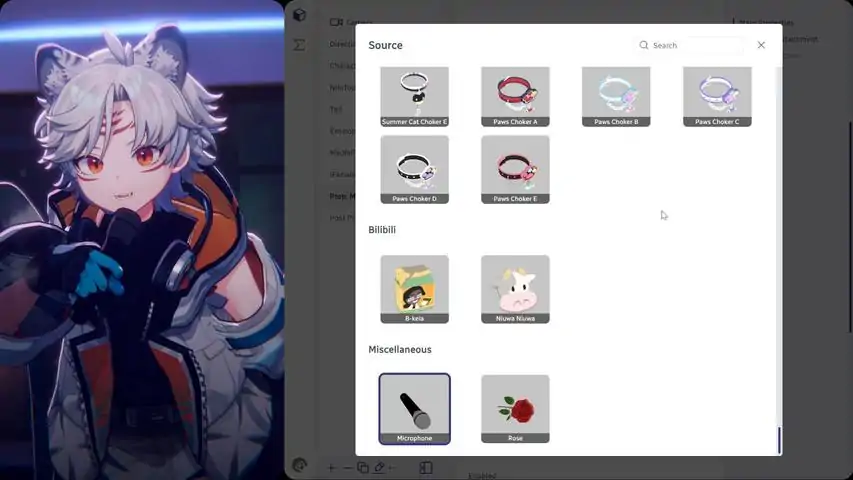
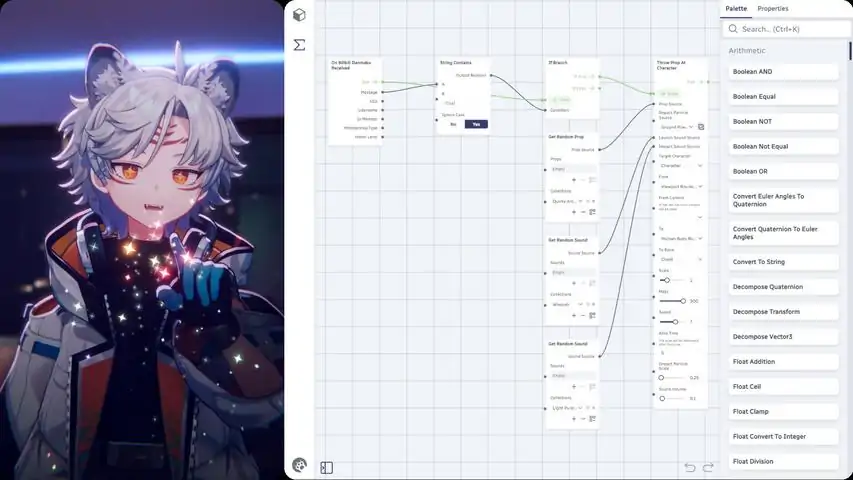
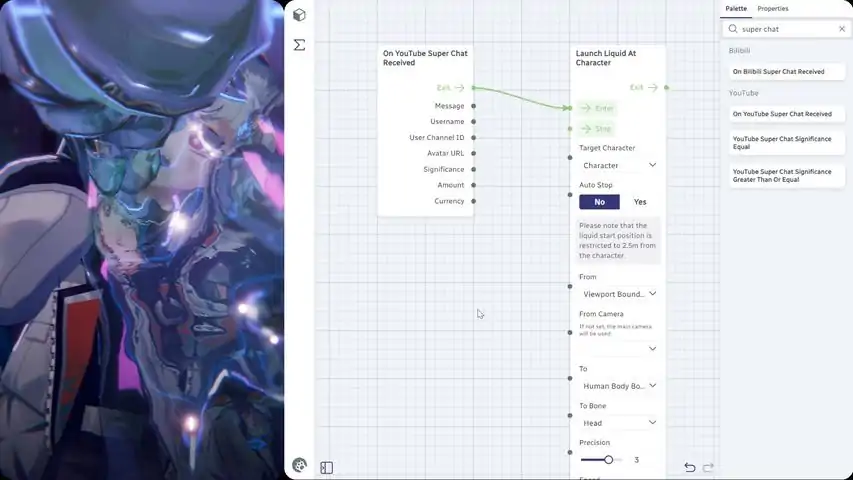
唤醒你的虚拟潜能——欢迎来到极高可玩性与自由度的 3D 虚拟直播软件:Warudo。 个人使用 100% 免费。^ 使用摄像头 / iPhone 进行面部捕捉(ARKit)和手部捕捉。 使用动作捕捉服、VR 追踪器或任何兼容 VMC 协议的软件进行全身动作捕捉。 兼容 VRM、VRChat 及任何具有人形骨架的角色模型。非 VRM 模型需要在 Unity 中进行一次性导出(请参见使用手册)。 完全可自定义的表情系统。 自由从外部导入 3D 道具、环境、粒子效果等。 原生集成主流直播平台:哔哩哔哩、Twitch、YouTube。 让观众与你的角色互动:投掷道具、生成贴纸和粒子效果、发射水流等。 可编程蓝图系统,让你随心自定义从动作捕捉到观众交互的任何内容。 用 MIDI、Stream Deck 甚至 WebSocket 消息来控制蓝图。 为开发人员提供 C# SDK,开发你期望的功能! ……这个列表太短,写不下了。_(:3 」∠)_请注意,宣传视频和图片中使用的素材并不一定包含在软件中。^ 我们将"个人使用"定义为: 直播平台的账号以及 VTuber 模型版权属于使用者本人并且 直播是个人行为,不属于任何与第三方签订的合同范围内(和直播平台直接签约除外)。
游戏圈
共3条帖子
master
2026-02-19 04:00:22 · 发布在 「Warudo」
在Linux上设置全身追踪
A guide in text and video walking you through the process of configuring Warudo and XR Animator to get Full Body tracking on Linux. For FREE. In 20 minutes. All you need is a decent webcam. READ FIRST Greetings! This guide is FOR LINUX! Windows users should be able to get full body tracking with Warudo alone. It's effectiveness on a Steam Deck is untested and I don't own one. Could work if it has a webcam, but it might be too intensive in performance. This guide was made as a contribution to KyloNeko's full guide to Vtubing on Linux. This guide will assume that your environment is ready and help you enable full body tracking. If you need more help, like setting up a Linux system and OBS from scratch, you can read his full guide here: https://codeberg.org/KyloNeko/Linux-Guide-to-Vtubing Also, while this guide is provided in text form here, I advise you to watch the video version here: https://www.youtube.com/watch?v=O7EkbzLpl-8 Keep in mind, that section 2a of the video should be skipped since that part deals with VSeeFace as an alternative to Warudo. Introduction Three pieces need to be connected to have a functional full body tracking setup: A tracking software An avatar puppeteering program OBS. Programs like VseeFace and Warudo are avatar puppeteering programs and can normally do the tracking themselves, but in order to use them on Linux they must run under wine/proton and they don’t play well with webcams. Thus the need of an external program to do the tracking. The tracking program program sends the information through the network (technically, but usually it is sent and received on the same computer) and this allows the tracking information to reach the application running under wine/proton. For this we have to enable the VMC protocol on both the tracker (sender) and the avatar program (receiver). We will use XR Animator as a tracker and send it's data to Warudo. 1 - XR Animator setup XR Animator is very simple to setup. Just follow the steps: 1. Download the latest release for linux-64 of XR Animator at: https://github.com/ButzYung/SystemAnimatorOnline/releases/tag/XR-Animator_v0.25.0 2. Place the downloaded archive in a convenient folder and extract it. 3. Navigate to the electron app folder inside, give execution permissions to the electron file if required. (chmod u+x ./electron) 4. Run the electron program. 5. Click start. Configure the program using the bottom menu: 1. Double click the camera icon. Enable selfie camera = Yes. 2. Choose your camera from the list. 3. Double click the Motion capture button. 4. Select “Full body (MediaPipe vision)”. 5. Double click the VMC button. 6. Set VMC Protocol and Send Camera Data to ON. Set the App mode to your application (VseeFace/Warudo, etc) if listed. 7. Disable the Avatar. 8. Click done. 2 - Warudo Setup Warudo’s installation is trivial, with it being a Steam application, so I will assume it is already installed. However I will state the reminder that version 8.x of GE-Proton should be used, since 9.x version seem to not work at this time. UPDATE: As of November 28th, 2025, Warudo works with GE-Proton10-25. But you need to add the following launch parameters: PROTON_DISABLE_NVAPI=1 PROTON_USE_NTSYNC=1 PROTON_USE_WOW64=1 %command% Also that character models must be stored in: “steamapps/common/Warudo/Warudo_Data/StreamingAssets/Characters” Setup process: 1. Open Warudo. 2. Open the onboarding assistant. 3. Click “Get Started” on “Basic Setup.” 4. Choose your model and click “OK”. 5. Choose to get a recommendation and click “OK” 6. Set everything to “NO” and click OK. 7. Set both face tracking and pose tracking to VMC. 8. Click on customize face tracking. 9. Choose whatever options you like, but the important thing is at the bottom. Set lip sync to always, choose your mic, and enable hybrid mode. Click OK. 10. Click OK. And then again if you get a warning about poses. 11. Say yes to Import expressions and click OK. Then OK again. 12. Select “I want to pick and environment” and then None. Then go to camera settings and enable Chroma Key. 3 - OBS With XR Animator and Warudo running... all you have to do is add a Window capture or Game capture component to your scene. Add a chroma key filter if required. Game capture requires special setup, so if you want to go for that one, refer to KyloNeko's full guide on Linux vtubing, linked in the READ FIRST section.

下载233乐园APP

专心推荐好游戏

关于我们 · 联系我们 · 隐私政策 · 营业执照

侵权投诉 · 开发者中心 · 用户协议 · 免责声明

不良信息举报中心

纠纷处理及不良内容举报电话:

4006600910 (工作时间: 9:00-12:30,14:00-18:00)

北京市朝阳区启阳路4号院2号楼15层1803室

本公司产品适合10周岁以上玩家使用 未成年人家长监护

首页 / Warudo

抵制不良游戏 拒绝盗版游戏

注意自我保护 谨防受骗上当

适度游戏益脑 沉迷游戏伤身

合理安排时间 享受健康生活

京ICP备18003564号-3

经营许可证编号:京B2-20181741

京公网安备:11010502052873

Copyright © 2025 233leyuan.com All Rights Reserved

北京龙威互动科技有限公司版权所有

热门游戏: 我的世界 | 三角洲行动 | 原神 | 王者荣耀 | 超自然行动组 | 蛋仔派对 | 和平精英 | 火影忍者 | 二重螺旋 | 英雄联盟 | 梦幻西游 | 明日方舟 | 斗罗大陆 | 光遇 | 鸣潮 | 无畏契约 | 模拟山羊3 | 樱花校园模拟器