



TSC 工坊手册
筛选创意工坊,轻松找到您想要的内容。订阅、安装、运行和管理创意工坊场景及路线,过程简单又有趣。不再需要时,可正确删除它们。浏览完整的路线列表,其中包含指向各自创意工坊场景的链接。可按地区、轨道长度、开发者、名称或日期对路线进行排序。以英里或公里为单位查看每条路线的长度。使用我们的高级搜索向导,找到任何符合您需求的内容。
浏览创意工坊页面 在创意工坊页面中搜索特定物品,可能会感觉如同大海捞针。不过,我们为你准备了“磁铁”来提供帮助。 “大海”概况: - 超过29,000个创意工坊场景 - 近200条已完成的创意工坊路线,包含定制场景 - 超过500条开发中的创意工坊路线可供预览 由于Steam创意工坊的标签系统存在问题,仅使用标准搜索功能往往难以获得理想结果。为此,我们开发了两个高级界面,助你即时、精准地找到所需内容。 关于创意工坊物品的使用,还有其他重要细节将在本指南的后续章节中介绍。寻找物品 - 通过路线列表 大多数你在Steam上购买的《模拟火车》路线都附带少量为该路线专门创建的官方场景。不过,创意工坊中通常还有更多免费场景可供使用。 除了免费场景外,创意工坊中也有免费路线。 以下链接是查找所需内容的最佳方式: TSC Routes & Scenarios[www.railsims.com] 本指南将向你展示如何使用它。你将能够访问所有路线的创意工坊场景(点击一下即可从创意工坊中调出它们)。包含内容摘要: - 为线路专门编写的场景 - 线路长度 - 发布日期 - ID编号及地区 官方线路附加内容: - 使用该线路资产的场景 - 线路手册 - 商店页面链接 - 开发者链接 - 包含的机车和车辆(鼠标悬停线路标题查看) - 线路资产路径 - 任何包含的机车和资产包 创意工坊线路附加内容: - 反馈链接 - 创意工坊页面链接 - 作者链接 - 用作基础模板的DLC 该列表具备完整的搜索、排序和显示选项。 当然,除了场景外,你也可以找到免费的创意工坊线路进行下载并添加到你的收藏中。 点击即可访问,就是这么简单。 查找项目 - 通过快速查找器 另一种查找所需内容的方式是通过快速查找器。它甚至包含地图和路线文件夹编号。 你可以通过点击以下链接并从菜单中选择“快速查找器”来访问它。 TSC 工坊菜单[www.railsims.com]
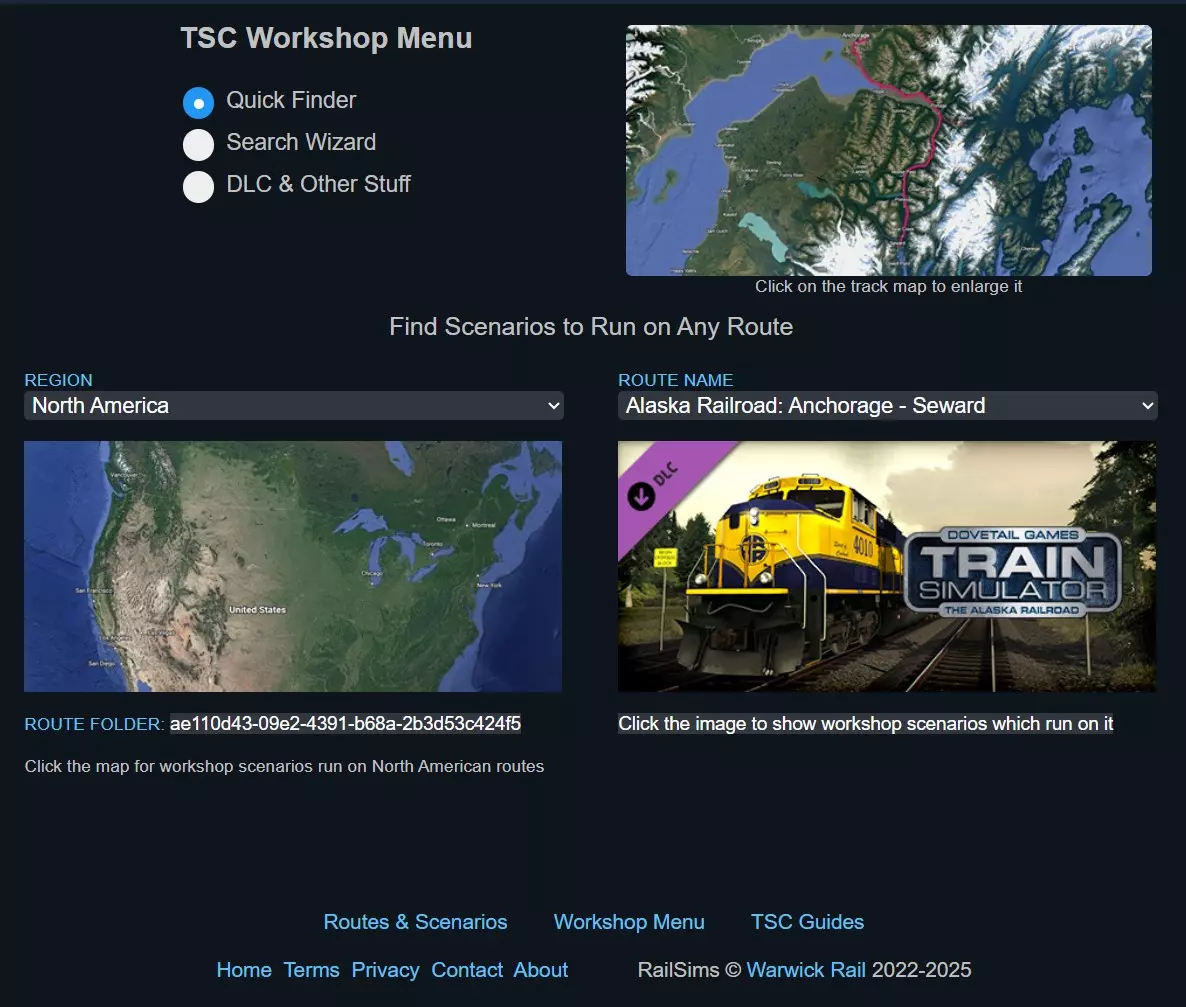
只需选择任意路线,即可立即获取该路线的一系列场景。 查找物品 - 通过搜索向导 查找所需内容最有效的方式是通过高级搜索向导。 您可以通过点击以下链接并从菜单中选择“Search Wizard”来访问它。 TSC 工坊菜单[www.railsims.com]
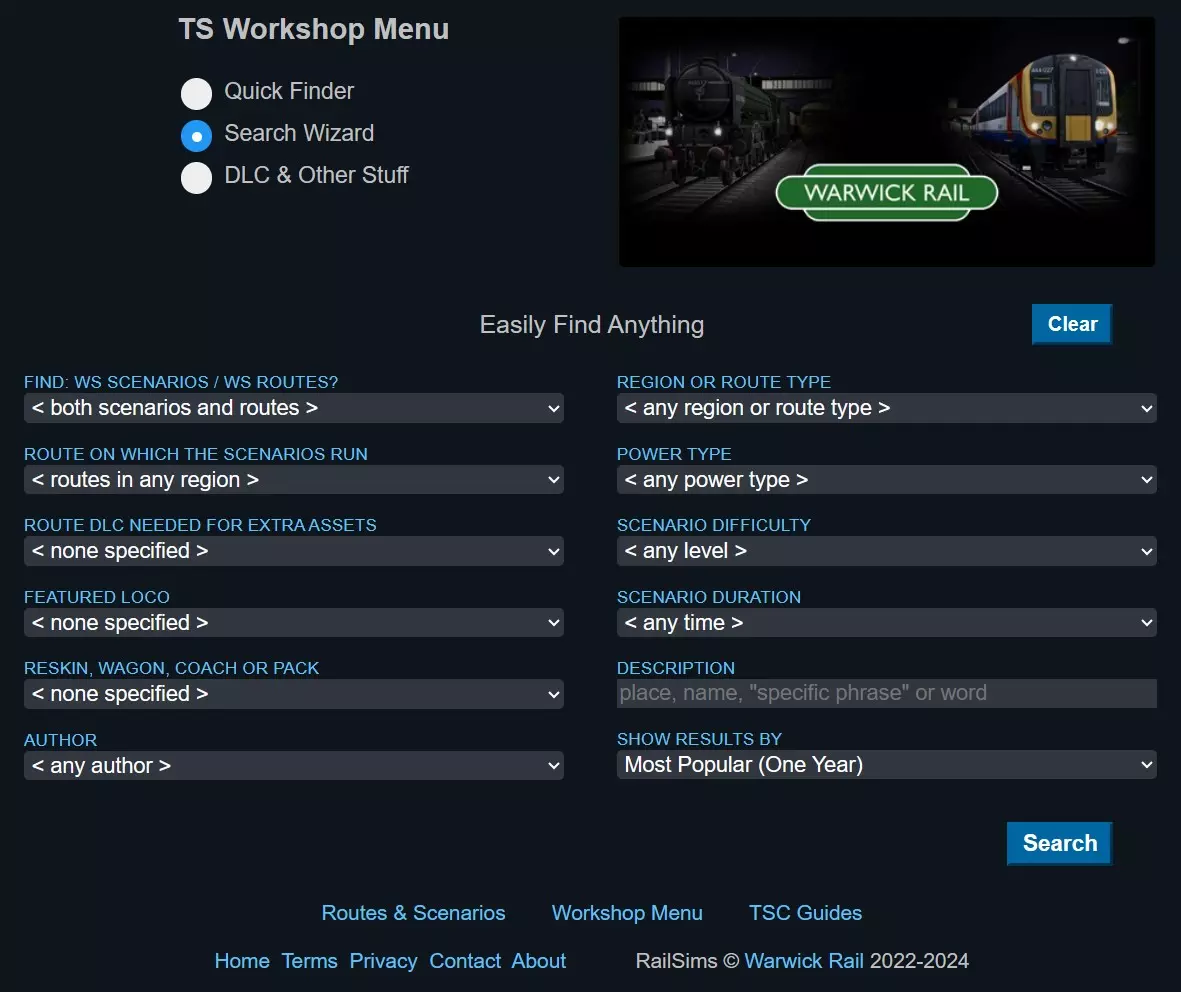
现在你可以输入任何你喜欢的信息,并立即获得所需的结果。 订阅场景: 浏览第一部分中描述的菜单中的路线。以下是相关链接: TSC Routes & Scenarios[www.railsims.com] 打开后,你可以根据需要按路线类型和地区筛选列表。
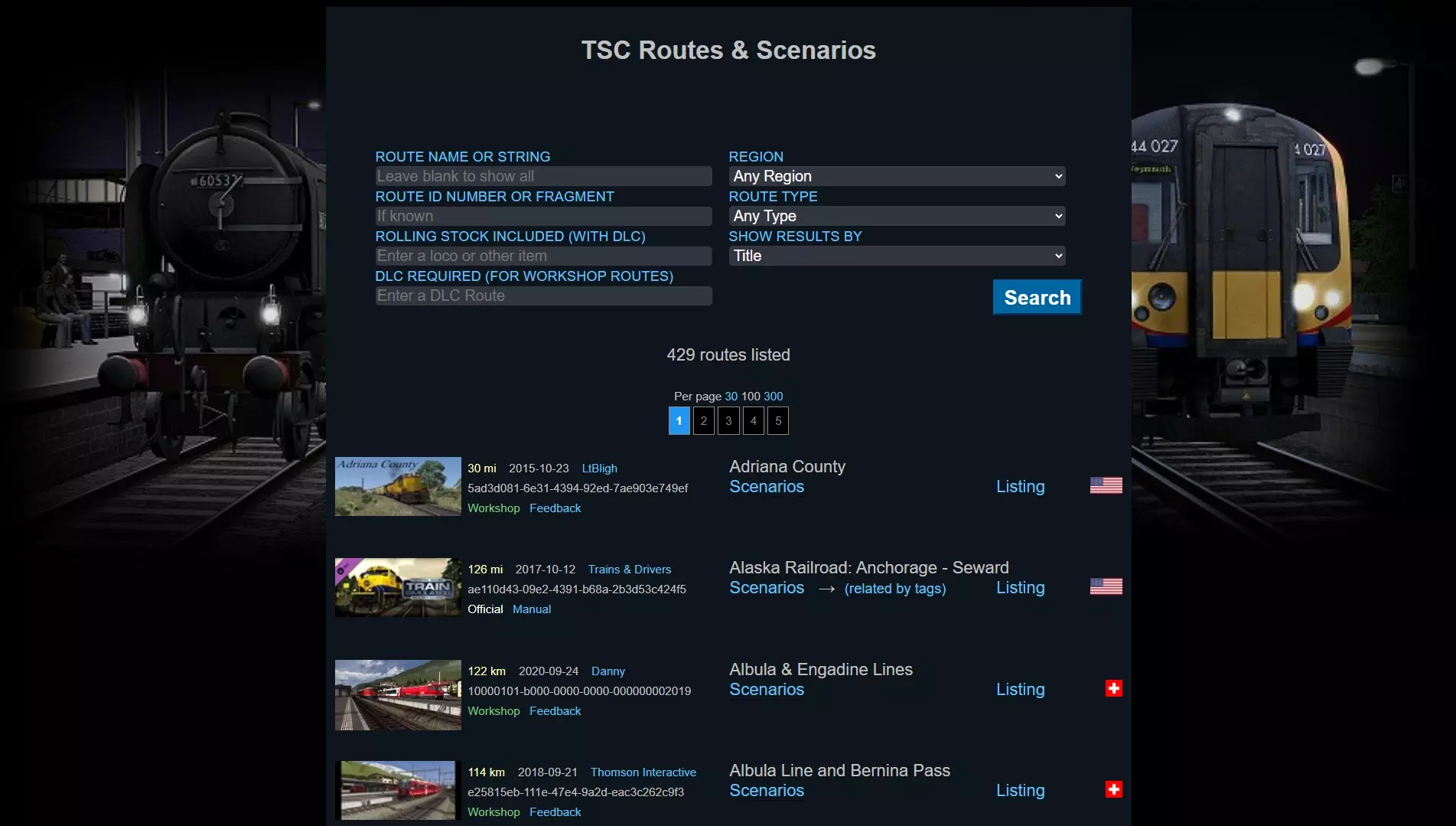
在你的收藏中找到任意路线,然后点击“场景”链接。这将触发创意工坊打开,并显示为该路线编写的所有场景。
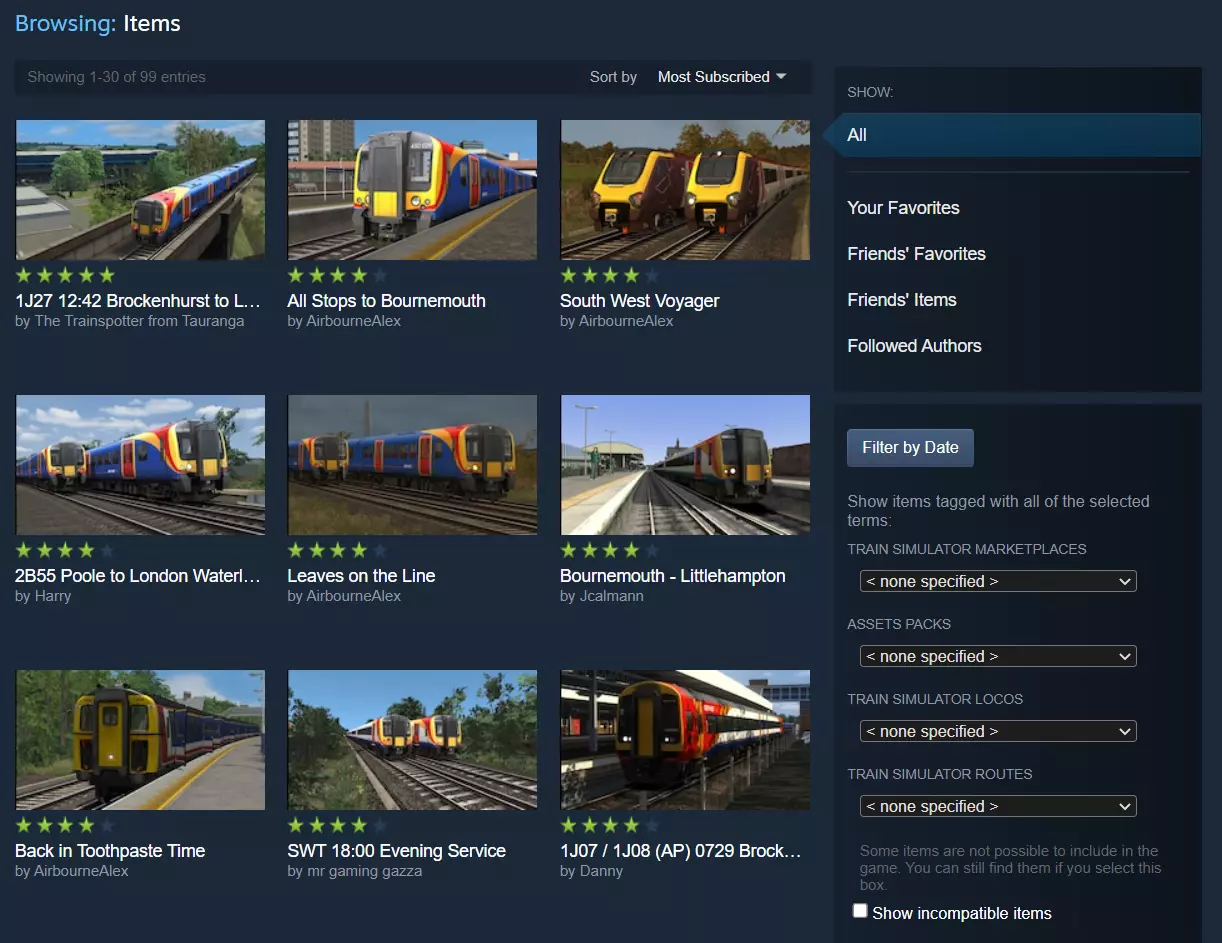
浏览这些内容,找到你可能想玩的场景后,点击它以打开其创意工坊页面。
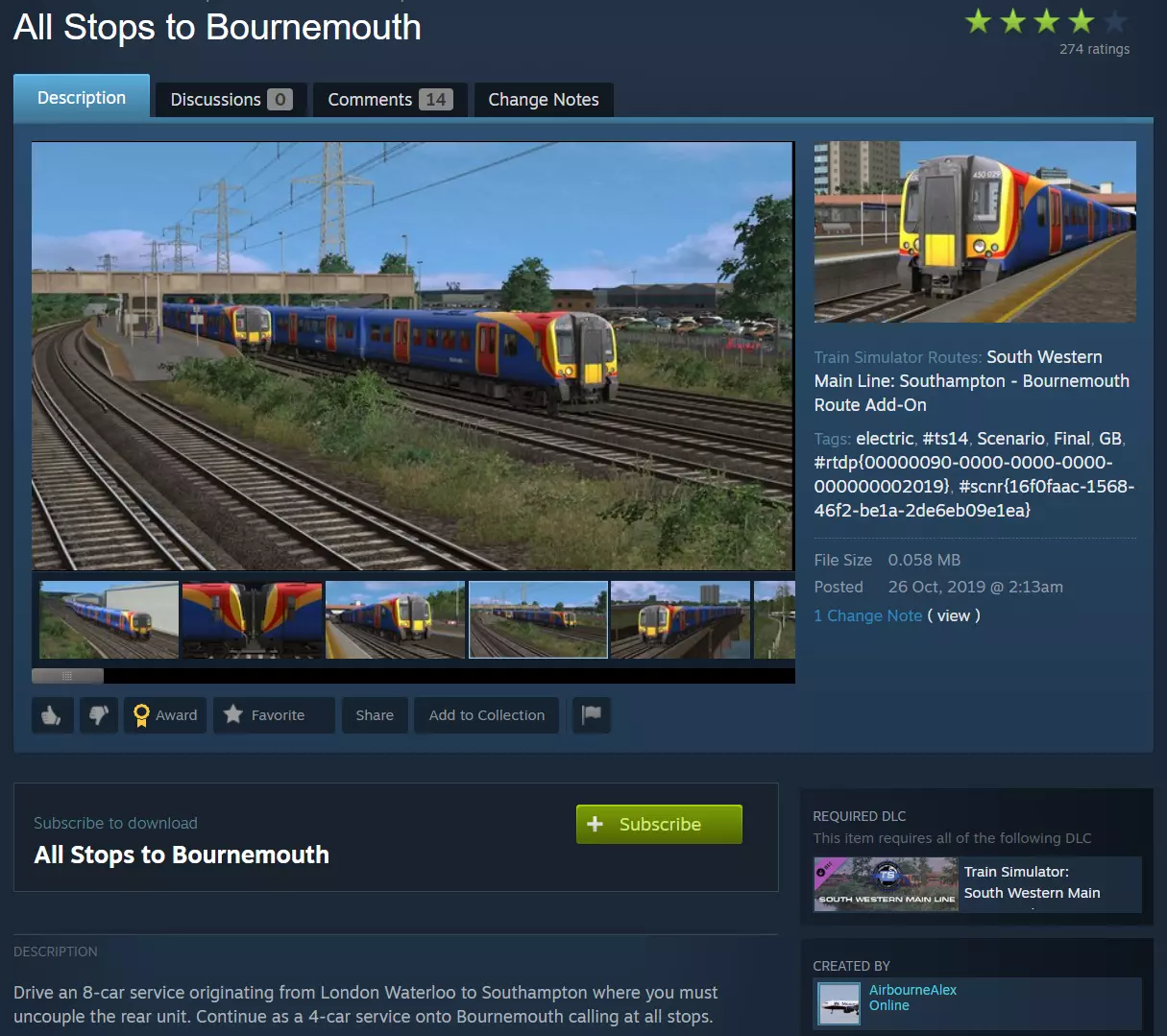
如果你喜欢当前内容,可以点击“订阅”按钮,将其自动下载并添加到你的游戏中。
订阅功能有两个作用: - 标记该项目,以便下次启动游戏时下载到您的设备中。 - 标记该项目,使其能在未来有更新时自动下载并覆盖旧版本。 请注意:取消订阅只会禁用“更新覆盖”功能。项目本身仍会保留在您的游戏副本中,并且可以正常游玩。 如果您希望删除该项目,请按照本指南后续部分中说明的步骤操作。 订阅路线: 如果您订阅了创意工坊中的某个路线,您还可以订阅并运行所有为该路线制作的创意工坊场景。您也可以自行制作该路线的场景,并发布到创意工坊供他人游玩。从第一部分所述的菜单中浏览所有创意工坊路线。以下是相关链接: TSC Routes & Scenarios[www.railsims.com] 打开后,选择“Workshop”(创意工坊)类型。你也可以根据需要按地区筛选路线。
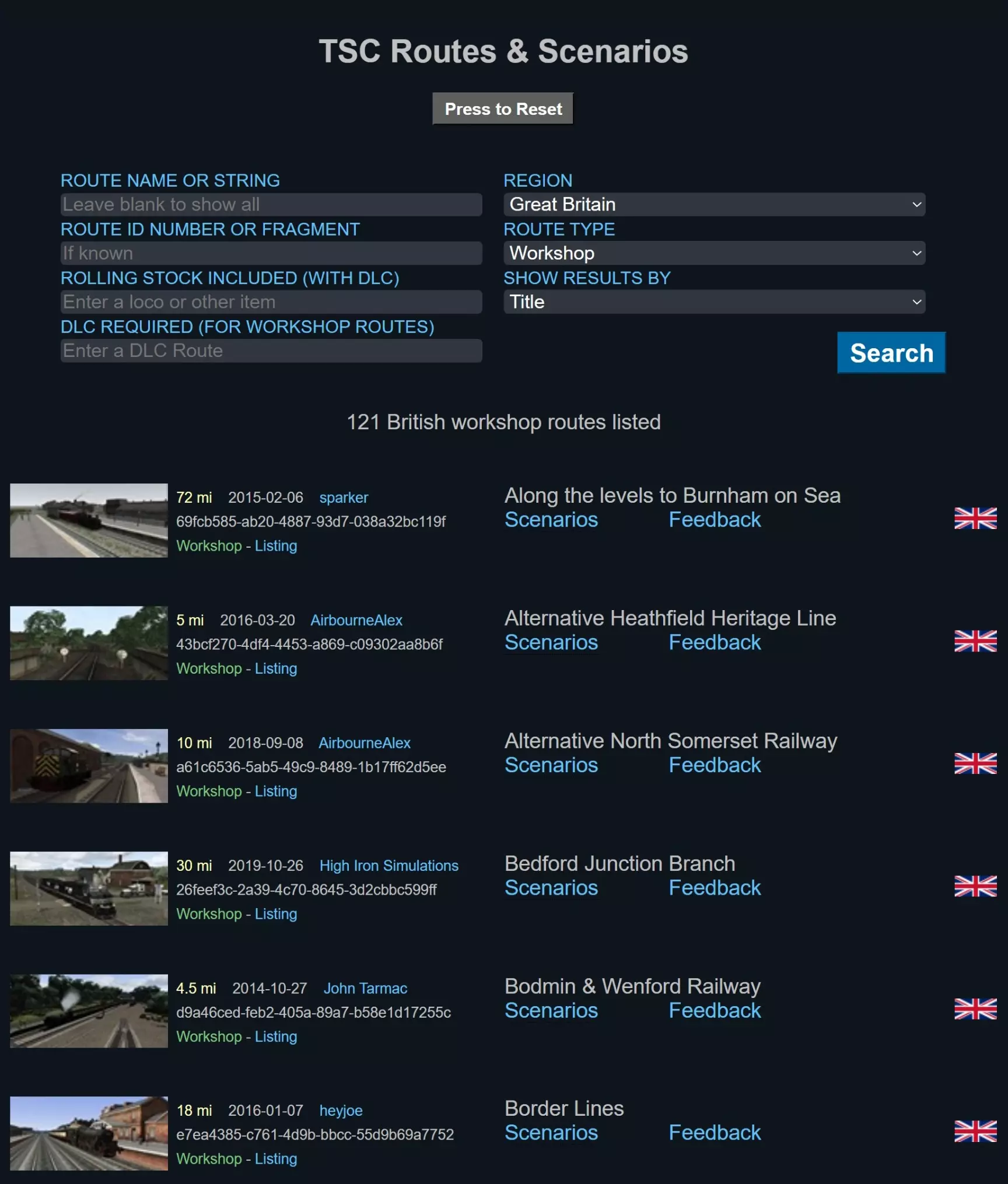
如果看到感兴趣的内容,请点击其图片。这将触发创意工坊打开并显示该特定路线的专门页面。
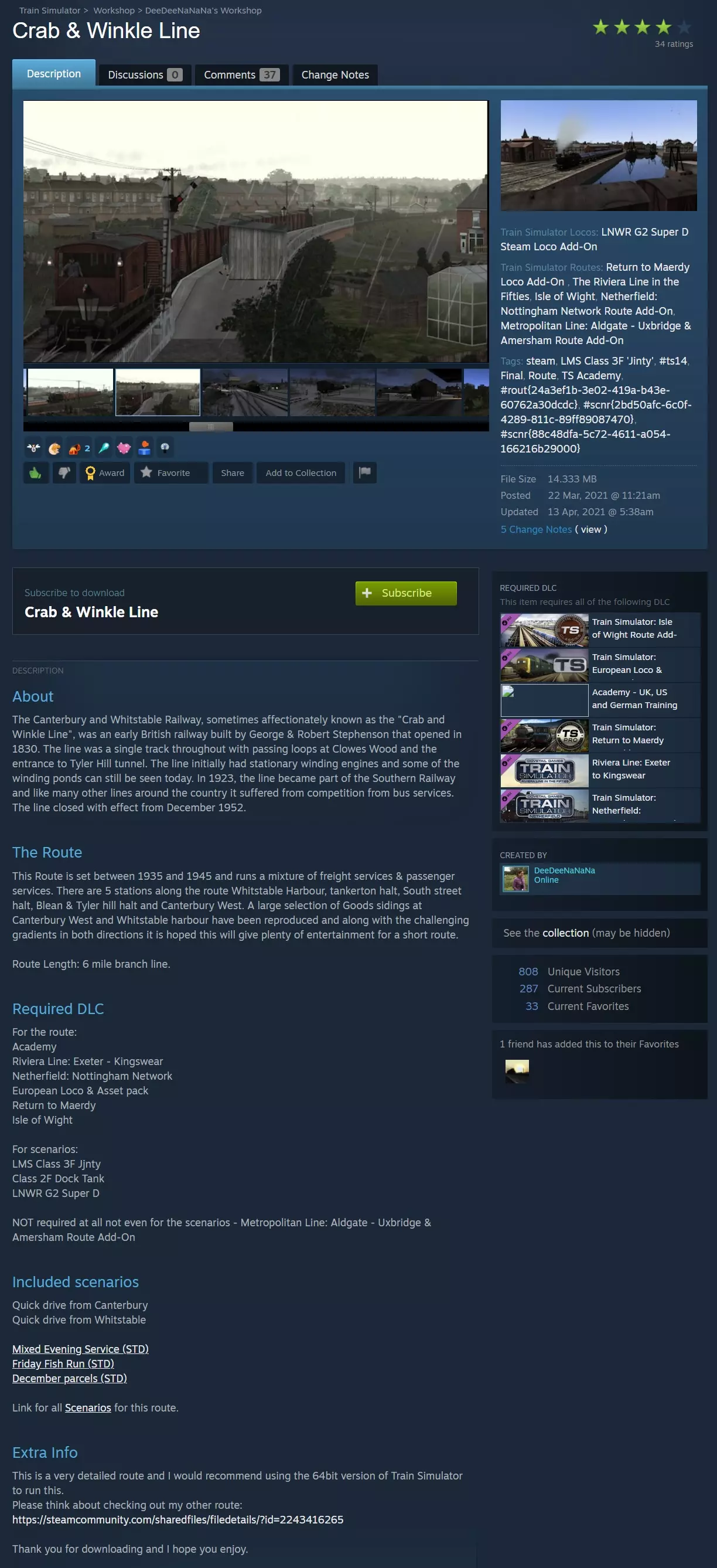
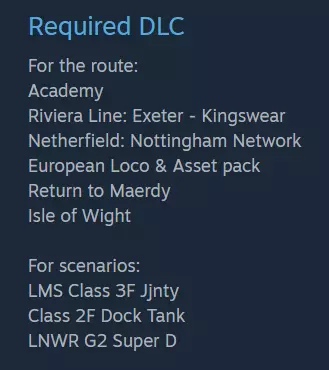
查看路线描述中的DLC需求。
如果您拥有所需的DLC,可点击“订阅”按钮将该路线标记为自动下载并添加到您的游戏中。
请记住,订阅功能有两个作用: 1. 标记该物品,以便下次启动游戏时下载到您的设备中。 2. 标记该物品,以便在未来有更新时自动下载并覆盖原物品。 请注意:取消订阅只会禁用“更新覆盖”功能。物品本身仍会保留在您的游戏副本中,并且可以正常游玩。如果您希望删除该物品,请按照本指南后续说明的步骤操作。 安装步骤: 订阅创意工坊物品后,需按照以下简单但重要的步骤操作,物品才能首次在游戏中显示: 1. 启动游戏 2. 进入“驾驶菜单” 3. 选择“创意工坊”选项卡 4. 选择“已订阅”
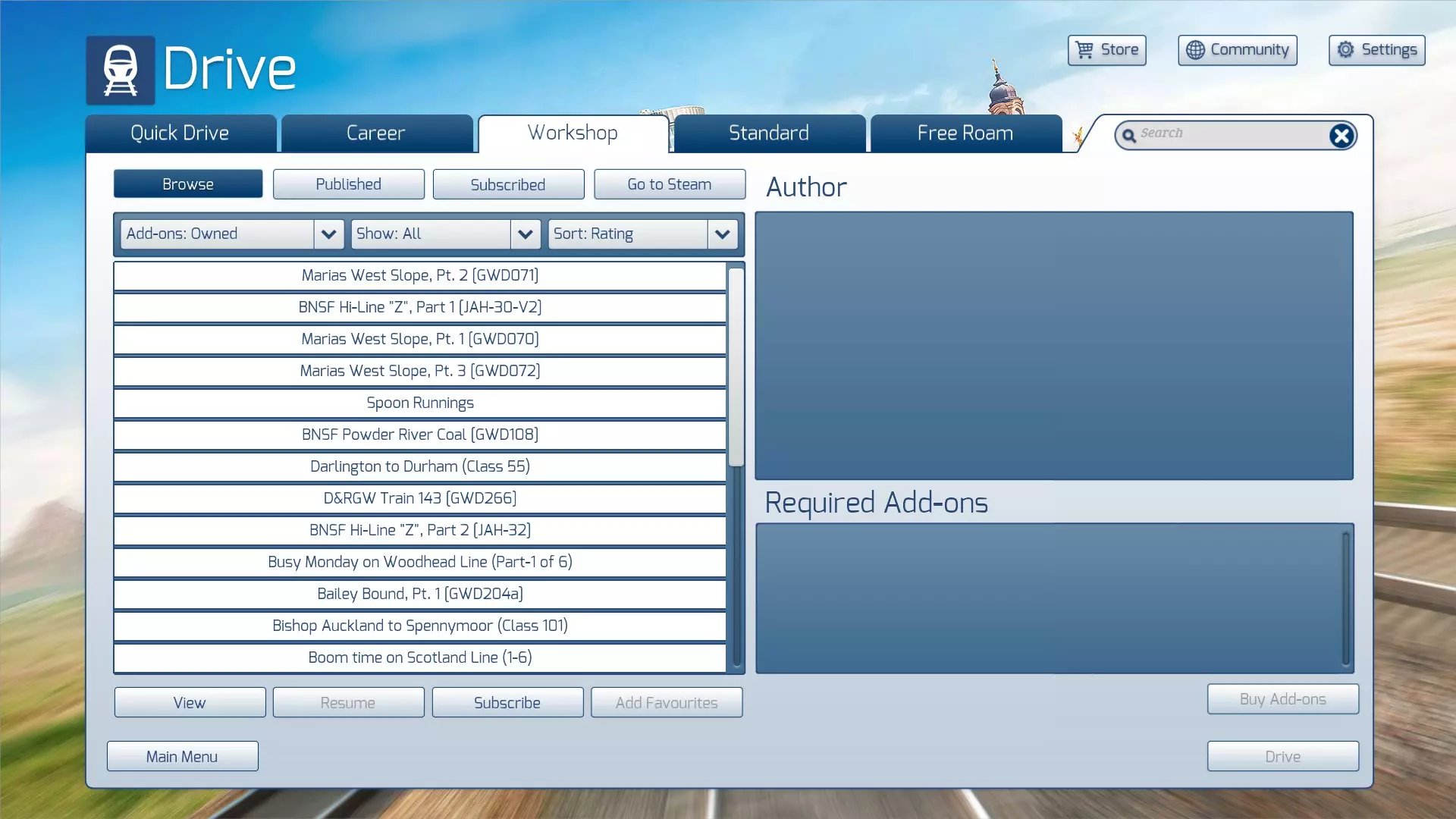
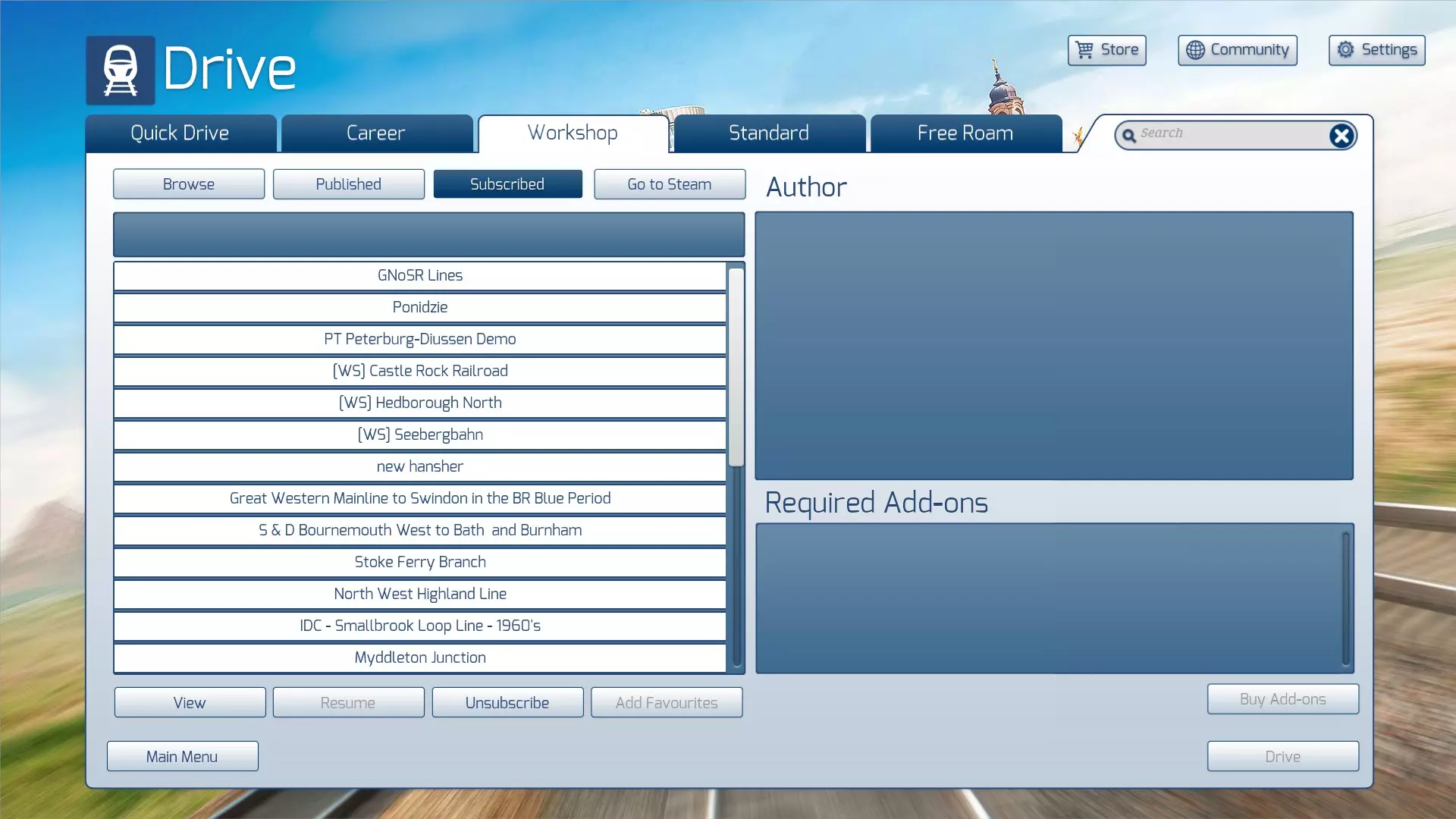
您的新创意工坊项目将随即安装,并且您会看到它已添加至“已订阅”列表中。 现在该项目已准备就绪可供使用。但我们建议您**不要通过此菜单上的“驾驶”按钮运行场景**。我们的建议是遵循下一部分中的说明。 ### 运行场景 如果您新安装的创意工坊项目是一个场景,那么它很可能是一个标准场景。 **建议您通过“标准”标签页而非创意工坊标签页运行场景**。原因是创意工坊标签页菜单下的“驾驶”按钮依赖于工坊的标签系统,若路线或场景被标记了您未拥有的项目,该按钮将被禁用。通常会出现错误的标签,尤其是大都会线的标签。 因此……在“驾驶”菜单中,选择“标准”选项。 你将在其创建时所属的路线下找到新的场景。 点击场景名称进行选择。 按下“开始”键启动场景。
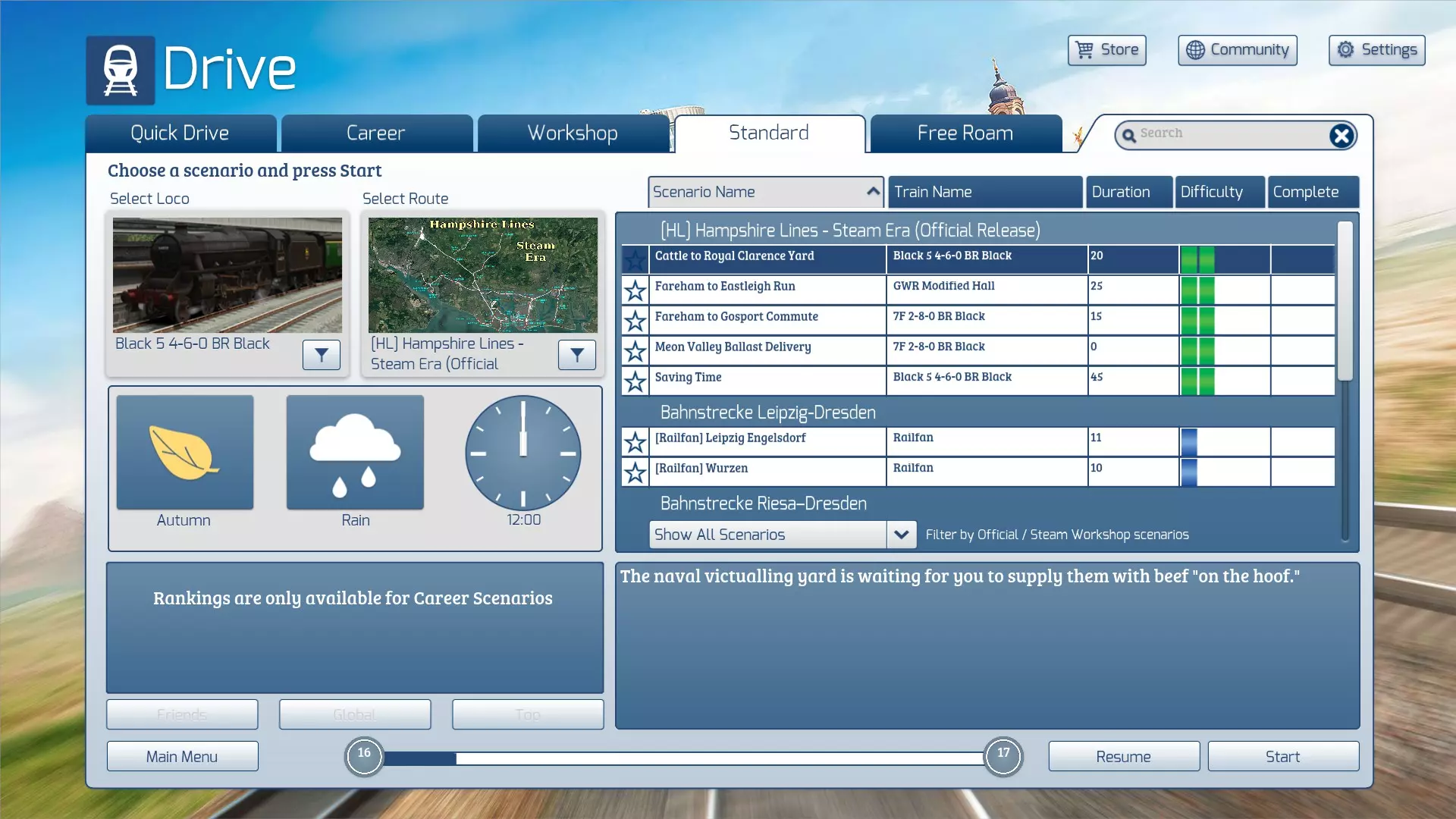
对于自由漫游或生涯模式场景,请选择相应的标签页并遵循类似流程。 快速驾驶路线 如果您新安装的创意工坊物品是一条路线,它可能已启用快速驾驶菜单。 在驾驶菜单中,选择“快速驾驶” 点击“路线”图像框(左下角),以在右侧显示可选路线页面。
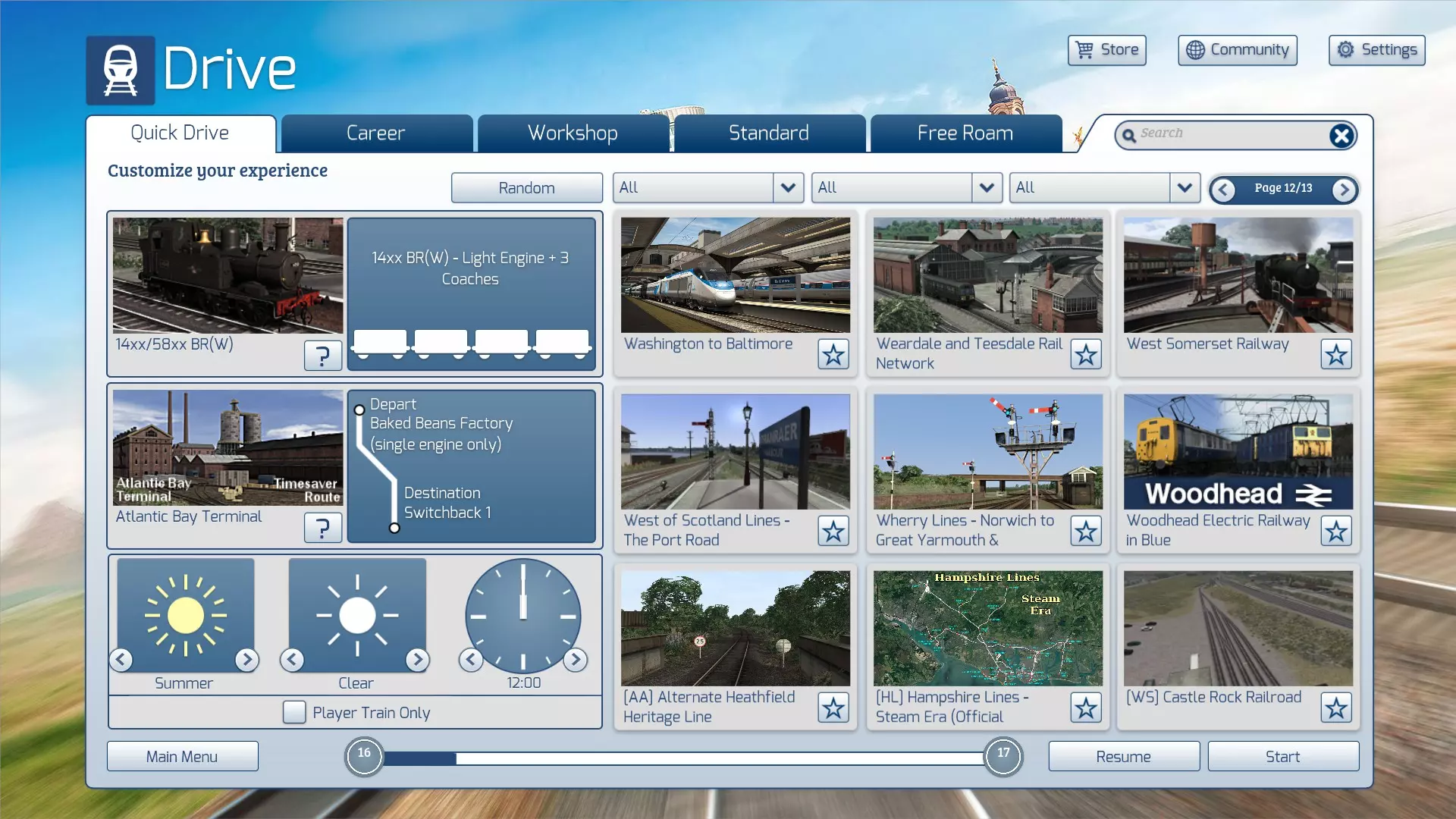
浏览页面以找到你的新路线。 点击路线图像进行选择。 此时会弹出快速驾驶菜单,你可以在其中选择旅程的出发点和目的地。
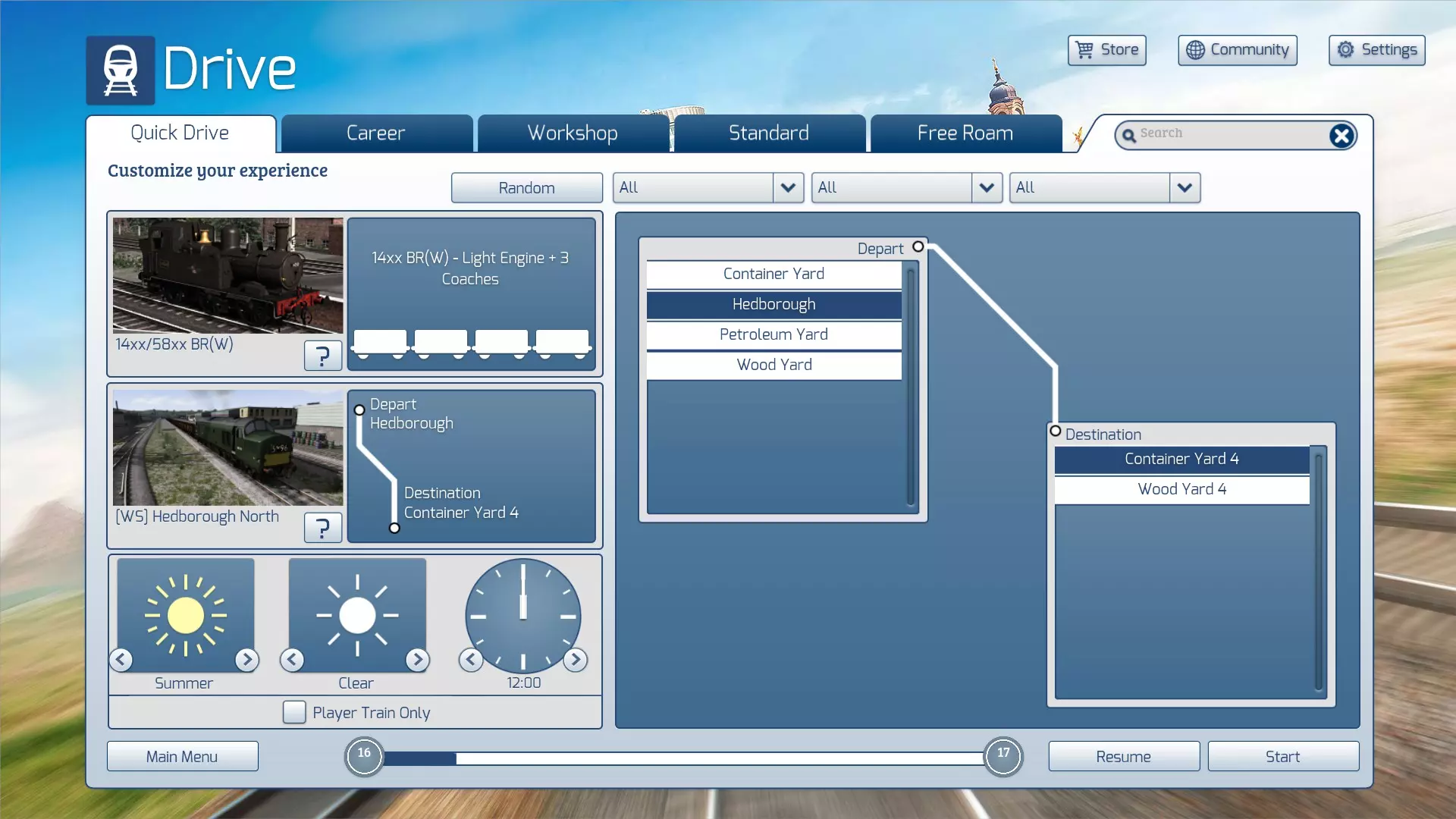
选择出发点 选择目的地 选择季节、天气和时间段(左下角方框) 选择是否排除AI列车(仅官方路线适用) 按下“开始”以启动快速驾驶场景 恢复丢失的路线 您的驾驶菜单中是否缺少某些创意工坊路线?有时,您可能会发现驾驶菜单中的大部分甚至所有创意工坊路线都消失了。幸运的是,这是缓存问题,可轻松解决。 1. 前往您的RailWorks文件夹。 2. 打开Content文件夹。 3. 删除以下文件: SDBCache.bin SDBCache.bin.MD5 RVDBCache.bin RVDBCache.bin.MD5 4. 现在重启《模拟火车》。这将重建您的路线数据库,所有之前消失的路线都将重新出现。运行时问题 点击“开始”按钮后,快速驾驶场景将加载到游戏中。在所有加载界面完成后,你可能会遇到类似以下的错误消息:
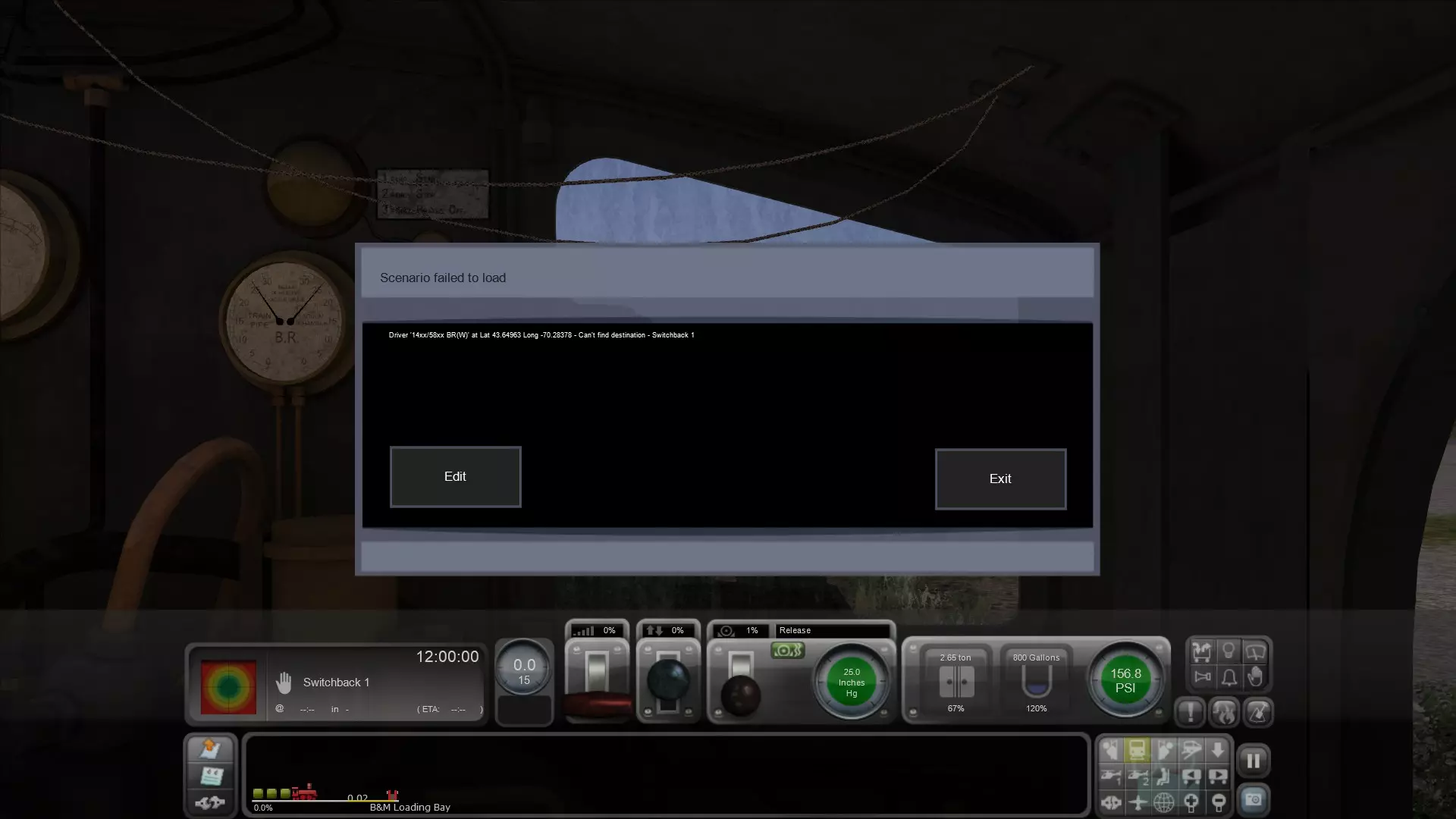
这可能是快速驾驶模式出错,或者是路线中存在你库中没有的场景物品或铁路车辆导致的。 消息框会提供两个选项——编辑或退出。 诀窍是两者都不要选。只需按F2键(就像你尝试保存场景时那样)。你会看到以下内容:
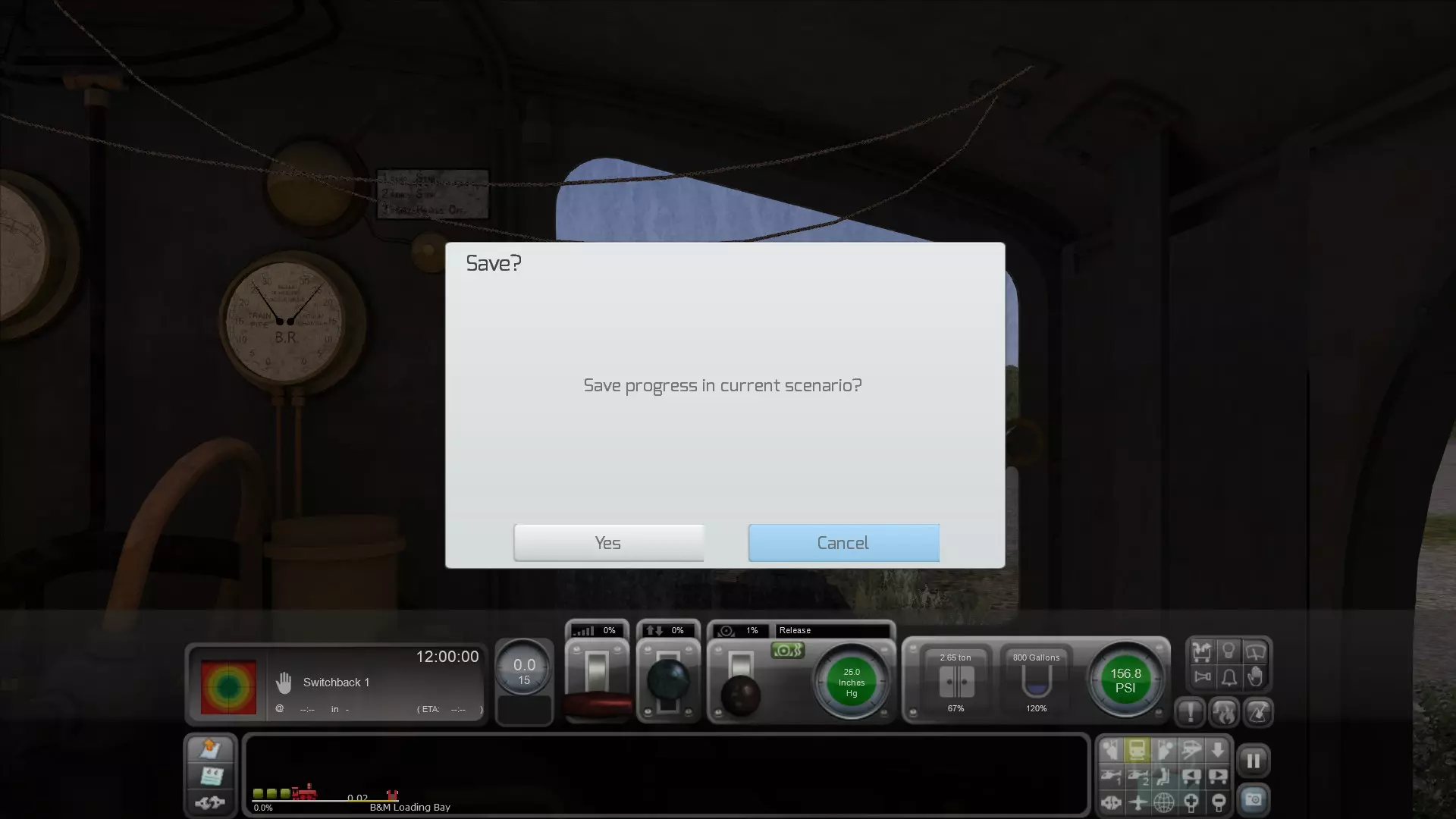
再次强调,不要进行任何保存操作。只需按下“取消”键。你会奇迹般地返回到任务场景,并且现在应该能够正常游玩了。 在行程中,你可能会遇到停车信号或红灯而无法前进。 尝试通过按下“Tab”键(如果正在倒车,则按“Ctrl+Tab”组合键)来联系调度员并请求通过许可。 如果你的路径不安全(例如有AI列车尚未完全通过你的轨道,或者道岔位置与你的行驶方向不符),回复消息将显示“禁止在危险信号处通过”。 一旦一切正常,你将获得通过许可,回复消息为“允许在危险信号处通过”。 在极少数情况下,快速驾驶任务可能需要你倒车才能完成行程。如果轨道配置阻碍了列车沿直线路径行驶,就会出现这种情况。请查看2D地图确定正确路径,并在必要时倒车以完成行程。 查看您的订阅内容 您可以通过以下3种方式查看已订阅的创意工坊项目列表: 1. 通过Steam桌面应用: 右键点击游戏标题,然后点击“属性”以打开对话框菜单:
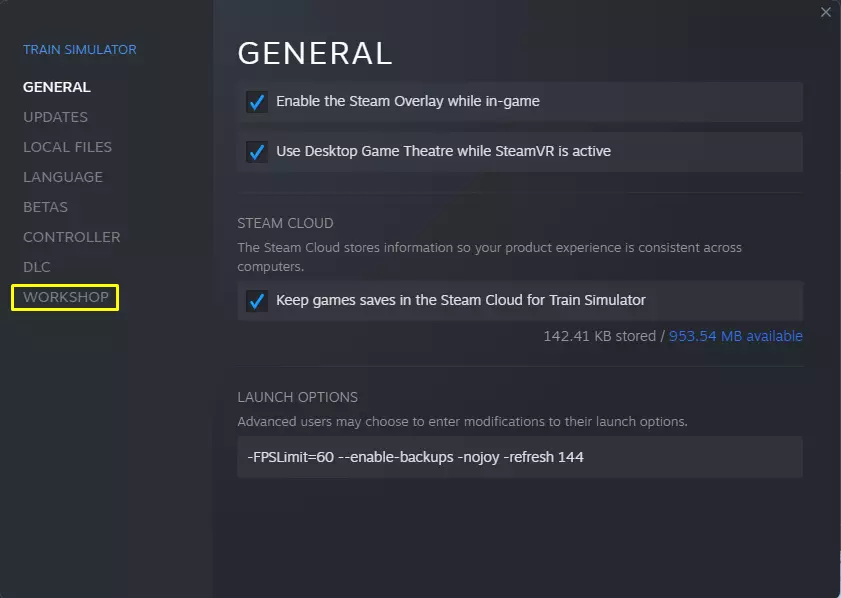
选择“创意工坊”以显示您已订阅的项目列表。
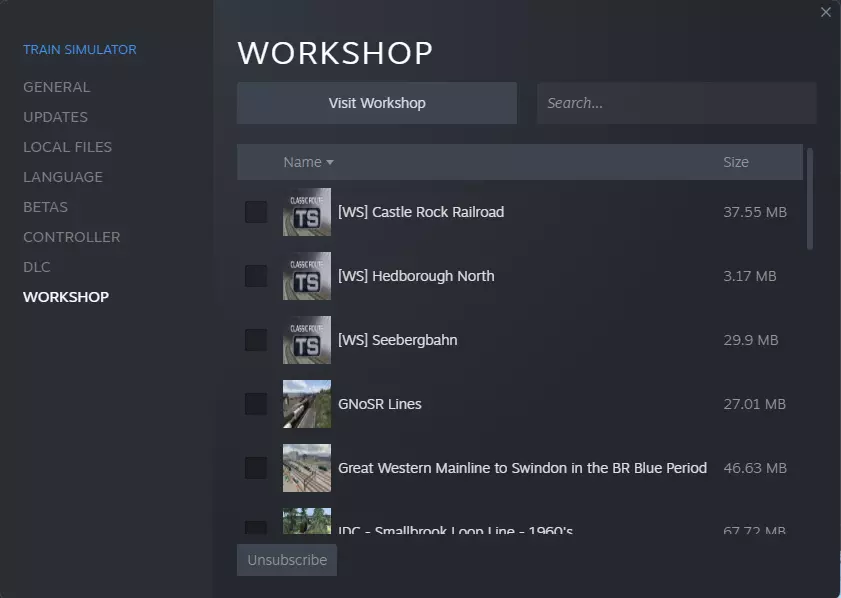
你可以按字母顺序或大小对物品进行排序。如果物品数量较多,你可以按名称搜索。 你也可以一次性取消多个物品的订阅,只需勾选每个物品旁边的复选框,然后点击“取消订阅”按钮。 2. 通过游戏内菜单: 从“驱动器”菜单中选择“创意工坊”选项卡,然后选择“已订阅”部分。 这将以无特定顺序列出你已订阅的物品。
你可以通过选择每个订阅项并点击“取消订阅”按钮来逐个取消它们。 3. 通过Steam创意工坊本身,既可以直接通过桌面应用程序,也可以通过网络浏览器在线登录: 从顶部菜单栏将鼠标悬停在你的用户名上,选择“内容”。点击标有“工坊物品”的标签,这将显示你的创作(如有)。现在从右侧菜单框中选择“已订阅物品”。
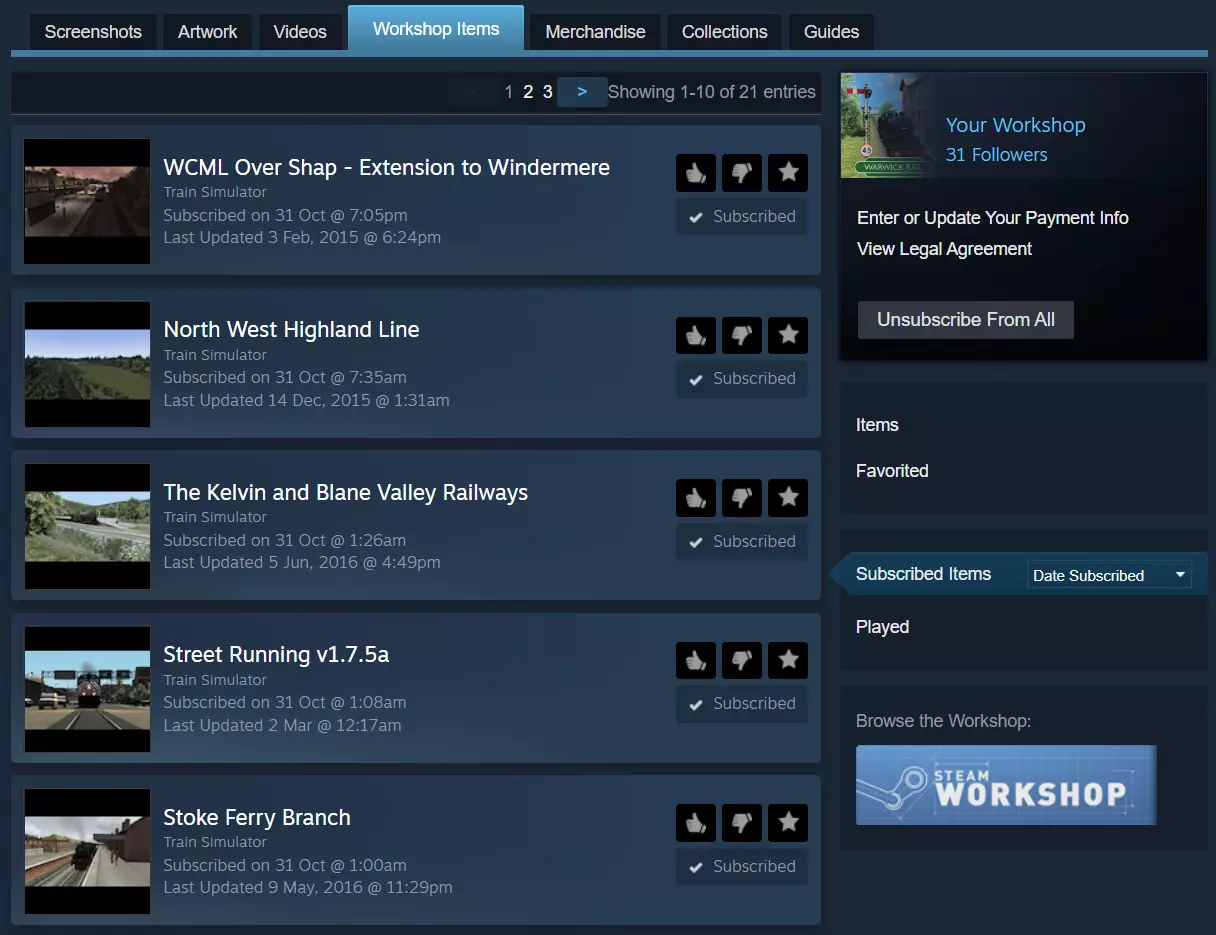
This will list your subscribed items in default order of 'Date Subscribed.' You can change this to list them 'Alphabetically' or in order of 'Date Updated' or 'Date Created.' Each item can be rated up or down, or added to your 'Favorites.' You can unsubscribe to each individually by unticking the 'Subscribed" box. If you wish, you can even unsubscribe to all workshop items at once by clicking the "Unsubscribe From All" button in the upper right dialogue box. Deleting an Item There are two important steps involved in deleting a Workshop item from your game. Unsubscribe from the item, either in game or from the Workshop online. Delete the item via the in game Build menuPlease note: By unsubscribing, you merely disable the "update overwrite" function. The item itself will remain installed and playable in your copy of the game. So if you wish to delete the item, first of all unsubscribe from it and then delete it. To delete, go to the Build menu. If it is a scenario, select the Scenarios tab, then from the list choose the route which the scenario relates to and find and delete the scenario from its individual list. If it is a route, select the Routes tab, then from the list select the route and delete it from the list. Keyboard Controls The official manuals are very thorough in listing which keyboard controls are appropriate for any given route or locomotive, but there is a handy list of controls which covers most situations. The guide was written in 2015, but is still very useful. https://steamcommunity.com/sharedfiles/filedetails/?id=243521602 Click here to open the above guide in a new window For convenience, I am placing the main keyboard controls here - with thanks to morrelo Train Motion Controls A - Throttle/Regulator UP D - Throttle/Regulator DOWN W - Reverser UP S - Reverser DOWN E - Gear UP Shift+E - Gear DOWN ' - Train Brake UP ; - Train Brake DOWN ] - Loco Brake UP [ - Loco Brake DOWN . - Dynamic Brake UP , - Dynamic Brake DOWN / - Handbrake toggle Backspace - Emergency brake Additional Steam Locomotive Controls J - Small ejector on/off C - Cylinder valves on/off F, Shift+F - Open/close the locomotive fire box R, Shift+R - Increase/reduce the rate the fireman shovels coal I - Turn on/off the live steam injector K, Shift+K - Increase/reduce flow of steam to the live injector O - Turn on/off exhaust injector L, Shift+L - Increase/reduce flow of steam to the exhaust injector N, Shift+N - Increase/reduce blower M, Shift+M - Increase/reduce damper Train Equipment Controls T, Shift+T - Open doors/Load/Unload/Refuel (depens on your train and position) H, Shift+H - Headlights cycle J - Secondary lights (some locos) K - Tertiary lights (some locos) L - Cab lights toggle V - Windscreen wipers ON Shift+V - Windscreen wipers OFF U - Blinds/glare panels toggle Z - Engine toggle start/stop P - Pantograph UP Shift+P - Pantograph DOWN Q - Alerter CANCEL C - Guard Acknowledge (non-steam locos) K - DRA toggle X - Sander toggle Space, Shift+Space - Horn (high/low) B - Bell Train Task Controls Tab - Red Signal request permission to pass AHEAD Tab, Ctrl+Tab - Red Signal request permission to pass BEHIND G - Points (junction switch) change AHEAD Shift+G - Points (junction switch) change BEHIND Ctrl+Shift+C - Couple/uncouple rolling stock T, Shift+T - Open doors/Load/Unload/Refuel (depends on your train and position) Ctrl+-, Ctrl+= - Change cab Train Views 1 - Cab view 2 - External front camera Shift+2 - Head-out-of-cab camera 3 - External back camera 4 - Trackside camera 5 - Passenger view 6 - Front coupling camera 7 - Overhead camera 8 - Exploration (free) camera 9 - Toggle 2D map Left arrow, Right arrow - Alternative cameras for the current view Ctrl+, Shift+, Arrow keys, Mouse scroll wheel, Holding RMB - Various options for adjusting your view Other Controls Esc - Pause menu Pause/Break - Pause game without showing pause menu Ctrl+Q - Quit menu Ctrl+E - Enter world editor F1 - Task info F2 - Save menu F3 - Small HUD (ON/OFF) F4 - Full HUD (ON/OFF) F5 - Technical HUD F6 - Toggle labels F7 - Toggle rail vehicle number F8 - Toggle destination overlay F9/Shift+F9 - Reload assets Shift+Z - Show framerate Ctrl+S/F12 - Take screenshot Ctrl+Shift+1, Ctrl+Shift+2 - Increase/decrease braking difficulty Conclusion Do not be afraid of taking full advantage of the Steam Workshop. It exists with the aim of unlocking the full potential of the game to give you limitless enjoyment. The workshop is a virtual treasure trove of user-created content, and with over 30 thousand items on the menu it is a veritable feast - so get stuck in and enjoy the meal. Have fun!
我们的TSC指南 我们为《模拟火车经典版》编写了一系列指南。 点击下方链接即可访问全部指南: Warwick Rail's TSC Guides 以下是排名前十的指南: https://steamcommunity.com/sharedfiles/filedetails/?id=2739089566 https://steamcommunity.com/sharedfiles/filedetails/?id=2365689194 https://steamcommunity.com/sharedfiles/filedetails/?id=2577919604 https://steamcommunity.com/sharedfiles/filedetails/?id=2361991441 https://steamcommunity.com/sharedfiles/filedetails/?id=2364751070 https://steamcommunity.com/sharedfiles/filedetails/?id=2205267954 https://steamcommunity.com/sharedfiles/filedetails/?id=2222378782 https://steamcommunity.com/sharedfiles/filedetails/?id=2297125586 https://steamcommunity.com/sharedfiles/filedetails/?id=2373171986 https://steamcommunity.com/sharedfiles/filedetails/?id=2940948768 版权所有 本指南©版权所有 Warwick Rail 2022-2025,保留所有权利。除在名为Warwick Rail的Steam账户下发布外,本内容未经授权不得在Steam上发布。
2026-02-13 19:00:17 发布在  Train Simulator Classic


说点好听的...
收藏
0
0