换一换
换一换 




《911接线员》呼叫编辑器官方指南(由Jutsu Games制作) 启动 按以下步骤启动呼叫编辑器: 1. 启动Steam 2. 进入Steam库 3. 找到《911接线员》 4. 右键点击《911接线员》的显示选项,选择【启动游戏编辑器】 如果您想使用呼叫编辑器,建议启用贡献者测试版。这将让您提前获取更新,并在出现错误时收到错误消息。但这并非使用编辑器的必要条件。 启用贡献者模式: 1. 启动Steam 2. 进入Steam库 3. 找到《911接线员》 4. 右键点击《911接线员》的显示选项,选择【属性】 5. 点击【测试版】选项卡 6.从列表中选择【贡献者 - 内容创作者】 呼叫创建基础 呼叫组成部分 在《911接线员》中,每个呼叫都包含3个主要部分: 对话 这是玩家接起呼叫后看到的部分。它包含所有对话选项,这些选项可能属于两种可能的说话者类型之一:接线员(玩家)或呼叫者。每个对话选项都有其唯一的名称,称为ID。 重要提示:对话选项不能显示两次。如果玩家选择了某个选项,该选项会被标记为“已使用”,并且在该对话中不会再次显示。 现场 在现场,你可以找到事件现场的所有元素(例如呼叫者、受伤人员或着火的汽车)。在游戏中,当单位到达事件地点时,玩家会看到现场。然而,场景从接起电话的那一刻开始存在,在所有元素都得到解决(例如所有伤势都已治愈)或电话被忽略后消失。 总结 这是通话的简要总结。通常包含问题的简短描述以及对话结束后发生的情况。它可以由几个不同的元素组成,这些元素会根据玩家的行为添加。 标识符(IDs) 每个通话必须有唯一的ID。 每个通话元素(场景元素/对话选项/总结元素)在通话范围内必须有唯一的ID。 ID不能包含任何空格、特殊字符或大写字母。它应该是一个简短的单词或数字。 你可以通过设置相同的通话ID来覆盖默认通话。游戏按特定顺序查找对话: 自定义对话 创意工坊文件夹 默认对话 提示 每个对话应包含两个提示(ID为reminder和reminder2的对话选项),会在玩家闲置几秒后显示。最常用的提示短语有:喂?你还在吗?等等。 屏幕描述
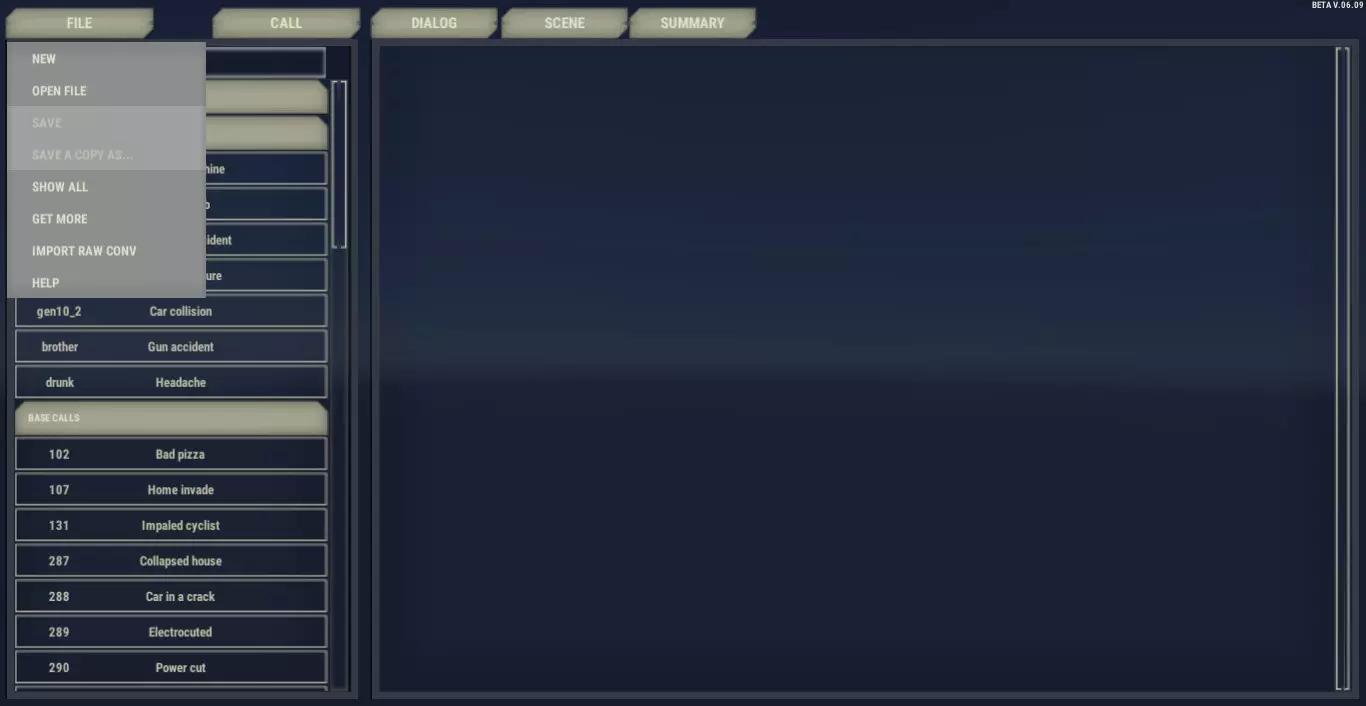
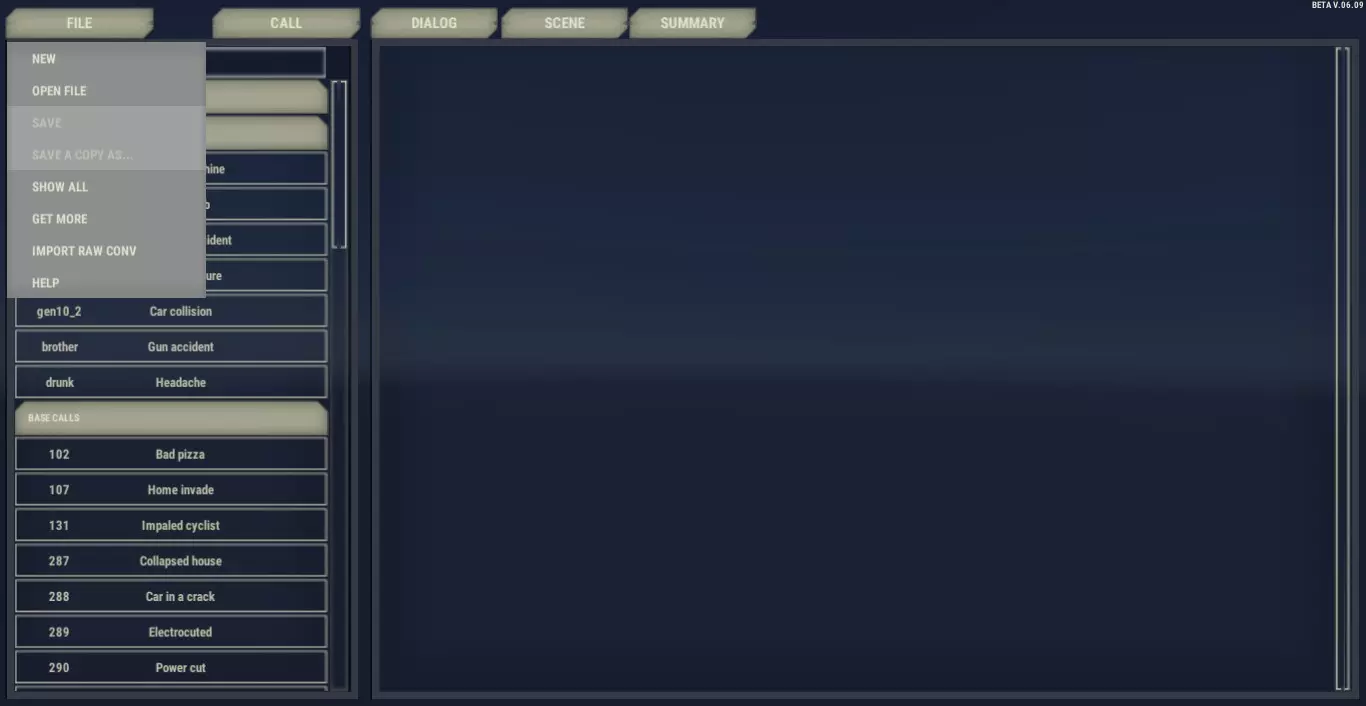
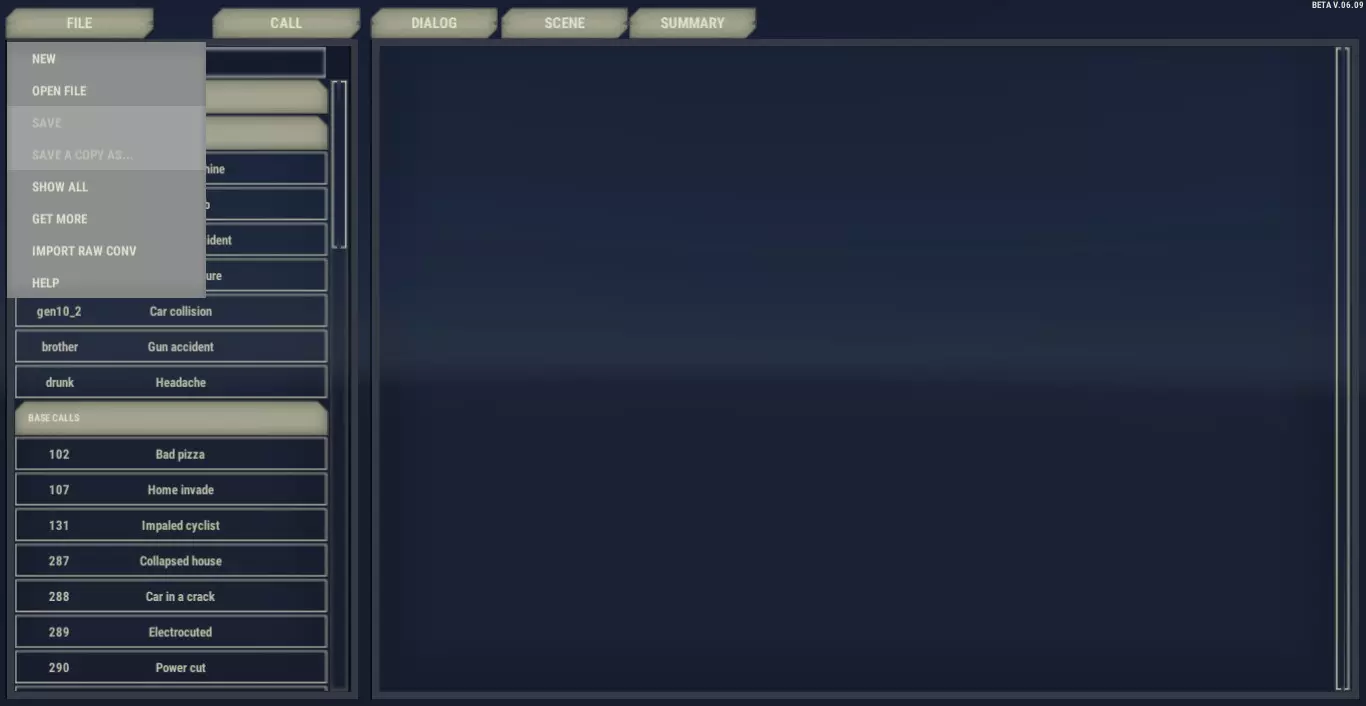
左上角: 文件 显示以下选项: 新建 创建新对话, 打开文件 打开包含对话的.xml文件, 保存 保存当前工作, 另存为... 不想覆盖原文件时保存副本, 显示全部 查看游戏副本中所有可用的通话, 获取更多 打开创意工坊并允许下载新内容, 导入原始对话 允许打开从谷歌表格导出的文件(创建通话的旧方法), 帮助 打开通话编辑器的文档。
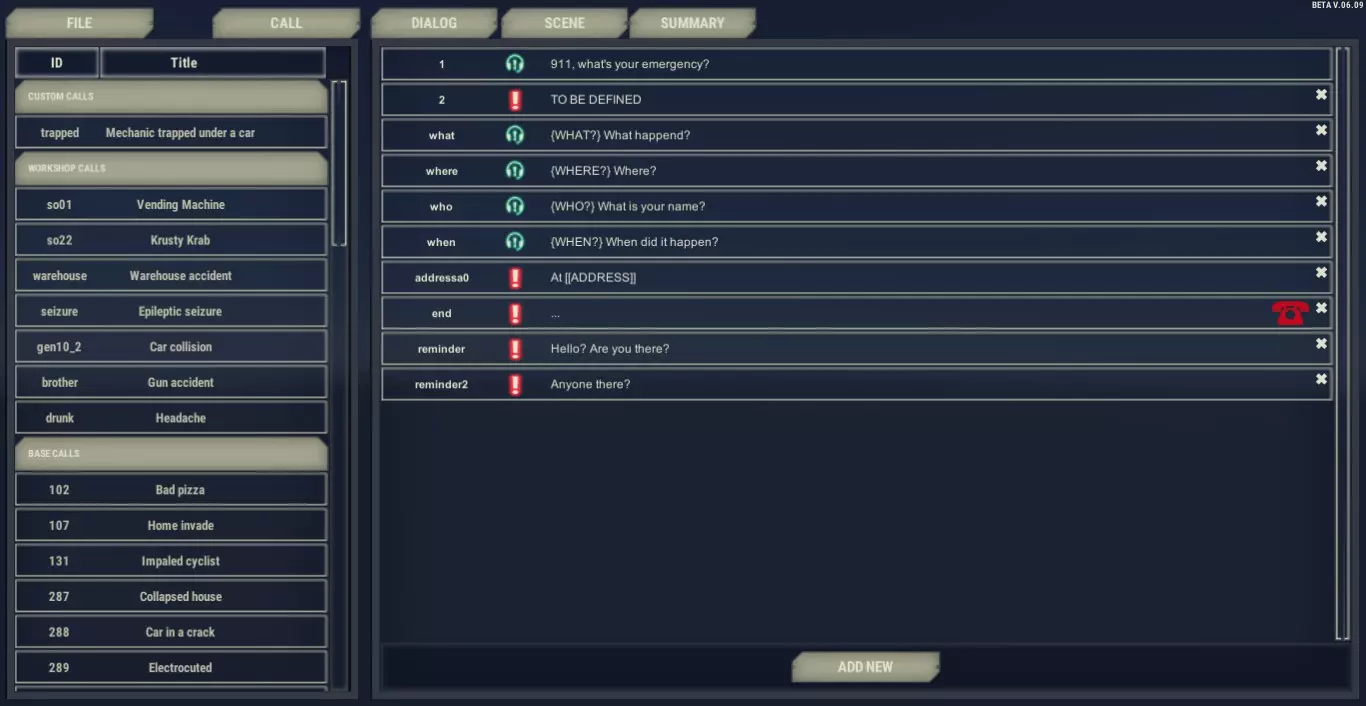
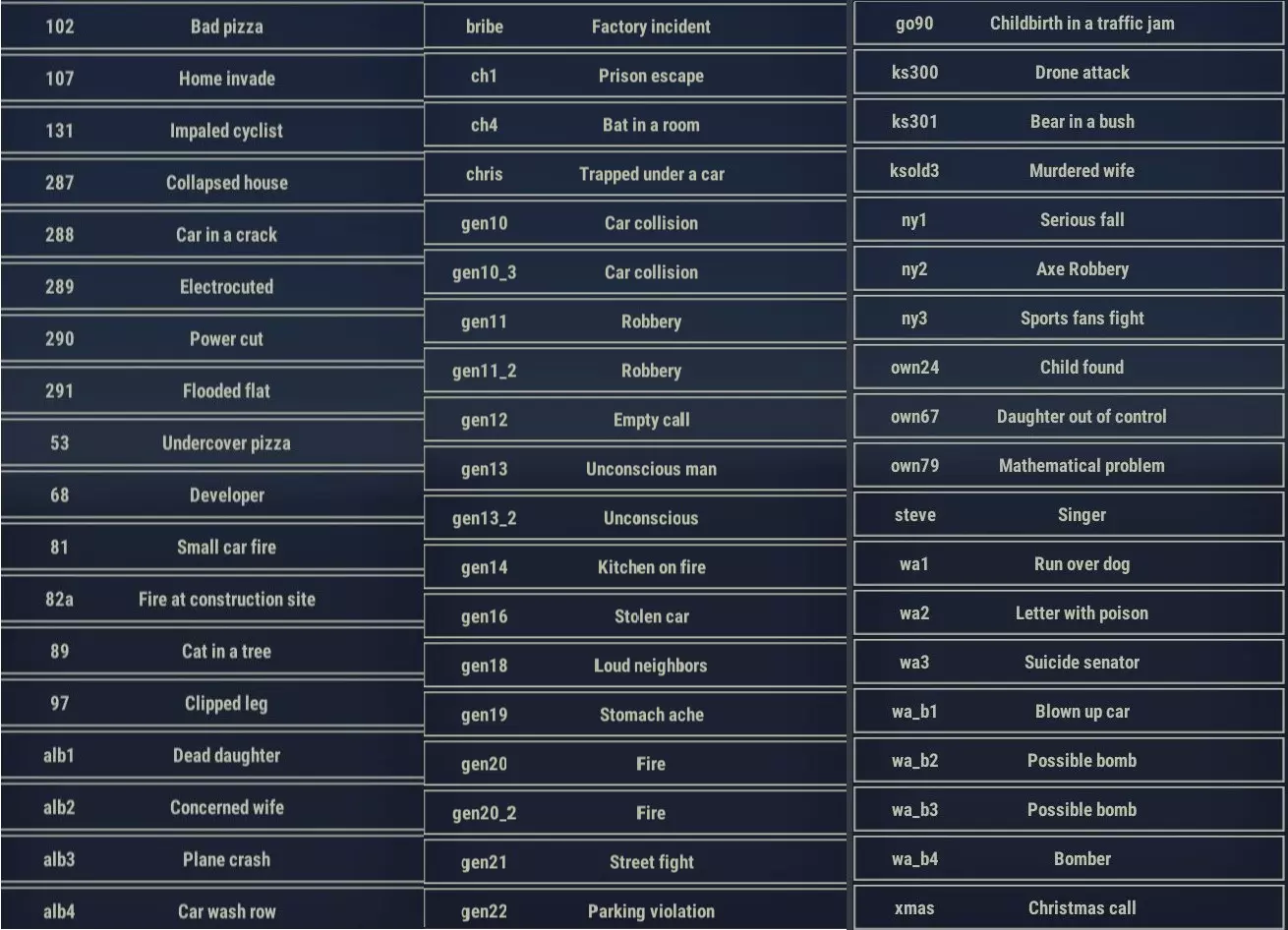
左侧栏目是分为3个类别的呼叫列表: 【自定义呼叫】(在编辑器中创建或通过编辑器从本地内存导入的呼叫) 【创意工坊呼叫】(从Steam创意工坊下载的呼叫以及您上传到创意工坊的呼叫) 【基础呼叫】(《911接线员》及其DLC中的原始呼叫) 屏幕顶部有4个重要按钮:呼叫、对话、场景和摘要
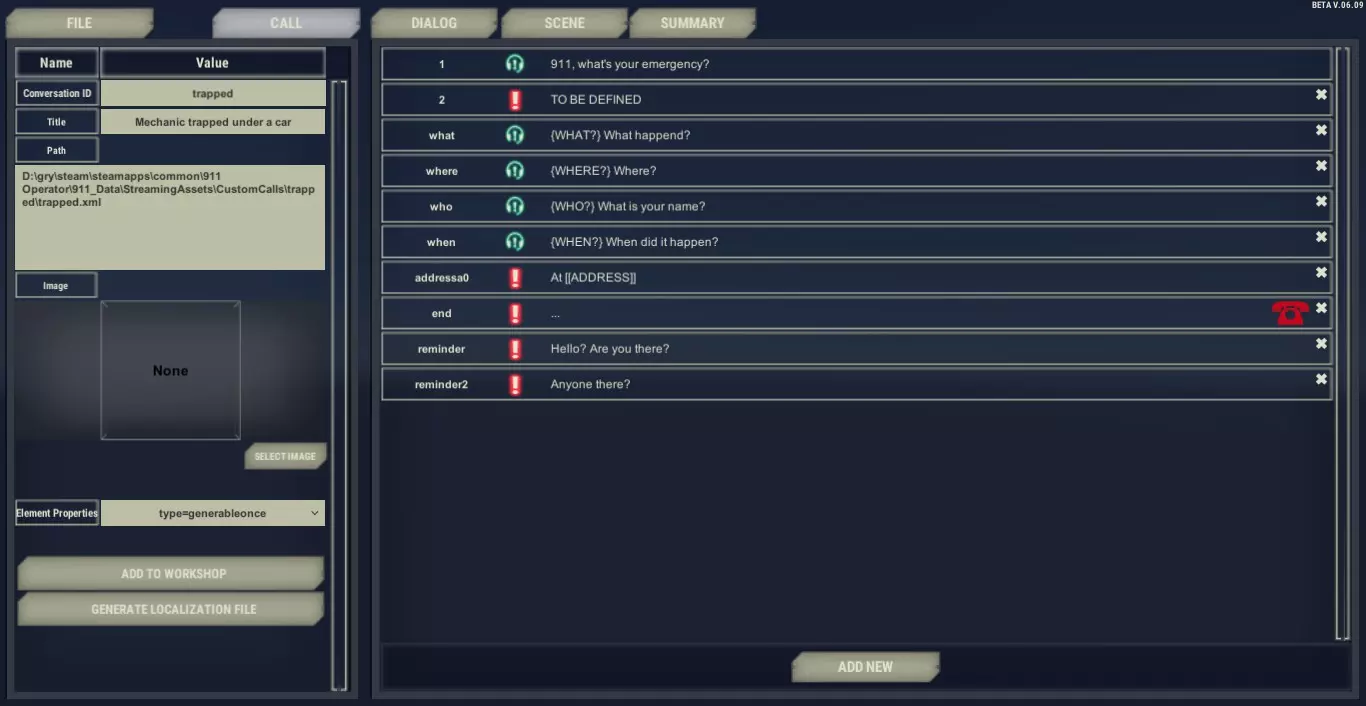
通话 显示所选通话的详细信息:其代码标识符(对话ID)、标题、目录路径、图像和类型(元素)。
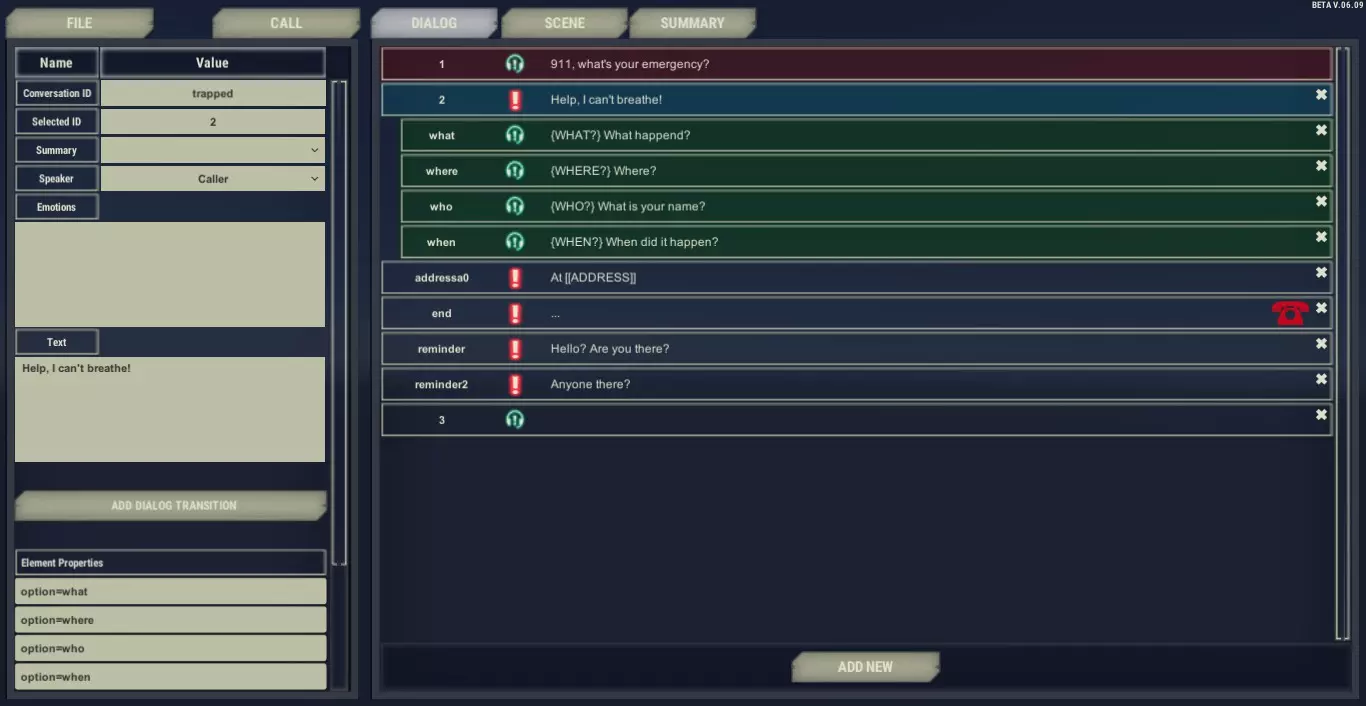
对话 包含所有对话选项 每个选项都有自己的ID,显示在左侧 选项可能属于接线员(绿色耳机图标,内有感叹号)或来电者(红色感叹号标记) 已选择的选项以蓝色突出显示,下一个可能的选项为绿色,上一个选项为红色 红色电话图标表示通话结束(挂断操作)
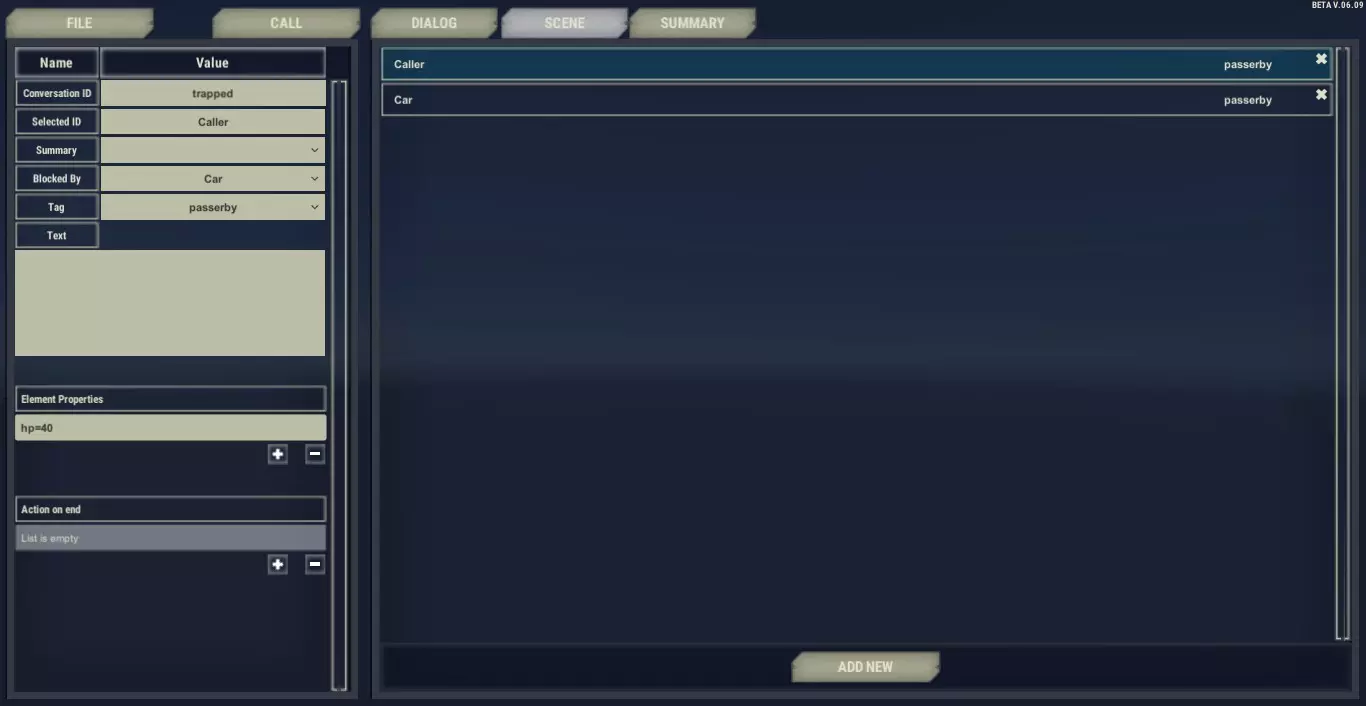
场景 包含场景中的所有对象 每个对象都有自己的ID,显示在左侧 每个对象都有名称,显示在中间 每个对象都有标签,显示在右侧
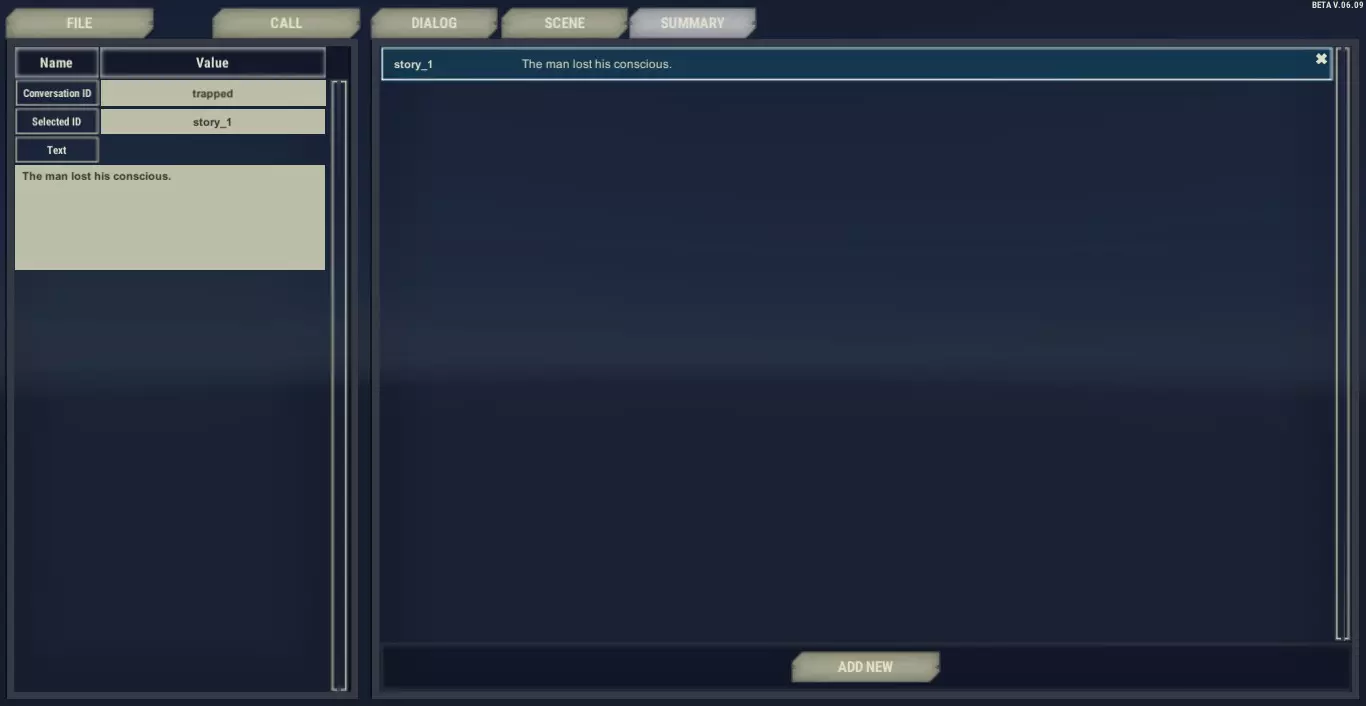
摘要 包含所有摘要内容,这些内容将在任务结束后显示 创建一个简单的呼叫
Text version of the tutorial: Here is quick instruction how you can make your first simple call. Let’s create a short call about a car mechanic trapped under the car. He can’t breathe, which makes the dialog short and allows only for a few questions. After launching the editor click FILE button Select NEW Now, you need to set short, unique ID name of this call (not displayed in the game) and its more descriptive title, which is visible for player as a name of the incident. It should be one word without spaces. DO NOT USE CAPITAL LETTERS! Write “trapped” as ID of the call and “Man trapped under the car” as a title. We added basic template with most common questions to help you with starting writing your own call. Click option ID 2 with red exclamation mark. This means that it’s caller dialog option. Go to the left and click in the box described as TEXT. Write there: “Help, I can’t breathe!” Add new option and write the response: “My… car… my car fell on me…”. That’s option should be spoken by caller. But we can see green operator icon next to option id. That is why we have to change the speaker. On the top left you can see “Speaker” dropdown. Click and choose caller. Now we will add some transitions. Select the first option with id what (“{What?} What happened?’”). Go to Element Properties and click ADD DIALOG TRANSITION. Click on the option with id 3 (Help, I can’t breath). You can check the linking by clicking on any of them: green highlight is showing next option and red stands for the previous one. Let’s connect the address now. Click on option id “addressa0”, go to text box on left. You can edit the text, but make sure that you won’t delete [[ADDRESS]]. This will be replaced by text address provided by action “actionSetLocation”. You can see it below, in Action on end panel. Add another option with id:4. Change speaker for Operator and write “The help will be there soon!” in Text box. Click on the option id 3 and link it to the option id 4. Let’s add the last option. Click on option ID “end” and modify the text for “Okaaay. . . . . .” This will be the last dialog option but we still have to connect it using transitions to option id 4. Click on the option id 4 and add transition to id “end”. Now we can check if all the options are linked. As you can see we didn’t use options id “Who” and “when”, they are not connected anyhow. That is why we need delete them. Delete the unused options using cross icon on the right. The text of the dialog options is finished. Now, go to Scene tab. Click on “sceneElem_1” This element will be our trapped man, so put Caller as a description in the text box. Change his tag to the injured and set level of his health in the element properties by clicking plus and writing hp=40. We also need to determine his gender: in this case click plus in the Element Properties and type sex=M. Let’s proceed to the third part of the editor called summary. Here, you can determine what player can see in the summary in the description of this call. Click “story_1” and write: “The man lost his consciousness”. Go back to the Dialog tab in order to determine which option will activate that piece of the summary. Select option with id end, go to the top of the left panel click Summary and choose story_1 from the dropbox. Congratulations, you’ve finished your first call. Click on the FILE button and click SAVE. Now, you can test it in the game by pressing “~” during a duty and entering “startcall trapped”. Good practices ID names: We recommend using short, descriptive word as an ID. Numbers are difficult to handle when the dialog is a bit more complex. For Example, use the id “where” for a dialog option “{WHERE} Where are you sir?” “end” option: An option with an ID “end” will be displayed if there are no more options available. It’s a good idea to put “end” option in a dialog as a rescue wheel: in case of an error in transitions between options, when there are no more dialog options and no “actionHangup”, the game won’t freeze, but it will display “end” option. Ending the dialogue: The last option should be spoken by the caller, because as a rule 911 operator stays on the line until a caller hangs up. Address: A player should have a possibility to ask about the address as often as it possible during the dialog - usually he should to that at the beginning anyway, but allow him to choose otherwise. Advanced Dialog Creation Transitions In order to make a dialog transition: 1) Click on the dialog option 2) Click ADD DIALOG TRANSITION on the right 3) Select dialog option By using ADD DIALOG TRANSITION you’re choosing the next option in the dialog. If you add transitions to more than one Operator’s options, a player will have a choice between them. Dialog option abbreviation While writing operator’s lines, you can prepare a short version of the dialog option, which is displayed for the player at the dialog option’s BUTTON. When player chooses that option, the full version will be displayed. In order to make an abbreviation of dialog option, put the short version of the text in curly braces before the first sentence. Example: {HELP HIM} He might have a heart attack. Don’t be afraid and help him! Good practices for dialog option abbreviation: Keep the sentences in curly braces short Abbreviation should be short version of operator’s words, NOT the description of operator’s actions. "Back" as a dialog option"Back" option allows you to display options from two steps back in your transition path. If you add “back” option after caller’s answer, it will add all remaining options from previous Operator's line. That function is very useful for creating small branches of the dialog. For example, use “back” option after obtaining the address, because after that you might want to go back to any part of a dialog. Call TypesThere three types of calls, which you can set in “Calls” properties: Generable Once - simplest type of the call, you should pick that if you want to make the call which will be available in the Free Game. This type of a call will occur only once per city Generable - a popular type of a calls with different variations of caller responses, so the call can happen more often than once per city Scenario Call - those calls can only be enabled by scenarios and editing in-game files. Scene ElementsYou can put different elements (people, objects) on scene and set proper parameters for them (e.g. fire could have parameter workchange set on positive number which means the fire is rising) There are 5 different types of people who can be placed on a scene: suspect (always requires police intervention) witness (need to be investigated by the police, but most likely won’t be taken into custody) injured (requires medical help) dead (medic or policeman need to examine the body) passerby (mainly for story purposes, doesn’t require any action, unless it’ll be hurt by some other object) There are also a few different objects: Fire - needs to be put out; firefighters are the most efficient for that Tech (Technical work) - different kinds of works like removing obstacles; firefighters are the most efficient in that) Deco (Decoration) - mainly for story purposes, doesn’t require any action, unless it’ll start burning Timer - invisible for a player, could determine what will happen after given amount of time; more info in next section Every scene element should have some parameters set. Those will specify their nature, type, behaviour, appearance and other things. Table of parameters
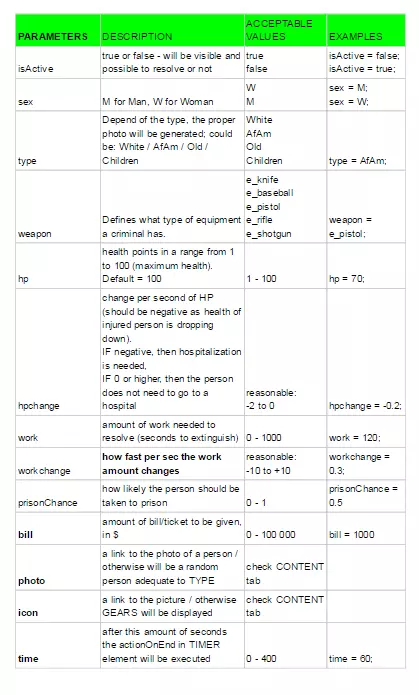
你可以在下方查看可用于描述特定类型场景元素的参数。
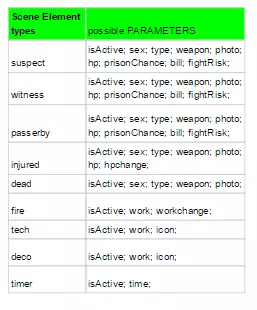
场景元素完整文档可在此处找到。 场景元素阻挡:场景中的任何元素都可能被其他场景元素阻挡。这意味着在阻挡元素被处理并消失之前,应急单位无法对该元素采取任何行动。 要启用阻挡元素,请点击你想要被阻挡的场景元素,展开【被阻挡于】类别下的元素列表,然后选择阻挡元素。 示例: 名为【受伤人质】的元素被【恐怖分子(嫌疑人)】阻挡。警方必须先将恐怖分子拘留,然后才能为受伤人质提供医疗救助。 【倒塌房屋(技术类)】阻挡【受伤儿童】元素。首先,消防员必须完成技术工作,然后才能为儿童提供医疗救助。 设置地址 关于地址的询问是呼叫的标准要素之一。以下是其中两个最重要的要素: [[地址]] 当呼叫者需要说出实际地址时,你不应手动输入街道或门牌号,而是在文本框的句子中放入[[地址]]。游戏会将其替换为随机生成的地址。 例如:我在[[地址]]附近。 派警察单位前往[[地址]]! actionSetLocation 对于文本框中包含[[地址]]的每个对话选项,都应始终将其放在“结束时的操作”部分。使用此选项时,游戏将设置呼叫的随机位置。 总结 每次值勤后,玩家可以查看每个呼叫的总结。编辑器允许你准备不同的摘要片段,这些片段可通过对话选项或场景元素激活。 摘要标签页 在此处,你可以点击【添加新项】来添加新的摘要片段。创建完成后,你可以修改其ID,并在【文本】框中编写描述,该描述将在通过对话选项或场景元素激活后显示在玩家的摘要中。 激活摘要片段 创建摘要片段后,你可以在任何对话选项中激活它。具体操作是在对话选项描述中【摘要】按钮附近的展开列表中选择该片段(位于【情绪】字段上方)。 如果该对话选项在通话过程中显示,那么关联的摘要片段将包含在摘要中该通话的描述里。因此,你可以创建不同的总结,以匹配玩家的选择。如果你希望在每次调用时始终显示总结的特定部分,只需选择ID为1的对话选项,并在其中设置该总结部分。 为场景元素添加总结的操作非常类似:点击任意元素,然后从列表中选择总结片段。不过,只有当元素成功解决(例如伤员被治愈或送往医院)时,总结才会显示。如果元素因玩家忽略呼叫、单位未在规定时间内到达或团队成员未能解决该元素(例如伤员死亡或罪犯逃脱)而消失,那么与该元素关联的总结片段将不会显示。设置声望效果 解决或忽略任何呼叫后,玩家会获得特定数量的声望值:正值表示对良好行为的奖励,负值则作为惩罚。玩家可在完成任务后查看详细结果,但游戏机制允许在呼叫对话进行过程中设置或修改声望值数量。 意见效果 设置声望值数量的基本方式是在呼叫的任意部分设置opinionEffect值。为此,你需要在“结束时的操作”部分中添加“opinionEffect = 数值”这一行。 例如:opinionEffect = 4 等号后的数字即为玩家在解决场景中所有元素后获得的声望值数量。如果玩家忽略或未接来电,将根据难度等级给予对方相应倍数的数值: 简单模式为2倍 普通模式为3倍 困难模式为4倍 举例:
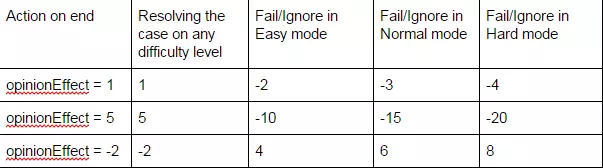
You should set the negative value as opinion Effect if the call is irrelevant (like prank call) and a player should get the reward just for ignoring it. If the opinionEffect has been already set in a call, you can modify it by using + before = eg. option id:1 opinionEffect=5 option id: 2 opinionEffect+= 2 Summary: opinionEffect = 7 If opinionEffect wasn’t set during call creation, it has a standard value: 3. onIgnore If you want to have a different value for ignoring or failing to resolve the case than the opposition of opinionEffect, you can use onIgnore functionality. OnIgnore is also used in Action on end column. It allows you to set any value for ignoring the case. It should be used along with opinionEffect for setting a number of reputation points for positive action. e.g. opinionEffect = 2; onIgnore = 5 onIgnore is also modified by difficulty level, exactly the same as opinionEffect: 2x in easy mode 3x in normal mode 4x in hard mode Modifying scene by “action on end” Action on end functionality allows for editing the scene elements during the call. You can put a modifier in every dialog option using Action on end section. In order to do that: 1) Choose dialog option 2) Click + under Action on end 3) Write proper parameters in scheme: <ID element on scene>.<parameter><= OR +=<value> You can modify every parameter described in Scene section. Here are examples how to use that functionality: caller.hp=30 (For element on Scene with ID "caller" level of health is changed to 30) caller.hp += 30 (caller gains 30 points (added to basic value set in Scene tab)) caller.hp += -30 caller’s level of health is decreased by 30 points (subtracted from basic value)) caller.hpchange=+0.1 (from now on the caller will be gaining 0.1 points of HP per second) caller.hpchange=-0.1 (until now caller will be losing 0.1 points of HP per second) caller.hpchange+=0.1 (until now caller will be gaining 0.2 points of HP per second added to the basic value set in Scene tab) Speed You can also set parameter Speed in Action on End panel. In that case, you don’t need to choose specific element on the scene, but just set the value and whole scene will start moving. eg. speed = 80 Dialog options and scene elements availability The game allows for setting availability for any dialog option or scene elements. It means that you can hide some parts of the dialog and activate them in some circumstances occurs (e.g. player choose proper dialog option). There are two ways of doing it, slightly different for dialog options and scene elements. Setting the availability of dialog option You can also set the availability of dialog options from the dialog itself. Thanks to that, you can enable or disable a branch of the dialog, depending on the player’s choices. To do that, you need to specify the ID of the dialog option, add “->active=” and specify if it should be active or inactive. By default, all options are active. For example: address->active=false in “actionOnEnd” section will disable the “address” dialog option from the conversation Setting availability of scene element Every element on scene can have active (default) or inactive status (invisible to a player). You can set it in parameters of the scene element (by typing isActive=true or false in Element Properties in Scene tab). But it also possible to change that statuss during the call. To do that, you need to specify the ID of the dialog option, add “.isActive=” and specify if it should be active or inactive. For example: caller->active=false in “actionOnEnd” section will disable the “caller” scene element Multiple dialog paths (generable calls) In 911 Operator you can find calls in which caller might say different answers for the same questions. In Call Editor you can set different caller’s options as a response to one operator’s option and the game will randomly choose of them. How to make a call with different variations of caller options: 1) Create a dialog 2) Create at least two different Caller options 3) Link all of them to the Operator’s question 4) Now the game will choose one of them randomly while playing a dialog Writing a call with different variations of caller options is much more difficult than writing a “normal” dialog. We recommend writing a few simple calls before making a call with different variations. Also, it’s worth to carefully examine calls from 911 Operator with “gen” in their IDs as an example (eg. gen18). Chance 1.You can modify the probability of randomizing the option by setting the “chance” parameter for the dialog option 2.Go to the option which you want more or less possible to draw. Go to Element Properties and write chance=<insert_value_here> The default value is 0.33. If you want to make option more possible set the larger number. Using the Search mechanic (SaR DLC) In Search and Rescue, we've added the Search mechanic that requires the player to find an object in a specified area. To enable the mechanic in your calls, enable "Searching" in the Call tab. Search Area determines how many sectors will appear - the number of sectors equals to a square of the number you've put in. It's best to keep the number between 2 and 9, although any number will work. Search Work determines the amount of work that a unit will have to do when sent straight to the incident, instead of checking sectors one by one. It should be bigger than the number of sectors multiplied by 6 (every sector takes around 6 seconds to clear, and checking them manually should be more effective), for example - if you set Search Area to 5, it means that there will be 25 sectors. 25 times 6 is 150, so Search Work should be set to more than 150. In the next step, go to the Scene tab. In order to make an element searchable, put "toSearch" in its properties. Not all elements on the scene have to be searchable, for example - if the Caller reports a thief on the run, only the thief is supposed to have "toSearch" in Element Properties. Please remember, that although you can create Search calls without having the Search and Rescue DLC, you won't be able to play them. Finding call files on local disc 1.Go to Steam Library and click right mouse on the 911 Operator 2.Choose Properties 3.Click Local Files tab 4.Choose Browse local files 5.Go to 911_Data -> StreamingAssets -> CustomCalls 6.Find the folder with created call. Its name is the same as id of this call. Path of directory: Steam steamapps common 911 Operator 911_Data StreamingAssets CustomCalls Audio It’s possible to add a voice-over for calls created in Call Editor. This is how to do it: 1.Prepare audio files for every dialog option. 2.Required formats: MP3 or OGG for Windows, OGG for Mac. 3.Give a proper name to every file according to this scheme: c<callid>_<optionid>.mp3 (or .ogg) Examples: cbribe_26.mp3 cgo90_nocry.ogg 4.Move all files to a proper folder: Copy all files prepared in step 1 and 2 Open the folder with created call. Its name is the same as id of this call. Go to the folder Sounds Paste all files Audio Basic looped background: If you want to make a sound background which will be looped during the whole call make audio file with the name: c<callid>_0.mp3 (or .ogg) eg. c53_0.mp3 And copy that file along with other audio files (Go to Steam steamapps common 911 Operator 911_Data StreamingAssets CustomCalls {callid} sounds or see detailed instruction in the section “Finding call files on local disc”). Activating background during the call: 1. Make a file with a background sound. 2. Put it in sounds folder in CustomCalls (go to Steam steamapps common 911 Operator 911_Data StreamingAssets CustomCalls {callid} sounds or see detailed instruction in the beginning of Sound section). 3. Open a call in Call Editor 4. Select a dialog option in which you want to have a different background. 5. Go to Element Properties and write: bgsound={name_of_the_file} (eg. bgsound=bgparty) Now, the background will be played in a loop until end of the call or another background specified in one of the next dialog options. IF you want to change the background after one dialog option, select another background file by writing bgsound={name_of_the_file} in Action on end field. If you setting background in Element properties, the background will be played since the beginning of this dialog option. If you setting background in Action on end, the background will be played after the end of this dialog option. You can use existing backgrounds from the calls in 911 Operator. Here is the list of existing recordings (in tab CONTENT): https://docs.google.com/spreadsheets/d/1ZaEMYbUrpSixhk4x2_YB8cxTexlWzss1HUTWsLLdjQc/edit?usp=sharing If you want to end all of the backgrounds during the call and have a silence: make an audio file without any sound and set is as a background. Audio files from 911 Operator You can try using orginal recordings from 911 Operator (e.g. by cutting them properly or selecting adequate operator's questions). Here is the link to download them: http://cdn.jutsugames.com/911voices/911_operator_all_voices.rar Universal muffled sounds for dialogs If you don't have a voiceover in your dialogues, you can use pack of muffeled sounds prepeared by our studio: http://cdn.jutsugames.com/911voices/911_operator_muffled_callers.rar Translations 1. Open created dialog in Call Editor 2. Click on Call tab 3. Click Generate Localization File 4. Go to Steam steamapps common 911 Operator 911_Data StreamingAssets CustomCalls {call_ID} lang 5. Edit the “default” file. DON’T change the words before the colon (eg. call.bribe.dialog.address:) and edit only words in quotation marks (eg. “Where are you?”). 6. Save the file with the name of a used language. Name of the file should be the same as the name of this language translation (you can check it here: Steam steamapps common 911 Operator 911_Data StreamingAssets Languages) Here is the list of supported languages: de-DE es-ES fr-FR it-IT jp-JP pl-PL ru-RU zh-CN Translation file should be encoded in UTF-8. If your file doesn’t work, use Notepad++ and try to convert encoding to UTF-8. Currently, there is no possibility to make the translations of the audio files. If you want to localize the audio files you should make copies of the calls in Call Editor with the same ID. Testing a call TEST YOUR CALL IN GAME BEFORE UPLOADING TO THE WORKSHOP 1.Save the finished call. 2.Launch 911 Operator and start a game. 3.Press ~ 4.Write startcall <id_of_the_call> (e.g. startcall bribe) 5.Play the call carefully and check every possible path of it. 6. If you find a bug, go back to the editor, fix it and repeat a process. Uploading a call to the Workshop When you are sure that your call is finished and you have successfully tested it, you can upload it to Workshop. 1. Load your call in Call Editor 2. Click the CALL button 3. Click the ADD TO WORKSHOP button 4. Wait a while for the call to upload 5. When the pop-up appears (“The item has been uploaded to Workshop!”), click OK 6. Wait 7. When the pop-up appears (“File was moved to Workshop content!”), click OK Congratulations, your call is now uploaded to the Steam Workshop. Now, you can go to the Steam client, open the Workshop, choose Your files (Files you’ve posted) and edit your call (add contributors, edit description etc.). If you want to change something in the content of uploaded call: 1. Launch the Call Editor 2. Choose your call from the list WORKSHOP CALLS 3. Make changes 4. Click the CALL button 5. Click the UPDATE IN WORKSHOP button. Select Call Image Call editor allows you to add the image which represents the call in Workshop. 1) Load a call 2) Click Call button 3) Click Select Image 4) Choose an image from your local disc. Properties of the image: It must be under 1MB in size. Suggested formats: JPG, PNG or GIF. Suggested ratio: 512x512 We recommend finding an image that would represent the main theme of the call. Useful links Documentation of Call Creation: https://docs.google.com/spreadsheets/d/1ZaEMYbUrpSixhk4x2_YB8cxTexlWzss1HUTWsLLdjQc/edit?usp=sharing Audio files with dialogs from 911 Operator: http://cdn.jutsugames.com/911voices/911_operator_all_voices.rar Audio files with muffled dialogs (could be used instead of voiceover): http://cdn.jutsugames.com/911voices/911_operator_muffled_callers.rar