换一换
换一换 


Full-feature control scheme for action camera mode and standard Xbox controller (or something similar). Includes necessary in-game bindings, suggested settings, general play overview, and detailed button mapping. Introduction This guide has instructions and necessary game settings for a versatile Steam Input configuration to play Guild Wars 2 with an Xbox 360 controller (or similar shapes that can reuse the config). Steam Input stuff has no home and you can't properly document a configuration, so we end up here. New versions will come with updates detailed here and a post in the linked forum thread, which is your only way to track changes. Please share this configuration by linking this guide, and not the configuration directly. To set it up:Either install the game through Steam or add the normal GW2 launcher to your Steam library as a non-Steam game Load the configuration with one of the Steam Input links below (don't forget to turn on your controller while doing this) Set the necessary options and keybindings in the game (see 'In-Game Settings' section)And that's it. Whenever you start your GW2 from Steam with your controller on, you'll have full controller play (if you forget to turn on the controller, switch back to Steam and open and close the controller configuration for the game, then Steam should have things straight). I also use a mouse/trackball for quicker inventory and menu handling, but the config does have its own full-featured mousing support. In-game mappings are chosen to make the least changes to the default configuration, so you can still play on keyboard and mouse without too much disruption. (Paste config links into your browser and they will open in Steam--these can't be proper links because Steam refuses to recognize their own config links in their formatting markup.) This version of the configuration automatically engages the racing mode when activating the beetle mount: steam://controllerconfig/1284210/3650649595 (Steam install) steam://controllerconfig/2306085804/3650652406 (non-Steam install) (v7-race 2026-01-20) This version of the configuration includes the racing mode as a manually activatable option, but stays in normal controls when activating the beetle mount: steam://controllerconfig/1284210/3650651430 (Steam install) steam://controllerconfig/2306085804/3650653166 (non-Steam install) (v7-norace 2026-01-20) Play Overview This config plays surprisingly well considering all the things it needs to do, but it still takes some time and effort to get a handle on it. Be patient and don't try to do or remember everything at once. It looks daunting, but there's lots of hours of play and refinement behind it. Let your hands learn the connections, and you'll be off in no time. First, it will help to make a couple preparatory mental adjustments. You'll want to think of the four face buttons and Start together as a button group (A, X, B, Y, Start), and do likewise for the four D-Pad directions and Back (Up, Left, Right, Down, Back). These five-button groups will make things a lot more intuitive. We have two main shift-key sets: one focused on more immediate combat keys (Right Trigger), the other on utility keys (Left Trigger), and you'll be using both of those and the unshifted layout simultaneously, so everything that helps the mental mapping take hold is important. Whenever you start the game, when you first get in character, you will need to press Back+LB to toggle the action camera on. You won't need to do this again within a session, because any time a dialog, panel, or menu comes up, the game automatically switches to showing a cursor instead of the action camera. Once you close whatever it is, it will be back in action camera for you. Note: There's a Steam bug that can leave the configuration in a broken state. If you ever find buttons not acting like you expect, you should be able to press and hold Start then also Back, to reset the config to a correct state. If that doesn't work, the Steam client may be broken entirely (or have just crashed) and you should just restart it and the game. That's very rare, but it can happen. Without any modifiers held, basics:Move with the left stick and aim/turn with the right stick (holding LT or RT won't change this, of course) Jump with A, Interact with X, Dodge with B Heal with LB Highlight enemies and interactables by holding RS-Click or RB (game default changed to highlight everything all the time, so you can turn that off to reduce clutter and pop names when you want to see them, or leave names up and forget this mapping) Tap Back for Escape, which closes open windows/dialogs or brings up the system menu if nothing is open Hold Dpad-Down to dismount or get off a chair With RT held, attacks:Face buttons and Start are your weapon skills (1-5) LB swaps between your two equipped weapon sets Dpad and Back are your profession skills (F1-F5) With LT held, utilities:Face buttons and Start are your utility slots (7-9), special action (-), and elite skill (0) Dpad and Back are your mounts (these all need to be unlocked through play, and require expansions)Remember the Special Action! It doesn't come up that often, but when it does you will need it. That's part of why it's between 9 and Elite, to help keep the spot in mind when suddenly searching for it :) With Back held, mousing:mouse with either stick mouse click with triggers and RB: RT is primary click, LT is secondary click, and RB is alt-primary, for setting map waypoints LB toggles the action camera (note that any panel, dialog, or other such active UI element will switch the game to mouse cursor from action cam while it is open) With Start held, UI panels:Map on Dpad Up Hero/Character panel on Dpad Left Inventory on Dpad Right Contacts/LFG on LB PvP on X (also useful for trying out fully unlocked versions of a class without leveling, or for travel through Lion's Arch to avoid waypoint fees) You can also hold Start and then also hold one or both triggers for various secondary and novelty commands, such as your homestead door, rift scan, and some preset emotes and chat insertions (eg Start->LT->Dpad-Up,Up to dance, or Start->LT->hold B to type "thank you", which is nice after a revive :). Detailed Button Mapping All states: hold Start then also Back to reset controller configuration state when Steam bugs out and buttons are performing the wrong actions (very important) Main layout -- Unshifted LS: Movement LS-Click: If holding forward, activates auto-run until you move backward, otherwise toggles walking RS: Camera/Aim RS-Click: Highlight enemies/interactables (hold longer for more names) Back: Tap for Escape; hold to shift for mouse set Start: (shift for menus/panels set) LT: (shift for utility set) RT: (shift for attack set) LB: Heal (6) RB: Highlight enemies/interactables (hold longer for more names) A: Jump / Swim Up X: Interact B: Dodge Y: Mount Ability 2 / Swim Down Dpad-Left/Right: Target previous/next enemy Dpad-Up: Call target; hold to lock autotarget Dpad-Down: Take target; hold to dismount or get off a chair Attack layout -- Hold Right Trigger LB: Swap weapons RB: (unused) A, X, B, Y, Start: 1,2,3,4,5 Dpad-Up, -Left, -Right, -Down, and Back: F1,F2,F3,F4,F5 Utility layout -- Hold Left Trigger LB: Skiff; double-tap for fishing RB: Stow/draw weapons A, X, B: 7,8,9 Y: Special action (depends on context, not always available) Start: Elite skill (0) Dpad and Back for Mounts: RIGHTUPDOWNLEFTBACKPRESS Raptor Springer Skimmer Warclaw GriffonHOLD Beetle Skyscale Turtle Jackal n/a Mouse layout -- Hold Back LT: Right click RT: Left click LB: Toggle action camera (you'll need to do this at session start) RB: Alt + left-click (in map, set navigation marker at cursor) A: Left click X: Interact B: Ctrl+right-click Y: Ctrl+left-click (in map, paste waypoint at cursor into chat and send) Start: Escape Dpad Up/Down: Mouse scroll-wheel up/down (camera zoom, map zoom) Dpad Left/Right: Page Up/Down (change map layers) Menu layout -- Hold Start RS-horizontal: Adjust map zoom RS-vertical: Change map layer LB: Contacts/Looking for Group panel; hold for Mail panel; double-tap for Ranger Pet panel RB: WvW panel A: (unused) B: Chat panel; hold for logout dialog (F12) X: PvP panel Y: Guild panel; hold for Party dialog (note: this UI does not work with action cam and captures keypresses, so you need Escape to close it) Dpad-Up: Map Dpad-Left: Hero panel Dpad-Right: Inventory panel Dpad-Down: Trading post panel; hold for Wizard's Vault panel ---Below here are extra things you don't strictly need but are handy or fun--- Controls layout -- Hold Start, then hold RT A,X,B: Build templates 1,2,3 Y: Swap between equipment templates 1 and 2 with Y (you may need to press it a couple times, to get the game in sync with its toggle) LB: double-tap to switch controller to racing mode RB: Hold to scan for rifts; double-tap to place temporary Jade Bot waypoint Dpad-up: "Tonic" novelty; hold for Conjured Doorway (homestead) Dpad-left: "Toy" novelty; hold for "Musical instrument" novelty Dpad-right: "Held item" novelty; hold for Fishing Dpad-down: "Chair" novelty; hold for X/dismount (re-pressing Chair does not exit it) Social layout -- Hold Start, then hold LT LB: (unused) RB: hold to Toggle mentor mode (if unlocked). Double-tap-hold to cycle chat channels on each following hold. A,B,X,Y: Two-step quick-chat with Y=Up, X=Left, B=Right, A=Down: UP LEFT RIGHT DOWN just press and hold yes sorry thank you no press, then again and hold marker blue red green press UP, then push split cut build press LEFT, then sustain cc boons carry press RIGHT, then chase coming stack defend press DOWN, then repair run gather hold Dpad: two-step quick-emote: UP LEFT RIGHT DOWN just press and hold agree shrug ponder disagree press, then again and hold cheer wave thank sleep press UP, then dance salute bow kneel press LEFT, then laugh beckon talk sad press RIGHT, then surprise crossarm point threaten press DOWN, then cry cower upset sit (hold on threaten for hiss) UI Mousing layout -- Hold Start, then hold both LT and RT (pending, but you can try B to right-click reward boxes, make sure you have a cursor first :) Racing layout -- Double-tap LB from Control layout, or use beetle auto-switch config LS: Camera (Mouse) (use to steer) LS-Click: Hold to toggle autorun (R) RS: Movement (WASD) RS-Click: Show names LT: Drift (C) RT: Forward movement (W) LB: Endurance refresh (7); hold for heal (6) RB: Tap for boost, double-tap for left mouse click, hold for interact (F) A: Jump/boost/trick (Space) B: Drift (C) X: Boost (V) Y: Endurance refresh (7); hold for stealth (9) Dpad-Up: Map (using Start or Back will clear race mode) Dpad-Left: Attack dismount (1); hold to wing-dismount (8) Dpad-Right: Beetle; hold for Raptor (useful for quick remounting) Dpad-Down: Dismount; hold to wing-dismount (8) Dpad-Down and Dpad-Left both return to normal control mode, as does Back. If you are using the automatic race mode switch on beetle mount, there is an interim control change until you let go of Dpad-Right to smooth the transition when mounting while moving. In-Game Settings RECOMMENDED GENERAL OPTIONSAoE Loot on Interact: checked Use "Show Ally Names" Key Bind: checked Ground Targeting: Fast with Range Indicator Double-Tap to Evade: UNCHECKED -- checked will kill you Lock Ground Target at Maximum Skill Range: checked Move Inventory Compact Option: checked REQUIRED CONTROL BINDINGS MovementWalk: Shift-R Swim down: CTargetingPrevious enemy: Ctrl-Tab Next ally: . (period) Lock autotarget: Ctrl-Shift-. (period)User InterfacePvP panel: Shift-P Mail dialog: Shift-OCameraToggle action cam: Ctrl-' (single quote)Mounts (must unlock each to see the option)Raptor: Shift-X Springer: Ctrl-Z Skimmer: Ctrl-x Jackal: Shift-C Beetle: Shift-Ctrl-X Griffon: Shift-Ctrl-Z Warclaw: Shift-Z Skyscale: Shift-Ctrl-C -- If you prefer Skyscale as your immediately-accessible aerial mount, bind it to Shift-Ctrl-Z and griffon to Shift-Ctrl-C. Siege turtle: Ctrl-CMastery SkillsStart Fishing: Alt-NUMPAD_6 Summon Skiff: Alt-NUMPAD_7 -- Skiff enthusiasts, especially those without turtles, may wish to bind skiff to Ctrl-C and turtle to Alt-NUMPAD_7 Set Jade Bot Waypoint: Alt-NUMPAD_. (decimal) Scan for Rift: Alt-NUMPAD_0 Conjured Doorway: alt-NUMPAD_ReturnMiscellaneousShow enemy names: ' (single quote) Show ally names: ; (semicolon) Stow/draw weapon: Ctrl-` (backtick) Activate Chair: Alt-NUMPAD_1 Activate Musical Instrument: Alt-NUMPAD_2 Activate Held Item: Alt-NUMPAD_3 Activate Toy: Alt-NUMPAD_4 Activate Tonic: Alt-NUMPAD_5TemplatesBuild Template 1: Ctrl-NUMPAD_1 Build Template 2: Ctrl-NUMPAD_2 Build Template 3: Ctrl-NUMPAD_3 Equipment Template 1: NUMPAD_/ (divide) Equipment Template 2: NUMPAD_* (multiply) Issues and Bugs Steam Input has problems and Valve really doesn't care about them (seriously-- one key bug I reported with a very nice test case just had them change the documentation to redefine the broken and obviously undesirable behavior as "intended"), which is a darn shame considering the vision and potential it shows. Unfortunately, some things just can't really be avoided and this is a complex configuration, so problems do come up. The biggest problem is getting stuck in a shifted mapping. This has long been a thorn in the side, so the config offers a reset mechanism by pressing Start and Back together (you must press Start before Back). You can also usually press whatever would have triggered the layer that's stuck, and it will clear on subsequent leaving, but the Start->Back chord doesn't require figuring out what got stuck. If this comes up, you're probably in combat, so be aware. Sadly, between the Steam bugs and painful lack of even the most rudimentary debugging for configurations, the more one tries to protect the config from weird situations, the more complicated certain buggy interactions become and the harder noticing and restoring a sensible state gets. More common but less problematic, due to the misguided way Steam Input handles layout changes and buttons, if you hold a button as you release a shift or switch to a new layout, Steam will interpret that as pressing the button again in the new layout. Often this just comes through as a jump because you still had A down as you let the trigger go, and jumping is one of the few actions you can do during an ability animation. Both triggers use "hair trigger" mode, so they count as off the moment you start releasing them, and as pressed the moment you start pressing them again. This makes the layout shifting nice and responsive, but the down side is making it easier to linger on a button as the layout changes. After rebuilding the config to use only "more reliable" action sets instead of the much more versatile layers, layer sticking has been less problematic, but there are some inexplicable random bugs, such as LT won't work the first time you use it after leaving Race mode. Weird, but more manageable than the various layer sticking problems that Valve never fixes. Version and Updates Update thread: http://steamcommunity.com/app/353370/discussions/0/2149847423916655685 Steam Input has zero facilities for versioning or updates (or documentation or testing or debugging...), so updates will be posted to this thread. You can subscribe to it and receive notices when there's a new version to install.
《激战2》Xbox无妥协动作相机配置

2026-02-19 10:00:32
发布在Guild Wars 2
转载

导读
这是一份《激战2》Xbox手柄无妥协动作相机配置指南,含Steam导入配置的两种版本(甲虫坐骑自动切换竞速模式、手动切换),详细介绍了设置步骤、各场景按键映射、游戏内必要绑定与推荐设置,还提及Steam Input相关问题及解决办法,帮助玩家用Xbox手柄流畅游玩《激战2》。


评论
共0条评论

Xbox手柄配置指南
以下是《你好邻居》Pre-Alpha(HN PA)的手柄游玩方法。 配置(手柄映射键盘): A键=空格 X键=Z B键=C Y键=Tab(避免混乱) 方向键=1…
2026-04-02 13:000赞 · 0评论
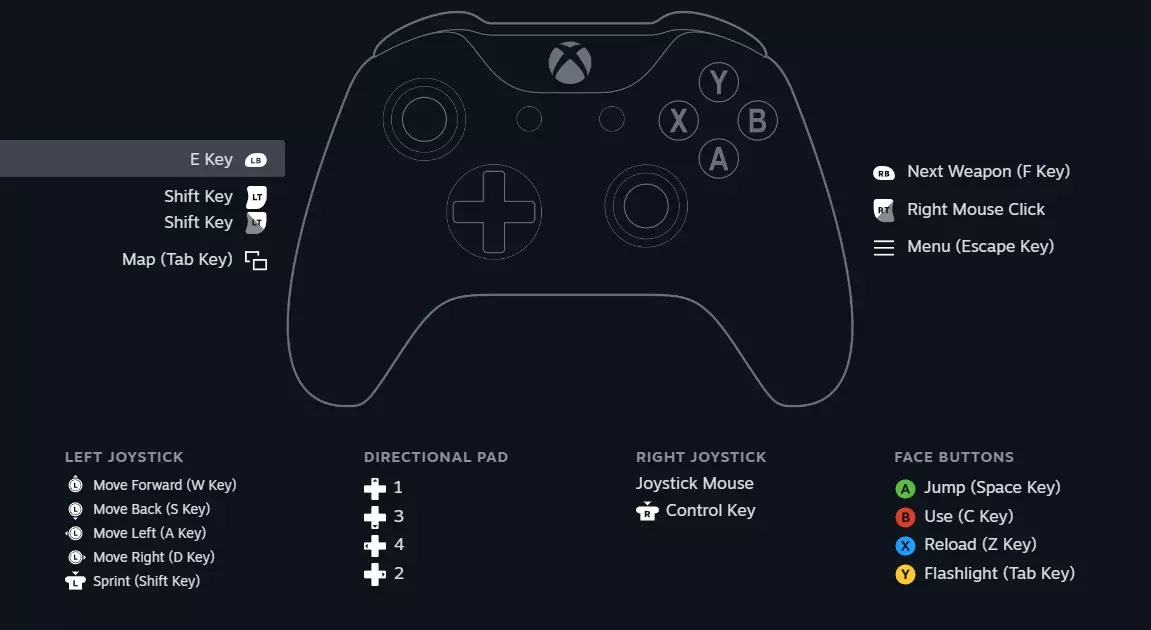
正义之剑控制器高级布局
以下是《鸣潮》的Xbox手柄配置方案,该方案结合了《鸣潮》《幻塔》《梦幻之星在线2》《黑色沙漠》等动作战斗游戏的常见按键配置。我尽量让按键布局自然且富有操作感,…
2026-02-18 22:000赞 · 0评论

模拟摇杆设置为方向键控制 - 截图指南
如何在Steam中为《REVOLVER360 RE:ACTOR》配置Xbox手柄摇杆以控制十字键方向。只需几张快速截图就能为你指明方向,让你可以使用摇杆而非十字…
2026-04-02 22:000赞 · 0评论
【西语/英语】手柄设置 / 控制器配置
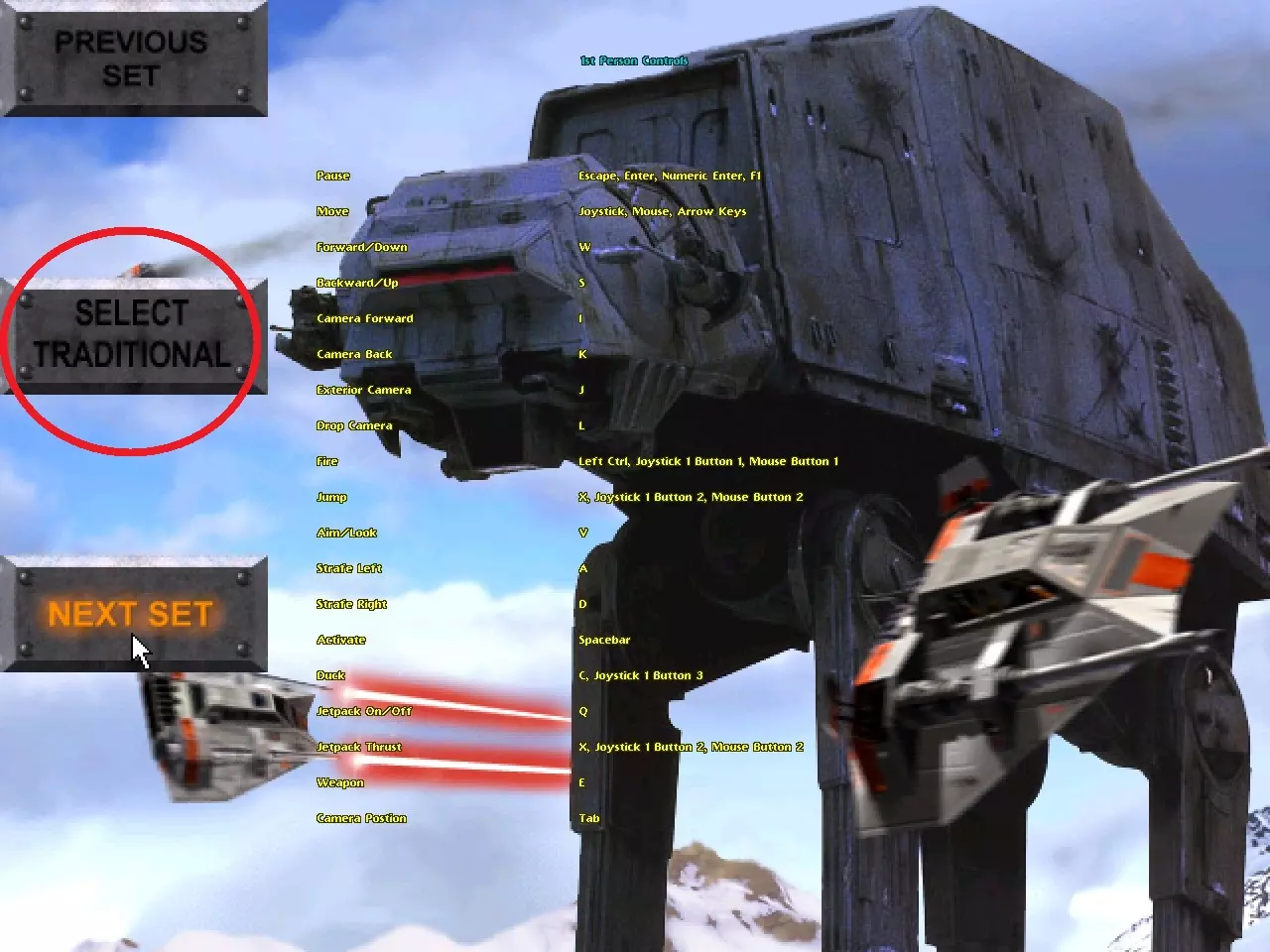
Xbox手柄配置与模板 简介 《星球大战:帝国阴影》支持键盘鼠标或手柄操作,但手柄兼容性有限。通过Steam大屏幕模式,我们无需借助外部程序,即可对自己的手柄进…
2026-03-25 19:000赞 · 0评论
控制器设置
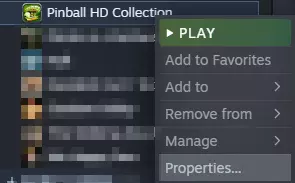
控制器设置指南 Xbox 360/One 1. 在Steam界面中右键点击【Pinball HD Collection】>【属性】。
2026-03-19 22:000赞 · 0评论
激战2 「激战2」翻滚甲虫坐骑技巧,节省体力条的无限续航大法,简单易学,快来吧!
【【漂移2】翻滚甲虫进阶】 https://www.bilibili.com/video/BV1x8411u7dY/?share_source=copy_web…
2026-05-20 02:140赞 · 0评论
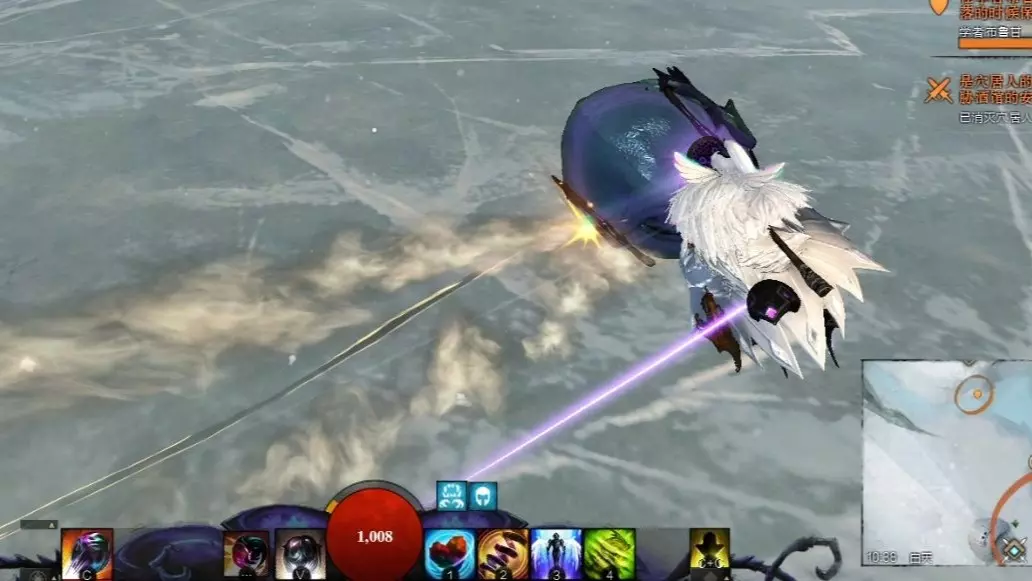
第一视角 【激战2】WVW 妈妈我做到了 AIR幻术指挥视角
2026-05-15 22:350赞 · 0评论
激战2 激战2「夭竺」天命之路2「尽在掌握」剧情成就:监控侦测、晋升之路、机智潜入
不是攻略,只是单纯的记忆游戏内容!
2026-05-15 18:050赞 · 0评论
重磅版本【天命之路】5月15日正式开启!
《激战2》DLC【永恒愿景】全新重磅版本【天命之路】5月15日正式开启!
2026-05-15 07:410赞 · 0评论
激战2副本 激战2武器副本在哪 激战2武器副本在哪里
一、激战2新手必看的升级的攻略指南跑图任务篇 1、新手村地图五个:夏尔最先踏上的土地是阿什福德平原[1-15级]:位于黑烟壁垒入口处,遍布着人类王国阿斯卡隆的废…
2026-05-15 05:200赞 · 0评论
暂无更多
最新更新
- “唯一之路”现已上线:立即体验《激战2》的新篇章! — 《激战2》永恒愿景的冒险今日继续!深入卡斯托拉岛,体验它的美丽与日益增加的危险。在最新资料片的三次重大更新中的第二次更新【唯一之路】中,新增了五个延续资料片故事…
- 超级冒险节2026已上线! — 《激战2》超级冒险节现已开启!这是《激战2》中最具像素风格的派对,摩托再次敞开了他虚拟世界的大门,邀请玩家们前来跳跃、战斗,并收集大量全新及回归奖励。摩托还开放…
- 春季特卖,折扣绽放! — 即日起至太平洋时间3月26日上午10:00(UTC-7),购买资料片可享优惠。春季特卖活动包含《激战2》过往资料片的降价优惠,以及将它们捆绑在一起的完整合集: …
- 常见问题:Steam与ArenaNet账户 — 关于Steam与ArenaNet账号的常见问题 简介 以下是《激战2》的Steam与ArenaNet账号相关常见问题。 术语说明 首先说明一下术语: * Ste…
- 13个即时爱心 - 交易站物品 — 以下是你可以在交易站购买的一些物品,可立即跳过13个爱心。 卡勒顿森林 所需物品 NPC 最近的传送点
- 一起玩《激战2》:新手玩家指南 — Hey everyone! So, I've finally decided to put together a newbie guide for Guild …
- 赚取金币的主要方法 — 在本指南中,我将介绍《激战2》中我个人最喜欢的十种赚取金币的方法。这涵盖了游戏中多个不同领域的多种方法。 简介
- 新玩家免费游玩指南 — 一份为想体验《激战2》免费版的新玩家制作的指南。本指南最初是为一位朋友制作的,但也完全适用于任何感兴趣的人。我真的很喜欢《激战2》。 欢迎来到泰瑞亚! Anda…
- 《激战2》概述 — 欢迎!本指南将帮助你了解《激战2》这款游戏,带你了解游戏中可以体验的各种内容,并为你提供进一步探索感兴趣内容的方向。 简介
- 使用您现有的激战2账号登录Steam — 如何通过Steam登录现有的激战2账号 添加启动参数 安装完成后,点击【属性】打开配置菜单。