我看到网上有很多技巧和窍门,我也测试过很多。显然,这款游戏在早期阶段对很多电脑来说存在一些问题。不过,通过本指南,我们将尝试减少性能问题、卡顿和掉帧现象。另外,在全球发布当天,很多人期待能有一个补丁来修复这些问题,但实际上我们并没有等到。鉴于我看到很多人通过这些修复方法得到了帮助,我决定制作这份指南。接下来几天我会更新这份指南,大家可以留意查看。 第一部分:开始 指南1.2版本包含能提升帧率的配置文件编辑方法,以及关于不同设置及其对帧率和画质影响的视频内容!我看到在2月10日发布的小型补丁后,人们仍然遇到问题,而许多人原本以为我们会看到包含大量修复的首日补丁。开发者实际修复这些问题可能需要时间。在我们等待他们修复的同时,让我们尝试减少延迟和卡顿的影响,并争取获得更好的性能。 对于一些了解电脑知识的人来说,这些可能是基本操作,但很多人实际上并不了解,所以这份指南可能会对你有所帮助。其中很多方法实际上也适用于其他许多游戏! 没有人强迫你这样做。这只是在我们等待补丁以及AMD/Nvidia的驱动更新(希望能修复一些性能问题)期间,如果你希望游戏能运行得更流畅、更好的话可以尝试的方法。不,你本不必在你的“能运行所有游戏的全新高性能游戏电脑”上尝试这些方法,但如果游戏没有达到你的预期效果,那么暂时尝试一下又有什么损失呢? 这可能根本无法解决你的卡顿或掉帧问题。但至少我们尝试过了。我知道很多人通过这些修复方法,确实获得了更好的性能和更少的卡顿。一定要尝试所有步骤,不要跳过任何一步,因为你可能恰好跳过了能解决问题的那一步。 另外!一定要确认这些修复方法是否对游戏有效。虽然卡顿主要是玩家的主观感受,但你其实可以使用软件来显示帧率。你可以使用内置的【Steam 覆盖层】帧率指示器,或在游戏中使用英伟达 GeForce Experience 覆盖层(快捷键 ALT + R),也可以通过微星 Afterburner 搭配 Rivatuner 来测试游戏帧率并获取平均帧率,这样能更好地了解哪些设置对性能有帮助。这对于判断是显卡瓶颈还是 CPU 瓶颈也非常重要。如果你的显卡利用率未超过约 90%,那么很可能是 CPU 瓶颈。目前似乎存在 CPU 利用率方面的问题。 网上有相关的教程,建议你参考一下。 可能存在一些拼写和语言错误,对此我深表歉意,但我认为你应该能理解。由于现在很多人需要帮助,我就快速整理了这些内容。 第一部分。5:手柄震动 这虽然与本指南整体内容无关,但对沉浸感而言相当重要。 请确保将游戏设置为使用Steam输入,这样PS4手柄(可能还有其他手柄)的震动功能才能正常工作。设置时请确保游戏已关闭或重启,否则可能会导致控制异常。 操作步骤: 在Steam中右键点击游戏,选择选项,进入控制设置,勾选“启用Steam输入”。 完成后,手柄震动功能应该就能激活了。要测试是否生效,只需进入游戏施放一个法术,手柄就应该会震动。 如果仍未生效,请进行以下操作: 打开Steam,进入设置,选择控制器,点击常规控制器设置,勾选PlayStation配置支持。 第二部分:Accio驱动! 好的,让我们开始这段旅程! 首先,请确保你所有的驱动程序都是最新的。这意味着Windows驱动程序、主板驱动程序,当然还有AMD和Nvidia驱动程序!
更新英伟达显卡驱动,请下载GeForce Experience以保持驱动程序为最新版本。

针对AMD用户,请查看相关支持页面。
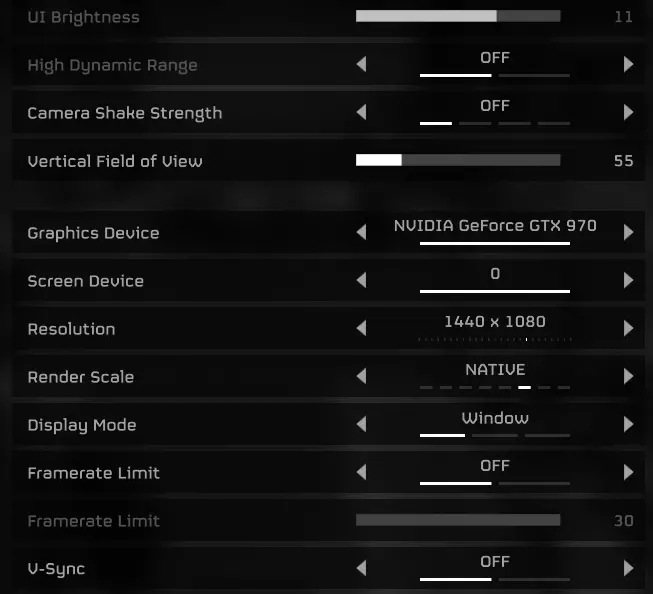
Its also important to keep all your Windows 10/11 drivers up to date. I can't stress that enough. Don't skip these if it ain't for a special reason Also be sure to google your motherboard drivers and keep it up to date. Part 3: Reparo computer No time to waste, follow these steps after updating all your drivers (DONT SKIP THAT STEP!!!) Please, between changing multiple settings, go in the game and look that everything is fine so if a problem would occure its easier to find it (however the only thing that potentially could impact the game here for you in a bad way would be the config files, if done wrong Anti-Virus software If you are using ANYTHING else then Windows Defender, try disabling your Anti-Virus. There was a guy the other day that i helped just with this, massive lag and stuttering, he disabled his AV and it was all good! I think this is some kind of problem with some AVs not matching with Denuvo for the game, making huge lag and stutter for the game. When you have disabled (more reasonable to remove the AV since some AVs are sneaky and are still on in the background) you should enable Windows Defender. Windows Defender is enought if you aren't usually doing stupid things, downloading strange files and happily clicking on every "free driver update" banner on the internet. Nvidia Unlimited Shader Cache Go to Nvidia Control Panel Manage 3D settings (not using english language, but you should find it) Global Settings in the tab Set Shadercache Size: Unlimited This could fix alot also for other games. Always be sure not to run your SSD or HDD completly full, always have space left on your SSD and HDD for games and windows to work without problem. Really important. Disable Control Flow Guard for Hogwarts Legacy Search on your computer for "Exploit protection" Add Hogwarts Legacy exe file In the window scroll down to "Control Flow Guard" and check Override system settings and toggle it OFF then hit Apply If this is to hard for you to do, there are alot of guides how to do this, just google "Hogwarts Legacy control flow guard" I wont link to any guide since im not permitted by any author of this. Alot of people have had their game run much better after this one Don't run alot of background programs and keep your pc clean Keep your pc CLEAN. Don't install alot of ♥♥♥♥ on it if you don't need it. Make sure you are formatting your PC every now and then (i do it once in a year usually). When you are playing the game, turn off all unecessary programs you have in the background. Especially don't run Wallpaper engine or something that is using yout GPU and CPU in the background! It can really disturb your performance having things like this on. Also don't run Twitch and Youtube with high resolutions on your other monitors. This will actually take away frames from you and the game might feel sluggish. Keep your SSD and HDD with some free space This is especially true for your system drive that you have installed your OS on. Don't let it go lower than 20gb of free storage. While you can, its not recommended at all. Also some games might store things on your drives temporary and need its free space. Disable Overlays like Steam and Nvidia overlay For some, this might increase fps by alot and also fix stutters and lag. Disable your Steam overlay by Steam Settings In-Game Disable "Activate steam overlay in games" And for Geforce experience Geforce Experience Settings "Overlays in Game" Uncheck it If this doesen't help or you aren't happy with having them off, simply turn them on afterwards. Give me more colors!!! Here is a tip for you that makes the game much more vibrant! If you are using Nvidia Overlay, simply hit ALT+F3, then add filter "Colors" Set everything to value of 0 but Vibrance. I, myself use ~32 This could also be set in Nvidia Control Panel and i guess for AMD, it can be set in their drivers also Last words Be sure also to defragment your pc now and then, Windows usually to this on its own but it doesen't hurt to do it yourself. Part 4: Reducio DLSS Upscaling This is also important step that sooooo many has told me helped with lag and stuttering. While you shouldn't expect that to happen for you, it will atleast help with quality vs the old one shipped with the game. I made a guide for you that helps you with this here https://steamcommunity.com/sharedfiles/filedetails/?id=2929948757 Part 5: Leviosa game! Now, time for some fixing! But before we start! Always know your computer, your computer wont be better than what it is. Use quality settings after what CPU, GPU and RAM you have. If you are on a GTX 1050, yes, then you might have problems running it smoothly in Ultra. Thats how it is. If you have a 3570K intel processor, then yes, you will probably have stuttering since you are using a old CPU. Its recommended to use 32 gb of ram also for this game, i have seen alot of people who got rid of lag with changing to 32gb instead of 16gb. Don't expect your old computer to do Ultra and 4K. There are limits, learn them. This goes back to "Know your computer" Okey, here we go Please check this YouTube guide where you can see how different settings affect fps and for how much so you can look at what to turn up and down https://youtu.be/N0mWVLhy954 Go into your games settings Change your quality settings appropriate for your computer. Don't play on higher quality settings than what your computer can perform. Its not reasonable. Change upscaling to use either DLSS (if Nvidia) or FSR2 (If AMD) then begin with preset "quality" and go all the way down to performance until you are happy with your smoothness/fps and can see that your GPU isn't the limiting factor. Be sure to check also that your main GPU is selected in the settings so you don't run on your IGPU. I've heard someone had a bug with this where he could choose two of the same GPU, one of them was laggy and the other was fine. Probably a UI bug. Disable ray tracing!!! Do NOT run raytracing if you are here having problems with lag/stuttering. Its the setting that eats most of your performance without a doubt. Disable it. Later if they optimize the game better, you can try it again Do not run 4K if your computer can't handle it! As we talked about before You bought a new fresh 4K Monitor? Well, your only halfway there. You need a capable PC in order to use 4K. Be sure to use a newer card, i would say probably a 3090+ to use 4K. If you still want 4K, use upscaler as mentioned above, to downscale the game to a lower resolution. This will otherwise eat your performance ALIVE I might add new tips and tricks here the coming weeks, check back later