本指南将为你提供《生化危机4 重制版》的最佳优化设置以及已知问题修复方法。 简介 我的目标是让本指南尽可能简单易懂且准确无误,需要记住的是,即使是力求完美的人也难免会犯错。
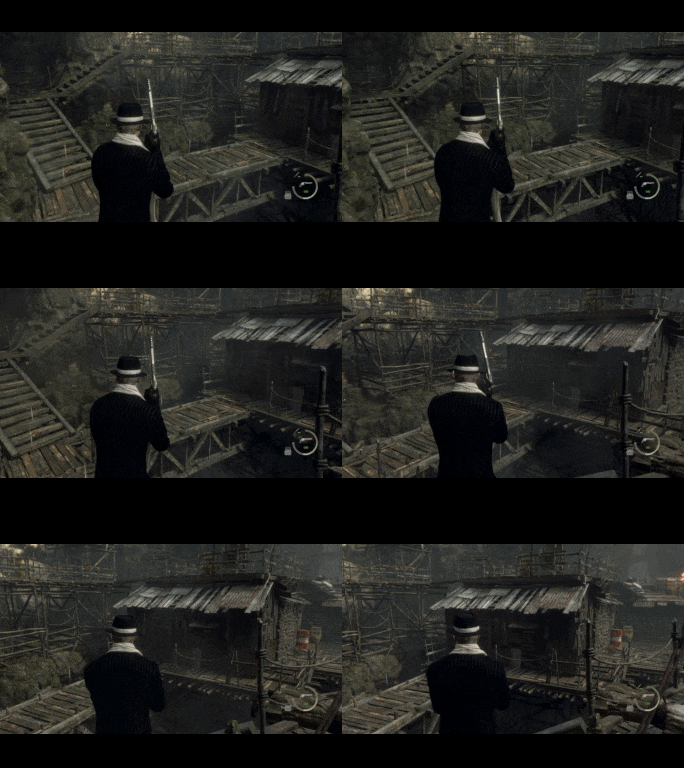
Optimized Quality Settings I recommend using these settings for a clean experience on decent hardware. If you want to experience the game on a low end GPU + CPU system please jump to the next section. If a setting isn't listed in this section, then it simply does not need to be changed from the default. Preset - Start with 'Recommended'. Frame Rate - Variable or your monitor's refresh rate. Display Mode - Full Screen Cinematics Resolution - Full HD Ray Tracing - Make sure this is off. This is a huge hit to performance. FidelityFX Super Resolution (FSR) 2 - Quality Anti-Aliasing - If you are not using FSR 2 or any upscaling, use TAA. Texture Quality - Change based on how much your GPU can handle. Texture Filtering - High (ANISO x8). If you don't mind a 2% performance drop, do 16x. Mesh Quality - High Shadow Quality - High Shadow Cache - On Contact Shadows - Off Ambient Occlusion - SSAO Volumetric Lighting - Mid Bloom - (Preference) 2% drop if on Particle Lighting Quality - High Screen Space Reflections - Off Subsurface Scattering - On Hair Strands - Off Motion Blur - (Preference) 2% drop if on Rain Quality - High Terrain - On Destructible Environments - On Depth of Field - (Preference) 4-5% drop if on Resource Intense Lighting Quality - High Resource Intense Effects Quality - High Optimized Low Settings I recommend using these settings for a clean experience on low end hardware. If you want to experience the game on a high end GPU + CPU system please jump to the previous section. If a setting isn't listed in this section, then it simply does not need to be changed from the default. Preset - Start with 'Recommended'. Frame Rate - Variable or your monitor's refresh rate. Display Mode - Full Screen Cinematics Resolution - Full HD Ray Tracing - Make sure this is off. This is a huge hit to performance. FidelityFX Super Resolution (FSR) 2 - Quality or Balanced Anti-Aliasing - If you are not using FSR 2 or any upscaling, use TAA. Texture Quality - Change based on how much your GPU can handle. Texture Filtering - High (ANISO x8). Mesh Quality - Mid Shadow Quality - Mid Shadow Cache - On Contact Shadows - Off Ambient Occlusion - Off Volumetric Lighting - Low Particle Lighting Quality - High Bloom - Off Screen Space Reflections - Off Subsurface Scattering - Off Hair Strands - Off Persistent Corpses - Low Corpse Physics - Low Motion Blur - Off Rain Quality - High Terrain - Off Destructible Environments - On Depth of Field - Off Resource Intense Lighting Quality - Low Resource Intense Effects Quality - High Steam Deck Settings If a setting isn't listed in this section, then it simply does not need to be changed from the default. Preset - Start with 'Recommended'. Frame Rate - Variable or your monitor's refresh rate. Display Mode - Full Screen Cinematics Resolution - Full HD Ray Tracing - Make sure this is off. This is a huge hit to performance. FidelityFX Super Resolution (FSR) 2 - Performance Texture Quality - High Texture Filtering - High (ANISO x8). Mesh Quality - Mid Shadow Quality - Mid Shadow Cache - On Contact Shadows - Off Ambient Occlusion - Off Volumetric Lighting - Mid Bloom - (Preference) 2% drop if on Particle Lighting Quality - High Screen Space Reflections - Off Subsurface Scattering - On Hair Strands - Off Motion Blur - (Preference) 2% drop if on Rain Quality - High Terrain - Off Destructible Environments - On Lens Distortion - Off Depth of Field - (Preference) 4-5% drop if on Resource Intense Lighting Quality - High Resource Intense Effects Quality - High DLSS Mod Unfortunately Resident Evil 4's Remake does not come with DLSS bundled in, however if you have a GPU that supports DLSS I highly recommend using this mod as it both looks better than FSR 2 and performs better. A reminder that AMD GPU users cannot use this mod. To download this mod, please do the following: 1. Download REFramework (Upscaler Beta) here[www.nexusmods.com] 2. Download UpscalerBasePlugin here[www.nexusmods.com] 3. Download DLSS DLL here[www.techpowerup.com] 4. Throw the REFramework, UpscalerBasePlugin and nvngx_dlss folders into a new folder and extract them all at the same time. 5. Copy and paste the dinput8.dll, nvngx_dlss.dll and PDPerfPlugin.dll (located in the UpscalerBasePlugin folder) into your game folder. This is normally located at: C: Program Files (x86) Steam steamapps common RESIDENT EVIL 4 BIOHAZARD RE4 6. Launch your game and the REFramework window should appear. Wait for all options to load. 7. In the REFramework window, select 'TemporalUpscaler' and select 'Enable' if it's off. 8. Set the Quality Level to 'Quality'. That is my recommended setting, however you are free to change this based on how much performance you want. 9. Make sure you have FSR turned off in the menu settings just in case this interferes with the mod. AMD - AFMF2 (Frame Generation) AFMF2 is a wonderful piece of technology that can increase your FPS by 100+ or more. Unfortunately as of right now you require very specific pieces of technology to use this, but I figured it was worth including this for anyone who has one or more of the following tech in their system: Graphics cards: AMD Radeon RX 6000 RX 7000 700M 800MProcessors: AMD Ryzen 6000/7000 with integrated 700M graphics Ryzen AI 300 series processors 1. Open AMD Software: Adrenalin Edition 2. Select the "Gaming" tab and find Resident Evil 4 Remake 2b. If you can't find it, try refreshing and if that doesn't work, click the three dots in the top right and manually add the .exe from your game folder. 3. Under "Graphics" turn on AMD Fluid Motion Frames 2 - Manual. 4. For Search Mode try Auto or High. This is not guaranteed to increase your frames and may look wonky depending on your system, but it is absolutely worth a try for those who own the listed tech above as it takes ~2 minutes to test. Closing Remarks

如果你对上述任何修复方法或内容有疑问,欢迎在下方留言,或添加我的Steam好友并私信我。我也建议你查看我发布的其他指南,看看是否有你正在玩或想玩的游戏相关指南。