


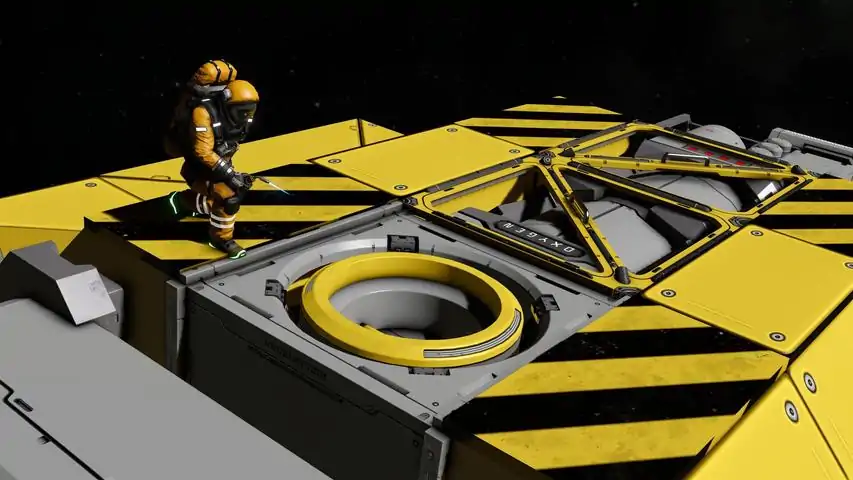

在 Linux 系统中设置《太空工程师》(2025 年版)
This guide provides the necessary instructions for getting a stable Space Engineers installation running in Linux with good performance. It differs from some of the other guides as they do not take certain variables into account. This guide is intended to be as repeatable as possible, therefore has very specific steps. I have updated this guide based on new information and the number of steps and complexity has been reduced! New as of December 12, 2025! Glorious Eggroll has accepted my recommendations and they're now implemented in GE-Proton10-26! This has massively simplified the process, so my guide is now only useful for people with existing installations that have issues and need updating, and for the AppArmor tweaks for those running a distribution where this causes issues. I could not be happier to be made less relevant! This is a win for everyone running Space Engineers on Linux! New as of November 27th, 2025! Sorry that I'm a little late in this one. GE-Proton 10-21 works great for Space Engineers and reduces the steps to get it running well significantly. I've updated the instructions to reflect this. Later versions break it in various ways, so be sure to use 10-21. I've submitted a github issue to try and address a couple ways it breaks in 10-25 (one of which won't impact most people), but they haven't gotten to that one yet. I may need to split it into a couple pull requests instead. New as of September 29th, 2025! After all these years of dotnet48 being the hardest thing to install via winetricks or protontricks, "foresto" (on github) has discovered exactly why it's failing and I used the information that person provided to add a fix here and eliminate the most annoying steps. You no longer need to download two versions of GE-Proton for this to work! You can simply download only the latest. It turns out that 9-25 was merely working around the actual bug! See the github issue this person kindly opened for more details: https://github.com/Winetricks/winetricks/issues/2367 Notes on your saved games and blueprints The 244850 subdirectory is the parent directory of the Wine installation specifically for Space Engineers (244850 is the SteamID of the game). The Windows "C:" drive for SE is under 244850/pfx/drive_c/, so navigate through that structure to find anything in the locations where you'd expect it to be in Windows. This directory is located in ~/.local/share/Steam/steamapps/compatdata/. An alternative way to navigate there (due to the use of symbolic links) is ~/.steam/root/steamapps/compatdata/. If yours is different, you may have installed Steam from the Ubuntu repository rather than Steam's own package. I don't know why, but they massively rearrange the directory structure (I moved away from their version years ago, so don't know if that's changed). FYI: "~" (tilde) is Unix shorthand for your home directory, $HOME can be used in its place if you prefer. Critical locations Blueprints: ~/.steam/root/steamapps/compatdata/244850/pfx/drive_c/users/steamuser/AppData/Roaming/SpaceEngineers/Blueprints/ Saves (the number is your 64-bit Steam ID): ~/.steam/root/steamapps/compatdata/244850/pfx/drive_c/users/steamuser/AppData/Roaming/SpaceEngineers/Saves/86753098675309867/ Offline saves (if you ever played offline, like on a Tuesday when Steam is doing updates): ~/.steam/root/steamapps/compatdata/244850/pfx/drive_c/users/steamuser/AppData/Roaming/SpaceEngineers/Saves/1234567891011/ If you create your own mods, I assume you already know how to find those. Any mods that you're subscribed to will be automatically re-downloaded. Prerequisites You need GE Proton 10-26 installed, as it fixes a lot of things that Steam's Proton doesn't (and can't, due to licensing limitations). Get it here: https://github.com/GloriousEggroll/proton-ge-custom/releases/tag/GE-Proton10-26 Steam makes the installation incredibly easy, and provides a directory for it: ~/.steam/root/compatibilitytools.d/ Simply navigate to that directory and extract the tarball from the github repo's releases section. You will need to restart Steam after extracting the tarball before it will be in the Compatibility list. Note that the GE-Proton options will be at the very bottom of the list. If you want to see what's going on (the initial build/installation takes a long time), be sure to see the section titled Tip (before running "Steps"). Be sure you're using a recent version of winetricks. Some distros are horribly out of date. I'm using 20250102 from here: https://github.com/Winetricks/winetricks/releases Same with Protontricks, I installed 1.12.1 using the pipx instructions from here: https://github.com/Matoking/protontricks Important Use protontricks as shown, do not use winetricks, although winetricks is a prerequisite (protontricks calls winetricks). Explanation: Winetricks is not Steam-aware (it's made for Wine), so will use the OS's Wine installation. Protontricks will set the PATH appropriately to use the Proton (Wine) installation specified by your game's config. Protontricks also triggers the use of Steam's version of bubblewrap, which can be problematic (addressed below), but also prevents a bogus error about being out of disk space from one of the Windows installers that can happen when using winetricks alone. I did all of the below without Wine even installed on my system. Launching winetricks without Wine installed will just produce errors. Installing Wine on the OS and using winetricks introduces a variable that cannot be accounted for in this guide. Initial steps if your distro uses AppArmor This is important if you're using Ubuntu or any distro that uses AppArmor. Bubblewrap "bwrap" is used by all versions of Proton in Steam now. Steam also bundles their own version called srt-bwrap. Ubuntu denies some actions by bwrap as well as srt-bwrap by default. You can see this by running the following command after attempting to launch SE: sudo dmesg | grep bwrap | grep DENIEDThe below configuration files, plus restarting AppArmor, will prevent this from happening. Using root or sudo, create the file /etc/apparmor.d/bwrap using your preferred text editor and add the following: abi <abi/4.0>, include <tunables/global> profile bwrap /usr/bin/bwrap flags=(unconfined) { userns, # Site-specific additions and overrides. See local/README for details. include if exists <local/bwrap> } Using root or sudo, create the file /etc/apparmor.d/srt-bwrap using your preferred text editor and add the following: abi <abi/4.0>, include <tunables/global> profile srt-bwrap /home/*/.local/share/Steam/**/srt-bwrap flags=(unconfined) { userns, capability setpcap, /proc/*/uid_map rw, /proc/*/gid_map rw, /proc/*/setgroups rw, # Prevent transition to the restrictive unprivileged_userns profile change_profile -> unconfined, # Site-specific additions and overrides include if exists <local/srt-bwrap> } Run the following commands to activate the above changes to AppArmor: sudo apparmor_parser -r /etc/apparmor.d/bwrap sudo apparmor_parser -r /etc/apparmor.d/srt-bwrap sudo systemctl restart apparmor Important step if you are using a network filesystem like NFS If you've never used GE-Proton to install Space Engineers before, you can skip this section. If you have used any version of GE-Proton prior to 10-26 to install Space Engineers and are getting crashes upon launch and are using a network filesystem for your Space Engineers installation, this is for you! When GE-Proton is used to launch Space Engineers, it checks to see if it has already applied a tweak to SpaceEngineers.exe.config, but it does this by simply looking for the file ~/.steam/root/steamapps/common/SpaceEngineers/Bin64/SpaceEngineers.exe.config.protonfixes.bak If the bak file exists, you need to move it back to the original file before launching the game using GE-Proton10-26 as it won't apply the patch to the config file if the bak file exists. This command will do that for you: cd ~/.steam/root/steamapps/common/SpaceEngineers/Bin64/ ; mv SpaceEngineers.exe.config.protonfixes.bak SpaceEngineers.exe.config(this can be entered as one line or two) This patch works around what appears as a game crash, but is actually a Microsoft component refusing to run on a network filesystem (if you dig through SE's logs, you can see the actual error). This limitation was introduced in a recent version of Wine that GE-Proton incorporated somewhere between 10-21 and 10-25, and this config file tweak turns off that behavior. The patch only gets applied once, when GE-Proton does not find that "protonfixes.bak" file. After the patch is applied, it doesn't need to be re-applied (unless you did a "verify files" in steam). Tip (before running "Steps") The initial launch can take quite some time, and it's not obvious whether or not it's doing anything. Interrupting it can be bad as it may be in the middle of an installation of some important component. This should only take a long time like this during the initial build/installation of the 244850 directory structure (the emulated Windows installation). For my system (i7-4790K with storage on an equally old NFS server) it took around 13 minutes for Proton GE to complete the initial build, which includes installing all the relevant dependencies, etc., then another 2 minutes to launch the game. I'd expect anyone with a fast, local SSD for storage should see faster times than that, while those with hard drives may experience a similar time to mine (I explain my environment a bit more below). To see some feedback while your environment is being built, launch Steam from a terminal. To do this, find whatever terminal program you're comfortable with (Ubuntu should launch one by simply typing Control-Shift-T) and enter "steam" in the terminal (all lowercase, without the quotes) and press Enter. You can also run "top" in another shell if you'd like to see how busy the system is (pay attention to "wa", which is I/O-wait time... that shows how much time your CPU is waiting for your storage device (if it's local and not over the network like mine). Don't expect the output to make a lot of sense... it'll output both messages from Steam and any game you launch while it's running in the terminal. Some of what you will see will be output from the Microsoft installers that get launched by GE-Proton's "gamefixes". Anything that says "Warning" can be ignored (Wine is full of them). Anything that says "Error" is probably more important. Steps Remove or rename the 244850 subdirectory. Be sure to back up any saved games and/or blueprints before doing so (hence the rename suggestion). See the section on saves and blueprints for the exact locations. Adjust Steam's compatibility config for SE to use GE Proton 10-26 that you installed in the Prerequisites section. Launch SE and wait for it to fully come up. At this point, you're done! If you want to see what's installed by winetricks/protontricks, run the following: cat ~/.steam/root/steamapps/compatdata/244850/pfx/winetricks.logMine looks like this (yours should be similar, if not identical): xaudio29 remove_mono internal remove_mono internal winxp dotnet40 dotnet48 ucrtbase2019 vcrun2019 Explanation of the list: The xaudio29 was added by GE-Proton when the game was first launched. The "remove_mono internal" calls were made by the dotnet40/48 installation, as was the switch to "winxp" emulation. The reason two versions of dotnet appear is dotnet40 is a prerequisite, as 48 is just a patch on top of it. "ucrtbase2019" appears to be a dependency for "vcrun2019". The "vcrun2019" installation is all Visual C++ Runtime versions from 2015-2019. Apparently the game actually needs only the 2015 version, but installation of that package alone was broken at some point, while the bundle still works. Further tweaking: Important performance consideration: If your video card has only 6GB of VRAM like mine, definitely reduce Texture Detail to Medium. The default of High will not fit in this amount of video RAM! I'm not even sure if 8GB is enough. The visual differences are minimal (I can't tell on a 4k monitor). I'm running a GTX 1660 at 4k, so your settings likely won't need to be the same, but I managed to get low-30s to 121fps depending on what I was doing using the below config, with a rare dip just below. This was using the shift-F11 display, not Steam's new one (I haven't tried it yet). I started with the "High" selection (default), and only changed Texture Detail to Medium. This made a huge difference with periodic hangs and stutters. I still get the same performance I used to with the below old config. This may be due to improvements in GE-Proton, as it pulls in many newer versions of various libraries, including graphics libraries. One tweak I'd also recommend would be to add the following to the SE "launch options" text box in Steam: gamemoderun %command%This performs various tuning (like your CPU scheduler, for example), but also will disable your screensaver for the duration of the game. I've had problems when trying to wake my display back up where the game would still be running, but not visible, or the screen would just stay black until I switched to another VT and killed it, or (best case) it would come back with no audio. This prevents that from happening. Note that gamemoderun must be installed. Run "which gamemoderun" to see if you have it. One that might help if you're experiencing audio issues is to set the following at the beginning of the SE "launch options" text box in Steam: PULSE_LATENCY_MSEC=60Note that you can also try 30 or 90, but I've not seen any other recommendations. I've note tested this. This originated in a guide on github from 2020 and may no longer be relevant. I believe the xaudio29 installation may fix the issue this works around. If you find this tweak actually makes a difference after following this guide, please let me know! Unneeded tweaks MESA_GLTHREAD is for AMD GPUs, so if you have an NVidia it won't help. DXVK_ASYNC is obsolete, as it's been superceded by Graphics Pipeline Library in newer DXVK & Vulkan drivers. I'm not sure if this would help or hurt, but the info may be just something being repeated that used to work. WINEDEBUG adjusts your logging level, so only useful if you're digging through the logs. useallavailablecores is a weird one that gets repeated everywhere and many claim it helps, but it's a placebo because that's specific to the Unity game engine. SE's game engine is VRage2, developed entirely by Keen Software House. It doesn't use Unity at all. "-nosplash" just turns off the tiny splash screen image that hangs on the screen while the game is loading, so if you don't want to see that, use this. I think the bug this works around was fixed around Proton 5 or so. Similarly, you'll likely find "-nointro", which turns off the very short full-screen intro video with the engineers flying around building a Keen Logo while it plays Toccata and Fugue . This is no longer needed because the hang while playing that video was fixed a few Proton versions ago. GE-Proton used to automatically apply this, but per my request, that was removed. If you don't want to see the intro (which causes no issues and goes away the instant you click your mouse or hit ESC), then add this to your launch options. Turning off grass is only for AMD GPUs (for Linux), and those with RTX-5090 GPUs (on Windows, maybe also on Linux, let me know if this applies to you). My system If you're curious what I'm running Space Engineers on: CPU: Core i7-4790K 32GB DDR3-2400 RAM GTX 1660 with 6GB VRAM (not the "Super" version) OS: Ubuntu MATE 24.04.2 Home directory on NFS accessed via 2.5GbE NFS server Solaris 11.4 serving a ZFS backed filesystem over 10GbE With this I can run the game smoothly at 4k with the previously described settings. OLD guide stuff I'm leaving some of the old guide stuff in here in case anyone wants to go through the pain of going that route, or is curious what used to be involved. OLD - Intro After an embarrassing amount of testing, I've finally managed to come up with a repeatable method of setting up Space Engineers in Linux that's only got one annoying flaw: You get the Keen crash feedback dialog *after* clicking "Exit to Windows". I'm not sure why my previous install doesn't do this, but I got the performance up there at least as good as my old install, if not better. Unfortunately, my old installation was made quite some time back, and I've not been able to repeat that exact configuration. I've seen lots of recent posts by people asking how to get SE working well in Linux, and was surprised by some of the stability and performance problems they had, so I figured I'd try a scratch installation to see what they were experiencing and can confirm that it's horrible. Hence, my effort to create a repeatable method of installation that results in an overall good experience. OLD - Prerequisite: You must have GE-Proton9-25 extracted to ~/.steam/root/compatibilitytools.d/. Simply navigate to that directory and extract the tarball from the github repo's releases section. Do not use a different version... 9-26 breaks this. Get it here: https://github.com/GloriousEggroll/proton-ge-custom/releases/tag/GE-Proton9-25 You will need to restart Steam after extracting the tarball before it will be in the Compatibility list. Note that the GE-Proton options will be at the very bottom of the list. Be sure you're using a recent version of winetricks. Some distros are horribly out of date. I'm using 20250102 from here: https://github.com/Winetricks/winetricks/releases Same with Protontricks, I installed 1.12.1 using the pipx instructions from here: https://github.com/Matoking/protontricks OLD - Important: Use protontricks as shown, do not use winetricks, although winetricks is a prerequisite (protontricks calls winetricks). Winetricks is not Steam-aware (it's made for Wine), so will use the OS's Wine installation. Protontricks will set the PATH appropriately to use the Proton (Wine) installation specified by your game's config. I did all of the below without Wine even installed on my system. Launching winetricks without Wine installed will just produce errors. Installing Wine on the OS and using winetricks introduces a variable that cannot be accounted for in this guide. If you think that Wine 9 and Proton 9 are exactly the same and cannot cause issues, then please look back at my comment about 9-25 vs 9-26. OLD - Steps: Remove or rename the 244850 subdirectory. Be sure to back up any saved games and/or blueprints before doing so (hence the rename suggestion). Adjust Steam's compatibility config for SE to use GE-Proton9-25 (it must be this exact version). Launch SE and wait for it to fully come up, then exit the game and wait for Steam's green Play button to reappear. Run: protontricks 244850 -q win10 Run: protontricks 244850 -q dotnet20 Run: protontricks 244850 -q winxp Run: protontricks 244850 -q dotnet48 Run: protontricks 244850 -q win10 Run: protontricks 244850 -q vcrun2022At any point between the protontricks steps you can check the above installations using the following command. Important: run this all as one long line, it's being displayed as if it is two: PATH=~/.steam/root/compatibilitytools.d/GE-Proton9-25/files/bin:$PATH WINEPREFIX=~/.steam/steam/steamapps/compatdata/244850/pfx winetricks list-installedMine looks like this: 7zip xaudio29 win10 remove_mono internal fontfix dotnet20 remove_mono internal remove_mono internal winxp dotnet40 dotnet48 win10 vcrun2022 The extra stuff in there was either added by GE-Proton (like 7zip), or as part of one of the others in the list. Don't worry about duplication, some of these are just config changes, so order matters. Yes, I agree installing dotnet20 makes no sense, but I found a reference that indicated it stops the bogus rundll32.exe failure dialog, and it worked to eliminate that problem. If you know of another way to prevent that bogus dialog, please let me know (it's bogus as you can see rundll32.exe in top). After going through the above steps, you can either run SE in GE-Proton9-25 as is currently configured or switch to a newer version, as 9-25 is only required for the above process (at a minimum for the dotnet installations, and possibly also for vcrun2022). Note that older guides used vcrun2019, and my old (rock solid) installation has it, but all attempts at using it in the past week have resulted in a completely unusable system (the game would crash before the menu).
在 Linux 系统中设置《太空工程师》(2025 年版)
2026-02-13 09:03:42 发布在  Space Engineers

说点好听的...
收藏
0
0