




伊西的物品栏管理器指南
这是一份完整指南,将详细介绍我的物品栏管理器脚本的所有功能。 你可以在此处找到该脚本:http://steamcommunity.com/sharedfiles/filedetails/?id=1216126863 基本设置 基本设置非常简单。你只需要一个装有该脚本的可编程方块即可!以下是具体操作步骤: 在创意工坊中订阅我的脚本(详见标题中的链接) 建造一个可编程方块 在终端中打开该方块 点击“编辑” 在新窗口中,点击“浏览创意工坊” 选择我的脚本“Isy's Inventory Manager”并点击“确定” 代码将显示在窗口中 点击“检查代码”,然后在弹出窗口中点击“确定” 点击“保存并退出”,操作完成 此时脚本已按所有基本设置运行,您的所有容器应已完成分类。 如需更直观的视频指南,请观看我的YouTube视频。
Note: Game has to be in experimental mode and ingame scripts have to enabled in world options! How to do that, I explained here: Sorting All items are sorted based on their type into different containers. Docked ships or vehicles are also emptied. To prevent that temporary, have a look at the upcoming guide topics. You can also change the keyword, a container has to contain to be recognized as a type specific container, in the config section. Just make sure that they are unique as the script will find matching keywords in parts of block names as well. // Define the string a cargo container has to contain in order to be recognized as a container of the given type. const string oreContainerKeyword = "Ores"; const string ingotContainerKeyword = "Ingots"; const string componentContainerKeyword = "Components"; const string toolContainerKeyword = "Tools"; const string ammoContainerKeyword = "Ammo"; const string bottleContainerKeyword = "Bottles"; Exclude containers from sorting By adding the 'Locked' keyword to any block's name, this block is excluded from sorting. This could be useful if you are preparing a container with things, you want to take with you on your next trip. Locked containers will also be excluded as a source for any balancing method (ore balancing, ice balancing, uranium balancing). By default inventories with the tag 'Locked', 'Seat' and 'Control Station' are excluded from sorting (the last two because they have no conveyor access). You can change or expand the list in the config section: // Keyword a block name has to contain to be skipped by the sorting (= no items will be taken out). // This list is expandable - just separate the entries with a ",". But it's also language specific, so adjust it if needed. // Default: string[] lockedContainerKeywords = { "Locked", "Seat", "Control Station" }; string[] lockedContainerKeywords = { "Locked", "Seat", "Control Station" }; Exclude containers from item counting You can exclude specific inventories from the item counting mechanism. This could be useful if you don't want the autocrafting to see certain items in docked ships for example. Also, the inventory panels won't show the items of that inventory either. To do that, append the 'hiddenContainerKeyword' (by default: 'Hidden') to a blockname or just disable the terminal option "Show block in Inventory Screen" after you set the 'treatNotShownAsHidden' variable to true. The list is also expandable if you want to exclude other blocknames by default: // Keyword a block name has to contain to be excluded from item counting (used by autocrafting and inventory panels) // This list is expandable - just separate the entries with a ",". But it's also language specific, so adjust it if needed. // Default: string[] hiddenContainerKeywords = { "Hidden" }; string[] hiddenContainerKeywords = { "Hidden" }; // Treat inventories that are hidden via disbaling the terminal option "Show block in Inventory Screen" as hidden containers // just like adding the 'Hidden' keyword (see above)? (Note: It's not recommended to hide your main type containers!) bool treatNotShownAsHidden = false; Exclude grids from sorting It is possible to exclude whole grids from sorting by either giving a connector on the grid running IIM or any connected grid's connector the '[No Sorting]' keyword. Every ship, vehicle or whatever, that docks to IIM's grid's connector, won't be sorted (when having the tag on a ship, only the ship wearing it). string noSortingKeyword = "[No Sorting]"; In this case, only sorting will be disabled. Special containers however are still filled and uranium and ice balancing is also active. To completely ignore a grid, add the '[No IIM]' keyword to a connector: string noIIMKeyword = "[No IIM]"; Every ship or other vehicle that docks to this connector won't be sorted - all inventories, special containers, reactors and O2/H2 generators on that grid are completely ignored. It is also possible to add the tags to a gridname directly (found in the info tab). That way, even rotor connected ships, drones or vehicles without a connector can be excluded.. Container priorities By adding '[P#]' to the container name, where # is a positive number between 0 and 2.1 billion, the container with the highest priority will always be filled first. Priorities are ordered in a way that P1 is the highest priority, P2 the next highest and so on. Addtionally, there are two special priority tokens: '[PMax]' this container has the highest priority and will always be filled FIRST '[PMin]' this container has the lowest priority and will always be filled LAST If a container is full, the container with the next highest priority gets filled and so on. Containers with no '[P#]' tag have a very low priority that is generated by their entityID and is always above 10k. Special containers however still have a higher priority than normal containers, but can also be tagged with priority tokens. The highest priority special container will be filled first. Here are some examples of container names with priority numbers: Small Cargo Container 1 Ores [P1] Small Cargo Container [P13] Ingots [P5] Cargo Container Components Cargo Container Bottles [PMax] Container balancing It is possible to equalize the amount of every item in every container of a specific type. This leads to the same item set in all of your type containers. This is very useful if you are attacked and a container is destroyed - the other containers will still have all your items as a backup (if you planned your base well enough :P ). This feature however is very instruction heavy and could crash the script if you have many containers of the same type (successfully tested it with 15 component containers). That's why it's turned off by default. Also, container priorites of the type containers won't have any effect anymore. To enable or disable the feature, change the respective setting in the config: bool balanceTypeContainers = false; Automatic container assignment By default, new containers are assigned to be used by the script, when a container is full or no container of a specific type exists yet. Containers for tools, ammo and bottles are always assigned as one. The same applies to ingot and ore containers. Another feature is the automatic unassignment of empty and thus unused type containers. The tag gets removed after a the container was empty for a while to free it up for other purposes. Containers with a priority token, like [P1] won't ever be unassigned automatically. For more control, you can set, which types are allowed to be assigned or unassigned in the script config (see below). Change the values to 'true' or 'false' to activate or deactivate a certain feature: // Master switch. If this is set to false, automated container un-/assignment is disabled entirely. bool autoContainerAssignment = true; // Assign switch. Assign new containers if a type is full or not present? bool assignNewContainers = true; // Which type should be assigned automatically? (only relevant if master and assign switch are true) bool assignOres = true; bool assignIngots = true; bool assignComponents = true; bool assignTools = true; bool assignAmmo = true; bool assignBottles = true; // Unassign switch. Unassign empty type containers that aren't needed anymore (at least one of each type always remains). // This doesn't touch containers with manual priority tokens, like [P1]. bool unassignEmptyContainers = true; // Which type should be unassigned automatically? (only relevant if master and unassign switch are true) bool unassignOres = true; bool unassignIngots = true; bool unassignComponents = true; bool unassignTools = true; bool unassignAmmo = true; bool unassignBottles = true; // Assign ores and ingots containers as one? (complies with type switches) bool oresIngotsInOne = true; // Assign tool, ammo and bottle containers as one? (complies with type switches) bool toolsAmmoBottlesInOne = true; Bottle refilling By default, the script will try to move any incoming bottle to the first found tank that has the needed gas available or to a O2/H2 generator if there are no tanks or they are empty. After that, they get pushed to the bottle container. This works for just crafted bottles, that are inside an assembler, too. As scripts can't read the bottle fill levels, the script will only move a bottle if it's not in the bottles container already. So, if you want your bottle filled, store it in any other container, like some sort of untagged input container. To enable or disable bottle filling, change the value in config section (heading "Sorting") to true or false: // Fill bottles before storing them in the bottle container? bool fillBottles = true; Fill level and no conveyor connection By default, the script shows a fill level percentage at the end of cargo container names, it manages. It can also show a [No Conveyor] tag in the name, if the block has no access to your main cargo containers. You can activate or deactivate these features in the script config by setting the value to true or false: // Show a fill level in the container's name? bool showFillLevel = true; // Tag inventories, that have no access to the main type containers with [No Conveyor]? bool showNoConveyorTag = false; Internal inventory sorting The internal inventory sorting sorts items in an inventory by name, amount or type. By default it is deactivated because it can lead to inventory desynchronization in multiplayer. Use at your own risk! You can change the way, internal sorting works, by changing the sorting pattern in the config section: // Sort the items inside all containers? bool enableInternalSorting = false; // Internal sorting pattern. Always combine one of each category, e.g.: 'Ad' for descending item amount (from highest to lowest) // 1. Quantifier: // A = amount // N = name // T = type (alphabetical) // X = type (number of items) // 2. Direction: // a = ascending // d = descending string sortingPattern = "Na"; You can also sort an individual inventory by changing the name of it. The syntax goes like this: (sort:PATTERN) In this case, PATTERN is a combination of characters shown above. See the following block naming examples: Sort an inventory by item amount, ascending (from lowest to highest): Small Cargo Container (sort:Aa) Sort an inventory by type, descending (inverse alphabetical order Z -> A): Small Cargo Container (sort:Td) Sort an inventory by type and number of items, ascending (alphabetical order A -> Z, number of items from lowest to highest): Small Cargo Container (sort:Xa) Special loadout containers By adding the 'Special' keyword to a container's name (for example: Small Cargo Container Special), this container can be filled with a user defined set of items. To set the items, just edit the container's custom data field (a list of items is generated there after a while). Special containers will never be drained by the autosorting but they will be available for balancing methods like ice or uranium balancing and autocrafting. Special containers can have four different modes on a per-item-basis: Normal: stores wanted amount, removes excess. Usage: "item=100" Minimum: stores wanted amount, ignores excess. Usage: "item=100M" Limiter: doesn't store items, only removes excess. Usage: "item=100L" All: stores all items it can get until it's full. Usage: "item=All" The Minimum mode is great for blocks that pull items themselves but should never fall below a specific item amount, like turrets or guns. The Limiter mode is mostly used for blocks that pull items themselves but should not clog up their inventory with too much stuff, like assemblers or some modded blocks like the nanite factory. The 'All' keyword is great for advanced sorting of items. It will store all items of that specific subtype in the container until it's full. Excess items will then be stored in the regular type container. Example custom data:
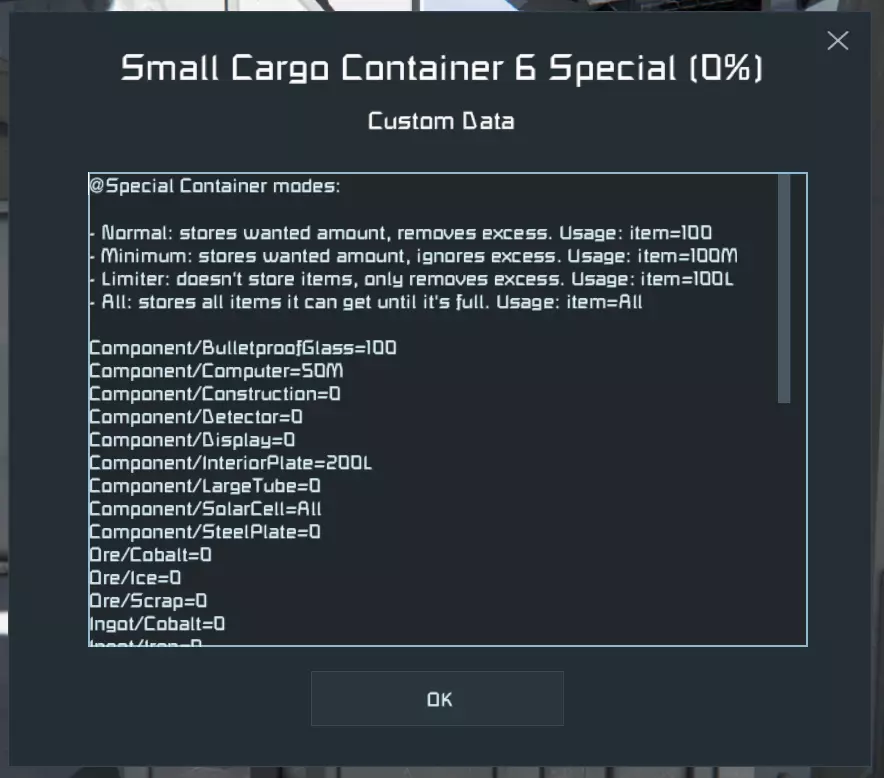
是否允许特殊容器从其他特殊容器中“窃取”物品,可在脚本配置中进行设置: const string specialContainerKeyword= "Special"; bool allowSpecialSteal = true; 自动合成
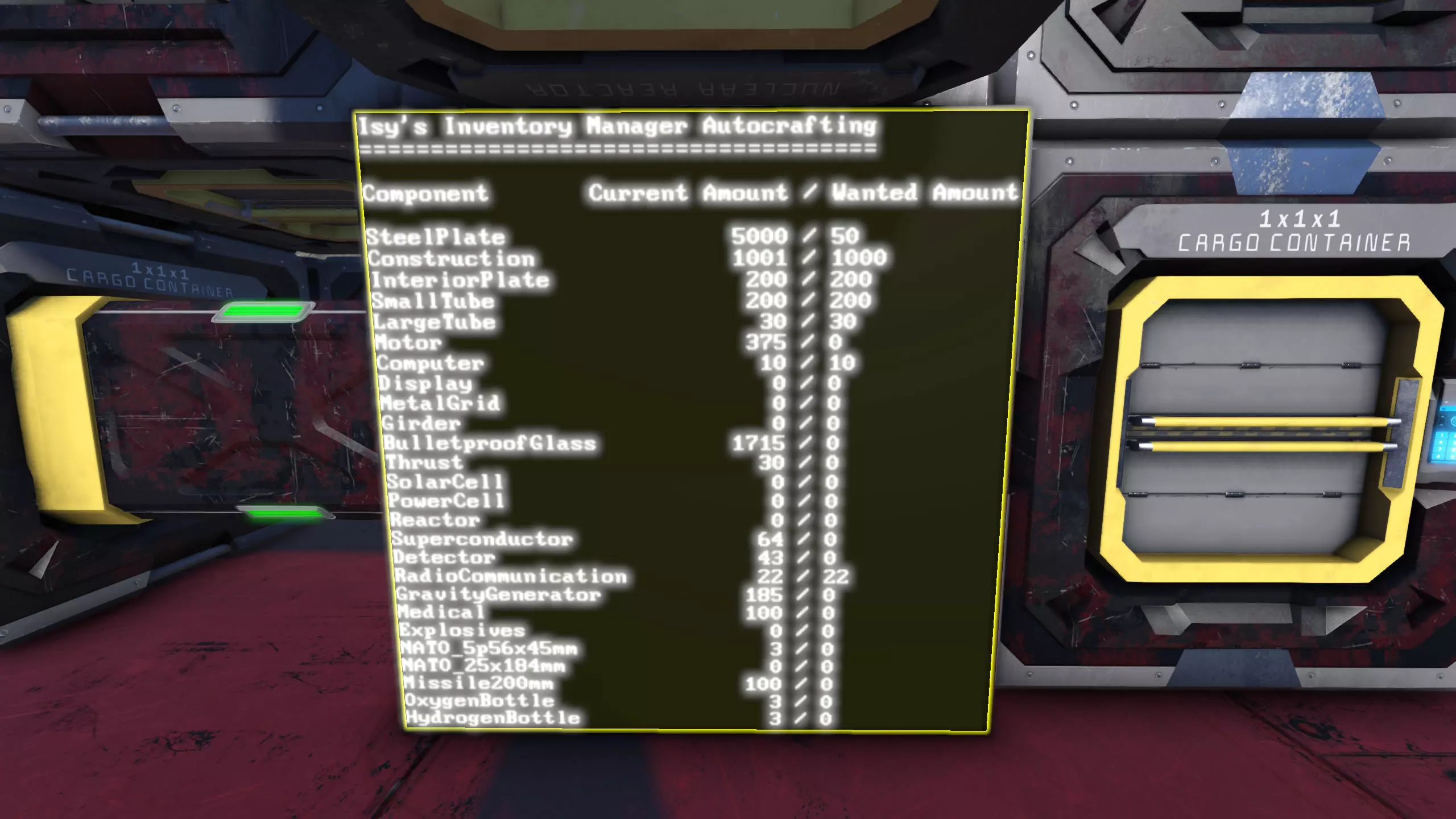
My script is able to autocraft your components using every assembler available on the grid. There is no need to assign specific assembler to specific components. The script splits the needed amount evenly between them. To start off, you need to build an LCD and name it 'LCD Autocrafting'. The script will put a list of components, that are autocraftable on the LCD. To set a new wanted amount, you simply have to edit the text on the LCD and change the number to your likings. When the script queued items in the assemblers a symbol after the current amount will be shown, indicating, how many items are in the queue, e.g.: [Q:100] By default, the assembler queue is sorted based on the most needed component. Whenever a component can't be crafted, the script will move the item to the end of the queue so that other items can be crafted. Enable/disable autocrafting and autodisassemblingEnable autocrafting or autodisassembling by changing the following config settings. All assemblers will be used. Disassembling will disassemble everything above the wanted amounts. To use an assembler manually, add the manualMachineKeyword to it (by default: "!manual") bool enableAutocrafting = true; bool enableAutodisassembling = false; Autocrafting LCDA LCD with the keyword "Autocrafting" is required where you can set the wanted amount! This has multi LCD support. Just append numbers after the keyword, like: "LCD Autocrafting 1", "LCD Autocrafting 2", .. string autocraftingKeyword = "Autocrafting"; Assemble or Disassemble only tagsIf you want an assembler to only assemble or only disassemble, use the following keywords and append them to the assembler's name. A assembler without a keyword will do both tasks. string assembleKeyword = "!assemble-only"; string disassembleKeyword = "!disassemble-only"; Margins for autocrafting and autodisassembling Margins for assembling or disassembling items in percent based on the wanted amount (default: 0 = exact value). Examples: assembleMargin = 5 with a wanted amount of 100 items will only produce new items, if less than 95 are available. disassembleMargin = 10 with a wanted amount of 1000 items will only disassemble items if more than 1100 are available. double assembleMargin = 0; double disassembleMargin = 0; You can add the header to every screen when using multiple autocrafting LCDs by enabling this option: bool headerOnEveryScreen = false; Sort the assembler queue based on the most needed componentsThe assembler queue is by default sorted by the most needed components. So if your assembler is producing steel plates, interior plates and bulletproof glass and you're absolutely dry on stell plates, they will be moved to the front of the queue. bool sortAssemblerQueue = true; Basic crafting with Survival KitsYou can enable basic ingot crafting in survival Kits with this option. It will however be automatically disabled if you have regular refineries built. bool enableBasicIngotCrafting = true; Autocrafting is also possible with survival kits, but as they are very slow, they are deactivated as soon as you have regualar assemblers. If you still want to use them, change this value to false: bool disableBasicAutocrafting = true; Manual craftingIf you still want an assemblers to be manually controllable, you can add the keyword "!manual" to its name. With this keyword, it won't be used by the autocrafting. The ouput of the assembler will still be sorted into your cargo containers. Example: Assembler 1 !manual Autocrafting Modifiers There are 6 modifiers that can be added to the wanted item amounts, that will change the way, autocrafting handles these items. These modifiers can be set on a per-item-level: 'A' - Assemble only 'D' - Disassemble only 'P' - Priority (always craft first) 'H' - Hide (manage in custom data) 'I' - Ignore (don't manage and hide) 'Y#' - Yield modifier. Set # to the itemamount, one craft yields Assemble only modifier The script will assemble the item to the quantity you set but it will never disassemble it even is auto disassembling is turned on and the stored amount is greater than the wanted amount. Usage: Component Current | Wanted SteelPlates 4123 < 5000A Disassemble only modifier The script will only disassemble the item, if it gets above the wanted quantity but it will never assemble more, if the stored amount drops below the wanted amount. Usage: Component Current | Wanted SteelPlates 4123 < 5000D Priority modifier Whenever the stored amount of an item is not equal to the wanted amount of it, the script will move it to the front of the assembling queue (this was done with '!' before v2.8.0) Usage: Component Current | Wanted SteelPlates 4123 < 5000P Hide and manage modifier If you want autocrafting to manage the amount of an item but you don't want it to be shown on the autocrafting LCD, you can use the 'H' modifier. The item with its current wanted amount will be moved to the custom data of your (first) autocrafting LCD and hidden from the LCD itself. The amount can be changed afterwards by editing it in the custom data. If you want to show it on the LCD again, just remove the line in the custom data. Usage: Component Current | Wanted SteelPlates 4123 < 5000H Hide and ignore modifier If you want you want to hide an item from the autocrafting LCD and don't want autocrafting to manage it, use the 'I' modifier (this was done with a negative item amount before v2.8.0). The item will be moved to the custom data of your (first) autocrafting LCD and hidden from the LCD itself. If you want to show it on the LCD again, just remove the line in the custom data. Usage: Component Current | Wanted SteelPlates 4123 < 5000I Yield modifier Some modded assembler operations yield more than one item of a kind. This results in wrong autocrafting queues and overproduction. To fix that, you can use the yield modifier followed by the number of items, one craft produces. Usage: Component Current | Wanted Algaesample 4123 < 5000Y50 Modifiers are also combineable. 'AP' for example will assemble only and prioritize. 'AD' will basically just show the item on the LCD but neither assemble nor disassemble it. Autocrafting unknown / modded items The script is able to craft any modded item that is craftable in an assembler or assembler like modded structure but it has to learn the crafting blueprint first. Unknown items are hidden from the autocrafting screen by default. You can however show them by changing the following variable to true in the script config (this is not needed to teach the recipe!): // Show unlearned (mostly modded) items on the autocrafting screen? This adds the [NoBP] tag (no blueprint) like in the old days of IIM. bool showUnlearnedItems = false; Alternatively run the Script with the showUnlearnedItems argument to temporarely show [NoBP] items. With the option enabled, unknown items have the tag [No BP!] (= no blueprint) behind their name:
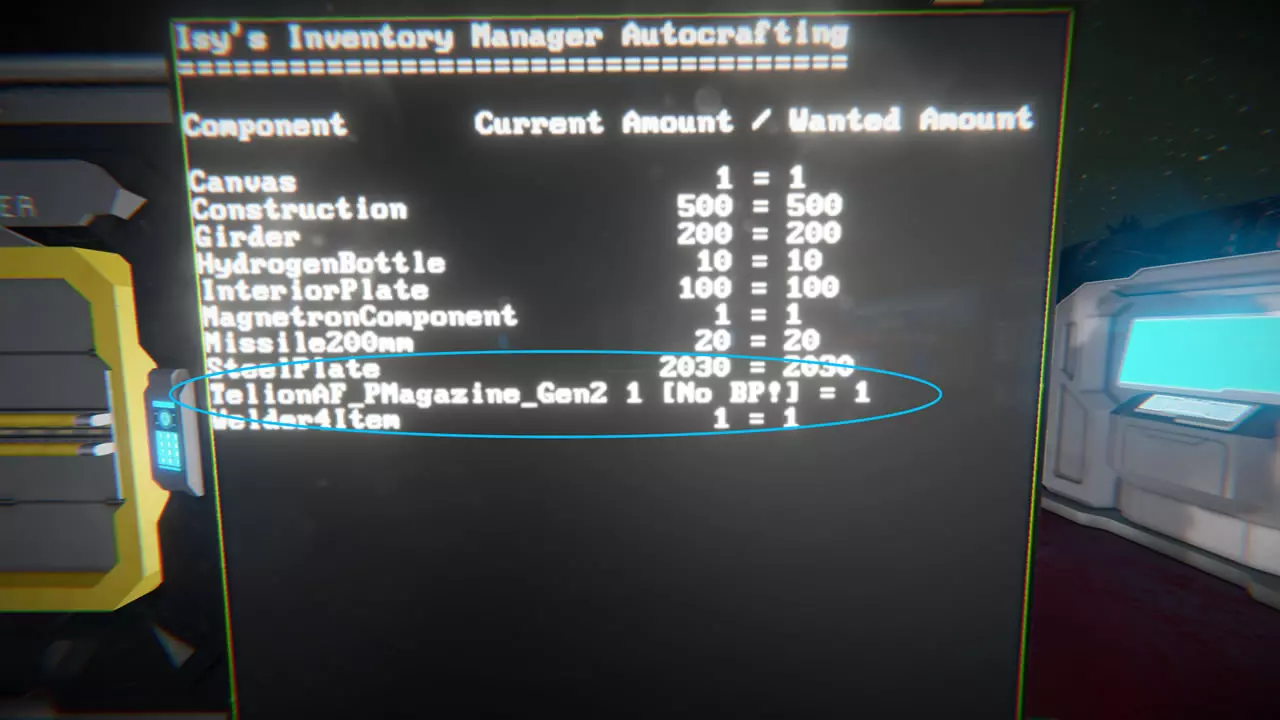
为了让脚本学习该物品的蓝图,你需要通过在装配机名称中添加以下标签之一来设置学习装配机: !learn:这将学习一个物品,然后移除标签,使装配机重新参与自动制造。 !learnMany:这将学习你在其中排队的所有物品,并且在你移除标签之前永远不会再次参与自动制造(重要提示:每次只排队一个物品堆叠,并等待其完成)。 要学习物品,请将其排队约100次(Shift+点击),然后等待脚本将其从队列中移除。
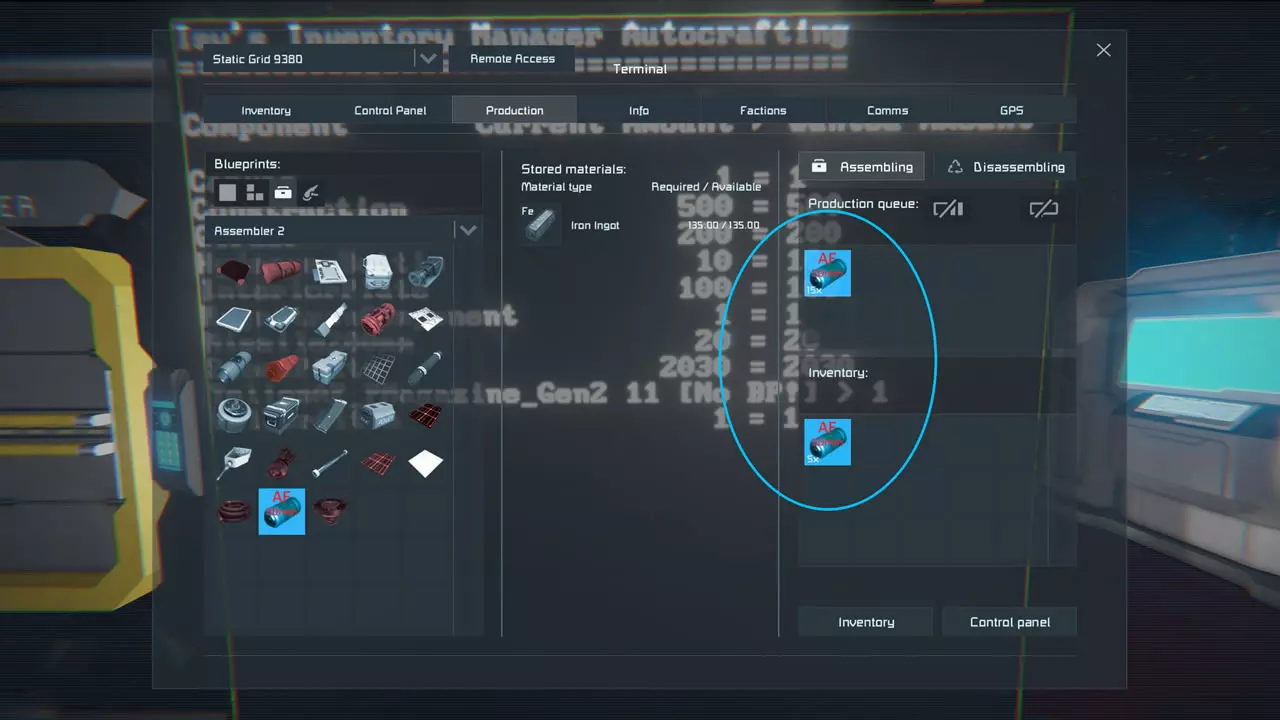
该脚本已将蓝图与对应物品关联,现在可以自动制作该物品。若[无蓝图!]标签消失,则表示脚本已成功学习该蓝图。
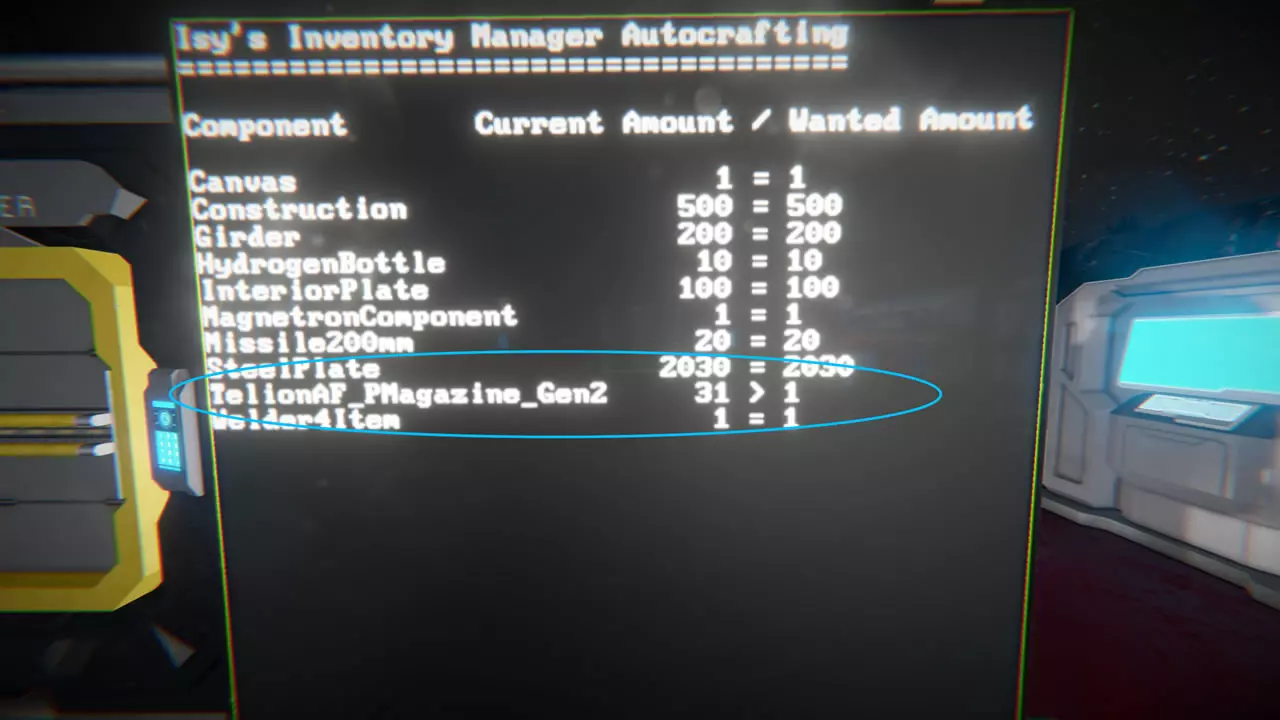
自动拆解 如果您已设置好自动制造液晶显示屏并设定了所有所需数量,可在配置部分(“自动制造”标题下)启用自动拆解功能。此功能将使用所有可用的装配机自动拆解所有多余材料。 将值更改为“true”或“false”以激活或停用特定功能: bool enableAutodisassembling = false; 请务必在启用此功能前设置好所需数量,因为启用后会立即拆解所有物品并将其还原为锭。此外,启用后手动制造会受到一定限制,因为脚本会始终尝试保持自动制造液晶显示屏上设定的物品数量。装配机清理 此功能会清理闲置的装配机,并将其物品放回货运集装箱。 将值更改为“true”或“false”以启用或停用特定功能: // 此功能会在装配机库存过满时进行清理,并将物品放回货运集装箱。 bool enableAssemblerCleanup = true; 精炼厂处理 此功能用于平衡精炼厂中的矿石。其设计目的是通过在精炼厂之间平均分配矿石数量,以尽可能快的速度精炼矿石。该脚本不会考虑精炼厂已安装的升级模块,因此如果您希望在特定精炼厂中精炼特定矿石,建议查看“特殊装载集装箱”相关内容。 默认情况下,矿石的提取基于最需要的锭。此外,精炼厂队列会按最需要的锭进行排序。不过,这仅适用于原版矿石或只有单一产出的模组矿石,因此像“Better Stone”这类每个矿石可产出多种锭的模组无法完全支持。脚本会使用并精炼这些矿石,但方式不够智能。 若要将某个特定精炼厂排除在矿石平衡之外,可在其名称后添加关键词“!manual”。例如:精炼厂 1 !manual 启用矿石平衡后,脚本会在所有精炼厂之间平衡矿石,使每个精炼厂内的矿石数量相同。 bool enableOreBalancing = true; 是否启用脚本辅助精炼厂填充?这将移入最需要的矿石并腾出空间(若精炼厂已满)。此外,该脚本会将尽可能多的矿石投入精炼厂,必要时甚至会从其他精炼厂提取矿石。 bool enableScriptRefineryFilling = true; 是否根据最需要的锭来排序精炼厂队列? bool sortRefiningQueue = true; 固定矿石优先级:在脚本配置中,你可以调整矿石在基于需求的精炼开始前的精炼顺序。若想让某种矿石始终优先精炼,只需移除该矿石名称前的两个//以启用它。已启用的矿石将按从上到下的顺序进行精炼,因此若你移除了多个//,可通过在列表内复制粘贴来更改顺序。请注意保持语法正确: "OreName", 默认情况下,石头处于启用状态,并且将始终优先精炼。 List<String> fixedRefiningList = new List<string> { "石头", //"铁", //"镍", //"钴", //"硅", //"铀", //"银", //"金", //"铂", //"镁", //"废料", }; 冰平衡
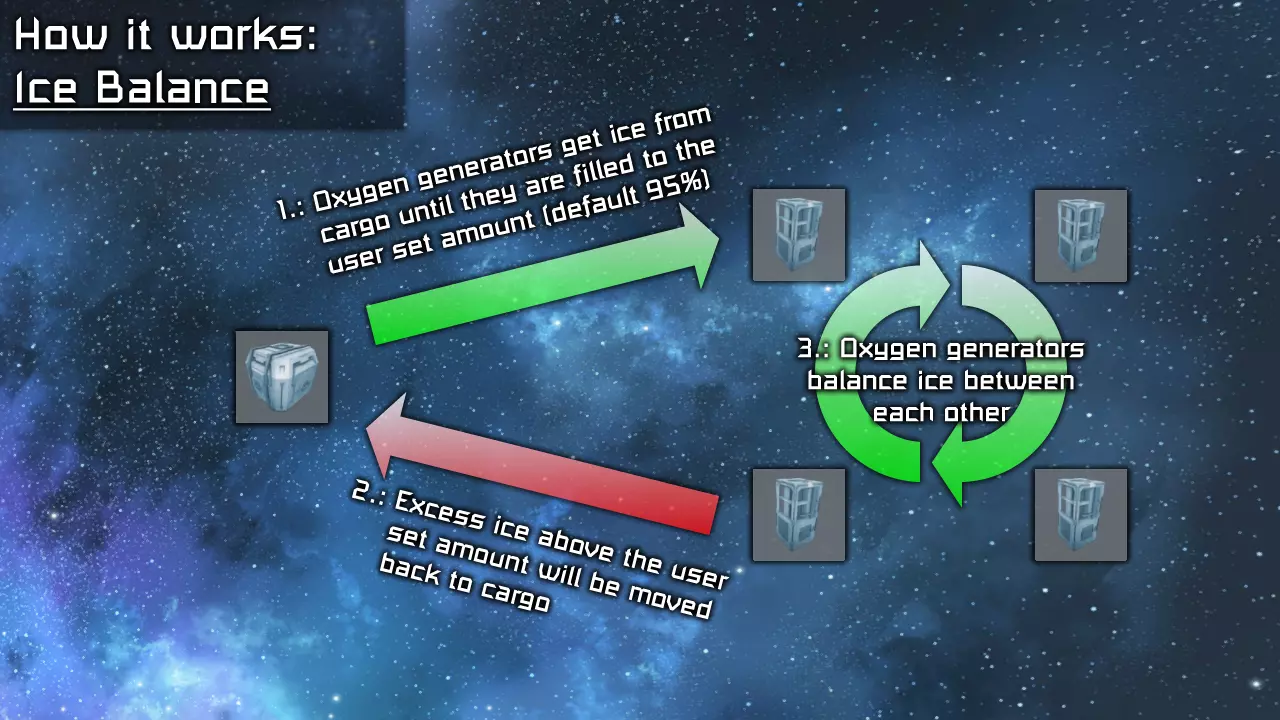
这将在所有相连网格的所有氧气/氢气发生器之间平衡冰块。默认情况下,它们会被填充到还能容纳1个瓶子的水平,可通过修改“spaceForBottles”变量(见下文)来增加该水平。 注意:如果将数值设置低于60%,氧气/氢气发生器会自动抽取更多冰块。 若要将某个特定的氧气/氢气发生器排除在冰块平衡之外,可在其名称后附加关键词“!manual”。例如:氧气发生器1 !manual 将数值更改为“true”或“false”以启用或停用某项功能: // 启用氧气发生器的冰块平衡功能? bool enableIceBalancing = true; // 应留出多少空间来填充瓶子(即在填充冰块后还能容纳多少个瓶子)? // 警告!当O2/H2发生器的库存容量低于30%时,会自动抽取冰块和瓶子。 // 若要避免此情况,可在发生器的终端设置中关闭“使用输送机”。 int spaceForBottles = 1; 铀平衡 此功能会在所有已连接的网格上平衡所有反应堆之间的铀。为防止反应堆抽取过多铀,已停用原版输送机抽取功能。大型网格和小型网格反应堆的最大铀数量可分别独立设置。 如果希望将某个特定反应堆排除在铀平衡之外,可在其名称后附加关键词“!manual”。例如: 小型反应堆 1 !manual 将值更改为“true”或“false”以启用或停用某项功能: // 是否启用反应堆铀平衡?(注:已关闭反应堆的传送带以防止其继续抽取更多物资) bool enableUraniumBalancing = true; // 每个反应堆中的铀数量?(默认值:大型网格反应堆为100,小型网格反应堆为25) double uraniumAmountLargeGrid = 100; double uraniumAmountSmallGrid = 25; LCD面板输出 以下主题将说明如何使用我的脚本中的LCD面板(常规LCD和方块LCD)。当你在LCD名称中添加以下任一关键词时,该关键词会转换为通用的[IsyLCD]关键词。然后,你可以在自定义数据中设置关于LCD以及显示信息的屏幕(如驾驶舱、可编程方块等方块)的不同选项。自定义数据格式如下: @# 关键词 @# 代表屏幕,用于显示信息,其中 # 是屏幕标识符编号,范围从 0 到最大屏幕数减 1。例如,一个可编程方块有两个屏幕:主屏幕和键盘。两者都可用于显示脚本信息(屏幕 0 和屏幕 1)。若要更改显示信息的屏幕,只需编辑自定义数据中的屏幕标识符编号。 也可以使用此语法在一个方块中显示不同脚本的信息(MMaster's Automatic LCDs 2 使用相同语法,我的其他所有脚本亦是如此)。 LCD 关键词主 LCD 你可以在主 LCD 上显示所有主要脚本信息,如类型容器填充水平、受管理方块以及最近的脚本操作。只需在LCD名称中添加以下关键词:IIM-main 您可以通过编辑LCD的自定义数据来启用或禁用特定信息显示。 警告LCD 您可以在专用LCD屏幕上显示所有当前警告和问题。只需在LCD名称中添加以下关键词:IIM-warnings 脚本操作LCD 您可以在专用LCD屏幕上显示最新的物品移动、容器分配、队列排序等信息。只需在LCD名称中添加以下关键词:IIM-actions 此屏幕具有可切换的时间戳,日志条目数量可在脚本配置中调整: bool showTimeStamp = true; int maxEntries = 30; 高级用户设置: string timeFormat = "HH:mm:ss"; 性能LCD 您可以在专用LCD屏幕上显示脚本性能(PB终端输出)。只需在LCD名称中添加以下关键词:IIM-performance 物品栏项目LCD
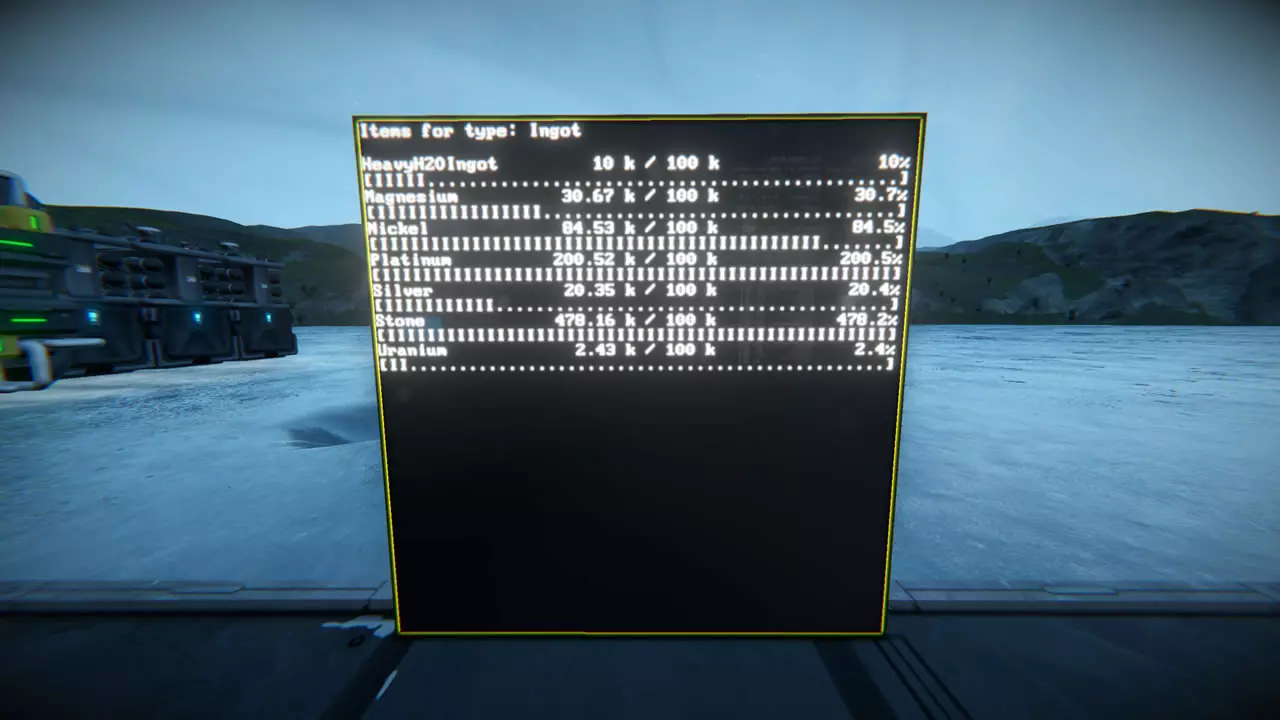
你可以在LCD面板上显示当前储存物品的数量。要进行显示,需建造一个LCD面板,在其名称中添加关键词“IIM-inventory”,然后按照屏幕上的说明操作: 1a. 或者在自定义数据中输入物品类型: 名称 结果 锭 显示所有锭 组件 显示所有组件 矿石 显示所有矿石 弹药弹匣 显示所有弹药弹匣 氧气容器对象 显示所有氧气瓶 气体容器对象 显示所有氢气瓶 实体枪对象 显示所有武器和工具 1b.或者在自定义数据中添加物品子类型: 名称 结果 SteelPlate(钢板) 显示所有钢板 SmallTube(小钢管) 显示所有小型钢管 Computer(电脑) 显示所有电脑 1c. 或者在自定义数据中组合物品类型与子类型: 名称 结果 Ingot/Gold(锭/黄金) 显示所有黄金锭 Ore/Stone(矿石/石头) 显示所有石头 Ingot/Stone(锭/石头) 显示所有碎石 1d. 或者在自定义数据中添加部分物品名称: 名称 结果 Plate(板) 显示所有包含“Plate”的物品:SteelPlate(钢板)、InteriorPlate(内部板)等。焊接器 显示所有包含“焊接器”的物品 瓶子 显示所有包含“瓶子”的物品:氢气瓶、氧气瓶 \n1e. 或者在自定义数据中输入以下Echo命令来显示自定义文本或标题(v2.8.0及以上版本):\n 命令 结果 Echo My Text 屏幕上会显示左对齐的“My Text” EchoC My Text 屏幕上会显示居中对齐的“My Text” EchoR My Text 屏幕上会显示右对齐的“My Text” Echo 仅添加一个空行(EchoC和EchoR也可实现此效果,但无差异) \n1f. 或者在自定义数据中输入正则表达式(regex)(v2.9.4及以上版本):\n 命令 结果 这将显示脚本已知的所有物品 (Steel)|(Motor) 这将显示名称中包含“Steel”或“Motor”的所有物品 Item$ 这将显示所有以“Item”结尾的物品,例如大多数“PistolItem”,但不包括“ConsumableItem” 了解更多正则表达式相关内容,请访问:www.regexr.com 2. 可选地,添加一个数值作为第二个参数,用于设置进度条的最大数量:
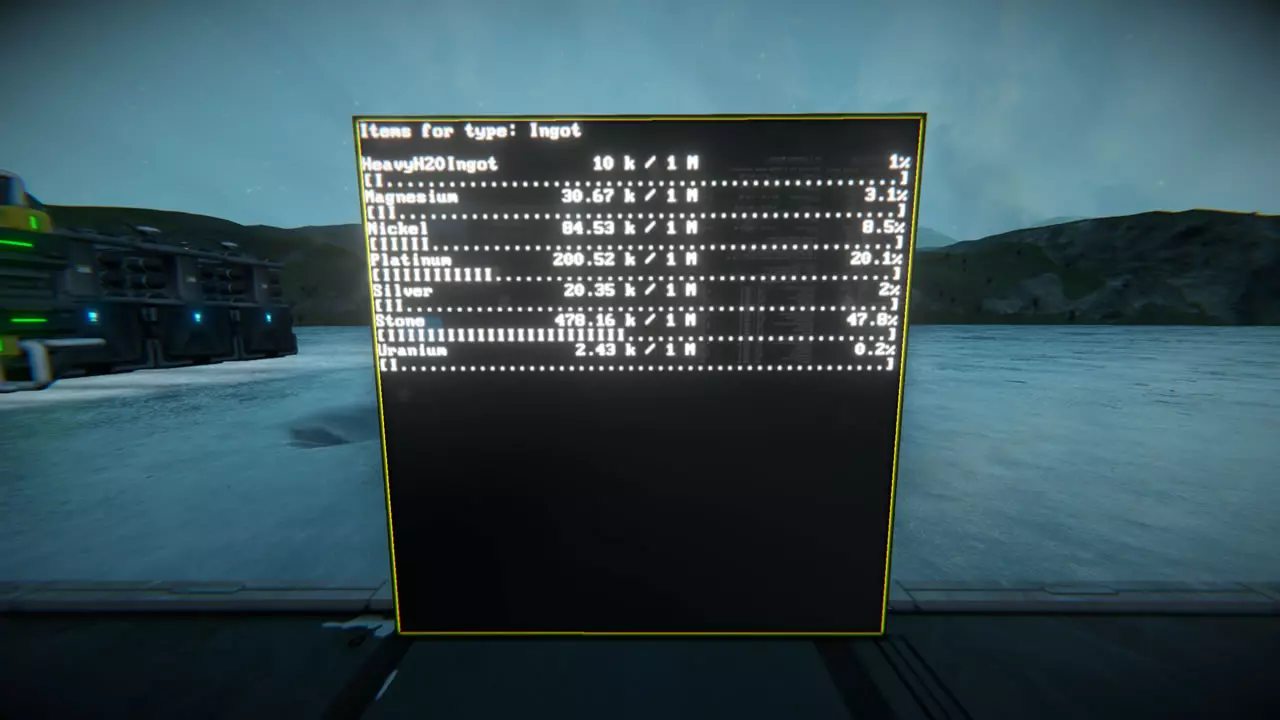
示例: 锭 100000 附加功能: 若物品栏面板行的最大值为0,则仅显示包含物品名称和当前数量的单行(无进度条、百分比或最大值)。 示例: 锭 0 3. 最后,你可以为每个条目添加修饰符:
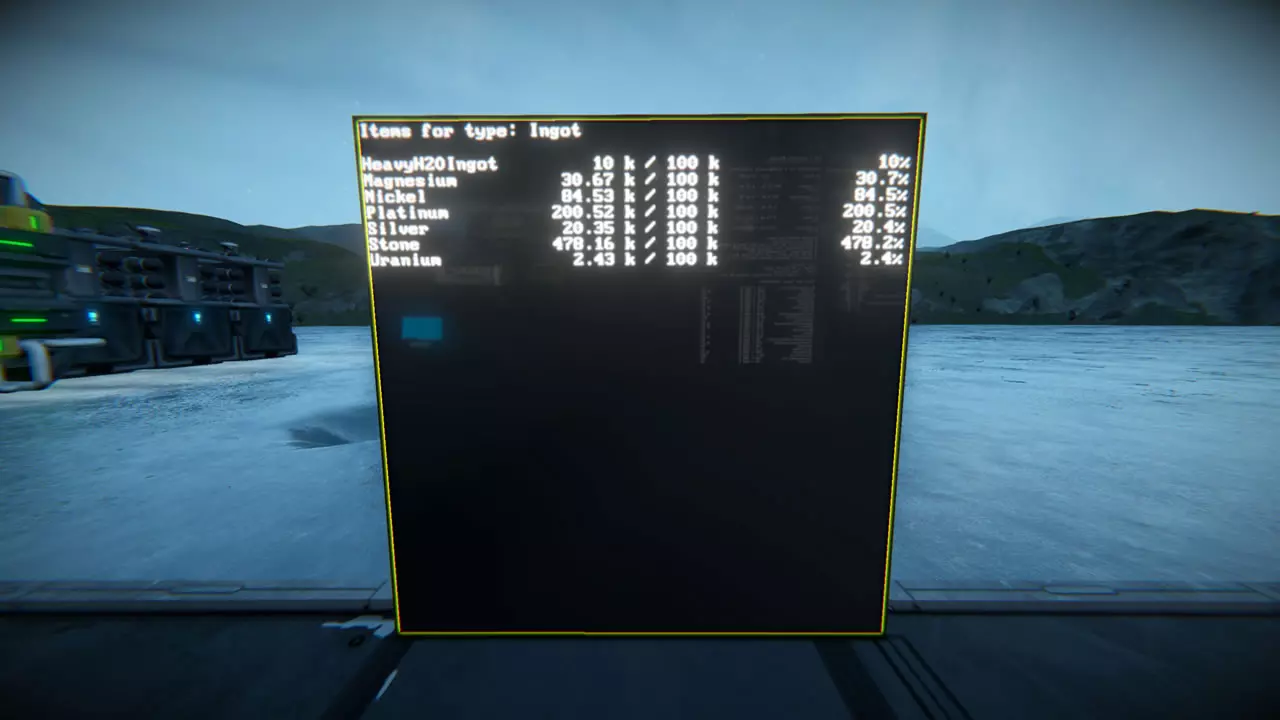
目前有6种修饰符: 'noHeading'(隐藏标题) 'singleLine'(强制每项一行) 'noBar'(隐藏进度条) 'noScroll'(防止文本滚动) 'hideEmpty'(隐藏数量为0的项目) 'hideType'(隐藏项目名称后的类型) 示例: @0 IIM-inventory Ingot 100000 noBar Ore hideEmpty Echo EchoC 钢板数量: Echo SteelPlate 50000 noHeading noBar 结果:
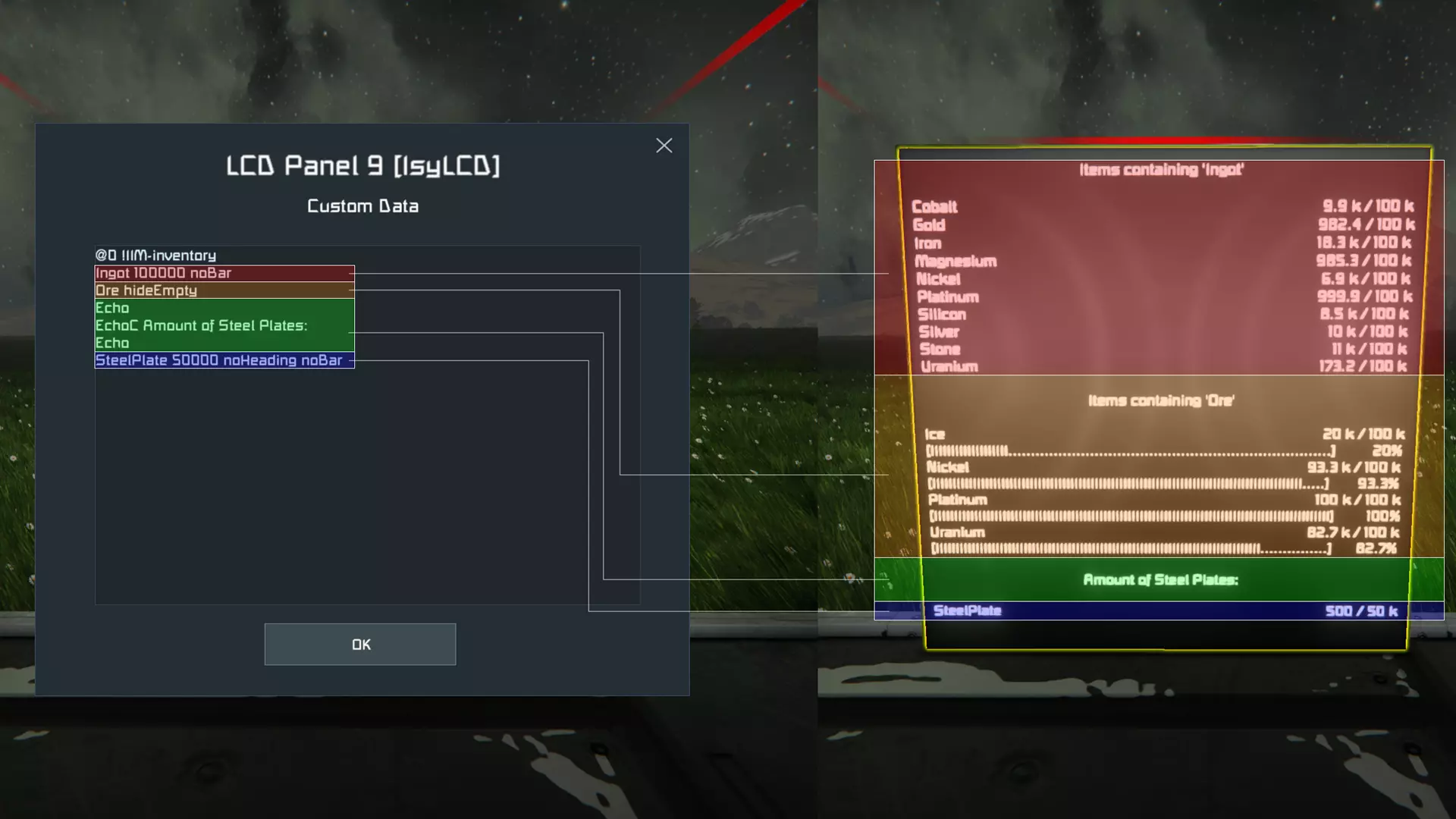
重要提示! 每个项目或您想在LCD上显示的每种类型都另起一行。 提示: 每个屏幕只需一个“noScroll”修饰符即可。无需为每条自定义数据行都进行设置。 LCD的内容会根据设定的字体大小自动调整。
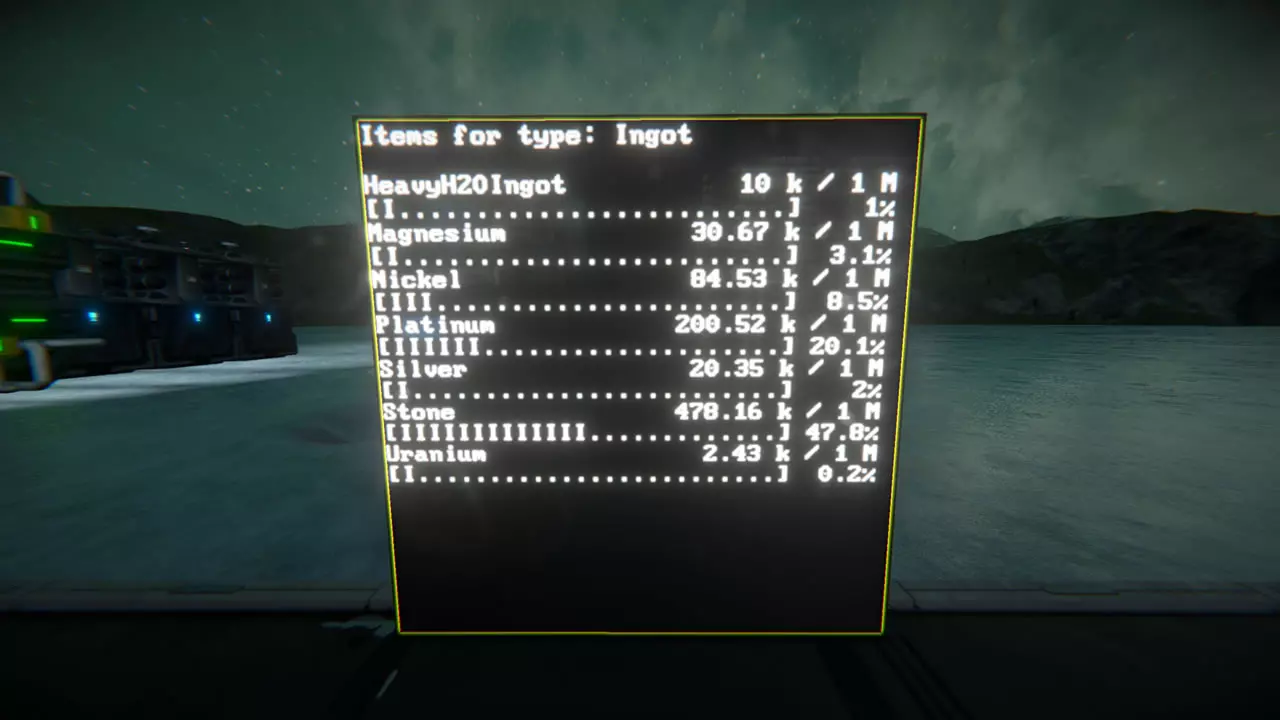
多面板物品栏界面 你可以通过为所有界面设置相同的组标签,将物品栏项目显示在多个界面上(在名称中为界面添加IIM-inventory标签后,需在界面的自定义数据中进行设置)。语法如下: IIM-inventory:组名# 组名可自定义(非终端组!) #为该行中LCD的编号 示例: LCD 1的自定义数据: @0 IIM-inventory:myComp1 Component 100000 singleLine noScroll LCD 2的自定义数据: @0 IIM-inventory:myComp2 该行第一个面板的设置将应用于该组的所有面板(字体大小和自定义数据设置)。注意:每个面板名称仍必须包含[IsyLCD]关键词,以便脚本识别(为LCD添加“IIM-inventory”标签后会自动设置)。 命令行参数:用法 脚本的几乎所有功能都可以临时启用或禁用,无需编辑脚本。需要注意的是,这些更改确实是临时的,当脚本重启时(无论是通过重新编译还是加载世界)都会丢失。若要进行永久更改,仍需编辑脚本并调整脚本配置中的设置。 命令可通过在可编程方块的参数栏中输入并按下运行按钮发送给脚本:
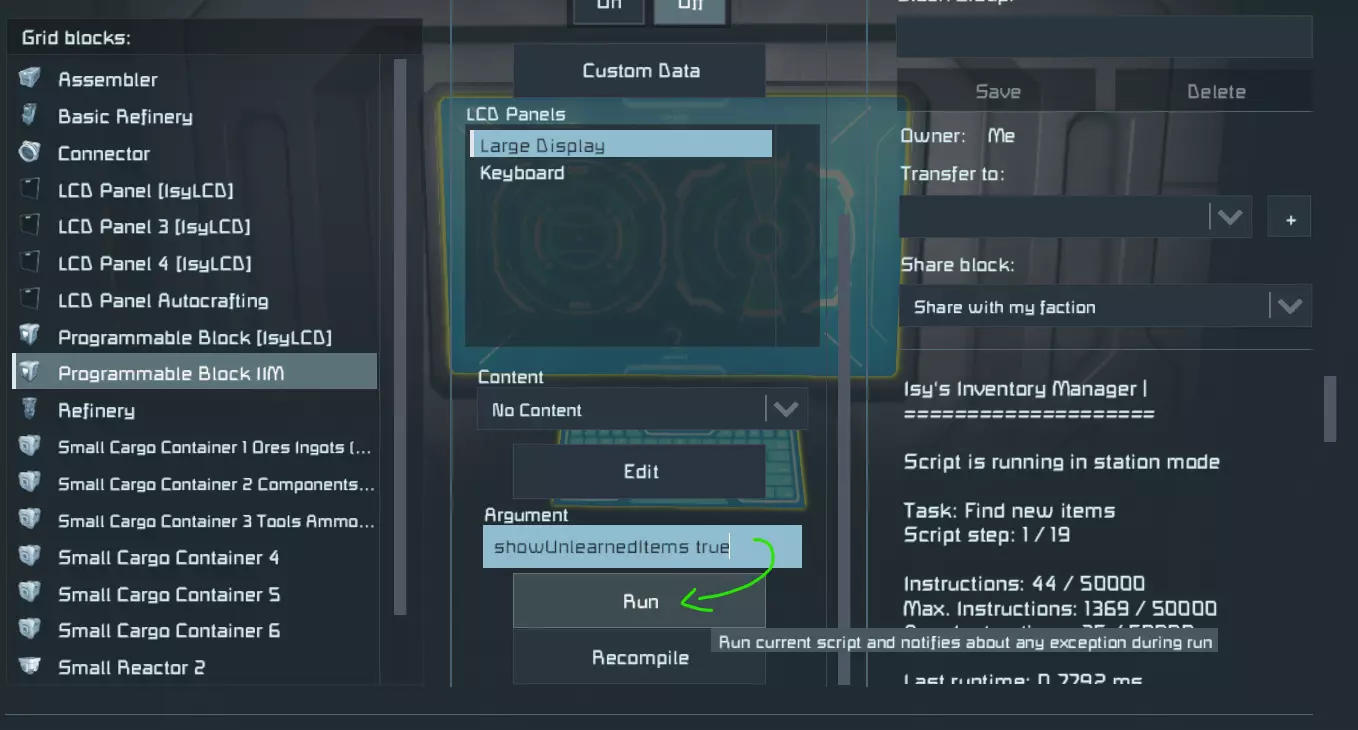
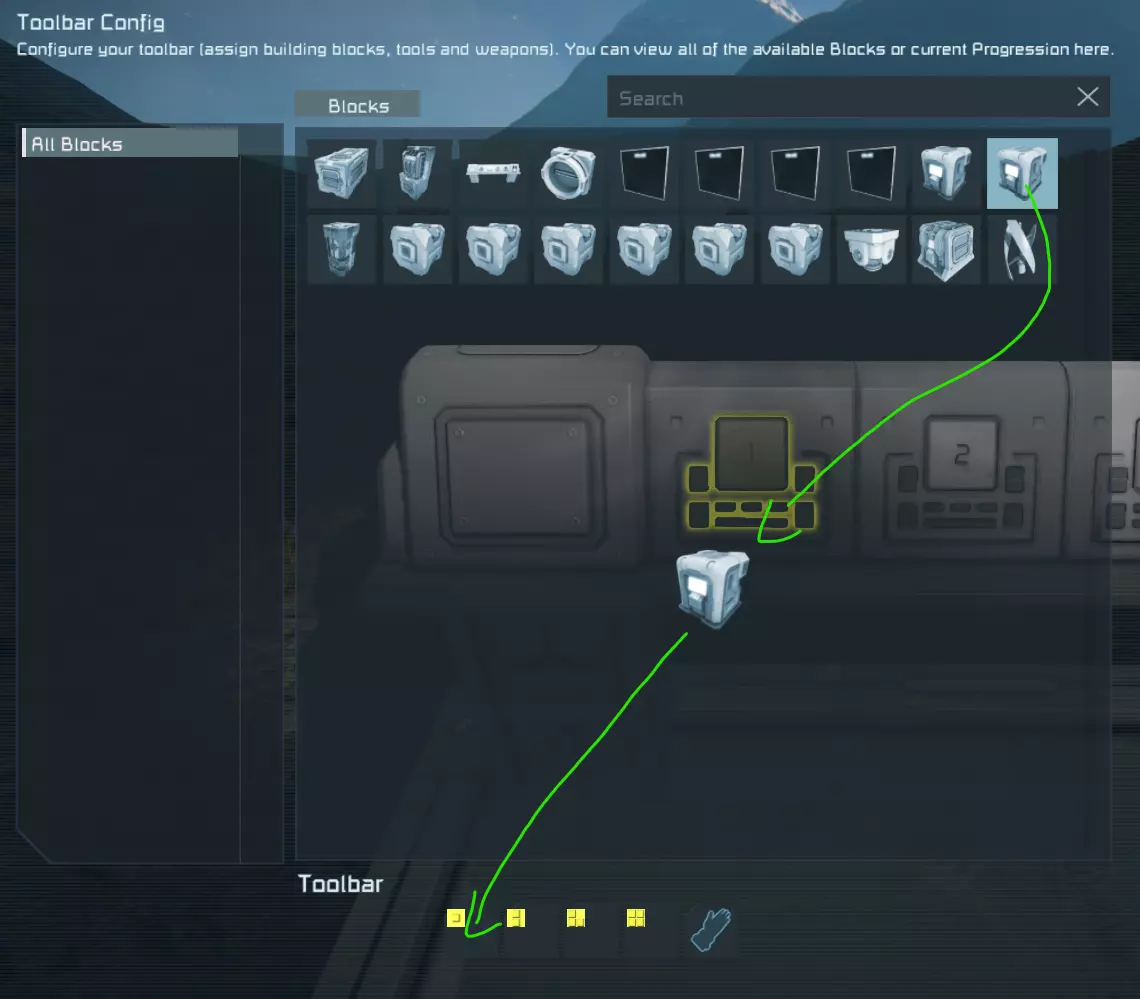
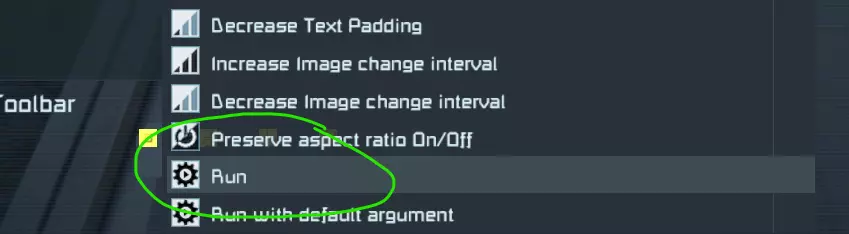
或者你也可以将可编程方块拖到任意快捷栏(驾驶舱、按钮面板等)中,选择运行并在弹出窗口中输入参数:
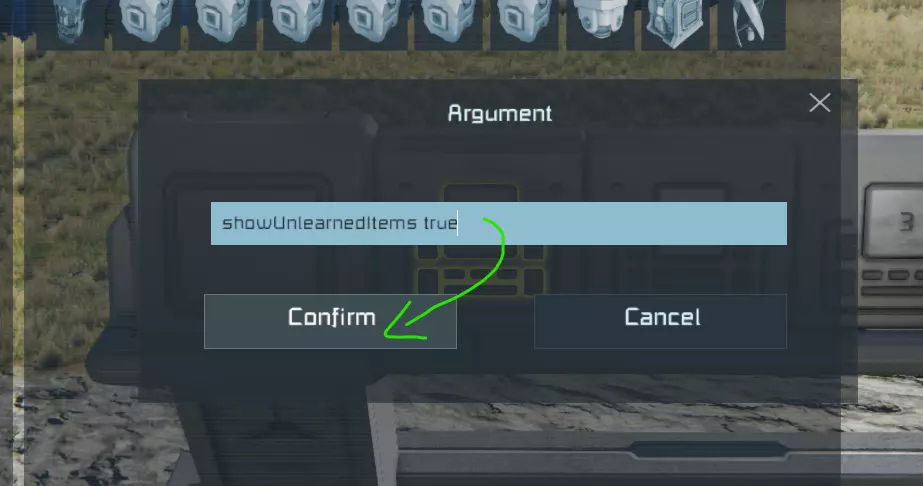
The syntax works like this: variable true|false|toggle For example: enableAutocrafting false This will temporarily disable autocrafting (until the script is recompiled or the world is reloaded). enableOreBalancing toggle This will toggle ore balancing on or off based on it's current state. When no argument, like true, false or toggle is given, it defaults to toggle so that you can simply type in the variable name, you want to toggle. Commandline arguments: Full List This chapter contains a full list of variable and function names, that can be set via the script's argument field (see previous chapter for how this works). General functionsDon't accept any additional arguments. Name Description reset This will delete all stored itemIds, blueprintIds and Special container custom data that has no value set. A recompile of the script is needed afterwards! findBlueprints Attempts to learn every item blueprint for autocrafting. WARNING: use sparingly as this could cause massive log files when used regularly! Container related variablesAccept true, false or toggle as a second argument. Name Description balanceTypeContainers Keeps equal amounts of items in each container of a type. showFillLevel Shows the fill percentage behind the container name. autoContainerAssignment Master switch for container un-/assignment. assignNewContainers Assigns new containers, if all containers of a type are full. unassignEmptyContainers Unassigns empty containers of a type, that aren't needed anymore. oresIngotsInOne Assigns 'Ores' and 'Ingots' type containers as one. toolsAmmoBottlesInOne Assigns 'Tools', 'Ammo' and 'Bottles' type containers as one. fillBottles Fills bottles in a tank or O2/H2 generator on their way to the bottles container. allowSpecialSteal Allows 'Special' containers to 'steal' items from other 'Special' containers with a lower priority. enableInternalSorting Sorts items inside a single cargo container by name, type or amount. WARNING: this is very demanding and not recommended to use on servers! protectTypeContainers This protects the type containers on a ship running IIM whenever docking to another grid/ship/station also running IIM, so that no items are stolen. Autocrafting related variablesAccept true, false or toggle as a second argument. Name Description enableAutocrafting Enables the script's autocrafting feature (a LCD tagged with 'Autocrafting' is needed!). enableAutodisassembling Enables the script's autodisassembling feature (a LCD tagged with 'Autocrafting' is needed!). showUnlearnedItems Shows unlearned and thus uncraftable items on the autocrafting screen (followed by [NoBP] = no blueprint). useDockedAssemblers Specifies whether assemblers on docked ships/grids should be used for autocrafting. headerOnEveryScreen Specifies whether the autocrafting heading should be shown on every screen when using multiple autocrafting screens. sortAssemblerQueue Sorts the autocrafting queue based on the most needed item (= lowest amount to the front of the queue). enableAssemblerCleanup Clears the input inventories of assemblers when they get too full or the assemblers are idle. enableBasicIngotCrafting Automatically queues the basic ingot crafting in survival kits. disableBasicAutocrafting Specifies whether survival kits should still be used for autocrafting if regular (and faster) assemblers are available. Refining related variablesAccept true, false or toggle as a second argument. Name Description enableOreBalancing This balances the refining queues of all refineries so that every refinery has the same amount of ore in it. enableScriptRefineryFilling Specifies whether the script should fill the refineries or if they should pull the ore themselves. sortRefiningQueue This sorts the most needed ore to the front based on a stored amount and refining time calculation. useDockedRefineries Specifies whether refineries on docked ships/grids should be used when balancing the ores. Ice balancing related variablesAccept true, false or toggle as a second argument. Name Description enableIceBalancing Balances the ice between all H2/O2 generators so that they have an equal amount of ice. fillOfflineGenerators Specifies whether disabled O2/H2 generators should also be filled with ice. Uranium balancing related variablesAccept true, false or toggle as a second argument. Name Description enableUraniumBalancing Balances the uranium between all reactors so that they have an equal amount of uranium (although they get different amounts based on their size). fillOfflineReactors Specifies whether disabled reactors should also be filled with uranium. Miscellanous variablesAccept true, false or toggle as a second argument. Name Description useDynamicScriptSpeed Slows the script down to save game ressources. excludeWelders Excludes welders from sorting / item counting. excludeGrinders Excludes grinders from sorting / item counting. excludeDrills Excludes drills from sorting / item counting. connectionCheck Checks, if containers are connected to the main type containers. showNoConveyorTag Shows a [No Conveyor] tag in the name of a container, if it's not connected (connectionCheck has to enabled for this to work).
2026-02-13 09:03:43 发布在  Space Engineers






说点好听的...
收藏
0
0