


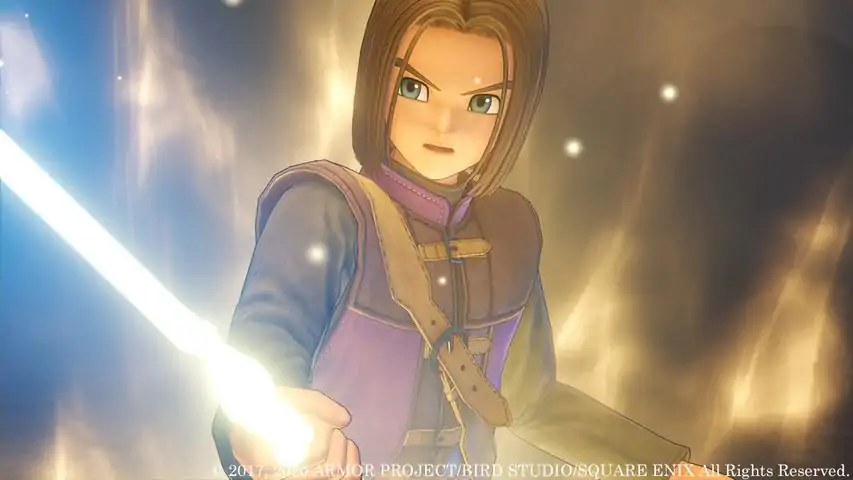

通过.ini文件调整、模组及其他方式提升画面表现
1. **提升图形表现的选项 + 高级用户专用控制台变量列表** [简介] 请先阅读! 首先,本指南的功劳不属于我。这是Discord用户Fayaya、Ride To Hell Retribution、Havoc、Komodoxeno和Mike9k1共同努力的成果。本指南旨在让更多人了解他们的Google Sites页面(该页面包含更详细的内容),不过这里会介绍一些基础操作帮助你入门。 此外,尽管我在提升视觉效果的情况下运行游戏时未遇到任何问题,但你仍在修改游戏。对于因修改游戏而可能对游戏、电脑、个人自尊、社交生活或经济状况造成的任何损害,我及上述参与制作本指南的人员均不承担责任。1. **最后,我会附上本指南信息最初来源的 Google Sites 原页面链接。该页面包含更详细的内容,你可以通过以下链接查看:** - https://sites.google.com/view/dqxi-commands - https://sites.google.com/view/dqxi-commands/faqs/about-project-rebuild 2. **引用自 NOTICE:** 注意:自本指南最初发布以来,已有多项改进。请记住,随着时间推移可能会有新的补充和变更。过时信息保留在底部以作存档。 3. **[新增] 改进的模型与纹理** - Project Rebuild 是《勇者斗恶龙11 S》模组社区的一项联合计划,旨在将原版(OG)中最高质量的模型和纹理重新添加到决定版(DE)中。 - 模块1(玩家角色):https://www.nexusmods.com/dragonquestxisdefinitiveedition/mods/22
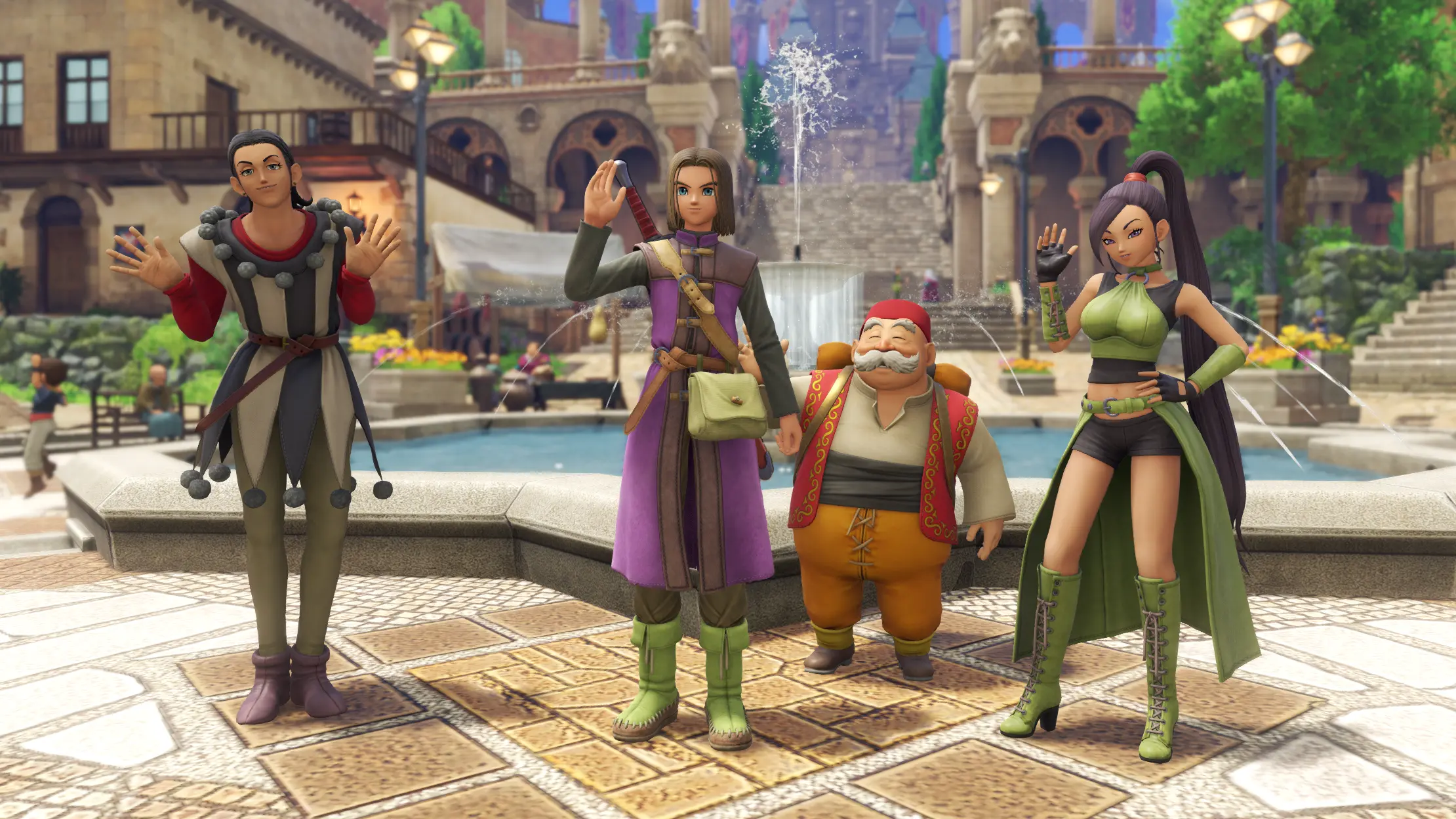
完整尺寸链接:https://staticdelivery.nexusmods.com/mods/3496/images/22/22-1617034320-1044937596.png --(Steam指南不支持大于2MB的图片) 1. **模块2(NPC)**:https://www.nexusmods.com/dragonquestxisdefinitiveedition/mods/112 2. **模块3(世界元素)**:https://www.nexusmods.com/dragonquestxisdefinitiveedition/mods/111
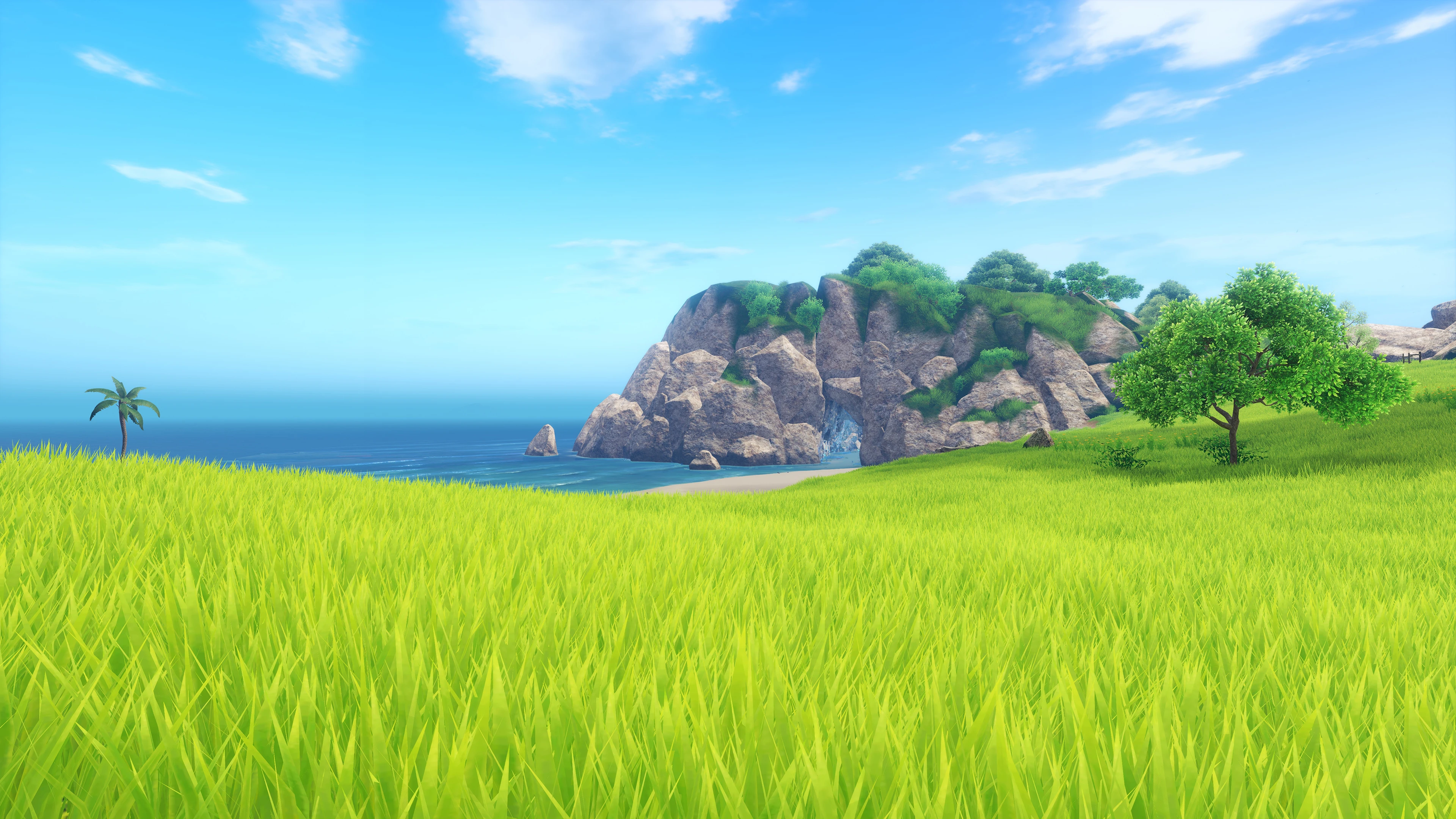
完整尺寸链接:https://staticdelivery.nexusmods.com/mods/3496/images/111/111-1638983602-2101356072.jpeg 模块4(动物、怪物与坐骑):https://www.nexusmods.com/dragonquestxisdefinitiveedition/mods/163
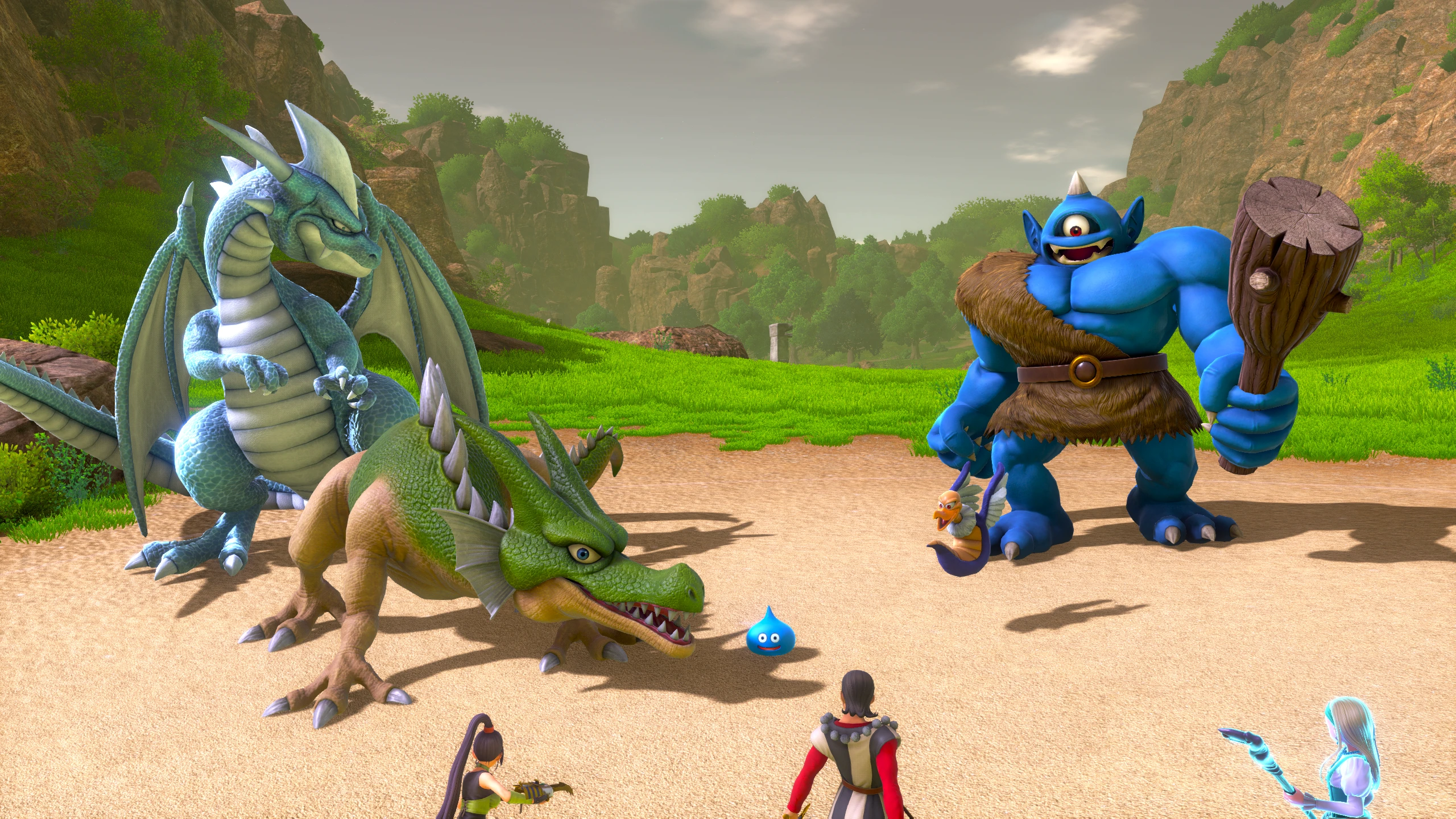
full size link: https://staticdelivery.nexusmods.com/mods/3496/images/163/163-1665179699-1548650596.png [CORE] Essential Fixes: Havoc's Render Fix Plugin & Lighting Adjustments These are the "essential" improvements- they include an improved lighting profile and special plugin that improves the game's rendering. If nothing else, it is recommended to use these two: Dynamic Lighting Adjustments mod by mike9k1: https://www.nexusmods.com/dragonquestxisdefinitiveedition/mods/20 Havoc's Render Fix plugin (DQXI-SDK): https://steamcommunity.com/app/1295510/discussions/0/3117025249764261520 ( Direct download link: https://github.com/emoose/DQXIS-SDK/releases/download/0.7.6.2/DQXIS-SDK_0.7.6.2.zip ) ^Full version only. DQXI-SDK does not support the Demo [OPTIONAL] Other Improvements Other miscellaneous visual improvements not listed above that can further add to the experience: these do not aim to simply replicate the look of the OG version, but rather push the game above and beyond the original version in certain respects. Smoother Animationshttps://www.nexusmods.com/dragonquestxisdefinitiveedition/mods/118 4k Upscaled Textureshttps://www.nexusmods.com/dragonquestxisdefinitiveedition/mods/79 [BONUS] Extras The following list some of the least essential improvements. This is really for folks that either: (a) want to see every. last. detail. improved, or (b) want to push the visual experience as far as it can possibly go 4k 60fps Prerendered Cutsceneshttps://www.nexusmods.com/dragonquestxisdefinitiveedition/mods/83 Objects and Geometry Improvementshttps://www.nexusmods.com/dragonquestxisdefinitiveedition/mods/110 Weapons and Equipmenthttps://www.nexusmods.com/dragonquestxisdefinitiveedition/mods/146 ------------------------------------------- [TWEAKS] Locate your Engine.ini file Assuming you're running the game from Steam, you can find your .ini file here: %USERPROFILE% Documents My Games DRAGON QUEST XI S Steam Saved Config WindowsNoEditor If you're running the Windows Store version of the game, you can find it here: %USERPROFILE% Documents My Games DRAGON QUEST XI S Xbox Saved Config WindowsNoEditor Lastly if you're running the game through the Epic Games Launcher, you can find your .ini here: %USERPROFILE% Documents My Games DRAGON QUEST XI S Epic Saved Config WindowsNoEditor 日本語版でプレイしている人は、異なるフォルダパスを持ちます: Documents My Games ドラゴンクエスト XI S Steam Saved Config WindowsNoEditor Engine.ini [TWEAKS] Full Engine.ini customization This Engine.ini configuration integrates several improvements and allows you to fully customize the settings used by the game and the Dynamic Lighting Adjustments mod: https://pastebin.com/STU7dH0j You can use the INI Tuning Assistant[sites.google.com] to help you customize it juuuust right for your hardware and personal tastes. Some guidelines (also covered by the tuning assistant linked above)- It can be important to read the comments in order to understand what each tweak does. 1. Some of these tweaks may depend on your configuration- r.ScreenPercentage for example should be no higher than 125 if you run @ 1440p or 4k. But you'd probably want it at 150-200 if you run @1080p or below. 2. Some tweaks will highly depend on your taste- Some folks can't stand motion blur, in which case you'll want to set r.DefaultFeature.MotionBlur=0. r.SSR.Cone is another example 3. Some tweaks provide minor gains for a significant performance hit- usually these are noted in the comments. ( Havoc's original INI v3 can still be found here: https://pastebin.com/xUfTdmYr ) ------------------------------------------- [TROUBLESHOOTING] Checking & testing values in-game Sometimes you will want to check and see if the values set in the configuration file(s) are being applied in-game. You can do this easily by using the Debug Console. You can also use this to test different cvar values on-the-fly. First, unlock the console by consulting one of these guides: https://sites.google.com/view/dqxi-commands/unlocking-the-console https://steamcommunity.com/sharedfiles/filedetails/?id=2309481155 Enter the name of any cvar to check its value. In this example we'll use r.ScreenPercentage r.ScreenPercentage

返回值为“150”。若要修改此数值,只需输入控制台变量(cvar)和目标数值,两者用空格分隔(无需像 ini 文件中那样使用“=”)。 r.ScreenPercentage 200
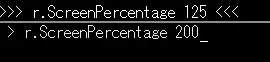
在此情况下,变更应立即生效。但在某些情况下,你需要打开角色装备界面,游戏才能更新特定的渲染器设置。

其他情况下,该数值会在运行时被设为只读,必须通过配置文件进行设置。

### [研究] 控制台变量及其他内容列表(更新于2021年2月22日) 1. **Google Sites页面根据您的系统运行游戏的性能列出了不同的配置文件。** 考虑到不同图形预设存在不同范围,他们制作了一个INI调整助手来帮助玩家自定义配置: https://sites.google.com/view/dqxi-commands/ini-tweaks/ini-tuning-assistant 2. **此外,这里有一份控制台变量列表,您可以将其放入.ini文件中进一步调整游戏。**(仅高级用户!新链接由Havoc提供) https://pastebin.com/kWxQVXfu 3. **[旧内容] 绘制距离+LOD修复(已过时,请使用上述Engine.ini)** 引用自旧配置——请勿使用!:现在您已经找到您的Engine.在ini文件中,最建议使用的控制台变量(cvars)能够提升绘制距离和植被密度。虽然还有更多可调整的设置,我们稍后会详细说明,但以下是大多数玩家能明显感受到效果的最简单设置: ## **核心设置** - r.ViewDistanceScale=2 - r.LandscapeLODBias=-2 - r.SkeletalMeshLODBias=-2 - r.StaticMeshLODDistanceScale=0.25 - foliage.LODDistanceScale=15 - foliage.DensityScale=7 - grass.DensityScale=7 只需将上述内容复制到你的Engine.ini文件中,就能清晰看到远处的敌人了! [预览] 媒体 (模组已多次更新和改进,因此视频按最新到最旧的顺序排列,以呈现最佳效果)
(仅为配置文件,本视频制作时《Project Rebuild》尚未发布)
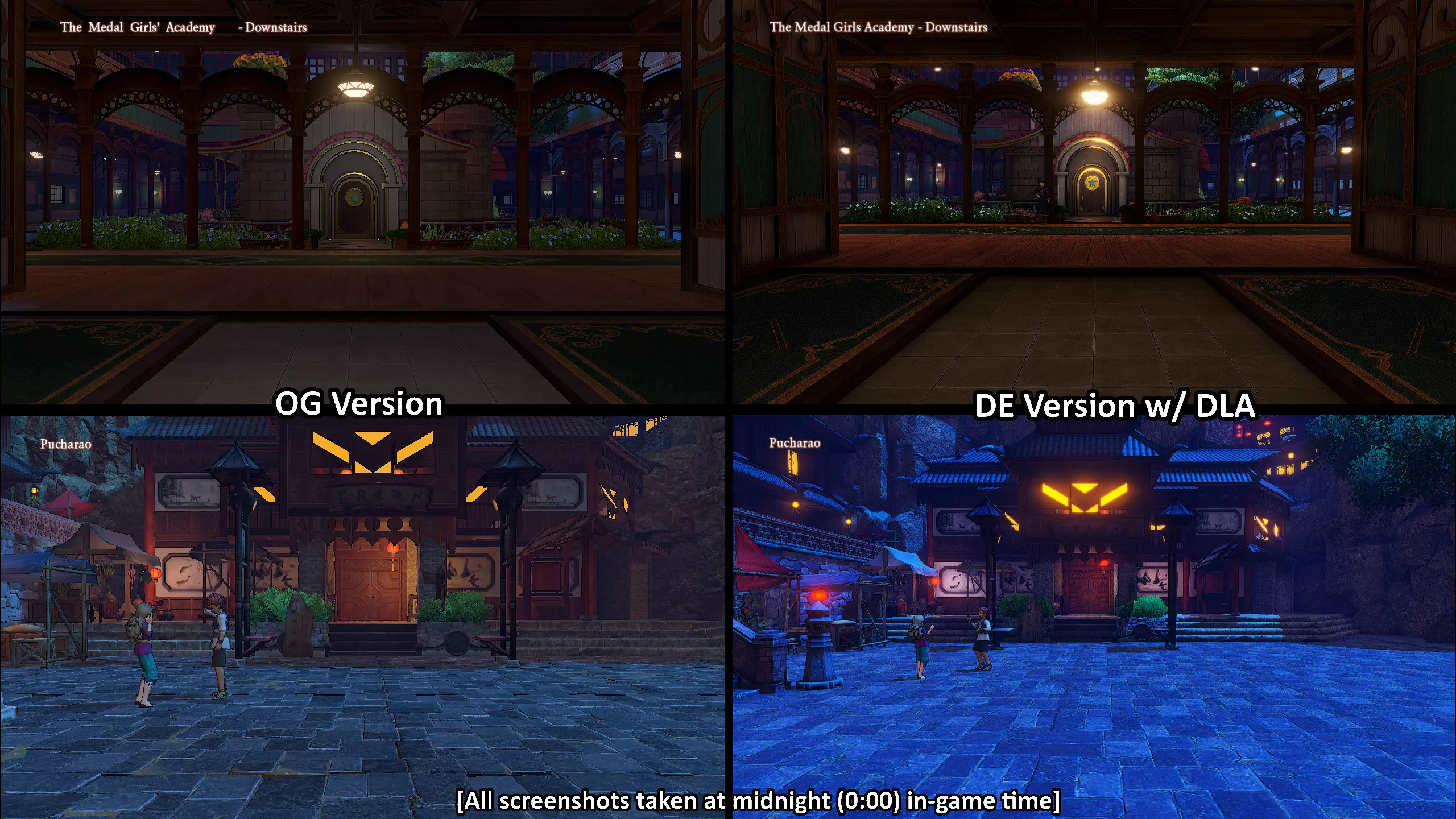
[结束] 结语 现在你的游戏应该已经提升了绘制距离、模型质量、光照等效果。如果你在此基础上还启用了4K纹理等选项,整体体验将会有巨大的改善。希望你能在这个稍显美丽的艾尔德利亚享受游戏时光! 再次衷心感谢所有参与数据挖掘和实验以获取这些控制台变量(cvars)的人。希望你们不介意我重新发布这些内容,让更多玩家能够看到。
2026-02-13 11:30:41 发布在  勇者斗恶龙XI S 寻觅逝去的时光 - Definitive Edition

说点好听的...
收藏
0
0