换一换
换一换 



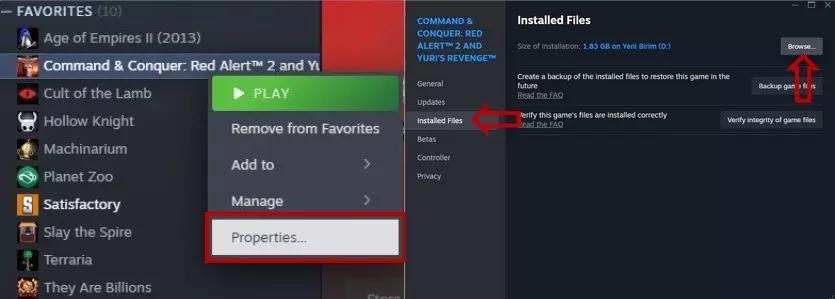
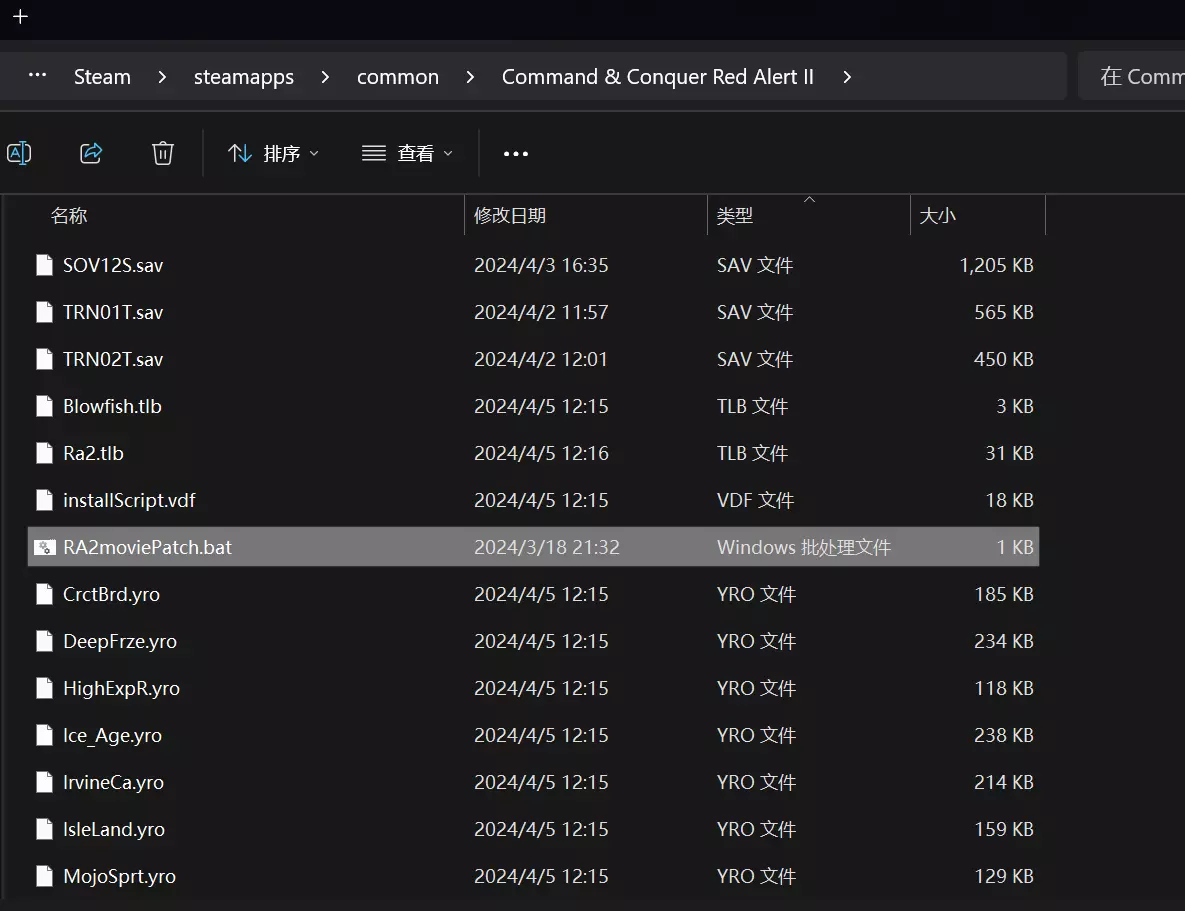
你是否也想充分利用你花大价钱买来的整块屏幕,但游戏却不允许? 我也是,以下是我的解决方法。 大多数指南会让我的游戏出现一些奇怪的问题,但现在,通过这些小调整,游戏加载顺利,可以在极佳的全屏标清模式下浏览菜单,还能选择自己偏好的游戏分辨率。 效果可能因人而异。可以试试看。 引用自 BOT_Nips:Battle control - online 正如一些评论者善意指出的,效果确实可能因人而异。这款游戏比较老,而Windows电脑的配置更是千差万别。显然,虽然某种方法对我有效,但也可能会导致你的游戏出现问题。不过幸运的是,通过【验证游戏文件完整性】可以完全恢复。我的存档文件至少是完好的。这就是摆弄ini文件的乐趣所在。 再次说明,这个配置仅适用于我自己的设备。我并不是说这是什么终极通用指南,而更像是“我的操作方法”。我无法针对你的具体系统提供帮助,但评论区或许能让你了解如果遇到问题可能的原因。 所以,各位指挥官,请在评论前先尝试调整各种选项和你能想到的所有办法,这样我们都能有机会从彼此的错误、尝试和修复中学习并获益!也请提供一些你的系统信息,这样如果其他玩家遇到程序无法正常运行的情况,就能有更好的参考来尝试解决。 比如:你希望程序实现什么功能?怎么没成功呢——是执行了别的操作吗?你是怎么让它成功的? 我目前使用的配置是(WIN10专业版 - 3060 12G - 5900X),而且必须强调,你真的得自己尝试。所以才有“摸索尝试”和“祝你玩得开心”的说法。对所有信息都要持保留态度,就像这些话是从伊万或乌多·基尔本人那里听来的一样。 —— 战斗控制 - 已终止 首先 ——1—— 一切都从安装文件夹开始。通常路径类似: “... steamapps common 命令与征服:红色警戒2”
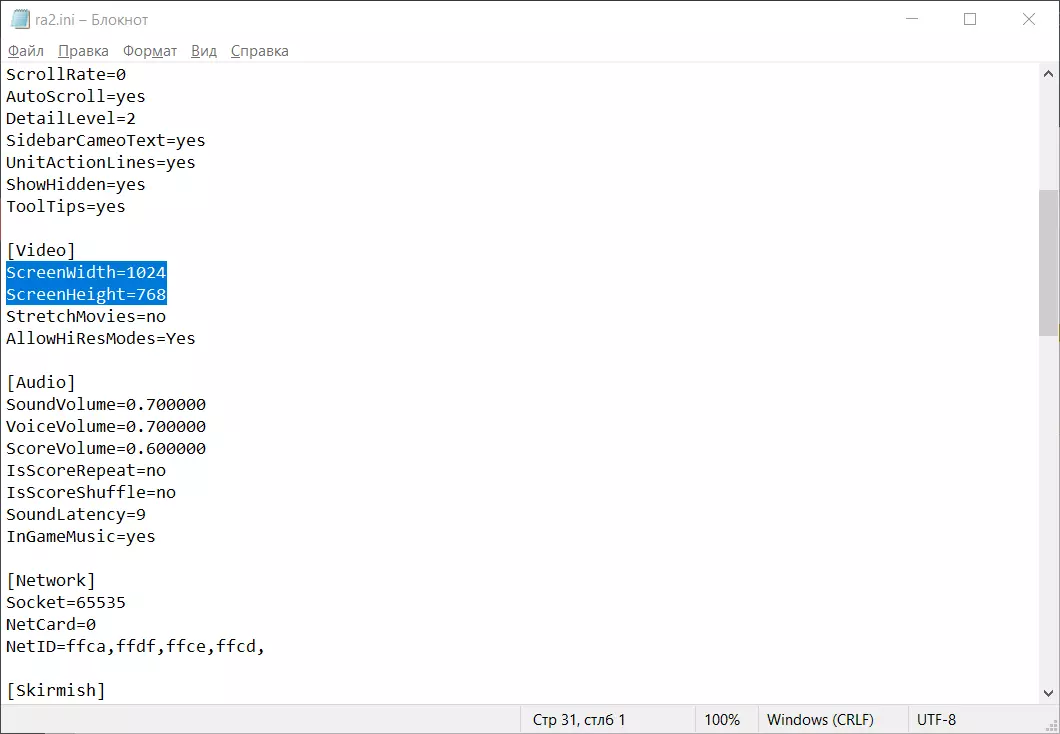
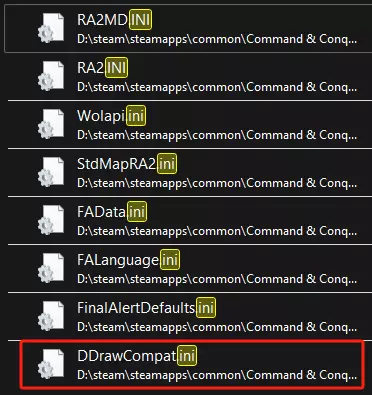
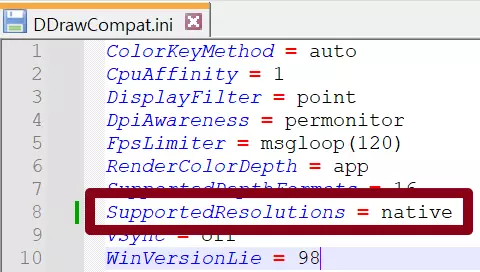
Locate and open file: "DDrawCompat.ini" Select all and paste: ColorKeyMethod = auto CpuAffinity = 1 DesktopResolution = display DisplayAspectRatio = display DisplayFilter = bilinear(0) DisplayResolution = desktop DpiAwareness = permonitor FullscreenMode = borderless RenderColorDepth = app SupportedDepthFormats = 16, 32 SupportedResolutions = native, 1024x768, 1280x720, 1366x768, 1400x1050, 1920x1080, 2560x1440 VSync = on WinVersionLie = 98 REMEMBER TO (Ctrl + S) It's really that simple. Now on to the next one: --2-- Locate and open files: "RA2.ini" "RA2MD.ini" Select [Video] and paste: [Video] AllowHiResModes=yes VideoBackBuffer=no ScreenWidth=1366 ScreenHeight=768 StretchMovies=yes REMEMBER TO (Ctrl + S) Secondly Download .zip (https://github.com/FunkyFr3sh/cnc-ddraw), extract to the very game directory you have open. Find and open ddraw.ini. Replace everything (Ctrl + A, Ctrl + V) with the following: ; cnc-ddraw - https://github.com/FunkyFr3sh/cnc-ddraw [ddraw] ; ### Optional settings ### ; Use the following settings to adjust the look and feel to your liking ; Stretch to custom resolution, 0 = defaults to the size game requests width=0 height=0 ; Override the width/height settings shown above and always stretch to fullscreen ; Note: Can be combined with 'windowed=true' to get windowed-fullscreen aka borderless mode fullscreen=true ; Run in windowed mode rather than going fullscreen windowed=false ; Maintain aspect ratio maintas=true ; Windowboxing / Integer Scaling boxing=false ; Real rendering rate, -1 = screen rate, 0 = unlimited, n = cap ; Note: Does not have an impact on the game speed, to limit your game speed use 'maxgameticks=' maxfps=-1 ; Vertical synchronization, enable if you get tearing - (Requires 'renderer=auto/opengl*/direct3d9*') ; Note: vsync=true can fix tearing but it will cause input lag vsync=true ; Automatic mouse sensitivity scaling ; Note: Only works if stretching is enabled. Sensitivity will be adjusted according to the size of the window adjmouse=true ; Preliminary libretro shader support - (Requires 'renderer=opengl*') https://github.com/libretro/glsl-shaders ; 2x scaling example: https://imgur.com/a/kxsM1oY - 4x scaling example: https://imgur.com/a/wjrhpFV ; You can specify a full path to a .glsl shader file here or use one of the values listed below ; Possible values: Nearest neighbor, Bilinear, Bicubic, Lanczos, xBR-lv2 shader=Shaders interpolation catmull-rom-bilinear.glsl ; Window position, -32000 = center to screen posX=-32000 posY=-32000 ; Renderer, possible values: auto, opengl, openglcore, gdi, direct3d9, direct3d9on12 (auto = try direct3d9/opengl, fallback = gdi) renderer=opengl ; Developer mode (don't lock the cursor) devmode=false ; Show window borders in windowed mode border=false ; Save window position/size/state on game exit and restore it automatically on next game start ; Possible values: 0 = disabled, 1 = save to global 'ddraw' section, 2 = save to game specific section savesettings=1 ; Should the window be resizable by the user in windowed mode? resizable=true ; Upscaling filter for the direct3d9* renderers ; Possible values: 0 = nearest-neighbor, 1 = bilinear, 2 = bicubic, 3 = lanczos (bicubic/lanczos only support 16/32bit color depth games) d3d9_filter=3 ; Where should screenshots be saved screenshotdir=. Screenshots ; Switch between windowed/borderless modes with alt+enter rather than windowed/fullscreen modes toggle_borderless=false ; ### Compatibility settings ### ; Use the following settings in case there are any issues with the game ; Hide WM_ACTIVATEAPP and WM_NCACTIVATE messages to prevent problems on alt+tab noactivateapp=false ; Max game ticks per second, possible values: -1 = disabled, -2 = refresh rate, 0 = emulate 60hz vblank, 1-1000 = custom game speed ; Note: Can be used to slow down a too fast running game, fix flickering or too fast animations ; Note: Usually one of the following values will work: 60 / 30 / 25 / 20 / 15 (lower value = slower game speed) maxgameticks=0 ; Method that should be used to limit game ticks (maxgameticks=): 0 = Automatic, 1 = TestCooperativeLevel, 2 = BltFast limiter_type=0 ; Force minimum FPS, possible values: 0 = disabled, -1 = use 'maxfps=' value, -2 = same as -1 but force full redraw, 1-1000 = custom FPS ; Note: Set this to a low value such as 5 or 10 if some parts of the game are not being displayed (e.g. menus or loading screens) minfps=-1 ; Disable fullscreen-exclusive mode for the direct3d9*/opengl* renderers ; Note: Can be used in case some GUI elements like buttons/textboxes/videos/etc.. are invisible nonexclusive=true ; Force CPU0 affinity, avoids crashes/freezing, *might* have a performance impact ; Note: Disable this if the game is not running smooth or there are sound issues singlecpu=true ; Available resolutions, possible values: 0 = Small list, 1 = Very small list, 2 = Full list ; Note: Set this to 2 if your chosen resolution is not working or does not show up in the list ; Note: Set this to 1 if the game is crashing on startup resolutions=2 ; Child window handling, possible values: 0 = Disabled, 1 = Display top left, 2 = Display top left + repaint, 3 = Hide ; Note: Disables upscaling if a child window was detected (to ensure the game is fully playable, may look weird though) fixchilds=0 ; Enable one of the following settings if your cursor doesn't work properly when upscaling is enabled hook_peekmessage=false hook_getmessage=false ; Undocumented settings - You may or may not change these (You should rather focus on the settings above) releasealt=false game_handles_close=false fixnotresponding=false hook=4 guard_lines=200 max_resolutions=0 lock_surfaces=false allow_wmactivate=false flipclear=false fixmousehook=false rgb555=false no_dinput_hook=false refresh_rate=0 anti_aliased_fonts_min_size=13 custom_width=0 custom_height=0 min_font_size=0 direct3d_passthrough=false center_cursor_fix=false fake_mode=1366x768x32 wine_allow_resize=false lock_mouse_top_left=false no_compat_warning=false ; ### Hotkeys ### ; Use the following settings to configure your hotkeys, 0x00 = disabled ; Virtual-Key Codes: https://docs.microsoft.com/en-us/windows/win32/inputdev/virtual-key-codes ; Switch between windowed and fullscreen mode = [Alt] + ??? keytogglefullscreen=0x09 ; Maximize window = [Alt] + ??? keytogglemaximize=0x10 ; Unlock cursor 1 = [Ctrl] + ??? keyunlockcursor1=0x09 ; Unlock cursor 2 = [Right Alt] + ??? keyunlockcursor2=0xA3 ; Screenshot keyscreenshot=0x2C ; ### Config program settings ### ; The following settings are for cnc-ddraw config.exe ; cnc-ddraw config program language, possible values: auto, english, chinese, german, spanish, russian, hungarian, french, italian configlang=english ; cnc-ddraw config program theme, possible values: Windows10, Cobalt XEMedia configtheme=Windows10 ; Hide the 'Compatibility Settings' tab in cnc-ddraw config hide_compat_tab=false ; Allow the users to 'Restore default settings' via cnc-ddraw config allow_reset=true REMEMBER TO (Ctrl + S) You're done! So. I play on a 32" 16:9 1440p monitor about an arm's length fom my nose. After some rigorous testing of a match of Alamo [whatever this map is] per resolution, I came to a resolution, with, well, the issue of the resolutions.
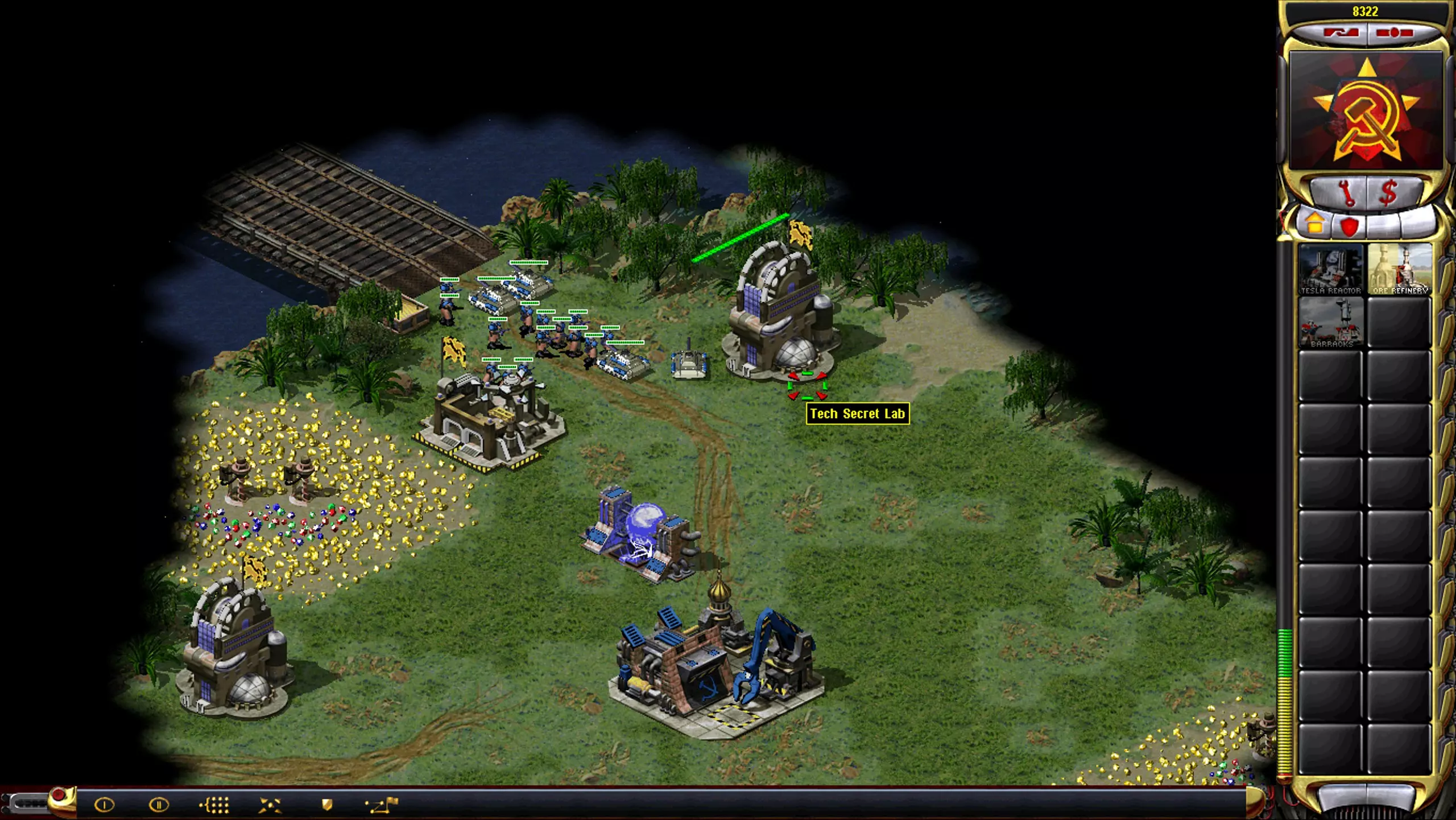
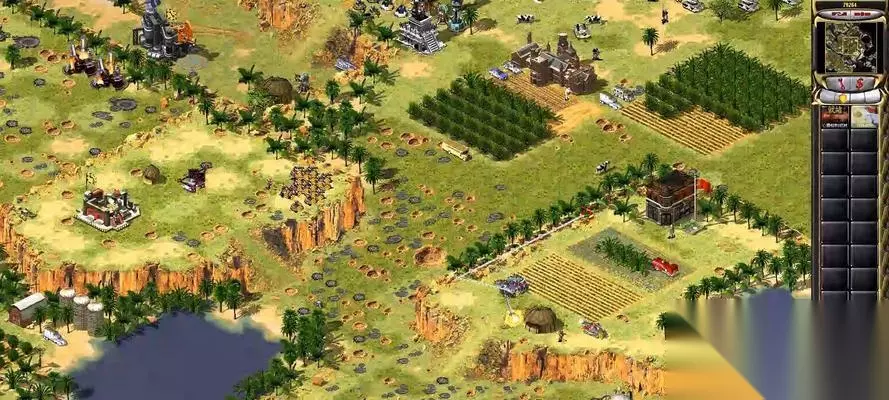
辉煌的16:9《红色警戒2:尤里的复仇》762p分辨率,就像2001年那样,但视野更宽。如果我玩单人模式,会选择更拉近的762p。这样更有沉浸感,不会一下子显示整个地图(几年前试过,可能会对游戏视觉造成干扰)。不知为何,762p也是菜单能正常显示的最高分辨率。可能菜单和建造界面一样是硬编码的。因此ddraw.ini里用的是伪分辨率。这简直像巫术,我也不知道为什么或怎么会这样,我只是在自己的系统上把它调成了我想要的样子。
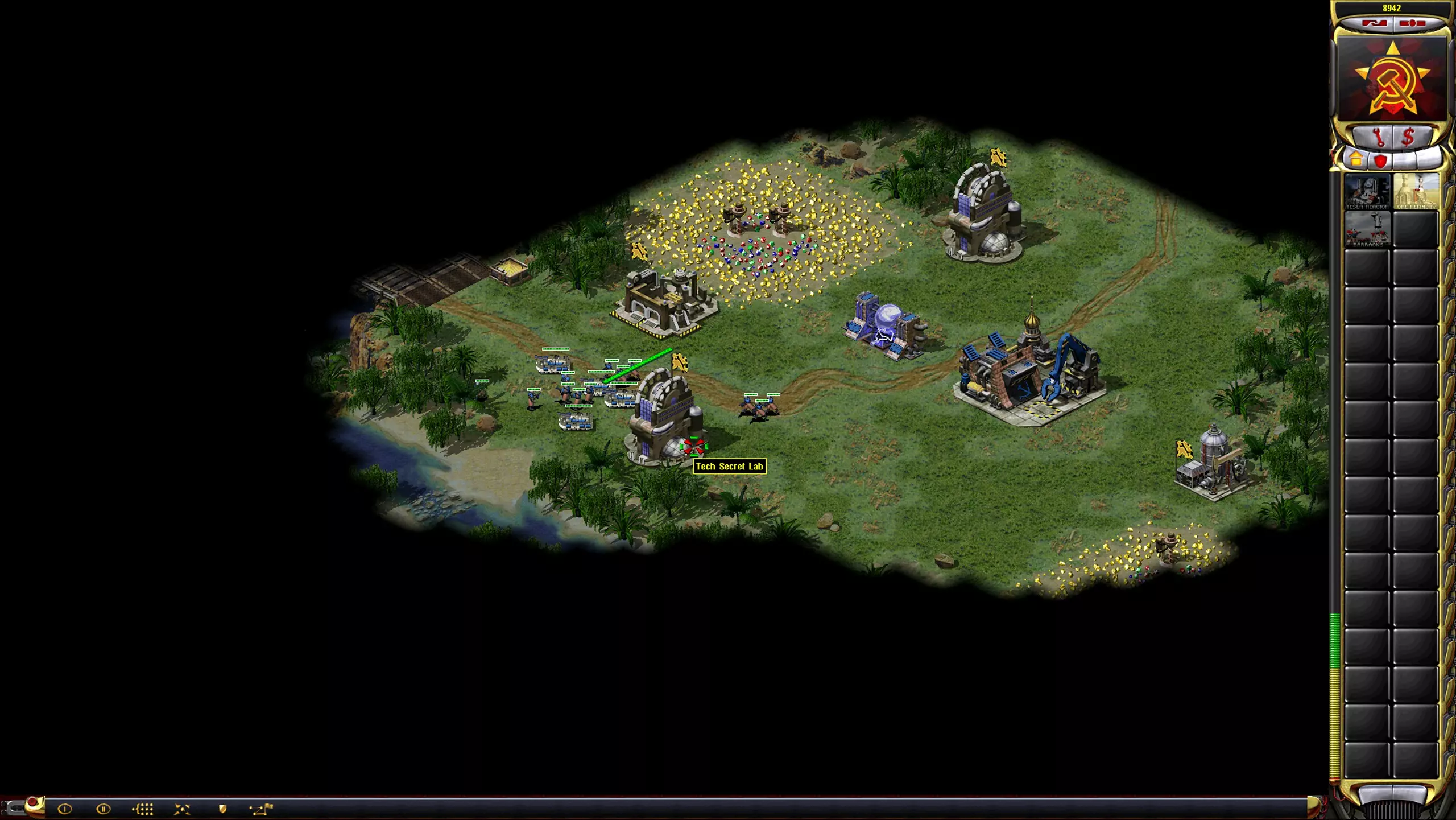
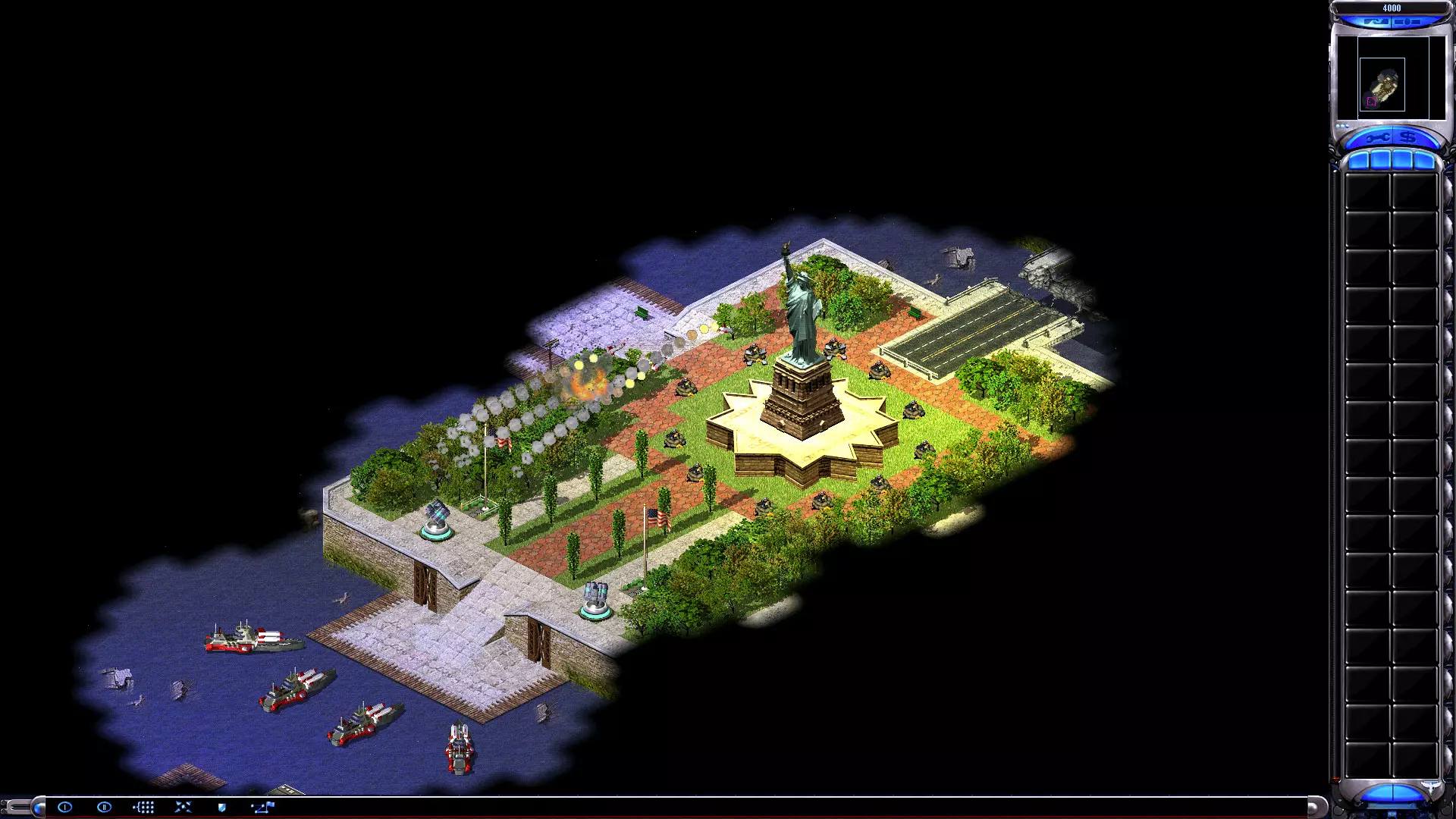
《红色警戒2:尤里的复仇》16:9宽屏1080p才是如今应有的体验 在遭遇战中,我会选择1080p分辨率以获得更好的战场态势感知。因为电脑AI本来就会作弊,能看清所有【你有新的建造选项】提示会更有趣。不服来辩。 这是我在游戏中设法截取的仅有的几张截图,之后我发现Steam覆盖层和【Alt + F4】都失效了。但请相信我,这个修复方法还能让我在全屏模式下以拉伸的标清分辨率正常显示菜单。 如果你追求4:3 CRT显示器的复古感,可以去看看其他指南或论坛。大多数指南都执着于保留那些讨厌的黑边。或者你也可以试试这个方法,然后编辑.ini文件,设置合适的低分辨率。毕竟这款游戏已经有20多年的历史了。你可能需要自己调整一两处设置,才能让它在你的设备上完美运行(哈哈!)。例如,如果你的游戏在遭遇战菜单加载时遇到问题,可以找到【ddraw.dll】文件并删除它。这或许能解决问题。祝你玩得开心。