换一换
换一换 



Normally, you can't change Infold account on the Steam version of the game without unbinding and rebinding your Steam account. But, there is an alternative way. You can port from either the standalone version or Epic version – both of which allow easy account changing – while remaining on Steam. This is not without caveats, so make sure to read the guide in full before you commit to it. Computer skill level recommendation: intermediate, though I tried to write it as simple to understand as possible so that beginners may be able to follow along too. First-Time Setup – Porting the Launcher 1. Download the game on Steam. 2. Launch the game, login to your main Infold account, and enter Miraland at least once. If you're an existing or returning player and this will be the first time you login on Steam, make sure you login via email address or you risk having your data wiped! If your Infold account is not bind to an email address, do that first. 3. Download and install the standalone launcher from the website, or the launcher from Epic Games. 4. Open the launcher and make sure that it is up to date. Do not download the game from the launcher yet! 5. Open two File Explorer windows. One navigate to the installation folder of the standalone or Epic version of the game (e.g.: C: Program Files Epic Games InfinityNikkiEpicLauncher). Another one to the installation folder of Steam version of the game (e.g.: C: Program Files (x86) Steam steamapps common Infinity Nikki). 6. In both standalone/Epic folder and Steam folder, open the launcher folder which is named after the installed launcher version number (e.g.: 1.2.3). 7. In the Steam launcher folder, copy sdkencryptedappticket64, steam_api64, and steam_appid to the standalone/Epic launcher folder. 8. Create a folder named steam_backup or any name you like in the Steam game installation folder ( steamapps common Infinity Nikki) and copy sdkencryptedappticket64, steam_api64, and steam_appid from the Steam launcher folder. This is to preserve the files due to launcher updates delete the old launcher folder. 9. Delete the Steam launcher folder. 10. Copy the standalone/Epic launcher folder to the Steam game installation folder. 11. Run Steam as admin to make sure Steam does not lose track of the launcher. To do this one time only, right click on Steam app (depending on where your app shortcut is you will also have to right click Steam Client Bootstrapper), then click run as administrator. To do this permanently, right click on Steam app and click properties instead. Go to compatibility tab, check "run this program as an administrator", then click OK. Now you have successfully ported the standalone or Epic version of the launcher to Steam, but we still need to port the game too. First-Time Setup – Porting the Game 12. Start the launcher. (Remember, you have already ported the launcher, so you can do it via Steam.) 13. Go to settings, and under download settings, set the game installation path to anywhere you desire. For consistency's sake, it is recommended to set it inside Steam folder, specifically steamapps common Infinity Nikki). While the installation path can be anywhere, the game data folder is forced by the launcher and is based on the launcher variant: Steam - InfinityNikki (without space; not what we want) Epic - InfinityNikkiEpic Standalone (global) - InfinityNikkiGlobal Standalone (China) - (unknown) 14. Download the standalone/Epic version of the game through the launcher. 15. If you don't plan on playing the Steam version, or unlocking Steam achievements or trading cards drops in the future, you can delete the Steam game data folder, InfinityNikki. Congratulations, you have now successfully ported the standalone or Epic version of the launcher and game to Steam and can now freely swap your Infold accounts, as well as having the additional option to not launch it via Steam! (The following steps worked fine before version 1.8 and are no longer recommended. Keeping those here for archival and troubleshooting purpose.) 12. In the Steam game installation folder, rename the game data folder called InfinityNikki (without the space) to match the same platform version of the launcher. InfinityNikkiGlobal for standalone, or InfinityNikkiEpic for Epic. For those who play on China server, your game data folder name is different. You can see the folder name the launcher is going to install to in the game installation path settings on the launcher. 13. If you have installed and played the standalone or Epic version of the game, copy and overwrite the X6Game folder from standalone/Epic to Steam game data folder. 14. Start the launcher. (Remember, you have already ported the launcher, so you can do it via Steam.) 15. Go to settings, and under download settings, set the game installation path to game data folder (e.g.: steamapps common Infinity Nikki InfinityNikkiEpic). 16a. Back to the main screen of the launcher, you're likely to be asked to download the game still, as if it can't detect the game files. Press the download button anyway, you should see that it only downloads a tiny portion of the game. (The following steps should only apply during version 1.5 and are no longer relevant. Keeping those here for archival and troubleshooting purpose.) 16b. If you see the launcher is asking you to update the game, do that. If it just says start game, click the arrow button besides the giant button and click check for game updates. 17. If the launcher stuck at verifying game files after downloading (cus it did for mine during 1.5 specifically), don't panic! Just restart the launcher. 18. Whether your launcher was stuck or not, we have to make sure the standalone/Epic version of the game is fully installed. Click the arrow button again and click repair. It will do a full scan of the game files instead of a partial scan. Occasional Maintenance Work Required The major downside of this is that every time the developer push an update to Steam, you will have to repeat some steps. Not only the launcher folder name is based on the launcher version number, Steam, unlike Epic, also downloads the game, which means that it will recreate the folder for Steam version of the game and install the update there. 1. Let Steam finish downloading the update. 2. Port the launcher again by repeating step 3 to 10. Some of those steps can be skipped if you know what you're doing. 3. Download the update via the launcher. Unlike the actual Steam version, it can also be pre-downloaded. 4. If you chose to delete the Steam game data folder in the past, delete it again. (The following steps worked fine before version 1.8 and are no longer recommended. Keeping those here for archival and troubleshooting purpose.) 1. Let Steam finish downloading the update. 2. In the Steam game installation folder, move and overwrite all the new contents from InfinityNikki game data folder to InfinityNikkiGlobal or InfinityNikkiEpic. 3. Delete the InfinityNikki game data folder. 4. Open the launcher via Steam and then fully close it without doing anything else. 5. Port the launcher and game again by repeating step 3 to 10, as well as 14 to 16a in the porting instructions. Some of those steps can be skipped if you know what you're doing. 6. If there's issue launching the game, repairing via the launcher should fix it. Q&A I just glanced over the guide. Why does it seem like it's so much work? Can't I just simply copy from standalone/Epic version?There are multiple reasons. The first being that Steam, unlike standalone and Epic, downloads the game alongside the launcher. That wouldn't be a big issue in itself, but they somehow decided to lock game download to a specific folder, and the folder name of each platform version is different. Furthermore, the launcher folder name is based on the launcher version number and the launcher of Steam version is different from the rest. All of these poor decisions contribute to the complicated process of porting the game from another platform version to Steam, and the maintenance required. Heck, we wouldn't be here in the first place if they just let Steam users freely switch account or allow one account to have a character per server region.(;´д`)ゞ Will I get banned for this?Extremely unlikely. It's just platform version swapping, not file modifying or cheating, and you'll still be playing the very same game version as everyone else. That said, please don't take my word on it, do this at your own risk. I have a Steam Deck, what should I do?I don't have a Deck to test it out. If you have a Deck/Linux and you've already experimented on it, please share your findings with us. Will I still be able to earn Steam achievements?Unlikely. By doing this, you will actually be playing the standalone or Epic version of the game, without Steam-specific files in the mix. Why not merge both Steam and standalone/Epic versions together?That was in the original guide (see the spoiler sections) in hopes to be able to earn Steam achievements still, but due to assets missing issues since version 1.8. I can no longer recommend doing that. Does this mean the storage requirement will be doubled by doing this?Yes, if you choose not to delete the Steam game data folder. You will also essentially be having to download any major update twice, no matter your choice. Q&A – Epic-Specific This is for people who choose to port the launcher and game from the Epic version. Will I still need Epic Games Launcher to update the Infinity Nikki launcher?No. Unlike Steam, the game launcher on Epic functions the same way as the standalone launcher. Does this mean I can earn Epic achievements too?Yes, but only if you launch the game via Epic. Don't need to put the game data folder back to Epic game installation folder, since you have already relocated the game. You can first earn the achievements on Steam or any other platform. Once the achievement requirement is met, simply launch the game via Epic to unlock the Epic achievement.
在Steam上更换Infold账户无需重新绑定——将独立版/Epic版转移至Steam

导读
本文介绍了无需解绑Steam账户,将独立版/Epic版《无限暖暖》(Infold账户对应游戏)转移至Steam以更换Infold账户的方法,含详细的迁移步骤、维护注意事项及常见问题解答,建议中等电脑操作水平用户尝试,新手也可参照操作。


评论
共0条评论

5月10日:更新说明
《无限暖暖》2.5版本「万灵归处」更新内容 1.2026年5月10日更新 2.优化内容 ①提升【星光挑战赛】主界面轮播条目的清晰度。 ②优化【葬骨之地】区域中【…
2026-05-11 03:030赞 · 0评论

《无限暖暖》2.5版本更新公告
《无限暖暖》更新内容 1. 游戏将于2026年5月10日19:00至20:00(UTC-7)进行版本更新,期间无法进入游戏。请合理安排时间以避免不必要的损失。维…
2026-05-11 02:170赞 · 0评论
4月23日:更新说明
《无限暖暖》2.5版本【灵魂归处】更新内容 2026年4月23日更新 优化内容: ■ 摄影功能升级:新增
2026-04-24 05:210赞 · 0评论
《无限暖暖》2.5版本更新公告
《无限暖暖》更新内容 1. 游戏将于2026年4月23日12:50至20:00(UTC-7)进行版本更新,期间游戏将无法登录,请各位搭配师合理安排时间,避免不必…
2026-04-22 10:210赞 · 0评论
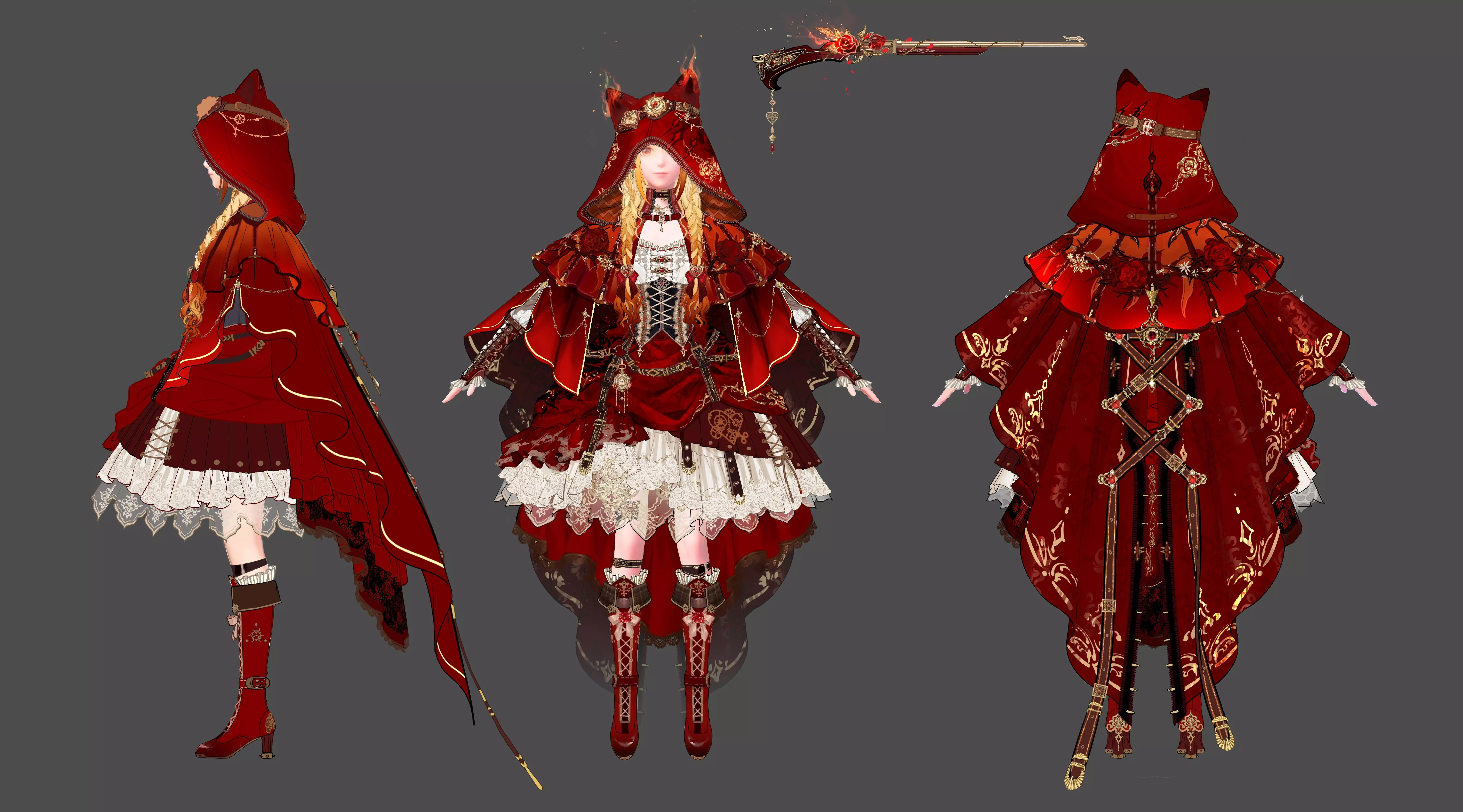
【针线之下】[她似野火]的灵感来源
森林依旧寂静……她穿梭于荆棘之中。 一位身披暗影的猎手,兜帽掩盖了她的思绪;身着利落而优雅的裙装,她紧握着步枪,在黑暗中耐心等待。 当她在夜色与荆棘间穿行时,发…
2026-04-03 04:040赞 · 0评论
3月26日:更新说明
《无限暖暖》2.4版本【森林不必倾听】修复公告 ■ 2026年3月26日更新内容 ★ 修复问题 ★ ● 修复了饰品【缠绕藤蔓】与部分袜子(【寻光】、【寻光:绯月…
2026-03-27 03:530赞 · 0评论
《无限暖暖》2.4版本更新公告
《无限暖暖》更新维护公告 1. 游戏将于2026年3月26日12:50至20:00(UTC-7)进行版本更新,期间游戏将无法登录,请各位搭配师合理安排时间,避免…
2026-03-25 10:190赞 · 0评论
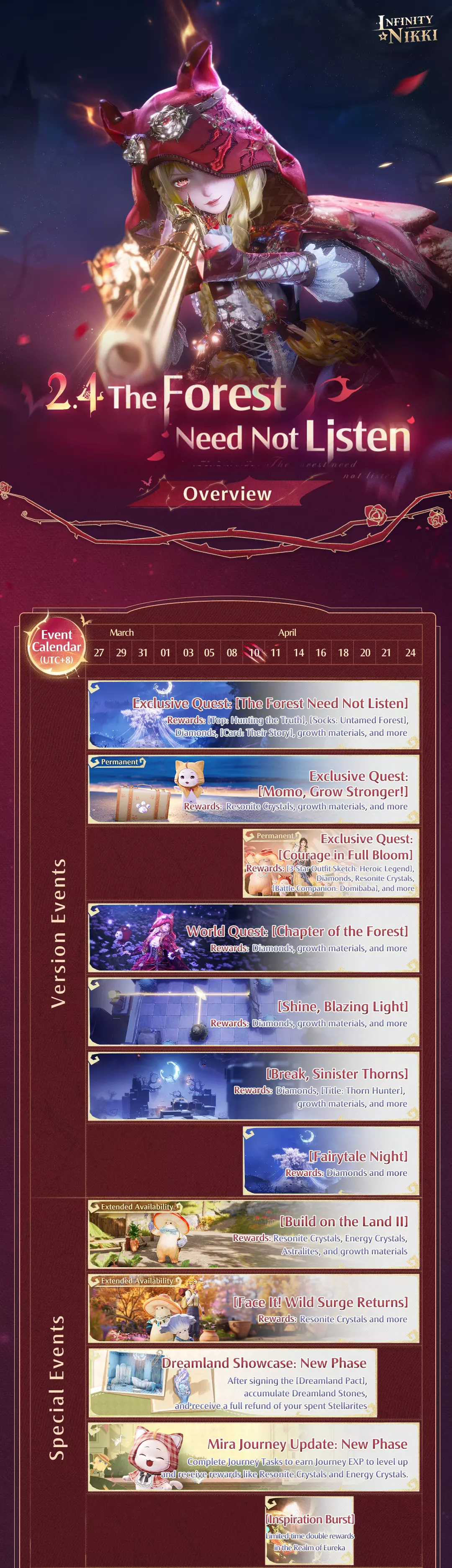
《无限暖暖》2.4版本【森林不必倾听】概览
2026-03-25 05:330赞 · 0评论
3月15日:更新说明
《无限暖暖》2.3版本【无冕之心】更新内容 ■2026年3月15日更新 ★修复问题★ ●修复了连衣裙【草莓之吻:浮梦心愿】的12区染色显示异常问题。 ●修复了姿…
2026-03-16 03:051赞 · 0评论
《无限暖暖》2.3版本更新公告
《无限暖暖》更新维护公告 各位搭配师: 《无限暖暖》将于2026年3月15日19:00至20:00(UTC-7)进行版本更新。更新期间游戏将无法登录,请各位搭配…
2026-03-14 10:030赞 · 0评论
暂无更多