换一换
换一换 


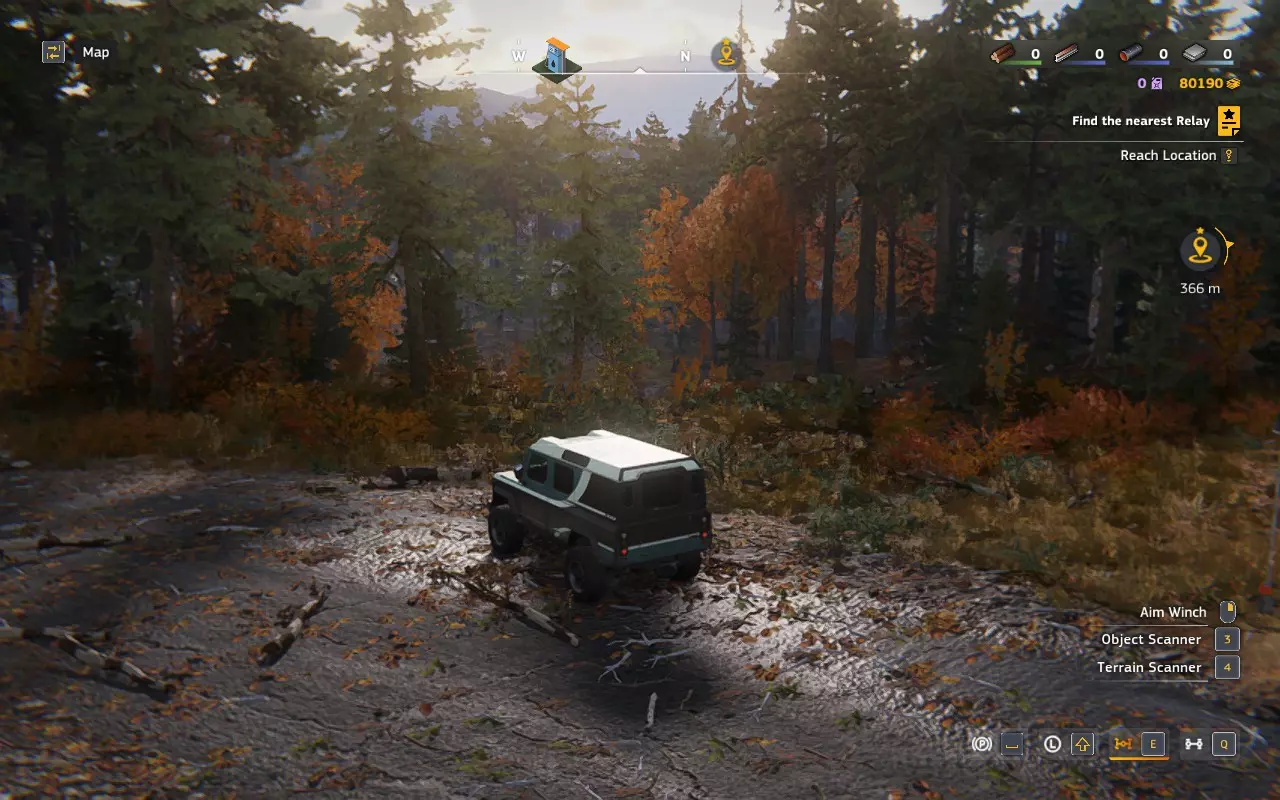
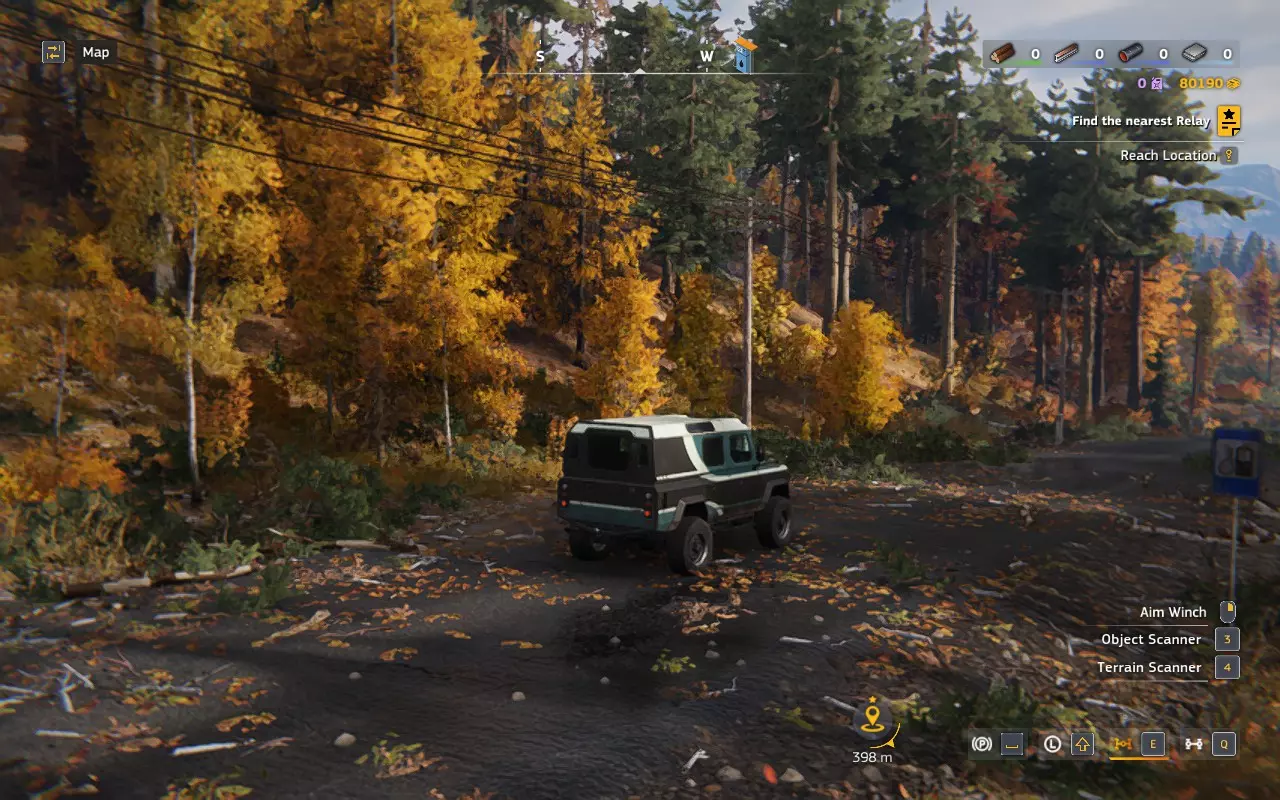
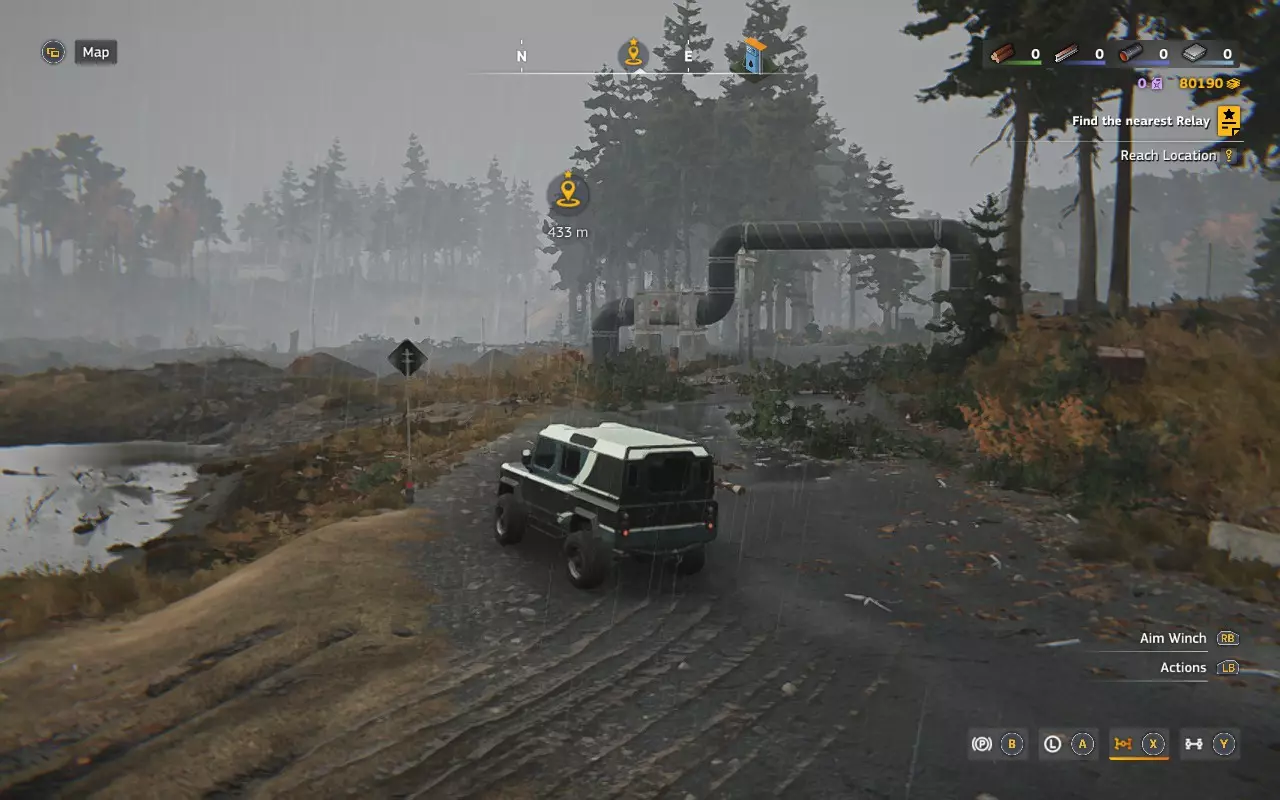
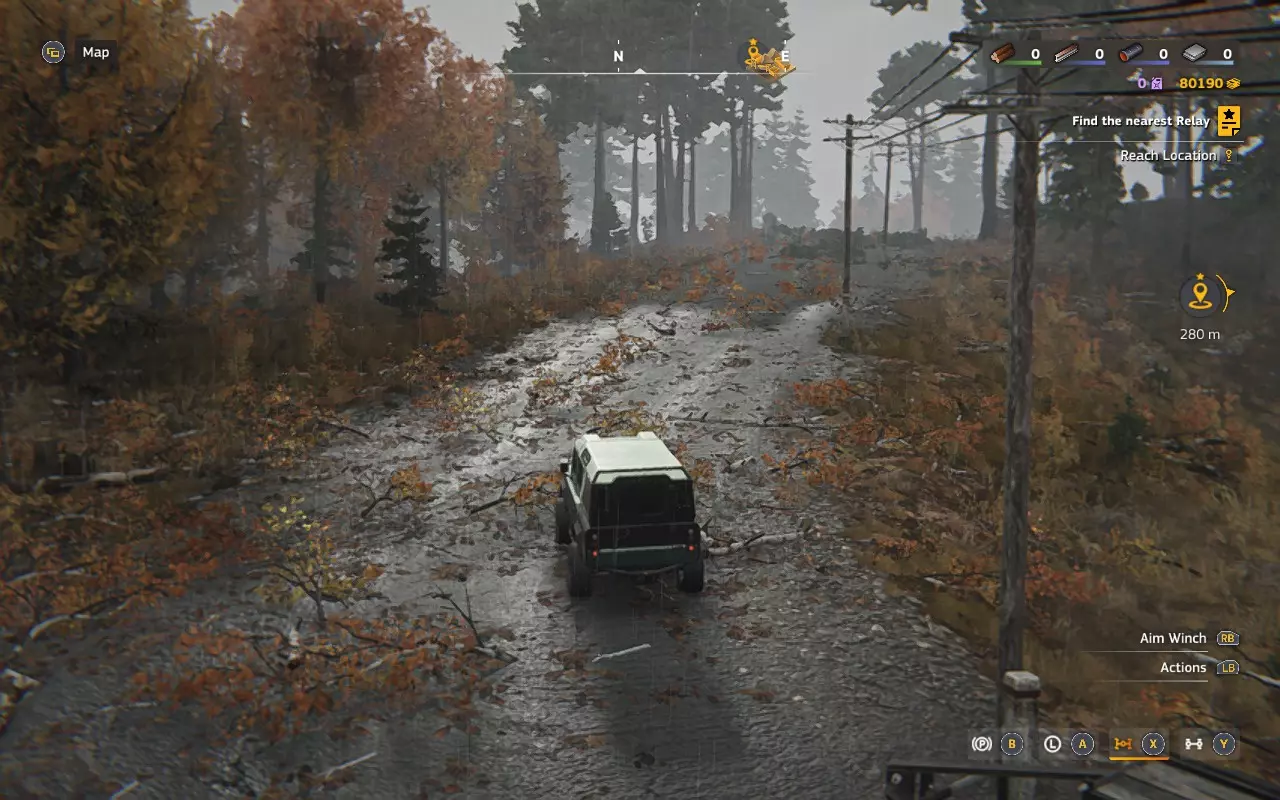
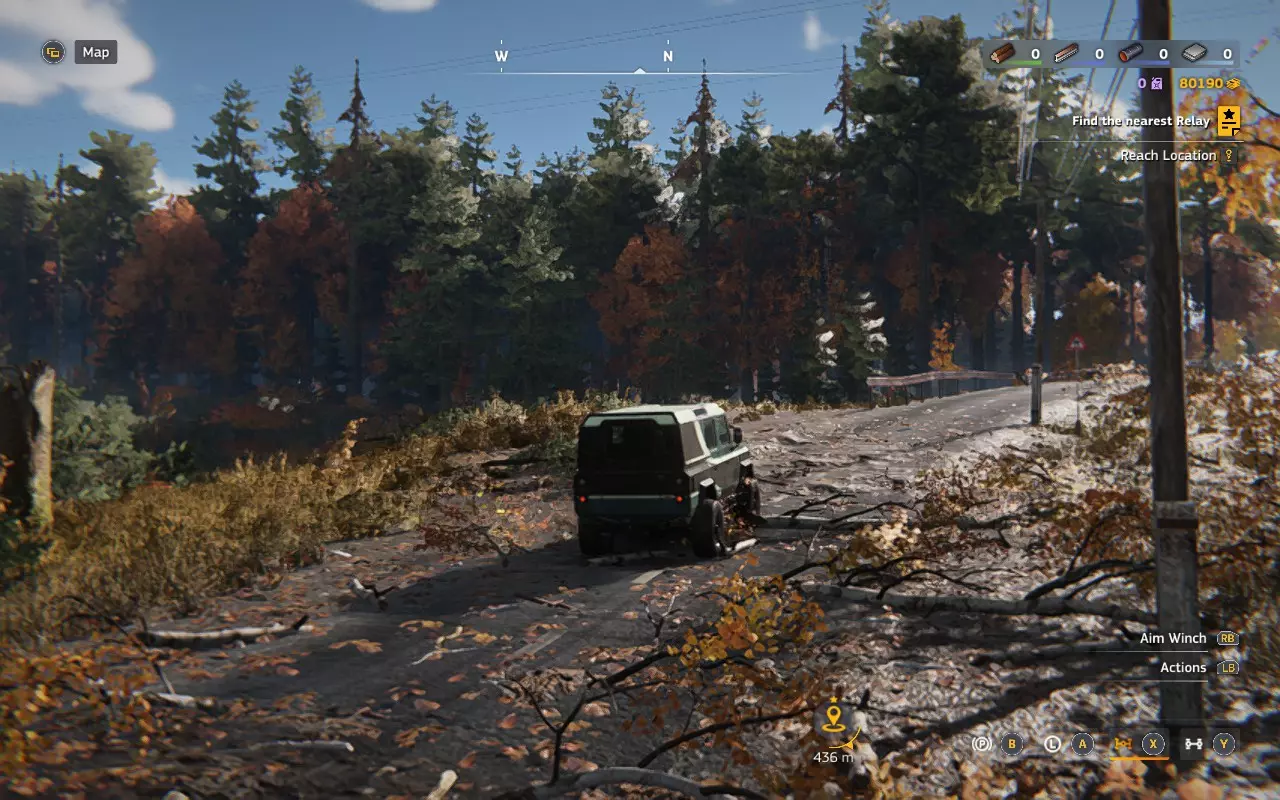
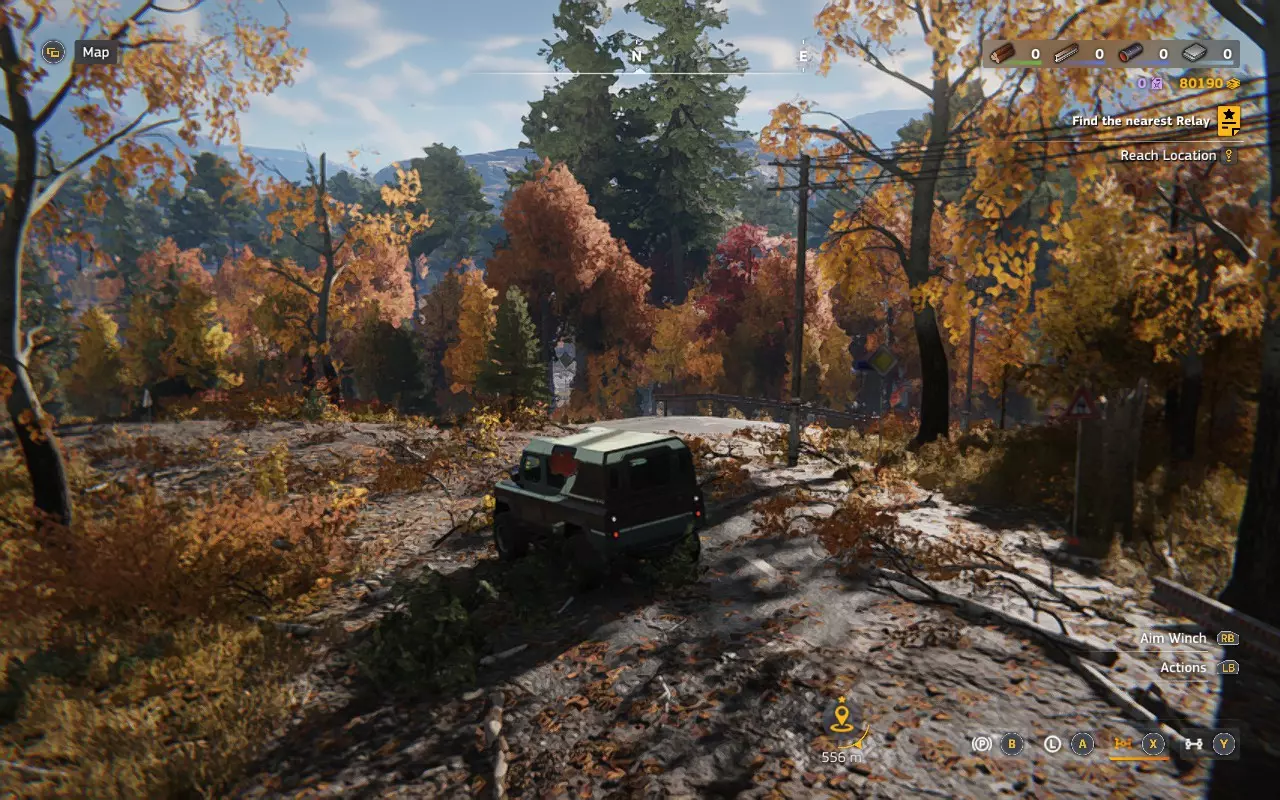
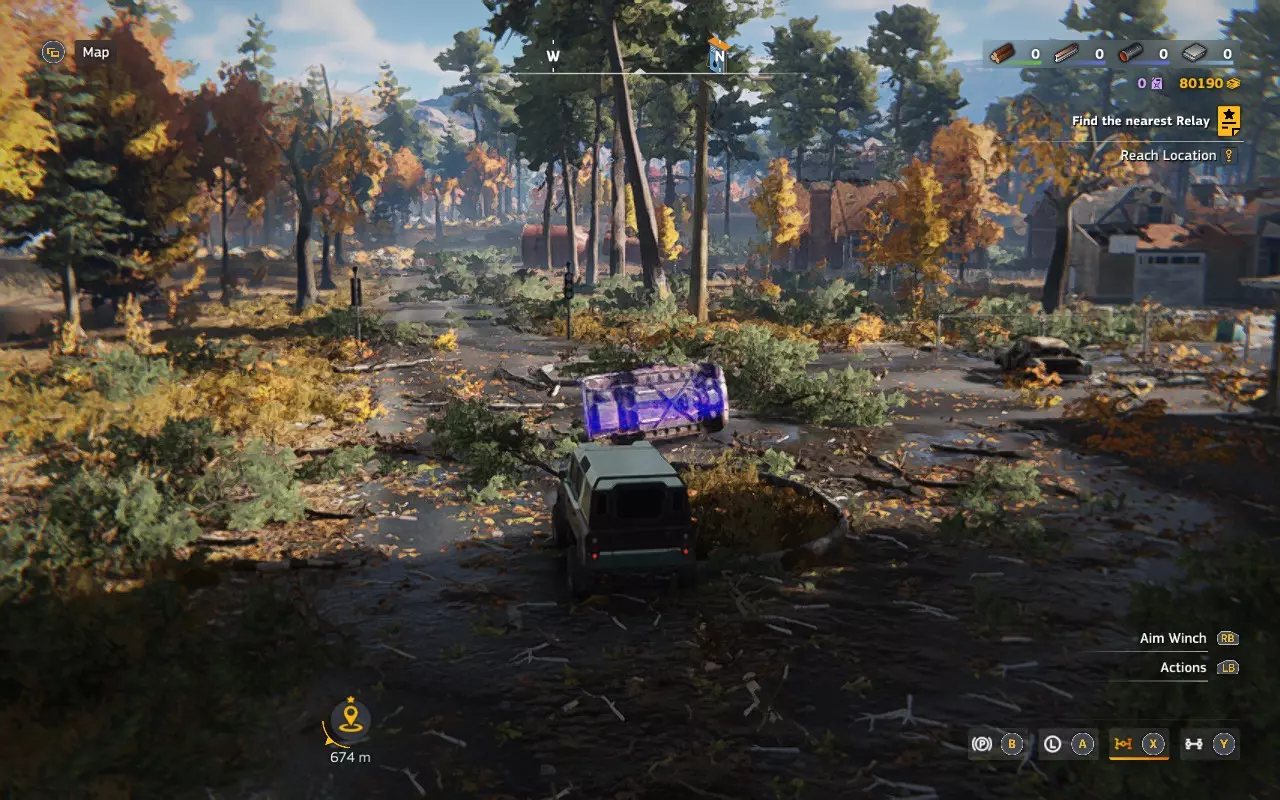
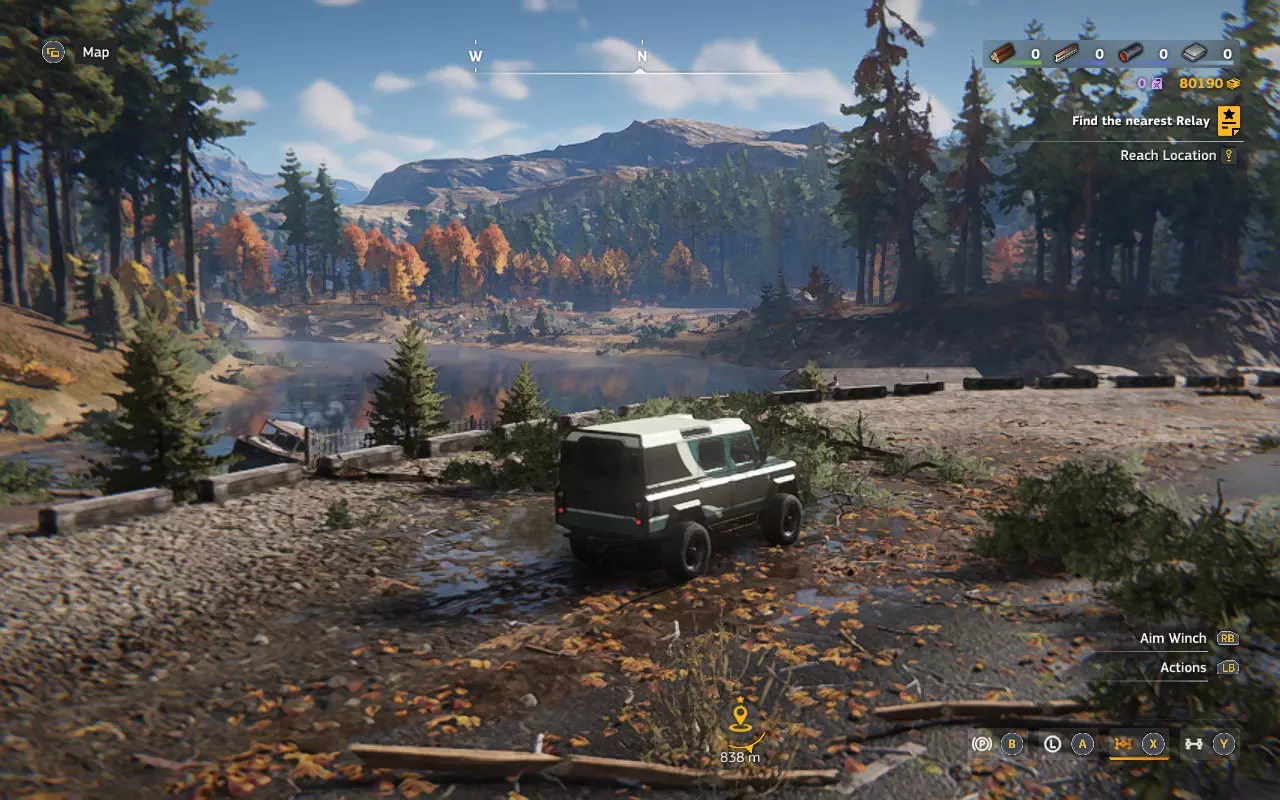
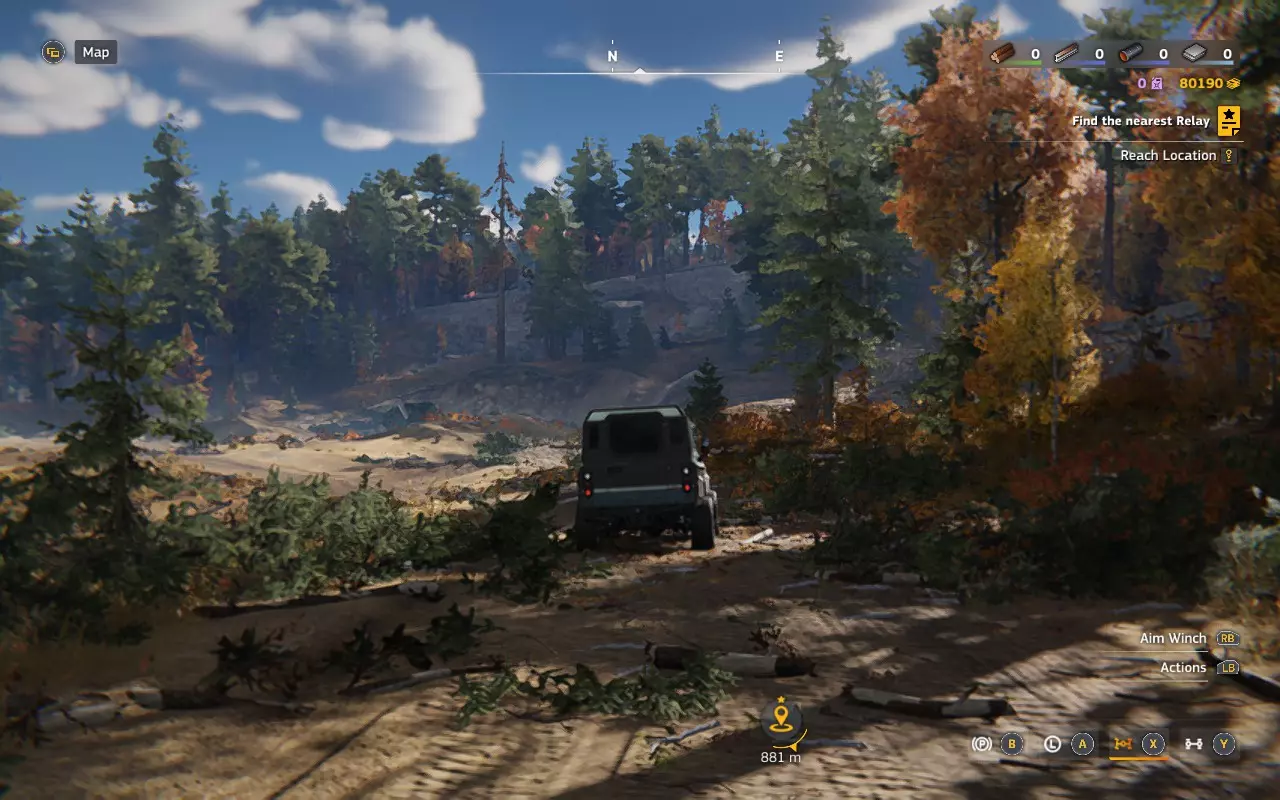
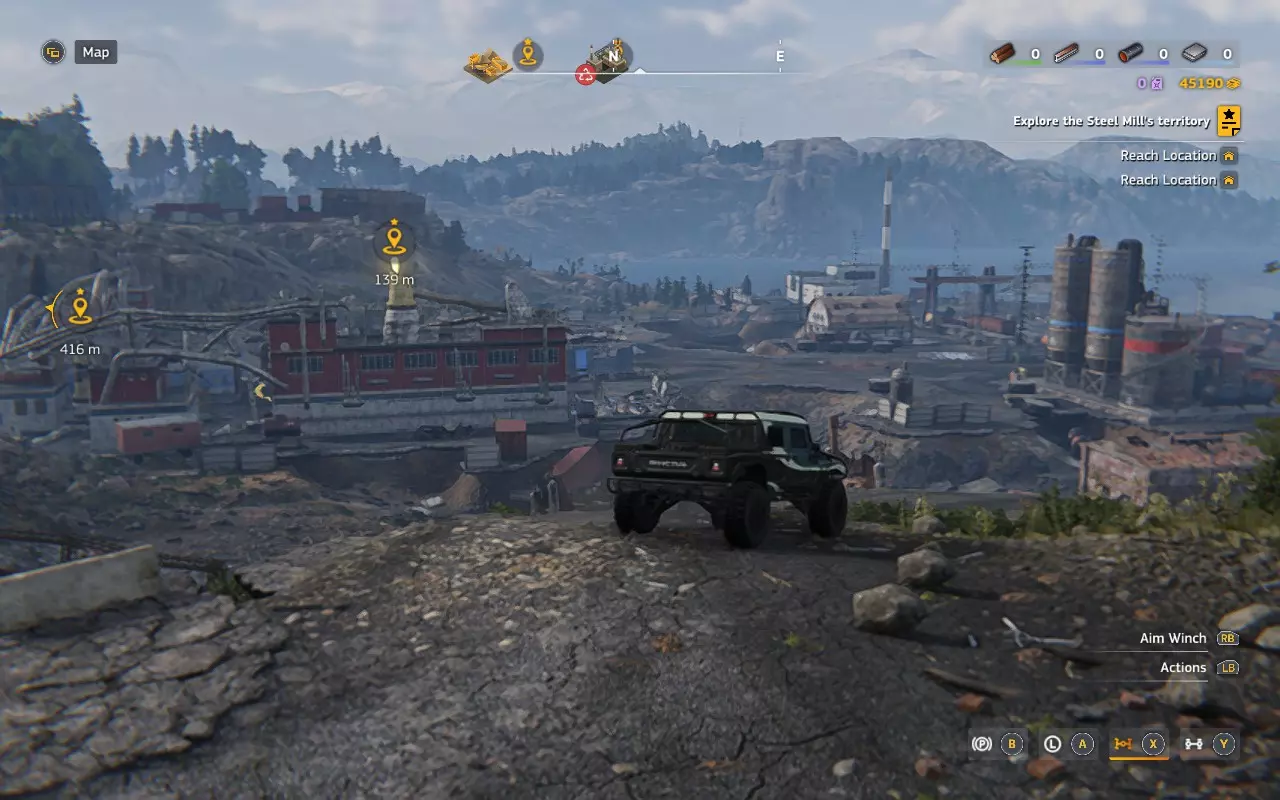
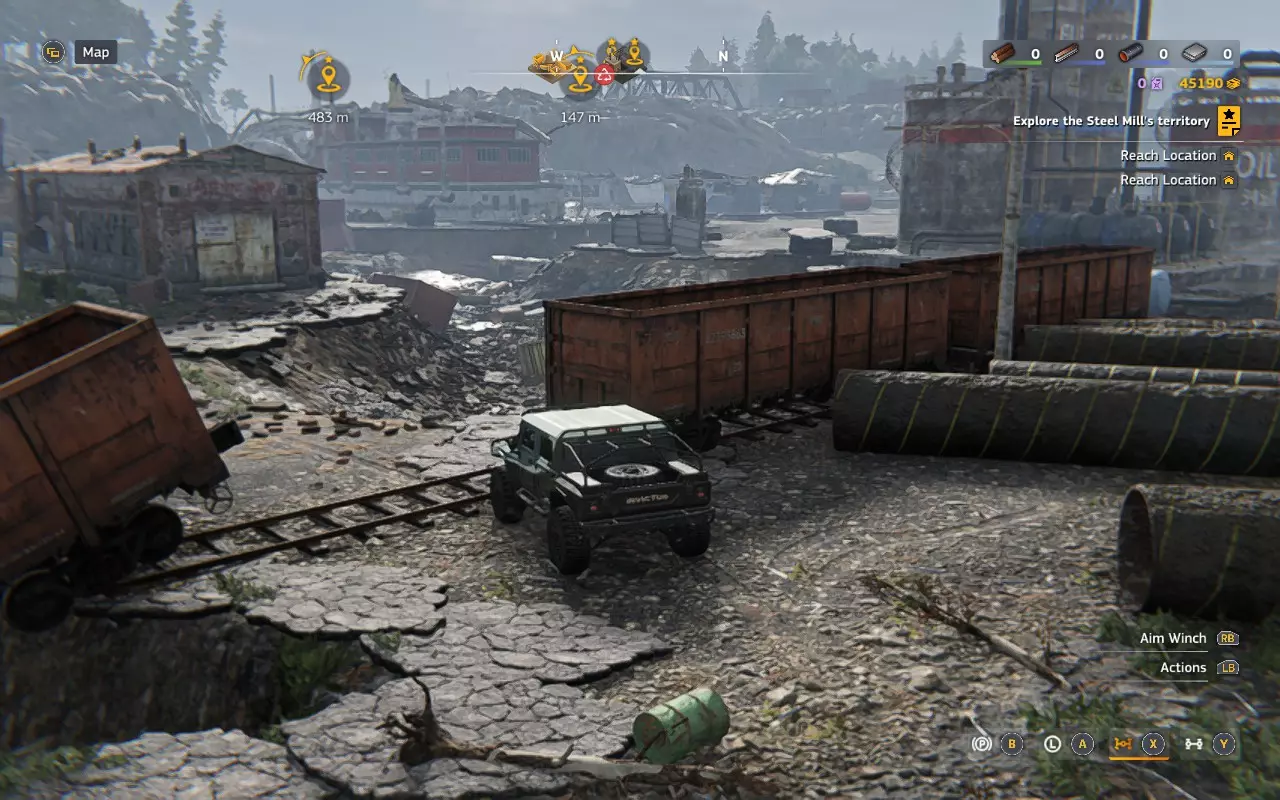
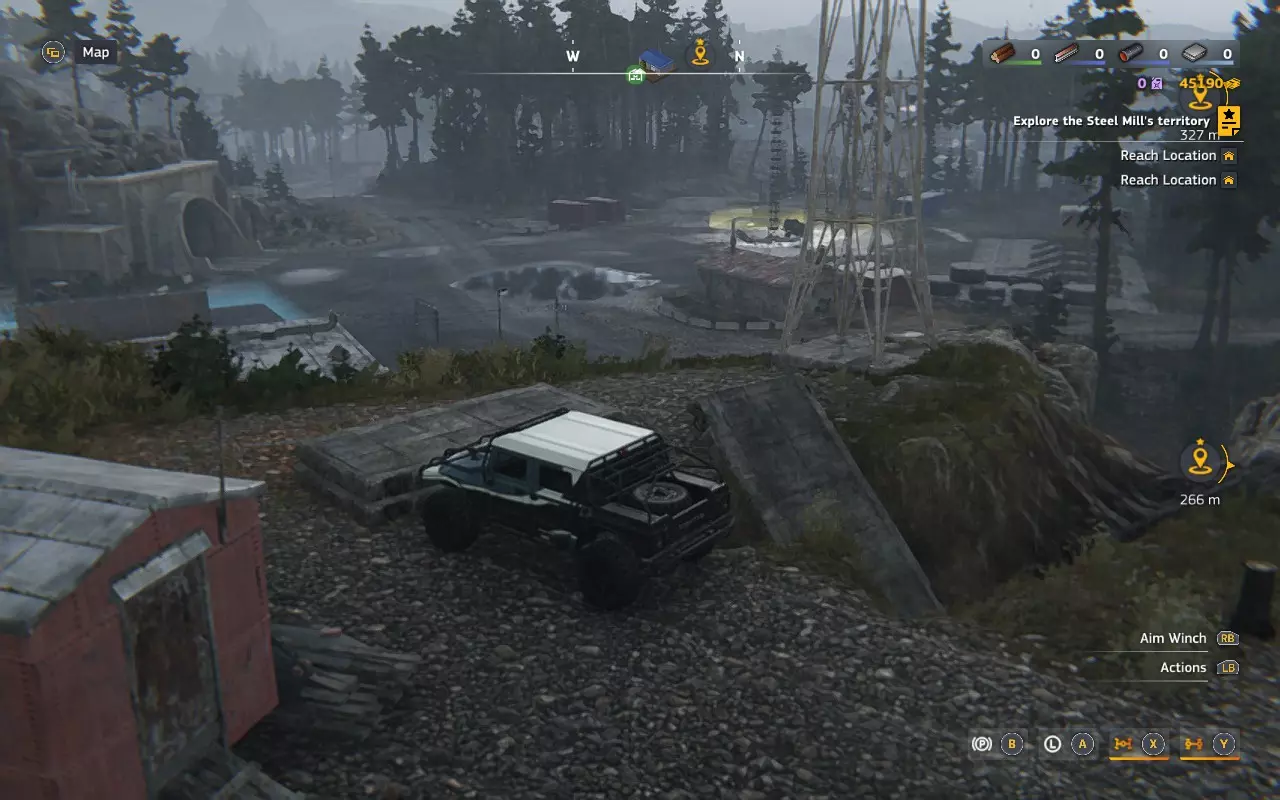
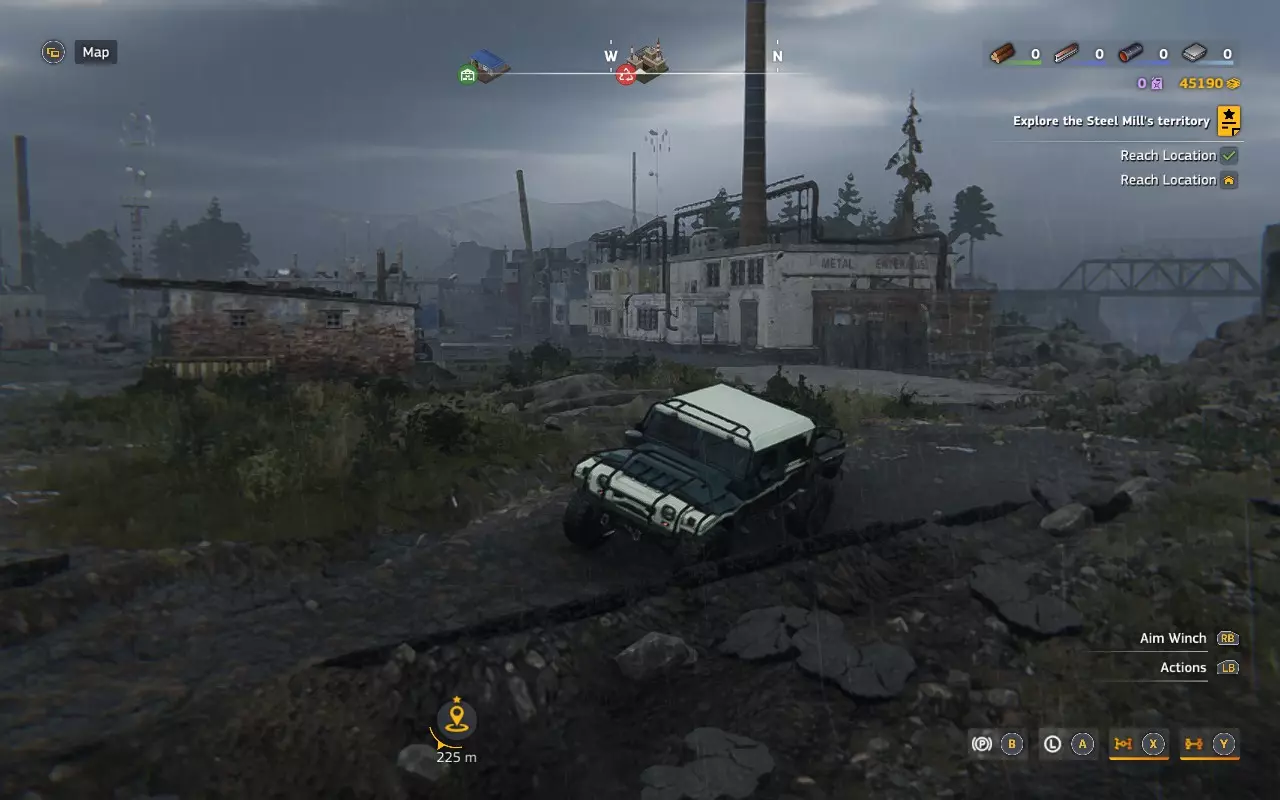
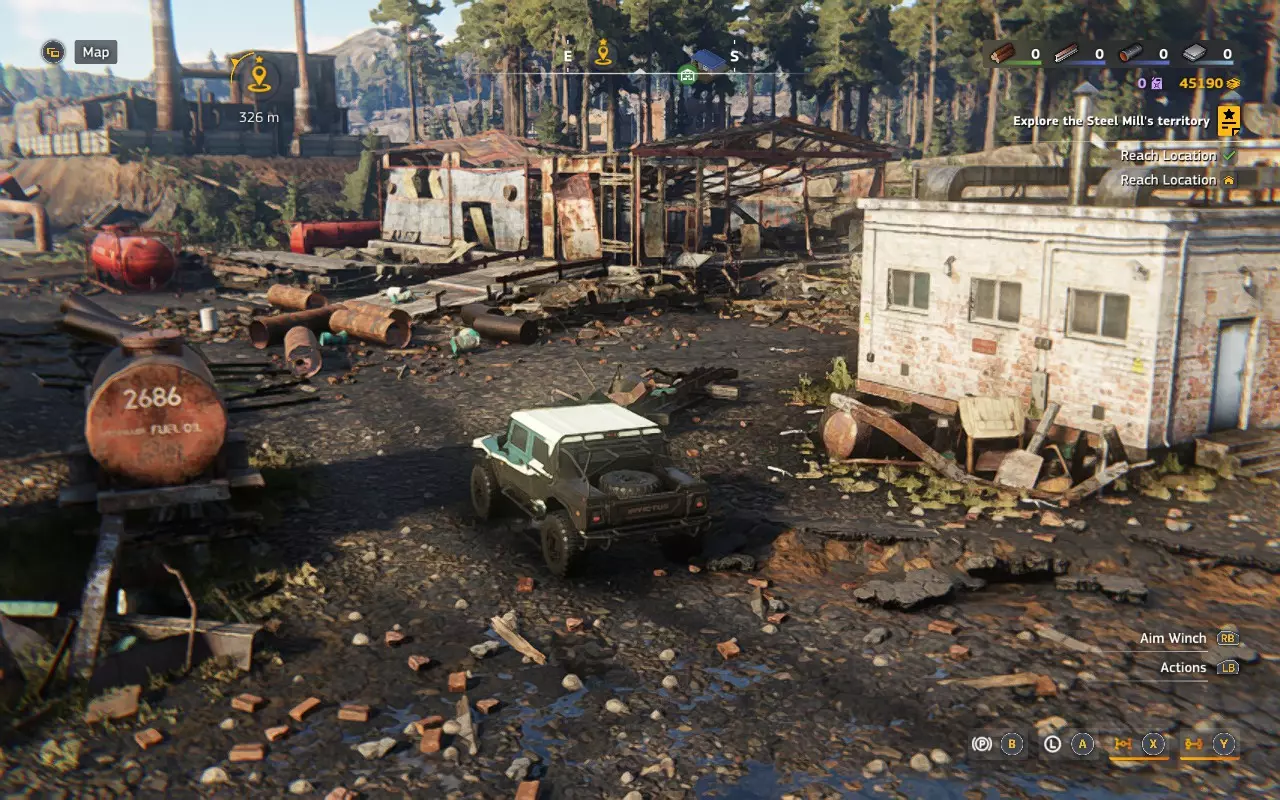
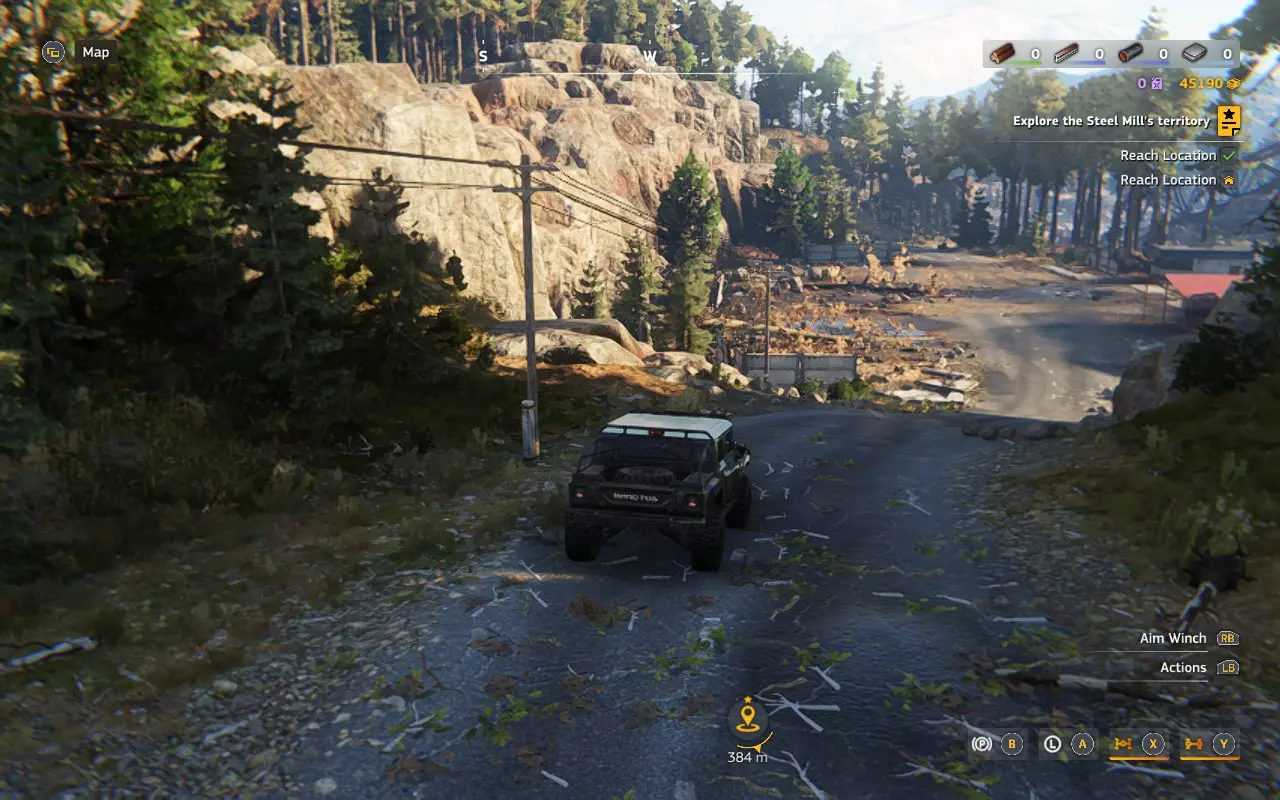
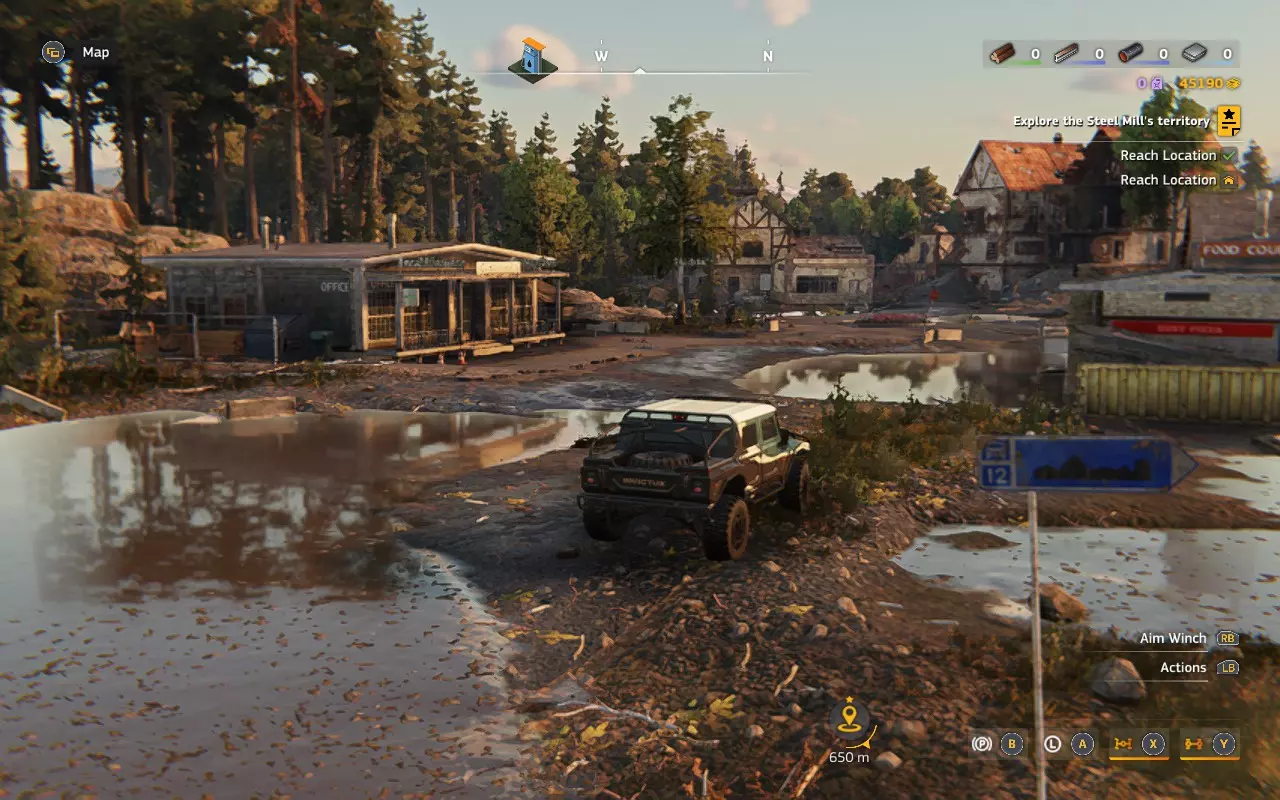
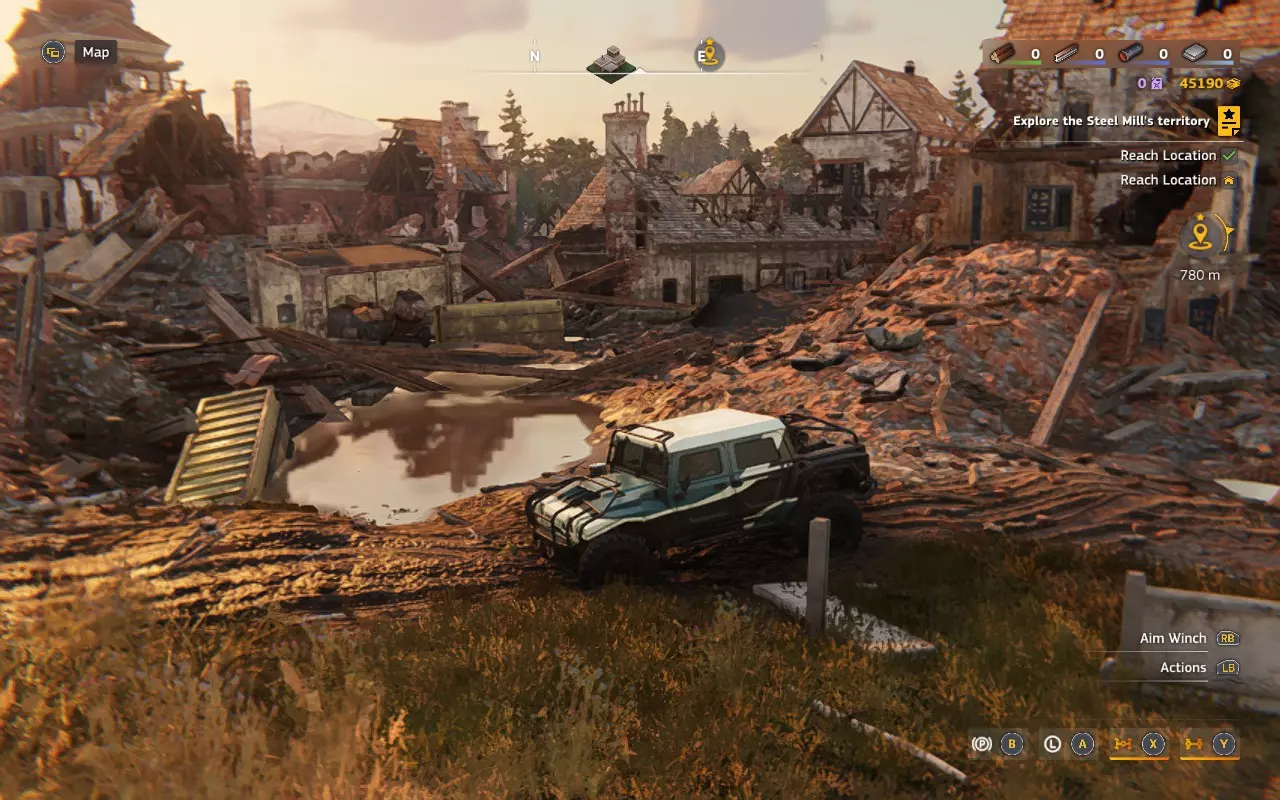
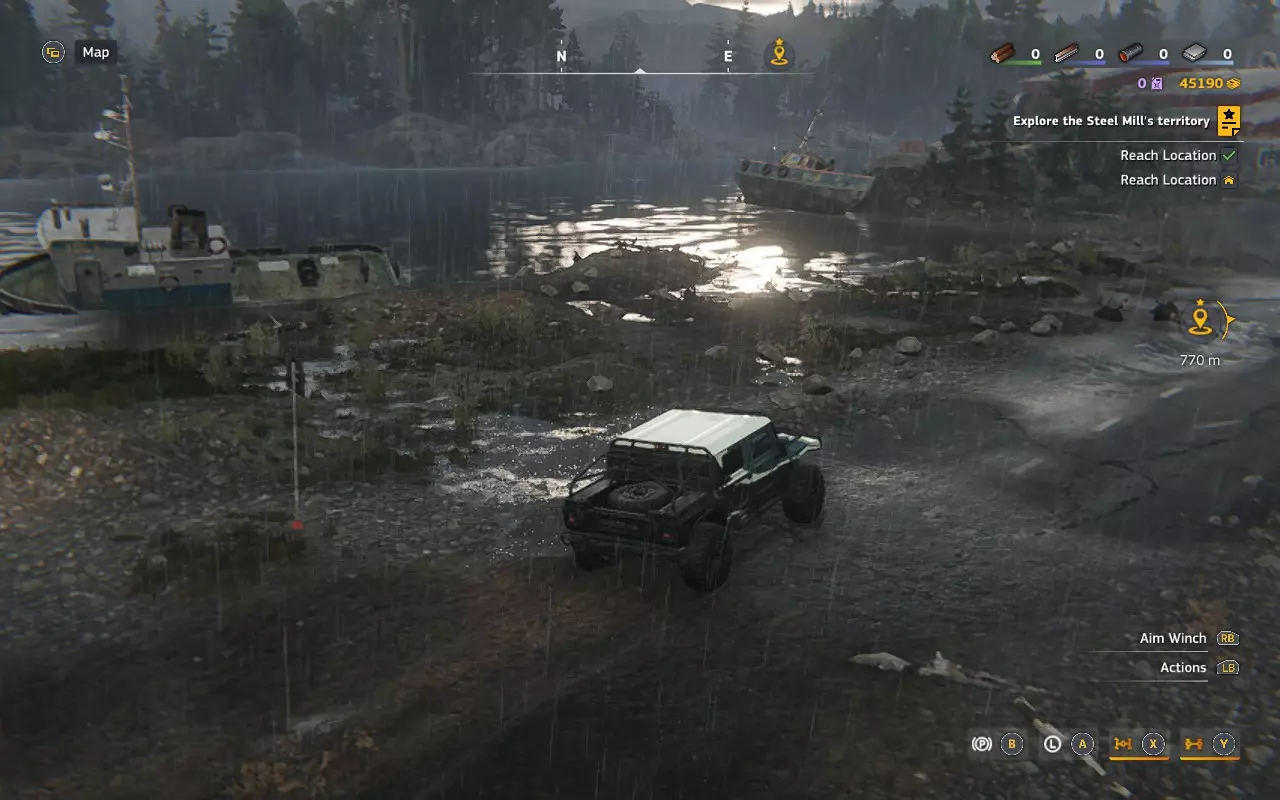
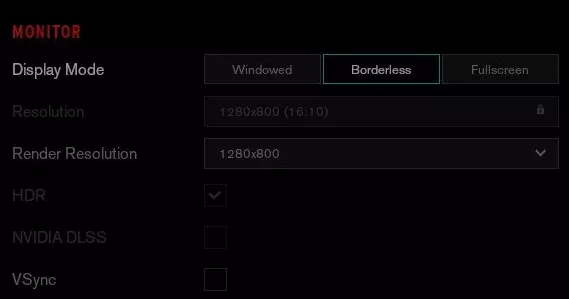
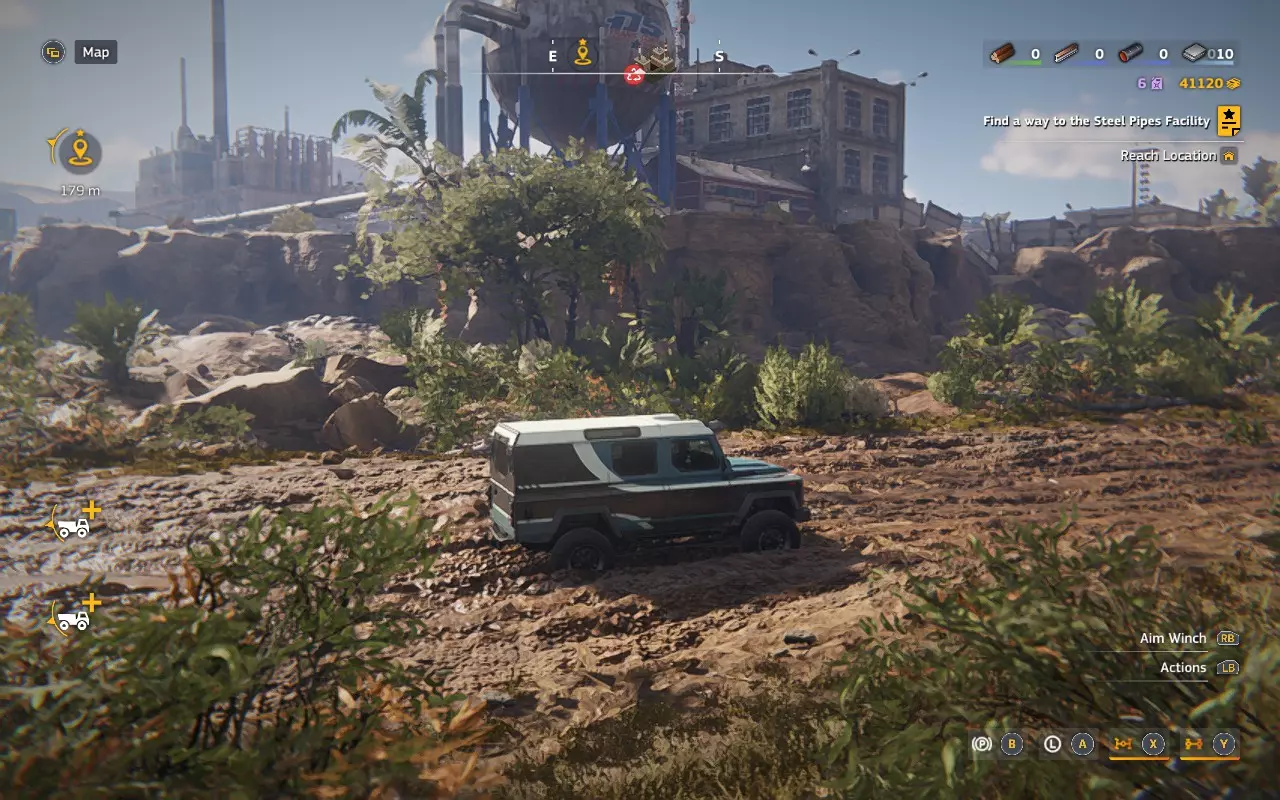
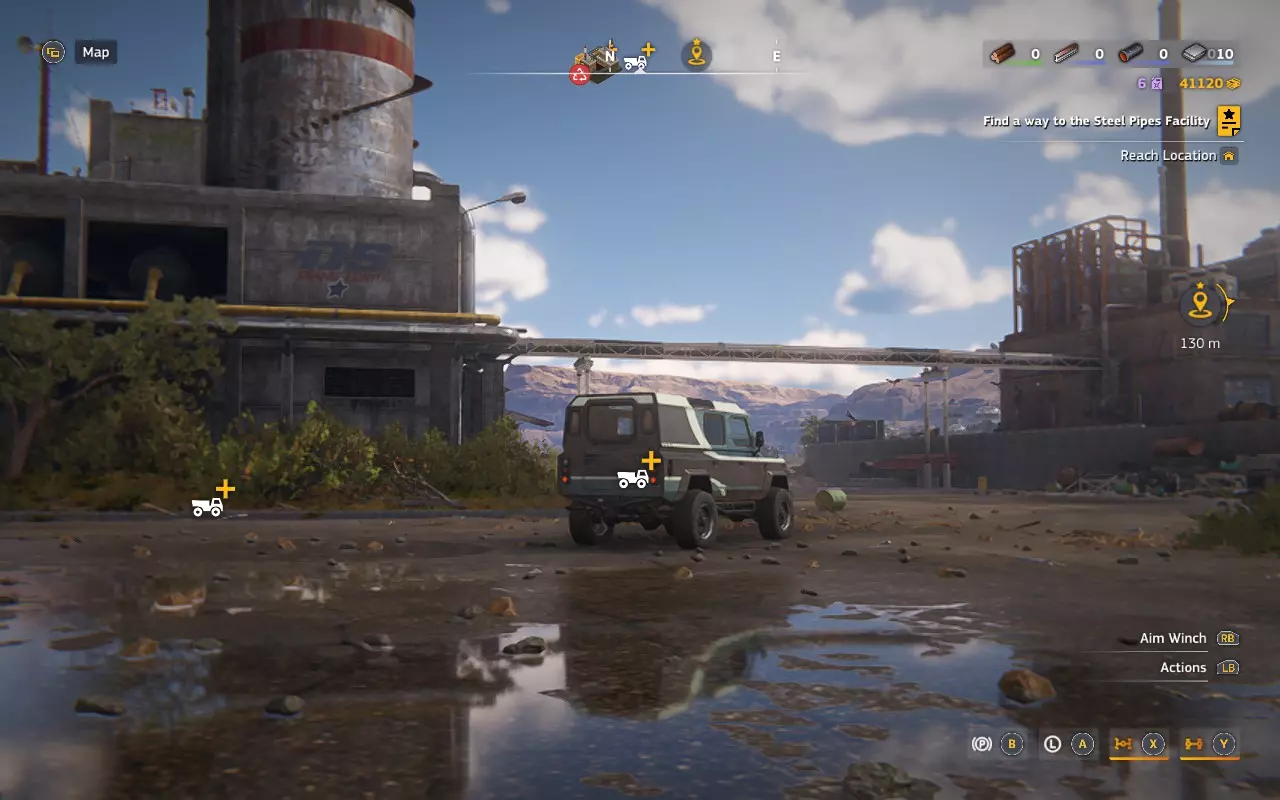
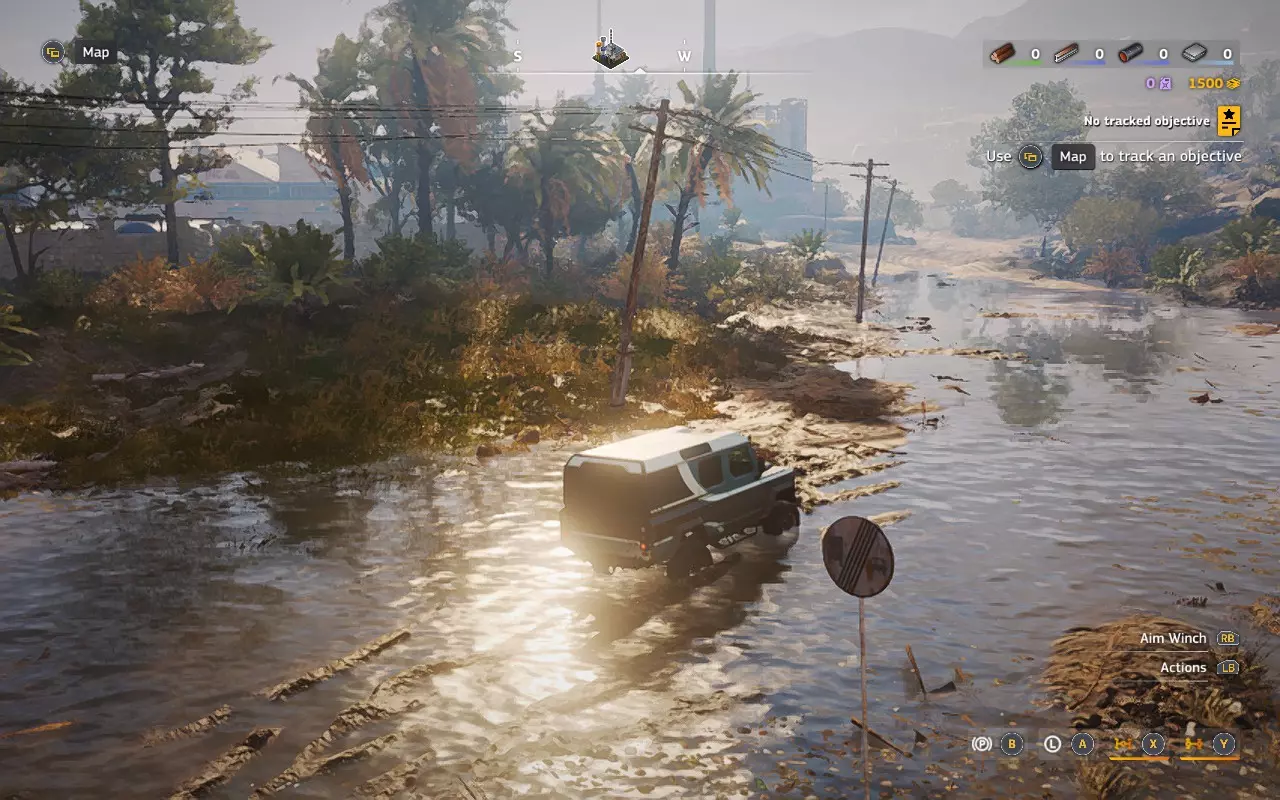
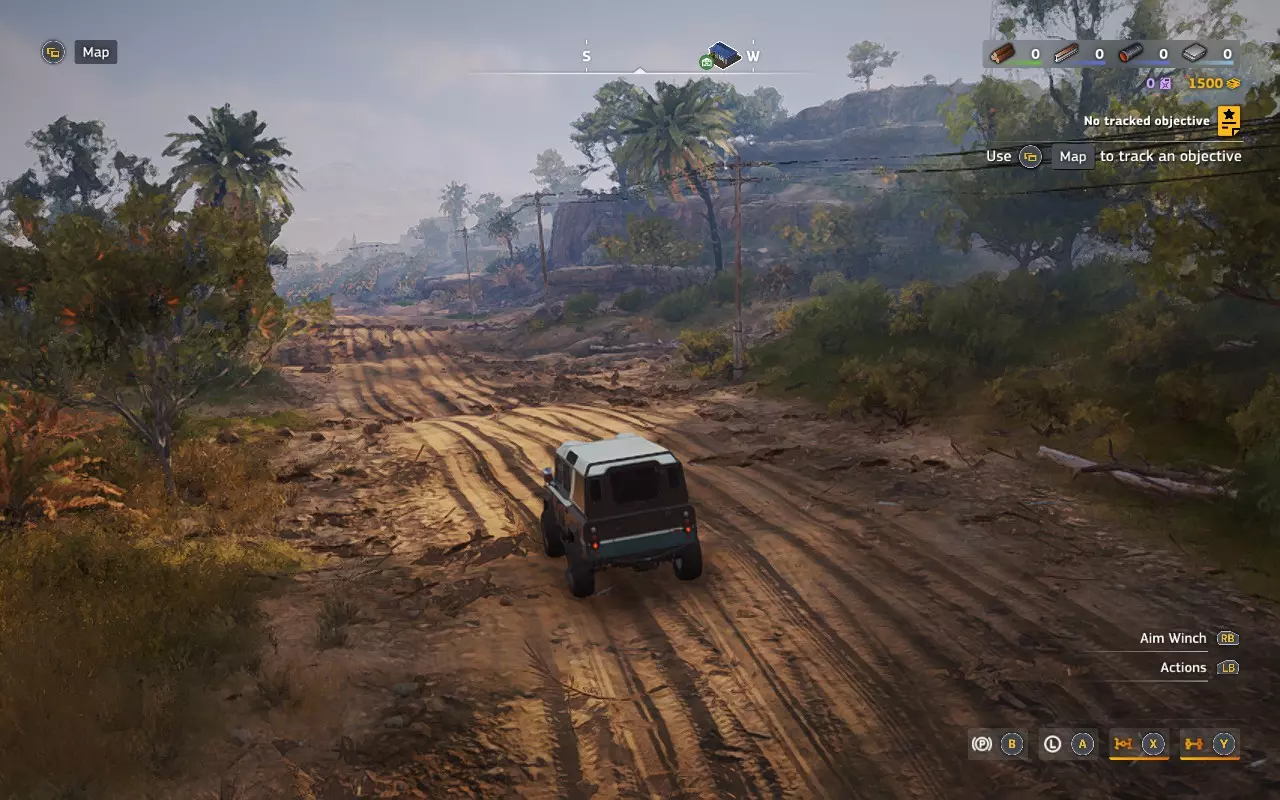
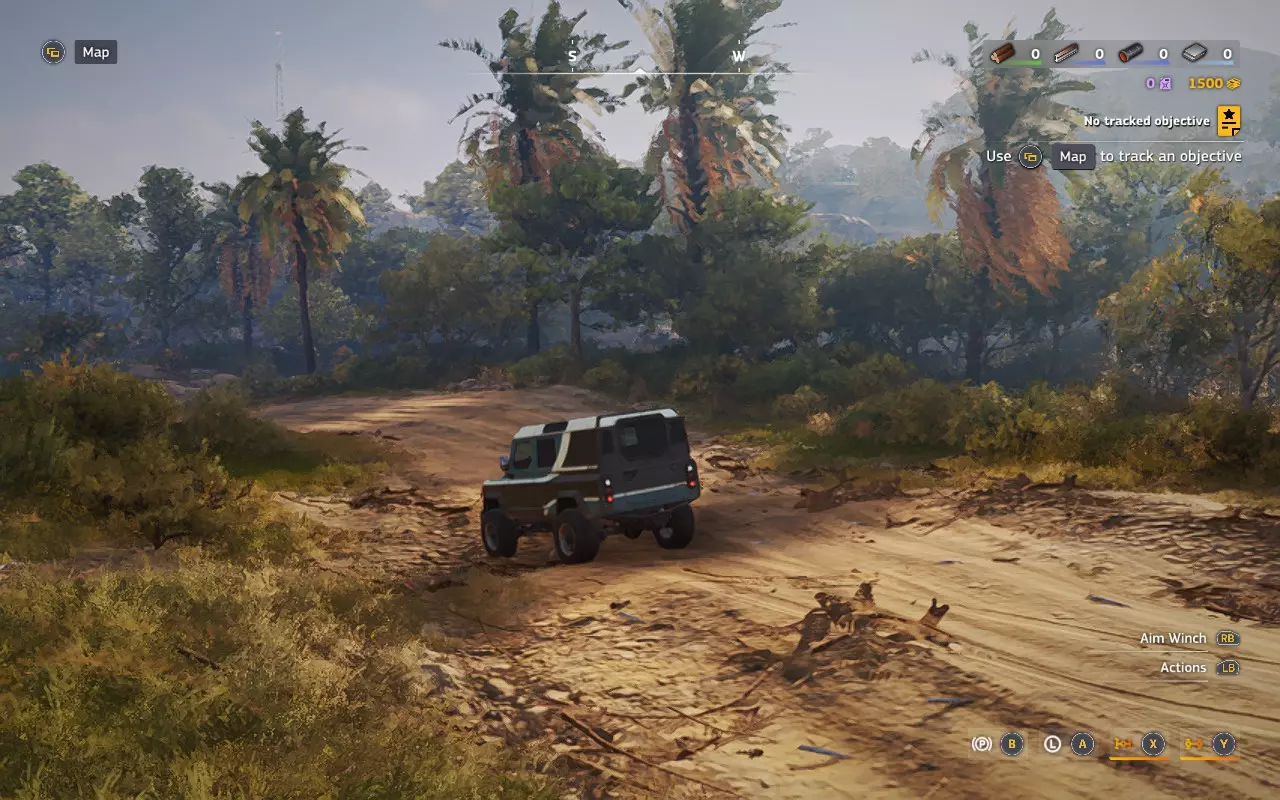
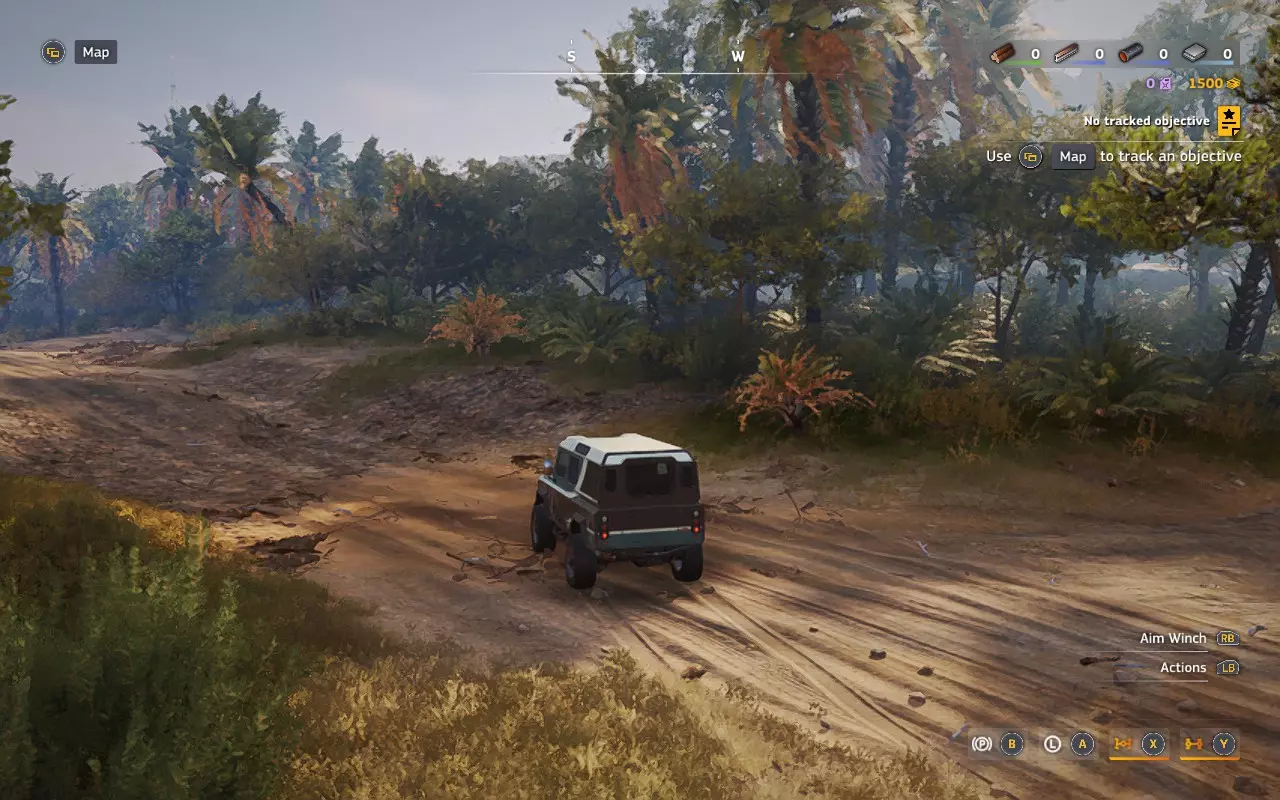
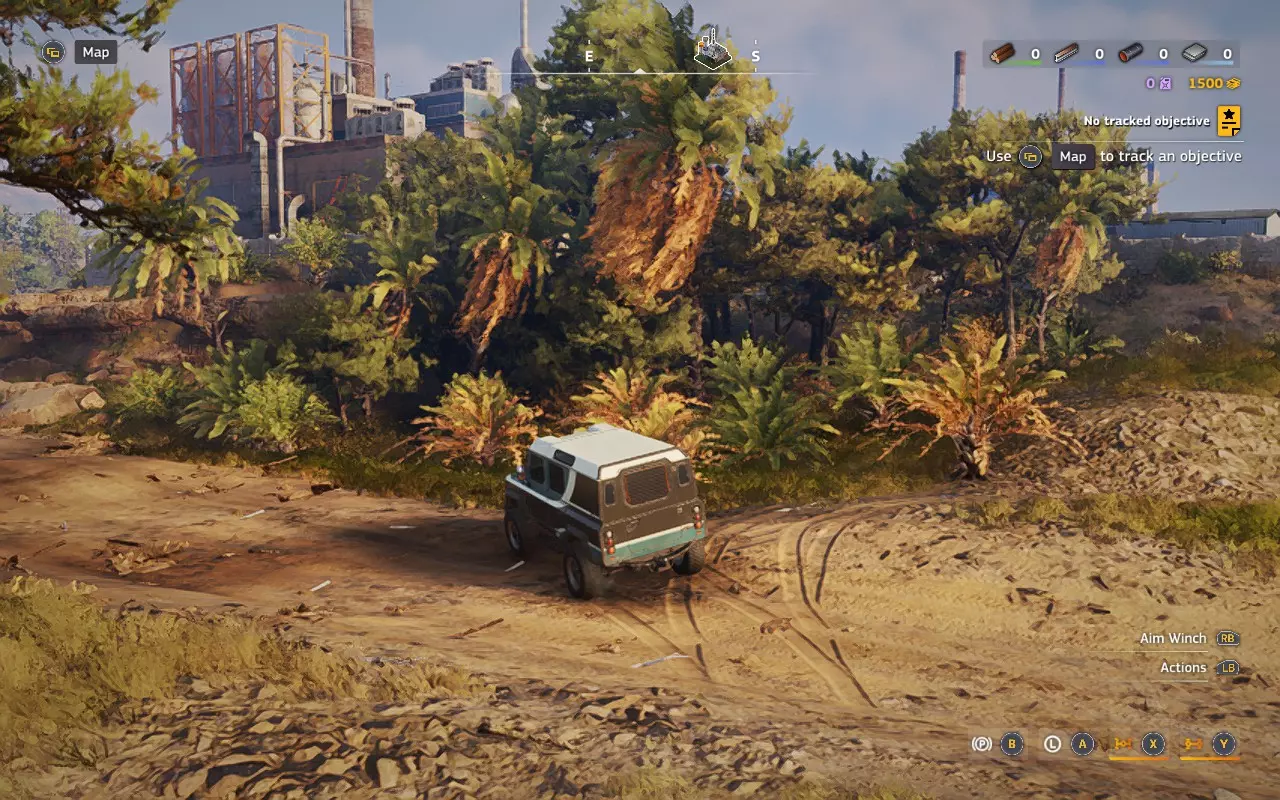
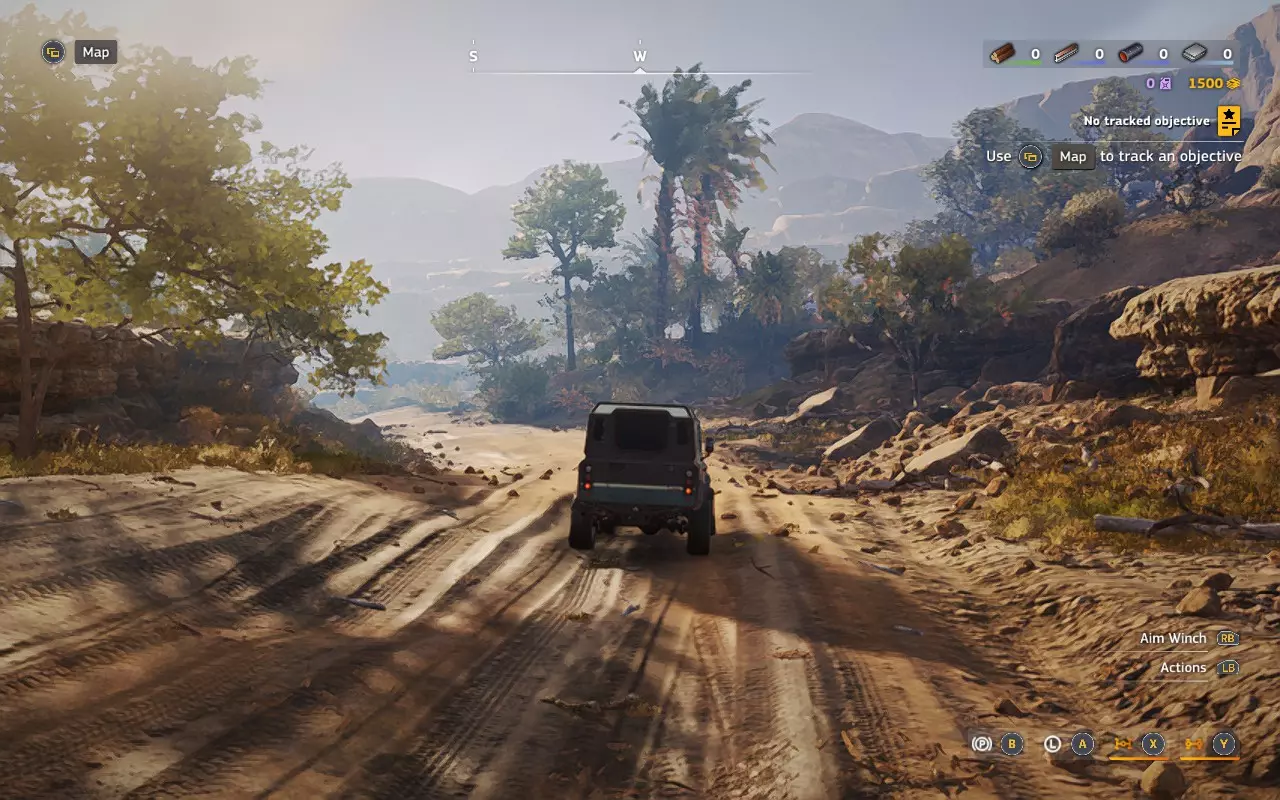
In this simple guide, I’ll share my experience on how to optimize the game for great visuals on the Steam Deck OLED (and LCD model as well). By changing a few settings, you’ll get better visual quality (not performance) on the Steam Deck screen compared to the default out-of-the-box configuration. First of all, using FSR3 Upscaling increases power usage and should dropdown FPS from 2 or 4. It gives you a crisper image (not too much), but you’ll also notice some flickering in grass and some ghosting effects. The best way is to use the game engine with a 1:1 pixel render (native) but is very GPU intensive. My recommended settings for Handheld mode with battery conservation: - Display Resolution: 960x600 (not native Steam Deck resolution!) - Render Resolution: Native (renders the game at native resolution and its amazingly sharp) - Resolution Upscaling: TAA (uses less power than FS3) - Sharpness: set to 1 (adds clarity when using TAA upscaling) - V-Sync: Off - Brightness: 0 (default) - Motion Blur Intensity: Off - FPS Limit: 30 FPS - Anisotropic Texture Filtering: 4x (enhances texture quality at a distance) - Texture Resolution: Medium (Low is too blurry; Medium is a good balance, a short freeze occurs) - Shadows: Low (The engine render very well low shadows) - Screen Space Ambient Occlusion: Default (adds shadow depth to static objects) - Screen Space Reflections: Default (without this, water reflections are fake) - Mirrors: Off (you can find it on “game” settings tab instead of “video” tab) - Effects: Low - Details: Low - Volumetric Clouds: Low - Volumetric Fog: Low While playing handheld (on battery), if you like to conserve energy you can set the TDP to 11 Watts and see but sometimes FPS dropdown to 25. During storms or heavy scenes, effects like volumetric fog and rain particles may lower FPS, but limiting TDP to 11W helps with battery life. With TDP set to 11W your Deck can go up to 16 W of total device consumption and give you more than about 3 hours of gaming. Remember that TDP set to 11W needs an high tolerance for the unstable 30 FPS render and is useful when you want to preserve battery life on the go. If you don't like the dropdown to 25 FPS on some cases try to set the TDP to 12W or 13W. My recommended settings for Handheld mode but without battery conservation: - Display Resolution: 1152x720 (not native Steam Deck resolution!) - Render Resolution: Native (renders the game at native resolution and its amazingly sharp) - Resolution Upscaling: TAA (uses less power than FS3) - Sharpness: set to 1 (adds clarity when using TAA upscaling) - V-Sync: Off - Brightness: 0 (default) - Motion Blur Intensity: Off - FPS Limit: 30 FPS - Anisotropic Texture Filtering: 4x (enhances texture quality at a distance) - Texture Resolution: Medium (Low is too blurry; Medium is a good balance, a short freeze occurs) - Shadows: Low (The engine render very well low shadows) - Screen Space Ambient Occlusion: Default (adds shadow depth to static objects) - Screen Space Reflections: Default (without this, water reflections are fake) - Mirrors: Off (you can find it on “game” settings tab instead of “video” tab) - Effects: Low - Details: Low - Volumetric Clouds: Low - Volumetric Fog: Low Remember to deactivate the TDP to erogate all the power. My recommended Settings for Docked TV Mode: - Display Resolution: 1600x900 - Render Resolution: Performance or Balanced (renders the game from 2x to 1.7x lower than native resolution) - Resolution Upscaling: FS3 - Frame Generation: OFF (Other settings same as above) I tried running the game on my external 65" TV, but the Steam Deck needs some tricks to handle this resolution well with this game engine. I recommend my above settings for best quality not only with huge TVs. The final quality is not perfect and some aliasing and artifact could occurs but at right distance from the TV the quality is not bad at all. I’m still doing more tests and waiting for optimization updates. [CHANGE LOG] 09 Nov 2025: change resolution settings for handheld mode with battery conservation and another settings without battery conservation 15 Jun 2025: Added some additional settings for TV Docked Mode when the Steam Deck is connected to a power source and can erogate all the power without take care of the battery consumption or temperature. 05 Jun 2025: Added some screenshots from Incommunicado and Sunken maps where more assets and details are present. On some high density Trees Area I noticed the FPS dropdown to 25-22 during storm but only if you are playing with TDP set to 11W. (Remember that TDP set to 11W needs an high tolerance for variable capped 30 FPS and is usefull when you want to preserve battery life on the go, otherwise turn off the TDP) 28 May 2025: Changed the "Screen Space Reflections" from High to Default due to a 1.5 patch where reflections seems to be more detailed and with less flickering. Screenshots from Precipice and Aftermath
无法识别或无法翻译,已删除。