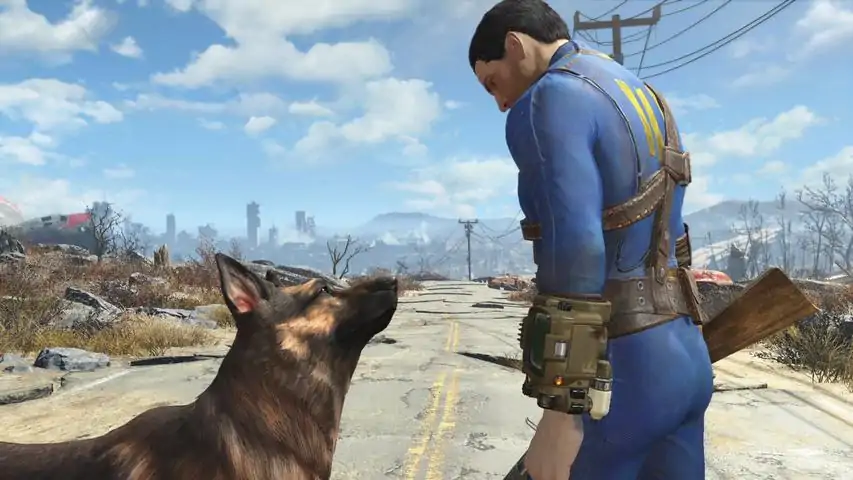

Currently this tweak guide to fallout 4 covers the following:
* changing the FOV in first person, the FOV in third person and the view model FOV.
* How to unlock the frame rate (may help if you have stuttering or you find you game capped at 30fps for some unkown reason).
* How to remove mouse acceleration.
* How to match vertical and horizontal mouse sensitivity.
* How to change sensitivity when ads.
* How to remove gamepad acceleration.
* How to add 21:9 support.
* How to add 4:3 support.
* How to skip the intro when loading the game.
* What to do if your mouse isn't visible at the menu/how to permanently disable your gamepad for Fallout 4.
* How to unlck the in game console.
* Various fixes for the invisible lockpicking bug.
* How to add SLI support.
* How to disable Depth of Field.
* How to skip the game launcher.
If you have some tweaks you want added to this guide, just let me know below and i'll test and add them. Want to share the tweaks here elsewhere, feel free to. Thankyou to all who have said/messaged thankyou to me. Also a thankyou to Kotaku, Rock Paper Shotgun, Pc Gamer and more for crediting me in there articles. A big thankyou to everyone who has contributed, in particular carboard man who has helped with numerous tweaks below. I have tried to give a thankyou and credit to everyone who has helped in making this guide thus far. If I missed you I apologise I really didn't mean to.
IMPORTANT:
If you have any issues having any of the below tweaks hold. Once you have made all the changes you want to make to the .ini files, make them read only. If that alone doesn't work when in game load up the console (for me I press ~) then type refreshini then press enter. Next press ~ and everything should be as you want.
PLEASE NOTE:
Most people reporting issues with having the FOV hold are simply not changing all the files that need to be changed, not making them read only after making the changes, or not using refreshini in the command line after changing the gun model/pipboy model fov then saving the game and loading games from then onwards. Please make sure you have done all this and double read/checked the changes before asking for more help.I am happy to help, but the number of people asking is quite high and for most the answer is already here in this guide. :)
Also Please Note:
All these tweaks are used at your own behest, if they cause any problems I do not take any responsibility for that. If you are not happy with that, simply don't use the below tweaks. :)
Fallout 76 "Warning"
Whilst I hope this proves to be unnecessary I feel the need to suggest that people wait and see regarding Fallout 76. This is something many recommend in general, but in this case I feel it is of particular importance. Fallout 76 will hopefully turn out fantastic and have a high quality pc release. It however remains important to keep in the mind the number of issues Fallout 4 has had since launch that have never been fixed along with the man missing options one would expect from a pc release. This includes basic things such as an fov slider, raw input, to even something as basic as a brightness slider and so on.
The is especially a problem for Fallout 76 as it is entirely possible that the game will have many of the same issues that vanilla Fallout 4 still has to this very day. But as a result of being a multiplayer only game, the end user may not be able to fix the many issues the game may have, as we have been able to with many of the issues Fallout 4 has. Or one may risk a ban for modifying there files. We simply don't know at this point.
To reiterate, I very much so hope that Fallout 76 has a fantastic pc release. I would however caution those who may still stumble upon this guide to consider Bethesdas lack of support when it comes to pc and recommending waiting to see if Fallout 76 on pc is worth your time and money.
How to change the game fov.
Unlike how you may have changed the fov in Skyrim, Fallout 4 requires a little more work. Note it requies changes to three files, there are two files called Fallout4Prefs.ini in two different locations and one called Fallout4.ini, all three need to be changed as below. Please not whilst the fov changes don't have to be a multiple of 10 if you have issues with the low working try making it a multiple of 10 as some have reported this helping.
Option One:
Firstly go to your Fallout4.ini (loacted at C: Users [name] Documents My Games Fallout4 ) and under [Display] put the below:
fDefaultWorldFOV=XX
fDefault1stPersonFOV=YY
* where XX is you desired fov in third person.
* where YY is the desired fov in first person.
I feel 90 is what will probably be best for most, but tweak away. :)
Your FOV should now be changed for both first and third person. :)
Note the above is all that should be needed, however some have reported the fov reseting at random times with just the above, if you you find for whatever reason the settings don't hold also try adding the below:
Next go to the Fallout4Prefs.ini and do the same directory as above (C: Users [name] Documents My Games Fallout4 ), under [Display] put:
fDefaultWorldFOV=XX
fDefault1stPersonFOV=YY
* where XX is you desired fov in third person.
* where YY is the desired fov in first person.
I feel 90 is what will probably be best for most, but tweak away. :)
Next go to where you installed steam then open steamapps common Fallout 4 Fallout4 (a folder called Fallout 4 is in another folder called Fallout4, how many levels deep does this go ;) ). Next open the Fallout4Prefs.ini here and once again under [Display] add the below:
fDefaultWorldFOV=XX
fDefault1stPersonFOV=YY
* where XX is you desired fov in third person.
* where YY is the desired fov in first person.
I feel 90 is what will probably be best for most, but tweak away. :)
Default game fov (80):游戏视野设置为110时若要更改你的视角模型视野(即枪械模型和哔哔小子的显示大小),请按以下步骤操作。
如果你觉得哔哔小子显示太小,按下【~】键,然后输入【fov XX】,其中XX为数值。若想让其在屏幕上显示更大,就输入较小的数值,反之则输入较大的数值。这和调整视野一样需要反复尝试,以找到你喜欢的效果。接下来输入【refreshini】,这样游戏就不会恢复默认的80视野。然后按下【~】键保存游戏,之后就可以正常进行游戏了。
默认游戏视野(80)和视角模型视野(80):默认游戏视野(80)和视图模型视野设为110游戏视野设置为110,视图模型视野设置为110时:Personally I like all my fov options being set to 90. But this is something you will have to play around with yourself to know what you like best.
Unlock Frame Rate (This may also help if you are having microstutter).
Some such as myself by default are finding the game locked to 30fps, which is bizzare as for other it appears to be locked at 60. Likewise this has removed some miucrostutter some have been reporting. The below is how to unlock your frame rate if you have this 30fps cap issue like me, or want to go beyond 60. Note: I wouldn't recommend unlocking it above 60 based on what happend in skyrim when you did (the game became unstable).
To unlock frame rate open Fallout4Pref.ini (located at C: Users [name] Documents My Games Fallout4 ).
Search for the line iPresentInterval=1, and change it to iPresentInterval=0
Next to use vsync got to the nvidia control panel or amd equivelant and apply vysnc here to avoid nasty screen tearing, as the above completely removes any frame rate cap.
[edit: another possibly simpler solution that may work for you is to play in a bordeless window mode.] A thankyou to renegade_sock for posting this last piece of info below.
Remove Mouse Smoothing
UPDATED:
Mouse smoothing is sadly present by default in Fallout 4. To remove it we simply open Fallout4.ini (C: Users [name] Documents My Games Fallout4 ) and under [Controls] add:
bMouseAcceleration=0
Next go to the second Fallout4.ini located at wherever you installed steam then open steamapps common Fallout 4 Fallout4, and under [Controls] once again add:
bMouseAcceleration=0
Note: this will not remove it from menus or similar, but it removes it from 'within' the game. Plase note adding bForceIgnoreSmoothness=1, will simply change your lighting quality to medium and does not seem to effect your mouse like it did in Skyrim.
Vertical and Horizontal Mouse Movement Different
If you do not like that the horizontal and vertical mouse movement is different in Fallout 4 there is a quick and easy way to fix it. Simply open Fallout4.ini (located in C: Users [name] Documents My Games Fallout4 ) and change the below:
fMouseHeadingYScale=.021
to
fMouseHeadingYScale=XXXX
Where XXXX replace with:
.03738 if you have a 16:9 monitor.
.042 if you have a 21:9 monitor.
.028 if you have a 4:3 monitor.
.0336 if you have a 16:10 monitor.
For any other aspect ratio, simply multiply your aspect ratio by .021.
How to change ADS sensitivity
To change your sensitivity when you are aiming down sites in game (ads) firstly open Falout4Prefs.ini (loacted at C: Users [name] Documents My Games Fallout4 ) and under [Main] put the below:
fIronSightsFOVRotateMult=X.XX
where X.XX is you're desired sensitivity when aiming down sights.
If you are playing in 16:9 the value you want to put for XX.XX is: 2.136363636
I have not yet confirmed that this is the rate number for other aspect ratios.
Next do the same for the Fallout4Prefs.ini which is located where you installed steam then open steamapps common Fallout 4 Fallout 4
A thankyou for Jwam to bringing this to my attention. If you have time and want to show your appreciation head over to his guide and give him a thankyou/like or similar. :)
http://steamcommunity.com/sharedfiles/filedetails/?id=552252483
Remove controller acceleration
Dislike controller acceleration and want it gone. Doing so is simple enough and is the same as it was in Skyrim. Simply go to your Fallout4.ini (located in C: Users [name] Documents My Games Fallout4 ), then scroll down to [Controls] and add the below:
fMouseHeadingXScale=.0125
fMouseHeadingYScale=.02225
fLookGraphY4=0.1000
fLookGraphX4=0.1000
fLookGraphY3=0.1000
fLookGraphX3=0.1000
fLookGraphY2=0.1000
fLookGraphX2=0.1000
fLookGraphY1=0.1000
fLookGraphX1=0.1000
iNumLookGraphSettings=4
fMoveGraphY3=0.1000
fMoveGraphX3=0.1000
fMoveGraphY2=0.1000
fMoveGraphX2=0.1000
fMoveGraphY1=0.1000
fMoveGraphX1=0.1000
iNumMoveGraphSettings=3
fHeadingAxisDeadzone=0.0000
fMovementAxisDeadzone=0.0000
fMaxLookRampUpDelta=0.1300
fMaxMoveRampDownDelta=500.0000
fFreezeDirectionDefaultSpeedThreshold=100.0000
fFreezeDirectionDefaultAngleThreshold=100.0000
bFreezeDirectionOnLargeDelta=1
How to add 21:9 (ultrawide) support.
To have this game run in 21:9 without issue simply open Fallout4Prefs.ini in your documents (C: Users [name] Documents My Games Fallout4 ), and change the following lines to how they are below:
For borderless windowed mode:
bTopMostWindow=1
bMaximizeWindow=1
bBorderless=1
bFull Screen=0
iSize H=XXXX
iSize W=YYYY
Where XXXX is whatever your vertical resolution is aand YYYY is whatever your horizontal resolution is.
For fullscreen mode:
bTopMostWindow=0
bMaximizeWindow=0
bBorderless=0
bFull Screen=1
iSize H=1080
iSize W=2560
Where XXXX is whatever your vertical resolution is aand YYYY is whatever your horizontal resolution is.
Next do the same for the second Fallout4Prefs.ini located in wherever you insalled steam then steamapps common Fallout 4 Fallout 4.
Currently the hud will stretch, another person is likely to soon to release a fix for the hud.
If you are finding your image has this odd dark rectangle bug in your Fallout4Pref.ini file change:
bComputeShaderDeferredTiledLighting=1
to
bComputeShaderDeferredTiledLighting=0
An example of this odd dark rectangle bug is as below:超宽屏界面的全部宽阔效果如下感谢John Kimble提供的这两张超宽屏调整效果的图片。
如何添加4:3分辨率支持:
注意:此修复方法本质上与21:9分辨率的修复相同。为清晰起见,特此单独说明。
若要让游戏以4:3分辨率运行,只需打开文档中的Fallout4Prefs.ini文件(路径:C: Users [用户名] Documents My Games Fallout4),并将以下行修改为如下所示:
对于无边框窗口模式:
bTopMostWindow=1
bMaximizeWindow=1
bBorderless=1
bFull Screen=0
iSize H=XXXX
iSize W=YYYY
其中XXXX为您的垂直分辨率,YYYY为您的水平分辨率。全屏模式设置:
bTopMostWindow=0
bMaximizeWindow=0
bBorderless=0
bFull Screen=1
iSize H=XXXX(XXXX为垂直分辨率数值)
iSize W=YYYY(YYYY为水平分辨率数值)
接下来,对位于Steam安装目录下的第二个Fallout4Prefs.ini文件执行相同操作,路径通常为Steam/steamapps/common/Fallout 4/Fallout 4。
目前,界面显示可能无法正常工作,但这是一个良好的开端,希望后续能修复界面问题。
游戏加载时跳过开场动画的方法:
方法一:
1. 打开路径C:Users[name]DocumentsMy GamesFallout4下的Fallout4.ini文件
2. 在[General]部分添加以下内容:
SIntroSequence=0
fChancesToPlayAlternateIntro=0
uMainMenuDelayBeforeAllowSkip=0
完成后,开场视频将不再播放。如何跳过《辐射4》的启动器
跳过游戏启动器的过程相当简单。只需前往《辐射4》的安装目录(通常是在Steam的安装路径下,打开steamapps common Fallout 4文件夹)。在该文件夹中,你会看到多个文件和文件夹,其中应该有一个名为Fallout4.exe的文件和另一个名为Fallout4Launcher.exe的文件。
首先,将Fallout4Launcher.exe重命名为Fallout4LauncherOriginal.exe(也可以重命名为其他名称,但这样更清晰)。
接下来,将Fallout4.exe重命名为Fallout4Launcher.exe。
现在,当你在Steam中点击【开始游戏】时,游戏将直接进入,跳过启动器。
菜单中鼠标不可见
最常见的解决方法是:如果你插着游戏手柄,请拔掉它。如果你确定不想使用手柄,并且不想每次启动游戏时都拔掉手柄,以下方法会有所帮助。同样,如果你没有连接手柄,但在菜单中没有光标,游戏可能误以为你连接了手柄,此时按以下方法禁用手柄也会有所帮助。
解决方法很简单:打开Fallout4Prefs.ini文件(位于C: Users [你的用户名] Documents My Games Fallout4),然后向下滚动找到:bGamepadEnable=1,将其改为:bGamepadEnable=0。感谢D4rkKr1s在论坛上发布此修复方法。
添加SLI支持
请注意:此SLI修复方法可能并非对所有人都有效,因此如果该方法无效,你可能需要查看其他解决方案,看是否有适合你的。
遗憾的是,《辐射4》默认情况下完全不支持SLI。幸运的是,有一个解决方法。首先,你需要下载Nvidia Inspector。打开该程序后,点击下方红框标注的按钮。接下来在下方所示的红框区域中搜索【辐射4】。接下来按照红框中所示进行以下更改(注意SLI部分是我在下方找到的,并且我已将两部分编辑合并),然后点击应用更改。就是这样,SLI 应该已在《辐射4》中激活。
解锁控制台
部分用户反馈默认情况下控制台无法使用(例如按~键无反应)。如果你的控制台能正常使用,则无需进行以下操作。要解决此问题,只需在 Windows 中打开控制面板,然后进入语言设置,将键盘布局设为美式英语。
另一个你可以尝试的解决方法是使用@键,不过由于我只有美式键盘,无法对此进行测试。感谢 Tharsghaard 提供此调整方法。
如果你不想使用美式键盘布局,这并非长久之计,但目前是有效的。
隐形开锁 bug
如果你遇到隐形开锁 bug,解决方法很简单:打开 Fallout4Prefs。在你的文档(C: Users [用户名] Documents My Games Fallout4)中找到ini文件,在[Display]部分修改:
iSize W=XXXX
iSize H=YYYY
改为
iSize W=XXXX-1
iSize H=YYYY-1
例如:
iSize W=1920
iSize H=1080
应改为
iSize W=1919
iSize H=1079
接下来对第二个Fallout4Prefs.ini执行相同操作,该文件位于你安装Steam的目录下,路径为steamapps common Fallout 4 Fallout 4。
这是一个在解除帧率锁定且未开启垂直同步时似乎相当常见的bug。感谢Vhailor发现了这个解决方法。
注意:许多人报告说在4:3屏幕上游玩时此方法无法解决问题。遗憾的是,由于我不再拥有或无法访问此类显示器,无法进一步测试。不过有部分玩家反馈,降低分辨率和/或提高视野范围可能会有所帮助(后一种方法本人尚未证实,因为我无法进行相关操作)。
5:4屏幕锁匠小游戏修复方法:
1. 先按正常方式设置分辨率,然后打开Fallout4.ini文件(位于C: Users [用户名] Documents My Games Fallout4),在[Interface]部分下添加:fLockPositionY=100.0000
2. 要修复此分辨率下动力装甲的相关问题,请在同一文件的[Interface]部分下再次添加:fUIPowerArmorGeometry_TranslateZ=-18.5000,fUIPowerArmorGeometry_TranslateY=460.0000
移除景深效果:
要移除景深效果,请加载Fallout4Prefs。ini文件(位于C: Users [用户名] Documents My Games Fallout4),在[Imagespace]部分下将:
bDoDepthOfField=1
bScreenSpaceBokeh=1
修改为:
bDoDepthOfField=0
bScreenSpaceBokeh=0
这样,你的游戏中就应该不再有景深效果了。
景深开启:景深已禁用我的其他指南
想在《辐射4》中截图?可以看看我写的《辐射4》截图指南。
想解决《上古卷轴5:天际》VR版的模糊问题?本指南或许能帮到你。
其他实用信息
许多玩家发现,适用于《辐射3》的性能优化方法同样适用于《辐射4》(考虑到两者本质上使用相同的引擎骨架,只是《辐射4》进行了重大更新,这并不奇怪)。你可以尝试相关性能优化信息来提升游戏表现。