


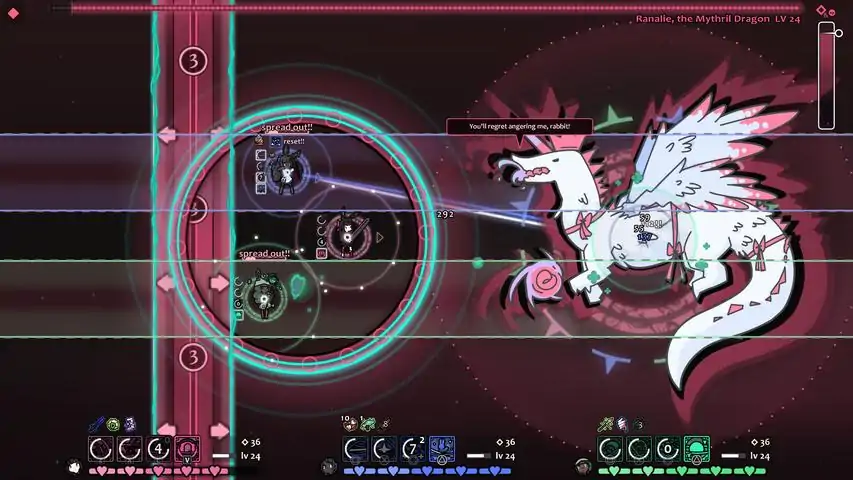

本地合作/使用多个键盘的Steam远程同乐
[UPDATED MAY 27] steam play together can't handle everyone's keyboards separately. but you don't need to play with controller or mess with keybinds! the guide EDIT MAY 27: updated the preset to actually reflect the default controls (i uh. hadn't actually checked beforehand and the attack order was incorrect. also added missing binds (your friends don't depend on you to open the shop or choose trinkets anymore, though you still have to do it all together. since you're playing on the same screen.) ok so the thing with local multiplayer / steam play together is that it's like you're all sitting at the same computer. and there's no real way to handle multiple keyboards at once like you can with game controllers. so what we gotta do is fool the host computer into thinking people are joining in with controllers (by having them fool their own computers into thinking they plugged a controller in). keyboard splitter[github.com] is an xbox controller emulator. it's windows only, but moltengamepad[github.com] (which i haven't tested myself since my friends are on windows) seems to be the linux alternative. this guide is just for keyboard splitter. the host doesn't need to emulate a controller, only the other players. so uh yeah the keyboard splitter github page is pretty straightforward i think, there's more info on it but you just download from the releases page then run the .exe. each person who'll be joining in on keyboard will need it running, so have them set up ahead of time since installation requires a reboot! so once the program is installed, what the people joining need to do is: open the program set slots count to 1 (you just need a single controller) OPTIONAL: check "block chosen keyboard" (this makes it so the keyboard isn't also working as an actual keyboard; use it to avoid accidental keypresses — though it's probably fine to be unblocked with this template) choose the proper preset start the program join the game and play normally (you'll need to input your name through the arrow keys instead of typing though) the host doesn't need to do anything special really. that's all! r&s preset for keyboard splitter i used a touhou preset i grabbed from this video as a basis. just copy and paste this into notepad and save it as an .xml so you can import it into keboard splitter. NOTE 1: this preset is for movement with the arrow keys only! i'm sure the mouse can be bound to the analogue stick no problem (check the other default presets?). make sure to play with mouse unblocked lest you lose control of your computer (you can always CTRL + ALT + DEL to stop emulation though) NOTE 2: it's following the game's default control scheme, except confirm / cancel are shifted to X / C respectively (but you can rebind that in-game). if you prefer using different keys (like WASD + HJKL or whatever) you can change that on keyboard splitter. sorry if that sounds convoluted but [keyboard splitter = what keys are being used as the controller] and [in-game = which of those keys do what thing]. the former comes before the latter. <?xml version="1.0" encoding="utf-16"?> <preset_data xmlns:xsi="http://www.w3.org/2001/XMLSchema-instance" xmlns:xsd="http://www.w3.org/2001/XMLSchema"> <preset Name="Rabbit and Steel"> <button ID="Start">Enter</button> <button ID="Back">None</button> <button ID="LeftThumb">None</button> <button ID="RightThumb">None</button> <button ID="LeftBumper">LeftShift</button> <button ID="RightBumper">Space</button> <button ID="Guide">None</button> <button ID="A">X</button> <button ID="B">C</button> <button ID="X">Z</button> <button ID="Y">V</button> <trigger ID="LeftTrigger">R</trigger> <trigger ID="RightTrigger">E</trigger> <axis ID="X" Position="Min">Left</axis> <axis ID="X" Position="Max">Right</axis> <axis ID="Y" Position="Min">Down</axis> <axis ID="Y" Position="Max">Up</axis> <axis ID="Rx" Position="Min">None</axis> <axis ID="Rx" Position="Max">None</axis> <axis ID="Ry" Position="Min">None</axis> <axis ID="Ry" Position="Max">None</axis> <dpad ID="Up">None</dpad> <dpad ID="Down">None</dpad> <dpad ID="Left">None</dpad> <dpad ID="Right">None</dpad> </preset> </preset_data>
本地合作/使用多个键盘的Steam远程同乐
2026-02-13 09:03:43 发布在  Rabbit and Steel

说点好听的...
收藏
0
0