换一换
换一换 


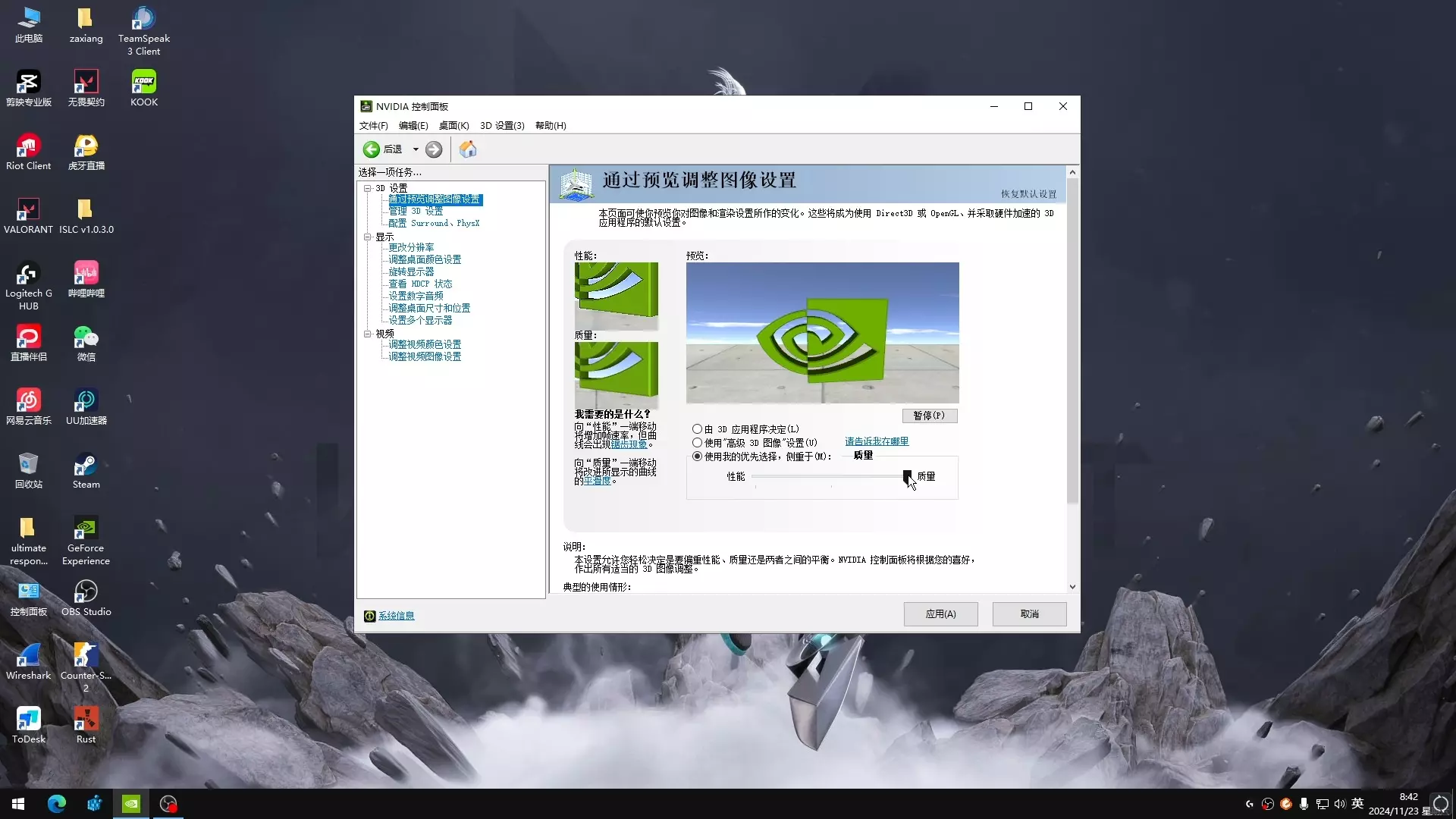
《VRChat》优化指南:提升游戏运行表现的注意事项 本指南适用于Windows操作系统。若使用其他操作系统,建议自行探索优化方法。 注:本指南仅针对AMD和NVIDIA显卡,暂不涉及Intel显卡相关优化。 一、避免不必要的操作 1. 不要随意调整显卡设置:包括NVIDIA控制面板、NVIDIA Profile Inspector、AMD Software: Adrenalin Edition、AMD Radeon Software等工具中的参数。 2. 不要运行系统非必需的额外软件:例如Park Control、Process Lasso、VR Performance Toolkit(该工具会添加额外特效,建议在未过滤画面效果达到满意前,避免使用后期处理软件)等。 原因:- 默认的GPU设置已针对游戏进行优化,能够在不影响性能的前提下,以最佳画质实现最快运行速度。对于台式电脑,你可以使用低延迟等设置,但对于VR性能而言,没有任何设置能显著提升性能,无需纠结。 - 额外软件会占用少量系统资源,而这些资源本可用于游戏运行。部分软件可能毫无用处,例如【Park Control】这类软件,它们只是提供一个界面让你查看系统在没有额外软件时的性能表现。 - 不过【Process Lasso】是有用的——如果你需要,可以使用它,它可能会提升游戏性能,也可能不会。没有比利用现有系统设置更能提升游戏性能的明确软件解决方案。 2. CPU电源计划与效率 在任何Windows操作系统中,进入控制面板并选择电源计划,操作步骤如下: - 当“查看方式”为“类别”时: + 系统和安全; + 电源选项。 - 当“查看方式”为“小图标/大图标”时: + 电源选项 我们需要系统在需要时以最大功率运行,而非始终保持最大功率——因为这非常低效,还可能导致电费毫无必要地小幅增加: + 选择并切换到你想要使用的电源计划(推荐平衡),然后点击其旁边的“更改计划设置”; + 更改高级电源设置;
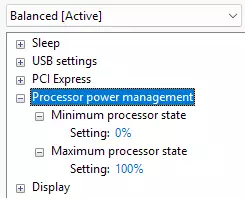
+ Here, change the Minimum processor state and Maximum processor state under Processor power management: + + Set Minimum processor state to any desired minimum amount of % that your processor should use while idle, it should always be 0% to save you some power consumption; + + Set Maximum process state to 100%, so your CPU can be utilized to its maximum potential when needed, when it's set to 100% - CPUs can utilize their boost clock speeds which may be an increase that improves performance greatly. What is "CPU Core Parking"?You do not need to change anything else. It's a feature to have your CPU cores, aka its parts, rest while they are not needed, to be more efficient and save power. It does not cause any performance issues. When your CPU is needed (even a little bit) - the needed cores will stay unparked, aka working, and in the case of VRChat or any game, - completely unparked for the entire duration of the playtime. That's it, that's all that was needed to get your CPU working at its max potential.If your power plan changes seemingly at random, you have extra software or game forcing your system to switch to a different power plan, make it not do that, figure it out. (It may be Process Lasso, it always has a special power plan that it forces you onto when playing a game or almost at random, it annoyed me enough) 3. Windows settings and Ethernet woes - Enable Game Mode on your Windows system, it may improve performance. You'd have to try playing with it disabled and enabled, leave it on if there's no perceptible difference. - Try disabling/enabling Hardware-accelerated GPU scheduling by navigating to System > Display > Graphic Settings or within "Change default graphics settings" on Windows 11. This is suggested by a VRChat Help article as one of a few solutions. It is helpful.[help.vrchat.com] - I personally have connection issues, there's a large delay for any and all downloads, this may be caused by DNS poisoning, switching to Google's or Cloudflare's public DNS servers helps within network settings. (My country's decisions on how to handle internet and international access have been very poor, I am now forced to use Cloudflare's WARP VPN solution at all times through an Amnezia VPN client, which proves to be consistently functional) There's nothing else that needs changing, can't gather anything else from memory. 4. Streamers and Virtual Desktop Do not buy Virtual Desktop unless you want great desktop functionality and the fancy Virtual Desktop UI. There's no difference in performance between Virtual Desktop or any other VR wired/wireless streamer you could be using for free. If you do want to try something else, try ALVR[github.com], it is decent. If you want personal test results: - Virtual Desktop and Pico Connect side by side in the same game of VTOL VR - there were no effective performance differences, they performed about the same, which puts the conclusion in favor of Pico Connect due to it being actually free and performing better with Pico devices; - ALVR and Pico Connect performed about the same too, ALVR has lower perceived latency, ALVR does have no guardrails for when the frames are lost, - where Pico Connect does a good amount of interpolation on the client side, but ALVR has more options which are good and bad. - Steam Link is a good streamer. I have absolutely no idea what is going on on the Quest side of streamers, but it seems to be a bunch of misinformation (aka LIES), try using everything that you can find and get for free, - do not splurge out your money on what you do not need. (do your research) 5. GPU Settings and AMD GPUs Check if your GPU drivers need updating or changing. Latest drivers are always recommended, I do not recommend changing much, especially drivers, unless you have real problems. - If you do not use an AMD GPU to play VRChat, there's nothing more for you to change, you can change settings of Nvidia Control Panel and AMD Software, etc, but most or all of it is only applicable for desktop play and use, - VR play may and most likely will neglect your GPU setting changes. - If you use an AMD GPU, there's a launch option you should pay attention to:[docs.vrchat.com] --disable-hw-video-decoding, --enable-hw-video-decoding Forces video decoding to be done in software or hardware. On AMD graphics cards, the default is "software" because there have been issues in the past. You can use the "enable" variant to force hardware decoding. [...] Warning: Using the "software" option will utilize your CPU to decode video, which can impact your performance. [...] - Try using the launch option --enable-hw-video-decoding on your game for VR play, it might improve performance, test yourself for any stutters and stability. 6. VRChat Settings This is here just to remind you that VRChat settings exist, and so do you. The VRChat quality settings are very simple and self-explanatory, they all have a performance, accuracy and quality effect on the world and avatars. Here are the basic recommendations and observations from me: - Antialiasing: atleast X2 gives a very pleasant image for avatars and their edges, although playing without antialiasing with streamer-included post-processing anti-aliasing effects works too, playing on even higher resolution also negates aliasing - Pixel Light Count: atleast Low (else there'll be no lights by avatars and worlds) When Shadows are set below High, shadows and light sources can be completely hidden, as decided by a world author for optimization. The Particle Limiter setting apparently disables particle interactions with avatars, is this true?[docs.vrchat.com] - "Please note that the limiter will prevent any particles from colliding with PlayerLocal. There is no setting to disable this without disabling the limiter." You should pay attention to the Avatars settings, where you'll find sections titled Avatar Optimizations and Avatar Culling, use them! - Avatar Optimiszations: An average, well-made avatar with sounds and music is almost always going to be of a Maximum Download Size under 50MB. (overdetailed-for-no-reason and average furry avatars, begone!) - Avatar Culling: All up to you, personally I got 60m and 15 avatars at a time, for Hide Avatars Beyond and Maximum Shown Avatars respectively. You should test how many various avatars your PC can handle at disabled (infinite) maximum distance and change the Maximum Shown Avatars value until you are comfortable. Overall your experience varies with the avatars and world on screen. You can hide avatars or have them appear as way more optimised impostor/fallback avatars. 7. It didn't improve, even a bit Congratulations, either your system is ♥♥♥♥♥♥ (by you or the manufacturer) or your system is already at its maximum potential and there's nothing that can be done. - If your system is ♥♥♥♥♥♥, you will have to figure all of this out yourself, this goes way beyond the scope of this guide, which is just a ♥♥♥♥-talk on all the other guides that recommend you to do the same ♥♥♥♥, over and over, even though all of this is either placebo or makes your games run worse. (Example: If your CPU or GPU are overheating, they either need a thermal paste/pad replacement or better cooling. Overheating causes thermal throttling that slows down the system and causes instability.) - If your system is maxed out, there's nothing else to do, enjoy it as it is! If you don't enjoy it, you have to upgrade, either in parts or completely, there's nothing else that can be done. Conclusion The basic details of my computer are: - CPU: i3-12100F - GPU: AMD Radeon RX 6600 - RAM: 24GB (16+8GB) I do not plan on upgrading, VRChat runs awful (all the way down to around 30fps in VR in slightly detailed worlds and more than 10 avatars. It is the truth of playing on what is essentially a 4K screen strapped to your face and being forced to render up to or over 2 million(!) polygons at a time. Thank you for reading my awful guide. If there are any specific solutions to problems and other cool things that may help or be useful, put them into comments, I will add them and link your profile. If I am wrong and I am a big amateur and dumb, leave a comment. Overclocking? - No.