换一换
换一换 


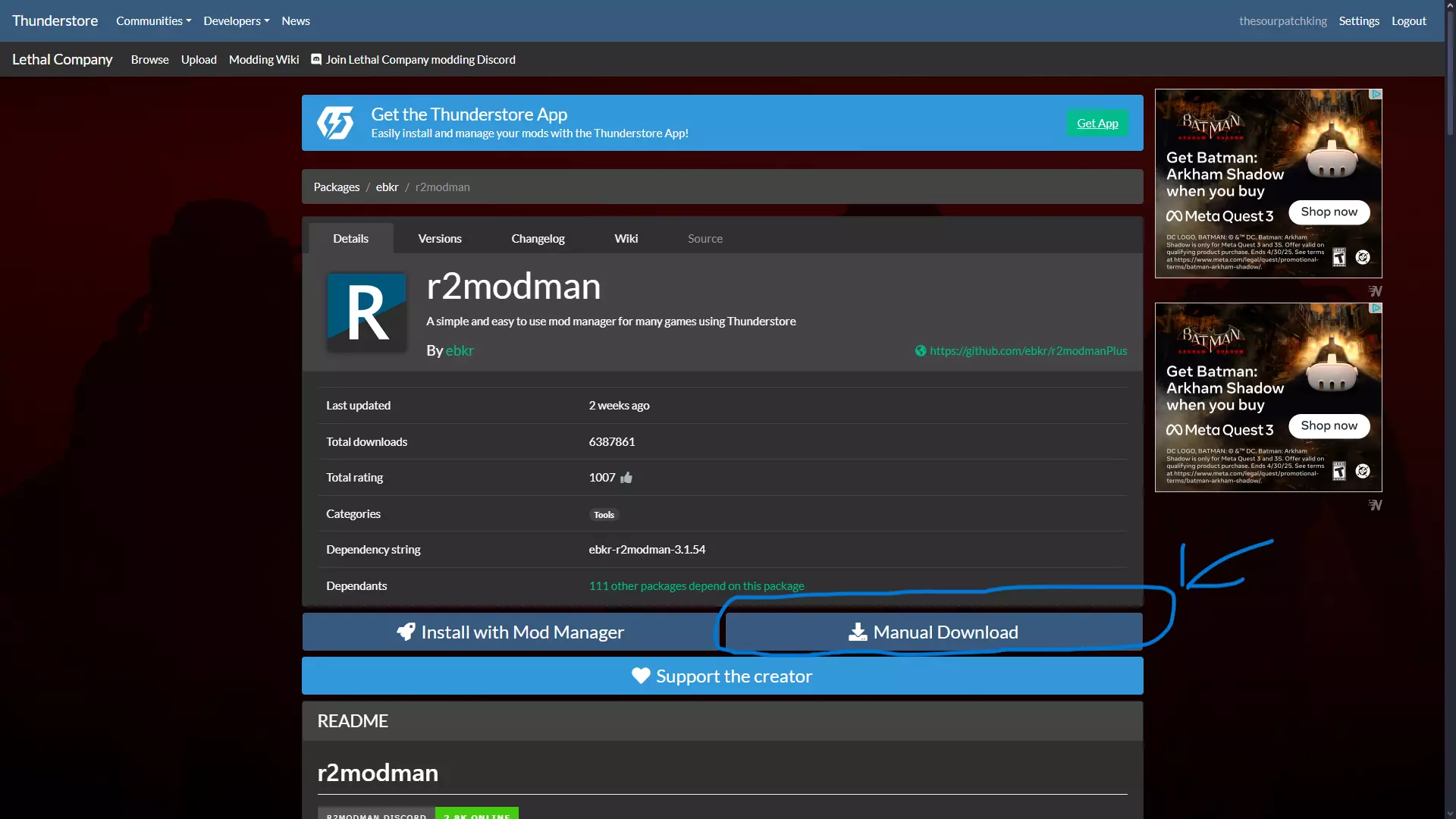
A complete guide for how to mod Silksong for Windows, Linux, and Mac. Includes 3 methods for Windows, two methods for Linux, and two methods for Mac + some mod recommendations and reviews. Introduction Modding Silksong is a decently simple process that can be done manually, through Thunderstore/r2modman[thunderstore.io] (recomended), or through Nexus/Vortex[www.nexusmods.com]. In the future a mod installer called Cogfly may be available, but is still in testing. Modding is done through BepInEx Silksong[thunderstore.io], and if done manually, will involve downloading. I do not actually have Linux or mac, so please report any errors in the comments. Notes for Linux and Mac For windows, I was able to pretty quickly write this guide, as that I was able to just do it and write the instructions as I went, but with mac and Linux, I really don't know much how they work. Instructions were easy to write, because I was just able to copy them over, but when I found a difference, they were really annoying. For this reason, the Linux section just doesn't have Vortex. It seems that no really good method has been made yet. Cogfly Currently Cogfly is still in testing, but can be obtained in the Hollow Knight Modding discord. I will not cover it in this guide, but may update for it later on. Windows 10 - 11 This sections is all for Windows 10 - 11 r2modman (recomended) NotesI personally use r2modman and have found it very comprehensible. It is also the one recommended by Hollow Knight Modding Discord, so lets get into it. Also don't let the length of this section discourage you, most of it is unnecessary. Downloading r2modmanTo start, you'll first want to download r2modman from the official Thunderstore site. https://thunderstore.io/c/hollow-knight-silksong/p/ebkr/r2modman/ Make sure to select "Manual Download". Doing this will give you a .zip file which can be extracted to any location. After extracting the file, you can read the readme if you want, but otherwise select r2modman-setup-(version).exe. Once this loads, select whatever option for installing (to install on all users, you must right click the installer and run as administrator). Once you have your option selected press next. After this you will be prompted to select an install path. If you want to you can change this, but otherwise just press install. Finally you will be given the final prompt where you can just click finish. If you had the option selected, it will automatically open. If not, it should have also created a desktop shortcut. If all else fails, go to where you installed it (normally "C: Users [User] AppData Local Programs r2modman r2modman.exe". Note appdata folder is hidden but can be accessed by entering %appdata% into windows search) Installing ModsOnce you have r2modman opened, you'll want to select Silksong. This can be done by simply searching Silksong in the search bar. (I strongly recommend that you favorite it for easy access) Now that you have Silksong selected, click "select game" choose the steam option, and it will set-up for you. Now that you have that done, create a new profile for Silksong. Name it whatever you want and continue. The menu that you should be presented with will have everything you need. Start ModdedThis will simply start the game with all of your mods. Start VanillaThis will start the game without any mods enabled InstalledThis tab will contain all mods that you have installed. From here mods can be removed, disabled, updated, mods associated with the selected mod, and you can also go to the mods Thunderstore webpage. OnlineThis is where all mods from Thunderstore can be installed from. To use, first find a mod you want and select it (note: some mods may not be compatible with the method of install done by Thunderstore. If you want to use one of these mods, manually install BepInEx). From the side menu, you can see things such as mod name, creator, description, downloads, last update, categories, readme, changelog, and dependencies. The most important things though are the download, and view online. The download button will automatically install the mod and dependencies into the installed section. The view online will bring up the Thunderstore webpage for the mod. Congfig editorFrom this menu, you can edit the config files for your installed mods. A similar thing can be achieved through the BepInExConfigurationManager[thunderstore.io] SettingsThere is a lot of things in this section, most of which I will not go over but I have found a few to be useful. First of all, all mod folders can be accessed easily from here. There are also just some r2modman settings in here such as change game. There are a few things to do with the mod cache as well as logs. There is also some things for large mod usage such as disable all mods, and things to share mod packs. One section I have used many times though is the import local mod. This can be used to install a mod from a zip file that may not be on Thunderstore. HelpThis is the final section of the side bars. There are many great recourses that are available here that cover things not in this tutorial. Final NotesI recommend that you use r2modman just because of how easy it is to use. Most things in this part of the tutorial are extremely basic and are probably not needed, but why not write it anyways. Manual Install NotesManual installing for some reason supports mods just a bit better, so some only work this way, but it is more work in the long run. You may also want to back up save files from Silksong before doing this ("C: Users [USER] AppData LocalLow Team Cherry"). Installing BepInExTo install BepInEx I recommend you get it off of Thunderstore[thunderstore.io], but you can also get it off of Nexus[www.nexusmods.com]. Next, you will want to extract the downloaded zip into your game files. This can easily be done by going to Silksong in your steam library and right clicking it, going to manage, and pressing Browse local files. This should put you in a folder with the "Hollow Knight Silksong.exe". This is where you will want to move the BepInEx files. Just simply select them all, and copy them over (If installed from Thunderstore, make sure to take the files from BepInExpack and not just everything like the icon and README). Now launch the game and wait a few seconds on the home screen before exiting back out. Installing ModsTo install a mod, first find a mod that you want (Most are on Thunderstore[thunderstore.io] or Nexus[www.nexusmods.com]). Install it manually, and it should give you a zip file with a .dll file. Now you are going to go back where you put BepInEx into the silksong files and go into the BepInEx folder. Now you'll just wanna move all of the files from the zip of the mod into the plugins folder. Now when you launch the game, it should have you're mod installed. Vortex NotesVortex is the mod installer for Nexus. I have less experience with it, but here we go anyways. You will need an account with Nexus to use Vortex; I will not cover how to create an account other than you go to Nexus sign-up[users.nexusmods.com]. Installing VortexTo install vortex you will first need to download it from Nexus[www.nexusmods.com]. You will need to go to newest version, manual download, then press download again (not windows), and finally choose you download option (Download may take a while). Once the install is done, go to the exe/application open it. Vortex will need administrator access to begin the install. Once in the install menu you can choose a path for it to download if you want, but otherwise just hit install. Once the install select run on start if not already selected and press finish (Vortex also creates a desktop shortcut). Once you have Vortex open, go to the right side to games. In this menu search Silksong and select it. When you click download Vortex will want you to log in to your account. Once logged in, Vortex will begin the download (You may need to reselect it). At this point Vortex will do a bunch of things, and just click yes of it asks for administrator access or to download BepInEx. Once the downloading is done, you should see a section on the side for silksong. Go to the mods section and click get more mods. This should bring you to the Nexus mod Silksong page (To view all mods just click the word mods next to the cover picture for Silksong). When browsing mods, a little check mark should appear in the top left corner of the mod (if there is not one on BepInEx install it using the process I am about to describe). Once you find a mod that you want, click on it, and hit the Vortex button in the downloads section (It may prompt you to download dependencies for the mod first). On the download page select the download you want, and when prompted, open Vortex. When you are ready, hit the launch button in the top left corner of Vortex. FeaturesVortex has some other features that I am not familiar with, but if you can install a zip file with a .dll as a mod, if you got it from some other location. If you need more help too, there is also a tutorial section that you can use. NotesIf you are having a launch error, try to use the auto suggestions first. I prefer r2modman over Vortex mainly because its just easier to use, faster, there is less ads, you don't have to install from a website, and no account is needed. Linux I do not actually have access to a Linux pc, but I did some research so this should be mostly correct. Just keep in mind there may be issues with the tutorials. r2modman Linux (recomended) I personally use r2modman and have found it very comprehensible. It is also the one recommended by Hollow Knight Modding Discord, so lets get into it. Also don't let the length of this section discourage you, most of it is unnecessary. Downloading r2modmanTo use r2modman, you first need to enable proton on steam. This can be done by simply going to steam settings>compatibility and enabling steam play for all titles. Now, you'll want to download the latest release of r2modman from the official git hub page (You may want to download a build for your specific platform, but from what I can tell, the AppImage release should work). https://github.com/ebkr/r2modmanPlus/releases/ Now that you have it downloaded, you'll need to make it executable "chmod +x (Name of file).AppImage", and then run it from the terminal with no sandbox "./(name of file).AppImage --no-sandbox" Installing ModsOnce you have r2modman opened, you'll want to select Silksong. This can be done by simply searching Silksong in the search bar. (I strongly recommend that you favorite it for easy access) Now that you have Silksong selected, click "select game" choose the steam option, and it will set-up for you. Now that you have that done, create a new profile for Silksong. Name it whatever you want and continue. The menu that you should be presented with will have everything you need. Start ModdedThis will simply start the game with all of your mods. Start VanillaThis will start the game without any mods enabled InstalledThis tab will contain all mods that you have installed. From here mods can be removed, disabled, updated, mods associated with the selected mod, and you can also go to the mods Thunderstore webpage. OnlineThis is where all mods from Thunderstore can be installed from. To use, first find a mod you want and select it (note: some mods may not be compatible with the method of install done by Thunderstore. If you want to use one of these mods, manually install BepInEx). From the side menu, you can see things such as mod name, creator, description, downloads, last update, categories, readme, changelog, and dependencies. The most important things though are the download, and view online. The download button will automatically install the mod and dependencies into the installed section. The view online will bring up the Thunderstore webpage for the mod. Congfig editorFrom this menu, you can edit the config files for your installed mods. A similar thing can be achieved through the BepInExConfigurationManager[thunderstore.io] SettingsThere is a lot of things in this section, most of which I will not go over but I have found a few to be useful. First of all, all mod folders can be accessed easily from here. There are also just some r2modman settings in here such as change game. There are a few things to do with the mod cache as well as logs. There is also some things for large mod usage such as disable all mods, and things to share mod packs. One section I have used many times though is the import local mod. This can be used to install a mod from a zip file that may not be on Thunderstore. HelpThis is the final section of the side bars. There are many great recourses that are available here that cover things not in this tutorial. Final NotesI recommend that you use r2modman just because of how easy it is to use. Most things in this part of the tutorial are extremely basic and are probably not needed, but why not write it anyways. Manual Install Linux NotesIN PROGRESSManual installing for some reason supports mods just a bit better, so some only work this way, but it is more work in the long run. You may also want to back up save files from Silksong before doing this ("$XDG_CONFIG_HOME/unity3d/Team Cherry/"). Installing BepInExFirst, you need to configure Steam to allow mods. You need to have windows version installed so that you can use proton. Once Silksong is installed that way you can configure steam by going to Silksong in your steam library, clicking the gear, go properties>compatibility and check the box for Steam Play compatibility tool (You may also want to use GE proton-10). Now go into general settings and enter "WINEDLLOVERRIDES="winhttp=n,b" %command%" in the launch options. To install BepInEx I recommend you get it off of Github[github.com]. Next, you will want to extract the downloaded file into your game files. This can easily be done by going to Silksong in your steam library and right clicking it, going to manage, and pressing Browse local files. This is where you will want to extract the BepInEx files. Now launch the game and let it sit on the home screen for a few seconds before exiting out. Installing ModsTo install a mod, first find a mod that you want (Most are on Thunderstore[thunderstore.io] or Nexus[www.nexusmods.com]). Install it manually, and it should give you a zip file with a .dll file. Now you are going to go back where you put BepInEx into the silksong files and go into the BepInEx folder. Now just wanna move all of the files from the zip of the mod into the plugins folder. Now when you launch the game, it should have you're mod installed. Mac I do not have access to a mac pc, so I did some research, and have linked a few tools to use that you can just follow their instructions. Gib install Mac (reccomended) GibGib "is a TUI application for automating the installation of BepInEx". It seems to be simpler then manually configuring everything and probably works better. Installing and setting up GibFirst you will want to enter the command "curl -fsSL https://cdn.jsdelivr.net/gh/toebeann/gib/gib.sh | bash" into the terminal (after using it gib and be run by simply entering "gib"). Installing BepInEx with gibTo install BepInEx I recommend you get it off of Thunderstore[thunderstore.io], but you can also get it off of Nexus[www.nexusmods.com]. Next, you will want to extract the downloaded zip into your downloads folder. Now open the finder window for the BepInEx folder (leave this open for later). Now open your terminal (either from Launchpad or Spotlight) and enter "curl -fsSL https://cdn.jsdelivr.net/gh/toebeann/gib/gib.sh | bash". Gib should walk you through the steps on how to set it up now. Installing ModsTo install a mod, first find a mod that you want (Most are on Thunderstore[thunderstore.io] or Nexus[www.nexusmods.com]). Install it manually, and it should give you a zip file with a .dll file. Now you are going to go back where you put BepInEx into the silksong files and go into the BepInEx folder. Now just wanna move all of the files from the zip of the mod into the plugins folder. Now when you launch the game, it should have you're mod installed. NotesThis guide is similar to the QuickStart guide on the gib Github page[github.com]. If anything doesn't work tell me, and refer to gib's Github guide. Manual Install Mac NotesYou may also want to back up save files from Silksong before doing this ("~/Library/Application Support/unity.Team Cherry.Hollow Knight Silksong/"). Installing BepInExTo install BepInEx I recommend you get it off of Thunderstore[thunderstore.io], but you can also get it off of Nexus[www.nexusmods.com]. Next, you will want to extract the downloaded zip into your game files. This can easily be done by going to Silksong in your steam library and right clicking it, going to manage, and pressing Browse local files. This is where you will want to move the BepInEx files. Just simply select them all, and copy them over (If installed from Thunderstore, make sure to take the files from BepInExpack and not just everything like the icon and README). Now it is time to configure BepInEx. You'll need to open run_BepInEx.sh text editor and find where it says # LINUX: name of Unity executable # MACOS: name of the .app directory executable_name=""and enter Hollow Knight Silksong.app. Next you'll need to open the terminal (before you open go to information>open with Rosetta). Make sure in runs in Intel mode. If the terminal ever says something wrong, then close it and start back again. Now enter "cd ~/Library/Application Support/Steam/steamapps/common/Hollow Knight Silksong" into the terminal and hit enter (It should tell you that you are in Silksong's folder). Now enter "ls -l" and hit enter again" It should say something like drwxr-xr-x@ 9 (YOURUSER) staff 288 17 Jun 09:02 BepInEx -rw-rw-r--@ 1 (YOURUSER) staff 38008 11 Jun 12:39 libdoorstop.dylib -rw-rw-r--@ 1(YOURUSER) staff 8294 17 Jun 09:00 run_bepinex.sh -rwxr-xr-x@ 1 (YOURUSER) staff 7 11 Jun 18:39 steam_appid.txt drwxr-xr-x 3 (YOURUSER) staff 96 11 Jun 18:39 valheim.appNow enter "chmod 775 run_bepinex.sh" into the prompt and hit enter. Now when you enter "ls -l run_bepinex.sh" it should say -rwxrwxr-x@ 1 (YOURUSER) staff 8294 17 Jun 09:00 run_bepinex.shNow make sure steam is running and enter "./run_bepinex.sh -console" into the console (if this crashes then try "sh run_bepinex.sh -console") Close the game and go back to the BepInEx folder, then config, and finnaly open BepInEx.cfg. Find this ## The name of the type in the entrypoint assembly to search for the entrypoint method. # Setting type: String # Default value: Application Type = Applicationand change the type to "GameObject". Now launch the game how you did before and it should be ready. Installing ModsTo install a mod, first find a mod that you want (Most are on Thunderstore[thunderstore.io] or Nexus[www.nexusmods.com]). Install it manually, and it should give you a zip file with a .dll file. Now you are going to go back where you put BepInEx into the Silksong files and go into the BepInEx folder. Now you'll just wanna move all of the files from the zip of the mod into the plugins folder. Now when you launch the game, it should have you're mod installed. NotesThis section would not have been possible without this guide. I hope I got it all correct for Silksong, as that the guide was originally for Valheim, but please tell me in the comments if something is wrong. Mods to Try Below are some mods that I have used and would recommend trying. I can not verify all mods will work for Mac and Linux. If you want me to try a mod, please say so in the comments. Debug mod and Mod List These are both mods released by the Silksong Speed Running Community. Debug mod is very similar to the debug mod in HK other then that it is accessed by pressing "f2". If you have ever used HK's debug mod, you would know that it is easily the best mod ever. You can do many many things with it. Mod List gives a list of all installed mods in the top left corner of the screen. They can be gotten on Thunderstore and Nexus (Mod list must be installed with Debug mod, but is not on Nexus). Debug mod: Thunderstore[thunderstore.io] Nexus[www.nexusmods.com] Modlist: Thunderstore[thunderstore.io] SSMP This is one of my favorite Silksong mods, if not my favorite, and i definitely recommend that you try it out. It is able to almost seamlessly connect two players games so they can play together. Progress and enemies are not sync, but players are able to interact with things on the other players game. For information on how to host follow this guide[geroyuni.notion.site]. For finding people to play with and support join the HKMP discord server[discord.gg]. This mod can be gotten on Thunderstore[thunderstore.io]. Pantheon of Pharloom This is a pretty incredible mod that I would definitely recommend trying for everything from boss practice, to as a tool to fight modded bosses. It give many options including nail level, toggle cursed, bindings similar to HK, boss rushes, and just individual bosses with options for attuned, ascended, and radiant. Pantheon of Pharloom also does not save game progress. It has simple to use with an easy interface that is very intuitive. It can be got from Thunderstore[thunderstore.io]. ShowDamage HealthBar This mod is a simple heath bar mod that give a bar to all enemies and bosses It can be gotten on Thunderstore[thunderstore.io] KnightInSilksong This mod implements the knight from Hollow Knight into Silksong. It can be a bit buggy, but is extremely fun to play with. While using, you are able to toggle between the two characters with the press of a button. This mod can be gotten on Thunderstore[thunderstore.io] and Nexus[www.nexusmods.com]. Support Many of these methods have guides and other documentation to go along with them, but there is also many online tutorials, and community members that will help you. I recommend if you are having problems you ask on the Hollow Knight Modding Discord[discord.gg]. Feedback Please leave feedback, especially while I'm still working on this, in the comments. I really appreciate it, this being my first guide. Things to add Photos Videos Beutify
《空洞骑士:丝绸之歌》模组制作完全指南(Windows、Mac 及 Linux 版)

2026-02-15 13:00:06

导读
这是一份《空洞骑士:丝绸之歌》的模组制作全指南,涵盖Windows、Mac及Linux系统的模组安装方法,包括r2modman、手动安装、Vortex等方式,还推荐了多款实用模组,帮助玩家轻松为游戏添加模组内容。


评论
共0条评论

适合这款超棒游戏的模组列表
个人认为本应从游戏初始就内置的便利性模组列表 主要模组列表 ○ BepInEx 这是模组管理器,没有它其他模组无法运行。只需将其放入游戏文件夹。 之后需要启动游…
2026-03-12 02:070赞 · 0评论

如何为《致命公司》下载模组
《致命公司》新手模组安装基础指南 什么是模组? 模组是玩家制作的非官方修改内容,用于改变游戏中的某些元素。既可以是简单调整实体生成概率,也可以是添加新实体、新卫…
2026-02-13 19:000赞 · 0评论
《邪恶冥刻》的模组
在本指南中,你将了解如何为《邪恶冥刻》安装模组。一些最受欢迎的模组包括GrimoraMod。
2026-02-19 10:000赞 · 0评论

用模组自定义《咩咩启示录》
你是否曾想让你的游戏变得更加有趣?这份指南或许能帮到你! 简介
2026-03-09 09:061赞 · 0评论

英灵神殿中的模组与附加内容
大家好。 我想很多已经玩过《英灵神殿》的玩家,都曾想过给游戏添加魔法或新物品来增加多样性。 这份指南是为那些想在《英灵神殿》中体验新内容的玩家准备的。 引言 很…
2026-03-02 23:010赞 · 0评论

如何安装模组
以下是《超市模拟器》的简易Mod安装指南。 安装Mod框架前,请务必备份存档。存档位置:C: Users "用户名" AppData LocalLow Nokt…
2026-02-15 16:000赞 · 0评论

如何下载和安装《城市:天际线2》的模组
欢迎来到这份《城市:天际线2》模组综合指南!无论你是经验丰富的模组制作者,还是刚接触用户创作内容的新手,本指南都将帮助你查找、下载和安装模组,提升你的城市建设体…
2026-02-20 13:000赞 · 0评论

模组列表
本指南旨在帮助玩家了解该游戏的模组。 ~前言~ 指南的头像取自Tumor。 大家好! 本指南仅用于让玩家对模组有一个大致的了解。 我计划根据玩家对本指南的反馈来…
2026-02-14 13:001赞 · 0评论
《最终幻想II》完整模组制作指南与索引
《最终幻想II像素重制版》全面、有条理且持续更新的模组索引,以及完整的游戏模组使用指南 入门指南 欢迎来到《最终幻想》像素重制版的模组世界!本指南将假设你对此一…
2026-03-27 04:000赞 · 0评论
最佳模组体验,像大佬一样畅玩游戏!
《模拟城市4》原版太无聊了? 你在寻找新东西吗? 你是《模拟城市》新手,想使用酷炫的模组吗? 如果是这样,我的指南就是为你准备的。 新手模组安装指南: 《模拟城…
2026-03-19 10:000赞 · 0评论

暂无更多
最新更新
- 息肉之心收集任务 — “息肉仪式”任务指南 如何在装甲森林中找到灰根。 从其名称“装甲森林”来看,这正是我们所需要的。
- 时代的更迭——蘑菇先生的秘密结局【剧透安全】 — 《空洞骑士:丝绸之歌》中最神秘且备受喜爱的周期性秘密之一的指南:蘑菇先生的任务及其秘密结局。本指南旨在为你提供自行解决所有问题所需的提示,因此包含大量剧透内容。…
- 黄蜂音效包 — SoundPad程序指南(内容如标题所示) (顺便说一下,这是我的第一份指南) 致俄语使用者 <=============俄语=============> 本指…
- 大黄蜂(Hornet)迷恋完全指南(更新版) — 作为世界顶尖的黄蜂单推人专家,我认为是时候与世界分享我的专业知识了。本指南详细介绍了对黄蜂产生好感的最佳方式,这些都是经过多年实践总结出来的经验。 基本前提细节…
- 速通玩家成就指南 | 无迷雾/无幽灵 — 本指南展示了一种能在5小时内完成游戏的替代路线。 与常规路线不同,在此路线中,你无需穿越迷雾或与幻影战斗。相反,你需要激活五座钟并迎战最终审判者。 这是一种获取…
- 1到5级徽章:《空洞骑士:丝绸之歌》 — 在本指南中,你可以看到该游戏所有等级的图标外观。 骨卷轴(1级)
- 空洞骑士:丝之歌-视频介绍
- 如何在SteamDeck/电脑上安装模组 — 大家好,我现在尝试解释如何在SteamDeck上为游戏安装模组! 《空洞骑士:丝绸之歌》的模组基于BepInEx 5框架运行。要使用它,只需从Nexus Mod…
- 如何正确“游玩”《空洞骑士:丝之歌》 — 在本指南中,我将帮助你按照步骤正确“游玩”《空洞骑士:丝绸之歌》,并获得与你的探索和所选路径相对应的结局。 本指南介绍 你现在正在安装它,或者已经安装完成却不知…
- 《空洞骑士:丝绸之歌》1.0.29926版本更新内容 — 《空洞骑士:丝绸之歌》更新内容 1. 新增繁体中文本地化。 2. 优化德语翻译,提升与英文版的清晰度和一致性。 3. 允许使用丝绸翱翔穿过场景顶部出口。 4. …