换一换
换一换 



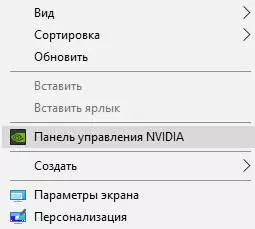
ROE detailed guide to increase FPS, how to boost performance (2020 January) Graphics Settings Video Adapter: Select your GPU Monitor Mode: Fullscreen Resolution: 1920x1080 (monitors native resolution) V-Sync: X / Off FPP Field of View (Horizontal): 85-103 In-Game FPS Cap: 60-300 (should match your monitors refresh rate) Lobby FPS Cap: 60 Brightness: 100 (or whatever looks better) Film Grain: X / Off Chromatic Aberration: X / Off Vignette: X / Off Sharpen: Low (Anti-aliasing must be TAA) Enabled DX12 (Beta version): ✓ / On Resolution Scale: 100 Graphics Quality: Custom Anti-aliasing: TAA Ambient Occlusion: Off View Distance: Low Lightning Quality: Low Shadow Quality: Low Texture Quality: Low Vegetation Quality: Low Terrain Quality: Low Effects Quality: Low Volume Cloud Quality: Low Auto Record Hightlights: X / Off Resolution: Game does not support 21:9 ratio, play on 16:9 or 4:3 resolution. Anti-aliasing: Use TAA for best effect & efficiency. View Distance: This also changes rendering distance, Low = ~450m, Medium = ~750m, High = ~1000m Lightning Quality: For dx9 user u can only use Low/Medium, dx12 users can also use High setting. Nvidia control Panel Open Nvidea Control Panel > Manage 3D Settings > Program Settings > Add: C: Program Files (x86) Steam steamapps common Ring of Elysium and select Europa_Client.exe Anisotropic filtering: Application-controlled Antialiasing - FXAA: Off Antialiasing - Gamme correction: On Antialiasing - mode: Application-controlled Antialiasing - Transparency: Off Maximum pre-rendered frames: 1 Multi-Frame Sampled AA (MFAA): Off Multi-display/mixed-GPU acceleration: Single display performance mode Optimize for Compute Performance: Off Power management mode: Prefer maximum Performance Preffered Refresh rate: Highest available Shader Cache: On Texture filtering - Anisotropic sample optimization: On Texture filtering - Negative LOD bias: Allow Texture filtering - Quality: High Performance Texture filtering - Trilinear optimization: On Threaded optimazation: On Tripple buffering: Off Vertical Sync: Off Virtual Reality pre-rendered frames: 1Open Nvidea Control Panel > Display > Adjust dektop color settings > 3. Apply the following enchancements This does not improve perfomance just makes richer colors and ergonomically pleasing images, does similar stuff like vibrant rendering style. Digital vibrance: 50-65% Hue: 0% For any G-Sync compatible monitor make sure that in Nvidea Control Panel > Set up G-SYNC is set to Enabled! Nvidea Experience General > In-Game Overlay: Off Shield > Gamestream: Off Nvidea Profile Inspector This was reported to reduce stutter and input lag. 1. Download & Open Nvidea Profile Inspector 2.1.3.20 2. Select Profiles: Ring of Elysium 3. Search for "2 - Sync and Refresh" > "Frame rate limiter mode" 4. Select "0x00000004 PS_FRAMERATE_LIMITER_2_CONTROL_DELAY_FLIP_BY_FLIPMETERING" 5. You can also try to select: "0x00000010 PS_FRAMERATE_LIMITER_2_CONTROL_ALLOW_ALL_MAXWELL" 6. Hit "Apply Changes", and restart the Game. AMD Radeon Settings Open AMD Radeon Settings > Gaming > Select ROE Anti-aliasing Mode: Use application settings Anti-aliasing Method: Multisampling Morphological Filtering: Off Anisotropic Filtering Mode: Use Application settings Texture Filtering Quality: Performance Surface Format Optimization: On Wait for Vertical Refresh: Always off OpenGL Triple Buffering: Off Shader Cache: On Tessellation Mode: Override application settings Maximum Tessellation Level: Off AMD FreeSync: AMD optimized Frame Rate Target Control: Disabled Steam Right click ROE in the steam library > Properties > General tab Un-Check "Enable Steam Overlay while in-game" Steam Input Per-Game Setting: Forced Off Use BPM Overlay when Steam Input is Active Per-Game Setting: Force OffSetting > Web Browser Delete Web Browser Cache Delete All Browser Cookies Game DVR Windows 10 Settings > Gaming > Game bar > Set all sides to Off Game DVR > Set all sides to Off Windows Paging Enabling pagefile can solve stuttering issues, I however recommend to disable pagefile if you have 16GB or more RAM. Right Click My Computer > Properties > Advanced System Settings > Advanced Tab> Settings for Performance > Change Virtual Memory Check "Automatically manage paging file size for all drives" to enable it. Restart Computer Windows Hibernation Run cmd.exe as an Administrator Command: powercfg –h off Windows DPI scaling C: Program Files (x86) Steam steamapps common Ring of Elysium and right click Europa_client.exe Compatibility > check "override high DPI scaling behavior" and select "Application" from the drop-down menu. Also disable "Full screen optimization" Do the same for SLauncher.exe Windows GUI This is a drastical move and it will have impact on your GUI expereince in Windows, use this as a last resort. Right Click My Computer > Properties > Advanced System Settings > Advanced Tab > Settings for Performance > Select: Adjust for best performance Power Management Laptop users be warned this will consume much more battery! On Windows 7 set this to Performance Mode. Settings >System > Power & sleep > Addtional Power Settings Under Choose to customize a power plan, expand the option which says “Unhide Additional plans.” If you do not see Ultimate Performance Mode, then follow the next steps. Open a cmd.exe as Administrator In the command prompt, copy the following command, and hit Enter. powercfg -duplicatescheme e9a42b02-d5df-448d-aa00-03f14749eb61 CPU Priority You may also try setting it to Normal / Above Normal. Task Manager > Processes > Right click Europa_Client.exe > Set Priority to High CPU Parking Download CPU core paring manager from http://www.coderbag.com Choose "ultimate power plan" set everything to 100% Microsoft Visual C++ 2017 Download & Install https://support.microsoft.com/en-gb/help/2977003/the-latest-supported-visual-c-downloads Registry Use it at your own risk! Recommended to backup registry beforehand and create a restore point too. Run regedit.exe Find "HKEY_LOCAL_MACHINE SOFTWARE Microsoft Windows NT CurrentVersion Multimedia SystemProfile" create/edit DWORD with name SystemResponsiveness and value 0 Find "HKEY_LOCAL_MACHINE SOFTWARE Microsoft Windows NT CurrentVersion Multimedia SystemProfile Tasks Games" edit GPU Priority to 8 Priority to 6 Scheduling Category to High ADDITIONAL 1. Close unused background programs 2. Clean system using cleanmgr.exe or CCleaner. 3. Update all device drivers (e.g. with Driver Booster 6), especially Nvidea/AMD drivers!To uninstall previous display drivers i recommend using DDU 4. Disable Hardware acceleration where it's possible (Chrome, Discord, Steam ...etc) 5. Don't play on Wi-Fi, play over cable 6. Run game on SSD 7. Re-Install game once in a while Closure If you are new to ROE please add me as referral in-game: GGIKK5BU95A If still not satisfied with the result look into CPU/GPU/RAM overclocking possibilities. I get up-to 200+ FPS, but stable 144FPS if locked via RivaTuner. My Setup: Asus Strix Z270H / Intel® Core™ i7-7700K / EVGA Hybrid GTX 980Ti / Samsung 960 Evo 250GB M.2 / Corsair Vengeance LPX 2x8GB 3000Mhz / Fractal Design Integra M 750W Bronze / Fractal Design Celsius S36 3x120mm / Phanteks Enthoo Luxe / Windows 10 x64
《无限法则》提升帧率详细指南:如何优化性能(2020年1月)

导读
这是一篇2020年1月的《无限法则》(ROE)提升帧率优化指南,涵盖游戏内图形设置、Nvidia及AMD显卡控制面板设置、Steam、Windows系统等多维度优化方案,帮助玩家提升游戏帧率、优化性能,核心主关键词为无限法则,帧率优化。


评论
共0条评论

无限法则 《无限法则》无限法则英文名是什么 ROE是无限法则英文名
各位小伙伴在查询无限法则相关信息时,总会碰到ROE这个游戏,他们是有什么关系呢?roe是什么游戏呢?下面233乐园小编就为大家解读ROE和无限法则的关系,感兴趣…
2026-05-13 10:400赞 · 0评论
图形优化与DLSS升级+全GPU帧生成集成
解释不同图形设置下性能提升的差异,并安装集成最新版本和帧生成功能的DLSS模组,该模组适用于所有显卡,可带来高达100%的性能提升。 简介 我编写了这份性能增强…
2026-02-15 13:000赞 · 0评论

FPS修复 | 节省你的CPU!
2022年,我开始在PC上玩《比特英雄》,发现游戏对系统的负载非常大。于是我决定研究这个问题,结果发现问题出在无限制的帧率上,现在我来告诉大家我是如何解决的。 …
2026-04-01 01:000赞 · 0评论

通用性能提升指南
通过手动更改图形设置提升性能 简介 大家好!有玩家指出当前版本存在一些帧率问题。截至本文发布时,游戏内暂未提供图形选项,但在该功能添加前,本指南将为你展示如何手…
2026-04-04 10:000赞 · 0评论
【更新于2020年2月21日】《武装突袭3》性能与帧率指南
本指南适用于各种配置的电脑,无论高端还是低端,都能在不牺牲画质的前提下提升游戏性能。 整个优化过程仅需2-5分钟。 简单说明及实际案例: 本指南对高低端配置用户…
2026-02-19 07:000赞 · 0评论
当前帧率修复方案
提升帧率简明指南:潜行者版帧率优化方法
2026-03-22 19:000赞 · 0评论

《方舟:生存飞升》2024优化内容
《方舟:生存飞升》优化指南。仅包含经过验证的可靠提升帧率方法! 前言
2026-02-15 16:000赞 · 0评论

无线法则 《无限法则》无限法则英文名是什么-《无限法则》英文名解析
《无限法则》英文名是什么?深度解析游戏命名背后的故事 命名的重要性 游戏英文名的确定往往涉及文化、市场策略和品牌定位等多重考量。《无限法则》作为一款备受关注的游…
2025-12-13 21:210赞 · 0评论
腾讯回应吃鸡下架 《绝地求生》国服再不过审会凉吗 从腾讯吃鸡游戏无限法则看出
近日有网友爆料《绝地求生》端游国服三审没通过,而且最近国内又加强监管,禁止暴力游戏直播,点名了绝地求生和英雄联盟,绝地求生的国服官网消失不见,大家都在猜测国服上…
2025-09-20 16:130赞 · 0评论

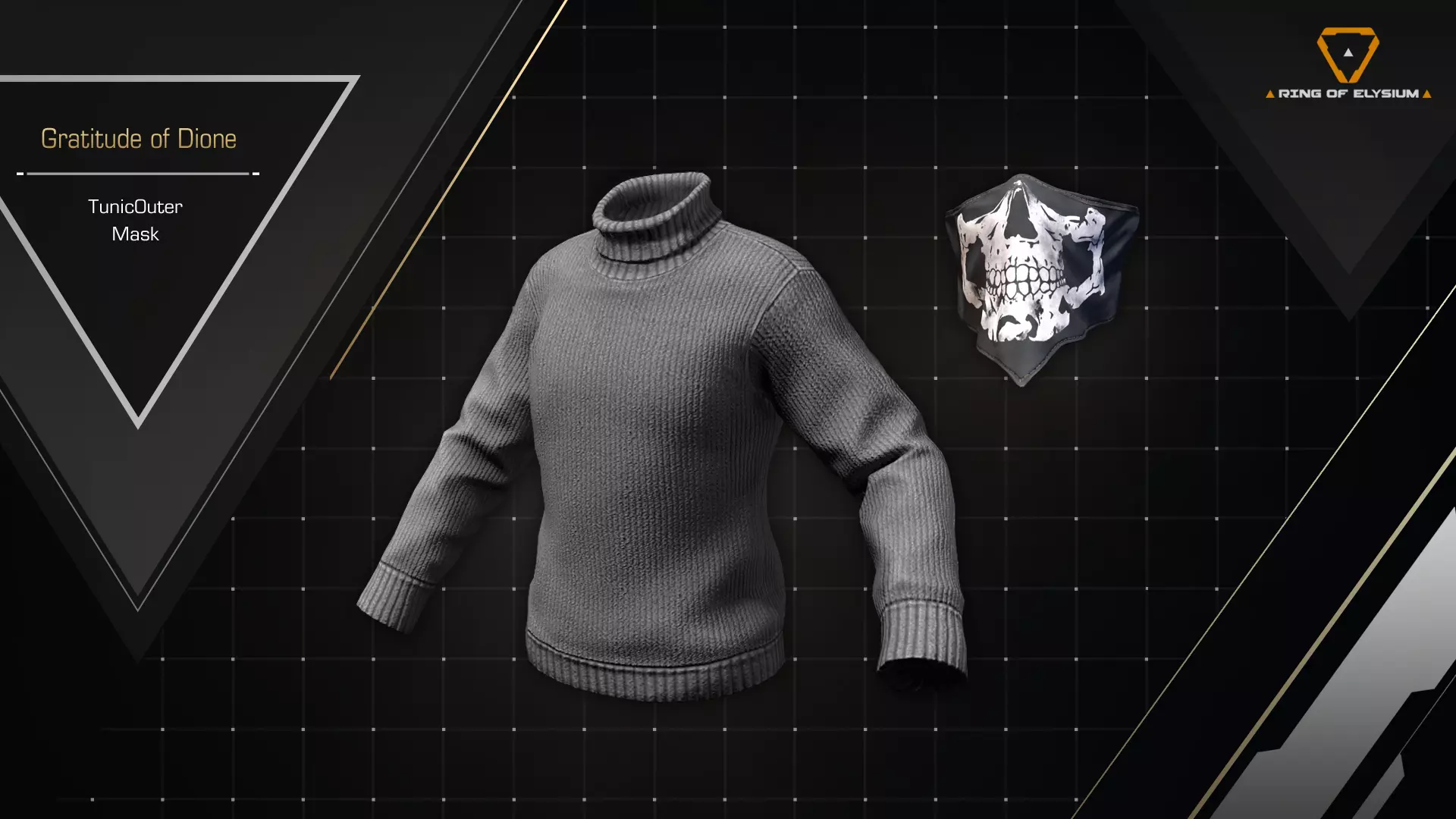
如何在5秒内获取两个皮肤
为了获取两款皮肤,需要下载DLC。在游戏搜索栏中输入:Ring of Elysium - 狄俄涅的馈赠并下载。你将获得两款皮肤:死亡头巾和毛衣,与初始款类似,只…
2026-02-16 19:000赞 · 0评论
暂无更多
最新更新
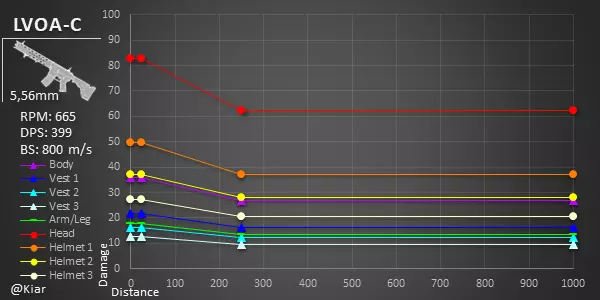
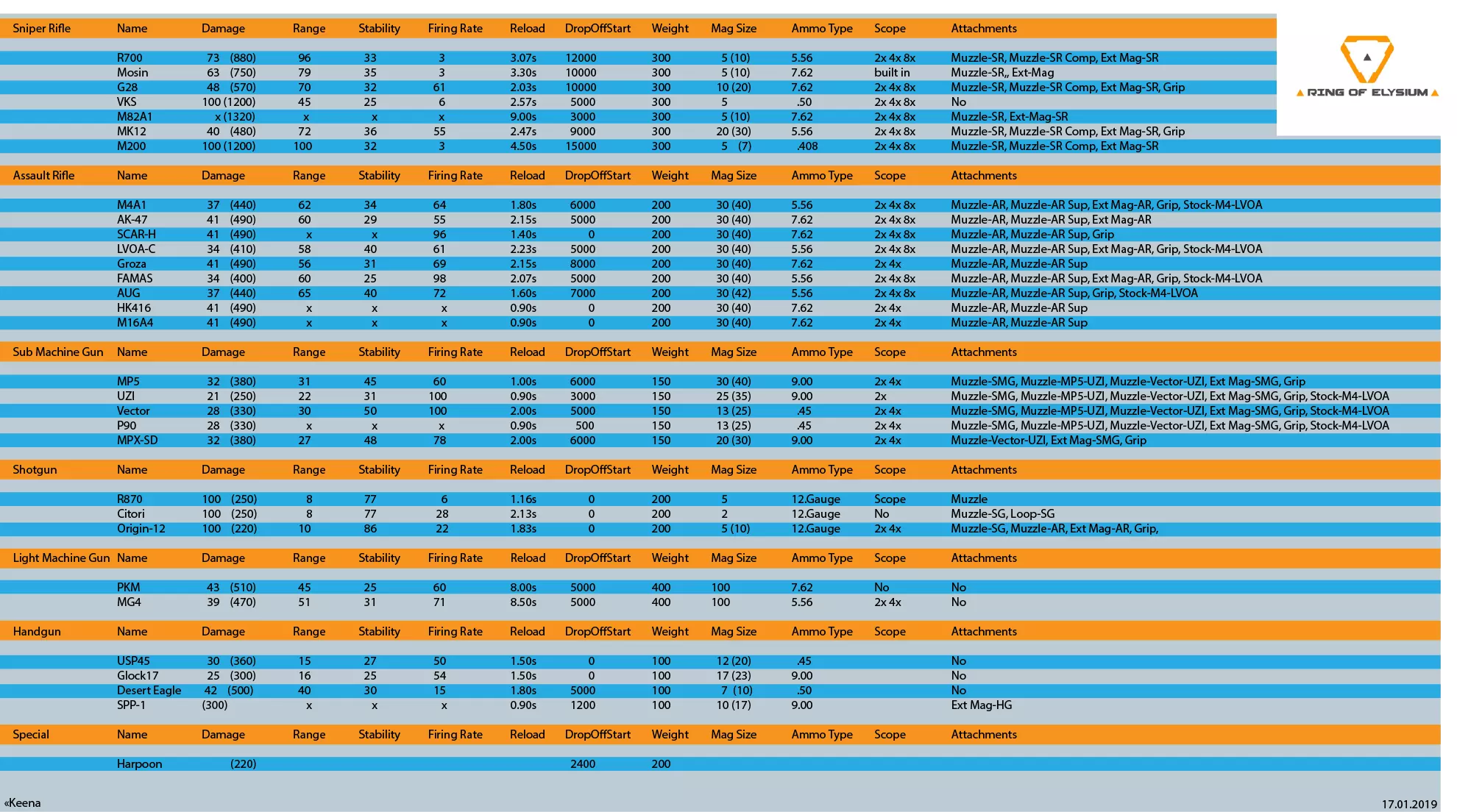
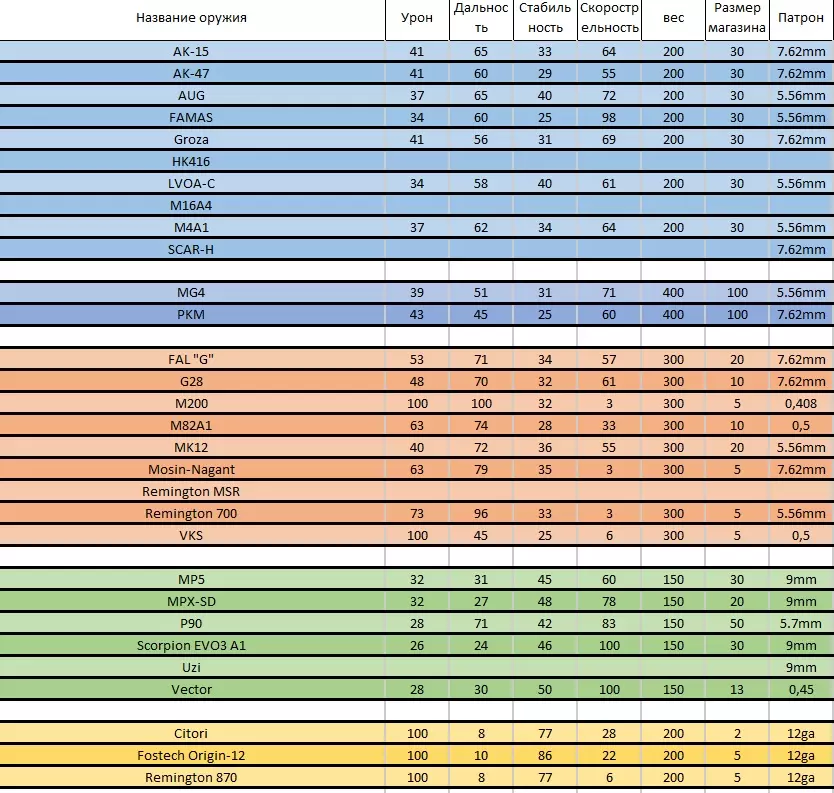
- 武器伤害 — 无限法则 武器伤害
- 100 — 如何移动? 最好将移动功能设置在W键上
- 《无限法则》游戏指南 — 音频为意大利语,字幕为英语。我正在制作《无限法则》的入门教程视频。《无限法则 - 游戏指南》
- 《无限法则》提升帧率详细指南:如何优化性能(2019年5月) — 无法识别有效内容,已删除。
- 《无限法则》新手指南——如何获胜、技巧与窍门 — 《无限法则》新手指南 《无限法则》新手指南将为你提供游戏中所有有助于你有效赢得比赛的事项和操作。 《无限法则》是一款大逃杀类游戏,这意味着每场比赛只有一名玩家能…
- 如何在5秒内获取两个皮肤 — 为了获取两款皮肤,需要下载DLC。在游戏搜索栏中输入:Ring of Elysium - 狄俄涅的馈赠并下载。你将获得两款皮肤:死亡头巾和毛衣,与初始款类似,只…
- 欢迎所有玩家! — 欢迎所有玩家! 我们很高兴邀请您加入我们的游戏社区!在这里,您可以找到队友,与志同道合的人交流。 如何开始? 1. 加入我们的Discord服务器 2. 进入队…
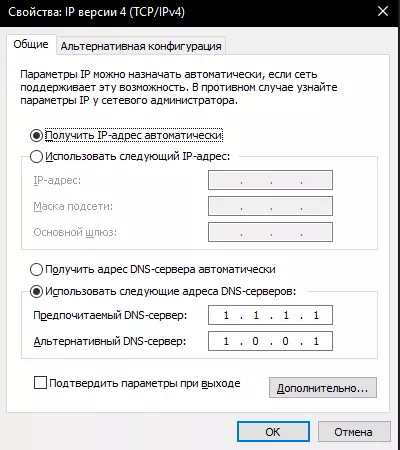
- 修复连接超时错误,请检查您的网络状态 — 有两种修复此错误的方法: 1. 使用VPN。很多人都这样做,但我个人并不喜欢。如果选择此方法,建议使用AVIRA VPN和付费的VPNGAME。 2. 修改DN…
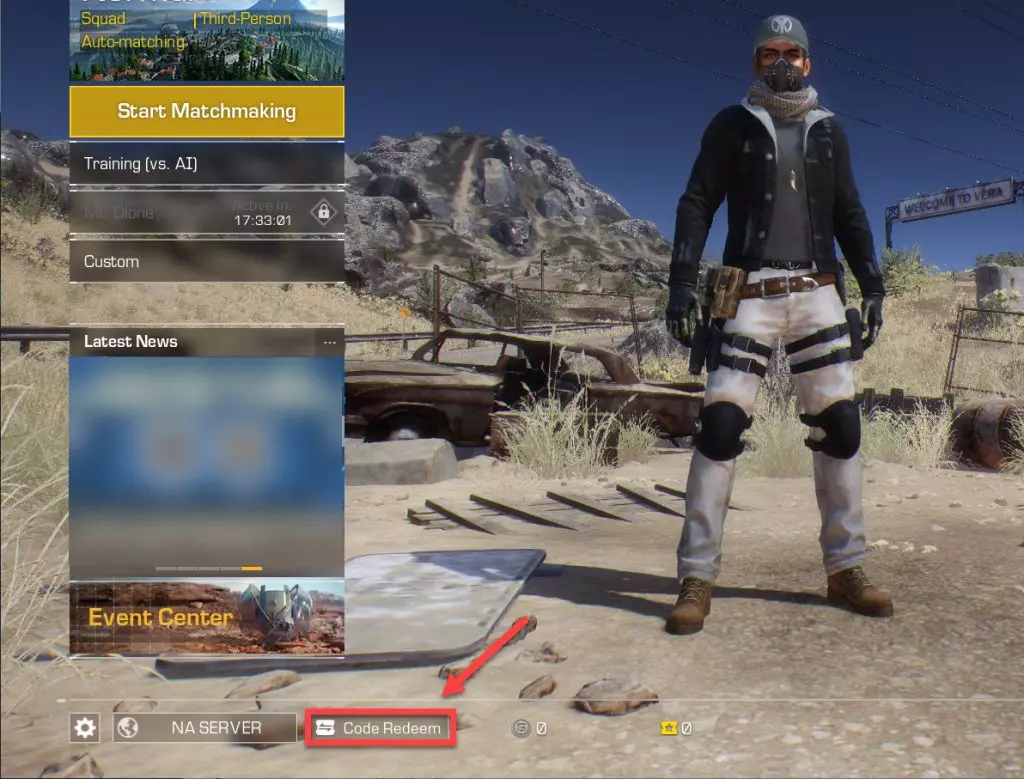
- 所有《无限法则》兑换码 — 在这里,你可以找到所有《无限法则》的兑换码以及即将推出的兑换码! 如何兑换兑换码: 1. 启动游戏 2. 点击屏幕左下角的【兑换码】按钮(在活动标签下方) 3.…
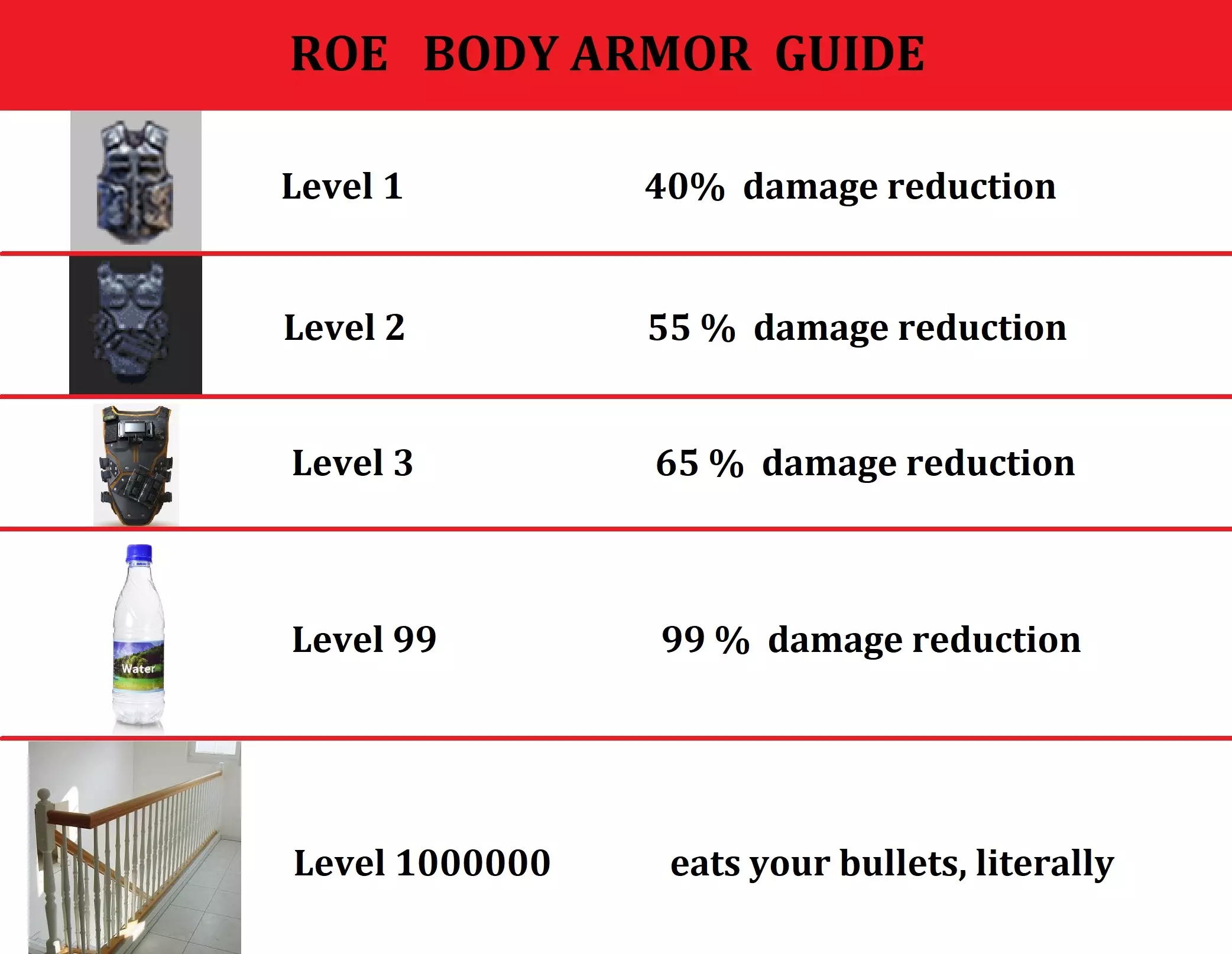
- 防弹衣指南 — 关于《无限法则》中防弹衣的所有信息