换一换
换一换 


You do not need EasyAntiCheat installed for the game to work if you're playing offline. If you're experiencing crashes or save loss related to EasyAntiCheat - try this. EAC isn't required - for offline players and crash troublshooters I know a lot of people expressed a desire to get the game for the offline and were put off by the anti-cheat. There's also been reports of crashes and bluescreens attributed to anti-cheat being overly temperamental. I can personally confirm I experiences a bluescreen due to a kernel error while playing, so I have to think it's true. The game however does not actually require EasyAntiCheat to launch or run - it only needs them to access the online features like multiplayer or cross-saves. So, if you're having issues launching the game, have lost your save file, are experiencing crashes, or just don't want EAC on your PC here's how to bypass, disable, remove, and block it from automatically reinstalling - without losing your save data. Edit: I've confirmed you can connect to the internet to receive gift codes even if you disable the online features. This guide involves using the command prompt and editing the registry. If you follow the steps as written you'll be fine, but if anything gets messed up you assume responsibility for fiddling with your own computer's brain. Bypassing EasyAntiCheat without losing Save Data Edit: I've done some more messing with the save files and have found a way to consistently manipulate them for easy backups and multiple save files without data loss. First you’ll wanna go ahead and back up these locations just to be safe: Save Data here Steam userdata [Your ID] 2993780 remote Create a new folder to backup both the remote folder and the remotecache.vdf. Copy paste the files, do not drag and drop, as this can cause the game to lose track of your save. You need the remotecache.vdf for the game to recognize the save in your /remote folder, if this file goes missing or is moved at all the game will prompt you to start a new save, even if there is a current save file in the remote folder. If this happens, back up the 002DAE74-00-gamedata.bin you want to recover - then start a new a new file. Play until you you can save and quit, to generate a new remotecache.vdf then overwrite the newly generated 002DAE74-00-gamedata.bin in the /remote with the the one you previously backed up - it should launch your original save just fine. If you want to use the second save file, you can back it up as well before over writing it, allowing you to have as many save files you want. Next open up the game folder Steam steamapps common FANTASY LIFE i You will see a file called GameBootstrapper.ini Open this in anything, notepad's fine. Go to the top line and replace ApplicationPath=EACLauncher.exewith ApplicationPath=Game Binaries Win64 NFL1-Win64-Shipping.exe or if that doesn't work try ApplicationPath=NFL1.exe NOTE: YOU'LL HAVE TO RE-DO THIS PART AFTER AN UPDATE Go ahead and launch the game, make sure it starts and your save works before doing anything nuts. It should completely skip launching EAC and go straight into the title screen. If you experience(d) any save game loss, please read this: you can launch the game directly from either of these executables on their own, bypassing the anti-cheat without editing anything, but launching them manually for some reason makes them unable to locate the game's default save location - which makes it appear as though your save might have been lost or deleted - do not panic! It's probably fine so long as you have not started a new save yet! The reason we're bothering to edit these files is so we can continue to launch it through steam and prevent any save data loss/misplacement. Still it's best practice to always make a backup just in case! If you still have any problems getting it to launch or recognize an existing save; double-check your spelling and formatting in the GameBootstrapper.ini config, make sure your gamedata is in the "Steam userdata [Your ID] 2993780 remote"folder, possibly try adding the '-dx11' or '-safe' commands to your launch options (right click the game > properties > general > launch options), if all else fails back everything up, validate your game files, and start back at step one. If none of that works then I simply cannot help, may Gaben have mercy on your soul. Disabling and Removing EasyAntiCheat from your PC Once the bypass is set up you can remove the EasyAntiCheat software from your PC and still launch the game without any problems. However you will not be able to access any of the online features such as multiplayer or cross-saves. If you want to use either of these, you need to re-enable EasyAntiCheat. If you're never gonna go online though and want to purge all trances of EAC from your computer follow these steps: Press Windows + R and run the command ‘cmd’ to open the command prompt and copy/paste this EasyAntiCheat_EOS_Setup.exe qa-factory-reset This will reset and disable EAC, but if we want to completely remove all traces we also need to delete it from the registry. Window + R and run ‘regedit’ Open the Registry Editor Find HKEY_LOCAL_MACHINE and navigate to SYSTEM > CurrentControlSet > Services >EasyAntiCheat.reg SYSTEM > CurrentControlSet > Services >EasyAntiCheat_EOS.reg Delete those entries to successfully purge your system. You wanna go through cleaning up and deleting any other leftover junk files or folders related to it - and you're done! Reboot and there should be no trace of EAC and your game should launch fine and retain all your save info. Blocking Automatic Re-installation After Updates After an update the game will automatically redownload any missing files related to Epic Services or EasyAntiCheat, as well as reset your GameBootstrapper.ini file back to default. You will need to re-do the bypass after every update (so far this has been the case at least). If you try to launch the game after unintalling EAC but forget to reconfigure the ini, this will prompt EAC to reinstall itself. If you want to block EAC from automatically reinstalling itself due to a sudden update or accidental misclick, you can use the Windows AppLocker to deny them run permissions. Windows + R and run 'secpol.msc' Navigate to here: Application Control Policies > AppLocker > Executable Rules Right-click in the right area of the window and follow these steps Create New Rule Set action to 'deny' keep group Everybody Set type to File hash Add EACLauncher.exe and EasyAntiCheat_EOS_Setup.exe to rule Create That should block them from running even if you open them and click all over them on purpose.
离线游玩时禁用/移除EasyAntiCheat(不丢失存档数据)

2026-02-17 22:00:09
转载

导读
这篇帖子针对《FANTASY LIFE i》玩家,提供了无需丢失存档数据,禁用、移除EasyAntiCheat(EAC)的详细教程。说明离线游玩该游戏无需EAC,EAC仅用于联机功能,还会引发崩溃、蓝屏等问题,教程含修改配置、注册表等操作,也介绍了存档备份、阻止EAC自动重装的方法。


评论
共0条评论

游戏后期刷级与升级攻略
目前游戏中全职业达到100级的逐步指南 你已经看完了制作人员名单,接下来该做什么? 你刚刚通关游戏,现在进入了终局阶段,可能会问自己该如何升级以及该做些什么。本…
2026-02-18 01:000赞 · 0评论

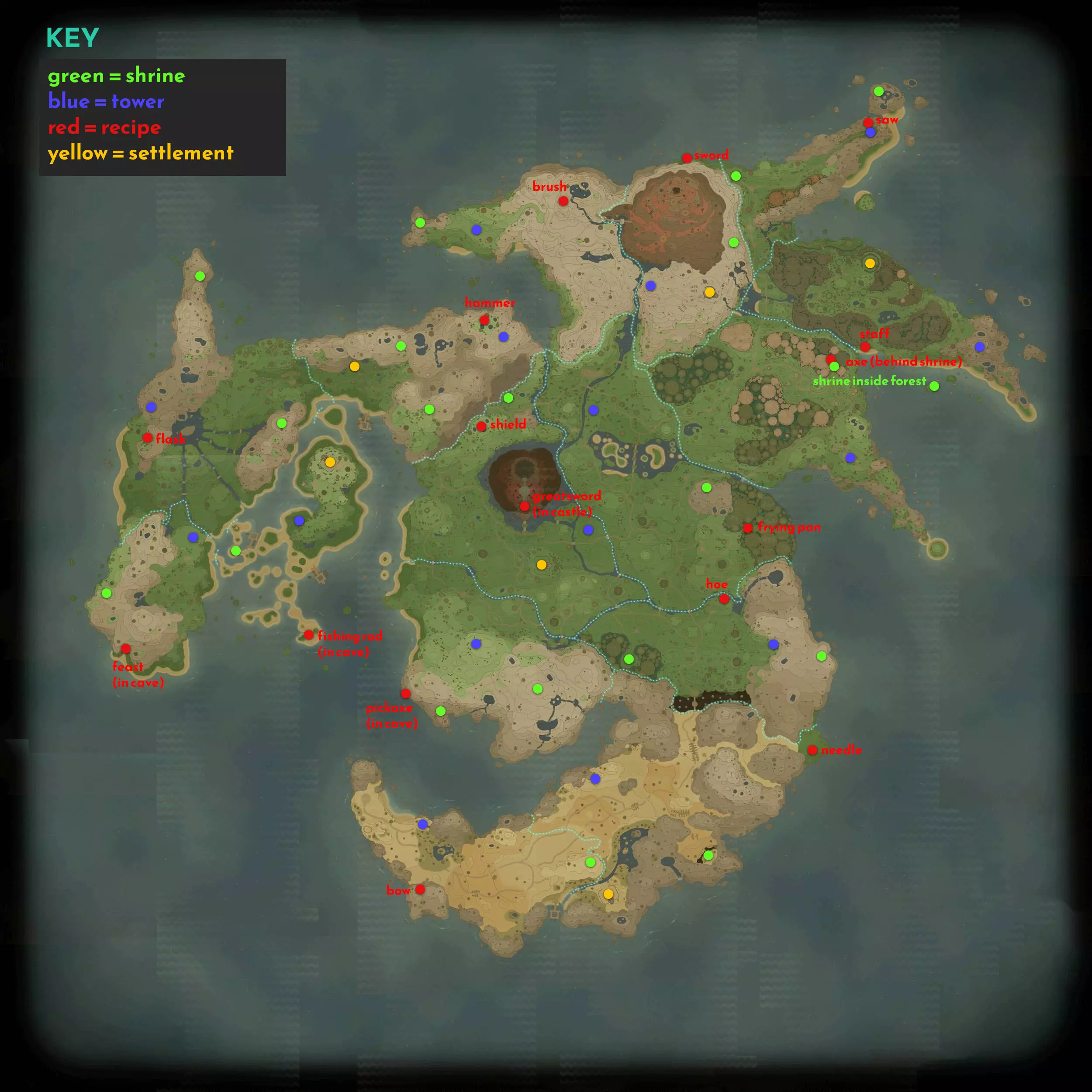
吉诺莫西亚 - 配方、神殿、塔楼及聚落位置
吉诺莫西亚全地图:包含所有配方、神殿、聚落和塔楼位置
2026-02-18 01:000赞 · 0评论
封闭区域速查表
关于已封锁区域包含内容及解锁所需成本的速查表,以便你决定优先解锁哪些区域。【所需资源位置速查表】 火资源 神秘之都 - 巴纳洞穴:5个暗火 木柴堆配方+其他物品…
2026-02-18 01:000赞 · 0评论

幻想生活索引
想知道去哪里找东西吗?这份指南会告诉你。 定义与指南结构 大家好。我将把内容分为收集品、矿石、树木、鱼类、农田和怪物几个部分。 我暂未计入木箱或可开启的宝箱。 …
2026-02-17 22:000赞 · 0评论
所有礼包码
当前所有可在游戏内兑换的礼包码。根据规则,内容涉及赠送礼物、赠送道具相关措辞,需屏蔽删除。【M53UA8Y2】健康玻璃×1,旅行蛋糕盘×1,旅行玩偶×1,-re…
2026-02-17 22:000赞 · 0评论
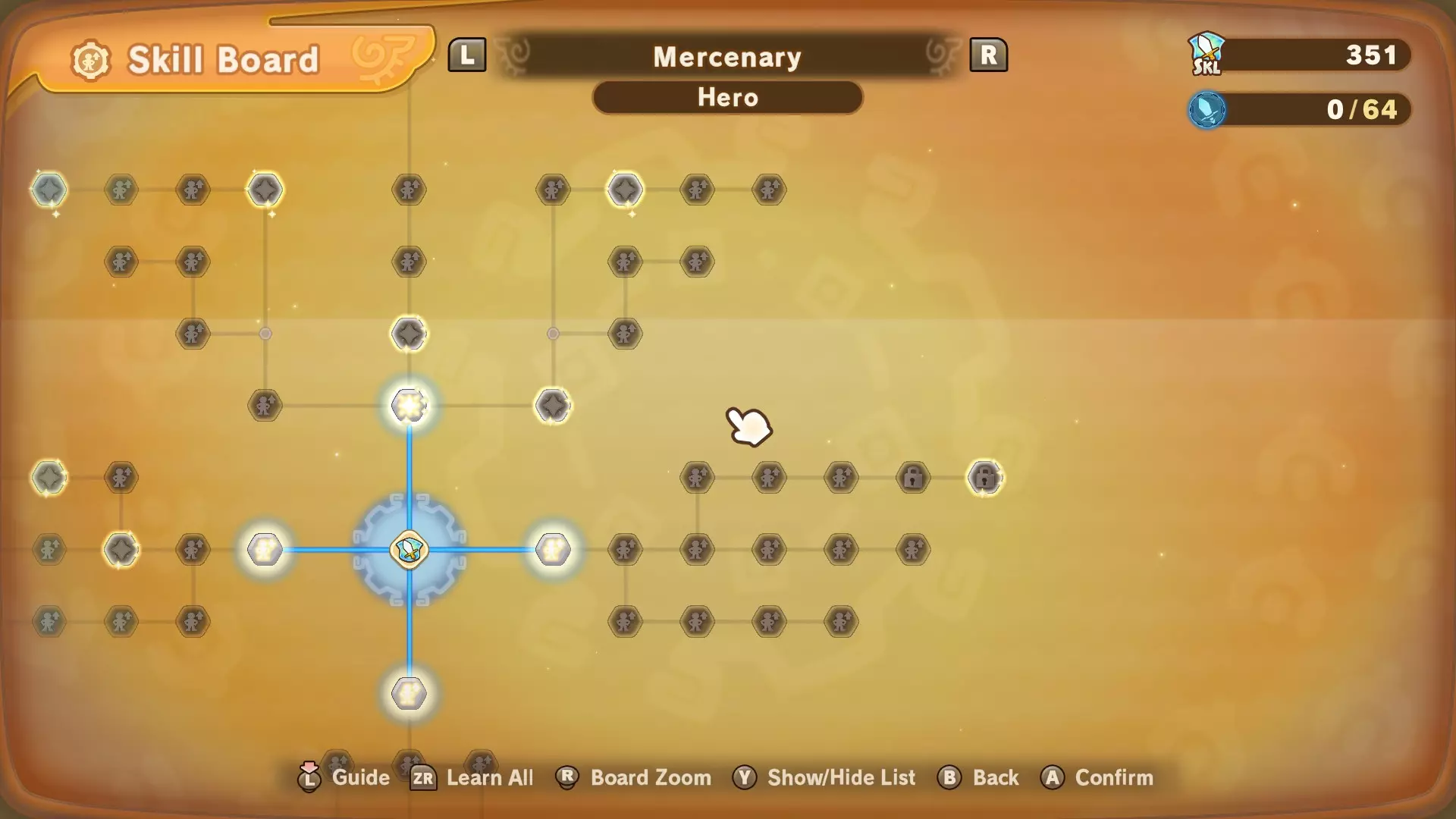
技能点
这不仅仅是一份指南,而是我从技能面板中发现的一个小技巧。 技能点储物柜 大家好! 这里有个小“窍门”,可以移除那些储物柜,这样你就能学习任何想要的技能,而不必在…
2026-02-17 22:000赞 · 0评论
离线游玩时禁用/移除EasyAntiCheat(不丢失存档数据)
You do not need EasyAntiCheat installed for the game to work if you're playing o…
2026-02-17 22:000赞 · 0评论
如何快速赚钱!
《幻想生活i:时光盗贼》快速赚钱方法 1. 解锁炼金术生活技能并开启自动制作2星物品功能。 2. 使用可疑物品和科学烧瓶制作科学设备。 3. 每个科学设备可售价…
2026-02-17 22:000赞 · 0评论
生存技巧、经验值获取方法、最佳装备及更多内容
The endgame knowledge for all Lives! This guide contains: * General Life Tips * …
2026-02-17 22:000赞 · 0评论

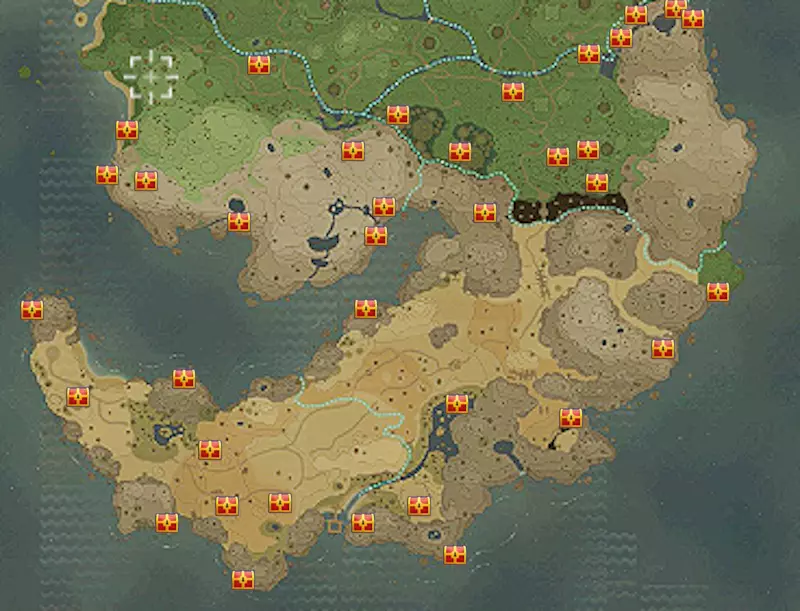
Ginormosia - 叶子隐藏点指南
吉诺莫西亚 - 叶子隐藏点 概述 所有叶子点的概述
2026-02-17 19:000赞 · 0评论
暂无更多