换一换
换一换 


This guide offers a structured introduction to Virtual Piano—covering QWERTY technique, music theory, and tips to improve your playing experience. Introduction to Virtual Piano
****************** IntroductionThe concept is simple: each key on a standard QWERTY keyboard corresponds to a piano note. Lowercase letters and numbers correspond to the white keys, while uppercase letters and numbers correspond to the black keys. (Note: PianoGlow offers options to select different keybinds if you're using keyboard layouts such as AZERTY or QWERTZ.) How To Start Playing & Find Sheet MusicThroughout this guide, you’ll learn the fundamentals of QWERTY piano, which will help you read and play QWERTY sheet music more effectively. Before exploring the sheet index below, I highly recommend reading through the full guide to gain a solid understanding of how Virtual Piano works. Main QWERTY Sheet Index[vp-sheets.arijan.dev] (credits to arijan for this amazing site) Most sheets have the difficulty labeled, so be sure to play at your current level. Hand Positioning
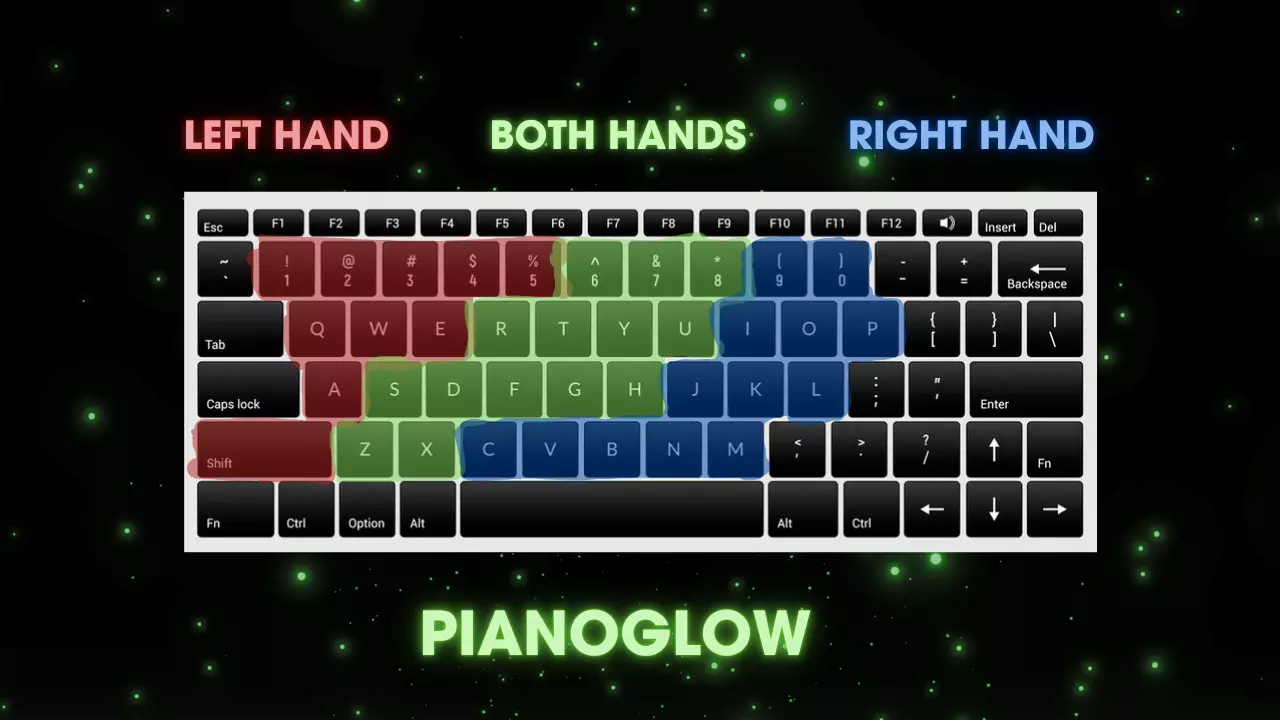
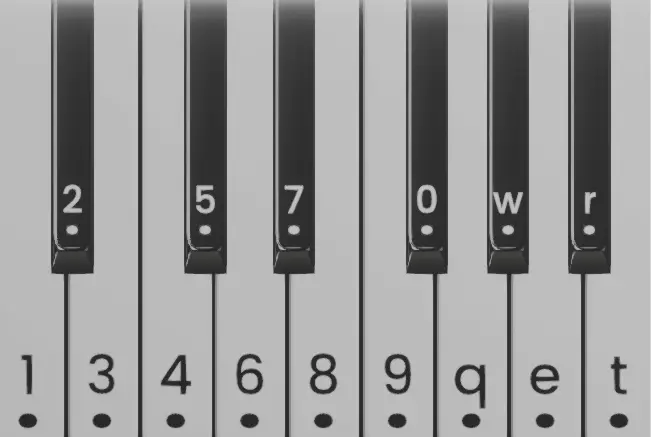
****************************(Hand Positioning may vary based on your keyboard layout or preference.) Sustain PedalThe sustain pedal allows notes to continue sounding after the keys are released. It is controlled by pressing the spacebar. It’s recommended to invert the sustain pedal (if not already inverted), so you don't need to hold down the spacebar for sustained notes. TransposingTransposing changes the key you’re playing in (e.g., C major, A minor), allowing you to play both white and black notes together. For example, If you're playing a piece originally written in B Major (which has 5 black keys), transposing it to C Major (which has no black keys) will make it significantly easier to play on a QWERTY keyboard. How To Play Black Keys / Shifted NotesBy default (no transpose), holding Shift + any of these QWERTY keys: [1 2 4 5 6 8 9 q w e t y i o p s d g h j l z c v b]will play the black key according to this image:

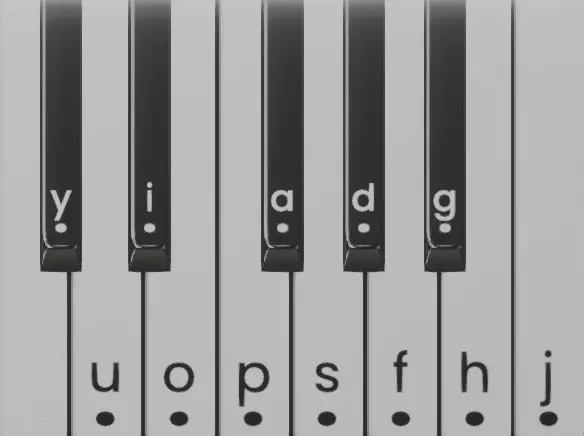
**********************************************************Additionally, holding Shift + any key that does not have a corresponding black note will play the corresponding white note (i.e. Shift + 0 = q or Shift + r = t). How To Play ChordsChords are shown as notes joined by [ ]. (Arpeggiated form is { }.) For example, "[qetu]" is a chord. In order to play it, you must press "q", "e", "t", and "u" at the same time. It is up to you to find the most comfortable fingering when playing chords (refer to hand positioning for general reference). If a chord is too large or difficult to press all at once, you can arpeggiate the chord (meaning to play the notes one after another in quick succession). Another way of simplifying chords is skipping notes in the middle of a chord. How To Play Uppercase and Lowercase / Shifted and Unshifted Notes SimultaneouslyOne of the most frequently asked questions about Virtual Piano is whether it's possible to play uppercase (shifted) and lowercase (unshifted) notes at the same time. The answer is simple — it’s not directly possible (unless you configure custom keybinds or use transposition). However, it is possible to simulate this by pressing the notes in rapid succession. For example, [uO] should be played by pressing "u" first, then "O" as fast as possible. How To Play Notes In The 88-Key Octave RangeFor intermediate - advanced players, it is recommended to use the CTRL key which gives the ability to play 88-key octave notes. Simply hold CTRL then select one of the CTRL key notes. The layout for CTRL key notes goes as follows: First Octave: [ CTRL + 1 2 3 4 5 6 7 8 9 0 q w e r t ]
***************************** Last Octave: [ CTRL + y u i o p a s d f g h j ]
***************************** Basic Theory The basic formatting of sheets goes as follows: Lowercase letters = Normal notes. Uppercase letters = Shift notes. [ ] = Chord, play the notes together. { } = Press keys in rapid succession (usually arpeggiated chords). If the CTRL note is at the end of a chord or a single note, the only separator is the colon ( : ). (The : and ' symbols separate CTRL notes from the regular notes so you don't get confused.) Image exclusive format: Underlined ( _ ) notes = CTRL note. Timing
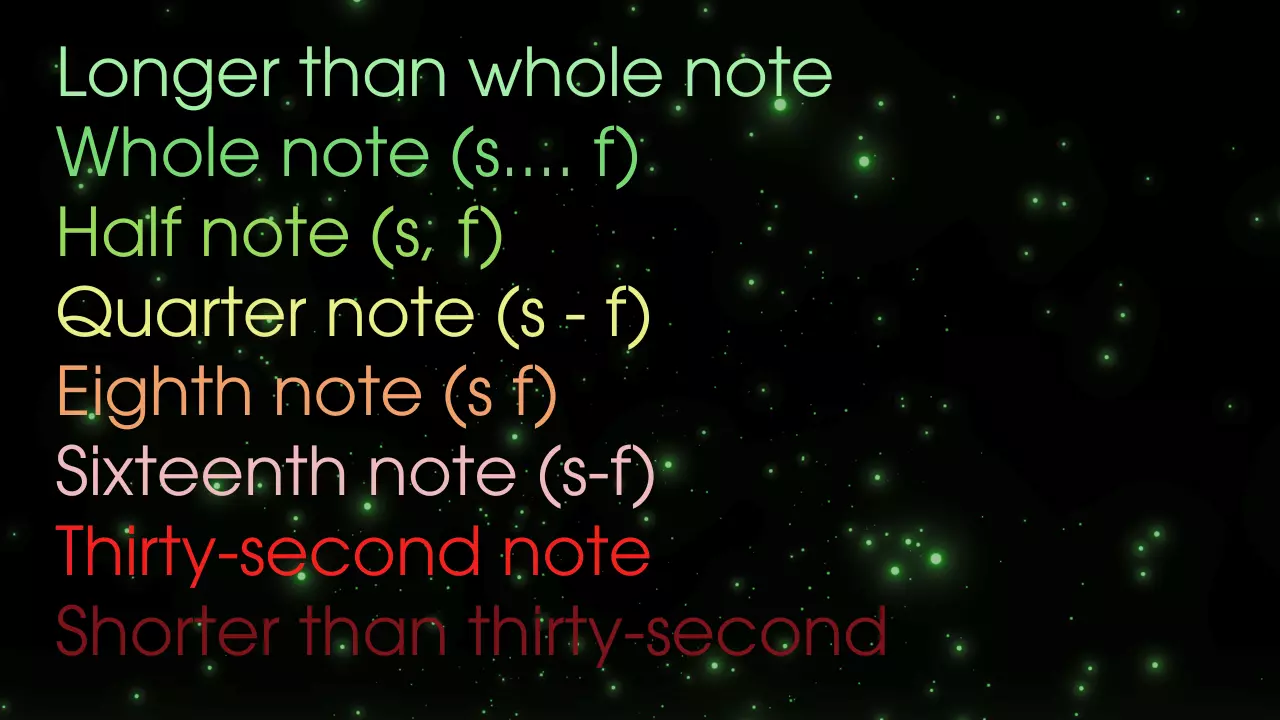
Green = hold the note/chord for a bit before playing the next. Orange = play the note/chord relatively quickly then move to the next. Red = play the note/chord very quickly then move to the next. The image above shows how timing is represented using both text and color. The text-formatted timing (i.e. ( - ) or ( .... ) is generally used in all text-based sheets. The color-formatted timing (i.e. green → orange → red) is used in image-based sheets. Extras MIDI ConverterVery helpful tool that lets you convert MIDI files into QWERTY sheets. MIDI Converter[arijanj.github.io](credits to arijan for this site as well) Virtual Piano SitesA few other websites/games that utilize the QWERTY piano can be found here. (Note: not all virtual piano apps utilize the same features PianoGlow does.) Virtual Piano[virtualpiano.net] Multiplayer Orchestra[multiplayer-orchestra.com] Visual Piano Studios on Roblox[www.roblox.com] Piano Rooms on Roblox[www.roblox.com] Pianoverse[pianoverse.io] Conclusion PianoGlow / Virtual piano provides a unique and accessible approach to musical expression. This guide is intended as a foundation — whether you're just starting out or already experienced, I hope you found this guide helpful. Thank you for taking the time to read.