


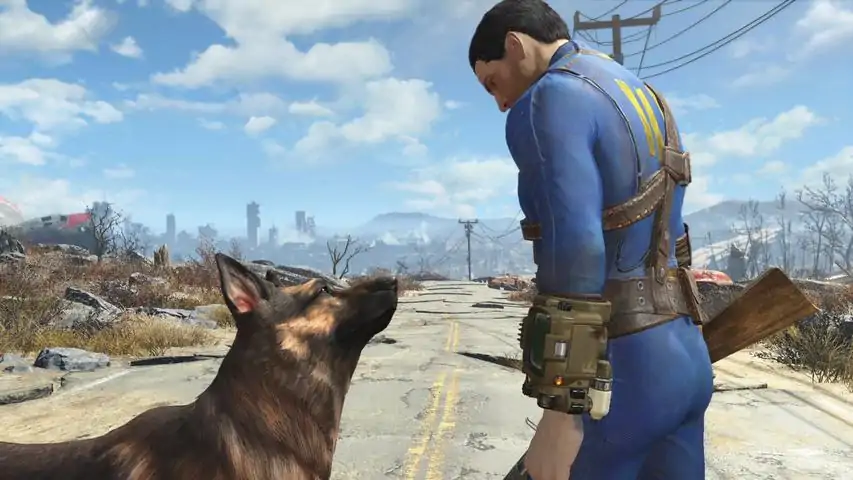

《辐射4》故障排除指南
A guide to help get Fallout 4 running on a PC. Fallout 4 Trouble-Shooting Guide It is an old game. It was released when 60Hz was the standard and players were running their games on Windows 7 and were happy with 60fps. Hence it needs tweaking to run on new systems. Especially high refresh rates, the security and privacy features of Windows 10/11, High DPI Scaling, and OneDrive can cause problems. Start with these 5 steps and then see the additional notes and common issues below: Be sure your PC meets the minimum hardware requirements. See the Store page for details on the game's requirements. Set "Windows 7"-compatibility. Go to Fallout 4's Steam folder, i.e.: C: Program Files (x86) Steam steamapps common Fallout 4 and set both, Fallout4.exe and Fallout4Launcher.exe, to run in "Windows 7"-compatibility mode. Right-click each file, and see Properties->Compatibility->Compatibility mode. This helps with symptoms such as the game losing focus while starting in fullscreen mode, opening a window only to switch to fullscreen mode, or randomly minimising during gameplay. In the properties, one can further set these files to run as Administrator, although this is not recommended. It can help the game access files and devices (see note on OneDrive below). Disable High DPI Scaling by setting the scale to 100% in the Windows settings System->Display->Scale, or by setting an override in the properties of the game's executable files under the Compatibility tab, Properties->Compatibility->Change high DPI settings. Set the High DPI setting override to "Application" for Fallout4.exe and Fallout4Launcher.exe. High DPI Scaling can cause the game not to start or to use the wrong resolution. Set your display's refresh rate to 60Hz, 120Hz, or 180Hz, or limit the game's frame rate to 60fps in the graphics driver, using tools or mods. A display's refresh rate can be changed in the Windows Settings under System->Display->Advanced. A too high frame rate causes the game's physics to run too fast, dialogues to cut short, the player to get stuck at terminals, and black screens and crashes. Open the file Fallout4Prefs.ini in Documents My Games Fallout4 and search for: [Display] ... iPresentInterval=0 Set this value to 1 to sync 1:1 with a display's refresh rate, limiting the game to 60fps with a 60Hz display. A value of 2 means to sync 1:2, limiting the game to 60fps with a 120Hz display. A value of 3 means to sync 1:3, limiting the game to 60fps with a 180Hz display. A value of 0 (null) will turn VSync off, for example, when you want to enable VSync in the driver or limit the frame rate by other means (i.e. mods or tools). Warning: iPresentInterval works as described for fullscreen mode, but for windowed mode is it bugged, and a value of 1 fails to sync with every refresh, and syncs with every second refresh instead. A value of 2 syncs with every third refresh, and 3 syncs with every fourth refresh! Use a value of 1 for a 120Hz display, 2 for 180Hz, and 3 for 240Hz, and when you have a 60Hz display use the fullscreen mode instead. As an alternative and when you are familiar with modding can you use a mod to run the game at higher frame rates: High FPS Physics Fix - https://www.nexusmods.com/fallout4/mods/44798 If you have an Nvidia card then disable Weapon Debris in the game's launcher. See under the advanced options there. Nvidia has previously changed the API, and weapon debris now only works on older GTX cards. Newer GTX cards and RTX cards will cause a crash randomly early in the game. There, too, is a mod that will allow weapon debris to work on newer Nvidia cards: Weapon Debris Crash Fix - https://www.nexusmods.com/fallout4/mods/48078 Additional Notes One can use Nvidia's GeForce Experience or NVIDIA App to optimise the game's settings for one's hardware. This will disable Weapon Debris, enable NVHBAO+ (Nvidia's ambient occlusion), allow for a range of settings from quality to performance, and let one set the desired resolution and display mode for the game. When DLDSR is enabled in the driver can one use DLDSR with Fallout 4 to get more detailed graphics. Similar optimisations are available with AMD's Adrenalin software for AMD graphics. Alternatively can one use Bilago's Configuration Tool to change the game's settings. It offers a graphical user interface to change settings such as the resolution and display mode, VSync, shadow quality, HUD colour, mouse sensitivity, controller support, and much more: Bilago's Configuration Tool - https://www.nexusmods.com/fallout4/mods/102 If the game cannot create or access its .ini files and savefiles in the Documents folder, then check whether you have Controlled Folder Access in Windows enabled, and if so, add Fallout4.exe and Fallout4Launcher.exe to the list of allowed apps. Check your anti-virus software if you have any installed and create an exception for the game when it is blocking it. See Windows settings Privacy & Security->Windows Security->Virus & threat protection->Virus & threat protection settings->Manage settings->Controlled folder access as well as ->Exclusions. https://www.elevenforum.com/t/enable-or-disable-controlled-folder-access-for-microsoft-defender-antivirus-in-windows-11.4013/ Further, check whether OneDrive is enabled. OneDrive changes the default location of the Documents-folder and can cause settings and savefiles to disappear. If necessary, disable OneDrive and restore the Documents-folder to its original location: https://www.elevenforum.com/t/move-or-restore-default-location-of-documents-folder-in-windows-11.8708/ If keyboard&mouse are not working then unplug any controller, racing wheel, and joystick, reboot Windows, and try again. An advanced keyboard with an integrated controller and mousepad can confuse the game. Switch to a standard keyboard and mouse combination. Further check Fallout4Prefs.ini for: [General] ... bGamepadEnable=0 Set this value to 0 (null) to disable controller support and to enable keyboard&mouse, or, to 1 to enable controller support and to disable keyboard&mouse. Audio Issues When dialogues are being cut off early or NPCs start talking over each other then the game's frame rate is likely too high. Limit it to 60fps or use a mod for high frame rates. If you have gaming audio software like SteelSeries or Razor, then check there, too. The game only supports up to 6 channels (5.1 surround), and software with 8 channels (7.1 surround), can fail and may require adjusting. Audio devices with 24-bit sampling need to be switched to 16-bit when these cannot automatically resample older sound formats, i.e. 16-bit 44.1kHz or 16-bit 48kHz. See Windows settings System->Sound->Output (click the device)->Output settings->Format. Windows N editions, i.e. "Windows 11 Home N" (see Windows Settings->System->About) may need the Media Feature Pack by Microsoft installed because the N edition has excluded some audio codecs. This may also add resampling for 24-bit to/from 16-bit or 44.1kHz to 48kHz to devices that cannot handle this directly. See Microsoft: https://support.microsoft.com/en-gb/topic/media-feature-pack-list-for-windows-n-editions-c1c6fffa-d052-8338-7a79-a4bb980a700a Audio over HDMI can be limited due to older standards not supporting high bandwidths (i.e. HDMI 2.0 can handle at most 4K@60Hz), or the graphics driver is outdated. Use newer HDMI standards including a newer cable, update the graphics driver, lower resolution, or switch to on-board audio or other audio devices. Audio over HDMI, USB, Bluetooth, and other connections can get suspended and introduce a delay in the audio stream after a resume. Try disabling the power management for the interface or avoid long durations of silence, i.e. by avoiding Alt-Tabbing out of the game for too long. To disable power management for an interface open Windows Settings->System->About->Related->Device Manager, find the interface to your audio device such as the HDMI, USB, or Bluetooth adapter, open Properties->Power Management and uncheck "Allow the computer to turn off this device to save power". Too quiet sound can be avoided by disabling Microsoft's audio enhancements. See Windows settings System->Sound->Output (click the device)->Audio enhancements. The game does not recognise a change in the audio output device while running. For example, when plugging in headphones late. Exit the game and restart it. Hardware suspend or hibernation can introduce noise or crackling sound after waking up a PC. Enter "fks" into the game's console to reset the game's sound system and buffers. Repeating sounds, sounds stuck to characters and objects, or characters no longer talking. Enter "fks" into the game's console to reset the game's sound system and buffers. Too Low or Too High Frame Rates The game runs at too low or too high frame rates. Some of the reasons for this are listed below: The game runs at frame rates that are too low. Check whether the PC meets the minimum hardware requirements. When unsure search Google for what to expect with your particular hardware and ask on the forum. The game runs at low frame rates. Set it to run on a dedicated gaming GPU and avoid using an integrated GPU. The game produces low frame rates on a laptop. Laptops may use an integrated GPU to conserve power when running on battery power. Plug the laptop into an outlet or switch to a dedicated gaming GPU when running on battery power. The game produces low frame rates. (Re-)Enable fullscreen and windowed optimisations for Fallout 4 when you have turned them off: Find Fallout4.exe in the Steam folder of the game. Open Properties->Compatibility, uncheck "Disable full-screen optimisations". Open the Windows Settings System->Display->Graphics, find Fallout 4 in the list of apps, click Options, and uncheck "Don't use optimisations for windowed games". The game produces frame rates that are too low or too high, with a high refresh rate display. Install the "High FPS Physics Fix" mod: - F4SE with Address Library (updated!) https://www.nexusmods.com/fallout4/mods/42147 https://www.nexusmods.com/fallout4/mods/47327 - High FPS Physics Fix (updated!) https://www.nexusmods.com/fallout4/mods/44798 The High FPS Physics Fix lets your game run at frame rates above 60fps, fixes issues with the game, and includes a load accelerator. If you are unsure about using mods but want to try them, find a good modding guide and read or watch it. If you do not want to use mods can you do the following: Set iPresentInterval=0 in the game's Fallout4Prefs.ini file to disable VSync. Open the settings to your graphics driver, i.e. Nvidia Control Panel or AMD Adrenalin. Find and open the 3D settings. Open the tab for the individual applications. Find Fallout 4 in the list of applications and games. Enable low latency mode for the game. Set a frame rate limit for the game with a maximum of 60fps. Force VSync to "fast" for the game when you have an Nvidia GPU, for AMD this is called "Enhanced Sync". This will give you 60fps, thereby keeping the game's physics in check while providing tear-free rendering with a high refresh rate display. The game runs at a low, fixed frame rate, and nothing seems to change it. This is often caused by VSync or a frame rate limiter being enabled in multiple places. VSync and frame rate limiting can be enabled in the game, through tools, mods, and in the graphics driver. Check tools and mods, and read their instructions on how to set these up correctly. Only enable VSync and frame rate limiting in one place. Mods known to modify VSync, or to limit the frame rate, are the High FPS Physics Fix, various load accelerators, ENB, ReShade, and more. This can also be caused by Windows' Controlled Folder Access, anti-virus software, or OneDrive blocking the game from creating or accessing its .ini files (see Additional Notes above). Graphics Glitches Update graphics drivers, avoid over-clocking, and check for over-heating. The game uses shaders for its graphics. These shaders are created at runtime and are stored in caches. These caches can become outdated or damaged. Clear the shader caches when you see graphical glitches. Windows: AppData Local D3DSCache Steam: C: Program Files (x86) Steam steamapps shadercache 377160 Nvidia: disable the shader cache in the Nvidia Control Panel, delete all files in the cache directories, and reenable the cache again: AppData LocalLow NVIDIA PerDriverVersion DXCache AppData Local NVIDIA Corporation NV_Cache AMD: reset the shader cache in the AMD Adrenalin settings, or delete the files in: AppData Local AMD Dxcache AppData Local AMD DxcCache A common cause for graphics glitches are mods. Check modding guides, read mod descriptions, and ask for help on the forums. Crashes The game can crash to the desktop (CtD) or fail to launch for several reasons. These are some of them: PC does not meet minimum hardware requirements. Check the store page for the game's requirements. Incomplete or damaged game files. Verify the game files in the Steam client. Outdated drivers and pending Windows updates. Update drivers and Windows. Installing a mod, or removing a mod mid-game. Read or watch a modding guide for more information. A broken or damaged savefile. Load an earlier savefile. A too high frame rate. Limit the frame rate to 60fps (see above). Weapon debris is enabled on Nvidia cards. Disable it in the launcher settings. A bad or misspelled entry in the .ini file settings. Undo your changes, or, delete the .ini files and let the launcher create new ones. A bad resolution with High DPI Scaling enabled. Disable High DPI Scaling and select a new resolution in the launcher. Streaming- and video recording software, additional overlays, and background processes can interfere with the game and use additional VRAM on your graphics card. Disable them. Missing, outdated, or damaged system libraries. Reinstall DirectX 11, DotNet, and VisualC++ libraries: DirectX https://www.microsoft.com/en-gb/download/details.aspx?id=35 DotNet https://dotnet.microsoft.com/en-us/download/dotnet-framework VisualC++ https://learn.microsoft.com/en-US/cpp/windows/latest-supported-vc-redist Other Issues Ultrawide Issues and Uncommon ResolutionsThe interface is unpleasant, too stretched out, or has edges, when viewed at a 21:9 aspect ratio or wider. Use a mod as an alternative: 21:9 - https://www.nexusmods.com/fallout4/mods/65677 32:9 - https://www.nexusmods.com/fallout4/mods/56363 The interface looks broken or shifted when using an uncommon resolution. Use a common resolution based on 16:9, i.e. 1920x1080.StutteringThe game is installed on an old hard disk and cannot load its data fast enough. Install it on a fast SSD. The frame rate is below 60fps and the game's response is slow. Uninstall the High Texture Pack DLC when your graphics card cannot handle it well. Reduce graphics settings. Increase the frame rate by installing the "High FPS Physics Fix" mod.Too Small WindowThe game cannot access its .ini files and uses its default setting. It is often caused by anti-virus software, Windows' Controlled Folder Access, or OneDrive blocking the game's file access. Disable them or create exceptions for Fallout4.exe and Fallout4Launcher.exe. High DPI Scaling is enabled with a scale greater than 100%. Disable it or set overrides for the .exe files.Minimised Window or Wrong ScreenThe game opens minimised, likely due to a second display being connected previously. Check with LeftWinKey+Tab if the game is running on another display. Disable "Remember window locations" and "Minimise windows" in Windows settings System->Display->Multiple Displays. The game opens on the wrong screen. Use LeftWinKey+Shift+ArrowKeys to move it. See also Windows Settings->Display->Multiple Displays. The game's window has been placed outside the screen. Check Fallout4Custom.ini for: [Display] iLocation X=0 iLocation Y=0and set these values back to 0 (null) when these values are off.Long Loading TimesLoading is tied to the frame rate and can take up to several minutes. Alt-Tab to the desktop and back again speeds it up. Increase the game's frame rates. Install a load accelerator mod such as the "High FPS Physics Fix" (see Too Low or Too High Frame Rates above). Loading times are high when autosaves are enabled. Disable autosave and use manual saves. Clean out or compress old savefiles when there are too many.Black ScreensThe game is stuck in a long loading sequence. Use a load accelerator (see above). The game runs at a too high frame rate, which breaks the loading sequence. Limit the frame rate to 60fps (see above). The game is stuck creating an autosave file. Disable autosave. Check disk space. Disable OneDrive. The .ini files contain a bad value. Undo your changes, or, delete the .ini files and let the launcher create new ones.Settings Not Taking EffectSettings have no effect. Check all 3 .ini files Fallout4.ini, Fallou4Custom.ini, and Fallout4Prefs.ini, for the value you are trying to change. See Additional Notes above for using tools to make changes to the .ini files. These help in avoiding mistakes. The game cannot find its .ini files. Anti-virus software, Windows' Controlled Folder Access, and OneDrive can interfere with the game. See Additional Notes above.Blue Screens, Resets, Freezes, Hot Hardware, and Loud FansThe game seems to cause the hardware to overheat, or to fail. This is not directly caused by a game. Games use DirectX, which uses the operating system's hardware drivers to access devices. Update Windows, drivers, and BIOS. Especially new hardware needs regular updates. Enable VSync or a frame rate limiter to reduce the frame rate and conserve power. Check for overheating and avoid overclocking. Do not place your laptop or PC next to a heating, into sunlight, or onto a blanket. Keep a good airflow inside and around your PC. Avoid dust from collecting inside and clean it when necessary. (Re-)Installing the game - Checklist When in doubt or unable to resolve your problem then start with a clean (re-)installation: Meet the minimum hardware requirements, and update Windows and drivers. Steam does not remove what it did not install. Be sure there is nothing left over from previous installations, no mods, no old load orders, no random files, and no old settings. Clear the folders of Fallout 4 before doing a reinstall., i.e.: C: Program Files (x86) Steam steamapps common Fallout 4 AppData Local Fallout4 remove any .ini files from Documents My Games Fallout4 Verify game files using the Steam client after a new installation. Run the game on the dedicated GPU, not the integrated GPU. Set the refresh rate to 60Hz, 120Hz or 180Hz, or limit the frame rate to 60fps. Disable High DPI Scaling in Windows and set it back to 100%, or, use the Compatibility tab to the file properties of Fallout4.exe and Fallout4Launcher.exe, and set an override for High DPI Scaling by using the "Application"-setting. Disable video recording and streaming overlays, exit any unnecessary background programs and check the system tray for unnecessary tools and apps. Turn off animated wallpapers, unplug any unnecessary devices, and so forth. Disable weapon debris when you have an Nvidia card. Final Notes Please leave feedback, do not just write "it does not work", but give some details such as your specs, where in the game you encountered the problem, whether it is reproducible or random, how frequent it is, what did you do to cause it, what you have tried to solve it, etc.. Better still, create a thread on the forum and ask specifically for help with your problem. Thank you.
《辐射4》故障排除指南
2026-02-13 18:01:16 发布在  Fallout 4


说点好听的...
收藏
0
0