换一换
换一换 


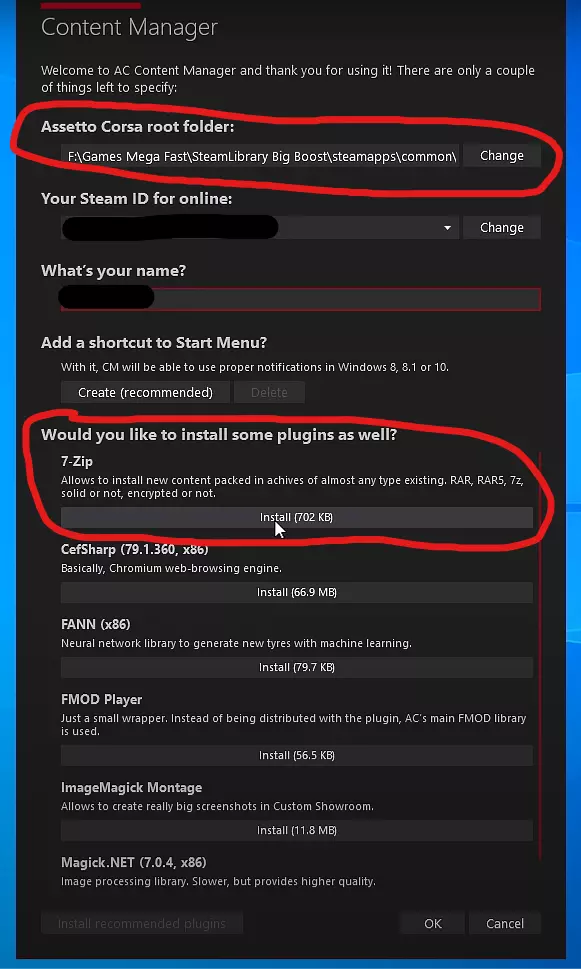
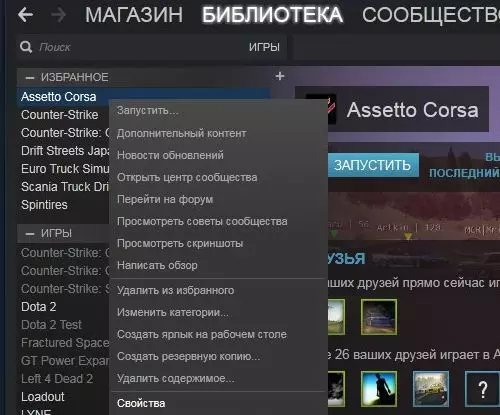
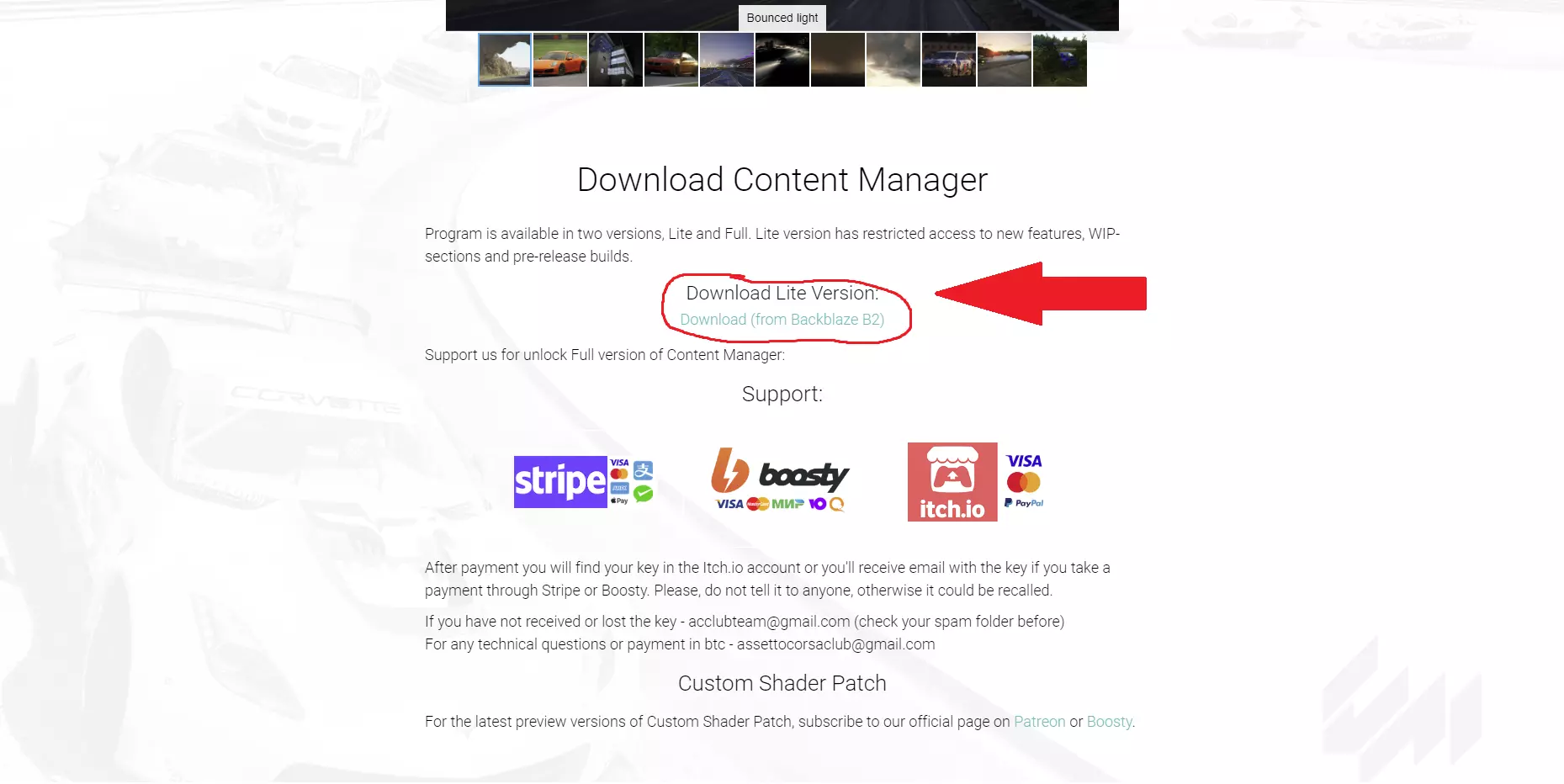
How to set up Proton on PC and the Steam Deck to run Assetto Corsa with Content Manager. Preparations Hint for Steam Deck users: This guide works for you, just make your filesystem temporarily writable and install protontricks. Before starting, make sure you don't already have existing compatdata for Assetto Corsa: Remove the pfx directory in your SteamLibrary at /path/to/SteamLibrary/steamapps/compatdata/244210 if you have it. The guide currently works as of 01/2024, I'll do my best to keep it up to date in the future. Update 01/2024: ProtonGE automatically installs the dependencies now, so I've updated the guide accordingly. Base game Alright, let's get started with the game itself. Install the game. If you don't have it already, install the latest version of ProtonGE according to their instructions: https://github.com/GloriousEggroll/proton-ge-custom. If you're using an Arch-based distro, you can install proton-ge-custom-bin from the AUR. Right-click Assetto Corsa in Steam, go to Properties --> Compatibility, check the 'Force the use of a specific Steam Play compatibility tool' checkbox and choose Proton 5.0-10 from the dropdown list. Start the game. It will crash, but that's okay, we just need the folder structure it generates. Right-click the game in your library again, but now select ProtonGE in the compatibility menu. Run the game. ProtonGE will now install all the requirements - this will take a long time, so be patient. When it's done, you'll get an error message that says 'This application could not be started'. Click 'No'. Great! If all went well, your game should be able to start now. If you don't want to use Content Manager or CSP, you can stop here and start playing. To get CM to run, you'll need to complete a couple more steps. Note: Setups with AMD GPUs might get better performance by installing dxvk via protontricks: protontricks --no-background-wineserver 244210 dxvk Content Manager Firstly, we need to create a symlink to your loginusers.vdf file so CM can find it. Replace the /path/to in the following command with the actual path to your SteamLibrary directory: ln -s $HOME/.steam/root/config/loginusers.vdf '/path/to/SteamLibrary/steamapps/compatdata/244210/pfx/drive_c/Program Files (x86)/Steam/config/loginusers.vdf' Download Content Manager from https://acstuff.ru/app. Extract Content Manager.exe to your game's installation directory. You can find it by right-clicking Assetto Corsa in Steam, then going to Manage --> Browse local files. Rename Content Manager.exe to Content Manager Safe.exe. This disables hardware acceleration in its UI. Set the Assetto Corsa launch parameters in Steam to start Content Manager instead. Right-click Assetto Corsa in Steam and paste the following parameters after modifying the paths according to your Steam library location: proton waitforexitandrun /path/to/SteamLibrary/steamapps/common/assettocorsa/'Content Manager Safe.exe'; echo %command% Hint: This requires the proton-command in your terminal to run ProtonGE. If you don't have this set up, you can instead rename AssettoCorsa.exe to AssettoCorsa_original.exe and Content Manager.exe to AssettoCorsa.exe and leave the launch parameters empty. Launch the game. If you're on a Deck, run it in Desktop mode for now. It might take a while to launch. Set your installation folder to the following, but replace the /path/to with the actual path to your Steam library: Z: path to SteamLibrary steamapps common assettocorsa Set your player name, click 'OK' and exit Content Manager. Nice! Content Manager is set up. Now let's install the Custom Shaders Patch. Custom Shaders Patch Run the following command: protontricks -c winecfg 244210 Go to the ‘Libraries’-tab, type dwrite into the ‘New override for library’-textbox and click ‘Add’. Look for dwrite in the list and make sure it also says ‘native, built-in’. If it doesn’t, switch it via the ‘Edit’ menu. Press ‘OK’ to close the window. Download the latest version of CSP from https://acstuff.ru/patch. Hint: I'm running v0.2.2 at the moment, but newer versions might work as well. Extract the ZIP file into the root of your game's install directory (dwrite.dll and the extension folder should be where we put Content Manager Safe.exe earlier). Depending on the version of CSP you have, you may need to install some fonts in order to run the game: Install corefonts in your prefix: protontricks 244210 corefonts Download the font files: https://files.acstuff.ru/shared/T0Zj/fonts.zip Extract them to your game folder: /path/to/SteamLibrary/steamapps/common/assettocorsa/content/fonts/. Do not put the TTF-files into the folder with the ones that are already there. Make sure to put the 'system'-folder from the archive into the fonts folder, otherwise CSP won't find them. All done! Enjoy the game! :) Credits: This guide is a mix of a bunch of guides I found online, but ANBAL534 on Github did the bulk of the work, so huge thanks to him! The original icon I used was made by Blagoicons on DeviantArt, I just added Tux. This discussion here on Steam also has very useful information, I used some of it for the 2024 update - thank you, sev!
如何让《刺客信条》在Linux系统(Proton及Steam Deck)上运行

2026-02-19 01:00:21
转载

导读
本文是2024年1月更新的《神力科莎》在Linux系统(含Steam Deck)通过Proton运行的教程,含基础游戏运行、Content Manager及自定义着色器补丁的安装设置步骤,还提及ProtonGE的使用及相关注意事项。


评论
共0条评论

Content Manager联机设置指南(给像我一样的新手)
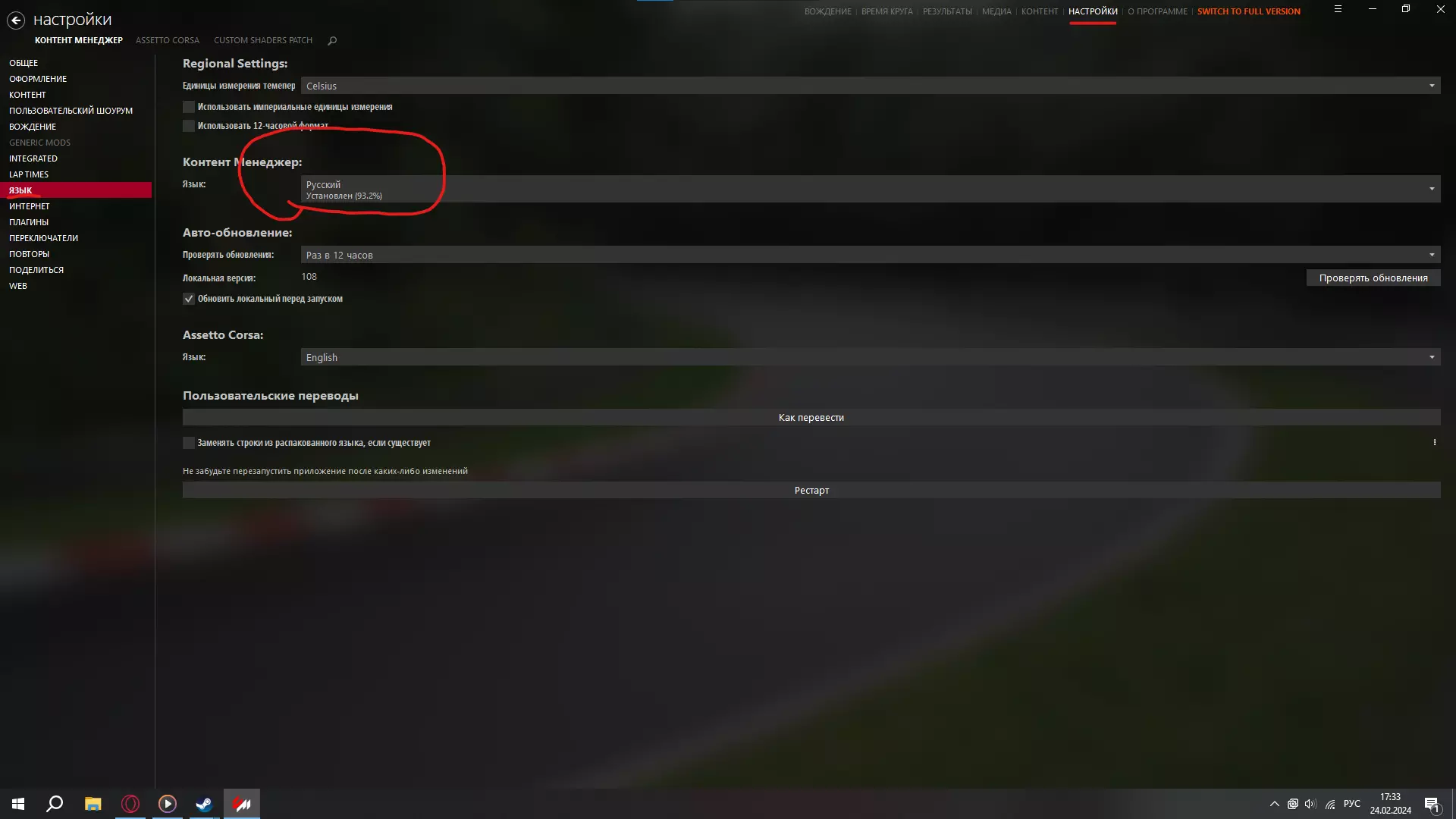
1) 内容管理器 2) SOL,雨水特效 3) 以及可能会让人头疼的东西 内容管理器 0:05-0:30 安装 将语言更改为 - 俄语
2026-02-19 16:000赞 · 0评论
获取F1成就的教程
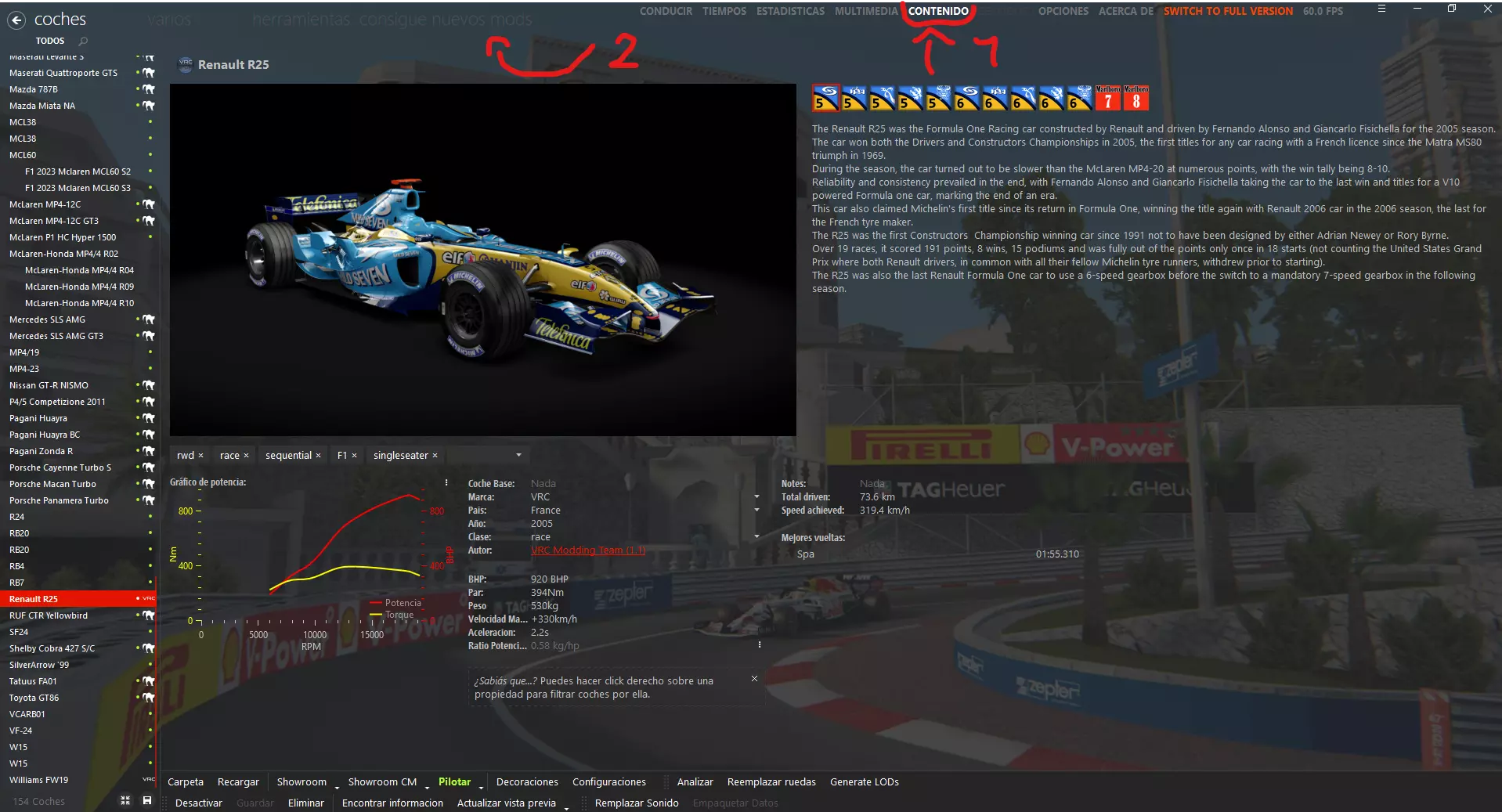
虽然这听起来有点傻,但今天我要教新手们如何获取F1赛车,从最老款的到你们看到这份指南时的最新款都有。 想浪费时间的人就去浪费吧,反正不是我。 方法1 正是Con…
2026-02-19 04:000赞 · 0评论
《神力科莎》拥有精美的画面
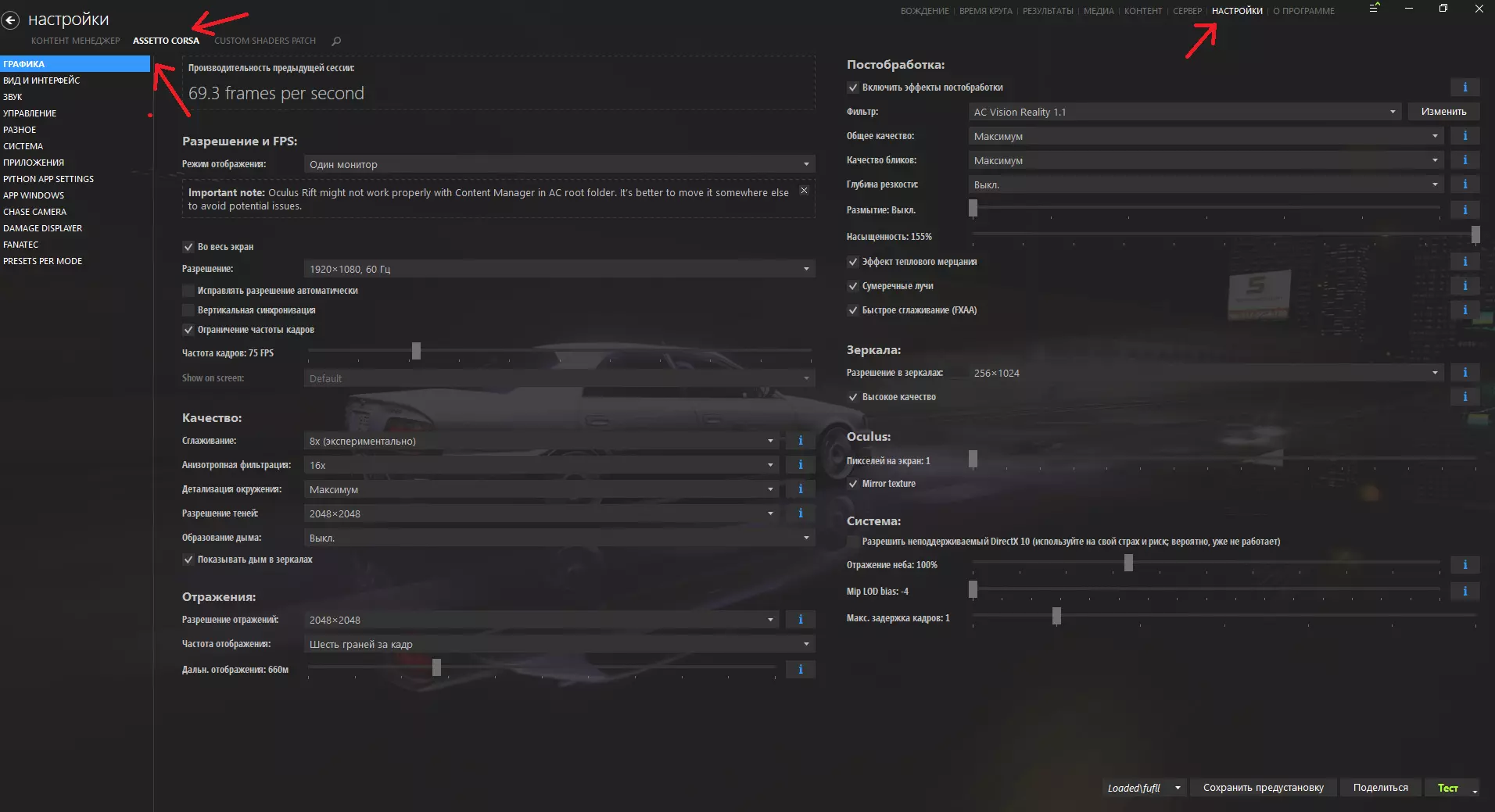
《神力科莎》画质优化设置指南 首先进行Content Manager的设置 我们需要先准备好Content Manager(Content Manager的安装…
2026-02-18 22:000赞 · 0评论
内容管理器设置
你好,朋友!如果你点击了这份指南,那么你可能会问——这到底是怎么运作的,以及如何在这款“棒极了”(并没有)的游戏中安装你心爱的车辆呢? 安装Content Ma…
2026-02-19 19:000赞 · 0评论
《神力科莎》的模组页面
以下是一些《神力科莎》的mod下载网站: Race Department Assetto Corsa Club Assetto Mods Assettoland…
2026-02-18 13:000赞 · 0评论
在Steam Deck及其他Linux设备上推出
作者发布的Linux版本存在问题 请使用Windows版本 在Steam Deck的游戏模式下: 点击⚙️图标 点击【属性...】 点击【兼容性】 勾选【强制使…
2026-04-01 01:000赞 · 0评论

网络足球2
评测 无法游玩,因为需要注册 无法撰写评测 占用磁盘空间近40MB 可在Linux系统上通过Proton 6.3运行
2026-04-06 10:000赞 · 0评论
ARM架构Linux系统上的OpenRCT2
我看到一个OpenRCT2论坛的模组用户贬低一位天真的ARM爱好者,称将AMD二进制文件移植到ARM是不可能的,因此ARM平台无法运行OpenRCT2。本指南将…
2026-03-22 07:000赞 · 0评论
在Linux上运行《最高指挥官:钢铁联盟》
在Linux上运行《最高指挥官:钢铁联盟》的快速简单配置。2021年11月在Ubuntu 20.04系统上测试通过。 配置步骤: 1. 蒸汽设置:进入蒸汽设置 …
2026-02-20 16:000赞 · 0评论
使用Wine或Proton在Linux系统中运行《虫后争霸》
如何下载兼容的Adobe AIR运行时版本并在Wine或Proton下运行游戏 介绍与步骤 为获得最佳体验,请在下载游戏后、启动游戏前执行以下步骤: 1. 前往…
2026-04-03 01:000赞 · 0评论
暂无更多
最新更新
- 为rFactor 2和《神力科莎》创建赛道 — 我将为大家介绍一系列由我创建的指南,这些指南描述了使用Bob Track Builder和3DSimEd为《神力科莎》及rFactor 2创建赛道的流程。 概述…
- 如何像西格玛男性一样驾驶 — 本指南将教你如何从一名普通车手成长为真正的西格玛车手。 选择你的西格玛座驾 第一步永远是选择能给你带来最强气场的赛车。 这是非常重要的一步,所以请谨慎选择。
- 如何安装《神力科莎》的模组 — 最简单的模组安装方法 可下载模组的网站 可查找模组的位置 → Assetto World 部分模组可能存在问题(例如,模组本身导致的模型或纹理缺失)
- 《神力科莎》俄文本地化补丁 V 1.0 — 《神力科莎》俄文语言设置详细指南 前言 大家好! 在购买正版之前,我花了很多时间玩盗版,我非常喜欢这款游戏,所以决定购买正版。但和大家可能遇到的情况一样,游戏中…
- 第一期AC指南 - 简单实用的设置参考表 — 转向过度与转向不足调校指南 转向过度
- 如何为《神力科莎》下载模组 — 如何为《神力科莎》下载模组及最佳模组推荐 步骤1 第一步是下载内容管理器。 内容管理器是一款替代启动器,强烈建议使用此启动器而非常规启动器。 安装后会弹出此菜单…
- 如何加速 — 本指南将告诉你如何加速。 步骤1: 踩下油门。 一如既往,我们下期再见。
- 《神力科莎》中模组的安装方法 — 《神力科莎》模组安装方法 1. 进入库中找到《神力科莎》 2. 右键点击游戏
- SMP Racing 模组 — 启动你的引擎!SMP Esports的开发者们为模拟赛车爱好者准备了包含不同年代俄罗斯赛道和赛车的数据包。本指南将介绍如何下载、安装以及参与竞赛。 欢迎!(关于…
- 瑞恩·高斯林指南 — 有了这份指南,你将不只是追随瑞恩·高斯林在电影《亡命驾驶》中的脚步,还能亲身感受到那种让这个形象成为传奇的神秘与风格魅力。 如果你已认定自己就是瑞恩·高斯林,那…