换一换
换一换 


崩溃、启动、性能和连接问题的可能解决方案,控制器+键盘问题,界面语言,配置文件修改,命令行参数/自定义设置/游戏内更新等。 使用右侧滚动条可快速跳转到您偏好的“指南索引”主题。 【基本准备(硬件/驱动/操作系统/硬盘)】 在尝试以下页面中的任何解决方案之前,请确保您的电脑: 满足官方最低系统要求 CPU:i3 4160(3.60 GHz,至少4个物理或虚拟核心/线程) GPU:GeForce GTX 480 / GTX 570或更好,支持DirectX 11及以上,显存1.5 GB及以上
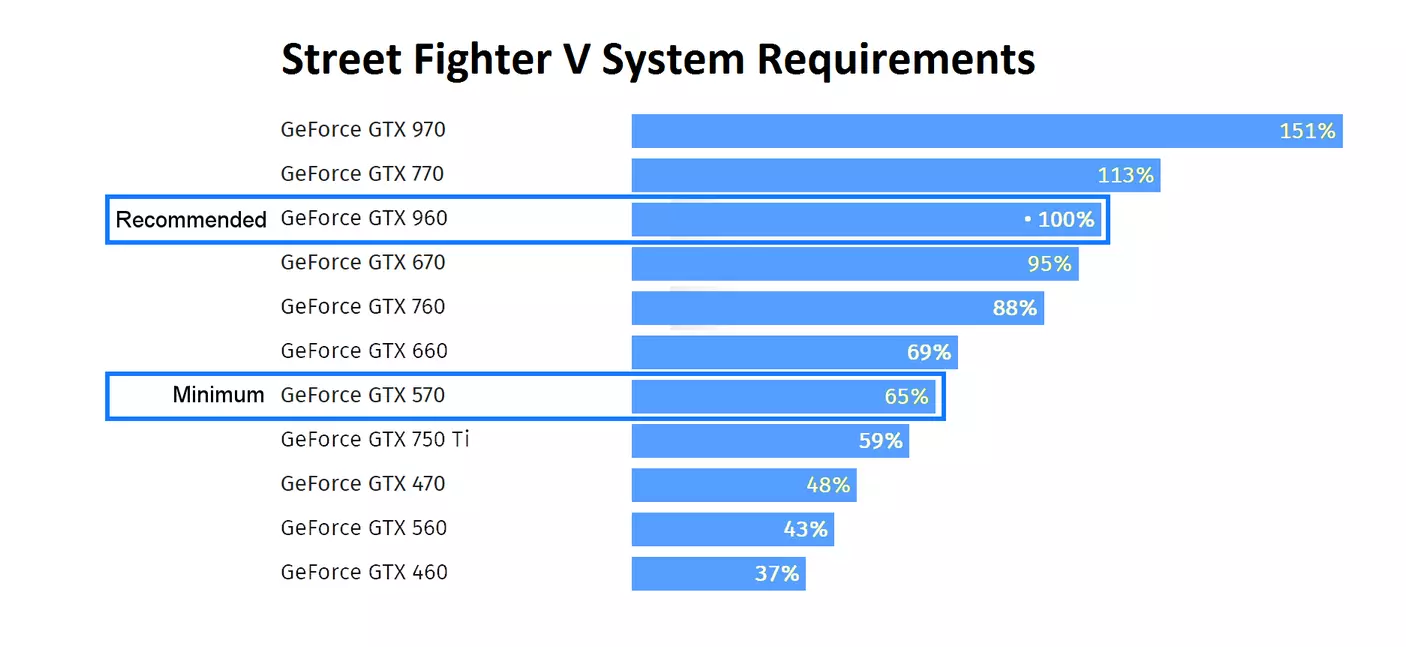
laptop / mobile GPU model performance is usually behind desktop PC performance. example: GeForce m960 is equivalent to GeForce GTX ~760 to ~950 GeForce m970 is equivalent to GeForce GTX ~770 to ~960 RAM: 6 GB++ Operating system: Windows 7++ 64 Bit (ideally with Service Pack 1++ Build 7601++) DirectX compatible sound card / on-board chipset Broadband internet connection (preferably NOT wireless, especially if you want to play multiplayer) operating system or hard-drive has no errors and enough free disk space checkdisk: https://support.microsoft.com/en-us/kb/2641432 system file check: http://answers.microsoft.com/en-us/windows/wiki/windows_10-update/system-file-check-sfc-scan-and-repair-system-files/bc609315-da1f-4775-812c-695b60477a93 drivers are all updated (especially graphics / network drivers), ideally a clean install Some Laptop manufacturers use customized GPU drivers, try to use these instead, if you run into issues. clean install means: download the newest drivers + uninstall all previous (GPU/network) drivers, before installing a different version. There are 3rd party tools like DDU to simplify this process. http://www.guru3d.com/files-details/display-driver-uninstaller-download.html________________________________________ Very common problems / Antivirus / Tablet Services / IPv6 / random crash to desktop without any errors These are the most common issues, which cause SFV to crash to desktop without any errors: 1. Security software / antivirus software (nothing happens, if you try to launch SFV) 2. Touch input devices / Wacom tablets / Windows handwriting service / VR-software for Oculus Rift and HTC Vive etc. (crash to desktop midgame after some minutes without any errors) 3. IPv6 ethernet adapter settings conflict with IPv4 (nothing happens, or crash to desktop some seconds after launch) 4. other 3rd party software / drivers prevent SFV from launching (nothing happens, or you get random crashes to desktop without any errors Detailed solutions 1 - 4 below: ________________________________ Detailed solution for problem 1: Antivirus / security software Problem: nothing happens when you try to launch SFV Reason: Some security/antivirus software prevents SFV from launching. Especially Windows Defender, Security Essentials, AVG and Avast Antivirus always had false positives on the external SFV laucher, or their "behavior module" puts StreetFighterV.exe into a "sandbox", while many other security programs work without any exclusions. Solution: You need to add the following executeables or folders to your security software/antivirus exclusions. %ProgramFiles(x86)% Steam steamapps common StreetFighterV StreetFighterV.exe %ProgramFiles(x86)% Steam steamapps common StreetFighterV StreetFighterV Binaries Win6 StreetFighterV.exe Usually it is sufficient to exclude both StreetFighterV.exe files. Some Trend Micro Antivirus modules require both StreetFighter.exe files to be set as "trusted". Alternatively you can add the following SFV folders to exclusions: %ProgramFiles(x86)% Steam steamapps common StreetFighterV %LocalAppData%/StreetFighterV %LocalAppData%/Steam And if you use the SFV mods manager, also:%AppData%/SFV-PAK-manager This may also improve performance, because your antivirus/firewall will no longer be busy scanning SFV in background while playing. Exclusions guide for Windows Defender users: https://support.microsoft.com/en-us/instantanswers/64495205-6ddb-4da1-8534-1aeaf64c0af8/add-an-exclusion-to-windows-defender Exclutions guide for Microsoft Security Essentials: https://answers.microsoft.com/en-us/protect/wiki/mse-protect_scanning/how-to-exclude-a-filefolder-from-microsoft/26f2810a-47fd-40d8-b35e-3740f00fce85 Exclusions guide for Avast Antivirus users: https://www.avast.com/faq.php?article=AVKB168#top_0 Exclusions guide for AVG Antivirus users (don't forget the behaviour shield module): https://support.avg.com/SupportArticleView?l=en&urlName=How-to-exclude-file-folder-or-website-from-AVG-scanning In some rare cases you have to disable DEP (Data Execution Prevention) for SFV, more details here: http://steamcommunity.com/app/310950/discussions/1/351660338685873460/ Note: if you get an error on Windows 8 or 10 and want to disable DEP completely for this test, you also need to disable Secure Boot in your UEFI/BIOS: https://youtu.be/S0sY0DWtRNw?t=7 ________________________________ ________________________________ Detailed solution for problem 2: Windows handwriting service / Wacom tablets / touch input devices Random crashes midgame, without any error message, happen to players who have a touch device plugged in or a touch service running in background,you need to stop these in process manager / unplug touch devices/tablets, before running SFV.
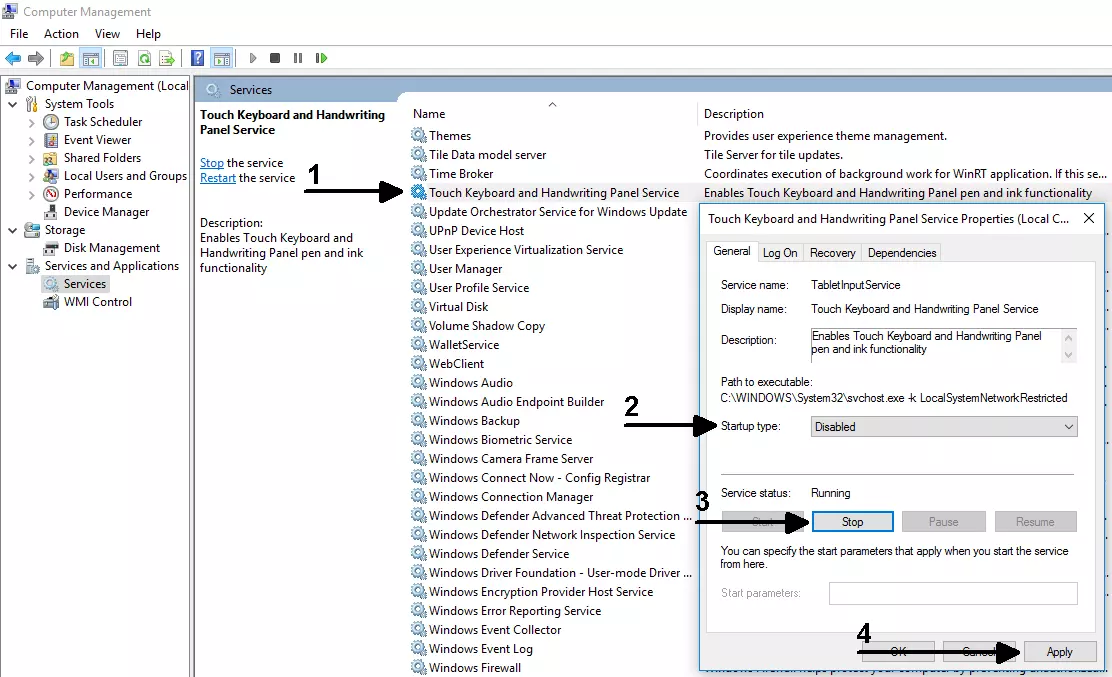
button combination: Windows Key + R type: services.msc Look for: touch keyboard / handwriting service (Microsoft) and tabtip (Wacom service) Make sure that you change the start method from "automatic" to "manual" or "disabled", unless you use these services on a daily basis for your touch input/tablet devices. This way you won't have to disable them everytime before you launch SFV after rebooting your PC. Alternatively you can use the following .bat file, if you need to use the Windows handwriting/touch service on a daily basis, it will quickly toggle the service on and off (run as administrator): https://www.dropbox.com/s/zoe1zy11519gb8p/SF_Start_Stop_Tablet_Service.BAT?dl=0 ________ VR-software can also cause random crashes without any error, similar to touch devicesOculus Rift "Dash" software got a virtual keyboard update in December 2017 => either disable the virtual keyboard in your Oculus Rift Dash software, or stop the "Dash" service all together. Thanks to the Steam user "Jayson" for that hint. Microsoft "mixed reality" and HTC Vive Software => disable and/or stop the service before running SFV. Thanks to the Steam user RedruM_JKL for that hint________ In some rare cases you can get the following message after a game update + starting a match, the solution is still the same as above. Fatal Error talking about D3D11.dll UnkownFunction (0x00007ff8e03aba87) + 0 bytes Uknown File:0 StreetFighterV.exe!UknownFunction. ________________________________ ________________________________ Detailed solution for problem 3: IPv6 conflict with IPv4 in ethernet adapter settings: Problem: SFV crashes after some seconds to desktop without any errors, or (since Windows 10 April 2018 update) nothing happens when you try to run SFV Another random crash to desktop after 10-15 seconds can be caused by protocol IPv6, disable IPv6 in your network/ethernet adapter options: 1. press the button combination: Win+R 2. type: ncpa.cpl 3. confirm with: ENTER 4. right click on your ethernet adapters => properties => disable IPv6 thanks to the Steam user: Djavan Ryuuzaki http://steamcommunity.com/app/310950/discussions/1/152391285460619103/?tscn=1486178972If this doesn't work, try this Microsoft Wizard link to disable IPv6: https://support.microsoft.com/en-us/help/929852/guidance-for-configuring-ipv6-in-windows-for-advanced-users download ____ A similar issue happens with outdated/broken Microsoft Visual C++ files, SFV crashes to desktop after the Capcom logo. Check the paragraph "missing/corrupted Microsoft Visual Studio files" in the crash on start (1) section. ________________________________ ________________________________ Detailed solution for problem 4: other 3rd party software/drivers prevent SFV from launching, or cause random crashes to desktop. - Update your GPU drivers, or use an older, stable driver version (always do a clean install). - other 3rd-party software interruptions: Check the crash on start (1) section below (the last 2 paragraphs). - in some rare cases: run through different Windows compatibility modes for both StreetFighterV.exe files, if nothing happens, when you try to launch it on older Windows versions (below Windows 10). Be aware that the compatibility mode can reduce performance in SFV, or cause SFV crashes when you try to launch it, use a different compatibility mode then instead. ________________________________ ________________________________ SFV crash on start (1): UE4 kiwi errors crash on start and Unreal Engine UE4-Kiwi errors are usually related to: corrupted (bad download / MODs) or invalid (incompatible game settings / resolutions etc.) or inaccessable (admin rights / security software) or missing (re-installation required) files Possible reasons/solutions:sorted by priority order files cannot be updated, because they are locked or in use=> reboot your PC / restart Windows _______________________________________ missing access rights to important files=> restart/run Steam / SFV as administrator _______________________________________ antivirus / security software is blocking the SFV launcher Nothing happens when you try to run SFV or you get the B E X 64 error (usually Avast antivirus modules/filters, thanks to the Steam user AlaskanKactus=> check the very common problems section above and for the B E X 64 error, also the "overlay software" below. _______________________________________ corrupted installation or downloaded files=> usually a file verification in Steam is enough, without having to re-download / reinstall SFV https://support.steampowered.com/kb_article.php?ref=2037-QEUH-3335&l=en _______________________________________ corrupted savegame / config files / installed MODs=> to reset all SFV settings backup and delete all files in the following folder: %LocalAppData% StreetFighterV SavedShortcut: Windows Key + R + paste the above line This path is usually hidden/protected in Windows, you can enable "show hidden files" to unhide it, more details here: https://support.microsoft.com/en-us/help/14201/windows-show-hidden-files You can copy back your single player savegame progress back later (GameProgressSave.sav). If you used any mods, make sure that you remove them too, when resetting SFV, they are usually located in the ~MODs folder, and in some rare cases also in the PAKS folder, if you have manually extracted them there: C: Program Files (X86) Steam steamapps common StreetFighterV StreetFighterV content PAKS ~MODS_______________________________________ problematic installation path/drive label or external HDD=> reinstall / move the SFV installation to your internal C: drive change the installation directory path (not too long, no special characters) _______________________________________ Error CreateProcess() returned 2e4=> disable admin + compatibility mode for both StreetFighterV.exe files and Steam.exe Directories: %ProgramFiles(x86)% Steam steamapps common StreetFighterV %ProgramFiles(x86)% Steam %ProgramFiles(x86)% Steam steamapps common StreetFighterV StreetFighterV Binaries Win64 _______________________________________ SFV launches minimized and can't be restored=> run SFV from your Steam library in windowed mode with the following launch option: -windowed Also check/close 3rd party overlay software running in background (see below). ______________________________________ incompatible resolution/DPI settings or failed multiple monitor detection=> try windowed mode, as described above and: if SFV launches after that go to in-game settings + change Fullscreen to "OFF" + restart SFV go to in-game settings again + change Fullscreen to "ON" + restart SFV this will rewrite your config settings file, so you can remove the -windowed launch option afterwards. if SFV still doesn't launch + shows a fatal UE4-KiwiGame Error, try to manually change the config files backup+delete the folder %LocalAppData%/StreetFighterV open the folder %ProgramFiles(x86)% Steam steamapps common StreetFighterV StreetFighterV Intermediate Config CoalescedSourceConfigs backup+edit the file GameUserSettings.ini change the ResolutionSizeX+Y values to some different resolutions your monitor supports, don't forget to save your changes. Example: ResolutionSizeX=800 ResolutionSizeY=600 bUseDesktopResolutionForFullscreen=false FullscreenMode=2 4k monitor - full screen error: "Instruction at 0x referenced memory at 0x could not be read. keeps opening on SFV launch => change the compatibility settings for BOTH StreetFighterV.exe files: high DPI settings" => "override high DPI behaviour" => scaling performed by APPLICATION thanks to the Steam user "Terry Bogard" for this workaround_______________________________________ missing/corrupted Microsoft Visual Studio files=> reinstall Visual C++ Redistributable Packages for Visual Studio 2013, look in: %ProgramFiles(x86)% Steam steamapps common StreetFighterV _CommonRedist vcredist 2013 Alternatively try this "AIO all in one C++ runtime libraries installer" minimum install is sufficient + restart your PC, some older C++ libraries are required: https://www.ghacks.net/2018/01/02/visual-c-installer-uninstaller-review/ or select Auto Update with this installer: http://www.majorgeeks.com/files/details/visual_c_aio_installeruninstaller.html Thanks to "Galactic" for that hint, it also fixes the crash after the Capcom logo with clean GPU drivers __________________ missing/corrupted Direct X files=> reinstall / refresh Direct X, look in: %ProgramFiles(x86)% Steam steamapps common StreetFighterV _CommonRedist DirectX Jun2010Shortcut: Windows Key + R + paste the above line __________________ Direct X Runtime Error=> delete obsolete DirectX files manually (CREATE A BACKUP) and reinstall DirectX from the SFV installation folder again: solved it with the following steps: 1. search for "Xinput1_X.dll" in the folder "C: Windows System32" (there are ~4 files) 2. Run "DXSETUP.exe" in %ProgramFiles(x86)% Steam steamapps common StreetFighterV _CommonRedist DirectX Jun2010 thanks to the Steam user tinytieger in this thread: http://steamcommunity.com/app/310950/discussions/0/405691491129389810/__________________ overlay software interruptions / graphics or fonts enhancers / B EX64 Error=> disable ALL overlay software / on screen display (OSD) software, which you may have installed or running in background, for example: Benchmark software like: AIDA64 / RivaTuner / MSI Afterburner etc. Video recording software like: D3Dgear, FRAPS etc. Chat Software like: Skype Fonts Software like: gdipp, MacType, GeDoSato Ambient lightning software: amBX Browsers / Plugins which use OSD functionalities TeamViewer, WindowsBlinds__________________ other 3rd-party software interruptions=> Perform a clean boot in Windows to identify + disable other 3rd party software, which may cause interruptions, when it starts automatically with Windows + running in background: https://support.microsoft.com/en-us/kb/929135 Examples: 1. "Intel® Driver Update Utility" and/or "Intel® System Usage Report" prevents SFV from starting properly => no error message => reason problematic service => fix: Uninstall the Intel utility (after you found the required drivers) or terminate the services/tas. 2. "global injectors" like Special K prevent SFV from starting => no error 3. Virtual machine software: MEMU(android emulator) => random crashes + no error 4. MSI Afterburner => KiWi Error on some PC systems 5. Asus Sonic Studio Suite => crash Thanks to the Steam users "NapalmHamster", "jdanielmc24", "Mya headshot" and "King" for these reports SFV crash on start (2): Steam + SFV reset Missing/corrupted Steam files and/or SFV installation reset / or reinstall Steam do a completely fresh installation of Steam and SFV Reset or clean/fresh Steam client installation:Can help with UE4-Kiwi errors / unintended SFV beta download and in-game code errors Steam reset: https://support.steampowered.com/kb_article.php?ref=3134-TIAL-4638&l=english In case a reset of Steam doesn't work and you want to uninstall / clean install Steam: Move your "common" Steam games folder %ProgramFiles(x86)% Steam steamapps commonout of the Steam installation folder. You can move back your "common" Steam games folder back later, this will save you from re-downloading all your other games again. ____ Clean SFV installation:Before re-installing SFV make sure there are no leftovers / MODs from the previous installation delete the folder "StreetFighterV" in %ProgramFiles(x86)% Steam steamapps common delete all StreetFighterV entries in your Windows registry Click on the Windows start icon and type: regedit Run it as administrator Search and delete all entries called: StreetFighterV backup and delete the following folder: %LocalAppData% StreetFighterV SavedShortcut: Windows Key+ R + paste the above line, this path is usually hidden/protected in Windows, you can enable "show hidden folders" to unhide it. You can copy back your single player savegame progress back later (GameProgressSave.sav). SFV crash on start (3): NEW CFN beta issues **** Updated the slightly different paths + exe file names for the second NEW CFN Beta in May 2017 **** from StreetFighterV_CFN2Beta **** to StreetFighterV_NewCFNBeta Additionally to the issues mentioned above, the NEW CFN multiplayer beta test 2017 introduced new issues: Crash on start on first launch with specific controllers Problem: SFV doesn't start during the first launch in some cases, when specific USB devices are connected. The SFV window opens and closes without any errors. Possible solution: unplug all your USB devices and controllers + restart SFV to bypass/navigate through the following menus use the keyboard buttons "B" to accept and "N" to decline If these buttons are not responding click with your mouse buttons anywhere on the SFV screen, even if the cursor is not visible, this will regain focus, now try to press "B" again. when you have reached the main menu, plugin and configure your controller the crash on start problem should be gone on the next launchThanks to the Steam user fs7kills for this feedback: http://steamcommunity.com/app/310950/discussions/0/133260909496300147/#c133260909500906343______________________________ Security software / Antivirus exclusion paths for the NEW CFN Beta Problem: nothing happens when you try to launch SFV NEW CFN Beta Reason: Windows Defender / AVG and Avast Antivirus always had false positives on the external SFV laucher, while many other security programs work without any exclusions. Solution: You need to add the following executeables or folders to your security software exclusions. The launcher file is located here: C: Program Files (x86) Steam steamapps common StreetFighterV_NewCFNBeta StreetFighterV_NewCFNBeta.exe The main game file is located 3 folders below C: Program Files (x86) Steam steamapps common StreetFighterV_NewCFNBeta StreetFighterV_NewCFNBeta Binaries Win64 StreetFighterV_NewCFNBeta.exe Usually it is sufficient to excude both StreetFighterV_CFN2Beta.exe files. Alternatively you can add the following SFV folders to exclusions: %ProgramFiles(x86)% Steam steamapps common StreetFighterV_NewCFNBeta %LocalAppData%/StreetFighterV_NewCFNBeta %LocalAppData%/Steam And if you use the mods manager, also: %AppData%/SFV-PAK-manager Exclusion guide for Windows Defender users: https://support.microsoft.com/en-us/instantanswers/64495205-6ddb-4da1-8534-1aeaf64c0af8/add-an-exclusion-to-windows-defender Exclusions guide for Avast Antivirus users: https://www.avast.com/faq.php?article=AVKB168#top_0 Exclusions guide for AVG Antivirus users: https://support.avg.com/SupportArticleView?l=en&urlName=How-to-exclude-file-folder-or-website-from-AVG-scanning______________________________ Corrupted game config files To reset ALL SFV CFN beta settings, delete this SFV folder %ProgramFiles(x86)% Steam steamapps common StreetFighterV_NewCFNBetayou can access it quickly by pressing Win+R and paste the above line ______________________________ SFV crash on start (4); obsolete errors / SFV BETA 2015/2016 leftovers The following errors / issues hardly happen any more, but are kept here as an archive, just in case some players still have SFV version 1.09 or older installed. Error ShellExcecute() returned 4c7run the Capcom.sys anti-cheat/anti-crack driver removal tool "DeleteSFVdriver_en.bat" in %ProgramFiles(x86)% Steam steamapps common StreetFighterV Toolsjust in case you have played SFV v1.09 during the first 2 days in September 2016 Attention: the driver+registry entry removal tool is no longer available since SFV Season 2 started on 20. December 2016 (major update), the anti-cheat file is no longer installed. in case you have played the SFV closed beta 2015/2016=> delete the KiWi folder in %LocalAppData%Shortcut: Windows Key + R + paste the above line and just in case also the folder %LocalAppData% StreetFighterV Savedmake sure that you create a backup of your "SaveGames" folder file called GameProgressSave.sav, because the singleplayer progress is not saved in the Steam cloud. Black screen on start (with or without crashing/errors): 1. Black screen on start (with crash to desktop): Reason:Corrupted config files/settings Possible solutions:=> run in low spec mode, or => backup+delete your SFV config/savegame files as described in the "corrupted savegame / config files" paragraph / crash on start section. It's worth a try, if you also get a Fatal Crash KiWiGame error, when you try to run StreetFighterV.exe from the installation path. Example: http://steamcommunity.com/app/310950/discussions/0/1485487749769275572/#c2425614361133986733 => or install the C++ AIO runtime libraries minimum install is sufficient + restart your PC, some older C++ libraries are required: https://www.ghacks.net/2018/01/02/visual-c-installer-uninstaller-review/ _______________________________ 2. Black screen after the Capcom intro logo(when starting the game): Reason:Missing/corrupted video/media codecs, or missing Windows media player content. Possible solutions:A. Install the necessary Windows media codecs, or delete/rename the SFV intro movie files: %ProgramFiles(x86)% Steam steamapps common StreetFighterV StreetFighterV Content MoviesShortcut: Windows Key + R + paste the above line rename: OpeningTrPC.wmv to something else B. Install media player content separately (especially on Windows 10 N): https://support.microsoft.com/en-us/help/3133719/media-feature-pack-for-n-editions-of-windows-10-version-1607 Enable it under: Control Panel => Programs => Turn on-off windows features (Thanks for confirming that fix to the Steam user: shiftag) Crash on Start to the Steam store page / SFV BETA message screen The problem with crash to the Steam store page had multiple solutions, check which one could help in your case: 1. Check your "compatibility" and "administrator" mode settings in Windows for Steam.exe and both StreetFighterV.exe files usually located here:C: Program Files (x86) Steam C: Program Files (x86) Steam steamapps common StreetFighterV C: Program Files (x86) Steam steamapps common StreetFighterV StreetFighterV Binaries Win64 2. Reset your SFV settings: Press: "Windows Key + R" Type: %LocalAppData%/StreetFighterV Press: ENTER backup + delete all files here Launch SFV 3. Rename the SFV intro movie file Go to steamapps common StreetFighterV Content Movies Rename the OpeningTrPC.wmv file into anything you like Launch SFV 4. Change the default resolution in your SFV ini-files open the folder steamapps common StreetFighterV Intermediate Config CoalescedSourceConfigs open the file GameUserSettings.ini change the resolution to your native screen resoltion change the value FullscreenMode=0 to FullscreenMode=1 Alternatively you can add the following to your Steam library => right click on Street Fighter V => select Properties => launch command: -windowed -resx=800 -resy=600 5. make sure that your switchable graphics are working correctly install the newest GPU drivers for your nVidia or AMD GPU and your INTEL or AMD iGPU SFV should run on your dedicated GPU 6. copy the SFV installation folder to the system drive / Steam drive ADs update issues / restart loop popup Ver.03.110++ (sponsored content BUG) If your game crashes when you try to select ADs costumes or are affected by the startup popup message: "New sponsored content is available / sponsored content has been applied"followed by an infinite loop / endless restart bug. There are 4 known workarounds/reasons (system dependent): verify the game cache in the Steam library for Street Fighter V (properties) or check your internet connection speed and stability, ISP mailfunctions result in a failed automatic update + additionally you can flush your DNS press the button combination Win + R type "cmd" confirm with ENTER type "ipconfig /flushdns" confirm with ENTER or Redownload the corrupted "Assets.pak" file Method 1 (autoupdate):Open the SFV download folder by pressing the button combination Win + R Paste the following path %LocalAppData%/StreetFighterV/Saved/download confirm with ENTER delete all files here verify the game cache in Steam Start SFV, it should redownload all necessary files and the bug should be gone Method 2 (manual update): if Method 1 is not working for you, you can manually download the necessary Assets.pak file, which includes all the advertisement files required in SFV version 03.110 to run propery without the "update necessary" popup. Create the folder named "Replacement" inside of the SFV download folder (if necessary) and extract the file Assets.pak into it, so it looks like this in the end:%LocalAppData% StreetFighterV Saved download Replacement Assets.pak Download source 1 (DropBox - SFV version 04.000++): https://www.dropbox.com/sh/kwqxlv2hk9suhwe/AABFp8wVR0c5Ibi-xadwHg3ma?dl=0 Download source 2 (Google Drive - SFV version 03.110): https://drive.google.com/file/d/1Ne15d9FdFoGAl48i7stYnW6Y5n3Fz3pr/viewThanks to the Steam user Kaed✩Wolf for this workaround and second download link. or Download the free cinematic story mode expansion DLC ""A Shadow Falls" thanks to the Steam user Jhoe for this workaround. Worst case scenario solutions for UE4-Kiwi errors IMPORTANT: The following instructions are for advanced users only. Please create a backup of ALL your personal / important files to a different drive, before deleting / modifying or reinstalling anything for the following 4 steps: In a worst case scenario users solved the UE4-Kiwi error problem by removing faulty / conflicting Windows compatibility updates, like this one KB3150513 https://support.microsoft.com/en-us/kb/3150513 Thanks to Holo The Wise for sharing: http://steamcommunity.com/app/310950/discussions/0/343785574520852446/?tscn=1473217491#c343785574532774367 or doing a Windows "system restore / recovery" to a previous point or reinstalling Windows (Windows 10 has a reset function): https://www.microsoft.com/en-us/download/details.aspx?id=49975) or in a very problematic case, by downgrading from Win10 to Win7 1. first time solution There was one special case, where one user could not get rid of the KiWi error on Windows 10 and got it to work on a fresh Windows 7 install in admin/compatibility mode. You can read mode about it here: http://steamcommunity.com/app/310950/discussions/1/405692124739260503/?ctp=7#c343785574517866761 He and many others with this issue had a MSI mainboard/BIOS, we are still unsure if that's part of the problem. 2. confirmed by a second user http://steamcommunity.com/app/310950/discussions/1/343786195665172040/#c343786745995838867 Controller/input issues (PS4 / direct input D-input wrappers etc.) Capcom has removed the native the D-input (Direct Input) controller support on 27th February 2019 for PC and shifted it completely to the Steam API, because of compatibility/interference reasons. This means: all you need to do now is to setup your D-input controller directly in Steam settings and it should work with ANY Steam game (check the instructions, images and video below): close Street Fighter V (SFV) and Steam unplug ALL connected controllers plugin the controller, which you want to use for SFV Login into your Steam account and click on: Steam / View => Settings => Controller => General Controller a new Steam configuration window opens, you should see your connected controller under "Detected Controllers" as the very first one in the list, if not, unplug and replug it into a different USB port of your PC again. If your controller is detected, you can continue to configure it once:
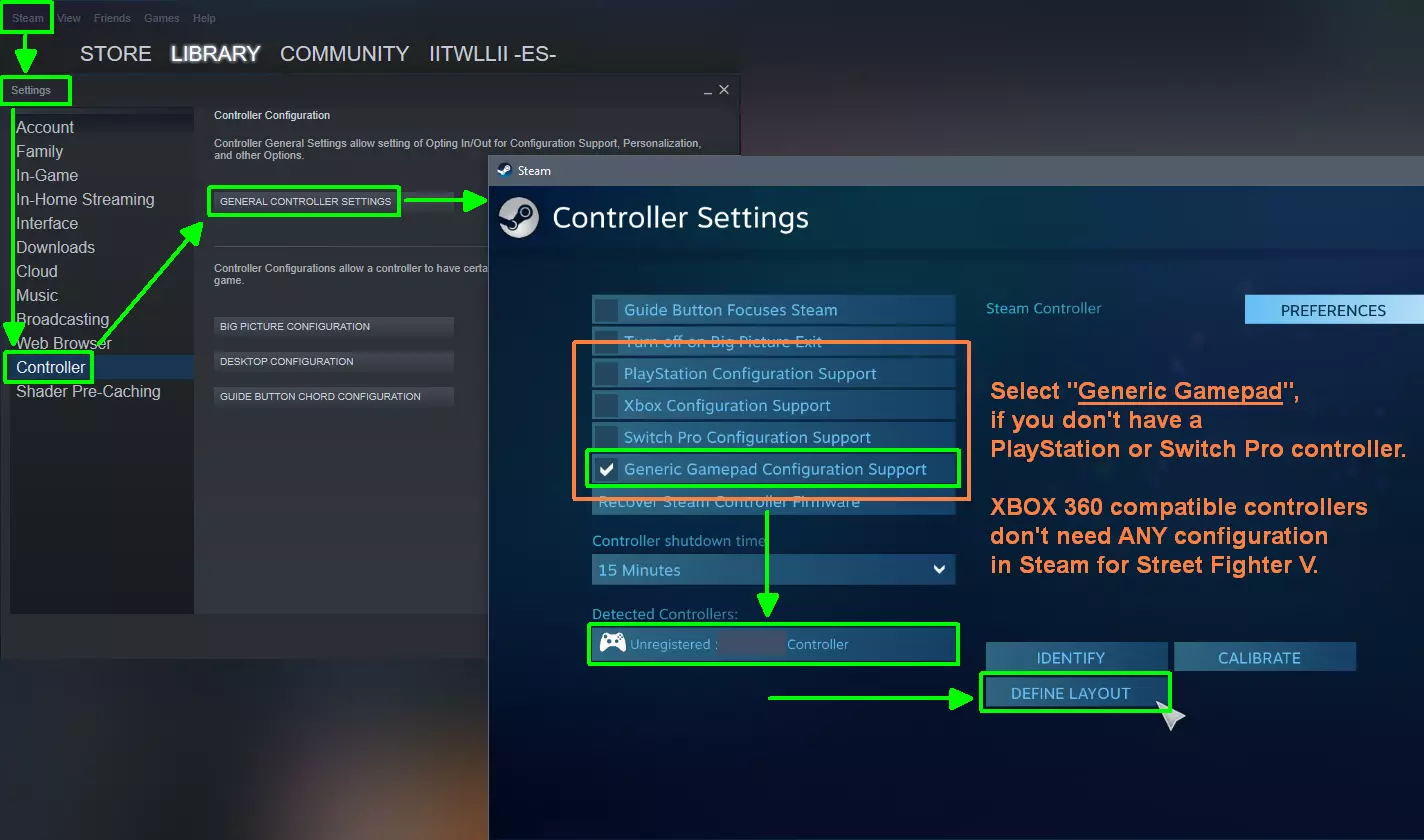
示例视频(如何在Steam中设置D-input控制器)——感谢Steam用户“delacroix01”。如果你在正确配置控制器后仍遇到问题,请更改选项:【街头霸王5】属性 => 常规 => Steam输入每游戏设置,将其设为“强制”或“全局Steam输入”(反之亦然)。
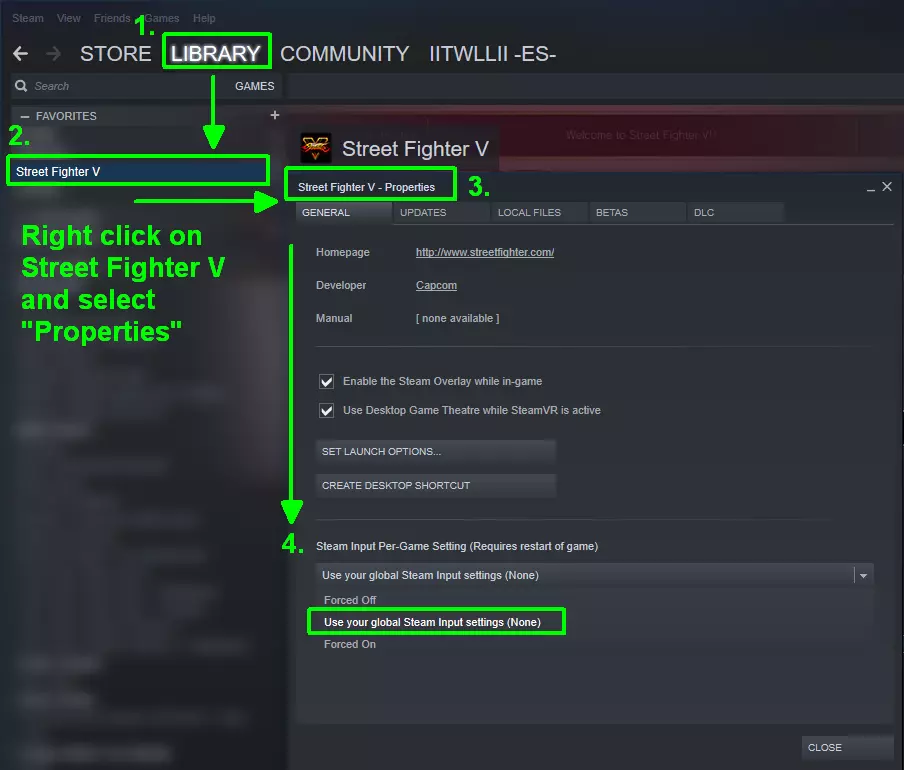
对于Steam游戏,不建议也无需使用x360ce、DS4Windows或Joy2Key等第三方输入包装器/重映射工具,因为这些工具可能会导致冲突。 X-input(Xbox 360兼容)控制器完全不受此变化影响,也无需在Steam中进行设置,因为Windows 10已通过原生驱动支持它们。 如果你的Xbox 360控制器无法正常工作,那问题可能出在其他方面。建议尝试重新安装Windows中的Xbox 360驱动。 部分新款HORI格斗摇杆配备硬件开关,可在D-input和X-input之间切换,无需额外驱动或软件。如果你的设备有此功能,在PC上请使用X-input模式。如果无法使用手柄,或在首次启动时需要跳过最终用户许可协议(EULA),可以使用键盘按键:按【B】键接受,按【N】键拒绝,使用方向键或WASD键在《街头霸王5》菜单中导航。如果这些按键没有响应,请用鼠标点击《街头霸王5》屏幕的任意位置(即使光标不可见),这样可以重新获得焦点,然后再尝试按【B】或【N】键。如果无法通过任何键盘按钮绕过最终用户许可协议(新安装的《街头霸王5》): 右键点击Steam库中的《街头霸王5》,选择【属性】=>【启动选项】,并添加命令行【-windowed】 如果游戏内输入仍然存在问题,可能需要通过删除input.ini或input2.ini文件来重置《街头霸王5》的输入设置。按下组合键【Windows键+R】,复制粘贴以下路径:【%LocalAppData%\StreetFighterV\Saved\Config\WindowsNoEditor】,按回车键直接访问该文件夹。 请注意,如果从不同的普通用户账户以管理员身份运行《街头霸王5》,路径可能会略有不同,此时请检查管理员账户的路径。删除文件input.如果您误将Xbox手柄配置为D-input设备,导致无法使用特定按钮或方向输入,此ini文件也会有所帮助。 如果存在多个手柄条目,即使只连接了一个手柄 如果在阿比盖尔角色更新后,您的键盘或手柄输入出现混乱 重启电脑并尝试不同的USB端口 拔下并重新插入手柄,或在拔下所有手柄的情况下启动《街头霸王5》 检查《街头霸王5》的游戏内选项,并根据需要重新映射按钮布局 将摇杆切换为十字键模式(仅适用于街机格斗摇杆) 如果可用,从PS4模式切换到PS3模式(仅适用于PlayStation设备) 重置或禁用Steam设置中的所有控制器选项,尤其是当您使用Xbox 360兼容设备时请注意,“Steam 云同步”可能会在你不知情的情况下还原你的控制器设置。有时,删除或修改 Steam 控制器配置文件会有所帮助:关闭《街头霸王5》和 Steam,拔下所有控制器,按照上述说明删除《街头霸王5》的控制器配置文件“input.ini”,前往你的 Steam 安装文件夹:C: Program Files (x86) Steam config,用文本编辑器打开/编辑 Steam 配置文件“config.vdf”,搜索游戏手柄/控制器部分,删除整个控制器部分。示例:
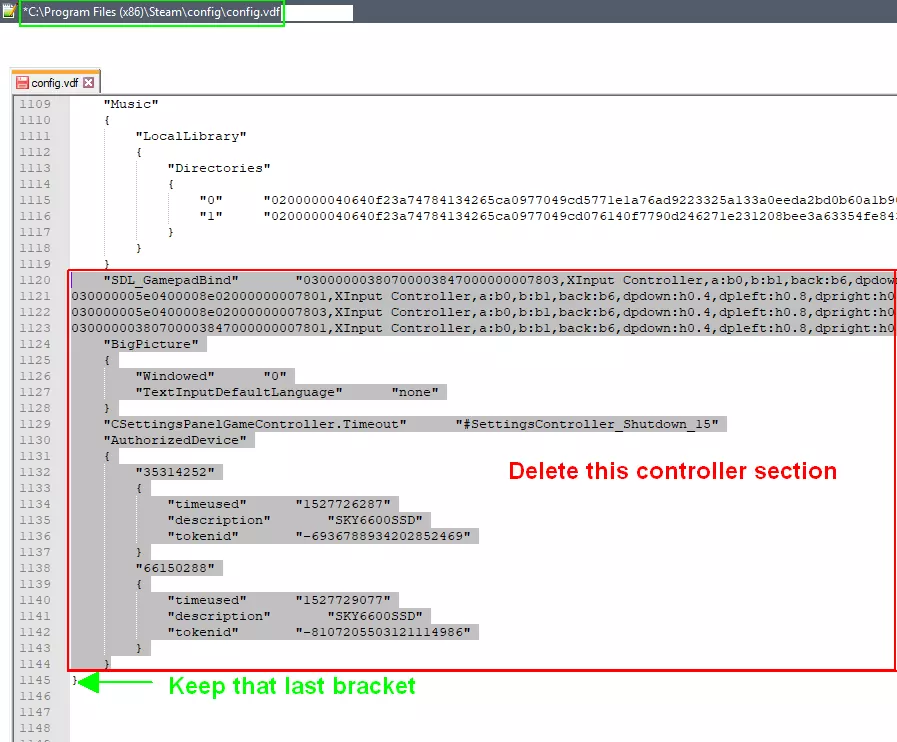
保存更改 启动Steam,确保在Steam控制器设置中检测到你的控制器(如果是Xbox 360兼容控制器,则无需进行配置)。 启动《街头霸王5》并检查控制器功能 禁用或卸载第三方输入包装器(例如:x360ce / DS4windows等)。通常情况下,避免将第三方输入包装器/按键重映射器与新的Steam控制器API一起使用,因为它们可能会相互干扰(导致卡顿/性能问题和输入丢失)。运行《街头霸王5》前,请拔下任何Wacom/触控板输入设备,然后重新检测/校准你的D-input控制器。 如果你安装了MadCatz PS4控制器驱动,请从X-input切换到HID输入。 验证游戏缓存文件:Steam库=>《街头霸王5》=>属性=>本地游戏文件=>验证。 检查Windows设备管理器中是否有故障/不断刷新的控制器驱动或设置,或松动/损坏的控制器线缆,或拔下/禁用控制器集成的耳机/麦克风接口,因为这些也可能导致每1-5秒出现一次冻结/掉帧。 崩溃/蓝屏错误wdf01000。当您的D输入控制器已插入时: 这是一个驱动相关问题,请卸载您可能安装的任何第三方驱动或D输入/虚拟摇杆软件(如MotionJoy等),因为它们可能会在某些电脑配置上造成干扰。 更新后按下任何控制器按钮或方向键时崩溃,并显示错误消息: 致命错误!GameOverlayRenderer64.dll [UnknownFile:0] 删除input.ini文件以重置控制器设置,或更改Steam控制器设置,仅勾选一个选项框(例如,如果您使用的是直接输入设备,可勾选PlayStation选项)。如果你仍想在Windows 10系统上使用“旧版”Windows 7的Madcatz TE2+ D-input转X-input控制器驱动/包装器,可能需要禁用安全启动才能安装。不要将X-input(Xbox 360)设备与X-input包装器一起使用,因为这可能会导致冲突。在使用Xbox 360设备之前,请删除包装器(如x360ce和DS4windows)或将它们移出《街头霸王5》的安装文件夹,或者至少启用直通功能。 键盘输入/秘籍 全新安装后首次运行《街头霸王5》(未连接控制器时),需要了解默认的键盘按键布局。键盘 按键 战斗中的功能 菜单中的功能 B

轻踢(LK) 【确认/前进】(首次运行时也可用于跳过最终用户许可协议/弹窗)

中段踢击(MK) "后退/拒绝" M

重踢(HK) 在CFN中:在排行榜界面显示顶尖玩家
在CFN中完成全部3次踢击:在排名界面显示你的位置

轻拳(LP) 在主菜单:打开【个人档案设置】子菜单 在对战大厅:打开评论和聊天子菜单

中拳(MP)。在对战大厅中:“向其他玩家发送邀请”的子菜单。更改大厅设置/更改对战设置/更改角色。

重拳(HP) 在子菜单中:导航/切换选中标签页 K
全部3拳 子菜单中:导航/切换选中标签 【回车】 暂停/设置 网络对战请求设置(自动匹配) 以及对战设置子菜单(使用角色/喜爱角色+舞台等) 【方向键】或【WASD】 移动方向 导航方向 【B】+【G】
轻拳+轻脚=投掷
无法识别内容,已删除。
(MP)+(MK)= V技能
角色特定技能 ---- M + J
(生命值)+(斗气槽)= V触发技
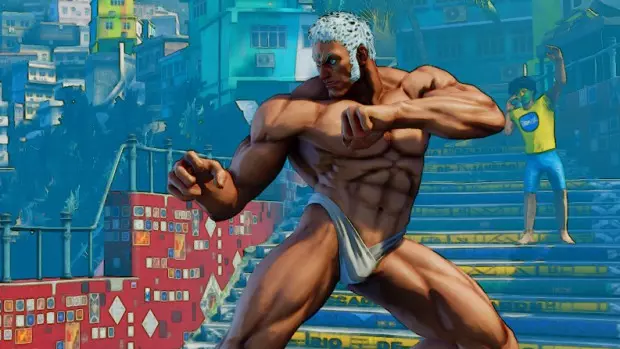
需要V槽计量表 ---- 拳脚组合可激活特殊动作:2次拳(PP)或2次脚(KK)+特定特殊招式=该特定特殊招式的强化EX版本(需要EX槽计量表) 格挡硬直中,3次拳(PPP)或3次脚(KKK)+前=V反击(需要V槽计量表) 3次拳与3次脚同时按下=挑衅 __________________________________ 秘密代码/秘密服装:Capcom设置了一些秘密输入,用于更改部分DLC服装的外观。 激活方法: 在赛前加载界面按住以下按钮,直至比赛开始: 尤利安秘密服装(适用于尤利安所有服装):
+
+
按住轻拳(LP)+中踢(MK)+重拳(HP) 秘密CPT/泳装/万圣节服装(可在回合间使用)
+
+

按住所有3个拳按钮(PPP)+轻脚(LK)+上方向键 示例: 春丽CPT服装:无 boa(由Steam用户The Who确认) 嘉米CPT服装:无背心(由Steam用户Cipher | I.W.O确认) 嘉米泳装:无装备(由Steam用户Cipher | I.W.O确认) 内卡利CPT服装:无上半身衣物(由Steam用户LockM确认) 劳拉泳装:无运动衫(由Steam用户Moonmadness确认) 卡琳泳装:无眼镜或帽子(由Steam用户Moonmadness确认) 伊吹泳装:无围巾(由Steam用户Moonmadness确认) __________________________________ 键盘按键重映射(包括AutoHotkey) Capcom于2017年9月26日推出了原生键盘按键重映射功能。 现在可以在游戏内自由更改默认键盘按键布局,无需任何第三方工具。预设键盘按键为GHJK、BNM(可在【战斗设置】=>【控制器】中查看)。 回车键在主菜单中可打开匹配/对战请求设置,在单人模式中可暂停游戏,您也可以在此处更改其他设置。
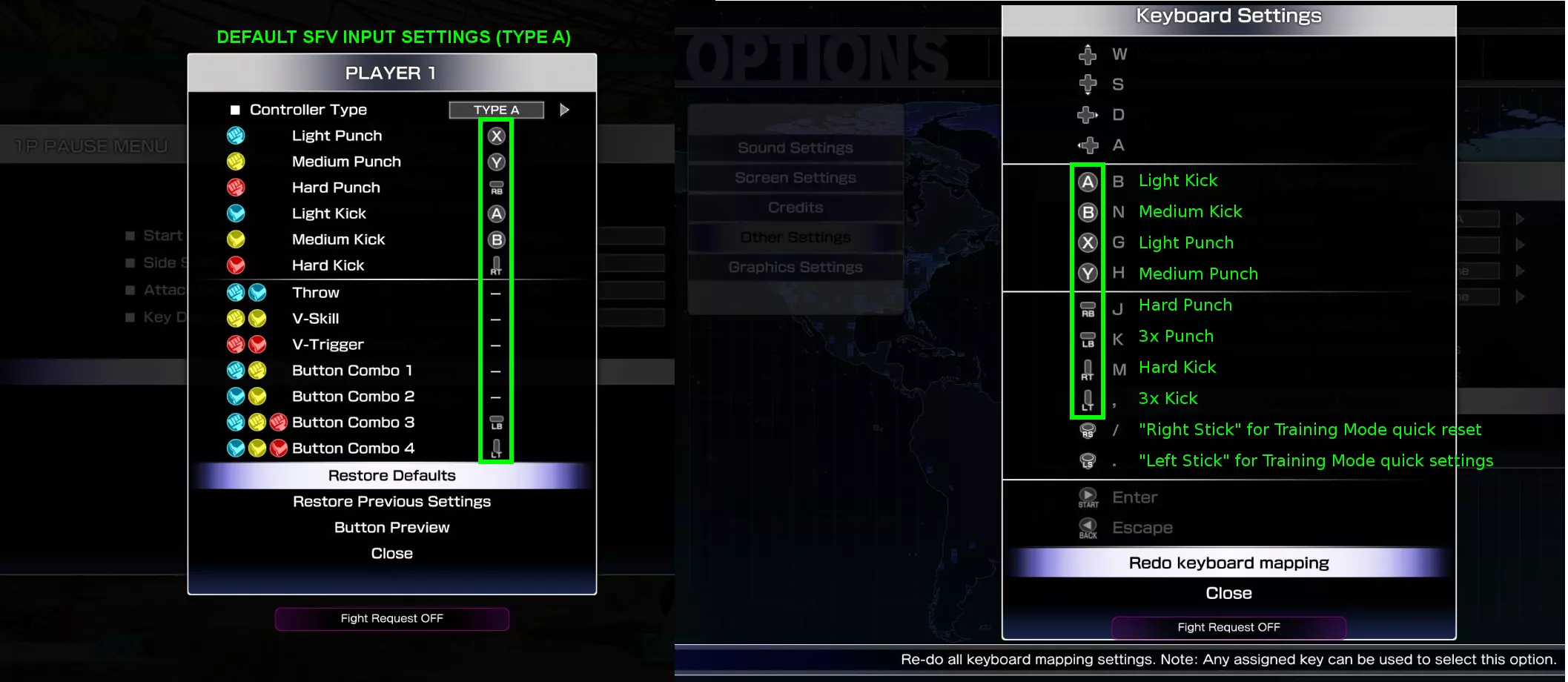
If your default button mappings are messed up after an update, you can reset them directly ingame - or - by deleting the file input2.ini, you can access it this way: Press: Win+R Paste: %LocalAppData% StreetFighterV Saved Config WindowsNoEditor Press: ENTER Like on a gamepad, you can't remap more than 8 buttons to kick/punch actions or combinations. Some special characters/letters ( like < > | * / ö ä é ū § etc. ) require 3rd party tools like Autohotkey. The ENTER and ESC keyboard buttons are also hardcoded, so you can't change these with any "controller type" layout in-game. Sometimes it is still possible to assign specific special characters in the SFV controller config file input2.ini with a text editor, without having to use 3rd party tools. input2.ini KeyboardKeys mappings explained: [AssignKeyboard] KeyboardKeys_0=UP KeyboardKeys_1=DOWN KeyboardKeys_2=RIGHT KeyboardKeys_3=LEFT KeyboardKeys_4=LK (Gamepad A) KeyboardKeys_5=MK (Gamepad B) KeyboardKeys_6=LP (Gamepad X) KeyboardKeys_7=MP (Gamepad Y) KeyboardKeys_8=PPP (Gamepad LB) KeyboardKeys_9=HP (Gamepad RB) KeyboardKeys_10=KKK (Gamepad LT) KeyboardKeys_11=HK (Gamepad RT) KeyboardKeys_12=TRAINING MODE LS (Gamepad left stick) KeyboardKeys_13=TRAINING MODE RS (Gamepad right stick) KeyboardKeys_14=PAUSE MENU / PROFILE SETTINGS (Gamepad START) KeyboardKeys_15=CANCEL MENU (Gamepad BACK) You can replace the "KeyboardKeys" values with your desired keyboard buttons.Example: changing the training mode reset button to NumPad Key 0 KeyboardKeys_12=NumPadZeroAll Keyboard button names/labels of the Unreal Engine 4 (UE4) can be found here: https://wiki.unrealengine.com/List_of_Key/Gamepad_Input_Names ______________________________ Mapping/assigning the press of the LS (left stick) is possible on a keyboard (it resets the positiion in training mode). Assigning the RS (right stick) training mode functions however is not possible on keyboards, nor on Arcade Fightsticks (even in RS mode), but only gamepads, because on a gamepad it can be pressed down + moved into all directions. ________________________________________ The keyboard buttons are mapped to the CONTROLLER labels. You can change the default controller labels in training mode (Controller Type A or B) By default "3x kick" and "3x punch" are assigned as multiple-input buttons. Basically you can assign only 2 keyboard or controller buttons to simulataneous / multiple-inputs (button combos). So you have to remap/sacrifice the "3x kick" and/or "3x punch" mappings, if you want to use V-Skill or V-Trigger or Throw or any other multiple input combination with a single button press. ________________________________________ If you still want to use AutoHotkey to remap specific unmappable special buttons/functions for any reason or want to map more than 2 multiple-inputs (button combos)you can follow the old archived tutorial here: AutoHotkey tutorial (no longer required) The following script uses the following layout: Numpad buttons for kicks/punches etc. + WASD (arrow keys) for movement; Escape / Enter buttons are unchanged, to not break any functionsYou can change the buttons (first letter) of each starting line to any key you want (semicolon is used to ignore specific lines and use them for comments): Steps (how to install / setup Autohotkey): 1. Download + Install AutoHotkey from: https://autohotkey.com/ make sure you enable *.ahk file extention support 2. Download the script here and skip to point 4 of this tutorial: http://s000.tinyupload.com/index.php?file_id=12226928977038477037 or Create a new text file, copy the following script inside + save the file #IfWinActive StreetFighterV #HotkeyInterval 100 ; avoids input buffer overflow ;=================== ;----up direction (jump) ---- w::Up ;----left direction---- a::Left ;----down direction (crouch) ---- s::Down ;----right direction---- d::Right ;=================== ***::w ; Up ***::s ; Down ***::a ; Left ***::d ; Right ;=================== ;----light punch---- also opens your profile button in main menu Numpad4::g ;----medium punch---- Numpad5::h ;----hard punch---- Numpad6::j ;----3 punches---- NumpadAdd::k ;=================== ;=================== ;----light kick---- also serves as the confirm or accept button Numpad1::b ;----medium kick---- also serves as the back or decline button Numpad2::n ;----hard kick---- Numpad3::m ;----3 kicks---- NumpadEnter::, ;=================== ;=================== ;----throw---- Numpad7:: Send {g down}{b down} KeyWait, Numpad7 Send {g up}{b up} return ;=================== ;----Vskill---- Numpad8:: Send {h down}{n down} KeyWait, Numpad8 Send {h up}{n up} return ;=================== ;----Vtrigger---- Numpad9:: Send {j down}{m down} KeyWait, Numpad9 Send {j up}{m up} return 3. Change the file extention from *.txt to *.ahk 4. Double click the *.ahk file, run SFV and have fun.________________________________________ Language and time format To change the in-game menu / user interface text language and time format, you need to modify the file called Engine.ini. Here is an example 1. how to change the language from system-defaults to ENGLISH: press the button combination: Windows Key + R paste the following line: %LocalAppData% StreetFighterV Saved Config WindowsNoEditor download the modified file from here and put it there http://s000.tinyupload.com/index.php?file_id=92523745318033871899 or open / create a file called Engine.ini with your text editor (like notepad) and modify the content so it looks like this: [Core.System] Paths=../../../Engine/Content Paths=../../../StreetFighterV/Content Paths=../../../Engine/Plugins/Runtime/CriWare/Content [Internationalization] Culture=en save your modifications start SFV 2. changing the Date Format in multiplayer battle screens is also tied to the chosen language in the above Engine.ini file. Known Culture settings (Language / Date Format): Culture= Language / Time Format us US English MM/DD/YYYY en-gb British English DD/MM/YYYY de German DD/MM/YYYY fr Spanish DD/MM/YYYY es French DD/MM/YYYY it Italian DD/MM/YYYY ja <----or----> jpn Japanese DD/MM/YYYY ko Korean DD/MM/YYYY pl Polisch DD/MM/YYYY pt_BR Brazil DD/MM/YYYY ru Russian DD/MM/YYYY ________________________________________ Performance: issue tracking Fighting game engine mechanics: Like many other fighting games, SFV strictly requires constant 60 frames per second, everything below or above messes up the timings. V-Sync prevents desync at high framerates and caps the framerate to 60 FPS. That's why V-Sync is enabled inside of SFV config/ini files by default, but there are people who override these settings in hope to achieve better performance on slow/old hardware or to lower the controverse input lag. In the end it creates more problems (desync/screen tearing), so you better leave V-Sync enabled for SFV. Just make sure that you don't use "adaptive V-Sync", because it caps the framerate at 30 FPS in case your PC cannot maintain 60 FPS constantly. ______________________________________ How to track performance / framerate issues: MSI Afterburner lets you monitor your hardware in-game via OSD (on screen display). Download here: https://gaming.msi.com/features/afterburner Enable all OSD options:
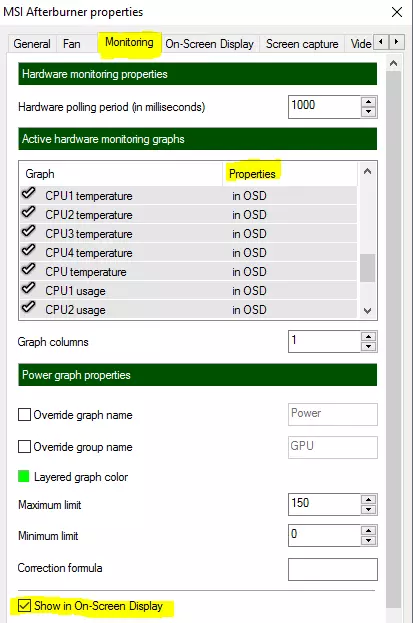
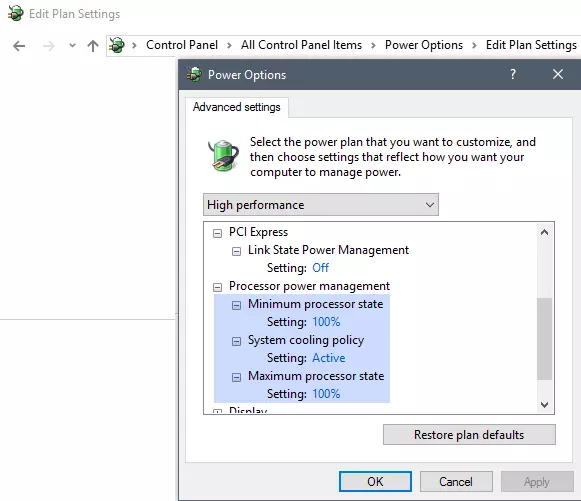
请密切关注GPU+CPU+RAM的使用情况,尤其是: - 使用量下降或过载 - 时钟频率变化 - 高温 一般示例: 你的帧率逐渐下降,在任务管理器中监控运行的应用程序后,你发现某个程序存在内存泄漏或处理器峰值(资源使用量逐渐增加,如RAM上升或CPU使用率峰值)。 应用示例:Aura Sync会在Windows启动时自动运行LightingService服务,以控制机器中的RGB和灯光,但目前存在CPU泄漏问题,这会导致帧率随时间下降。停止该服务可解决此问题。此外,使用【Microsoft Windows 资源监视器】来检测异常高的硬盘和以太网适配器活动。按下【Win键 + R】,输入【resmon】即可打开。 性能问题:掉帧/慢动作 《街头霸王5》中性能问题可能有多种原因: 1. 游戏内图形设置过高:降低图形细节或屏幕分辨率。 2. “可切换显卡”工作异常,尤其在Optimus笔记本电脑上:确保《街头霸王5》使用独立显卡而非处理器集成显卡。“可切换显卡”通常需要最新的INTEL/AMD驱动程序才能正常工作,或从笔记本电脑制造商网站获取特定的笔记本驱动程序。可以禁用集成显卡以避免与独立显卡产生冲突。 不稳定、性能不佳的显卡驱动版本:在某些情况下,最新的显卡驱动版本并非总是最佳选择,部分显卡型号使用旧版驱动时性能表现更好。尝试不同显卡驱动版本时,务必执行【清洁安装】(手动卸载驱动后重启电脑,再进行重新安装)。 或者,你可以使用显示驱动卸载工具(DDU)来彻底移除显卡驱动,为清洁安装做准备。 目前,对于旧款英伟达硬件和笔记本电脑,在《街头霸王5》中,GeForce驱动版本362.00能提供最佳性能。自沙加特更新v3后遇到卡顿问题的玩家可尝试此版本。有用户报告称,GeForce驱动版本361.91、365.19或398.36可解决此问题。通常,所有遇到掉帧和卡顿问题的用户都应首先考虑 clean 安装 GPU 驱动(即使是高端电脑,如果在生存模式下帧率在60 FPS和30 FPS之间波动,且通过ALT+TAB操作后恢复正常,也建议这样做)。 错误的GPU驱动设置:应使用普通垂直同步(V-Sync)而非“自适应垂直同步”,尤其是当你的帧率低于60 FPS时。因为自适应垂直同步会将帧率限制在30 FPS,导致《街头霸王5》出现慢动作、不同步或跳帧现象。完全禁用垂直同步则常导致画面不同步。 应选择的GPU性能模式为: 【高性能】 【单显示器】 【无降频/无节流】针对拥有GeForce显卡/G-Sync显示器的高级用户: NVIDIA Profile Inspector可进行多种深度驱动设置,例如【帧率限制器】,用于避免高刷新率显示器(120Hz及以上)出现随机短暂的帧率下降,可将其设置为60 FPS。 在某些罕见情况下,将显示器刷新率从60Hz更改为59.xxHz可解决异常的帧率限制问题(部分用户曾遇到50 FPS锁定,通过此方法得以解决)。 ______________________ 节能功能/性能限制:将Windows的【电源模式】设置为最高性能。 操作组合键:Win键 + R 输入:powercfg.高级Windows电源设置: CPU电源状态应设为100%@最大 处理器性能增强模式:如果遇到性能问题或卡顿,将其更改为【禁用】(此设置适用于笔记本电脑) 在PCI-E选项下可找到与GPU相关的电源管理设置 该设置不应设为最大节能模式
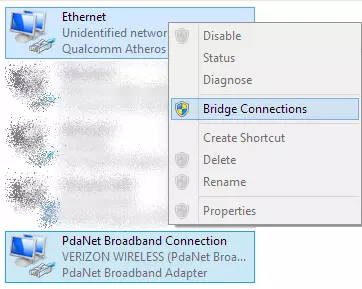
BIOS/UEFI设置(仅高级用户) 在BIOS中有一些设置会影响CPU的功耗/时钟速度以节省电量(如果遇到性能问题,请暂时禁用它们): "C1E":增强型暂停状态 "Speed Step"/EIST:空闲模式下的自动降频 AMD CPU的"Cool 'n Quiet"(凉又静) Intel的"Turbo Boost"(英特尔睿频加速技术)或AMD的"Turbo Core"(AMD智能超频技术) 后台运行的覆盖层软件可能会造成干扰,尤其是在配置较低的电脑上=>请禁用或关闭覆盖层软件,例如Steam设置:在界面选项卡中取消勾选"GPU加速渲染网页视图"游戏内覆盖层(如需在游戏内商店购买DLC,需临时启用Steam覆盖层,否则会出现“内容当前不可用”的错误提示) Windows Aero Skype、Discord加速功能 游戏捕捉/录制软件 其他游戏客户端(uPlay、Origin、Battle.net) 低带宽HDMI线缆/硬件与4K分辨率 部分HDMI线缆/硬件不支持4K分辨率下的60Hz刷新率,会以30Hz运行,这会自动限制《街头霸王5》的帧率。 解决方法:对于HDMI 1.4及以下版本的硬件,将分辨率降低至全高清(1920x1080) 或使用DP(DisplayPort)线缆以实现4K分辨率@60Hz。 而支持HDMI 2.0的硬件则应具备足够带宽以运行4K分辨率@60Hz。防火墙/杀毒软件干扰:将《街头霸王5》加入白名单,把StreetFighterV.exe和安装文件夹添加到排除项,这可能会提升性能,因为你的杀毒软件/防火墙在你游玩时将不再在后台忙着扫描《街头霸王5》。部分安全软件提供“游戏模式”,可避免后台扫描,从而减少游戏时的高CPU占用和大量磁盘访问。 替代方法(重新安装《街头霸王5》):完全卸载《街头霸王5》并删除以下位置的残留文件: C: Program Files (x86) Steam steamapps common StreetFighterV 以及Windows注册表中的残留项: 按下Win + R,输入regedit,搜索并删除所有StreetFighterV相关条目。可执行文件条目 并重新安装《街头霸王5》 ______________________ 网络设置中存在多个活动以太网适配器或开启网络共享时,连接互联网可能导致帧率极低(1-3 FPS)。 如何修复使用网络共享连接时许多游戏出现的帧率下降问题 1. 确保安装最新的网络驱动程序,或重新安装驱动程序以确保正常 2. 打开“网络和共享中心” 3. 选择“更改适配器设置” 4. 同时选中两个适配器:首先是手机共享网络适配器,然后是板载以太网适配器 5. 右键点击所选适配器 6. 弹出窗口中选择“桥接连接” 7. 会出现一个新的“网络桥”适配器,现在使用网络共享玩游戏时,帧率下降问题应该会消失
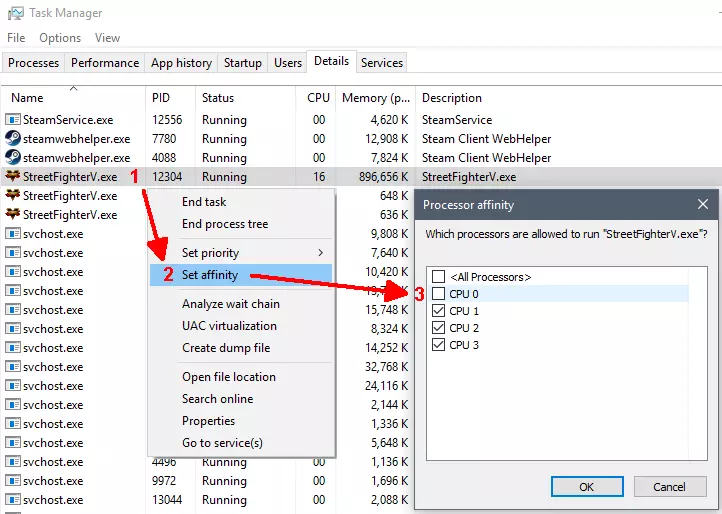
WiFi共享、WAN微型端口、瑞昱PCIe千兆以太网控制器也可能导致性能问题,可禁用它们进行测试。 创建新的Windows用户账户可能解决性能问题,因为新账户会使用干净的Windows用户账户设置和街头霸王5设置(位于“%LocalAppData%/StreetFighterV”)。 CPU核心0问题(仅使用一个CPU核心):在某些情况下,你需要通过以下解决方法强制使用“多核”CPU: A) CPU核心0关联:按下“CTRL + ALT + DEL”打开“任务管理器”,切换到“详细信息”选项卡,右键点击StreetFighterV。exe(CPU使用率最高的那个) 设置相关性 为《街头霸王5》禁用CPU 0 保持其他所有核心启用 ---- 这不是永久性设置,每次重启《街头霸王5》后都必须重新操作。永久性CPU相关性设置需要修改注册表值。
or B) set StreetFighterV.exe CPU priority to "Real Time" in "Task Manager". Thanks to Bisonfan95 for this alternative suggestion ______ Overheating=> check temperatures / check fans / clean coolers especially during hot summers with dusty coolers / broken fans Performance: freezes / slowdown intervals / shutdown Possible solutions / reasons: Shutdown during gameplay with a new GPU/CPU: weak power supply (PSU) or not connected VGA or CPU power cables (4 - 8 pin) get a new quality power supply with sufficient power for your GPU/CPU. Alternatively you can try to limit the CPU/CPU usage in Windows power options to ~90% Press: Windows Key + R type: powercfg.cpl Open the "advanced Windows power settings".________ Slowdowns / freeze intervals: after ~2 mins: progressive FPS performance degradation disable all ethernet adapters, if that helps, re-enable them one by one and try different ethernet adapter settings (disable IPv4 and game/latency boost and energy saving options ). or create a new, secondary local Windows account and run Steam/SFV from there, if that fixes your issue, then some settings of your primary Windows account are causing the slowdown. Until you've found the specific reason, you can run Steam/SFV via context menu from your primary Windows account with this workaround: hold SHIFT + right click on the Steam icon select run as different user http://cdn.ilovefreesoftware.com/wp-content/uploads/2015/01/windows-10-run-as-different-user-from-explorer.png every "~30 seconds" Still unsure what exactly is causing this issue on some PCs with Windows 7 installed, possibly some background application or drivers activity or conflicting process priorities / HDD access. Many players solved this issue by upgrading from Windows 7 to Windows 10, preferably a fresh install, without dragging old leftovers along. If you use a high refresh rate display (above 60 Hz ++) please check the "wrong GPU driver settings" / "frame limiter" paragraph above. Same goes for power saving / throttling tools in your UEFI/BIOS and Windows, please check the "energy / power saving / throttling" paragraph above. every 1-5 seconds CPU core affinity issue: check the instructions+screenshot in the "frame drops / slow motion" section above, but his time re-enable (toggle) CPU core 0 after the last step, while SFV is running, this should fix your micro-stuttering. Thanks to the Steam user Nescau for reporting this. Controller / input device issue: happens only when specific controllers are plugged in: check faulty/constantly refreshing controller drivers or settings in Windows device manager, or loose/damaged controller cables, or unplug/disable controller integrated headset/microphone jacks. other USB Chipset driver incompability reinstall USB drivers / check controllers http://steamcommunity.com/app/310950/discussions/1/152392549360826439/ temporarity disable all unrecognizeable/refreshing USB ports / HID devices / drives in Windows Device Manager, if the problem is gone after this, re-enable them one by one to find the culprit, which is causing the micro CPU spikes. IMPORTANT: If you disable your USB mouse by mistake, don't worry you can use your Keyboard NUMPAD to move your mouse and re-enable it again. Actually it's adviseable to test this feature on your PC (center for easy access) and change the cursor speed + acceleration, before disabling your USB ports, so you don't have to worry about these settings afterwards. The default keyboard mouse navigation is very very precise/slow, so you may need to hold the NUMPAD direction buttons a little longer to see the cursor moving. Press the button combination ALT + left SHIFT + NUM A popup will open, which will ask you to enable "Keyboard Mouse Actication" press ENTER to confirm, now you can use the the NUMPAD buttons to navigate your mouse on the screen: NUM 8 = up NUM 4 = left NUM 2 = down NUM 6 = right NUM 5 = mouse click NUM / = activate the right mouse button (mouse menu) when pressing NUM 5 NUM * = deactivate right mouse button when pressing NUM 5 and the ALT+TAB = navigate beween open Windows.________________ Performance: Win10 Creators Update Specific Problems Windows 10 Creators Update introduced many issues on some PCs, which were not present in Windows 10 Anniversary Edition. Microsoft warns users from updating to Windows 10 Creators edition manually, they plan to release a less bugged version soon. Reported problems so far: http://windowsreport.com/windows-10-creators-update-bugs/ G-Sync issues with Windows GameDVR GameDVR causes game crashes FPS issues with Windows Gamebar (GameDVR) Black screen issues Dolby Digital Live and DTS Interactive won’t work (Realtec HD Audio) Computer memory is full after the upgrade + Creators Update error 0x80070070 Microsoft Edge is unresponsive or freezes Startup shortcuts won’t run Apps close after launch User data won’t syncand the list goes on... ___________________ If you don't want to rollback to Win10 Anniversary Edition: You can try the following: right click on both StreetFighterV.exe files, check the "compatibility settings" tab toggle the "Fullscreen Optimization" / disable all compatibility settings. disable the Win10 GameDVR in your XBOX app check for GPU driver updates, which are 100% compatible with the Creators Update, if not, disable your nVidia GeForce Experience / ShadowPlay overlay (ALT+Z) game/screen recording tool. nVidia's G-Sync seems also to be broken in Win10 Creators Edition: http://forums.playbattlegrounds.com/topic/10506-psa-windows-creators-update-breaks-nvidia-gsync/ Performance: tuning / ini-file modifications If you want to experiment a little more with your graphics settings, you can try to fine-tune the ini files. Make sure that you can maintain 60 FPS constantly during matches. I'll show you 2 methods here: Method 1: ideal if you want to finetune specific in-game presets from Low to Max, even if you were never able to run SFV before Method 2: ideal if you want to finetune the custom in-game preset, which has been created after you've been able to run SFV and change the preset to custom at least once.______________________________________ Method 1: Scalability.ini Preparations for Method 1: the main GFX quality settings are inside of the Scalability.ini file Copy this file from: %ProgramFiles(x86)% Steam steamapps common StreetFighterV StreetFighterV Intermediate Config CoalescedSourceConfigs to: %LocalAppData% StreetFighterV Saved Config WindowsNoEditor Now you can modify it with Notepad/Texteditor to your needs. Side note: only modified values will remain after the next SFV start in this file, in case you need/want to modify more values in future, you can repeat the above procedure.______________________________________ Performance tuning for max settings Example to disable AntiAliasing, motion blur, DOF, ambient occlusion and bloom in "Max" quality settings: start up SFV (normal mode) change the graphics settings to MAX preset change the resolution scaling to 100 (you can lower this later, if your framerate drops below 60 FPS) close SFV change the following code inside of Scalability.ini [AntiAliasingQuality@3] r.PostProcessAAQuality=0 r.MSAA.CompositingSampleCount=1 [PostProcessQuality@3] r.MotionBlurQuality=0 r.AmbientOcclusionLevels=0 r.AmbientOcclusionRadiusScale=1.7 r.DepthOfFieldQuality=0 r.BloomQuality=0 save the file changes restart SFV, preferably with a FPS counter in Steam overlay enabled.______________________________________ Performance tuning for old / slow systems Example to disable shadows and bloom completely in "Low" quality settings: start up SFV (normal mode) change the graphics settings to LOW preset change the resolution scaling to 50 (you can adjust this later up to 100 again if your framerate doesn't drop below 60 FPS) close SFV change the following code inside of Scalability.ini [ShadowQuality@0] r.ShadowQuality=0 [PostProcessQuality@0] r.BloomQuality=0 save the file changes restart SFV, preferably with a FPS counter in Steam overlay enabled.___________________________ Explanation for Method 1: @0] means the "Low" preset will be affected you can also modify other presets like this @1] for medium @2] for high @3] for max the "automatic" in-game preset is not affected by this. the "custom" in-game preset requires to change the values in GameUserSettings.ini _______________________________________________ Example of additional tuning parameters for players with performance drops on the Cave/Waterfall stage and other stages with complex particles/effects: http://steamcommunity.com/app/310950/discussions/1/1634111706739952096/?tscn=1515912744 Thanks to the Steam user: "Onwarion" _______________________________________________ Additionally there is a low spec PC performance MOD, which disables all stage backgrounds, gimmicks and some character special effects to improve performance (thanks to the Steam user: NFMS InnerPainX): http://steamcommunity.com/app/310950/discussions/0/133258092245518350/ Disabling V-Sync is not recommended, even if it helps to improve FPS here and there, reason: screen tearing and online desync with PS4 players. _______________________________________________ Method 2: GameUserSettings.iniThis method is ideal, if you want to fine tune the "custom" in-game preset. Press Win+R and paste the following line to open the config folder %LocalAppData% StreetFighterV Saved Config WindowsNoEditor Open the file GameUserSettings.ini The content looks similar to this and depends from your previous in-game custom settings. The following code represents the lowest settings in windowed mode and 800x600 screen resolution: [/script/kiwigame.kiwigameusersettings] ResolutionSizeX=800 ResolutionSizeY=600 GameVersion=5 ScalabilityResolution=(bGroupQuality=True,ResolutionQuality=50,ScreenPercentageSettingIndex=71) ScalabilityViewDistance=(bGroupQuality=True,ViewDistanceQuality=0,SkeletalMeshLODBiasSettingIndex=-1,ViewDistanceScaleSettingIndex=-1) ScalabilityAntiAliasing=(bGroupQuality=True,AntiAliasingQuality=0,PostProcessAASettingIndex=-1,MSAACompositingSampleCountSetting=-1) ScalabilityShadow=(bGroupQuality=True,ShadowQuality=0,LightFunctionQualitySettingIndex=-1,ShadowQualitySettingIndex=-1,ShadowCSMMaxCascadesSettingIndex=-1,ShadowMaxResolutionSettingIndex=-1,ShadowRadiusThresholdSettingIndex=-1,ShadowDistanceScaleSettingIndex=-1,ShadowCSMTransitionScaleSettingIndex=-1,DistanceFieldShadowingSettingIndex=-1,DistanceFieldAOSettingIndex=-1) ScalabilityPostProcess=(bGroupQuality=True,PostProcessQuality=0,MotionBlurQualitySettingIndex=-1,AmbientOcclusionLevelsSettingIndex=-1,AmbientOcclusionRadiusScaleSettingIndex=-1,DepthOfFieldQualitySettingIndex=-1,RenderTargetPoolMinSettingIndex=-1,LensFlareQualitySettingIndex=-1,SceneColorFringeQualitySettingIndex=-1,EyeAdaptationQualitySettingIndex=-1,BloomQualitySettingIndex=-1,FastBlurThresholdSettingIndex=-1,UpscaleQualitySettingIndex=-1,TonemapperQualitySettingIndex=-1,LightShaftQualitySettingIndex=-1) ScalabilityTexture=(bGroupQuality=True,TextureQuality=0,StreamingMipBiasSettingIndex=-1,MaxAnisotropySettingIndex=-1,StreamingPoolSizeSettingIndex=-1) ScalabilityEffects=(bGroupQuality=True,EffectsQuality=0,TranslucencyLightingVolumeDimSettingIndex=-1,RefractionQualitySettingIndex=-1,SSRQualitySettingIndex=-1,SceneColorFormatSettingIndex=-1,DetailModeSettingIndex=-1,TranslucencyVolumeBlurSettingIndex=-1,BlurRadiusSettingIndex=-1,MaterialQualityLevelSettingIndex=-1,SSSScaleSettingIndex=-1,SSSSampleSetSettingIndex=-1,EmitterSpawnRateScaleSettingIndex=-1) bUseVSync=True LastUserConfirmedResolutionSizeX=0 LastUserConfirmedResolutionSizeY=0 WindowPosX=-1 WindowPosY=-1 LastConfirmedFullscreenMode=0 FullscreenMode=2 [ScalabilityGroups] sg.ResolutionQuality=50 sg.ViewDistanceQuality=0 sg.AntiAliasingQuality=0 sg.ShadowQuality=0 sg.PostProcessQuality=0 sg.TextureQuality=0 sg.EffectsQuality=0 _______________________________________________ Some explanations for Method 2: ResolutionSizeX=800 / ResolutionSizeY=600 runs SFV with your custom screen resolution, 800x600 in this example FullscreenMode changes between fullscreen and windowed mode 2 = windowed 1 = borderless window mode 0 = fullscreen sg.ResolutionQuality=50 sets the resolution scaling value, 50% in this example_______________________________________________ Command line parameters / custom launch settings Street Fighter V is based on Unreal Engine 4, so some known command line parameters are also available here. Common parameters: run SFV in a window -windowed run SFV in full screen -FULLSCREEN run SFV in borderless mode: -FULLSCREEN -BORDERLESS Use a custom resolution: -ResX=XXXX -ResY=YYYY example for 1680x1050: -resx=1680 -resy=1050 No splash screen on launch: -NOSPLASH Disable force feedback on controllers -NOFORCEFEEDBACK Enable highest quality textures (disable texture streaming) on highend systems: -NOTEXTURESTREAMING Disable any sound from the game engine -NOSOUND Force the use of all available CPU cores on the system, can increase performance -USEALLAVAILABLECORES All available UE4 parameters can be found here: https://docs.unrealengine.com/latest/INT/Programming/Basics/CommandLineArguments/index.html be aware that some of them only work in a developer environment / UE4 Editor. How to use them: right click on SFV in your Steam library choose properties click on: set LAUNCH OPTIONS enter your desired command line parameters confirm with OK start SFV from your Steam library
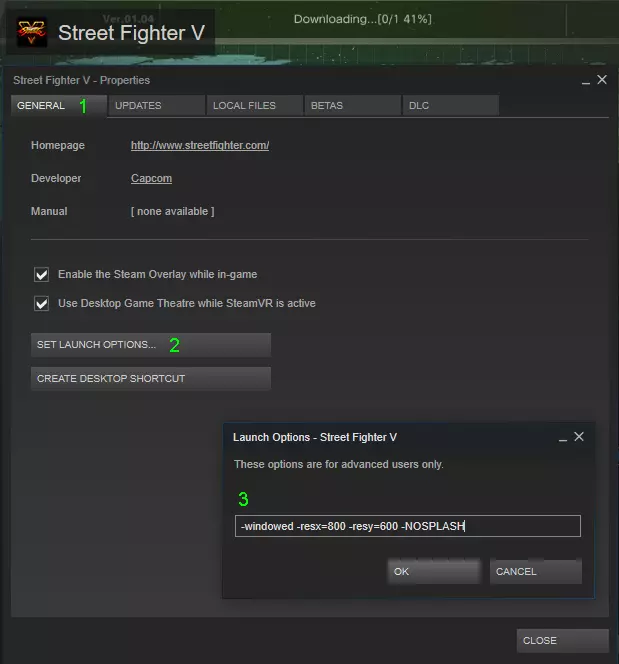
示例:以窗口模式和自定义分辨率(此处为800x600)运行《街头霸王5》: -windowed -resx=800 -resy=600 运行《街头霸王5》时不显示启动画面 -NOSPLASH 【与覆盖层软件相关的全屏问题】 无法以“全屏”模式进行游戏 => 禁用第三方覆盖层软件,例如TeamViewer或Skype 《街头霸王5》窗口失去焦点/游戏中鼠标弹出 => 关闭导致窗口失去焦点的相应应用程序 或 => 按照命令行参数部分所述,以无边框全屏模式运行《街头霸王5》 【FPS计数器不可见(修复方法)】 当使用Steam控制器API来使用D-input控制器(PS3、PS4、通用控制器等)时,可能无法看到Steam的游戏内FPS(每秒帧数)计数器。原因:Steam 覆盖层图标冲突/不支持大屏模式功能。 解决方法/临时措施:在 Steam 设置中禁用大屏模式覆盖层选项,具体路径为:Steam => 设置 => 游戏中 => 取消勾选【使用 Steam 输入启用的控制器从桌面进入时使用大屏模式覆盖层】。
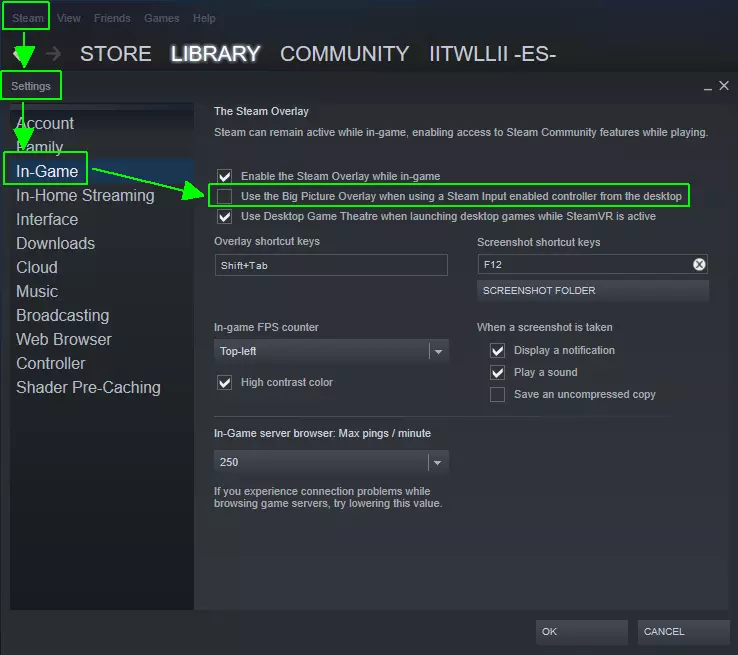
The disadvantage of this is, that you will be unable to see "Radial" or "Touch" menu's, because they rely the on Big Picture Overlay, which unfortunately doesn't support an FPS counter. Screen artifacts (random colors/white screen, missing HUD/menus etc.): Random color flashing (white/green/pink etc.): Change your nVidia Driver settings: right click on the desktop go to Nvidia control panel select "Change Resolution" apply the following settings: "Use NVIDIA color settings" 32 bit, 8bpc, RGB, LimitedThanks to the Steam user "RogueSteward" for this hint. update your GPU drivers: clean install with DDU - Display Driver Uninstaller: http://www.guru3d.com/files-details/display-driver-uninstaller-download.html Some driver versions like GeForce v388.13 seem to cause this for some users as well. check your temperatures / overheating (fans should be working fine, heat sinks should be in place and clean from dust) run SFV in fullscreen or windowed mode Steam Library => StreetFighterV => Properties => Launch Options: -fullscreenor -windowedor alternatively -fullscreen -borderless White screen during fights:Running 3rd-party programs or services are interfering disable them before running SFV (check the crash on start section, last paragraph 3rd-party software/Windows clean boot mode), or alternatively run SFV in windowed mode / full screen borderless mode. the Steam user "RagingDemon" reported that the "Reshade mod" can cause this issue, deleting the mod files inside of the Steam installation folder for SFV, fixed this problem Black screen after ~40 minutes of playingvery rare problem, which turned out to be a GPU hardware failure related issue, replacing the GPU fixed this: http://steamcommunity.com/app/310950/discussions/1/2650805212049863001/?tscn=1522793801 Missing HUD / menus / interfacesClean install a different GPU driver with the help of DDU (Display Driver Uninstaller). If you have an nVidia GPU, try the driver version 388.71, or any other stable driver version, which works for you. Sound issues (HDMI / Intro movies / BGM / Voices etc.) Constant music volume changes in-gameChange your Windows sound settings Press: Windows Key + R Paste: control mmsys.cpl sounds Click on the "Playback" tab Select your active sound card Right click on it and select "properties" Click on the "Enhancements" tab Disable the "Loudness Equalization" confirm the changes with "OK / apply"A similar issue can happen, if you have an active microphone with automatic loudness settings enabled - disabling it, usually fixes the problem. ____________________________ No sound during the intro movies, or watching/listening to the media in the "SFV Arcade Edition Gallery"Make sure that your "BGM music slider" is not 0, in SFV sound volume settings ____________________________ No Character & Announcer Voice (other sounds work fine) 1. Check your audio volume settings in-game 2. Check your audio settings in Windows or your sound card driver software => switch between different speaker settings (for example from a 5.1 surround to a 2.0 stereo speaker setup). _____________________________ No sound at all, no matter which output sourceMake sure that you have DirectX 10 installed correctly, reinstall it from SFV's Steam installation directory: %ProgramFiles(x86)% Steam steamapps common StreetFighterV _CommonRedist DirectX Jun2010____________________________ HDMI sound issues (sound output to HDMI devices)There have been known driver issues with some games and HDMI sound, which usually have been solved by playing in windowed mode. This is especially the case when you have an integrated Intel-GPU sound and/or nVidia-GPU sound. In general many games don't like the combination of both GPUs active at the same time. The switch over to your HDMI TV should be done before launching the game. You can try the following for your secondary HDMI devices: A) 1. connect your secondary HDMI device (TV or Monitor with audio speakers) to your laptop / PC 2. disable the primary laptop display in your graphics driver settings and leave only the secondary HDMI display enabled B)1. Plug the HDMI device in and go to device manager ( WinKey + R => hdwwiz.cpl ) 2. Expand "Sound, video and game controllers" 3. Right click "Intel Display Audio" or something similar and uninstall. 4. Restart your PC 5. Right click the sound icon in the system tray and make sure the TV is set to default. 6. Launch SFV and the sound will hopefully be enabled through HDMI. C)If evey other attempt fails and you don't have an analogue (3,5) or digital (SPDIF/optical) output, some players use external USB soundcards to circumvent this isssue.________________________________________ DLC issues (Cinematic Story / Shop / DLC premium costumes etc.) Known issues overview: DLC purchase error: content currently unavailable DLC character and stage slots are not visible in menus DLC installation instructions for the free "Cinematic Story Expansion: A Shadow Falls" DLC checkboxes not available in the Steam client Detailed solutions for the above DLC issues: 1. DLC purchase error: content currently unavailableSome in-game DLC purchases need the Steam in-game Overlay to be enabled: https://support.steampowered.com/kb_article.php?ref=9394-yofv-0014&l=english
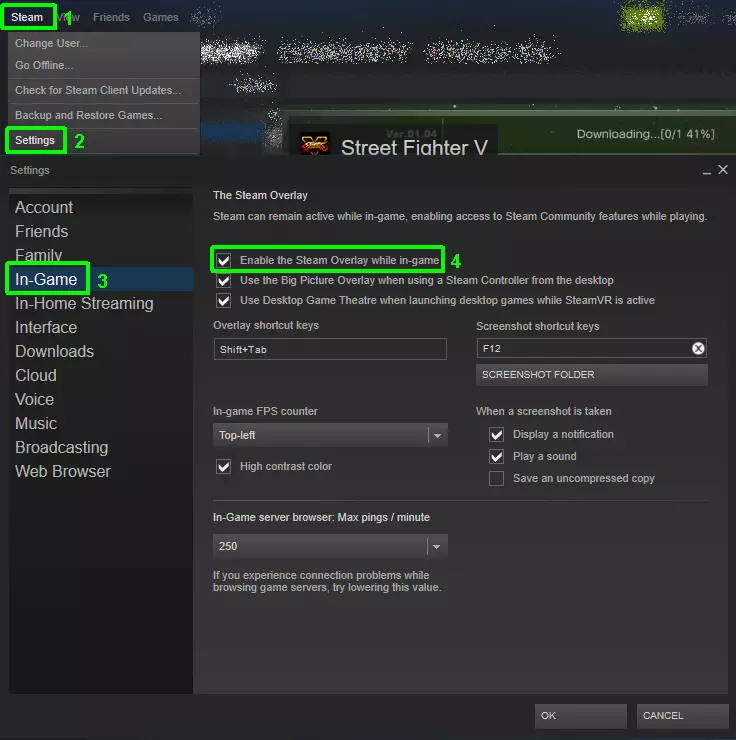
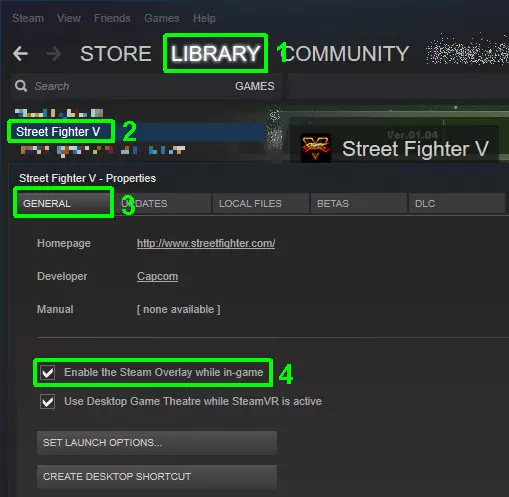
如果这没有帮助: 运行《街头霸王5》的“大屏幕模式” 或 禁用/关闭后台运行的任何其他覆盖软件,以避免干扰 或 直接以干净启动模式启动Windows(禁用所有自动运行的第三方应用程序和服务)并运行《街头霸王5》 关于使用真实货币购买DLC角色的注意事项:如果想用真实货币购买DLC角色,必须选择“包含服装”选项。原因是:自2018年2月的第三季起,使用真实货币购买的角色会自动解锁默认的1-10号配色,而使用“战斗货币”购买的DLC角色则需要通过生存模式来获取这些配色。DLC角色和舞台槽位在菜单中不可见。重置你的《街头霸王5》下载文件夹 => 查看游戏内更新器问题部分获取更多详情。 3. 电影故事扩展:“A Shadow Falls”(即通用故事DLC) - 安装说明: 为了安装“电影故事扩展DLC”,你需要在Steam库中找到《街头霸王5》,勾选该DLC的复选框以开始下载。
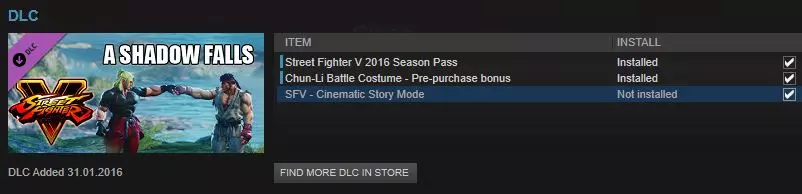
编辑: 当你连接到Capcom服务器时,还有另一种在游戏中“获取”剧情模式的方法: 进入【商店】=>【特殊】,此时会打开Steam上《街头霸王5》的DLC商店页面,点击下载免费的剧情模式DLC即可。 4. Steam客户端中DLC复选框不可用 在少数情况下,有用户遇到《街头霸王5》的Steam库中缺少“DLC复选框”,并且在Steam的《街头霸王5》属性中也没有“DLC标签页”的问题。 解决方法:将Steam的“common”文件夹移出Steam安装路径(例如:从C: Program Files (x86) Steam steamapps common移出),以避免之后重新下载所有Steam游戏。卸载Steam+重启电脑+重新安装Steam 将“common”Steam游戏文件夹移回C: Program Files (x86) Steam steamapps 访问【街头霸王5】“剧情影片扩展DLC”的商店页面,然后点击安装或开始游戏,这将把DLC选项重新添加到你的【街头霸王5】Steam库中。 连接问题:端口转发/多人游戏延迟 网络延迟/连接质量取决于多种因素:连接类型(有线/无线网络/移动网络)、家庭网络共享情况、后台运行的网络应用程序、VPN隧道、互联网服务提供商的运营商级网络地址转换(隧道化IPv6/双栈精简模式)、互联网服务提供商的路由节点、不允许对等连接的严格路由器设置/固件等。双方玩家/客户端都会影响连接质量。 《街头霸王5》的在线对战有两种连接方式:在对战加载界面上,不同图标代表当前与对手的连接方式:直接P2P连接(常规)——两个圆点由闪电连接。

中继服务器连接(通常延迟很高),用于受限NAT或洲际连接,图标为两个圆点连接一个方块

in-game you need to have specific ports to be open, else the connection will be rejected. Some routers have problems with P2P game connections because of their default, restrictive firmware settings (especially some Thompson and Technicolor routers), which means they establish matchmaking over relay servers in SFV, these are basically unplayable. ______________________________________________ Possible solutions: make sure that you have the latest game version (update) properly installed, else you won't be able to join any battle lounges, ranked/casual automatchmaking. Verify the game cache and switch between your available connections to force the in-game updater to update the game. Alternatively: manually update the game as described in the in-game updater issues section. Close any unnecessary download/upload intensive programs on all devices, which use the same internet connection / router as your SFV PC/laptopsome 3rd party programs like uPLAY can interfere with SFV connections. Use preferably a wired internet connection via cableWiFi (wireless) internet connections can fluctuate and cause additional latency/packet losses Power reset your router/internet modem for 5 minutes. Port forwarding in your router / PC software firewall for the following ports: TCP ports: 80, 443, 20002, 30840, 30850, 30870 UDP ports: 30840-30859, 30870-30879 These ports are used for logging into Capcom SFV servers and P2P matchmaking, of course both players still need to have a reasonable, low ping and maintain 60 frames per second during matches to play without lag. Explanation / Notes: TCP 20002 = Capcom Server / CFN TCP 80 = fight request on (usually open by default) TCP 443 = secure login / browser (usually open by default) TCP+UDP 30870 = Battle Lounge TCP 30840-30859, 30870-30879 = Ranked / Casual Matchmaking ____________ If your router allows to forward TCP and UDP ports with a single rule, you can combine them like this: TCP: 20002 TCP+UDP: 30840-30879 This is a less safe method, because it opens more ports than necessary. Some users also reported that the following ports helped to stabilize connections:TPC+UDP 7777-7778 = Unreal Tournament / UT Engine UDP 27015 = Steam Server Traffic TCP 27015 = Steam SRCDS-Rcon-Port UDP 3478-3480 = Steam P2P + Voice Chat + SFV on PS4 TCP 1935 = SFV on PS4 / General PS4 Port___________________________________________ Here you can find out how to enable port forwarding in your router model: http://portforward.com/english/routers/port_forwarding/routerindex.htm ___________________________________________ Capcom CFN2 server IPs (when connecting from Europe): IP: Port: Usually used for: 52.40.56.46 443 Web + Login (Amazonaws) 52.42.93.6420002 Web + Login (Amazonaws) 95.101.72.208 443 Web + Login (Amazon Akamai servers): 54.202.232.224 30840 Matchmaking (Amazonaws) 54.2XX.XXX.XXX multiple ranges 54.245.179.44 30840 Matchmaking (Amazonaws) You can ping + route trace Capcoms login servers as following: press: WinKey + R type: cmd confirm with ENTER type: tracert 95.101.72.208 or ping 95.101.72.208 confirm with ENTER If you can't ping Capcom servers, then a software or hardware firewall is blocking your attempt. if get any packet loss here, then you should try a wired connection instead.________________________________________ Connection problems: specific routers (Technicolor / Thompson / B-BOX3) "Technicolor/Thompson" router P2P problems and solutions: some router firmware allow assigning a public IP to your devices example for some Technicolor routers: open your router web interface through your web browser navigate to Home > Home Network > Devices > Assign Public IP choose your PC/laptop to assign the IP, there is no other configuration, just choose your PC/laptop under the einternet or minternet option. modify firmware settings via TelNet client (only recommended for tech savvy users) to establish CONE connections: https://www.reddit.com/r/StreetFighter/comments/48d23l/possible_solution_to_slow_matchmaking_for/ instead of Symmetric NAT connections: http://www.think-like-a-computer.com/2011/09/19/symmetric-nat/ bridge/bypass the routers internal modem with an external LAN switch and establish a direct internet connection (PPoE), in some cases your internet service provider has to assist you: https://steamcommunity.com/app/310950/discussions/0/405693392907389950/ exchange or buy another router brand with customizeable firmware for P2P connections. http://www.capcom-unity.com/street_fighter/go/thread/view/7411/30659899/technicolor-modems-causes-matchmaking-issues---capcom-please-read____________________________________ "B-BOX3" router P2P problems and solutions:Belgacom / Proximus ISP has 2 types of bbox3 router models Technicolor Sagemcom Apparently the Technicolor model conflicts with the Playstation 4 and other P2P applications like SFV. The reason is similar to Technicolor routers: symmetric NAT Solutions: Belgian Proximus ISP players: exchange your bbox3 in a Proximus store. Players from other countries: check your router power supply if it is a Technicolor model, ask to have it changed to a Sagemcom model. Source: https://www.reddit.com/r/StreetFighter/comments/47snji/to_belgian_players_and_possibly_other_countries/ ____________________________________ Connection problems: specific ISPs (internet service providers with cgNAT or DS-Lite or parental control filters) Problem: carrier grade NAT (cgNAT)Some internet service providers (ISPs) enforce a carrier grade NAT (cgNAT), which means that port forwarding will not work, when your ISP is translating your individual IP + port to a shared multi-user IP + port (basically hiding your connection to other users). Security wise this is very welcome, but it is very bad, if you want to access your private / home servers / NAS / clouds / SIP etc. remotely on the go. and/or use peer to peer (P2P) applications + gamesbecause these rely on direct point to point connections, which require individual public IPs. Common solution:First make sure that your router is not the source of the problem: check your router security options game mode/public IP disable proxies/VPNs parental safe search filters (Virgin Media or Sky in UK for example) Ask your ISP if there are such security measures active for your connection + ask for an individual public IP. If you are living in a campus, it is possible that your university is using similar connection filters, which can cause connection issues in P2P applications. ________________ Problem: DS-Lite / constant disconnects (especially in Austria, Germany and Swizerland):If you have a cable ISP (internet service provider), especially with a new contract, chances are high that your ISP is using a specific cgNAT called DS-Lite, which means that: your IPv4 is encapsulated into IPv6 then transferred to your ISP and then translated into a different global public IPv4, which you share with many other customers= bad for P2P applications. Dual Stack connections with a real seperate IPv4 and IPv6 address usually don't have these issues, but are often more expensive. These cable ISPs often use IPv4 over IPv6 (DS-Lite) for new customers by default: - UnityMedia / Vodafone / UPC - KabelDeutschland / KabelBW - Innogy Fibre/Glasfaser Common solution:call your ISP and tell them, that you need an individual public IPv4 address for your P2P applications/devices Examples / more details here: English: http://steamcommunity.com/app/310950/discussions/1/217691032440262887/ German: http://steamcommunity.com/app/310950/discussions/0/133259956019558555/#c133259956020462229 _________________________________ Another issue with DS-Lite connections seems to be, that the game updates are not completeting and rolling back to the previous game version in some cases. Check the "in-game updater problems section" for possible, known solutions labeled as "update constantly rolls back to the previous game version" _________________________________ Connection problems: Error Codes This list is still in progress, because all error codes are very cryptic and not all of them are "demystified" completely yet, more details + detailed solutions are below the error code table: Error Number In-game error description Possible reason and/or solution 21201 Not signed into Steam Network functions disabled Lost connection to Steam servers, either because Steam servers are offline/under maintenance, or because you lost your internet connection temporarily. Try to connect to any website on your PC, if that works but you can't connect to http://steamcommunity.com then Steam is the issue, else It's most likely on your side (ISP or network issues) 40002 lost connection to opponent One of the clients disconnected during a fight, can happen due to connection instabilities or 24 hour ISP disconnect, while playing multiplayer or by rage quiting on purpose 10001 Unable to connect to Network ethernet adapter not active or not installed check your Windows ethernet adapters/replug ethernet cable 10006 disconnected from server LAN disabled or ISP 24 h disconnect, while playing singleplayer 2100e unable to login into game server server offline usually during a server maintenance or a SFV update is uploaded to the servers, wait until servers are back online 2100d followed by multiple others 21006 21009 1000a 10005 10006 10007 "unable to log into game server" or "disconnected from game server" either router / firewall issue or ISP (internet service provider) issue Often related to Error 22004, especially if you have never been able to connect to multiplayer. or in some rare cases: only specific regions are affected after a game update has gone live, first make sure that you have waited some minutes after the server maintenance is over, the updated servers may not be 100% accessable from your location yet. Disable your ISP "parental filter", if there is any (Virgin Media has one for example). 22004 error downloading file a new SFV update can't be downloaded or has not been downloaded correctly / canceled due to a very slow or unstable internet connection (make sure that your PC has enough free disk space available). You need the latest game version to connect to multiplayer, first make sure that you have waited some minutes after the server maintenance is over, the new patch data may not be accessable from your location yet. After this check/modify your router settings and/or ISP options, temporarily to download the new game update, if port forwarding doesn't help. 2200b 2200f download canceled a new SFV update can't be completed or has not been downloaded correctly. Similar solution like for error code 22004, if that doesn’t help, get the update files from a trustworthy source, alternatively check the in-game updater issues section in this guide, I've uploaded the update files to my dropbox account. 80003 failed to retrieve data when starting the game, continues in offline mode, one of the reasons is often related to firewalls / routers / or ISP Some specific cases: 1) the internet connection or router supports only IPv4 => disabling IPv6 in the network adapter settings fixed it 2) some users fixed this after re-installing SFV on a different HDD/folder, or after hardware changes with a clean windows install 3) DS-Lite users had success with a) flushing the DNS cache + IP release: https://us.battle.net/support/en/article/ip-release-renew-and-flush-dns b) and changing the DNS to another one (make sure to write down you previous DNS settings): https://developers.google.com/speed/public-dns/ https://www.howtogeek.com/164981/how-to-switch-to-opendns-or-google-dns-to-speed-up-web-browsing/ 40006 failed to retrieve data Appears sometimes after a finishing a match, this error is relatively harmless, it means that your fighting statistics could not be retrieved / synced, however they are usually still saved on Capcoms servers and will be updated / send to you later 80001 failed to send match data Appears sometimes after a finishing a match, similar to Error 40006, but more of a concern, because the server may actually not update your statistics for this specific match, especially if you can't find your corresponding replay in your CFN profile Additional notes: Known router / firewall related solutions: use port forwarding in your router firewall or whitelist SFV in your software firewall enable public IP / gaming mode / UPnP in your router settings use "cone NAT", instead of symmetric NAT in Thompson/Technicolor routers (not all firmware allow this, old models can only be modified via Telnet. bypass your router hardware firewall via DMZ (read the warning, leave at least your software firewall enabled) for problematic routers like Technicolor/Thompson: in some cases your ISP won't cooperate / won't tell you your internet login data due to different reasons, so you can't simply replace your router with a better model, but there is a workaround for these cases: you can still disable your old routers hardware firewall completely (set it to bridge mode + disable DHCP), and connect your new router to the 1st LAN port of your old router. What this does: you no longer need the login data for your internet account, your old router will act as a standalone internet "modem" and your new router will route and protect all your network devices behind it, with a hardware firewall.________ Known ISP (internet service provider) related solutions: disable "parental safe search" / "parental block" ask your ISP if there is such a filter active for your connection and let them disable it avoid CG-NAT / NAT444 / DS-Lite , ask your ISP for a public IP / switch to IPv4 or dual stack. To find out whether your ISP is giving you a unique public IP address, or grouping you together with other users to share one public IP: Visit a site like http://ipv6-test.com and compare the IP addresses, if the shown IP on that web page is different from your address shown in your router, your address is being translated, this means you're most likely behind a CG-NAT or DS-lite, which kills many P2P multiplayer matches. ________ To find out quickly whether your connection problem is ISP or router/firewall related, you can simply connect your PC directly (via cable) to your internet modem, or if your internet modem is build into your router, disable your router firewall temporarily or use the DMZ option. IMPORTANT / WARNING:Leave at least your software firewall enabled when connecting your PC via cable directly to the internet modem or if you disable your router hardware firewall temporarily (DMZ)to download/apply SFV updates with these workarounds. It is adviseable to disconnect / unplug all other devices from your router during this process. _________________________________________ In-game updater problems: errors / download cancels / missing characters How updates work in SFVSince patch version 1.06++ Capcom decided to implement a secondary in-game updater to prevent an exploit, which allowed modders to play paid content and unreleased characters online. Unfortunately this also introduced new problems for people with very slow or restrictive internet settings. The first part of the update is running externally through the Steam client (major updates). The second part of the update is started afterwards in-game, when you launch SFV (minor updates). This secondary part (in-game updater) downloads files directly from Capcom servers called: DLC.manifest and one or multiple *****_Steam.pak files to the following folder: %LocalAppData%/StreetFighterV/Saved/download it must have the same size and the same hash checksum like in the following screenshot:
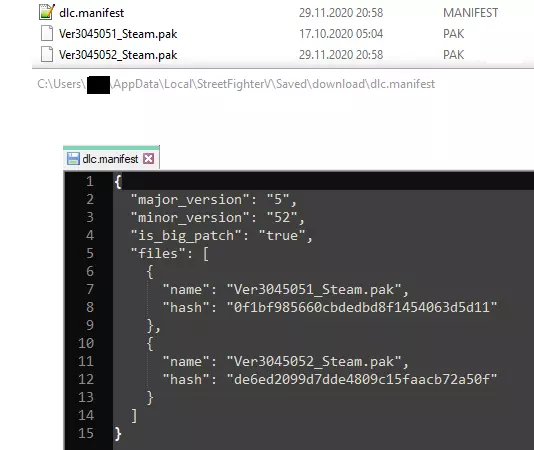
This is necessary to complete the in-game update process, else your file will be redownloaded with each in-game update attempt (endless loop), or you won't be able to connect to multiplayer matches, even if your are connected to CFN. You can verify the hash checksum of *****_Steam.pak with this tool: http://www.winmd5.com/ "Show hidden files" must be enabled in Windows folder settings, to be able to see the %LocalAppData% directories. If there is currently a sponsored event running, SFV also creates a subfolder %LocalAppData%/StreetFighterV/Saved/download/Replacementand updates the Assets.pak file there. ___________________________________________ Possible solutions, if you encounter update problems: Delete any old/obsolete ****_Steam.pak files (like Ver02050_Steam.pak) in %LocalAppData%/StreetFighterV/Saved/download and just to be sure, also check and delete any files / subfolders in C: Program Files (x86) Steam steamapps common StreetFighterV StreetFighterV Content Pakswhich are NOT labeled as packchunk##-WindowsNoEditor.pak This will also solve problems with missing character / stage slots in your select screen and "ID SYS DIAL DIALOG" errors.________________________________ make sure that your antivirus/firewall is NOT blocking internet access for the new updated StreetFighterV.exe file ________________________________ if the download is stuck, make sure that you have enough free disk space. ________________________________ verify game cache files files ________________________________ remove all MODs (in case you have installed / extracted any inside of SFV folders) SFV Arcade Edition is not compatible with the tool assisted fast load MOD pre-version 3.x, older versions of that MOD prevent SFV from loading matches after the character selection menu, because the loading animation is completely different. Removing outdated MODs will also fix problems with blank character portrait icons and other possible graphical bugs/glitches, like missing textures etc. ________________________________ disable proxies in your default internet browser: Setting => Change proxy settings => Lan settings => uncheck "use a proxy server for your LAN"________________________________ establish a direct internet access over cable or wireless without routers involved For some reason, it sometimes doesn't work if your PS4 or PC is connected to a router. Turn on WiFi on the PS4 / PC. bypass the router and connect directly from your internet-modem to the PS4/PC.________________________________ increase your internet connection speed to avoid timeouts / stop all other download heavy applications in your household during the update: Capcom Server (twitter): For users who are experiencing difficulty downloading Ver 1.06++, please try logging in to SFV after some time has passed. Also, this issue could be due to slow connection speeds. Please be sure to try again after you have reviewed your network environment. Some players mashed the confirm/reconnect button to finish the last piece 98-100% of the in-game-download, without exiting SFV. ________________________________ update constantly rolls back to the previous game version, when you try to connect to Capcom servers (this occours especially to users behing a cgNAT / DS-Lite connection), some users had success with: power reset your router for 5 minutes flush your DNS cache + IP release: https://us.battle.net/support/en/article/ip-release-renew-and-flush-dns change your DNS to another one (make sure to write down you previous DNS settings): Option 1: Google DNS 8.8.8.8 https://developers.google.com/speed/public-dns/ https://www.howtogeek.com/164981/how-to-switch-to-opendns-or-google-dns-to-speed-up-web-browsing/ Option 2: CloudFlare DNS 1.1.1.1 www.cloudflare.com/learning/dns/what-is-1.1.1.1/ Comparison of DNS services medium.com/@nykolas.z/dns-resolvers-performance-compared-cloudflare-x-google-x-quad9-x-opendns-149e803734e5 flush your DNS cache + IP release again, after changing to a new DNS if the above points didn't worked, clean install Steam + SFV this way: backup all your SFV savegames move all your installed Steam games to a different non-Steam folder Uninstall SFV + Steam in case the uninstaller missed some files: delete the Steam installation folder delete all folders called StreetFighterV and Steam in %LocalAppData% clean your Windows registry from all Steam and StreetFighterV entries / left overs reinstall Steam and Street Fighter V test SFV and if everything works fine again, move back your Steam games to the Steam "common" folder (without the old SFV installation). worst case: use a different connection/ISP via tethering, temporarily________________________________ run SFV in low spec mode for a couple of minutes, after that you can go back to normal mode, if you have SFV version 2.xx (Kolin update++) and the in-game update 2.0xx is not downloaded/processed, but you are still connected to the CFN servers, after SFV loads into the main menu can do the daily single player missions can't play multiplayer matches because of mismatching game version (this issue is also connected to Error 22011).Thanks to the Steam user KiKoGoTsKiLL for figuring this out + the users Hermit_Panda and THE MASTER OF THE MASTERS for confirming this workaround https://steamcommunity.com/app/310950/discussions/1/133258593384966589/?ctp=3#c133258593396468244 In-game updater problems: manual download In a worst case scenario: get the update files from another trustworthy source to get rid of the Error 22004 and 2200f / 2200b, or if you can connect to CFN but your in-game updater is not downloading the update or to solve the update-loop for Assets.apk (see further notes in the "Season 4 - 2020" box below)I've uploaded the version 5.000++ files to my DropBox account here: https://www.dropbox.com/sh/kwqxlv2hk9suhwe/AABFp8wVR0c5Ibi-xadwHg3ma?dl=0 ALWAYS use a "MD5 hash checksum tool" like this one http://www.winmd5.com/ , when downloading game update files from the internet, as a safety measure. Manual update instructions: The files are compressed in multiple zip archives, you need to unzip + copy the manifest and pak file to your SFV download folder. press Win+R paste %LocalAppData%/StreetFighterV/Saved/download delete all files in this folder copy the 2 extracted files from your download here launch SFV the in-game updater will show you a message that the new files are being processed after the update installation process reaches 100%, SFV will restart and you should be able to play the downloaded patch version (of course you still need to be able to connect to Capcoms servers, to play online)Note for Season 2 (2017) It seems that Capcom has changed the in-game updater behaviour since the Kolin character update. In other words: if you let SFV connect to the internet and the in-game updater failed before, it will automatically delete all files in the SFV download folder and try to redownload them again. To avoid that loop, move the downloaded *.pak game update file from %LocalAppData%/StreetFighterV/Saved/downloadto C: Program Files (x86) Steam steamapps common StreetFighterV StreetFighterV Content/Paks Don't worry about the game version on the title screen, it is just a string from the "dlc.manifest" file. This should give you at least access to the offline game modes and new DLC characters until Capcom responds to your support ticket (follow the instructions below).Note for Season 4 (2020) - Capcom Pro Tour (CPT) events (sponsored content ads): It looks like Capcom uses language specific in-game ads when CPT tournaments are running and downloads only your language settings specific advertising descriptions to the following path: %LocalAppData% StreetFighterV Saved download Replacementif your antivirus or firewall or other internet settings/DNS are preventing those, you will encounter an endless update loop, until the updated Assets.pak file is downloaded. Multiple language download links can be found here (thanks to the Steam user Kaed✩Wolf): https://steamcommunity.com/app/310950/discussions/1/2977404149649920261/#c2977404149659496469 In case replacing the Assets.pak file isn't sufficient, it's possible that your update files are faulty, clean the whole SFV download folder and redownload the update. The english Assets.pak file is always included with the update files on my DropBox account: https://www.dropbox.com/sh/kwqxlv2hk9suhwe/AABFp8wVR0c5Ibi-xadwHg3ma?dl=0 Alternative Disable your internet connection before launching SFV to bypass this sponsored content loop disable your ethernet adapter or unplug your PC internet connection start SFV after SFV is running and you can see the main menu, reconnect your internet cable again connect to CFN in the main menu to play online. Capcom support links In case this doesn't help, please contact Capcom support and provide them with Your DirectX diagnose file "dxdiag.txt" Detailed, step by step issue desription or a screenshot or a video recording Your Capcom Fighter's Network (CFN) ID Your PSN and/or Steam Usernameand if you experience connection issues: Whether you are playing on PS4 or PC Your Country & Region The region of your version of Street Fighter V Whether you are using a VPN Type of Router Name of your Internet Service Provider Whether your network protocol is IPV4 or IPV6 (your Internet Service Provider can provide you with this information) Length of time it takes to connect to matches or/and the date and time you last received a connection error (please include time zone) What type of match were you trying to connect to (Casual / Ranked / Battle Lounge) Finally, please visit http://t1.re/ and click “Start Speed Test” and copy and paste the results in your e-mail / customer ticket. e-Mail: Feedback@Capcom.com or better register + login + report your issue to Capcom Unity Support (use the blue iFrame): http://www.capcom-unity.com/go/capcom/support You will get a support ticket immediately and can track it afterwards. ________________________________________ Google translation / 翻译 / Traduction / Übersetzung / 翻訳 / tradução / перевод / traducción This guide is originally written in English, if you prefer a different language, please use Google translate. The translation is not perfect by any means, especially folder paths are messed up with empty spaces and unnecessary translations, but it's better than nothing: Change your preferred language at the top in any of the following links: 中文 (Chinese simplified): https://translate.googleusercontent.com/translate_c?depth=1&nv=1&rurl=translate.google.com&sp=nmt4&tl=zh-CN&u=https://steamcommunity.com/sharedfiles/filedetails/%3Fid%3D757254520&xid=17259,15700023,15700122,15700124,15700149,15700186,15700191,15700201&usg=ALkJrhj_uXMuIMx23ULd_P9C5zGZQarayw Français (French): https://translate.googleusercontent.com/translate_p?tl=fr&u=https://steamcommunity.com/sharedfiles/filedetails/%3Fid%3D757254520&depth=1&rurl=translate.google.com&nv=1&sp=nmt4&xid=17259,15700023,15700122,15700124,15700149,15700186,15700191,15700201&usg=ALkJrhgAAAAAW5hXlSoQwCwqyNhxMtkO2txVOn0Vh1Pt Deutsch (German): https://translate.googleusercontent.com/translate_c?depth=1&nv=1&rurl=translate.google.com&sp=nmt4&tl=de&u=https://steamcommunity.com/sharedfiles/filedetails/%3Fid%3D757254520&xid=17259,15700023,15700122,15700124,15700149,15700186,15700191,15700201&usg=ALkJrhhTB77jvhKB4ucNyAaPLMoPSF-0rw 日本語 (Japanese): https://translate.googleusercontent.com/translate_p?tl=ja&u=https://steamcommunity.com/sharedfiles/filedetails/%3Fid%3D757254520&depth=1&rurl=translate.google.com&nv=1&sp=nmt4&xid=17259,15700023,15700122,15700124,15700149,15700186,15700191,15700201&usg=ALkJrhgAAAAAW5hYqDg8aoQiZtnywvLp8X3XAKSecdqH Português (Portuguese): https://translate.google.com/m/translate?hl=de#view=home&op=translate&sl=en&tl=pt&text=https%3A%2F%2Fsteamcommunity.com%2Fsharedfiles%2Ffiledetails%2F%3Fid%3D757254520 Русский (Russian): https://translate.googleusercontent.com/translate_p?rurl=translate.google.com&sp=nmt4&tl=ru&u=https://steamcommunity.com/sharedfiles/filedetails/%3Fid%3D757254520&depth=2&nv=1&xid=17259,15700023,15700122,15700124,15700149,15700186,15700191,15700201&usg=ALkJrhgAAAAAW5hZE-FeGyPmsWt8hD9LBEAoe-enXPgV Español (Spanish): https://translate.googleusercontent.com/translate_p?tl=es&u=https://steamcommunity.com/sharedfiles/filedetails/%3Fid%3D757254520&depth=1&rurl=translate.google.com&nv=1&sp=nmt4&xid=17259,15700023,15700122,15700124,15700149,15700186,15700191,15700201&usg=ALkJrhgAAAAAW5hZd0TMqFIhg4yaVrknCon4PYZy6Yds _____________________