What is Lossless Scaling:
What It Is: A $7 Steam app that adds AI upscaling & frame generation (FG) to any game/GPU, bypassing hardware locks like DLSS/FSR. Perfect for older PCs, handhelds (ROG Ally/Legion Go), or games without native upscaling.
Core Features Deep Dive
1. Frame Generation (LSFG)
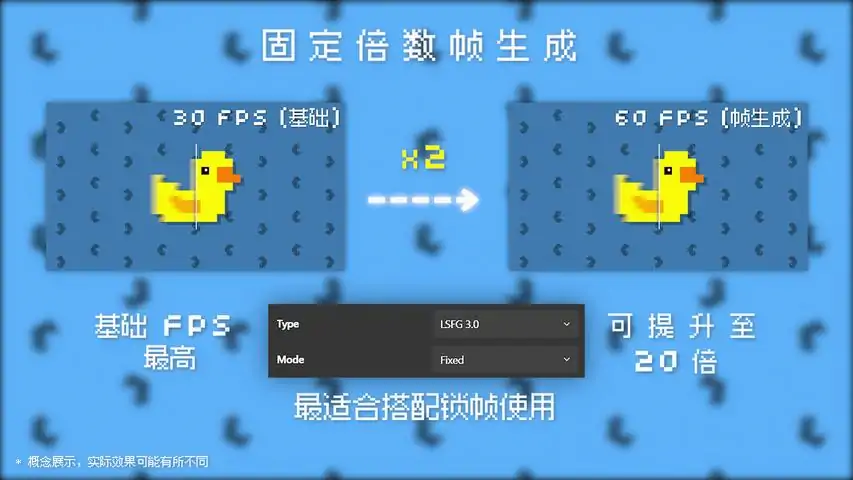
Purpose: Inserts AI frames to boost FPS (e.g., 30 FPS → 60 FPS).
Key Settings:
Type: LSFG 3.0 (lowest artifacts).
Mode:
Fixed: Strictly doubles FPS (40 → 80) – requires FPS cap at half refresh rate.
Adaptive: Dynamically hits target FPS (no FPS cap needed).
Target FPS: Match monitor refresh rate (60/120/144/165/240 Hz).
Flow Scale:
1080p: 4–6 | 1440p: 6–8 | 4K: 8–10 (↑ = smoother motion, ↑ GPU load).
Limitations:
Input lag (avoid competitive games).
Ghosting if native FPS < 30.
2. Upscaling Algorithms
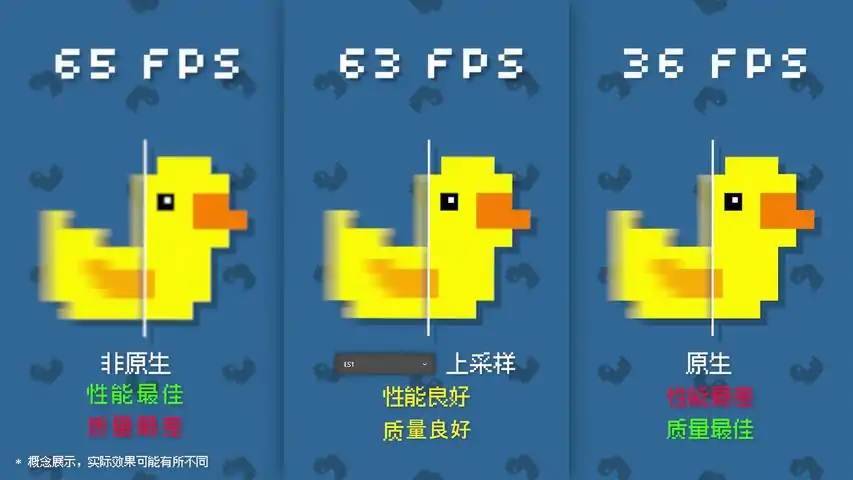
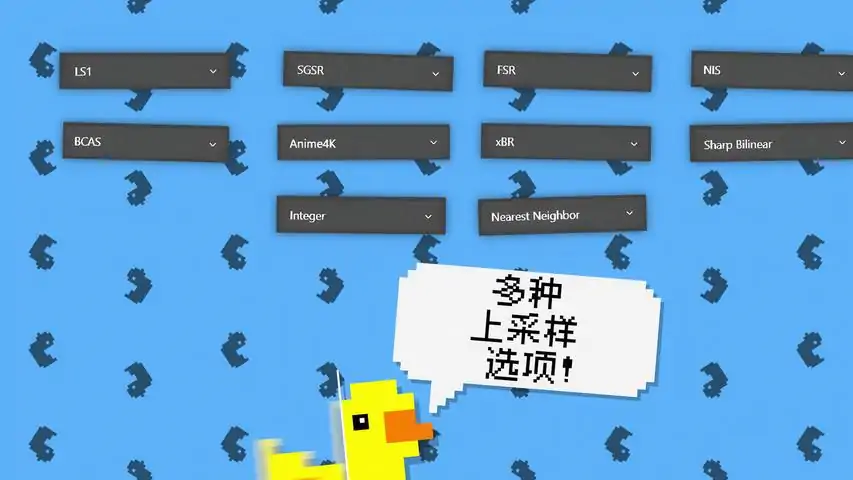
LS1/LS1+: Default for modern 3D games (best IQ/performance).
FSR 1.0: AMD GPUs (RX 500+).
NIS: NVIDIA GTX 10-series or older.
Integer/xBR: Retro/pixel-art (sharp pixels).
Anime4K: Anime/cartoons (reduces blur).
Critical Setup & Settings
1. Capture API (WGC vs DXGI)
DXGI (Windows 10):
Default API. Dynamically adjusts output framerate for better frame pacing.
Windows 11 Warning: May cause dark screens – switch to 8-bit color depth in NVIDIA Control Panel or use WGC.
WGC (Windows 11 24H2+):
Newly optimized for Win11. Lower latency than DXGI but requires stable FPS lock.
Fixes cursor/overlay issues. Disables GPU scaling in drivers if black screens occur.
GDI: Legacy option for ancient games. - if available.
2. Optimization Essentials
In Fullscreen settings: Borderless Windowed ONLY (fullscreen unsupported).
FPS Stability: Cap native FPS at half target using RivaTuner (e.g., 45 for 90 FPS). Exception: Adaptive mode works uncapped 7.
VSync: Disable in-game -> Enable in Lossless Scaling’s Rendering tab.
Max Frame Latency: 2–4 (+lag, -stutter) .
Queue Target:
0 = High-end GPUs (smoothest)
1 = Balanced (most systems)
2 = Low-end GPUs (reduces stutter, if the GPU is overloaded).
NVIDIA vs. AMD Optimization
NVIDIA (GTX 10-series+):
Default to dedicated GPU. Offload scaling to iGPU (e.g., Intel Iris Xe - integrated graphics) to -latency.
Enable Bit-to-digest + S-Sign in Scaling tab. (in older version of Lossless Scaling)
Driver Fix: Set Vulkan/OpenGL present method → Prefer layer on DXGI Swapchain. (in older version of Lossless Scaling)
AMD (RX 500-series+):
Same GPU rules as NVIDIA.
Combine Max Frame Latency 3-4 + AMD Anti-Lag.
Handheld Tip: Map F7 to a back button (ROG Ally/Legion Go) for instant FG toggle.
Step-by-Step Setup
Prep Game:
Launch in Borderless Windowed.
Lower resolution (e.g., 1600×900) if GPU-bound.
Cap native FPS at half target (unless using Adaptive).
Configure App:
Select game process (Search).
Capture API: Use WGC for Win11, DXGI for Win10.
Scaling: Pick algorithm (e.g., LS1 for AAA games).
Frame Gen: LSFG 3.0 + Fixed/Adaptive.
Advanced: Set Queue Target (0/1/2) + Max Frame Latency (2–4).
Activate: Click Scale or configure a shortcut → Alt+Tab back to game.
Troubleshooting
Black Screen?
Win11: Switch to WGC or set color depth to 8-bit (NVIDIA).
Disable Discord/GeForce Experience overlays.
Input Lag:
Use RTSS (NVIDIA) or AMD Anti-Lag + strict FPS cap.
Set Queue Target=1 + Max Latency=2.
Artifacts:
Avoid 3× FG multiplier (use 2× max).
Native FPS (lower settings/resolution).
Missing Cursor: Enable Alpha Cursor Upload.
Performance Drops: Disable second monitor and GPU overlays.
Pro Wisdom
"WGC + Queue Target 1 = Lowest latency on Win11
DXGI + Fixed Mode = Best frame pacing on Win10
iGPU Offload = Lifesaver for laptops"
LSFG 3.0 cuts artifacts by 40% vs older versions.
Critical: Native FPS must stay >30 for clean FG.
Guide language lol:
-stutter = minimal stutter or not at all.
+ lag = more lag.
Informative app screenshot about the best settings for RX 7800 XT感谢您的阅读。
如果您看到了这里,感谢您花时间阅读我的指南!
希望我能帮助您解决使用Lossless Scaling时遇到的卡顿和困扰。我以前也有过类似的经历。
老实说,有一个很棒的YouTube视频解释了您需要了解的所有内容。