换一换
换一换 




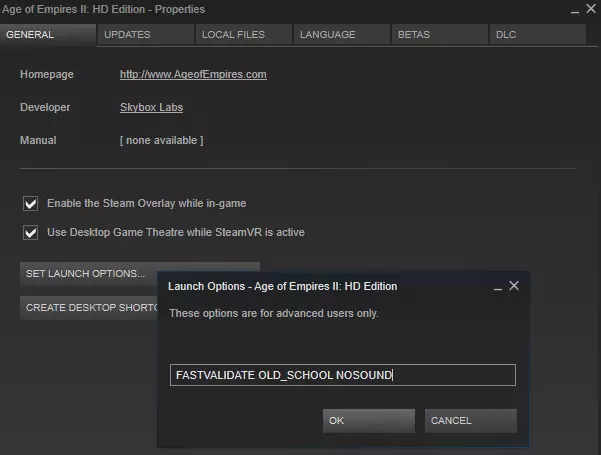
本指南列出了命令行参数、聊天命令、AI嘲讽以及各种键盘快捷键。遗憾的是,其中大部分内容的文档记录都不够完善(例如,分散在各种补丁说明或开发者评论中),因此本指南将把这些内容集中到一处,以便查阅。如果你有任何建议或修正意见,请提出! 命令行参数 对于高清版,添加命令行参数的方法如下: 1) 在Steam库中右键点击游戏,选择【属性】 2) 点击【设置启动选项】 3) 添加任意命令行参数。注意区分大小写。各参数之间用空格隔开,例如:FASTVALIDATE OLD_SCHOOL NOSOUND
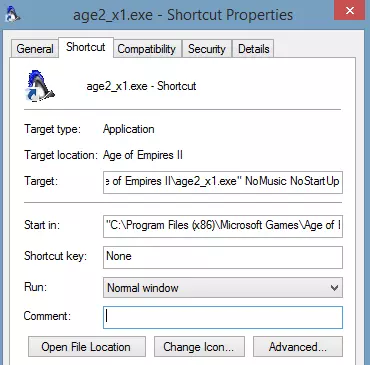
对于CD版本,你可以这样添加命令行参数: 1.右键点击游戏可执行文件(通常是age2_x1.exe),选择【创建快捷方式】。 2.右键点击该快捷方式,选择【属性】。 3.在【目标】栏的文本后方添加命令行参数。例如:"C: Program Files (x86) Microsoft Games Age of Empires II age2_x1.exe" NoMusic NoStartUp。 参数之间必须用空格分隔,大小写不影响。
. . From the CD Version AutoMPsave Automatically saves a multiplayer game every few minutes. Saved games are located in the Savegame/Multi folder. NoStartUp Skips all cinematic sequences before the game starts. 800 Sets the screen resolution for the game to 800 x 600 pixels. Does not work in the HD Edition. 1024 Sets the screen resolution for the game to 1024 x 768 pixels. Does not work in the HD Edition. 1280 Sets the screen resolution for the game to 1280 x 1024 pixels. Does not work in the HD Edition. Mfill Fixes horizontal line display issues and black screen areas that may occur with some video adapter configurations. Some users have reported that it may help with frame rate issues in the HD Edition. NormalMouse Replaces the custom mouse pointer with a standard mouse pointer. NOSC Turns off detection of the Microsoft Strategic Commander controller. NoSound Turns off all sounds, except those played in cinematics. NoTerrainSound Turns off all terrain sounds. NoMusic Turns off all music. SystemMemory Use System Memory instead of Video Memory. Msync Fixes a problem where the computer stops responding with some SoundBlaster AWE configurations. Some users have reported that it may help with frame rate issues in the HD Edition. Midimusic Can be used to play midi files instead of mp3 files for music in the CD version by following these steps: 1) Download the demo version of Age of Empires 2 2) Take the midi folder from the sound folder of the demo of age2 3) Put that folder in the sound folder of the full Age of empires 2 4) Add Midimusic as a command line parameter Added for the HD Edition FASTVALIDATE Sacrifices smooth animation of the validation screen in exchange for greater processing speed. For people that have 300+ mods, spending 7-12 seconds starting the game is excessive. In this case, skipping through it speeds it up to about 3 seconds. SKIPINTRO Skips the intro video. Does the same thing as NoStartup. NOMODS Disables all mods and also skips the intro. OLD_SCHOOL Restores the Lucida Blackletter font for many of the in-game menus. May not function in all languages. NOVSYNC Disables vertical synchronization. Note: you can also easily disable it from the in-game options. Some users have reported that it may help with frame rate issues in the HD Edition. -DXLevel 80 Won't set the game to DX8 but some users have reported that it may help with frame rate issues in the HD Edition. DLC1_HIDDEN Disables and hides The Forgotten without actually having to uninstall it (and reinstall it afterwards). DLC2_HIDDEN Disables and hides African Kingdoms without actually having to uninstall it (and reinstall it afterwards). DLC3_HIDDEN Disables and hides Rise of the Rajas without actually having to uninstall it (and reinstall it afterwards). BASEGAME_HIDDEN Disables and hides The Conquerors dataset. IGNORE_REPLAY_DESYNC When watching replays, desyncs are ignored. There are some false positives causing replays to end before their time. We needed something like this to analyze desyncs, and it doesn't hurt to release it. But note that when dat files changes, replays can diverge significantly. Really meant for "same version" replays. FASTREPLAY You can watch replays like a Benny Hill episode when you select the fastest replay speed. Useful when you are, say... trying to get to the end of a replay to analyze a desync :) Chat commands These can be typed into the ingame chat to achieve the desired effect. From the CD Version !mute Mutes audio taunts !nomute Unmutes audio taunts * Put this in front of a message to send it to all players (example: *This is a message for everyone) ; Put this in front of a message to send it to all team members (example: ;Please wait for my signal to attack) # Put this in front of a message to send it to all enemies (example: #I’m coming to destroy you!) You will not see your own message when you do this. Added for the HD Edition getfps Reports the current FPS for the max frame rate. setmaxfps # (replace # with your desired frame rate) Set it between 5 and whatever you want, and the game will render as fast as possible. If it caps out at 60, then turn off your v-sync. This is still restricted to 30fps in multiplayer games due to the fact it is tightly coupled to network events and running a network game at 60fps would result in double the network activity for each player. setuifps # (replace # with your desired frame rate) Set it between 1 and whatever you want, but it will not exceed the max fps. This works in both single and multiplayer games. removed in patch 4.3 AI Taunts These taunts can be used to influence the behavior of computer players. You only have to type the number for it to work. Make sure to send the chat to the correct AI player. From the CD Version 3 - Food, please – Computer player tributes 100 food to you. 4 - Wood, please – Computer player tributes 100 wood to you. 5 - Gold, please – Computer player tributes 100 gold to you. 6 - Stone, please – Computer player tributes 100 stone to you. 31 - Attack an enemy now! – Computer player uses any available units to attack the most dangerous enemy. If you have sent a “Wait for my signal to attack” command, the computer will not attack until it receives this command. 32 - Cease creating extra villagers – Computer player focuses on building its military. 33 - Create extra villagers – Computer player focuses on building its economy. 34 - Build a navy – Computer player focuses on building combat ships. 35 - Stop building a navy – Computer player stops building combat ships. 36 - Wait for my signal to attack – Prevents computer player from attacking until you send the “Attack an enemy now!” message. The computer player automatically attacks unless you send this command. 37 - Build a Wonder – Computer player hoards resources and attempts to build a Wonder when its stockpile is large enough. 38 - Give me your extra resources – Computer player sends you any resources it can spare. 42 - What age are you in? – Computer player tells you the age it has reached. Added for the HD EditionUnlike the taunts listed above, new AI commands beyond 42 do not come with an accompanying audio. I have recorded audio for these taunts, if you are interested: http://steamcommunity.com/sharedfiles/filedetails/?id=400923641 33 - Stop slinging resources. If slinging is requested early and is immediately canceled it may mess up the strategy. 38 - Sling Resources. Human player only, stops any unit production except for civilian units. 100 - Forbids the AI to resign. 101 - Cancels the 100 taunt. 200 - Enables resource cheats - only works on 'hardest' difficulty. The new AI never cheats unless you use this command. 222 - Same as 31, but more likely to help (only taunt this if you really need it). 230 - Tells the AI to go for a monk rush (taunt only works on civs who have good monks). 231-238 - Chat 230+[enemy player number] to make the AI target this enemy for 10 minutes. 250 - Chats information about the current strategy. Misc. shortcuts Not all shortcuts are mentioned here. Instead this focuses on game commands and interface commands. Check the ingame hotkeys for more shortcuts. Or see this guide: http://steamcommunity.com/sharedfiles/filedetails/?id=241407507 From the CD Version Some of these can be modified from the Hotkeys screen F1 - Turns on ingame help F2 - Toggles the tech tree F3 - Pauses the game F4 - Toggles player scores F9 - Insert chapters in a recorded game F10 - Displays the menu F11 - Displays the game time F12 - Displays the savegame screen Print Screen key - Takes a screenshot which is saved to the Screenshots folder in the game directory. Bitmaps are saved as a series (for example, AoE0001.bmp, AoE0002.bmp). Broken in the HD Edition due to the new terrain rendering system. Ctrl + F12 - Takes a full-map screenshot (bitmaps are saved in the Screenshots folder). Broken in the HD Edition due to the new terrain rendering system. ALT + F4 - Exits the game. ALT + G - Toggle friend or Foe Colors Pause key - Pauses the game (like F3) Middle mouse button or Home key - Cycle through last 5 sound events . (period) - Cycle through idle villagers , (comma) - Cycle though idle military units CTRL + B, CTRL + M, CTRL + A, etc. - Cycle through Barracks, Markets, Archery Ranges, etc. Spacebar - Center view on selected unit Backspace - Return to the last 10 map locations CTRL + 1–9 - Assign group number to units 1–9 - Select group assigned to this number SHIFT + 1–9 - Select this group in addition to currently selected units Double-click - Select all units of the of one type ALT + right-click building - Garrison selected unit(s) in the building Delete key - Delete selected unit or building Enter - Display chat interface H - Select town center SHIFT and CTRL keys - Do all kinds of things: > To build more than one of the same building, hold down the SHIFT key, and then click multiple locations on the map. To build multiple walls, click a location, and then drag the pointer where you want to build walls. > You can also press and hold the SHIFT key while clicking the unit’s Create button to queue multiple units at once. > To move a unit with waypoints, click a unit (or select a group) and hold down SHIFT, and then right-click each point along the path. A waypoint marker appears at each point. Release the SHIFT key, and then right-click the last point in the path. The unit (or group) moves along the path. > To eject all units except one garrisoned unit, hold down CTRL, and then click the unit to remain garrisoned. > To eject all units of the same type (for example, all villagers), hold down SHIFT, and then click the type of unit to ungarrison. > To eject all units of a different type (and leave only one type of unit in the building), hold down CTRL+SHIFT, and then click the type of unit to remain garrisoned. > To order a unit to patrol in a pattern, click a unit, click the Patrol button, and then hold down the SHIFT key while clicking the waypoints to patrol. Release the SHIFT key to set the last waypoint. If you set the last waypoint on the patrolling unit, the unit travels in a loop; if you set the last waypoint on the ground, the unit retraces its steps, patrolling back and forth. > To buy, sell, or tribute lots of 500, press the SHIFT key, and then click the button of the resource to buy, sell, or tribute. > To tribute your entire stockpile of a resource, press the CTRL key, and then click the button of the resource to tribute. Added for the HD Edition F11 Hit F11 twice in the game (once is the in-game clock) to see what framerate the render engine is running at. Ctrl + c Can be used to bypass the mod validation screen if it gets stuck or takes too long (more than a few seconds). Alt + Enter Toggles windowed mode. "Alt + Shift + Enter" also seems to do this; maybe this is for multiple monitors. Ctrl + s For use when placing objects in the scenario editor. Snap-to-grid mode using Ctrl+S cycles through 3 placement modes for objects: oNormal mode (objects placed on specific tiles) oPrecise mode (objects can be placed anywhere) oOverlap mode (objects can be placed to overlap other objects) Shift + F1 Toggles between live Twitch broadcast and paused broadcast. >In the Mod-Manager, SHIFT+Click on Priority Up will move the selected item to the top of the list (or to the bottom if Priority Down was selected). >In the Mod-Manager, Shift+Click on Enable will enable all visible mods based on the current filter setting (or Disable, if you click on Disable). - (minus key) - In the Mod-Manager, players can also use the minus (-) key at the start of their text to create a negative filter. Conclusion I hope you learned something that you didn’t know before. If you have anything to add or if you notice any mistakes in what I wrote please let me know!