换一换
换一换 


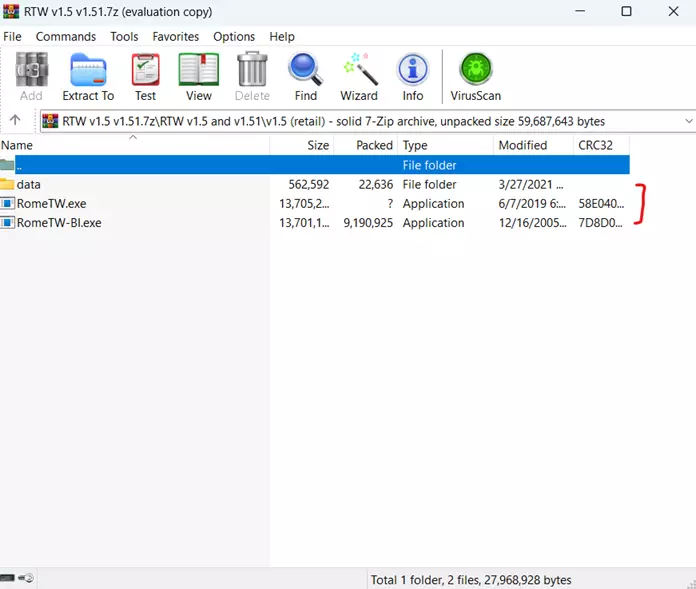
Hi total war fans. I’m extremely happy to announce that after a lot of experimentation I found the way to have decent FPS on the Steam version of RTW, BI and Alex. And in fact is not that difficult, just follow these instructions. FPS Configuration Configuration for enhanced FPS on modern PC’s Hi total war fans. I’m extremely happy to announce that after a lot of experimentation I found the way to have decent FPS on the Steam version of RTW, BI and Alex. And in fact is not that difficult, just follow these instructions (instructions are written in an extremely step-by-step way, if you are an advanced user feel free to read just the main numbers): 1.Verify that your game is not corrupted. a.You can do this going to you library, then right click on ‘Rome: Total War’, then ‘Properties’, then ‘Local Files’, then ‘verify integrity of game cache’. b.Repeat the process for ‘Rome: Total War - Alexander’ c.Once you do that, Steam will automatically check and download missing or corrupted files. Wait until it finishes (could be just a minute or several depending on whether it is downloading or note files). 2.Now that your game is 100% clean you have to put the executables on ‘compatibility mode’ for Windows XP SP3 (Doesn’t matter if you use Vista, 7, 8 or 10). a.You can do this going to you library, then right click on ‘Rome: Total War’, then ‘Properties’, then ‘Local Files’, then ‘Browse Local Files’. b.A folder window pops (it’s usually this direction ‘C: Program Files (x86) Steam steamapps common Rome Total War Gold’ but depends on your steam preferences and on your operative system). c.On that folder you will find two executables named ‘RomeTW.exe’ and ‘RomeTW-BI.exe’. Select the first one, right click, then ‘Properties’, then ‘compatibility’, then check on ‘Execute this program on compatibility mode’ and select ‘Windows XP (Service Pack 3)’, then click on accept to chance the configuration. d.Repeat the process for ‘RomeTW-BI.exe’. e.Repeat the process for ‘RomeTW-ALX.exe’. i.To do so go to you library, then right click on ‘Rome: Total War - Alexander’, then ‘Properties’, then ‘Local Files’, then ‘Browse Local Files’. ii.A folder window pops (it’s usually this direction ‘C: Program Files (x86) Steam steamapps common Rome Total War Alexander’ but depends on your steam preferences and on your operative system). iii.On that folder you will find an executable named ‘RomeTW-ALX.exe’.. Select it, right click, then ‘Properties’, then ‘compatibility’, then check on ‘Execute this program on compatibility mode’ and select ‘Windows XP (Service Pack 3)’, then click on accept to chance the configuration. 3.Now we are going to radically change the in-game configuration of video and graphics. a.Go to the folder in which RTW is installed (use previous steps to go there). Usually ‘C: Program Files (x86) Steam steamapps common Rome Total War Gold’, then go to preferences folder, and in there you will find a ‘.txt’ file called ‘preferences.txt’. Open it with any text processor. b.Replace VERRY CAREFULLY all text for the following: SAFE_REFRESH:TRUE USE_TRIPLE_BUFFER:TRUE USE_WIDESCREEN:FALSE SUBTITLES:TRUE MORALE:TRUE FATIGUE:TRUE LIMITED_AMMO:TRUE SUPPLY:TRUE FOG_OF_WAR:TRUE RESTRICT_CAMERA:TRUE DEFAULT_BATTLE_CAMERA:RTS EVENT_CUTSCENES:TRUE SMOKE:TRUE DESYNC:TRUE SPLASHES:TRUE GLINTS:FALSE REFLECTIONS:FALSE SHADOWS:TRUE VEGETATION:TRUE DETAILED_UNIT_SHADOWS:TRUE GLOSS_MAPPING:TRUE STENCIL_SHADOWS:TRUE MULTI_TEXTURE:TRUE AUTO_SAVE:TRUE SHOW_BANNERS:TRUE UNIT_EXPERIENCE_UPGRADE_EFFECT:FALSE UNIT_SIZE:160 MASTER_VOL:100 SPEECH_VOL:100 SFX_VOL:100 MUSIC_VOL:70 CAMERA_ROTATE:50 CAMERA_MOVE:50 CAMERA_FOV:75.000000 ENABLE_AUDIO:TRUE ENABLE_MUSIC:TRUE ENABLE_UNIT_SPEECH:TRUE DISABLE_BACKGROUND_FMV:FALSE DISABLE_ARROW_MARKERS:FALSE AUDIO_3D_PROVIDER:Miles Fast 2D Positional Audio CLOUD_TRANSITIONS:TRUE GRASS_DISTANCE:50 AA_QUALITY:AA_OFF STRATEGY_RESOLUTION:1280x768 STRATEGY_MAX_RESOLUTION:2048x1536 STRATEGY_32_BIT:TRUE BATTLE_RESOLUTION:1280x768 BATTLE_MAX_RESOLUTION:2048x1536 BATTLE_32_BIT:TRUE UNIT_DETAIL:ULTRA_HIGH BUILDING_DETAIL:SUPER_HIGH TGA_CAPTURE_WIDTH:1024 TGA_CAPTURE_ASPECT:1.333333 TGA_CAPTURE_INPUT_SCALE:1 TGA_CAPTURE_RESERVE_SPACE:FALSE LABEL_CHARACTERS:FALSE LABEL_SETTLEMENTS:TRUE MINIMAL_UI:FALSE CAMPAIGN_MAP_MAX_SCROLL_SPEED_MIN_ZOOM:30 CAMPAIGN_MAP_MAX_SCROLL_SPEED_MAX_ZOOM:30 FIRST_TIME_PLAY:FALSE ADVISOR_VERBOSITY:0 MUTE_ADVISOR:FALSE BLIND_ADVISOR:FALSE CAMPAIGN_MAP_CAMERA:FOLLOW_AI_FACTIONS CAMPAIGN_MAP_SPEED_UP:FALSE CAMPAIGN_MAP_GAME_SPEED:15 DISABLE_EVENTS:0 MICROMANAGE_ALL_SETTLEMENTS:FALSE ADVANCED_STATS_ALWAYS:FALSE UNIT_USE_SHADERS:TRUE TERRAIN_QUALITY:MEDIUM EFFECT_QUALITY:HIGH VEGETATION_QUALITY:HIGH KEYSET:0 UNLIMITED_MEN_ON_BATTLEFIELD:FALSE CAMPAIGN_MAP_CAMERA_SMOOTHING:TRUE CHAT_MSG_DURATION:10 USE_QUICKCHAT:FALSE GS_PIDS:FALSE GS_PIDS_FULL:FALSE GS_PIDS_CUR:TRUE ALWAYS_LOGFILE:FALSE TIMESTAMP_LOGFILE:TRUE 32BIT_UI:FALSE GS_LOG_RESULTS:FALSE CHAT_COLOURS:name=ffffa0,private=ff7707,game=94aadc,public=fff777,system=ffffff,lobby=fff777,setup=94aadc,playing=ff0707 EDIT_SETTLEMENT_NAMES:FALSE c.Please do not leave any extra spaces or empty rows, just those lines specified. d.Now you have to save over the old file (overwrite it). DO NOT create a new copy (for example ‘preferences(1).txt’). e.Repeat the process on preference configurations of BI and Alx. i.Go to the folder in which BI is installed (use previous steps to go there). Usually ‘C: Program Files (x86) Steam steamapps common Rome Total War Gold’, then go to ‘bi’ folder, then go to preferences folder, and in there you will find a ‘.txt’ file called ‘preferences.txt’. But this time is the BI config. ii.Go to the folder in which Alexander is installed (use previous steps to go there). Usually ‘C: Program Files (x86) Steam steamapps common Rome Total War - Alexander’, then go to preferences folder, and in there you will find a ‘.txt’ file called ‘preferences.txt’. But this time is the Alx config. f.Now you have replaced all 3 preferences texts close those folders and log out of steam. 4.Last step is enlarging the address aware of the program. This will give those old executables the possibility to access more than 2 GB of RAM memory. You can do it any way you want, but I recommend ‘CFF explorer suite’. a.Once you have installed this freeware (which by the way is very light) you can run it and the go to ‘Open’, then search for the executable of the game (called ‘RomeTW.exe’–find it using previous instructions-). b.The window will open a series of advanced settings, ignore them and go to ‘File Header’ then go to the ‘Click Here’ button and check on ‘App can handle more than 2gb address space’. c.Click on ‘OK’ and go to ‘Save’. It will ask if you want to overwrite, click ‘Yes’. d.Repeat process with ‘RomeTW-BI.exe’ and ‘RomeTW-ALX.exe’ (find them using previous instructions). 5.There you go!!! 6.Finally if you want to enhance even more your game experience I suggest you to try out a mod. My 4 favorites are ‘Lord Of The Rings - Total War’, ‘Roma Surrectum’, ‘Europa Barbarorum’ and ‘Rome Total Realism’. But I’m afraid if you install a mod or re-check game cache on steam you will have to do all over again to gain FPS. 7.Enjoy. :D
现代电脑的增强帧率配置

2026-02-20 13:00:13

导读
本文为《罗马:全面战争》及其DLC亚历山大、蛮族入侵的Steam版本提供了现代电脑增强帧率的配置教程,包含验证游戏文件完整性、设置兼容模式、修改游戏配置文件、扩大程序内存寻址空间等步骤,帮助玩家提升游戏FPS。

评论
共0条评论

【教程】屏幕分辨率的实际有效修复方法!(提高屏幕分辨率 + 4:3 宽高比)
屏幕分辨率的实际有效修复方法! - 提高分辨率 - 修正4:3的宽高比 - 可以通过Steam正常启动游戏,且游戏时长会被记录 - 可选窗口模式 => 此功能可…
2026-03-26 13:000赞 · 0评论

《龙之信条:黑暗觉醒》崩溃、卡顿及掉帧解决方法
你的游戏崩溃/卡顿了吗?你的妻子或丈夫离开了你?冷静点,我有一份修复指南给你。它不会解决你的伴侣回到你身边的问题,但至少能让你玩上《龙之信条:黑暗崛起》。 简介…
2026-02-18 19:000赞 · 0评论
罗马全面战争秘籍 《罗马全面战争》游戏密技大揭秘 掌握这些密技 成为战场上的霸主
《罗马全面战争》是一款备受玩家喜爱的战争策略游戏。统治天下,征服敌人、在游戏中、你需要建立自己的帝国。还需要掌握一些游戏密技,除了需要高超的策略思维外、想要在游…
2025-12-24 04:480赞 · 0评论
罗马全面战争城市名 罗马全面战争所有城市
罗马全面战争是一款备受玩家喜爱的战略游戏,其丰富的城市系统和战斗机制让人沉浸在古罗马的历史长河中。在游戏中不同城市的名称和特征往往受到历史和地理的影响。在这篇文…
2025-09-17 02:000赞 · 0评论
古罗马战争小游戏 经典的罗马战争单机游戏有哪些 2024好玩的罗马游戏汇总
罗马帝国的游戏,其实是很多喜欢战争题材游戏者的福利,经典的罗马战争单机游戏有哪些呢?这些游戏的玩法和我们所熟悉的军事题材的游戏是有所不同的,因为它的历史背景是建…
2026-05-12 11:000赞 · 0评论
罗马之全面战争秘籍 《罗马全面战争》秘籍代码大全2025最新
罗马全面战争是一款非常经典的策略战斗游戏,很多玩家好奇游戏当中的秘籍有哪些,玩家们可以参考输入add money 40000、gamestop or bestb…
2025-12-29 10:400赞 · 0评论
古罗马战争游戏 可以免费玩的罗马战争游戏有什么 流行的罗马战争手游推荐2025
罗马时代当时也是非常著名的,可以免费玩的罗马战争游戏有什么,许多游戏内都带入了相同元素,这些游戏内都能见到最真实的样貌,反映了当时时代的许多战斗场面,也能了解到…
2025-10-21 12:590赞 · 0评论
全局地图低帧率问题解决方案。修复全局地图帧率问题。
大家好。在论坛上研究了一下,找到了问题的解决办法。解决办法。
2026-02-20 16:000赞 · 0评论

罗马帝国游戏 好玩的罗马帝国单机游戏有哪些 有趣的罗马游戏盘点2025
背景塑造在罗马帝国的特殊游戏都自带一种穿越感,你也仿佛穿越到罗马帝国时代感受恢弘的历史,众多罗马帝国的文化故事和经典人物都系数出现,那么好玩的罗马帝国单机游戏有…
2025-12-13 06:450赞 · 0评论

古罗马战争游戏 耐玩的古罗马战争单机游戏大全 2025流行的罗马单机游戏合集
许多玩家对拥有深厚历史底蕴的罗马帝国满怀好奇,内心期盼着能体验几款以它为故事背景的单机手机游戏。实际上,和罗马帝国有关的游戏基本都属于策略类型。那究竟有哪些好玩…
2025-12-06 14:010赞 · 0评论
暂无更多
最新更新
- 全局地图低帧率问题解决方案。修复全局地图帧率问题。 — 大家好。在论坛上研究了一下,找到了问题的解决办法。解决办法。
- 25k前马略改革规则组 — 25k / Pmrvr:前马略改革罗马对阵罗马,仅罗马阵营可参赛。 银币:25000 | 规模:大型 | 禁用:禁卫军步兵和禁卫骑兵 除罗马将领、罗马骑兵及骑士…
- 现代电脑的增强帧率配置 — Hi total war fans. I’m extremely happy to announce that after a lot of experimen…
- 如何解锁《罗马:全面战争》中的所有派系 — 本指南介绍了如何在《罗马:全面战争》中解锁所有派系。 简介 解锁派系有两种方法。第一种是正当途径。第二种是通过游戏修改。 第一种方法(正当途径): 但要知道,通…
- (SPQR)等级体系 — Tags: (SPQR) Name [Rank]-[House] Ranks / Class: [Emp] Emperor: Leader (X)-Pontif…
- 《罗马:全面战争》城市名称 — Названия городов Названия всех городов. {Britannia_Inferior}Нижняя Британия {Tri…
- 我来,我见,我征服。 — Полное руководство по первому Риму на русском языке. Как воевать, как управлять,…
- 《罗马:全面战争》所有可能的低帧率修复方法 — 这是我遇到的所有可能的FPS修复方法汇总 并非所有方法对我都有效,但我会先从那些有效的方法开始,说明一下我使用的是Windows 11系统 此外还有一些通用修复…
- (几乎)所有来自加载屏幕的引用和语句 — 引用和语句是我从维基语录借鉴来的。 引用和语句按作者及字母顺序进行了整理。 可能还缺少一些引用和语句。 阿利乌斯(奥夫)·维利乌斯 - 死敌的气味总是很香
- 如何正确设置现代优化并修复的罗马:全面战争 — The Aim of this guide is to (Hopefully) and Successfully make your game as stabl…