换一换
换一换 




Tired of constantly having to mouseclick to get those achievements? Tired of having to change sets of spells and equipment all the time? Tried of having to hit space, then click the 4 dust places, then hit space again? Tired of a billion other things? Well look no further. I made some scripts to facilitate just any stuff that you can come across, that would also tire me personally. For this guide you will need to have autohotkey installed (I think? It's free anyway) and... that's it! I will cover the rest below, but it's gonna simplify your runs 100% Introduction This guide will guide you to automate parts of the game that perhaps you find pesky. We will be using scripts, but not executable files. You can edit the scripts yourselves, so that there is no code hidden from you. If you're unsure about what a thingie is doing, you can see the documentation. The program we will be using is AutoHotkey. It's free, and though it's not that simple to learn, we now have chatGPT don't we. What a time to live in lmao. The program basically allows to create macros for hotkeys. but it contains many structures of coding languages like loops, if-else, etc. Anyway, I'll go forwards cause I don't read introductions either. 1. What to do for ALL scripts I'm writing this once, so that I don't have to write it again and again. Do this anytime you want to create a new script. Do this AFTER you install AutoHotkey. 1. Create a new notepad file. 2. Open it up and write these inside: #NoEnv SendMode Input SetWorkingDir %A_ScriptDir% F6::ExitApp F5::Reload The first three lines just are some default stuff. I've no idea what the first 2 do, something about stability and compatibility or something. The third one can be omitted really, it just makes sure that the working directory is the directory that the current script is located. Then we set our first two hotkeys. F6 exits the script, F5 reloads it. Change those hotkeys to whatever you want. 3. Rename the .txt file extension to .ahk This just turned it into a script now. You can double click it to run it, then hit F6 to stop it, or F5 to run it again (if you make changes to it). To edit it, you have to right-click and open it with notepad. Btw, any IDE is also fine. 2. Making sure hotkeys don't run outside Idle Wizard Keep all hotkeys at the start, and enclose them with a certain code I will type below. This will ensure that the hotkeys work ONLY when IdleWizard is in focus, and not when it isn't. #IfWinActive, ahk_exe IdleWizard.exe c::StartClicks() s::startZeds(4,5) a::autoCollect() F1::setAny(1) F2::setAny(2) F3::setAny(3) F12::prep() F11::logmouse() #If These functions will be explained in the other sections of the guide. You don't need all of them, just use whatever floats your boat. But in the other sections of the guide I will provide hotkey and function. The point is though, to enclose the hotkeys like what I typed there above. And yeah, the last #If is correct. It's just how autohotkey works, don't worry about it. 3. Helper functions we're going to need So these are just helper functions that we're going to use: checkActive() { if (WinActive("IdleWizard")){ return true } else return false } and stopScript(){ return (GetKeyState("u", "P") || !checkActive()) } So the first function just checks if the window of Idle Wizard is in focus. That's all it does. The second function checks if the key U has been pressed or if the window is not in focus, and returns a true/false boolean value. Basically what we need these for is to stop loops if you go to other windows, or if you press the U key. 4. KeyBreaking (Really optional) So what do I mean by that? Basically assigning any key you want, instead of the U key that I have preset, to break running loops. Simple? Not so simple in code lol. Anyway, let's do this We will need first of all the key. Remember how we enclosed some keys in #If before? That's where it goes along with the other hotkeys. Let's put this there then: q::keyBreak() Replace "q" with whatever you want. This key will break any running loops. Let's do some more stuff. After the #If enclosed area, add this: keyBreakPr := 0 And now the functions: keyBreak(){ global keyBreakPr keyBreakPr := 1 SetTimer, resetKeyBreak, 200 } resetKeyBreak(){ global keyBreakPr keyBreakPr := 0 } So what did we just write there? When you press "q" in this example, the "keyBreakPr" will become 1. It will then set a timer to almost immediately become 0 again. Simple. But then, we will alter our "stopScript()" function to this: stopScript(){ global keyBreakPr result := keyBreakPr keyBreakPr := 0 return (result || GetKeyState("u", "P") || !checkActive()) } So now this function, takes the value of the pressed key (1 if pressed, 0 if not pressed) and breaks the loop. So how is this different than pressing U ? The script checks if you have pressed U whenever that function runs. You will find out in practice that sometimes you have to keep it pressed. With keybreak this doesn't happen. It's up to you if you wanna have this or not, it still works with U, but yeah. PS: If you do this, you can also add keyBreak() Sleep 200 In the beginning of every function that contains a loop, to basically stop any other loops running. Remember to definitely make the function wait for 200ms because remember we have set a timer to reset the keybreak before. Anyway. Again, up to you. - AutoClicker This will lock your mouse cursor on the place where it was when you hit the hotkey, and will start clicking every 5 milliseconds. c::StartClicks() StartClicks(){ CoordMode, Mouse, Screen MouseGetPos, xpos, ypos Loop { Click, %xpos%, %ypos% Sleep, 5 If(stopScript()) Break } } So with this, by pressing the "c" key, it will a) The first line sets the coordinates relative to the screen or something. I just copied and pasted it. Do the same. b) Get the x,y coordinates of the mouse cursor c) Start a loop that clicks on those coordinates and then waits for 5ms. d) Stop doing it if the user presses the "u" key. Change these as you see fit. Always remember you can press F6 to stop the script immediately (with what we included in step 1). - AutoCollect Dust So I simulated here what I always do when I go to collect dust. Hit space, click the bowls, then hit space again. Here's the code for it a::autoCollect() autoCollect(){ MouseGetPos, xpos, ypos Send, {Space} Sleep, 100 Click, 1330, 630 Sleep, 50 Click, 1389, 849 Sleep, 50 Click, 516, 624 Sleep, 50 Click, 447, 845 Sleep, 50 Send, {Space} MouseMove, xpos, ypos Return } Note that these coordinates are for my screen. So for example, the first click, clicks the bowl at the top right. What it does is pretty straight-forward it simply does what you would do manually. Then it returns the cursor where it was originally. To make your day easier, here's a script that logs your mouse coordinates and simply shows them in a message box. F1::logmouse() logmouse(){ MouseGetPos, MouseX, MouseY MsgBox, %MouseX% %MouseY% Return } You can use this to find the exact coordinates of the bowls, so that you don't have to guess. - Alternate between spell sets I found myself many times hitting Z1 and Z2 fast to collect voids and stuff to get chara XP fast after realming. With this, this is automated. Note that this only alternates between 2 spellsets of your choice. s::startZeds() startZeds() { Send P2 Send {Z Down} loop{ Send {2 Down} Sleep 50 Send {2 Up} Sleep 50 Send {3 Down} Sleep 50 Send {3 Up} Sleep 50 If(stopScript()){ Send {Z Up} Break } } } Ok so let's explain what this does. I have my void equipment in set 2. So that's why it sends P2 in the beginning, to equip the set. Then I have my two spellsets on 2 and 3. So that's why you see 2 and 3 there. So first it hits Z and keeps it pressed. Then it loops between pressing 2, then unpressing 2, then pressing 3, then unpressing 3. This is a bit weird that I had to do it this way, but there were problems with the game if I did it in other ways. So yeah, this works at least. Adjust the numbers or whatever to your liking. - AutoBuy & Upgrade So I use this when I exile, to buy fast sources and upgrades. I also use it during burst, so that I don't have to stand there and keep on pressing shift+up and B all the time. F12::prep() prep() { Send, {LShift Down} Sleep, 100 loop{ Send, {Up} Sleep, 50 Send, B Sleep, 50 If(stopScript()){ Send, {LShift Up} Break } } } As is obvious, it keeps the left shift down, then keeps on pressing the up arrow and B all the time. If you press "u" it stops pressing the left shift and stops the loop. I use F12 for it, because I rarely use it and I wanna remember where it is. Always stop this script when using other scripts, because it keeps the shift button down, so you will most definitely rewrite spell sets if you use it with something like that. - Change sets and equipments fast Just somethings to quickly change sets and equipment. Most of us keep spell set and equipment on the same number. So this simplifies this process, and selects the same number of spellset and equipment. F1::setAny(1) F2::setAny(2) F3::setAny(3) setAny(number) { Send {P Down} Sleep 50 Send {%number% Down} Sleep 50 Send {P Up} Sleep 50 Send {%number% Up} Sleep 50 Send {Z Down} Sleep 50 Send {%number% Down} Sleep 50 Send {Z Up} Sleep 50 Send {%number% Up} Sleep 50 } Simply, press F1, it selects spellset 1 and equipment set 1. Press F2 it selects 2, etc. It would be simpler, but for some reason Idle Wizard messes up when you don't do this stuff with "press key down, release key" and for some reason stores sets in different numbers, despite "shift" never being pressed, I don't know why it does it, but this is a workaround. - Auto Restart Expedition Just perform all the clicks to restart the last expedition in a single key stroke. hotkey: e::autoExpedition() function: autoExpedition(){ MouseGetPos, xpos, ypos Click, 272, 984 Sleep, 50 Click, 1160, 982 Sleep, 50 Click, 793, 712 Sleep, 50 MouseMove, xpos, ypos } This simply clicks on the screen, on the expedition tab, start, and leave. Make sure you adjust the keys for your screen. I have included a "mouselog" function for F11 that will tell you the coordinates of your cursor each time. - Auto Invest All This simply clicks on all the "invest all" buttons. It clicks on the thingie with the invest, then clicks on each invest all, then leaves that screen (clicks on your stats basically to leave it). That's all it does. Hotkey: i::autoInvestAll() Function: autoInvestAll(){ MouseGetPos, xpos, ypos Click, 1342, 43 Sleep, 50 Click, 767, 285 Sleep, 50 Click, 1100, 285 Sleep, 50 Click, 1441, 285 Sleep, 50 Click, 401, 72 Sleep, 50 MouseMove, xpos, ypos } Make sure you adjust the keys for your screen. I have included a "mouselog" function for F11 that will tell you the coordinates of your cursor each time. Finishing I will add more scripts when I get to them, but you can do so too. Although I had learned the scripting language for my job a while ago, I had completely forgotten it, so I used chatGPT and it will help immensely with the creation of your own scripts too. Feel free to share them with me in the comments so that I can include them and credit you. PS: Added the ability to stop hotkeys from working at all when the window of Idle Wizard isn't in focus Added breaking loops if the window loses focus (for example if you go to another window) along with the U key. Btw, I'm making a huge ahk file with UI too. I found out ways to make it, and I think it's really simple actually. I just have to see how to do certain things with keys and not the mouse, so that it works for all screens. So yeah, I will probably make one for you guys :) Full Thing With GUI (part 1) This works ONLY on resolution 1920x1080 and ONLY when fullscreen. The resolution is being checked so this won't cause a problem. But the fullscreen cannot be checked as it caused problems. So I put a message box that states it. When I say fullscreen, I don't mean "not alt-tabbed". If the window is alt-tabbed the hotkeys stop working (apart from F5 - reload script and F6 - exit script) As soon as this little thing fires up, focus the Idle Wizard window. You will see a UI next to the wizard portrait.
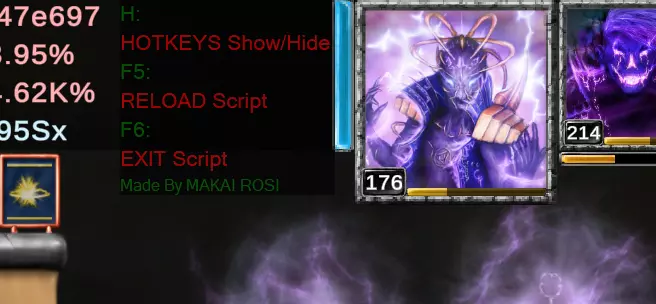
如前所述,按H键可查看并激活热键。
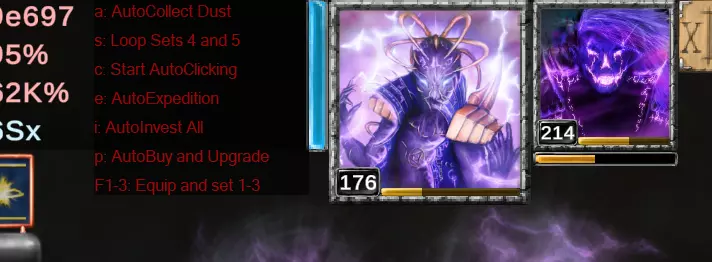
So, after this is visible, you can press the corresponding hotkeys to activate them. There is only one hotkey that isn't explained there, and that's F4, which allows you to change the swapping sets. I didn't put it in there cause I never had a problem with 4 and 5. After you press a hotkey, you can press "Q" to stop it. Different hotkeys will not work at the same time. Anyway, let's do this. You install autoHotkey, you make a txt file, you copy and paste my code in, and you rename the file to ahk extension. Then, you just run the script with Idle Wizard open (otherwise it won't do anything). That's all! Feel free to read my script to see exactly what it does. Anyway, without further ado #NoEnv SendMode Input SetWorkingDir %A_ScriptDir% global msgShown := 0 global MarginX := 0 global MarginY := 1 global color1 := "Red" global color2 := "Green" global loopingSets := 0 global loopingSetsCounter := 0 global anyRun := 0 global set1 := 4 global set2 := 5 global currentLabel := 0 global guiShow := 1 ;--------------------------------------------------------------GUI--------------------------------------------------- #SingleInstance Force SetTitleMatchMode, 1 SetBatchLines, -1 SetWinDelay, -1 SetControlDelay, -1 Gui, Margin, %MarginX%, %MarginY% Gui +LastFound +AlwaysOnTop -Caption +ToolWindow Gui Color, 000000 Gui -Border -MaximizeBox -MinimizeBox WinSet, Transparent, 150 WinSet, ExStyle, +0x20 ; WS_EX_TRANSPARENT WinSet, Style, -0xC00000 ; WS_CAPTION|WS_THICKFRAME Gui, Font, s12 Gui, Add, Text, vAutoCollect cRed, a: AutoCollect Dust Gui, Add, Text, vLoopSets cRed, s: Loop Sets %set1% and %set2% Gui, Add, Text, vClick cRed, c: Start AutoClicking Gui, Add, Text, vExpedition cRed, e: AutoExpedition Gui, Add, Text, vInvestAll cRed, i: AutoInvest All Gui, Add, Text, vPrep cRed, p: AutoBuy and Upgrade Gui, Add, Text, vF1 C%color1%, F1-3: Equip and set 1-3 GoSub swap Gui, Show, NoActivate x620 y35 w215 h195 SetTimer, CheckWindow, 100 SetTimer, loopCounter, 1000 Return swap: hideGUI() Return CheckResolution(){ If(A_ScreenWidth != 1920 || A_ScreenHeight != 1080){ MsgBox Your screen resolution is not 1920x1080 ! ExitApp } Return } changeSets(){ MsgBox, 4,, Do you wanna change the sets that loop? IfMsgBox Yes { InputBox, input1, Manual Spellset Swap Choice, Enter the first set.`n(1) Set 1`, (2) Set 2`, (3) Set 3`, (4) Set 4`, (5) Set 5 if(input1 = 1 || input1 = 2 || input1 = 3 || input1 = 4 || input1 = 5){ InputBox, input2, Manual Spellset Swap Choice, Enter the first set.`n(1) Set 1`, (2) Set 2`, (3) Set 3`, (4) Set 4`, (5) Set 5 if(input2 = 1 || input2 = 2 || input2 = 3 || input2 = 4 || input2 = 5){ MsgBox, 4,, You entered sets %input1% and %input2% `nCorrect? IfMsgBox Yes { set1 := input1 set2 := input2 } else goto no } else goto no } else goto no } else goto no Return no: MsgBox, You didn't enter a valid number. Proceeding with sets 4 and 5 Return } CheckFullscreen(){ MsgBoxWidth := 400 MsgBoxHeight := 200 MsgBoxText := "This script only works when Idle Wizard is running fullscreen. `n `nIf you don't run it fullscreen, it might start clicking outside the window. `n `nIt won't do any damage, but it will definitely cause you panic lol.`n `nPress F6 at any point to stop the script. Have fun!" MsgBoxOptions := "0x40" ; MB_ICONINFORMATION MsgBox, 0x40, ATTENTION DUDE !!, %MsgBoxText% msgShown := 1 } CheckWindow: CheckResolution() If WinActive("IdleWizard") { If(!msgShown) CheckFullscreen() Gui Show, NoActivate } Else { Gui Hide } Return loopCounter: if(loopingSets) { resetAllColors() if(loopingSetsCounter){ changeTextColor("Yellow", currentLabel) GuiControl, Text, %currentLabel%, Press Q to stop loopingSetsCounter := 0 } else { resetAllTexts() loopingSetsCounter := 1 } } Return resetAllColors() { Gui, Font, s12 Gui, Font, cRed GuiControl , Font , AutoCollect GuiControl , Font , LoopSets GuiControl , Font , Click GuiControl , Font , Expedition GuiControl , Font , InvestAll GuiControl , Font , Prep GuiControl , Font , F1 Return } resetAllTexts(){ GuiControl, Text, AutoCollect, a: AutoCollect Dust GuiControl, Text, LoopSets, s: Loop Sets %set1% and %set2% GuiControl, Text, Click, c: Start AutoClicking GuiControl, Text, Expedition, e: AutoExpedition GuiControl, Text, InvestAll, i: AutoInvest All GuiControl, Text, Prep, p: AutoBuy and Upgrade GuiControl, Text, F1, F1-3: Equip and set 1-3 If(anyRun){ showEnabled(currentLabel) } Return } changeTextColor(color, label) { resetAllColors() Gui , Font , c%color% GuiControl , Font , %label% } showEnabled(label) { changeTextColor(color2, label) } showDisabled(label) { changeTextColor(color1, label) } enable(label) { currentLabel := label showEnabled(label) loopingSets := 1 anyRun := 1 } disable(label) { showDisabled(label) loopingSets := 0 loopingSetsCounter := 0 anyRun := 0 resetAllTexts() } ;-------------------------------------------------------------------HOTKEYS---------------------------------------- F6::ExitApp F5::Reload #IfWinActive, ahk_exe IdleWizard.exe c::StartClicks() s::startZeds(set1,set2) a::autoCollect() i::autoInvestAll() e::autoExpedition() q::keyBreak() p::prep() F4::changeSets() F1::setAny(1) F2::setAny(2) F3::setAny(3) h::hideGUI() #If ;-------------------------------------------------------------------HOTKEYS---------------------------------------- hideGUI() { if(!guiShow) showGUI() else{ anyRun := 1 guiShow := 0 Gui, Font, s16 Gui, Font, cGreen GuiControl , Font , AutoCollect GuiControl, Text, AutoCollect, H: GuiControl, Move, AutoCollect, w215 h195 Gui, Font, cRed GuiControl , Font , LoopSets GuiControl, Text, LoopSets, HOTKEYS Show/Hide GuiControl, Move, LoopSets, w215 h195 Gui, Font, cGreen GuiControl , Font , Click GuiControl, Text, Click, F5: GuiControl, Move, Click, w215 h195 Gui, Font, cRed GuiControl , Font , Expedition GuiControl, Text, Expedition, RELOAD Script GuiControl, Move, Expedition, w215 h195 Gui, Font, cGreen GuiControl , Font , InvestAll GuiControl, Text, InvestAll, F6: GuiControl, Move, InvestAll, w215 h195 Gui, Font, cRed GuiControl , Font , Prep GuiControl, Text, Prep, EXIT Script GuiControl, Move, Prep, w215 h195 Gui, Font, cGreen Gui, Font, s12 GuiControl , Font , F1 GuiControl, Text, F1, Made By MAKAI ROSI GuiControl, Move, F1, w215 h195 } } showGUI() { guiShow := 1 anyRun := 0 resetAllColors() resetAllTexts() } ;-------------------------------------------------------------------------------------------------- global keyBreakPr := 0 keyBreak(){ keyBreakPr := 1 SetTimer, resetKeyBreak, 200 } resetKeyBreak(){ keyBreakPr := 0 } checkActive() { if (WinActive("IdleWizard")){ return true } else return false } stopScript(){ result := keyBreakPr keyBreakPr := 0 return (result || GetKeyState("u", "P") || !checkActive()) } Full Thing with GUI (part 2) ;-----------------------------------FUNCTIONS------------------------------- prep() { if(anyRun) Return else anyRun := 1 enable("Prep") Send, {LShift Down} Sleep, 100 loop{ Send, {Up} Sleep, 50 Send, B Sleep, 50 If(stopScript()){ Break } } Send, {LShift Up} disable("Prep") Sleep, 50 anyRun := 0 } setAny(number) { if(anyRun) Return else anyRun := 1 enable("F1") Send {P Down} Sleep 50 Send {%number% Down} Sleep 50 Send {P Up} Sleep 50 Send {%number% Up} Sleep 50 Send {Z Down} Sleep 50 Send {%number% Down} Sleep 50 Send {Z Up} Sleep 50 Send {%number% Up} Sleep 50 disable("F1") anyRun := 0 } startZeds(firstSet, secondSet) { if(anyRun) Return else anyRun := 1 enable("LoopSets") Send P2 Send {Z Down} loop{ Send {%firstSet% Down} Sleep 50 Send {%firstSet% Up} Sleep 50 Send {%secondSet% Down} Sleep 50 Send {%secondSet% Up} Sleep 50 If(stopScript()){ Break } } Send {Z Up} Sleep 50 setAny(2) disable("LoopSets") anyRun := 0 } StartClicks(){ if(anyRun) Return else anyRun := 1 enable("Click") CoordMode, Mouse, Screen MouseGetPos, xpos, ypos Loop { Click, %xpos%, %ypos% Sleep, 5 If(stopScript()) Break } disable("Click") anyRun := 0 } autoCollect(){ if(anyRun) Return else anyRun := 1 enable("AutoCollect") MouseGetPos, xpos, ypos Send, {Space} Sleep, 100 Click, 1330, 630 Sleep, 50 Click, 1389, 849 Sleep, 50 Click, 516, 624 Sleep, 50 Click, 447, 845 Sleep, 50 Send, {Space} MouseMove, xpos, ypos disable("AutoCollect") anyRun := 0 Return } autoExpedition(){ if(anyRun) Return else anyRun := 1 enable("Expedition") MouseGetPos, xpos, ypos Click, 272, 984 Sleep, 50 Click, 1160, 982 Sleep, 50 Click, 793, 712 Sleep, 50 MouseMove, xpos, ypos disable("Expedition") anyRun := 0 } autoInvestAll(){ if(anyRun) Return else anyRun := 1 enable("InvestAll") MouseGetPos, xpos, ypos Click, 1342, 43 Sleep, 50 Click, 767, 285 Sleep, 50 Click, 1100, 285 Sleep, 50 Click, 1441, 285 Sleep, 50 Click, 401, 72 Sleep, 50 MouseMove, xpos, ypos disable("InvestAll") anyRun := 0 } ;-------------------------------------------------OTHER FUNCTIONS------------------------------------------------ logmouse(){ MouseGetPos, MouseX, MouseY MsgBox, %MouseX% %MouseY% Return } getWindowTitle(){ WinGetTitle, ActiveWindowTitle, A MsgBox, The title of the currently active window is "%ActiveWindowTitle%". Return } F10::getWindowTitle() F11::logmouse()