换一换
换一换 


How to optimize performance by configuring Unreal Engine 5.1 If you're experiencing low FPS or performance issues, you can improve the game's performance by configuring the Unreal Engine 5.1 that S.T.A.L.K.E.R.2 uses through configuration files. This guide will show you how to remove most stutters, improving performance and stability, decreasing input latency and improving overall picture quality by disabling film grain / chromatic aberration. Acknowledgements This guide is an adaptation of the performance guide by Rusty for another Unreal Engine 5 Game: The Forever Winter. You can find the guide for it here: https://steamcommunity.com/sharedfiles/filedetails/?id=3337534083 Furthermore it is based on the Mod Ultimate Engine Tweaks[www.nexusmods.com] on Nexusmods[www.nexusmods.com]. Feel free to follow along the mod instructions if you find reading all this too cumbersome ;) Translated Versions For a Russian version of the guide, please head over to https://steamcommunity.com/sharedfiles/filedetails/?id=3371761181 Thanks Sqnder for your help and translation! :) Changelog v2.0.0 (2024-12-02) Features Update sections with Steam configuration references to also include the GoG version (those work the same) Add separate section with explanations for which parameters need to be changed by yourself according to your hardware specs Rewrite configuration with parameters in alphabetical order for better clarity and readability Adjust some parameters for additional performance improvements Update some commments Make the .ini "future proof" with official game's patches Add new async optimizations Add new physics optimizations Add new optimizations + tweaked old parameters a bit more (for specific HW configurations) Add many new CPU, RAM & SSD optimizations All UI and in-game Menus/Map are now smoother Bugfixes Fix foliage/vegetation occlusion Fix remaining ambience audio and background music dropouts in specific scenarios Fix a LoD regression Fix occasional crash during saves' loading Fix occasional crash during shaders precompilation Fix occasional crash during long gameplay sessions Remove some outdated parameters Fix random ambience audio and background music dropouts Shaders Pre-Compilation is now faster Further reduce pop-up/pop-in Remove slight over-sharpening artifacts Decrease VRAM usage with new GPU optimizations Remove the line "t.MaxFPS" as it wasn't working correctly. Use RTSS or NVIDIA Ultra Low Latency and/or Reflex to cap your FPS more effectively Breaking Changes Remove outdated old v1.2.0 information Remove outdated old v1.1.0 information Remove outdated old v1.0.0 information v1.2.0 (2024-11-24) Features Add Nexusmod information about Ultimate Engine Tweaks to Acknowledgments Add Changelog Add separate section for Steam Configuration Add separate section for Gamepass Configuration Add FAQ Bugfixes Deprecate outdated v1.1.0 information v1.1.0 (2024-11-22) Features Consolidate complete configuration into single Engine.ini Bugfixes Deprecate outdated v1.0.0 information v1.0.0 (2024-11-20) Features Adapt initial guide from Rusty's The Forever Winter Performance Optimization guide Config File Locations (Steam & GoG vs. Gamepass) The locations of the configuration files differ between the Steam/GoG and Game Pass version. - Steam / GoG: %localappdata% Stalker2 Saved Config Windows - Game Pass: %localappdata% Stalker2 Saved Config WinGDK v2.0.0 (2024-12-02) - Steam & GoG Configuration If you own S.T.A.L.K.E.R. 2 through Steam or GoG, do the following Step-by-step instructions 1. Navigate to the config file directory: %localappdata% Stalker2 Saved Config Windows 2. Open the file GameUserSettings.ini and add the following lines at the end (Change the lines with comments according to your system spec, see section 'Change these parameters' for a full listing) [Core.System] r.XGEShaderCompile.Mode=3 r.XGEShaderCompile=1 [SystemSettings] r.VSync=0 ; Only if you have VRR enabled on your display, otherwise delete it r.Streaming.PoolSize=12288 ; Only for 16GB VRAM. If you have 24GB use 18432, for 12GB use 9216, for 11GB use 8192, for 10GB use 7168, for 8GB use 6144, for 6GB use 5120, for 4GB use 4096 r.RenderTargetPoolMin=4096 ; Only for 16GB VRAM. If you have 24GB use 6144, for 12GB use 3072, for 11GB use 3072, for 10GB use 2560, for 8GB use 2048, for 6GB use 1536, for 4GB use 1024 r.EarlyZPass=3 ; Only for 16GB+ VRAM. If you have 8-12GB use 2, for less than 8GB use 1 r.Nanite.Streaming.MaxPendingPages=256 ; Only for 10GB+ VRAM. If you have 4-8GB VRAM, set this to 128 r.Lumen.DiffuseIndirect.AsyncCompute=1 ; Set this to 0 if you notice white flashes in indoor areas r.Lumen.Reflections.AsyncCompute=1 ; Set this to 0 if you notice white flashes in indoor areas r.OneFrameThreadLag=0 ; This will noticeably reduce input latency, but if you experience drastically lower FPS after using this, delete this line AudioThread.BatchAsyncBatchSize=256 AudioThread.EnableBatchProcessing=1 bUseAsyncComputeContext=True csv.trackWaitsGT=0 csv.trackWaitsRT=0 FX.AllowAsyncTick=1 FX.BatchAsync=1 FX.BatchAsyncBatchSize=8 FX.EarlyScheduleAsync=1 fx.Niagara.AsyncCompute=1 fx.Niagara.DebugDraw.Enabled=0 landscape.RenderNanite=1 niagara.CreateShadersOnLoad=1 r.AllowMultiThreadedShaderCreation=1 r.AsyncCompute=1 r.AsyncCompute.NumThreadGroupsToExecute=4 r.DumpGPU=0 r.DynamicRes.OperationMode=0 r.Emitter.FastPoolEnable=1 r.FilmGrain=0 r.FinishCurrentFrame=0 r.ForceCPUAccessToGPUSkinVerts=1 r.GBufferFormats=2 r.GeometryCollection.Nanite=1 r.GPUCrashDebugging=0 r.GTSyncType=2 r.Lumen.DiffuseIndirect.Allow=1 r.LumenScene.Lighting.AsyncCompute=1 r.MaxAnisotropy=16 r.Nanite.Streaming.MaxPageInstallsPerFrame=16 r.NT.Lens.ChromaticAberration.Intensity=0 r.ParallelTranslucency=1 r.PipelineStateCache.AsyncCompileAfterTypes=1 r.RHICmdBypass=0 r.SceneColorFringeQuality=0 r.ShaderPipelineCache.AsyncCompileRate=32 r.Shadow.Virtual.Enable=1 r.Streaming.Boost=1.2 r.Streaming.LimitPoolSizeToVRAM=1 r.Streaming.MipBias=-0.5 r.Streaming.UseAllMips=1 r.TemporalAACurrentFrameWeight=0.15 r.TemporalAASamples=8 r.TemporalAASharpness=0.9 r.ThreadPool.BackgroundThreadPriority=1 r.ThreadPool.EnableBackgroundThreads=1 r.ThreadedShaderCompilation=1 r.Tonemapper.GrainQuantization=0 r.Tonemapper.Sharpen=0.5 r.UseAsyncShaderPrecompilation=1 r.VRS.Enable=1 Slate.bAllowThrottling=0 [ShaderCompiler] bAllowAsynchronousShaderCompiling=True bAllowCompilingThroughWorkerThreads=True bAsyncShaderCompileWorkerThreads=True bEnableOptimizedShaderCompilation=True MaxShaderJobBatchSize=150 MaxShaderJobs=1000 NumUnusedShaderCompilingThreads=2 [/script/engine.engine] bAllowMultiThreadedShaderCompile=True [DevOptions.Shaders] bAllowShaderCompilingWorker=True bOptimizeForLocalShaderBuilds=True bUseBackgroundCompiling=True WorkerThreadPriority=0 [TextureStreaming] r.TextureStreaming=1 r.Streaming.MaxTempMemoryAllowed=16384 ; Only for 32GB+ RAM. If you have 16GB use 8192, for 8GB use 4096 r.Streaming.DefragDynamicBounds=1 r.Streaming.FramesForFullUpdate=1 r.Streaming.FullyLoadUsedTextures_Always=1 r.Streaming.FullyLoadUsedTextures=1 r.Streaming.UseBackgroundThreadPool=1 [Engine.InputSettings] bEnableMouseSmoothing=False bViewAccelerationEnabled=False RawMouseInputEnabled=1 [Engine.RendererSettings] r.D3D11.UseAllowTearing=1 ; Only if you have VRR enabled on your display, otherwise delete it r.D3D12.UseAllowTearing=1 ; Only if you have VRR enabled on your display, otherwise delete it D3D11.AFRUseFramePacing=1 D3D11.AsyncDeferredDeletion=1 D3D11.MaximumFrameLatency=3 D3D12.AFRUseFramePacing=1 D3D12.AsyncDeferredDeletion=1 D3D12.MaximumFrameLatency=3 r.AsyncCreateLightPrimitiveInteractions=1 r.AsyncPipelineCompile=1 r.EnableAsyncComputeVolumetricFog=1 r.RDG.AsyncCompute=1 r.Streaming.UseAsyncRequestsForDDC=1 [RenderingThread] bAllowAsyncRenderThreadUpdates=True bAllowThreadedRendering=True [/script/engine.streamingsettings] s.AsyncLoadingThreadEnabled=1 s.AsyncLoadingTimeLimit=10 s.AsyncLoadingUseFullTimeLimit=1 s.AsyncLoadingUseTimeLimit=1 s.LevelStreamingActorsUpdateTimeLimit=10.0 s.MinBulkDataSizeForAsyncLoading=0 [/script/engine.garbagecollectionsettings] gc.MultithreadedDestructionEnabled=1 [/script/akaudio.aksettings] bEnableMultiCoreRendering=True [TaskGraph] TaskGraph.Enable=1 [Physics] p.AsyncSceneEnabled=1 [CrashReportClient] bAgreeToCrashUpload=False bImplicitSend=False [Core.Log] Global=all off LogAI=all off LogAnalytics=all off LogAnimation=all off LogBlueprint=all off LogConfig=all off LogCore=all off LogInput=all off LogInteractiveProcess=all off LogLinker=all off LogMemory=all off LogNetwork=all off LogOnline=all off LogOnlineEntitlement=all off LogOnlineEvents=all off LogOnlineFriend=all off LogOnlineGame=all off LogOnlineIdentity=all off LogOnlinePresence=all off LogOnlineSession=all off LogOnlineTitleFile=all off LogOnlineUser=all off LogPakFile=all off LogPhysics=all off LogPluginManager=all off LogRenderer=all off LogRenderTargetPool=all off LogShaderCompiler=all off LogStreaming=all off LogTemp=all off LogUObject=all off +Suppress=Scriptwarning +Suppress=Error +Suppress=Scriptlog +Suppress=Warning [Engine.ErrorHandling] bPromptForRemoteDebugging=False bPromptForRemoteDebugOnEnsure=False 3. Update the parameters with comments according to your hardware spec (see next section), save it, close it and restart the game. v2.0.0 (2024-12-02) - Gamepass Configuration If you own S.T.A.L.K.E.R. 2 through Gamepass, do the following Step-by-step instructions 1. Navigate to the config file directory: %localappdata% Stalker2 Saved Config WinGDK 2. Create a new file named Engine.ini and add the following lines. (Change the lines with comments according to your system spec, see section 'Change these parameters' for a full listing) [Core.System] r.XGEShaderCompile.Mode=3 r.XGEShaderCompile=1 [SystemSettings] r.VSync=0 ; Only if you have VRR enabled on your display, otherwise delete it r.Streaming.PoolSize=12288 ; Only for 16GB VRAM. If you have 24GB use 18432, for 12GB use 9216, for 11GB use 8192, for 10GB use 7168, for 8GB use 6144, for 6GB use 5120, for 4GB use 4096 r.RenderTargetPoolMin=4096 ; Only for 16GB VRAM. If you have 24GB use 6144, for 12GB use 3072, for 11GB use 3072, for 10GB use 2560, for 8GB use 2048, for 6GB use 1536, for 4GB use 1024 r.EarlyZPass=3 ; Only for 16GB+ VRAM. If you have 8-12GB use 2, for less than 8GB use 1 r.Nanite.Streaming.MaxPendingPages=256 ; Only for 10GB+ VRAM. If you have 4-8GB VRAM, set this to 128 r.Lumen.DiffuseIndirect.AsyncCompute=1 ; Set this to 0 if you notice white flashes in indoor areas r.Lumen.Reflections.AsyncCompute=1 ; Set this to 0 if you notice white flashes in indoor areas r.OneFrameThreadLag=0 ; This will noticeably reduce input latency, but if you experience drastically lower FPS after using this, delete this line AudioThread.BatchAsyncBatchSize=256 AudioThread.EnableBatchProcessing=1 bUseAsyncComputeContext=True csv.trackWaitsGT=0 csv.trackWaitsRT=0 FX.AllowAsyncTick=1 FX.BatchAsync=1 FX.BatchAsyncBatchSize=8 FX.EarlyScheduleAsync=1 fx.Niagara.AsyncCompute=1 fx.Niagara.DebugDraw.Enabled=0 landscape.RenderNanite=1 niagara.CreateShadersOnLoad=1 r.AllowMultiThreadedShaderCreation=1 r.AsyncCompute=1 r.AsyncCompute.NumThreadGroupsToExecute=4 r.DumpGPU=0 r.DynamicRes.OperationMode=0 r.Emitter.FastPoolEnable=1 r.FilmGrain=0 r.FinishCurrentFrame=0 r.ForceCPUAccessToGPUSkinVerts=1 r.GBufferFormats=2 r.GeometryCollection.Nanite=1 r.GPUCrashDebugging=0 r.GTSyncType=2 r.Lumen.DiffuseIndirect.Allow=1 r.LumenScene.Lighting.AsyncCompute=1 r.MaxAnisotropy=16 r.Nanite.Streaming.MaxPageInstallsPerFrame=16 r.NT.Lens.ChromaticAberration.Intensity=0 r.ParallelTranslucency=1 r.PipelineStateCache.AsyncCompileAfterTypes=1 r.RHICmdBypass=0 r.SceneColorFringeQuality=0 r.ShaderPipelineCache.AsyncCompileRate=32 r.Shadow.Virtual.Enable=1 r.Streaming.Boost=1.2 r.Streaming.LimitPoolSizeToVRAM=1 r.Streaming.MipBias=-0.5 r.Streaming.UseAllMips=1 r.TemporalAACurrentFrameWeight=0.15 r.TemporalAASamples=8 r.TemporalAASharpness=0.9 r.ThreadPool.BackgroundThreadPriority=1 r.ThreadPool.EnableBackgroundThreads=1 r.ThreadedShaderCompilation=1 r.Tonemapper.GrainQuantization=0 r.Tonemapper.Sharpen=0.5 r.UseAsyncShaderPrecompilation=1 r.VRS.Enable=1 Slate.bAllowThrottling=0 [ShaderCompiler] bAllowAsynchronousShaderCompiling=True bAllowCompilingThroughWorkerThreads=True bAsyncShaderCompileWorkerThreads=True bEnableOptimizedShaderCompilation=True MaxShaderJobBatchSize=150 MaxShaderJobs=1000 NumUnusedShaderCompilingThreads=2 [/script/engine.engine] bAllowMultiThreadedShaderCompile=True [DevOptions.Shaders] bAllowShaderCompilingWorker=True bOptimizeForLocalShaderBuilds=True bUseBackgroundCompiling=True WorkerThreadPriority=0 [TextureStreaming] r.TextureStreaming=1 r.Streaming.MaxTempMemoryAllowed=16384 ; Only for 32GB+ RAM. If you have 16GB use 8192, for 8GB use 4096 r.Streaming.DefragDynamicBounds=1 r.Streaming.FramesForFullUpdate=1 r.Streaming.FullyLoadUsedTextures_Always=1 r.Streaming.FullyLoadUsedTextures=1 r.Streaming.UseBackgroundThreadPool=1 [Engine.InputSettings] bEnableMouseSmoothing=False bViewAccelerationEnabled=False RawMouseInputEnabled=1 [Engine.RendererSettings] r.D3D11.UseAllowTearing=1 ; Only if you have VRR enabled on your display, otherwise delete it r.D3D12.UseAllowTearing=1 ; Only if you have VRR enabled on your display, otherwise delete it D3D11.AFRUseFramePacing=1 D3D11.AsyncDeferredDeletion=1 D3D11.MaximumFrameLatency=3 D3D12.AFRUseFramePacing=1 D3D12.AsyncDeferredDeletion=1 D3D12.MaximumFrameLatency=3 r.AsyncCreateLightPrimitiveInteractions=1 r.AsyncPipelineCompile=1 r.EnableAsyncComputeVolumetricFog=1 r.RDG.AsyncCompute=1 r.Streaming.UseAsyncRequestsForDDC=1 [RenderingThread] bAllowAsyncRenderThreadUpdates=True bAllowThreadedRendering=True [/script/engine.streamingsettings] s.AsyncLoadingThreadEnabled=1 s.AsyncLoadingTimeLimit=10 s.AsyncLoadingUseFullTimeLimit=1 s.AsyncLoadingUseTimeLimit=1 s.LevelStreamingActorsUpdateTimeLimit=10.0 s.MinBulkDataSizeForAsyncLoading=0 [/script/engine.garbagecollectionsettings] gc.MultithreadedDestructionEnabled=1 [/script/akaudio.aksettings] bEnableMultiCoreRendering=True [TaskGraph] TaskGraph.Enable=1 [Physics] p.AsyncSceneEnabled=1 [CrashReportClient] bAgreeToCrashUpload=False bImplicitSend=False [Core.Log] Global=all off LogAI=all off LogAnalytics=all off LogAnimation=all off LogBlueprint=all off LogConfig=all off LogCore=all off LogInput=all off LogInteractiveProcess=all off LogLinker=all off LogMemory=all off LogNetwork=all off LogOnline=all off LogOnlineEntitlement=all off LogOnlineEvents=all off LogOnlineFriend=all off LogOnlineGame=all off LogOnlineIdentity=all off LogOnlinePresence=all off LogOnlineSession=all off LogOnlineTitleFile=all off LogOnlineUser=all off LogPakFile=all off LogPhysics=all off LogPluginManager=all off LogRenderer=all off LogRenderTargetPool=all off LogShaderCompiler=all off LogStreaming=all off LogTemp=all off LogUObject=all off +Suppress=Scriptwarning +Suppress=Error +Suppress=Scriptlog +Suppress=Warning [Engine.ErrorHandling] bPromptForRemoteDebugging=False bPromptForRemoteDebugOnEnsure=False 3. Update the parameters with comments according to your hardware spec (see next section), save it, close it and restart the game. Change these parameters Make sure to update the following parameters according to your own hardware specs Section Parameter Default Value Description [SystemSettings] r.vSync 0 Only if you have VRR enabled on your display, otherwise delete it [SystemSettings] r.Streaming.PoolSize 12288 Only for 16GB VRAM. If you have 24GB use 18432, for 12GB use 9216, for 11GB use 8192, for 10GB use 7168, for 8GB use 6144, for 6GB use 5120, for 4GB use 4096 [SystemSettings] r.RenderTargetPoolMin 4096 Only for 16GB VRAM. If you have 24GB use 6144, for 12GB use 3072, for 11GB use 3072, for 10GB use 2560, for 8GB use 2048, for 6GB use 1536, for 4GB use 1024 [SystemSettings] r.EarlyZPass 3 Only for 16GB+ VRAM. If you have 8-12GB use 2, for less than 8GB use 1 [SystemSettings] r.Nanite.Streaming.MaxPendingPages 256 Only for 10GB+ VRAM. If you have 4-8GB VRAM, set this to 128 [SystemSettings] r.Lumen.DiffuseIndirect.AsyncCompute 1 Set this to 0 if you notice white flashes in indoor areas [SystemSettings] r.Lumen.Reflections.AsyncCompute 1 Set this to 0 if you notice white flashes in indoor areas [SystemSettings] r.OneFrameThreadLag 0 This will noticeably reduce input latency, but if you experience drastically lower FPS after using this, delete this line [TextureStreaming] r.Streaming.MaxTempMemoryAllowed 16384 Only for 32GB+ RAM. If you have 16GB use 8192, for 8GB use 4096 [Engine.RendererSettings] r.D3D11.UseAllowTearing 1 Only if you have VRR enabled on your display, otherwise delete it [Engine.RendererSettings] r.D3D12.UseAllowTearing 1 Only if you have VRR enabled on your display, otherwise delete it FAQ Frequently Asked Questions What is the scope of these configurations? What does it affect / change? Disable mouse acceleration for snappier mouse movement Disable film grain and chromatic aberration for improved image clarity Enable asynchronous shader compilation to speed up game booting time Configure render streaming based on VRAM size to reduce stutters Improve CPU, GPU, RAM, SSD utilization for better performance Reduce input latency It does NOT touch any graphics quality settings that you set through the ingame menus (aside from max FPS, VSync) - these you can still pick and choose for yourself! Whats with all the different versions? How do i know what i need to do? THAT IS SO MUCH TEXT!!! You have two main routes you can go: A) Use the mod "Ultimate Engine Tweaks"[www.nexusmods.com] from Nexusmods (which you need to register an account for) directly and follow the directions there. They are equivalent to what is stated here in the guide. B) Follow the instructions here in the guide. About which version to pick: Always pick the latest version (v1.2.0 as of 2024-11-22) and pick the section with the platform that you purchased the game on (Steam vs. Gamepass) And as to why all the versions - I come from a software engineering background, so that's my mode of work, to version stuff, keep a changelog, document changes over time and keep older versions around. Update 2024-12-02: I have removed all pre v2.0 sections from the guide to shorten the guide. All this stuff is just placebo and doesn't do anything! It doesn't work on my machine! If you only want to state your frustration that you haven't found The One Configuration To Rule Them All which magically fixes everything for you, go ahead. But if you want actual help with fixing issues, then at the minimum state more information about your information / system: Which version of the configuration did you use (see version numbers on the side sections)? Are you on Steam or Gamepass? (For Gamepass only): Did you REALLY create a new file Engine.ini, or an Engine.ini.txt (by right click in Explorer -> New -> Text Document, without overriding the file extension) - Check your Windows Explorer settings and verify that file extensions are shown, and the file is listed as 'Configuration files' and not 'Text Document' Did you set the appropriate value of r.Streaming.PoolSize according to the VRAM size of your GPU? Did you check the other values in [SystemSettings] with comments (Comment is something with '; some text' at the end of the line) and set them accordingly? How often will this guide get updated? Do i have to manually edit config files for the rest of my life? A new guide version will get released for every update that the mod "Ultimate Engine Tweaks"[www.nexusmods.com] from Nexusmods gets. How frequently that will be, i cannot say (sorry my All Seeing Orb broke just a few days ago :/). However, when GSC starts rolling out patches i recommend reverting the changes and doing a fresh baseline test with a new game version first. How do i revert all this? I want to get back to a clean slate! For Steam & GoG: Navigate to %localappdata% Stalker2 Saved Config Windows Open the GameUserSettings.ini Remove all the lines at the bottom at the file starting with the block [Core.System] r.XGEShaderCompile=1 r.XGEShaderCompile.Mode=3 and below For Gamepass: Navigate to %localappdata% Stalker2 Saved Config WinGDK Delete the Engine.ini file
通过配置虚幻引擎5.1优化性能

2026-02-15 01:00:06
发布在潜行者2:切尔诺贝利之心
转载

导读
这是一份针对《潜行者2》的虚幻引擎5.1性能优化指南,通过修改配置文件,可解决低帧率、卡顿问题,降低输入延迟,还能关闭胶片颗粒、色差提升画质。指南分Steam/GoG、Gamepass版本给出操作步骤,也可选用对应Mod,同时提供了适配不同硬件的参数调整说明。


评论
共0条评论

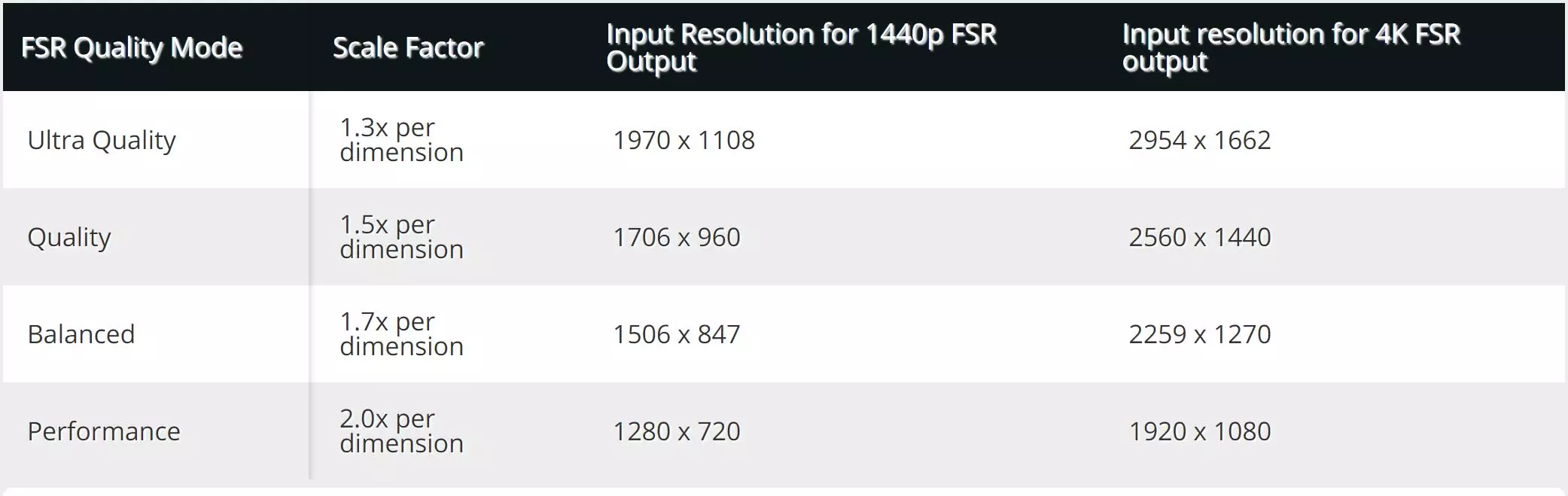
如何使用FSR……或者修改器……什么修改器?请查看指南。
任何人都能在大多数游戏中启用FSR( FidelityFX Super Resolution, FidelityFX超分辨率技术),以最高图像质量提升帧率!
2026-02-14 22:000赞 · 0评论
生存 方舟生存进化:一个视频教你解决画质糊帧率提不上去 掉帧的问题
-
2026-01-08 22:590赞 · 0评论

沙丘:觉醒 Engine.ini 优化配置
设置 Dune Yerts Config——《沙丘:觉醒》Engine.ini优化文件 这是为《沙丘:觉醒》专门配置的Engine.ini文件,旨在提升游戏性能…
2026-02-15 16:010赞 · 0评论

Steam Deck 设置 [稳定 40 帧]
我对在Steam Deck上以良好画质稳定40帧运行《控制 终极版》的建议。 这些设置旨在: - 提供流畅且画面精美的体验 - 消除或减少纹理加载问题 关于帧率…
2026-03-18 19:000赞 · 0评论
游戏 电脑配置低画质如何设置?分享自己的画质设置 堡垒之夜
2026-02-16 22:400赞 · 0评论

配置指南
欢迎。 在本指南中,我们将把《黑暗地带》配置为意大利语并以最佳方式启动。 更改语言 Steam上仅有的两种可用语言是英语和法语。 通过使用意大利语翻译文件,尤其…
2026-02-15 16:000赞 · 0评论

安装机器人并改进画质
简单安装高质量机器人并显著提升画质 简而言之 《胜利之日》并非一款简单的多人射击游戏。许多新手在玩了几个小时后就会放弃。当普通玩家进入某个大型服务器时,会遇到一…
2026-02-14 07:000赞 · 0评论
攻略 【干货】全网最细《永劫无间》画面设置解析!全系显卡通用!助你调出专属设置
测试配置1: CPU:R7 5800H 内存:16G 3200MHz 显卡:RTX 3060 Laptop 6G 测试配置2: CPU:R5 7500F 内存:…
2025-09-08 04:480赞 · 0评论

战争机器配置 战争机器重装上阵配置要求
战争机器重装上阵配置要求?战争机器重装上阵配置推荐?微软公布了最新的官方配置需求,综合的信息内容如下 战争机器重装上阵配置要求 一、最低配置要求 操作系统:Wi…
2025-07-20 03:380赞 · 0评论
录屏 流放之路2,一个视频全面优化显示设置,界面设置,提高游戏体验
大家有更好的方案可以评论区讨论
2026-05-03 15:080赞 · 0评论

暂无更多
最新更新
- 《潜行者2:切尔诺贝利之心》内容更新:新增探索任务线【尘封的真相】 — 【尘封的真相】围绕全新任务线展开。探索进行过可怕实验的场所,寻找答案。通过精心计算风险,你或许能获得……不过我们还是先不剧透了。
- 《潜行者2:切尔诺贝利之心》免费内容更新【尘封的真相】将于四月推出 — 潜行者们! 为庆祝【希望的代价】DLC公布,免费内容更新【尘封的真相】将于四月推出——届时你将能够打开通往X-18实验室的大门。 而谁又知道黑暗中隐藏着什么呢……
- 《潜行者2:切尔诺贝利之心》首个大型扩展包【希望的代价】将于2026年夏季推出 — 职责与自由之间脆弱的和平已濒临破裂。数十年来被列为禁区的地区腹地,如今正召唤着潜行者们。新的危险——或许是奇迹——开始浮现。
- 《潜行者2:切尔诺贝利之心》春季特卖期间享7折优惠 — Steam春季特卖现已开启——这是一个以30%折扣进入《潜行者2:切尔诺贝利之心》的隔离区,或探索GSC Game World旗下其他世界(折扣高达80%)的绝…
- 终极指南 — 《潜行者2:切尔诺贝利之心》的门锁密码可用于打开在隔离区各处发现的各种藏匿点、保险箱和秘密房间。在这些地方你能找到从金钱到独特武器等各类贵重物品。本指南将为你列…
- 修复系统性掉帧至5-15 FPS的问题 — 修复未安装任何修改情况下出现的系统性帧率降至5-15 FPS的问题。 什么是系统性帧率降至5-15 FPS? 系统性帧率下降是指在游戏运行一段时间后,每次都会出…
- 通过配置虚幻引擎5.1优化性能 — How to optimize performance by configuring Unreal Engine 5.1 If you're experienc…
- 潜行者2:切尔诺贝利之心 成就 — 欢迎所有潜行者玩家迎来期待已久的发售! 这里可以找到关于如何在《潜行者2》中获得100%成就的信息。 简介 欢迎所有潜行者玩家迎来期待已久的发售! 在本指南中可…
- 获得成就【Сканирование завершено】 — 前言 本指南提供了与成就【Сканирование завершено】相关的所有扫描仪位置信息。 已找到10个扫描仪用于获取该成就。需要跑很多路…… 沼泽区域…
- S.T.A.L.K.E.R. 2 所有神器 — 基本信息 1. 每次掉落之后,异常区域中有50%的概率出现 artifacts。如果没有生成 artifact,建议在下次掉落之后再次检查。 2. 当拾荒者(S…