换一换
换一换 


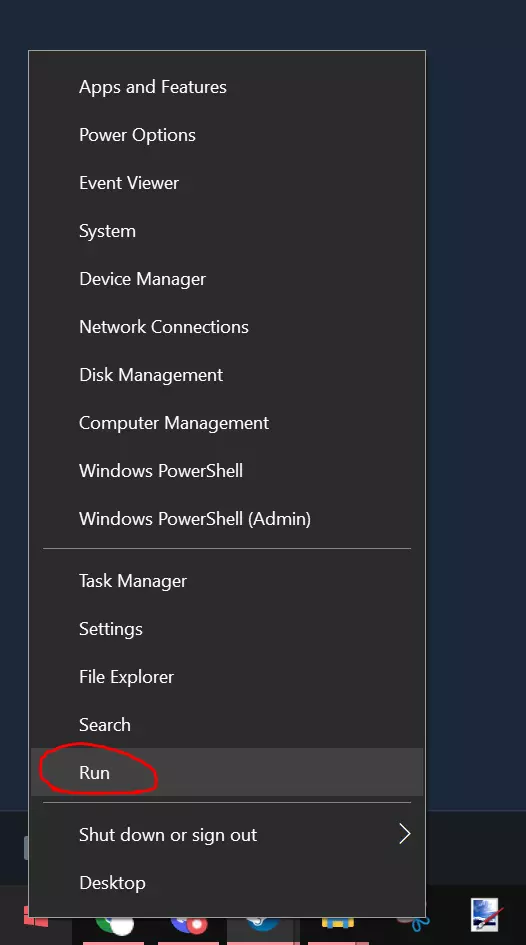
In this Guide I am going to explain how to add funds to your save and to play with late game items or just not stress about the business aspect of this game if your into that, many guides on here kinda explain it but don't go into it fully and I found it frustrating trying to find the right stuff so I'm making my own guide. This is a first for me so please be patient, I am open to suggestions on how to improve this guide so feel free to leave a comment! If this helped you or you found yourself using my guide consider leaving a steam award for those sweet sweet steam shop points! Step 1- Check your settings Okay Folks so to start off this guide I want to explain my first big issue I ran into. Many guides stated the following- "go to your %appdata% folder then to your local low file" yada yada yada but never explain what to do if you cant even find these files windows can and always will be a "fun" tool to use, that frequently hides settings or files from its users to prevent people from playing with their own files SO! step 1. Check your settings To do this go to the lower left of your desktop and click on your windows button (I'm using windows 10) Then Proceed to click on the settings gear on the left hand side of your menu. This will open up a window showing many options for you to choose from....Ignore these. At the top of this window is a search bar! a handy dandy tool to look for things you need (Thanks windows!) In this search bar type the following- "Show Hidden Files" Click on the only option that pops up Doing so will direct you to a new menu with a lot of other confusing buttons and settings (not to worry that's why I'm here!) Next in this window your gonna go down to the section that says- "Change settings to show hidden and system files" your going to click on the "Show Settings" Button Good old windows will open yet another window (fun huh?) In this new window your going to look for a folder labeled "Hidden Files and Folders" there should be a drop down menu below it that has two options "Don't Show Hidden Files, Folders, Or Drivers & Show Hidden Files, Folders, Or Drivers" Finally your going to want to make sure that the second option is selected (SHOW) If that option is already selected move onto step two! Step 2- Find Your Save File After completing step 1 this Part is now possible as your save file will be hidden by your PC otherwise not allowing you to find the necessary file to edit Alright so now your going to go down to the bottom left again and click on your windows home button, or use the search bar directly to the right of your home button Your going to want to type and/or find "This PC or My PC" Click on that and It will open a new window (Hey! there's that word again!) In here towards the bottom will be a menu of all of your Devices and Drives etc. Your going to want to find your primary drive. Usually this is listed at the "Local Disk (C:)" Drive- Click on that This will open a window with a large list of files and folders (Don't stress It's not too bad) In here click on the following Users Your main account (usually your name/email etc) App Data Local Low OpNeonGames Card Shop Simulator (The prologue will also show up in this menu if you've played that before) In here there's a lot of files listed as "Save Game" files Look for the following files with these names savedGames_Release0.gd (this file is going to be your Auto Save) savedGames_Release1.gd (The next 3 are going to correspond to your save I.E save 1,2, or 3) savedGames_Release2.gd savedGames_Release3.gd Copy the file "savedGames_Release1.gd" Paste this file to your desktop (CONGRATS YOU'VE FOUND YOUR SAVE!) Step 3- Edit Your Save! This Part is Easy Open the following website on your favorite browser (Might I suggest Opera GX Fellow Gamers) https://www.saveeditonline.com/ This will open a save editor website (Don't worry it looks sketch but its safe) Click on the green button "Upload File" This will open a window where you'll need to find your "Desktop" this will be listed on the left hand side of this window Click it and find your copied save file you found in Step 2 Click Open This will upload your save to the website and allow you to change all sorts of options Right below the upload file button should now be a search bar with a lot of random text below it In that search bar type the following (m_CoinAmount) Your Search will now show below it text that says m_CoinAmount "number" (the number should be the value of currency you had last time you saved Click that green number Enter the new amount you would like to have in your game (Keep this number reasonable as I dont know the limits of the game, I stick to between 60,000 and 80,000) Click Okay Now click the blue button that says "Download savedGames_Release1.gd Step 4- Add The New Save Into Your Files Finally Follow Step 2 again to get back into your save folder where you copied your original save to your desktop Open your Downloads Folder Copy and Paste your "New" save to the Original Save Folder A window will pop up asking if you want to move and replace a similarly named file Click Yes AND THAT'S IT Your all ready to close down everything and launch your game normally, Open your game, navigate to your "Continue Game save" and you'll have the new amount of cash that you entered previously Enjoy folks! For obvious reasons this is cheating, I would be remiss if I did not warn people to do this at your own risk and would recommend only doing this as the game is in early access, so you as a player can help find and report bugs, issues and test later stage game items, furniture, mechanics etc quicker. Keep on Collecting and show off all your cool tetramon cards and support your favorite developers!
如何修改资金并设计你梦想中的店铺

导读
这是一篇《卡牌商店模拟器》的游戏存档修改指南,详细介绍了Windows系统下修改游戏资金的步骤:先设置显示隐藏文件,再找到对应存档文件,通过在线存档编辑器修改资金数值,最后替换原存档。还提醒这属于作弊,建议仅在游戏抢先体验阶段使用。

评论
共0条评论

《苏塞兰》存档修改工具 - 全能版3.1
《苏雷亚尼》3.1版本中索尔德兰与里贾亚的存档修改指南:部分命令行在3.1版本中略有调整,若遇到任何问题,请在评论区告知我。 文件位置查找方法(Windows系…
2026-03-26 04:000赞 · 0评论

抢先体验版本 0.66.6
《卡牌商店模拟器》更新内容 1. **批量捐赠箱和卡牌存储架**的卡牌种类容量从30种提升至216种 2. **快速填充界面**新增“移除所有卡牌”功能 3. …
2026-01-11 03:000赞 · 0评论
演示 【卡牌商店模拟器】个人布局分享,所有商品全上,布局清晰
加了mod:有消除臭味顾客 卡牌爆率提高 顾客数量增多 员工干活快
2026-04-29 19:110赞 · 0评论
暂无更多
最新更新
- 抢先体验版本 0.70.3 — 《TCG卡牌店模拟器》更新版本0.70.3修复公告 1. 修复锦标赛存档/读档漏洞导致出现未着装顾客的问题 2. 修复当日结束时锦标赛尚未结束会导致配对数据错误…
- 《TCG卡牌店模拟器》参与2026年Steam独立游戏节活动! — 我们很高兴地宣布,我们将“回归”马来西亚,并将参与由The Magic Rain组织的马来西亚独立游戏展示活动Indie Jam!
- 《TCG卡牌店模拟器》0.70版本更新内容 - 锦标赛更新 — 各位准店主注意 TCG卡牌店模拟器现正以8折优惠促销!此外,我们还推出了全新的【锦标赛更新】!
- TCG卡牌店模拟器 美术创作大赛 — 感谢大家对本游戏的支持! 为表谢意,我们将举办一场小型艺术创作比赛,投票数前五的作品将作为海报装饰加入游戏(并会为创作者署名)! 特别鸣谢OPNeon创作的Te…
- 如何让独自坐在桌旁的人离开,以便你能在晚上9点独处 — 这是一份关于在桌子上按Q键的指南。 第一部分:在桌子上按Q键 如果你想让独自坐在桌子旁的人离开,像要移动桌子那样按Q键。这样他们就会离开! 现在你可以在晚上9点…
- 工作台牌组批量盒子指南 - 0.63+版本 — 箱子类型 最低价格 低于最高价格 白色 0.01美元 1.00美元 黄色 1.00美元 2.00美元 粉色 2.00美元 4.00美元 红色 4.00美元 12…
- HTML卡牌收集追踪器【多语言工具】(0.50版本更新) — 一款用于查看卡牌收藏和商店数据的工具。 该工具支持多语言,但指南不支持。 信息: 此工具会显示每个卡包缺少的卡牌数量,并允许你按稀有度、版本或系列筛选缺失卡牌列…
- 稳定(且持续增长)的收入指南 — 我总是看到各种各样截然不同的建议。经过反复尝试,这是赚取大量金钱的最安全方法。 关于本指南 这款游戏氛围轻松惬意,到了后期基本上就是一个开包模拟器。不过,有时候…
- TCG卡牌店模拟器俄化补丁或如何将游戏翻译成俄语 — 1. 下载Xunity程序,文件名为:XUnity.AutoTranslator-ReiPatcher-5.4.1.zip 2. 下载并解压到游戏文件夹(示例路…
- 《定价市场简易指南》0.50.3版本更新内容 — This guide will go over everything to do with how the market works. This Guide Y…