换一换
换一换 


The Official Guide for setting up the SharedData to Cloud Feature for Empyrion Multiplayer & Local Co-op. Please use of the sidebar shortcuts "Guide index" on the right. SharedData to Cloud Setup MP We highly recommend that MP Server owners switch to the new method for downloading the ShardData folder for any scenario that is adding content with this folder. This will dramatically increase the speed it takes to download this folder for each client. This is done in the dedicated.yaml file beneath the GameConfig tag. 1.Locate SharedData Folder:• Server root installation: Content/Scenarios/<Scenario Name>. 2.Compress SharedData Folder: • Right-click on the SharedData folder > Send To > Compressed (zipped) folder. • Note: Only zip formats from Windows or 7zip are supported. WinRAR is not supported and will not work.! 2.Upload the Zip File:• Upload the zipped SharedData folder to a cloud service (Dropbox, OneDrive, Google Drive). • Note: Google Drive can sometimes stop working for this feature when a server with a large population (50+ players) is starting a new save or updating the SharedData folder & has lots of players join at the same time. If you run a Dedicated MP server with a large player population you may want to look in to hosting the SharedData folder via a service like this (NX11): https://www.hetzner.com/storage/storage-share/#pricing 3.Create Download URL:• Select to share the zip file you uploaded and ensure it’s a public link. 4.Update dedicated.yaml:• Open dedicated.yaml. • Under GameConfig > CustomScenario, add: SharedDataURL: https://www.dropbox.com/scl/fi/xxxxxxxxxx/FileName.zip?xxxxxxxxxx=0 • Replace with your own link do not use this example link. Example: GameConfig: GameName: DediGame # Determines name of the save game Mode: Survival # Survival or Creative Seed: 1011345 # The seed determines how the world is procedurally generated - the same seed means the same world CustomScenario: Default Multiplayer # Enable custom scenario. Name of custom scenario from folder Content Scenarios SharedDataURL: https://www.dropbox.com/scl/fi/xxxxxxxxxx/FileName.zip?xxxxxxxxxx=0 !ATTENTION! Any time a custom scenario's SharedData folder is updated, you should upload a new version to your file host, create a new share link, and update the dedicated.yaml file with the new link. The SharedDataURL information will be at the bottom of the stock dedicated.yaml that comes with the standalone dedicated server download. Instructions for Co-op Mode 1. Preparing the SharedData Folder:• Steam: Right-click "Empyrion" in Steam library > Properties > Installed Files > Browse > Content > Scenarios • Epic: Right-click "Empyrion" in Epic library > Manage > Open Install Location > Content > Scenarios • Navigate to the custom scenario folder, right-click on SharedData folder > zip/compress it. • Upload the compressed folder to a cloud service (Dropbox, OneDrive (Personal), Google Drive). 2. Custom Scenarios from the Steam Workshop:• Navigate to: SteamLibrary steamapps workshop content 383120 > find the correct folder by ID number. • Once you find the correct folder for the workshop scenarios create a shortcut to it on your desktop or somewhere else for easier finding in the future • Zip/compress the SharedData folder and upload it to a cloud service. 3. Enable sharing and create a share link:• Enable sharing for the uploaded folder. • Create and copy a public share link. 4. Add the share link in the Co-op menu setup:• In the Co-op setup menu, find “SharedDataURL”. From the Main menu > Co-op > Start Game > Survival >Start (after setting up the "Difficulty Settings" if you want to change anything) > Then in the Local Co-op setup GUI it's the second element from the top. • Paste the copied share link. • Start the co-op server. The link will be added to the dedicated.yaml file. 5. Monitor for Updates:• Check for updates from the scenario's author. • If an update to the scenarios SharedData folder has been done delete the old zip, create a new one, upload it, and generate a new share link. • Update the dedicated.yaml file with the new link. Active Co-op Saves 1. Identify the Save Game:• Main menu > Single player or Local Co-op > Load Game • Navigate to save game folder: • Steam: Right-click "Empyrion" in Steam library > Properties > Installed Files > Browse > Saves > Games • Epic: Right-click "Empyrion" in Epic library > Manage > Open Install Location > Saves > Games • Open "dedicated.yaml" in Notepad++ and note the CustomScenario line. Keep the file open. 2. Prepare the SharedData folder:• Steam: Right-click "Empyrion" in Steam library > Properties > Installed Files > Browse > Content > Scenarios • Epic: Right-click "Empyrion" in Epic library > Manage > Open Install Location > Content > Scenarios • Custom Scenarios: Navigate to SteamLibrary steamapps workshop content 383120 > correct folder by ID number. Create a shortcut if needed. • Zip/compress the SharedData folder and upload it to a cloud service (Dropbox, OneDrive (Personal), Google Drive). 3. Enable sharing and create a share link:• Enable sharing for the uploaded folder. • Create and copy a public share link. 4. Editing the dedicated.yaml:• In Notepad++, add a new line after the last line. • Add "SharedDataURL:" followed by the share link. Example: SharedDataURL: https://www.dropbox.com/scl/fi/xxxxxxxxxx/FileName.zip?xxxxxxxxxx=0 • Save and close the file. • Start the game and load in to Co-op mode with your save game. Updating the SharedData Folder:• When updating, delete the old zip, create a new one, upload it, and generate a new share link. • Replace the old link in "dedicated.yaml" with the new one and save. • Start Local Co-op with the save. Delete the old upload if desired. Notes SupportIf you have questions you can reach us by the following ways Forum: https://empyriononline.com Discord: https://discord.gg/empyrion Email: support@empyriongame.com Or leave a comment in the guide section at the bottom. You can also start a discussion post on Steam but since we get no notifications then it might be missed by Eleon Game Studios
共享数据至云存储设置

2026-02-16 01:00:16

导读
这是《Empyrion》多人联机与本地合作模式的共享数据至云存储设置官方指南,介绍了将SharedData文件夹压缩上传至云存储、生成下载链接并配置到dedicated.yaml文件的步骤,还针对不同模式、存档及大玩家群体给出了注意事项,能提升客户端下载该文件夹的速度。

评论
共0条评论

缺失的热键列表
2022年更新:键盘菜单中未找到热键,且设置未记录在其他任何地方。 已更新至1.10版本。 射击 生存模式以及射击/嚼口香糖时。
2026-02-16 01:000赞 · 0评论

杠杆与信号迷你教程(Empyrion)
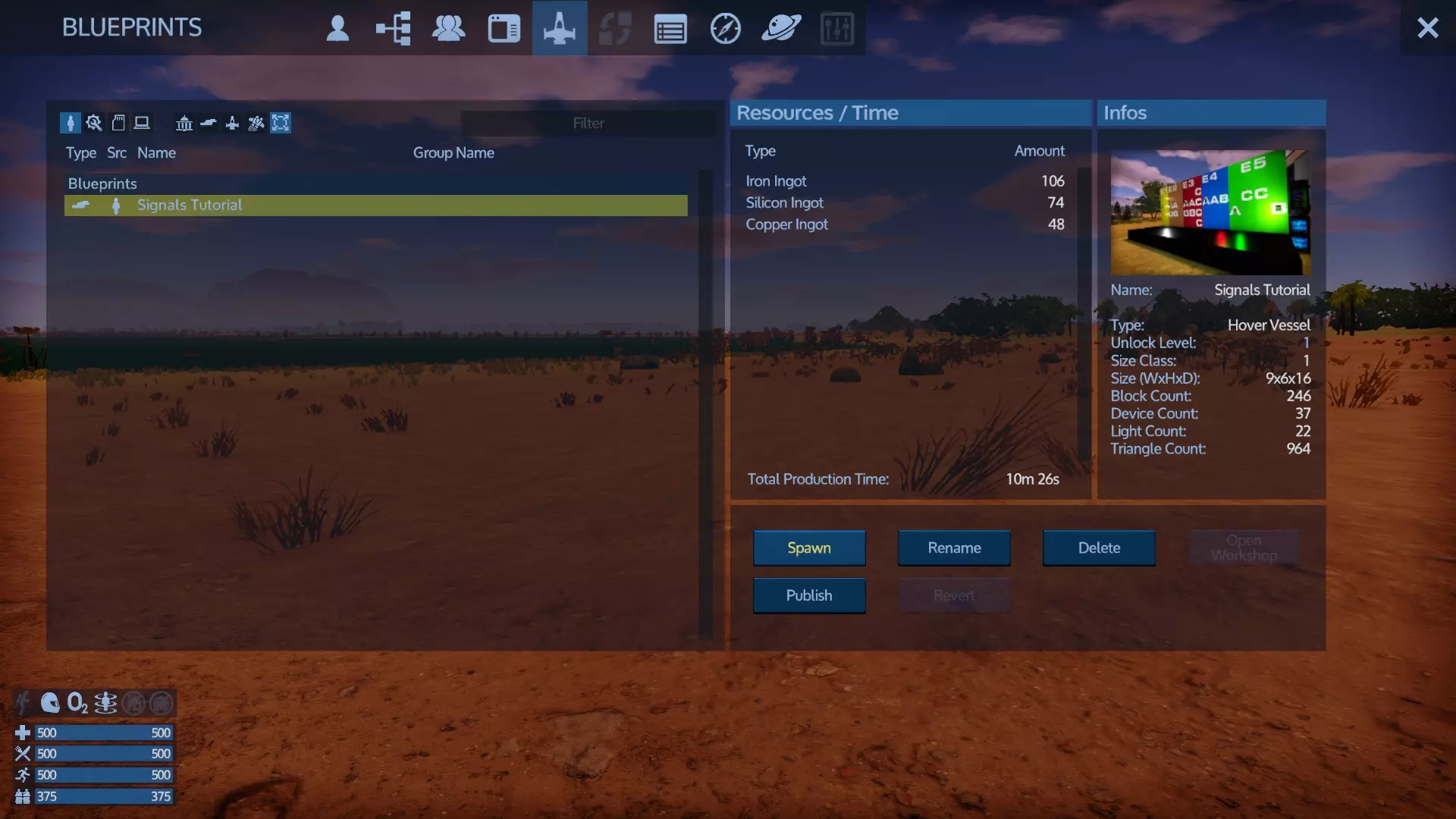
这不是一篇深度指南。 只是一个设置带灯杠杆的小例子。 获取两个测试装置 你可以通过多种方式使用此机制,但基本原理非常简单: 1. 你需要一个能发送信号的物品。比…
2026-02-15 10:000赞 · 0评论

v1.14 实验性版本 I
Hey Galactic Survivalists! While we prepare for a major update for the holiday s…
2025-10-23 17:030赞 · 0评论
暂无更多
最新更新
- Empyrion - Galactic Survival-视频介绍
- 创意沙盒捆绑包 — 各位银河生存者们! 我们在Steam上推出了一个超棒的创意沙盒捆绑包,其中包含了一些最出色的建造、工程和沙盒体验游戏! 包含以下游戏: 《帝国霸业 - 银河生存…
- 《帝国霸业:银河生存》v1.16.1 热修复更新内容 — 《帝国霸业:银河生存》更新内容 修复内容: 1. 修复部分NPC在玩家处于其上方一定距离时才会攻击玩家的问题 反馈与报告渠道: - 漏洞报告 - POI和任务相…
- 《帝国霸业:银河生存》v1.16更新内容 — 《Empyrion - Galactic Survival》1.16版本更新内容 1. 本次1.16版本不仅旨在通过为太阳系和行星添加更多POI、载具以及敌人,…
- 《帝国霸业:银河生存》v1.16 测试版 — 《Empyrion - Galactic Survival》v1.16 Build 5001 更新内容 1. 为默认随机场景添加了关于黑暗派系的内联信息以供参考…
- v1.16 实验版 — 《帝国霸业 - 银河生存》1.16版本更新内容 1. 本次1.16版本不仅致力于让银河系重焕生机,具体措施包括: - 在太阳系和行星中增加更多兴趣点、载具以及敌…
- 【预览】《重生边缘》战争与工业更新说明 — 《Reforged Eden》战争与工业更新完整更新说明 重要提示: 1. 本次更新包含多项高度实验性的功能,这些功能拓展了场景的可能性。随着未知问题的发现,预…
- 《帝国霸业:银河生存》1.11.3版本本地化内容 — 游戏1.11.3版本翻译。PDA、对话和本地化文件的近乎完整翻译。 说明: 对PDA、对话和本地化文件进行了机器翻译(并进行后续修正),以便更舒适地游玩包含新增…
- 《重生边缘2》面向《重生边缘1》玩家的指南 — The Reforged Eden 2 guide for Reforged Eden 1 players. Explains the main differe…
- 新玩家生存启动指南(已更新至游戏版本9+) — 本指南将帮助初次游玩9+版本的新玩家。它以行动为导向,而非罗列信息。这些行动会构成小型任务,所有任务共同形成一个初始计划,与游戏的教程任务并行。该计划能确保你获…