换一换
换一换 


在本指南中,你将学习如何有效提升帧率,这些优化能让你在游戏中获得约20-30+的帧率提升。你还将学习如何正确配置游戏设置。 14/01更新: - 更新了-maxVram参数 15/01更新: - 修正了部分错误 - 新增建议部分 - 新增作者的系统配置 - 修复了winx、winy的错误 16/01更新: - 修复了缺少DayZ的问题配置文件位置(昨天不小心删除了,非常抱歉); 1月17日 添加了一些说明; 修复了-high参数无法正常工作的问题,感谢反馈; 1月18日 重新组织内容,使其更易于理解; 1月23日 更新了地形网格; 3月29日 更新了视野距离描述并添加了英特尔测试系统; 3月31日 更新了后期处理质量设置说明; 5月17日 更新了抗锯齿和作者的系统配置; 9月29日 小幅度修正; 2016年3月11日 添加了-newui; 2016年4月19日 关联了快速视频指南; 简介 您好,在本指南中,您将学习如何正确设置游戏选项,在不损失画质的前提下提升帧率,并解决例如鼠标等问题。 注意:对于您应用这些设置后可能导致的游戏故障,本人不承担责任。不过这些问题通常可以通过重新安装游戏或清理设置文件来解决。请自行承担按照本指南操作的风险。 话虽如此,我希望本指南也能帮到你,祝你顺利解决问题并提高帧率! 这里有一个总结本指南的简短视频。
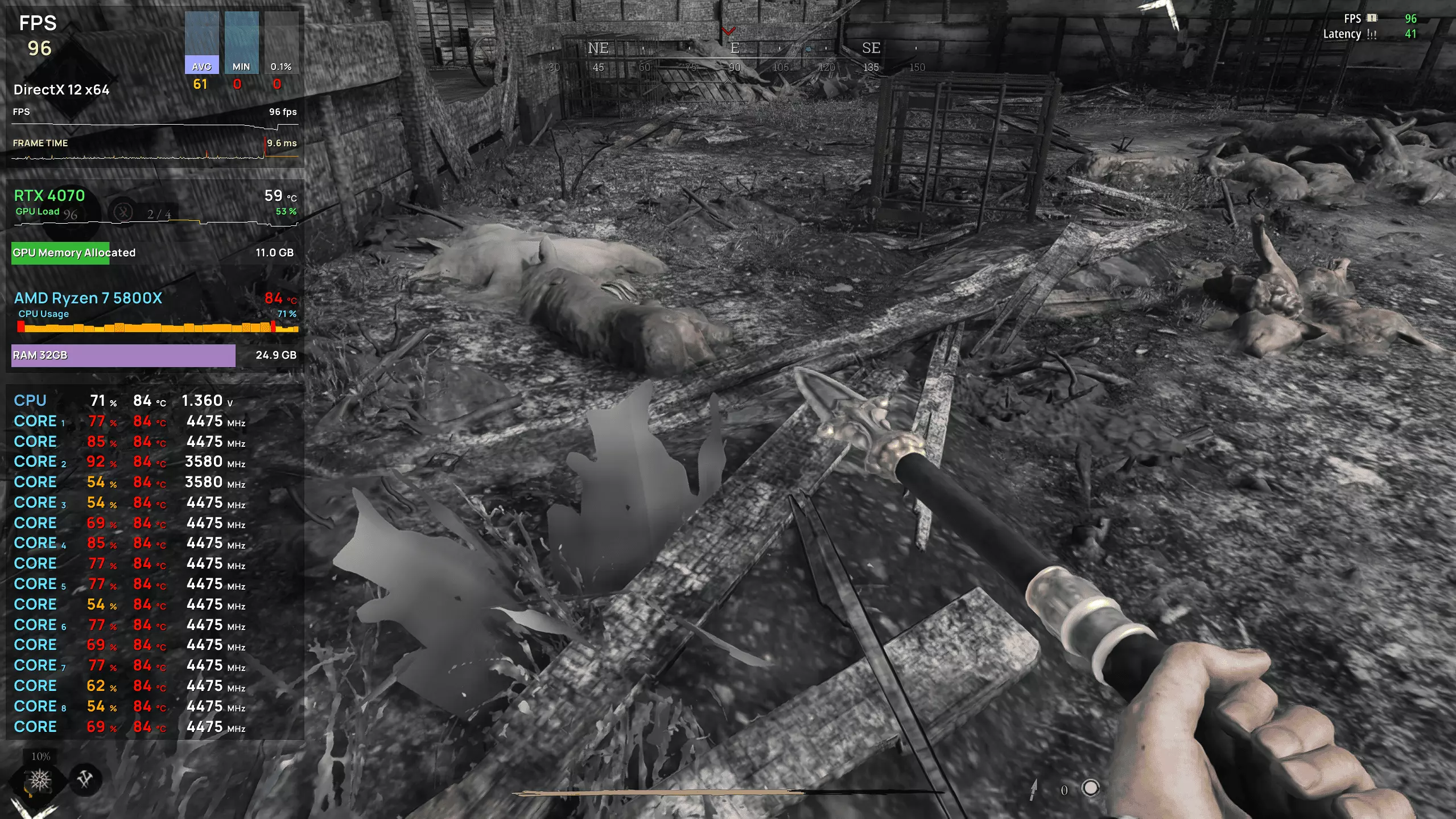
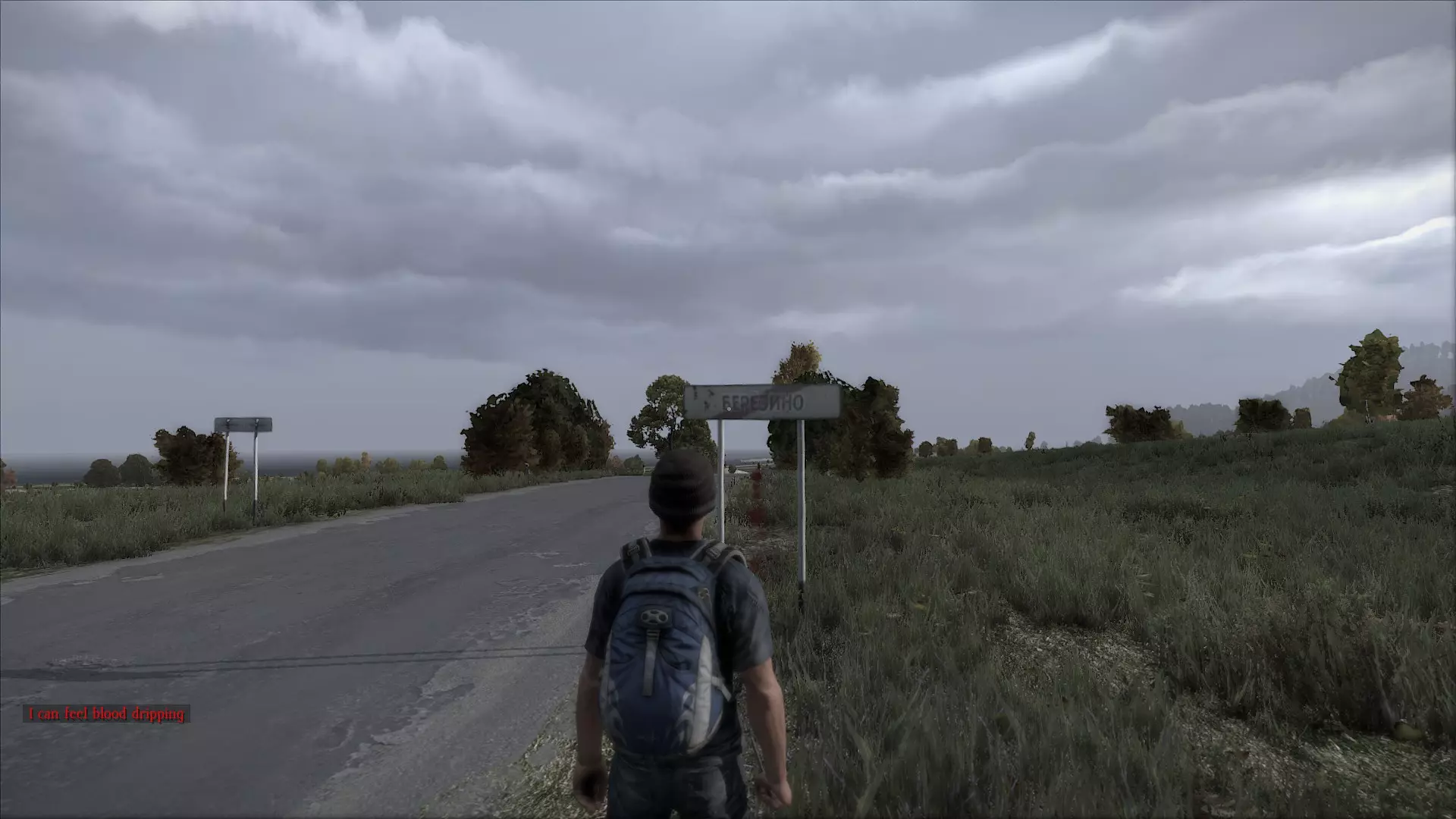
游戏启动参数 首先,打开Steam,点击库,找到《DayZ》并右键点击它。选择属性,在常规选项卡下点击设置启动选项。在这里你可以添加游戏启动参数。 现在你可以添加多个命令来帮助提升游戏性能。 -win xp 该命令可能会大幅提高你的帧率。警告:如果你已经在使用Windows XP,请勿使用此命令。有时它可能导致游戏崩溃(例如当你按下Alt+Tab后重新打开游戏时),但它能在城市中提升约10帧,在其他地方提升约20帧。如果你遇到此问题,只需移除该参数。此命令会让游戏以Windows XP兼容模式运行。如果游戏崩溃,尝试降低HDR至极低。先不带参数启动游戏,在渲染选项中设置HDR,然后尝试重新添加-winxp参数并启动游戏。如果遇到问题导致游戏无法启动,只需移除该参数。同时,记住不要在游戏内更改任何设置,否则游戏会崩溃。如果需要更改设置,退出游戏,移除参数,运行游戏,更改设置,再次退出并重新添加-winxp参数。 如果-winxp参数仍导致游戏崩溃,你可以尝试手动以Windows XP兼容模式运行。进入C: Program Files (x86) Steam SteamApps common DayZ(如果你的系统是64位,则为program files x86),然后找到DayZ程序。右键点击exe文件,选择属性,点击兼容性选项卡,勾选以兼容模式运行这个程序,选择Windows XP,然后点击确定。 -newui:启用新界面并提升约10帧的帧率。 使用和不使用-winxp参数的对比:
37帧每秒
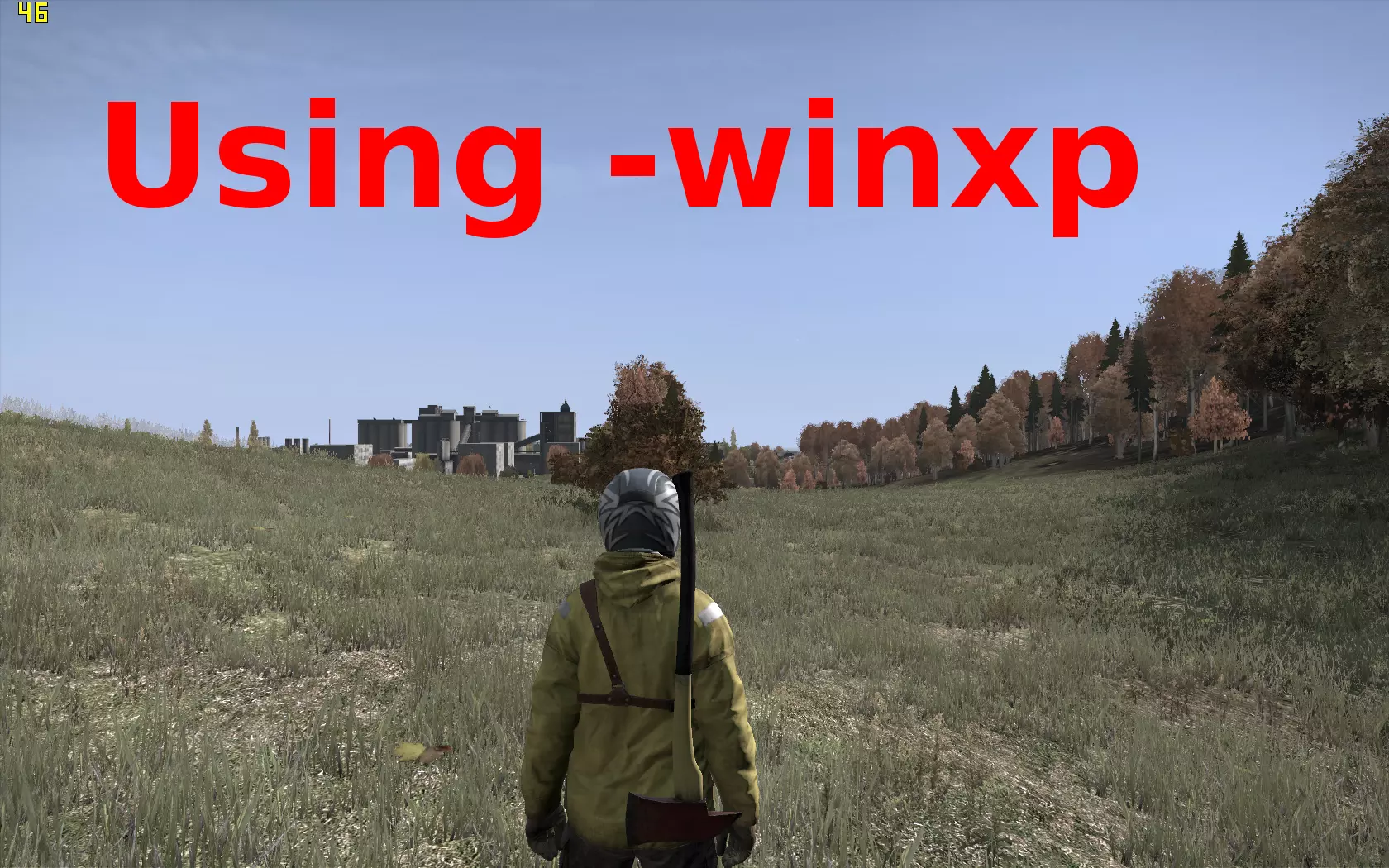
46 FPS -cpuCount=# # 你的CPU有多少个核心,例如:双核CPU填2(-cpuCount=2),四核填4(4为最大值)。如果你的CPU核心数超过4个,请查看-exThreads参数的说明。-exThreads=# # 你的CPU有多少额外核心/线程,请参考以下列表: AMD处理器: - 双核:-cpuCount=2,-exThreads=1 - 四核:-cpuCount=4,-exThreads=3 - 六核:-cpuCount=4,-exThreads=5 - 八核:-cpuCount=4,-exThreads=7 Intel处理器: - 双核:-cpuCount=2,-exThreads=1 - 双核四线程:-cpuCount=2,-exThreads=3 - 四核:-cpuCount=4,-exThreads=3 - 四核八线程:-cpuCount=4,-exThreads=7 -maxMem=# # 游戏可使用的内存量,如果你有2GB内存,设置为2048-1024(-maxMem=1024),4GB对应3072,8GB对应7168,以此类推。顺便说一下,游戏不应使用超过2048MB内存,所以具体数值由你决定。 -maxVram=# # 你的GPU显存大小,例如512MB、1024MB、2048MB等(例如设置为-maxVram=1024)。-nosplash 和 -noPause 这两个启动项的作用是移除游戏启动时的 splash 屏幕(启动画面),并允许游戏在后台运行。 例如,启动命令行可以设置为:
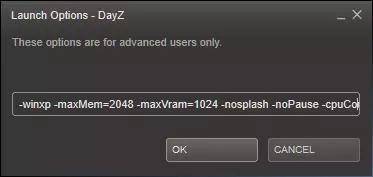
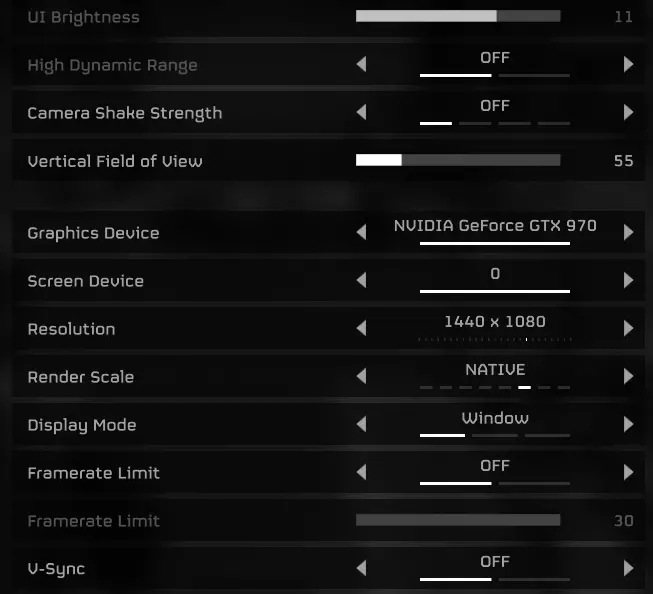
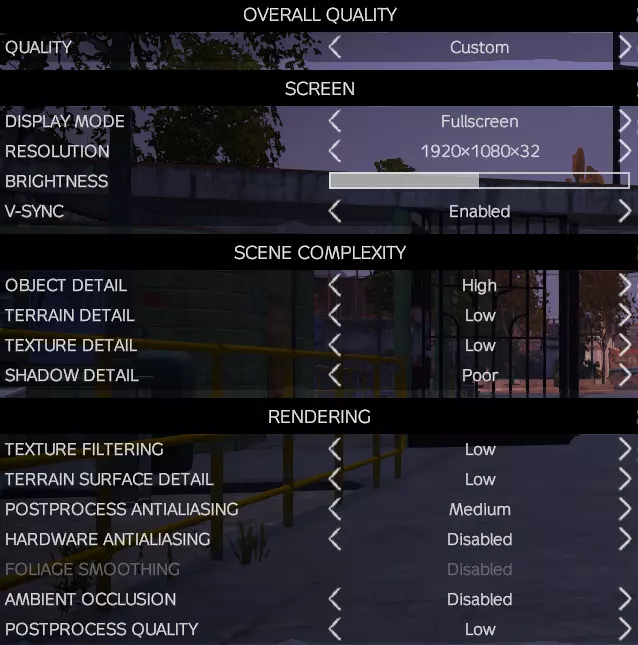
完成后,点击确定。 游戏内设置 现在我们来设置游戏内设置。在主菜单中,点击设置,视频。 将渲染分辨率设置为你的原生分辨率,即100%旁边的分辨率。整体画质设为自定义,如果你的显示器不是120Hz,关闭垂直同步。
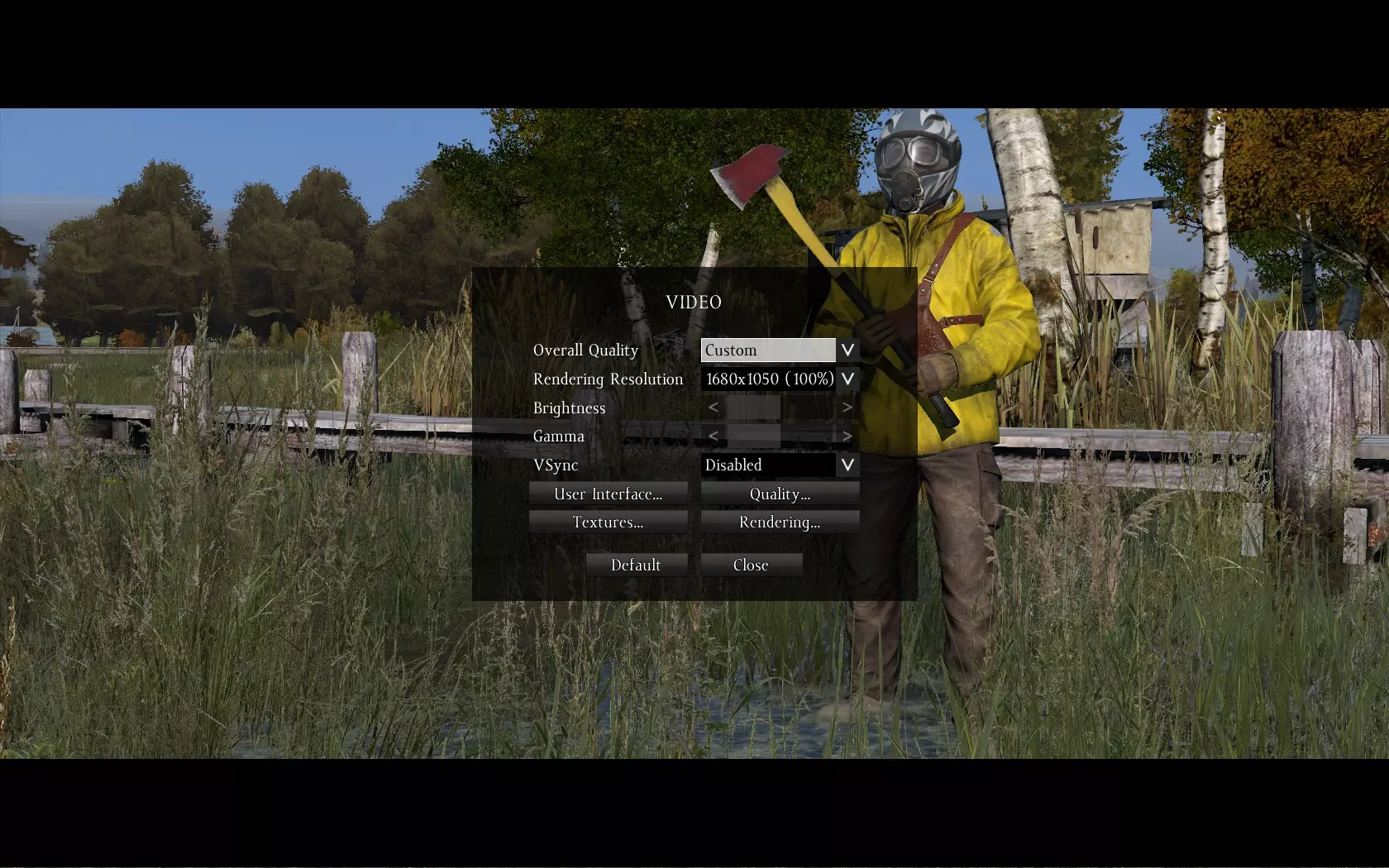
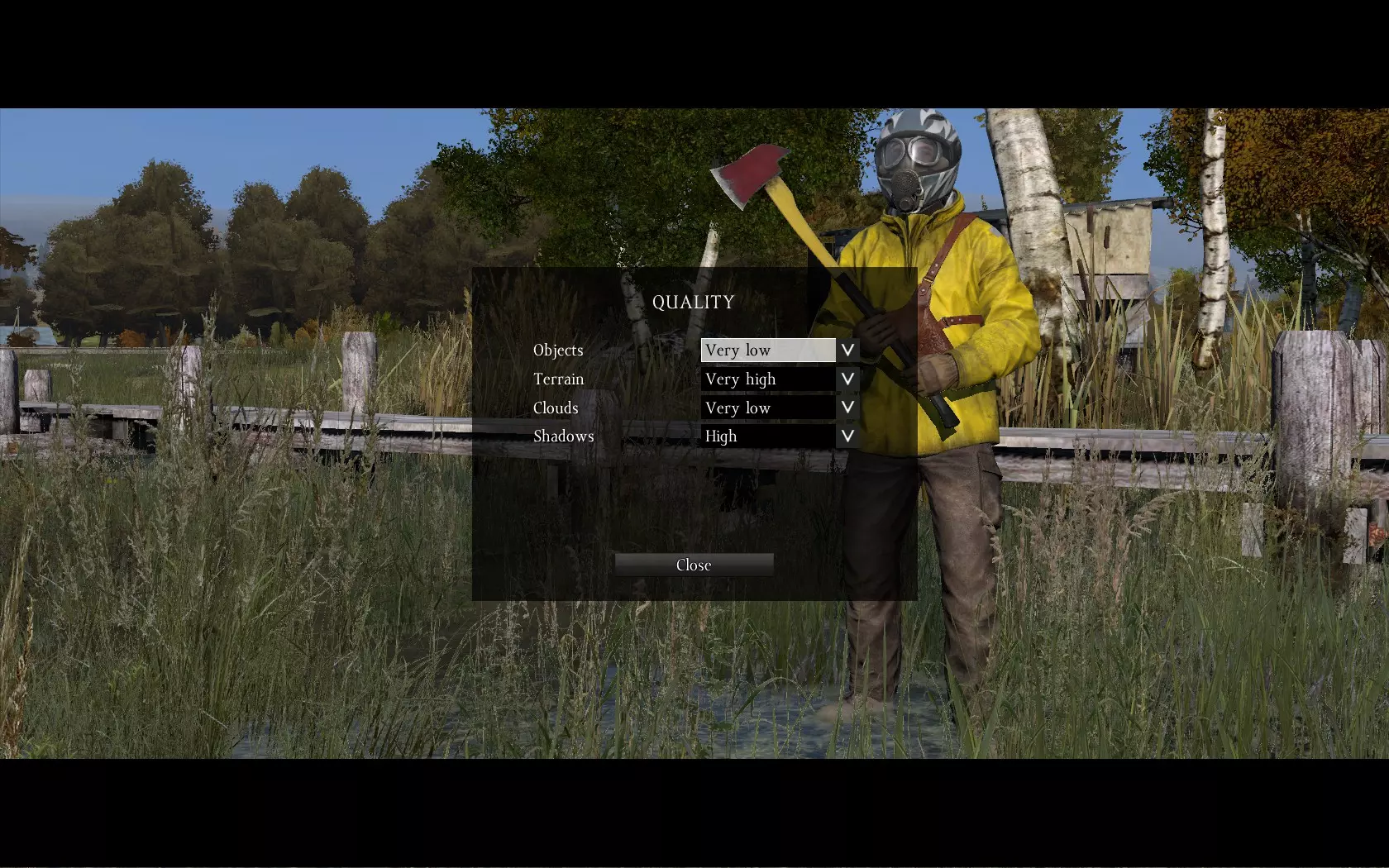
现在点击【画质】选项卡,这里你会看到4个设置选项: 【物体质量】:如果你没有强大的CPU,可降低此选项。对于2-4核AMD CPU和2核(2线程)Intel CPU,【极低】应该足够;对于2-4核(4线程)Intel CPU和6核AMD CPU,可设为【低】或【正常】;8核AMD CPU和4核(4-8线程)Intel CPU适合【高】;4核以上(8线程以上)Intel CPU则可设为【极高】。 【地形质量】:此选项影响GPU,如果你有强大的显卡,可提高此选项。 【云质量】:建议设为【极低】或禁用。 【阴影质量】:同时影响CPU和GPU,如果你的GPU性能强大,可提高此选项。
设置画质后,点击【纹理】选项卡,这里有3项设置: 1. 显存:设为自动 2. 纹理细节:若显卡性能较好,可设为极高或高(不会导致帧率下降);否则调低 3. 纹理过滤:即各项异性过滤,对性能影响不大,若显卡性能较好,可设为高或极高
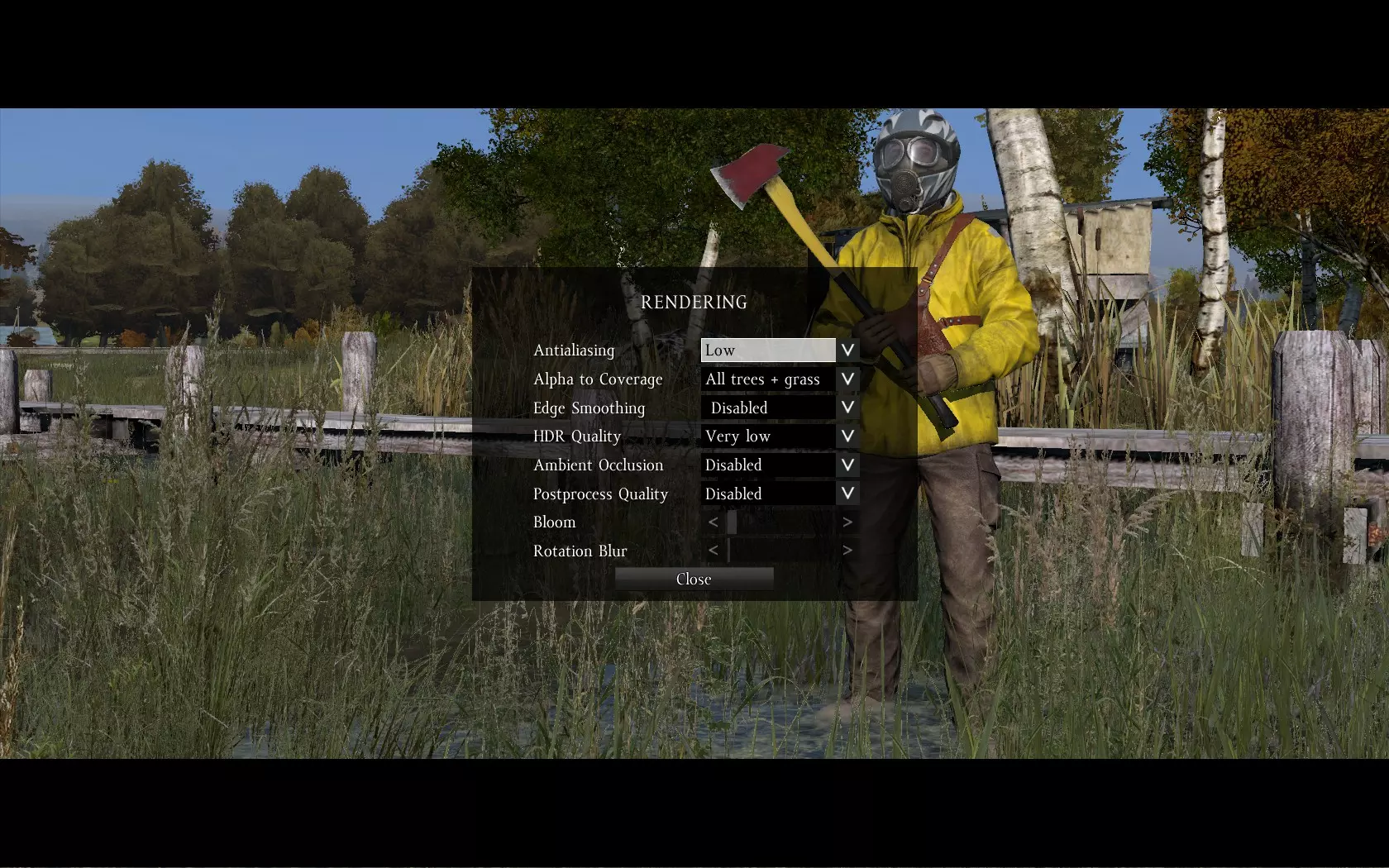
现在,最后一步,点击【渲染】选项卡 【抗锯齿】- 建议开启,因为它能让游戏画面更平滑,但如果帧率较低则关闭。关闭后能显著提升帧率。对于显卡性能较好的玩家:建议关闭抗锯齿并提高分辨率,这样能优化系统资源占用并提升帧率。 【Alpha到覆盖】- 如果未关闭抗锯齿,此选项将可用。若抗锯齿设为低,将其设为【所有树木+草地】不会导致明显的帧率下降。 【边缘平滑】- 保持关闭或根据个人喜好设置,对性能影响不大。 【HDR质量】- 设为【极低】 【环境光遮蔽】- 关闭此选项可在开放区域和城市中获得显著的帧率提升(约15-20 FPS)。后期处理质量 - 建议关闭,它对性能有中等影响。关闭后将不再显示模糊效果,因此你将无法判断角色是否健康。你应该分别检查关闭和开启时的帧率,以确定最适合你系统的设置。 光晕 - 按个人喜好设置 旋转模糊 - 关闭或稍微调高一点,它对性能影响不大。
Cfg settings: video and mouse tweaks In this section, you'll learn how to properly edit the configuration files, in order to gain some more fps. Max Frames Ahead. This fix will smooth the game, so open DayZ.cfg with the notepad (you can find it in C: Users Username Documents DayZ ), find the lines GPU_MaxFramesAhead=# and GPU_DetectedFramesAhead=# and set them to the same value (between 1 and 4) (GPU_MaxFramesAhead=1/2/3/4 and GPU_DetectedFramesAhead=1/2/3/4). These settings won't increase your FPS but will give you the feeling as the game is running at higher FPS. Other improvements: Open the file named YourName (.DAYZPROFILE) located in C: Users Username Documents DayZ with the notepad. Now find the following lines: sceneComplexity=# - set it to a value between 200000 and 50000 (other values are 1000000, 750000, 250000 but they require a high end cpu), it will draw less elements and reduce CPU load. viewDistance=# - set it to a value between 1800 and 1200, it reduces the cpu and gpu load. preferredObjectViewDistance=# - it decreases CPU load, set it to 1000 (or between 800 and 1600); terrainGrid=# - Set it to one of these values: 50, 25, 12.5, 6.25, 3.125. Higher value = Better FPS, Lower value = lower fps but a better graphic quality. I suggest setting it to 25 or 12.5 for the best performance/quality ratio. shadowZDistance=# - set it to a value between 100 and 200 (100 is the best for me), reduces gpu and cpu load. For example, my parameters are: (AMD System) sceneComplexity=150000; shadowZDistance=100; viewDistance=1400; preferredObjectViewDistance=1000; terrainGrid=3.125; (Intel System) sceneComplexity=1000000; shadowZDistance=150; viewDistance=3000; preferredObjectViewDistance=1700; terrainGrid=3.125; Mouse X and Y speeds problem fix. Probably you've seen that mouse x and y speeds are different, you can fix this issue by setting the lines mouseSensitivityX=# and mouseSensitivityY=# (located in the YourName .DAYZPROFILE file), to the same value. Also you can disable mouse smoothing. mouseSmoothing=# - This is optional, set it to 0 to disable mouse smoothing. Note: After you edit these files, don't change any of the in game settings, otherwise, those settings will overwrite the .cfg ones. You can avoid this by setting read only property to those files when you edit them. Suggestions I suggest you to close other programs before playing DayZ, even Steam windows, terminate the processes/applications you know you're not using, this will free up some Ram and CPU power and maybe pause your downloads/uploads. Also you'd better download Fraps and run it before adjusting your settings, to see which config gives you more FPS and update your video drivers. It's recommended that you put DayZ.exe in high priority mode, so the system will leave all of its CPU power to it. You can do it by starting DayZ, when you're in the main menu press Ctrl+Alt+Del, open the Task Manager, there go to Details (Windows 8) or Processes (Windows 7-Vista), scroll down until you find DayZ.exe, right click on it, Set priority, click on High and then choose Change priority. (Note: this is not suggested for old systems.) Installing the game on an SSD will improve the loading times and FPS by a lot. Tested on: CPU: AMD Phenom II X4 965 @3,4 GHz - OC to 4,3 GHz - 7 fps more MotherBoard: AsRock 870 Extreme 3 GPU: Nvidia GTX 560 non-ti 1024 MB of vram @ OC 950 MHz - 4 fps more RAM: 8GB @ 1333MHz OS: Windows 8.1 64 Bit ------------------------------------------------------------------------------------------------- CPU: Intel Core i7 4770k @3,5 GHz turbo to 3,9GHz MotherBoard: Asus Sabertooth Z87 GPU: Nvidia GTX 560 non-ti 1024 MB of vram @ OC 970Mhz RAM: Corsair Vengeance 8GB @1600 MHz OS: Windows 8.1 64 Bit ------------------------------------------------------------------------------------------------- CPU: Intel Core i7 4770k @3,5 GHz turbo to 3,9GHz MotherBoard: Asus Sabertooth Z87 GPU: MSI Nvidia GTX 770 OC edition 2048 MB of vram RAM: Corsair Vengeance 16GB @1600 MHz OS: Windows 8.1 64 Bit Conclusion So thanks for following my guide, for any questions or suggestions post a comment below or add me. I hope it helped you gaining some more FPS, rate and comment it! Remember that the guide often updates, when I find new commands/fixes or I apply corrections to it. So be sure to check it frequently. If you want to follow me/become a fan: click here. Check the game i'm developing! https://store.steampowered.com/app/556780/Neptune_Arena_FPS/ Do you play Skyrim? Be sure to check out my new FPS improvement guide! Click here!