换一换
换一换 




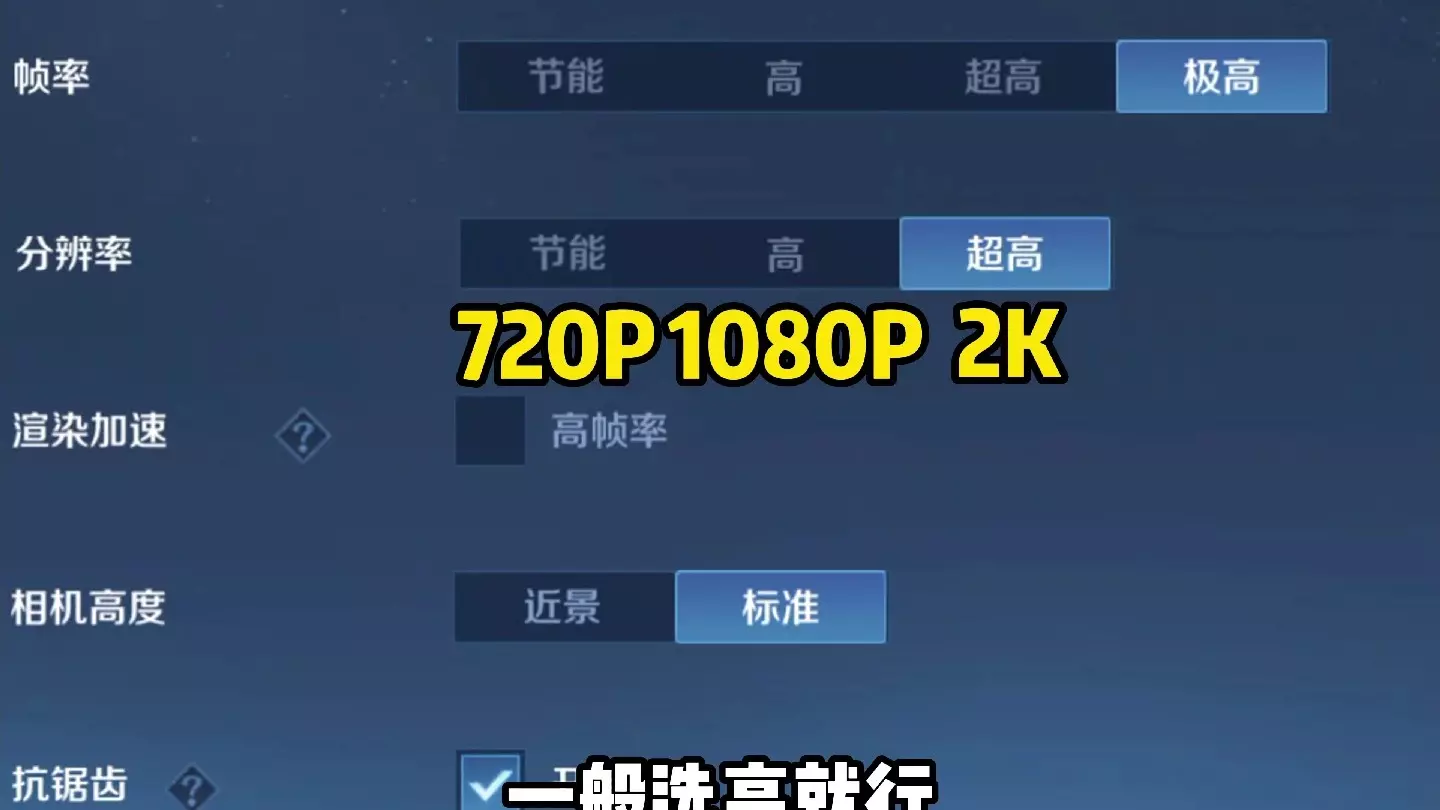
虽然《简单红色2》本质上并非一款画面要求极高的游戏,但仍有部分玩家可能难以获得流畅且稳定的帧率。本指南将详细说明调整游戏中各项设置对画面和性能的影响,帮助玩家根据自身偏好,在画面质量与游戏流畅度之间找到最佳平衡点。 电脑准备工作 与游戏设置同等重要的是所使用电脑的配置。普通Windows电脑出厂时并未针对游戏进行优化,通常会将大量资源分配给后台任务和冗余软件。虽然优化电脑本身不在本指南的讨论范围内(因为这对所有游戏都通用),但我会引导读者先参考其他创作者制作的一些相关指南来完成这一步。 图形设置 在开始本节之前,需要注意的是,我的测试电脑是一台搭载GTX 1050ti显卡且硬盘即将损坏的旧游戏笔记本电脑,其性能很可能与读者的电脑不同。调整图形设置所带来的平均帧率变化幅度会有所差异,这取决于CPU、GPU、内存以及游戏安装所在的存储设备的协同工作情况,以及是否存在瓶颈问题。要检查瓶颈,请通过按下CTRL+ALT+Delete打开任务管理器并选择“任务管理器”。如果你的CPU使用率达到100%,而GPU使用率明显较低,那么你可能遇到了CPU瓶颈。反之,则可能是GPU瓶颈。在游戏中,按F1键可以切换屏幕左上角的性能菜单,以查看性能变化。 为了获得本次测试的基准数据,我在【Shores of Nettuno】任务中开启了一场匹配,使用正常数量的 bots,尝试跟随战斗激烈和画面强度高的场景。我的初始测试设置如下。
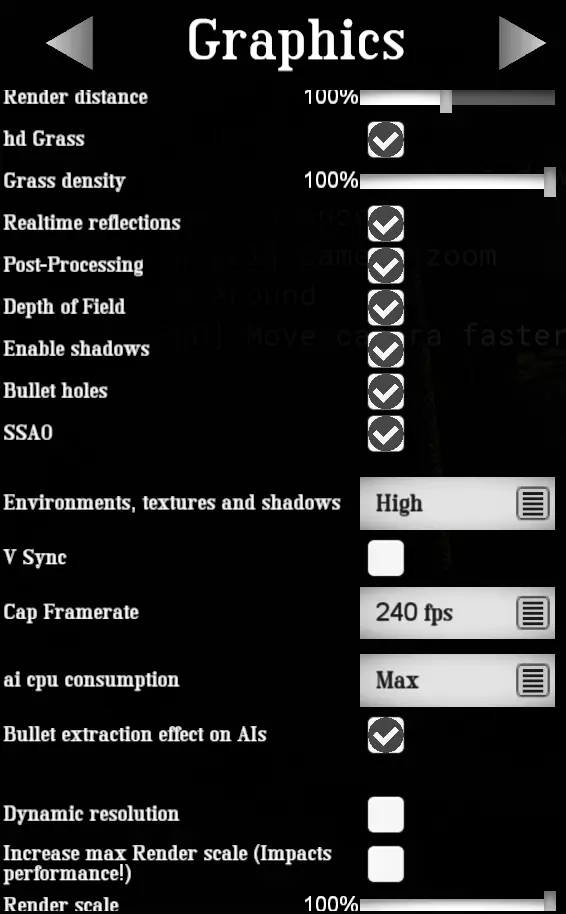
This is what I would consider a general "High Settings" configuration without experimenting with extremely intensive settings like a 200% render scale/distance. The average frame rate during combat was 70 FPS, dropping regularly to 60 FPS. However, the game was plagued with extreme stuttering, likely caused by my malfunctioning and antiquated HDD. Render distance Changes the distance that the game will draw/render objects and shadows, and the distance at which they will revert to a low-poly version of themselves. Note that this does not affect the render distance of terrain, only the objects on the terrain, such as houses, trees, and fences, and NPC models. The minimum distance is 23%, at which point I gained an extra 15 FPS. This drastically degrades the look of the game, and in long-range engagements can break the immersion. In close-quarters battles the change is less noticeable. Consider a setting in the middle. hd Grass Did not notice any change, whether graphical or performance. I am unsure if this is a bug or I am not testing for the right change, but I could not detect any difference. Consider leaving it off. Grass density Changes the amount of 3D grass models on the ground. By turning it to the minimum 10%, I gained an average of 20 FPS in grass-intensive areas. However, at 10% the game's grass appears barren. Consider a setting in the middle. Realtime reflections Did not notice any change, whether graphical or performance. I am unsure if this is a bug or I am not testing for the right change, but I could not detect any difference. Consider leaving it off. Post-Processing Changes effects on screen at all times such as vignette, colour correction, etc. 3 FPS was gained by turning it off, with very minor graphical drawbacks. Consider turning it off. Depth of Field Changes the distant blur effect when aiming down the sights of a weapon. Blurs the distant vision and can make aiming more difficult, and 3 FPS was gained by turning it off. Consider turning it off. Enable shadows Enables or disables the rendering of shadows. Turning it off results in a major visual degradation, but I gained 25 FPS from doing so. Consider leaving this as a last resort. Bullet holes Presumably this is supposed to toggle the rendering of bullet hole decals when shooting into objects, but in my tests turning it off did not disable this. Unsure if this is a bug. Consider turning it off. SSAO Screen Space Ambient Occlusion. A form of shadow rendering around complex geometric locations, such as the ledges of windowsills or the side of a rifle. Degrades the look of the game less than disabling shadows completely, with a gain of 5 FPS. Consider disabling this before disabling shadows. Environments, textures, and shadows Changes the resolution of every texture and shadow in the game. The lower the setting, the more washed out, blurry, and stretched the textures look. Changing it to Medium granted 15 FPS, while changing it to Low gave 30 FPS. Consider setting it to Medium or Low. V Sync Locks the frame rate to the refresh rate of the monitor being used, usually 60Hz/FPS. Enabling it prevents screen tearing and can reduce the heat of the PC's components. Consider enabling it. Cap Framerate Locks the frame rate to a chosen setting. If achieving close to 60 FPS is not possible, or the PC is overheating, consider changing this setting to 30 FPS. ai cpu consumption Changes the intelligence in the AI's pathfinding and tactical complexity. It is highly recommended to leave this at Max, as otherwise the AI's performance will suffer along with the gameplay. No noticeable performance change was seen. Bullet extraction effect on AIs Toggles the effect of cartridge casing ejecting from the weapons of the AI. In my testing this effect did not work on bolt-action rifles, the most common form of weaponry, and even the MG42's high cyclic rate did not noticeably affect the performance. Consider leaving this on. Dynamic resolution Actively changes the render resolution of the game depending on how low the framerate is. This setting did not work well in my tests, as even when I was achieving over 100 FPS, the resolution would not go near 1920x1080, the native resolution of the game. Consider leaving this off, and change the resolution manually to a fixed setting. Increase max Render scale (Impacts performance!) Allows the game to render a higher resolution image compared to the game's native resolution. In the scope of this guide, there is no reason to turn this on. Render scale Changes the render resolution of the game's world while leaving the HUD and menus unchanged. Peculiarly, in my tests lowering this setting lowered my FPS, though on a lower-end PC I expect this would not occur. Consider experimenting to find a balance between image clarity and performance. Other Settings Although most settings affecting performance are in the "Graphics" menu, there are some other options of note. Settings Set Fullscreen In my test toggling this had no effect on performance, though others may have different outcomes. Consider experimenting. Field of View Changes the peripheral vision of the character's view, and thus how much of the world is rendered on screen at any given time. Changing this from the maximum of 65 to the minimum of 45 gained 5 FPS, though at 45 the game has a very claustrophobic and limiting feel. Consider a setting in the middle. Color correction Changes the post-processing colour settings of the game. Had no noticeable affect on performance, and a favourable setting could be used to partially hide the image degradation by lowering other settings. Highly recommended to find one that pairs the best with one's personal graphics settings. map props caching According to the developer, this setting when enabled uses more RAM in an attempt to use less VRAM and CPU during gameplay. On a low-end PC with integrated graphics, the VRAM is taken from the RAM, so this reallocation should in theory be negligible, though the savings in CPU usage could be favourable. On my end it was impossible to test this, so personal experimentation is recommended. Gameplay Objects despawn time Changes the time before corpses and dropped weapons will despawn. In high-intensity combat, bodies piling up can affect performance, so it is recommended to have this setting under 120 seconds. Max AI units Affects the amount of squads that can spawn at once in missions. Can make the game more intense on higher settings, but with drastic performance hits. Consider leaving this on Normal or lower to achieve better performance. Conclusion Through following this guide and tweaking the settings to one's preference, there should be a noticeable increase in performance. Please feel free to provide feedback as well as personal testimony to the results, in order to better refine this guide.