换一换
换一换 


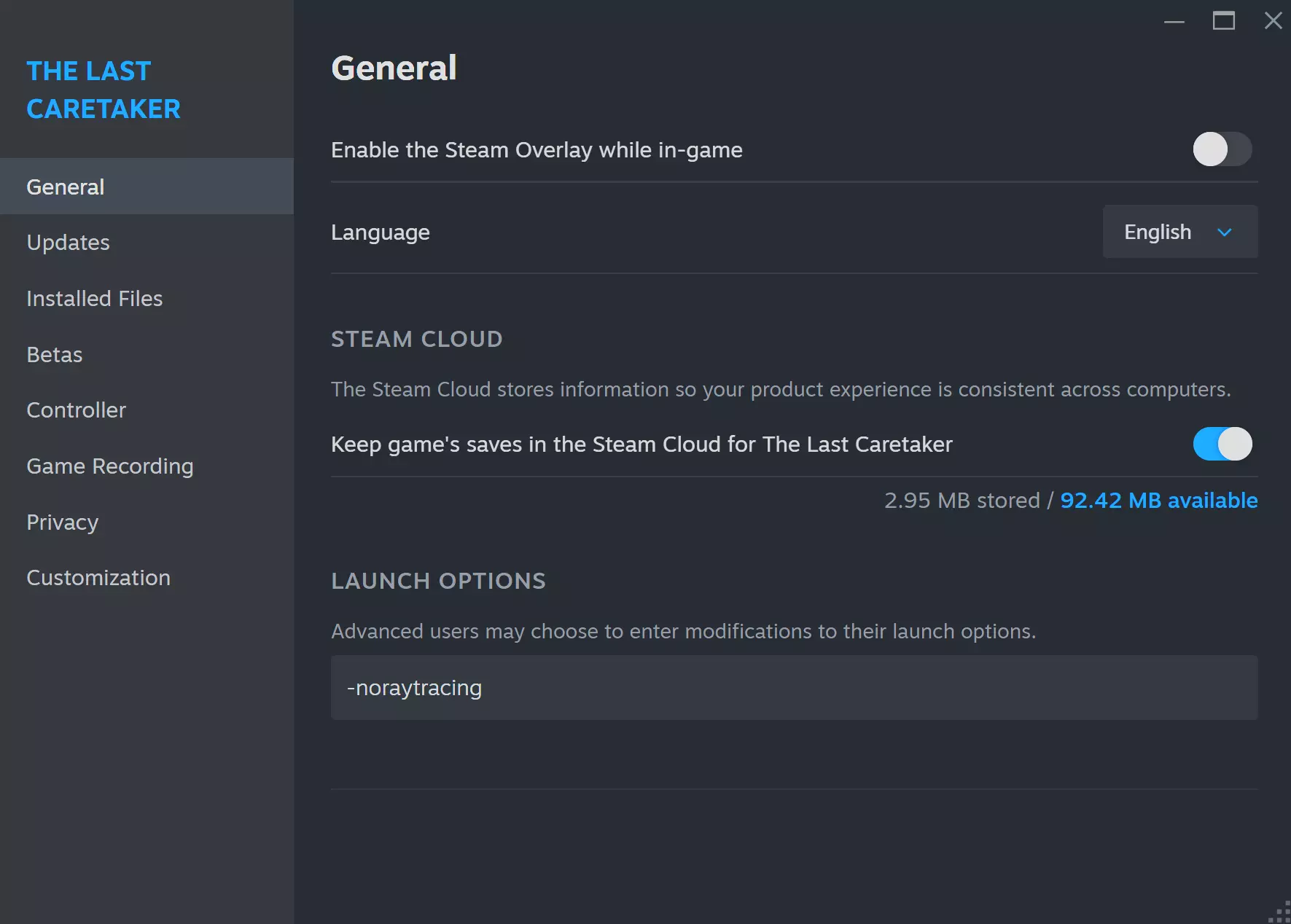
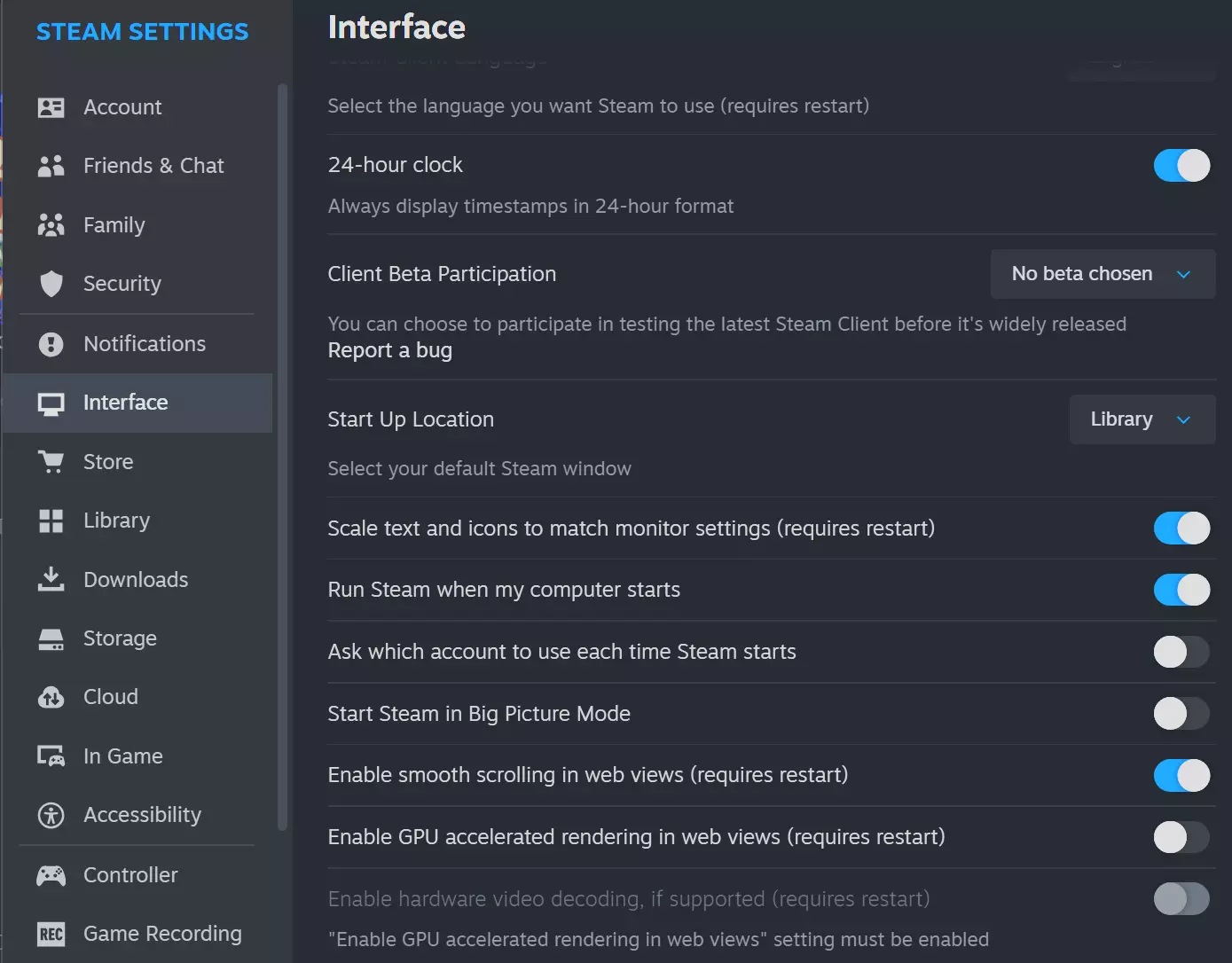
《最后的守护者》性能优化指南:助你充分发挥游戏性能。本指南中的部分建议或许同样适用于其他游戏。 为何需要本指南及前言 原因很简单…… 玩家们只想好好玩游戏,而不是为此去攻读计算机科学学位。 本指南旨在帮助玩家更轻松地体验《最后的守护者》,以及其他可能存在类似情况的抢先体验游戏。我有着多年的游戏经验,从Windows XP系统时代起就开始研究英伟达控制面板。本指南的核心在于平衡帧率、最小化画质损失以及保证游戏性能。感谢阅读,希望你喜欢这份“经过一定思考”的指南。首先,在进行任何操作之前,请阅读开发者的说明。 对于这款抢先体验游戏,你的Steam基本设置应如下: 确保禁用光线追踪,并关闭Steam覆盖以确保安全。
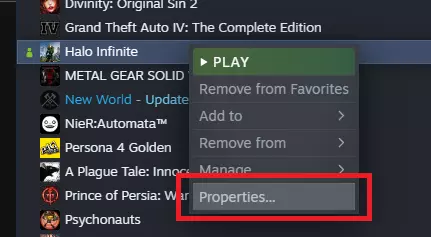
如果您没有遇到此问题,请忽略。 存档 【首先确保您的Steam云同步已开启】 如果您遇到存档问题,建议备份您的存档(通过Steam云同步或桌面),然后通过AppData删除该游戏的文件。之后,通过Steam游戏属性验证文件完整性。此方法也适用于许多其他存在存档损坏问题的游戏。我从玩过的很多游戏中学会了这一点,即使是那些偶尔会出现文件碎片化问题的3A大作也适用。 如果您的游戏未开启Steam云同步,建议将AppData中的游戏存档文件夹复制粘贴到桌面,然后从AppData中删除游戏文件夹(可能位于Local、LocalLow、Roaming,甚至Steam游戏文件夹本身,具体取决于游戏)。然后,删除原始文件夹,并将复制的文件夹拖回原位。之后进行Steam验证,确保所有内容已调整。 部分游戏依赖特定设置(例如【Aska】)通过开发者端验证文件。如果手动操作,可能会丢失重要数据。因此,我总是建议使用Steam云(即使是临时使用)来备份容易碎片化的文件。如果实在担心,最好测试一个虚拟存档来确认。 祝你好运 基础游戏
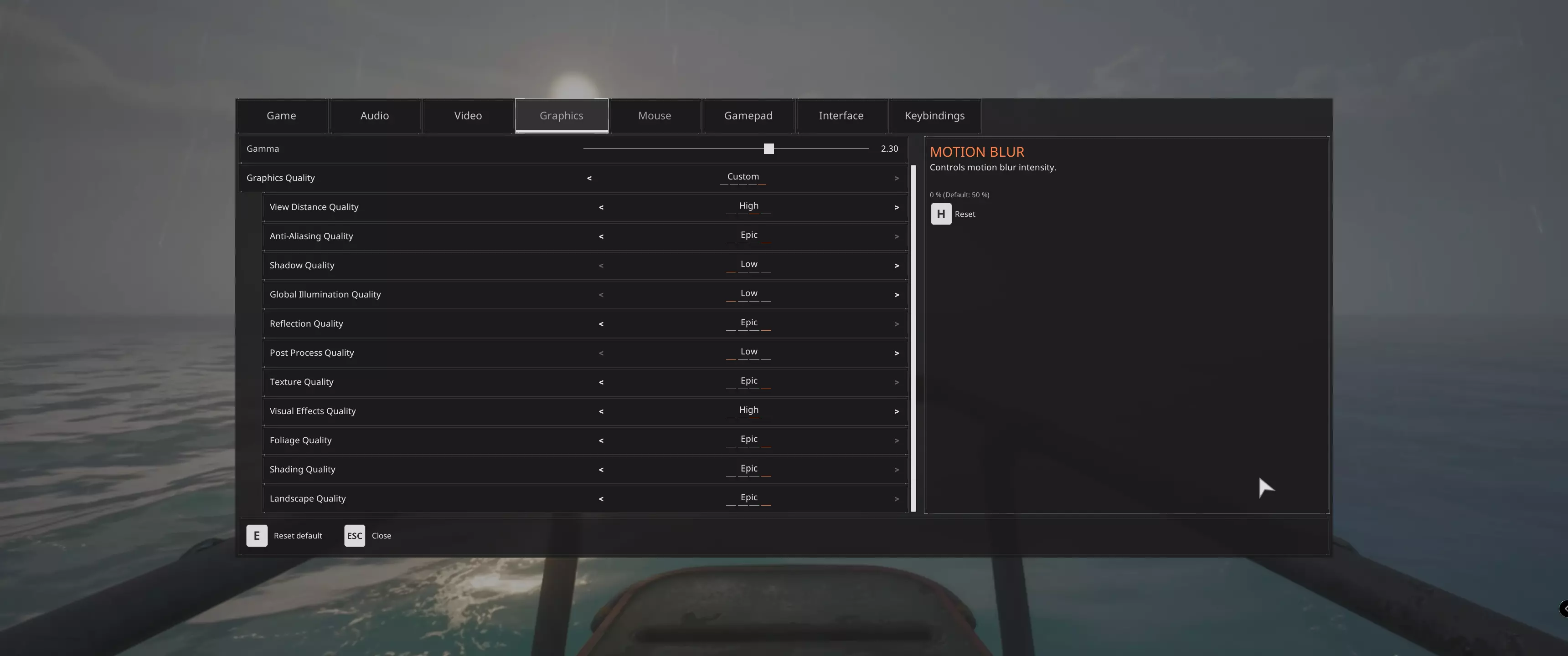
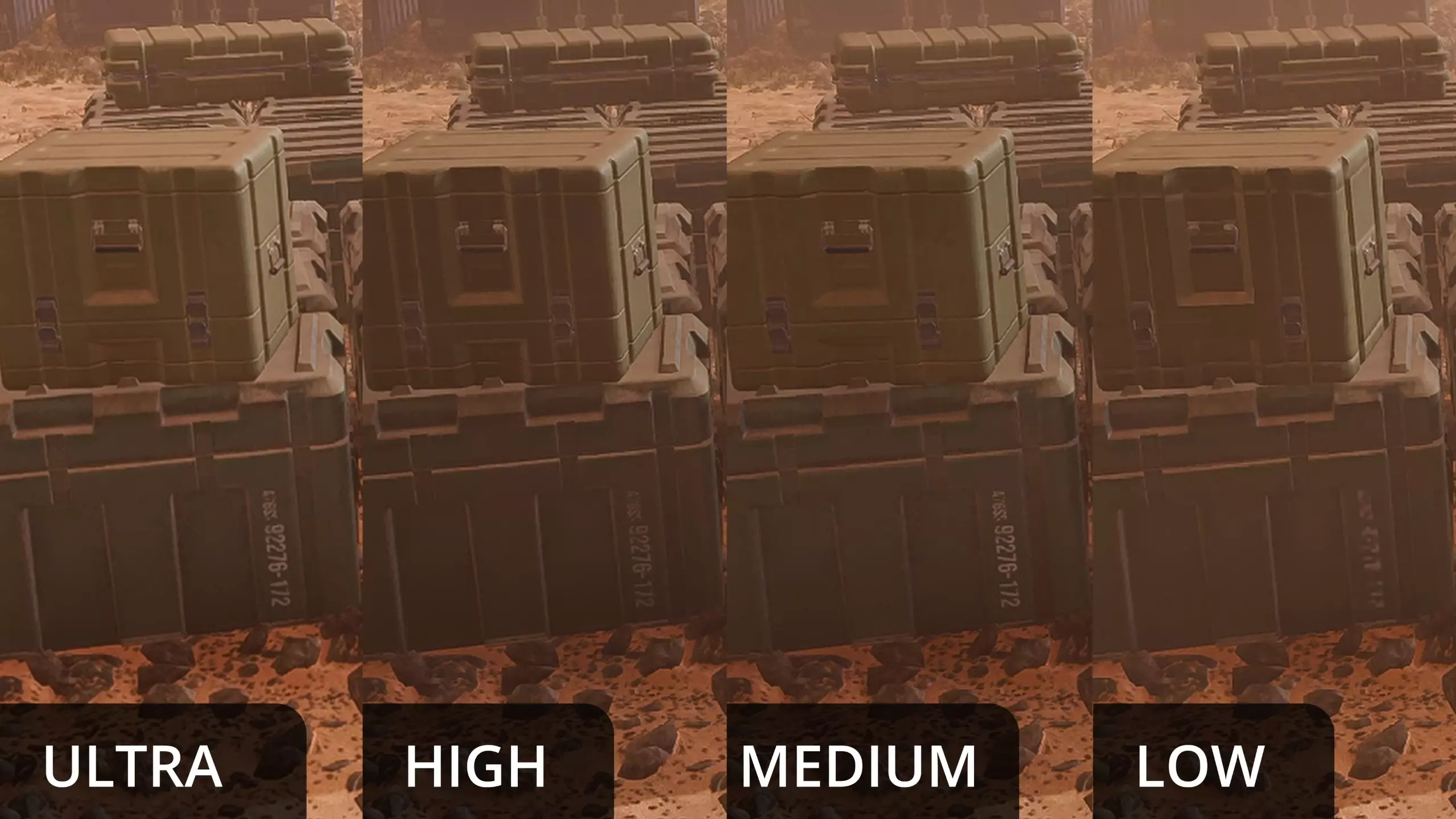
基础游戏(基于4070oc显卡): - 将全局光照调低至:低(部分用户反馈调至中等效果更佳,但在我的显卡上,低设置可提升约15帧) - 将阴影质量调低至:低(低设置似乎可提升10-20帧) - 将后期处理调低至:低(低设置似乎可提升约10帧) *你可以尝试中等设置,因为每张显卡的情况不同,中等设置下的效果可能与低设置略有差异。截至本指南发布时,这三项设置对性能的影响最大。

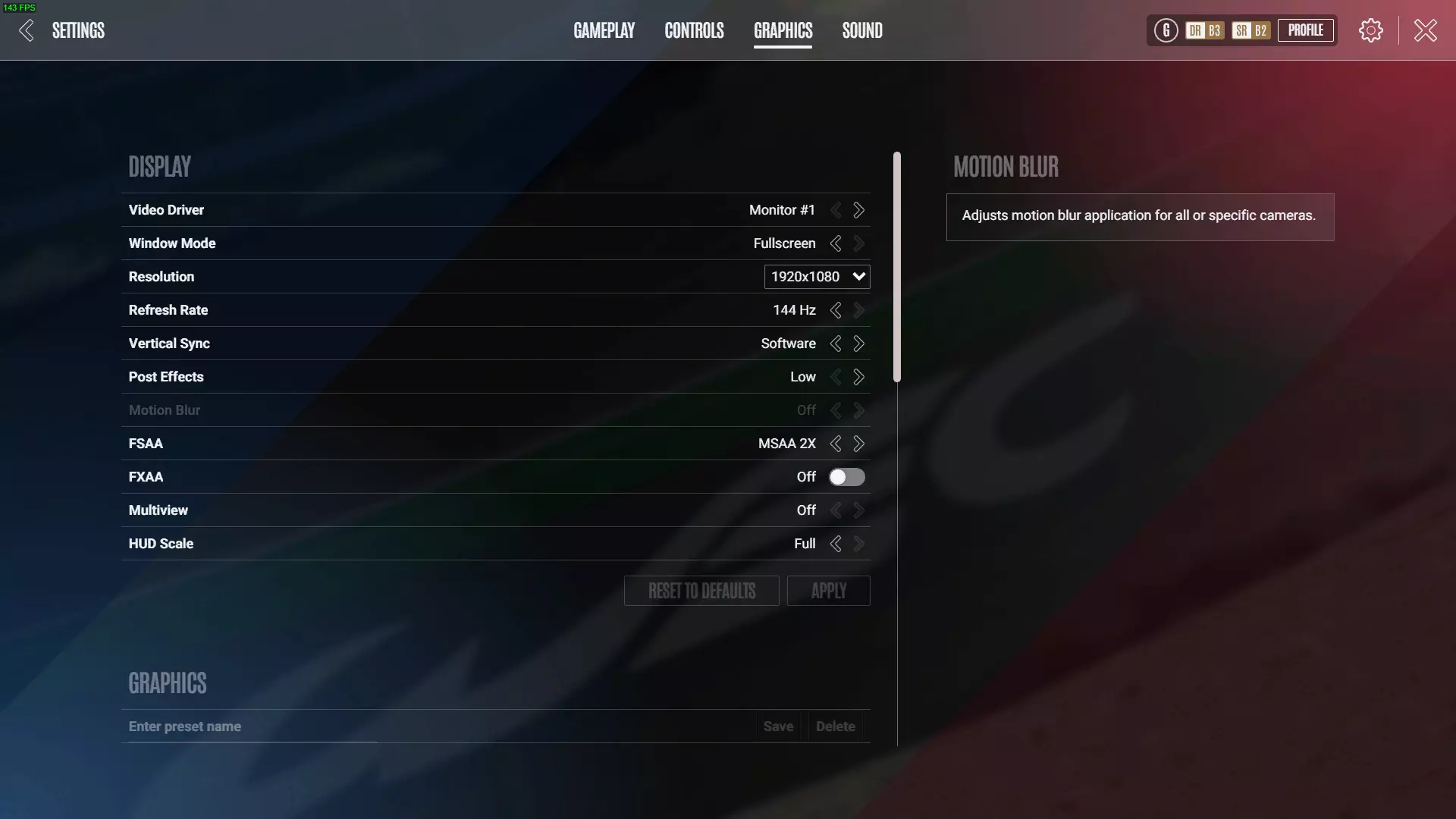
-动态模糊:降低该选项的滑块对游戏体验有帮助。这一点在过去的许多游戏中早已被证实。 -另外,景深(DoF)似乎整合到了后期处理中(如果有人想知道的话)。将景深设置为低会对游戏产生明显影响。 -我发现其他所有选项设为史诗级时表现都还不错,每次测试调整滑块后性能几乎没有损失。如果你想额外提升5-10帧,当然可以调整,但目前85-105fps且偶尔有60帧左右的下降对我来说已经足够。目前,通过DLSS质量模式,我的帧数从全史诗设置下的48-55fps提升到了惊人的80-105fps,几乎翻倍。
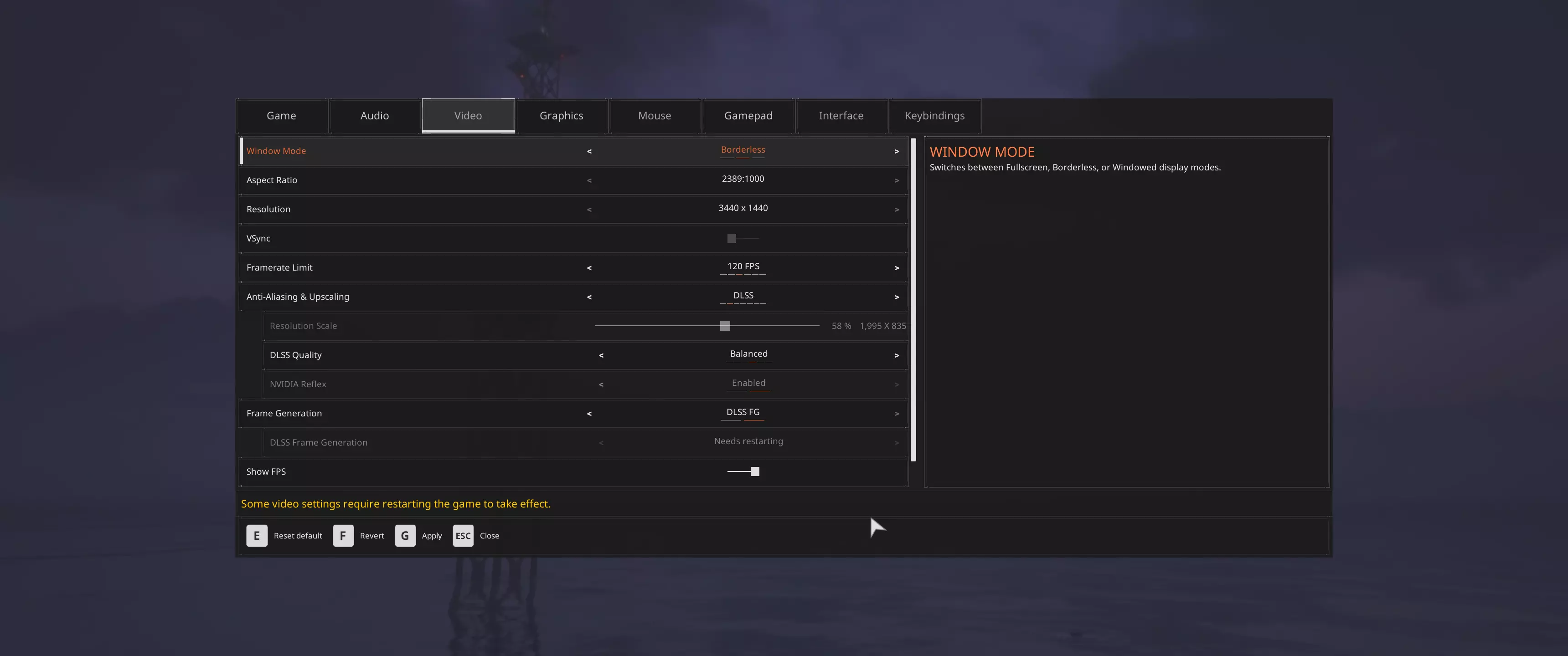
英伟达DLSS 质量模式 AMD FSR 等效模式(需要更多信息,如果你使用此模式,请在评论中提出建议) 英特尔XeSS 等效模式(需要更多信息,如果你使用此模式,请在评论中提出建议) TSR 是上述选项的优秀替代方案。 TAA 是上述选项的良好替代方案。在英伟达显卡上,我发现在使用此选项大约几个小时后会出现一些物理问题,因此通过切换回DLSS牺牲了20帧。 FXAA 会牺牲画质,但对于追求最快帧率的低配设备来说仍然不错。 帧生成 当前建议关闭此功能。它似乎还没有完全优化,我发现自己能获得额外30帧,而其他人则称只能获得额外15帧。 额外说明: - 适当降低分辨率似乎可以通过某些方法提高帧率。请自行承担尝试风险。我发现最佳设置是开启FXAA并将分辨率调至80%左右,但在120帧时画面看起来有点像【007黄金眼】的风格。 -当使用无边框窗口模式且关闭垂直同步,或启用G-SYNC等功能时,Steam的帧率监控并不总是准确的。请使用游戏菜单中推荐的基准测试软件以获取最准确的读数。 --- 到目前为止,你已经阅读了关于如何在TLCt中以最佳帧率运行基础游戏的基本指南,但如果效果仍不理想该怎么办?目前你的设置应该已经配置完成。在当前优化水平下,游戏应已达到最高效率。如果你想了解更多提升帧率的方法,请继续阅读。 英伟达控制面板 *在继续操作之前,请确保你已下载最新的英伟达显卡驱动程序。如果你主要是一名玩家,请确保选择游戏选项,而非开发者选项。部分系统上的某些文件可能会出现碎片化问题。强烈建议你下载最新的显示驱动卸载工具来移除那些可能干扰全新安装的残留文件。 这部分操作看似复杂,但如果操作得当,就像在游戏中设置图形选项一样简单。设置界面应该大致如下:
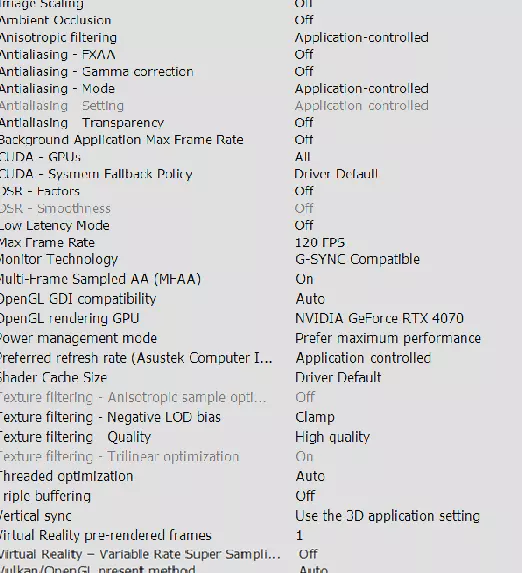
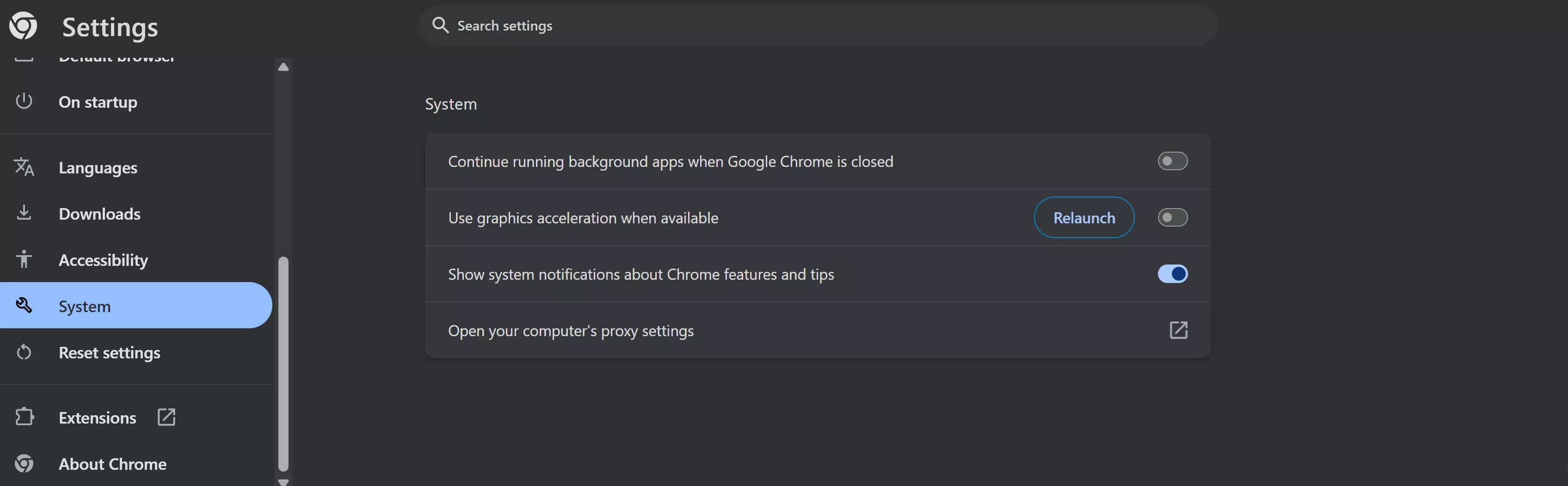
*** DISCLAMIER Make sure you monitor both your CPU temperatures and your GPU temperatures when adjusting these settings. Not all rigs are built the same, so it becomes unclear what to tell you at this point. So go with a grain of salt. You will want both your CPU and GPU to be under 70c for a breezy experience. Personally I sit fine at both fronts at a comfortable 55c. Do not overclock your hardware. Current operating systems are built to handle bottleneck load already. Overclocking is an old concept, and it will do nothing but cost you money in the long run. If you are experiencing bottle-necking please take your computer to your closest computer specialist. Nothing I state here will cause bottle-necking as long as your timings between your hard disk, memory, CPU, and GPU are adequately balanced. I assume you know this already going forward. Good luck. *** Primary Set-Up Start with a fresh Nvidia Control panel settings list. Usually most of it says Application Controlled.You ill want to change a few of things. Power to the Card First the power to the graphics card. You see, I use a 4070oc, so it remains surprisingly cool even under heavy stress. You on the other hand may be utilized a 1050 from the stone age... So in that case I would turn down the fps to compensate. It's what I did "back in the day" when playing heavily resource games. FPS (Adjust Accordingly) Exploring further into this, a lot of people underestimate the power of the graphics when utilized at frames such as only 70fps. Sure it's not the most tactical advantage fps for first person pvp shooter, but this is a pve game, so it is really all you need. Good response time on things like wireless gamepads, and heat control increasing the longevity of your card. Higher the frames the more your card WILL fry. High Quality is also and underestimated feature. Why? Because when you turn ON the high quality it stops the card from "dumming down" it's potential.It takes resources for the card to balance things, and by turning this off it can free up the resources the game engine can take over increasing card performance in turn. The thing about Gsync Depending on your monitor you may need this if you are experiencing massive about of hardware lag. No don't ask me how this works. It just happens. Make sure you have a gsync compatible monitor to turn it on. When you do turn it on make sure under another Control Panel wind that it is enabled for both Fullscreen and Window Borderless mode. You will need to do this for it to sync with your windowed borderless if you do use that option. IF you do not have a gsync compatible device DO NOT TURN THIS ON. V-sync Advise So if you aren't privileged to indulge in the benefits of the g-sync feature there is a couple things I can tell you about v-sync. Firstly, If you are doing fine with no screen tearing don't use it. The next best option is to use the half refresh feature with it. I found televisions work best if they have a feature called game mode in half refresh on the card. If you are in full screen having it set to "on" with triple buffering is usually a good idea. I found these to be the best settings when playing a lot of different titles over the years. You hardware may make your outcome otherwise. In the end it all boils down to what your monitor, and your card is. Just tinker with it. You will eventually figure it out. *It couldn't hurt to check if your cables are free of dust, and up to date as aged cables have a big impact on V-sync. Refresh Rate It's usually best to keep this at default settings so you can get the most out of your monitor, or television. Notes: The thing about with this control panel you gotta think of it this way. Some of the settings control how vivid things are in scene. When using another graphics program built into a game some of these settings can interrupt the game settings, so it is best to keep it application controlled or off. You will still get these settings under the game engine itself, so no fret on losing performance. The developer knows their baby so to speak. They know what goes into the graphical enhancements the implement, and your card does not. It is like the card is the painting, and the game engine is an artist. If you turn settings on that the game already has programming for then it gets overridden by the card settings. And even both of those settings could run at the same time potentially putting even more stress on the card, itself. Leading to crashing, and other unforeseen anomalies. Third Party Software Third party software can be quite finicky. From game assist software to better your experience, or simply overlay software to monitor you system peripherals. I want you to think of it like this. When you go to make a pizza you go to make a pizza with about 3 main elements to that pizza. Your Bread, your cheese, and your toppings. Your topping can be a vast amount of ingredients, but certain things just don't go right with certain things, and certain ingredients can actually cancel out the pizza experience entirely. Third party software can be any of these ingredients so.... If you must use third party software make sure your third party software doesn't have anything that can affect the hardware. This includes driver options, hardware acceleration options, and sound effect boosters. Your system is already handling enough, and adding more to it can only break performance ten fold. Notable Mention: Programs are finicky. Sometime with certain hardware act better with these settings on or off. Just test, and see if these settings work for you. Sometimes it's worth the sacrifice on one app to better another. For me gaming is my primary app. So, I turn all of mine off for better performance. -Steam
谷歌浏览器
【Discord】
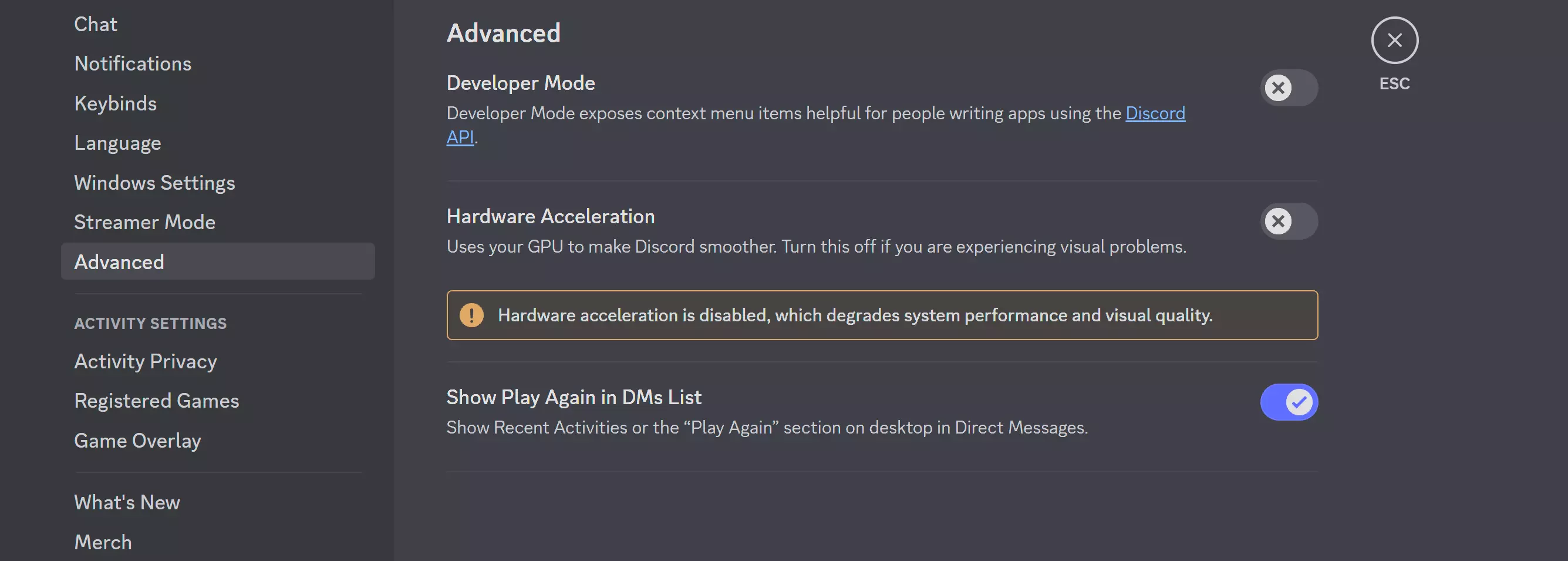
Spotify
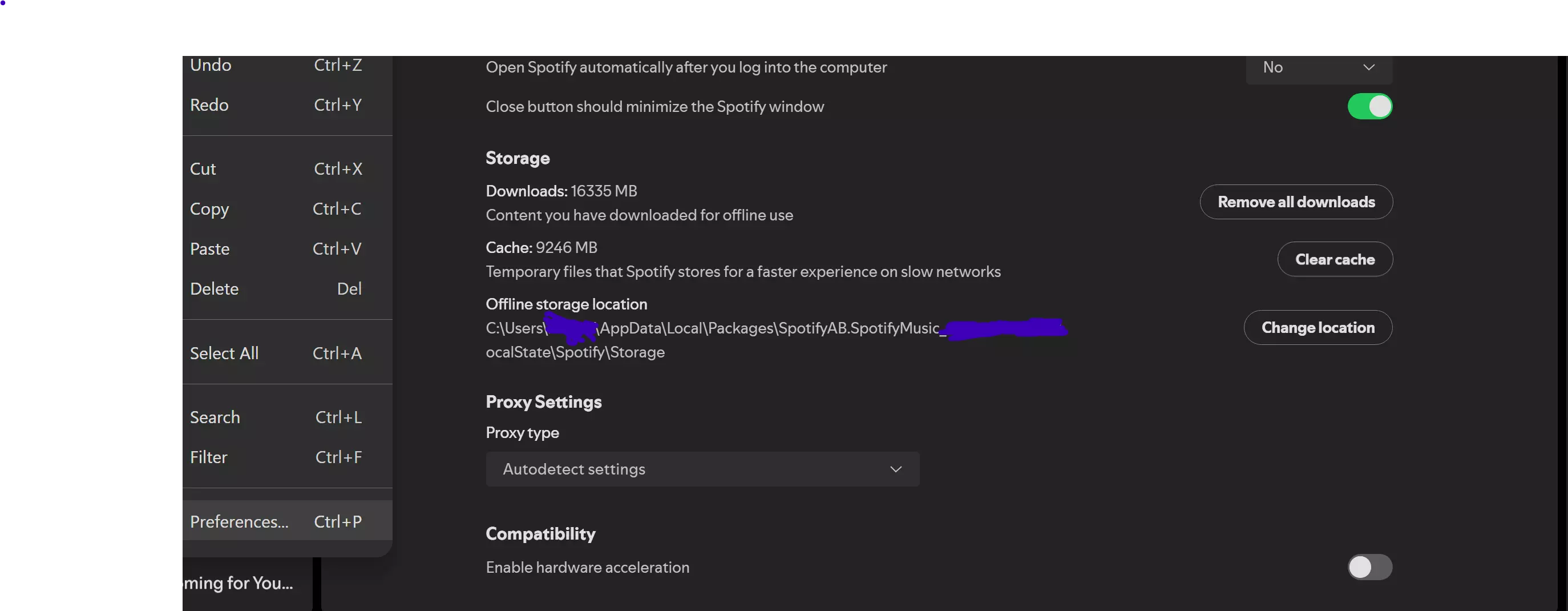
- RivaTuner - MSI Afterburner 极端情况 虽然其他玩家觉得本指南有助于缓解他们的问题,但仍有部分玩家可能面临更明显的问题。如果你已按照本游戏指南中的所有步骤操作,接下来该怎么办? 问题可能并不简单。有时,运行比你平时玩的游戏更吃配置的游戏后,可能会出现一些问题。当然,我说的是硬件方面。我理解这个问题已有相当长一段时间,但实际解决这些问题还得靠专业人士。 此视频可帮助解决一些关于性能瓶颈的问题: 如果你已禁用Steam GPU加速
我本可以用文字来详细说明,但这个视频为我们节省了时间。再次提醒,如果你不熟悉自己的电脑,请将其交给专业人员进行调试。【过低的降频可能导致系统不稳定或临时断电】。 如果你知道自己在做什么,并且遇到了这种情况,只需拔掉电脑电源来重置主板。取出并重新安装内部电池(通常位于显卡后面)约5分钟,通常可以解决此问题,但之后你需要重新设置主板。 以下是一些注意事项: - 电脑电压过低会影响性能。(确保你的电源线连接到至少2400焦耳的 surge protector,并插在电脑专用的电源插座上。)(我个人为我的游戏设备单独配置了一个断路器。电脑/显示器插在一个插座上,外设则插在另一个完全不同的墙上插座。) - 过时的显卡/驱动程序会影响性能,尤其是在较新的游戏上。 - 机械硬盘(HDD)的磁盘空间会影响性能。 - 有些Steam游戏的规格标签并不恰当,需要注意的是,2020年以后的任何游戏都应至少配备24GB的运行内存(RAM),以应对后台进程。 - 有用户报告使用8GB显存的显卡运行游戏时出现问题。这并不奇怪,因为我监测到游戏在我的设备上运行时大约占用7.5GB显存。剩余显存空间不多,所以我的新建议是,对于这些较新的游戏,应使用12GB或更高显存的显卡。其他内容我会稍后处理。我觉得目前这样就可以了。 当前最终效果 显然,你的最终效果会和我的有所不同。我对稳定在70帧左右的帧率感到满意,效果大致如下:
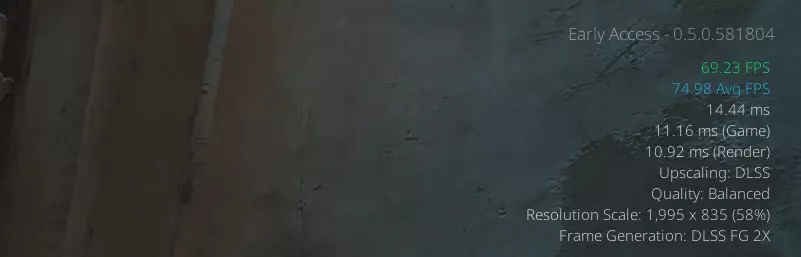
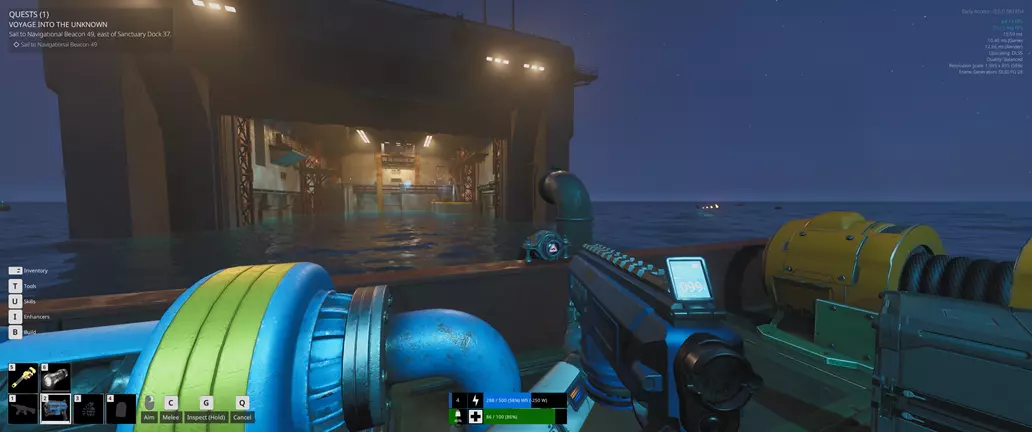
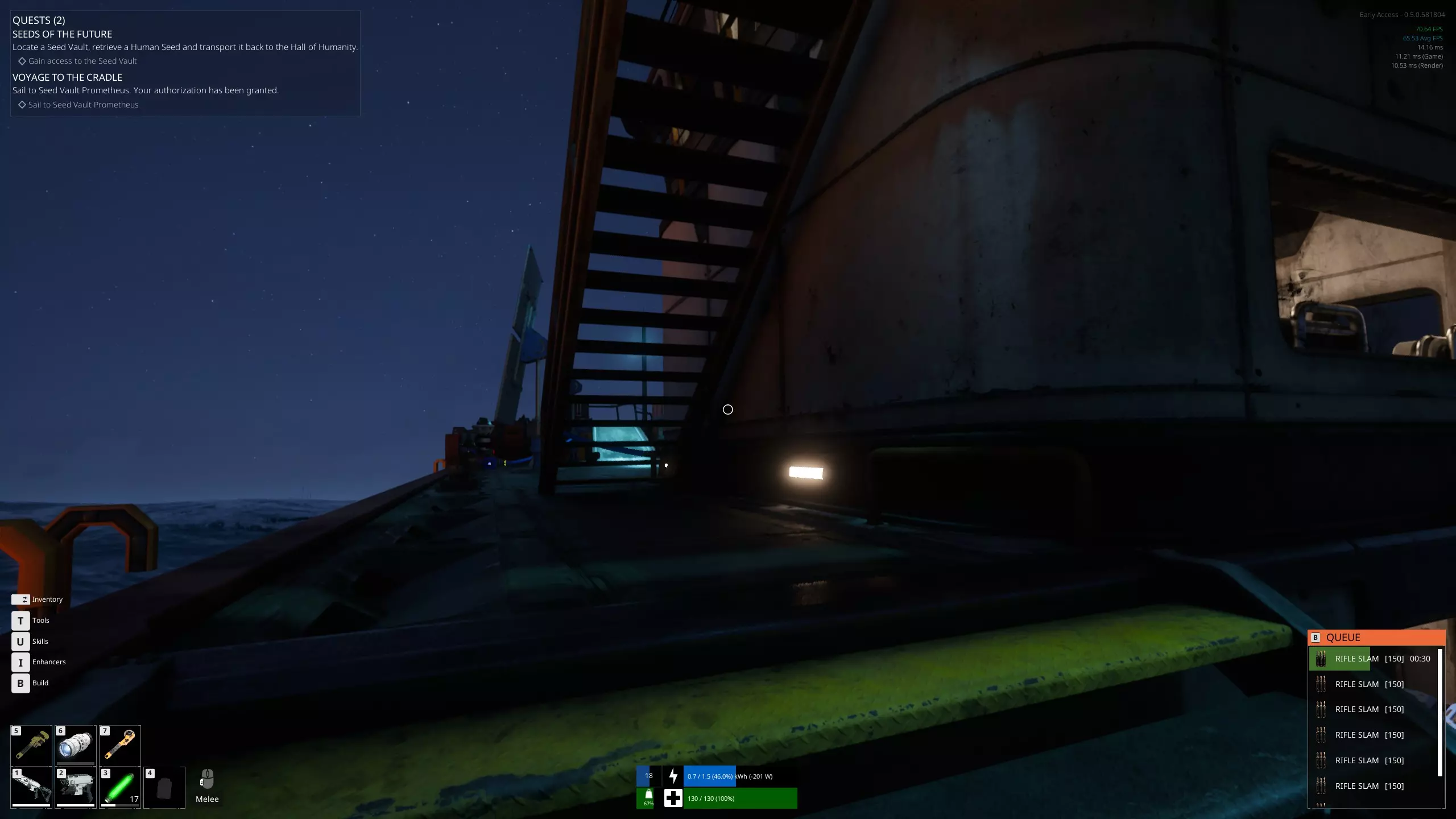
由于Steam的限制,我无法发布全分辨率的图片,但大家应该能明白意思。现在的情况与最初相比已经有了天壤之别,不再是35帧的水平了。这张截图显示的是平衡模式,并且开启了2倍帧生成技术,但通常我会在“画质”模式下运行,不开启帧生成。这张截图其实是我测试特定配置时不小心截到的,哈哈。在DLSS画质模式下关闭帧生成后,帧率通常能额外提升10-20帧以上。 谢谢大家,希望你们玩得开心! 目前我不确定这份指南是否还会更新更多内容,对于更多技术问题,建议大家参考一些专业网站获取信息。这些网站上几乎能找到所有相关问题的答案,也是我遇到难题时的主要参考来源。感谢阅读。我觉得有必要写下这份指南,因为很多人都忽略了这是一款多么棒的游戏,仅仅因为价格而错过了它。我也曾一度想要愤然放弃,但回想起过去花时间解决其他游戏问题的经历,我觉得有责任帮助大家在这个世界上获得更轻松的体验,毕竟生活中其他方面的压力已经够多了。这是我给大家的一点心意。感谢大家,我希望能尽快完成这份指南,并会随着开发者对游戏性能的进一步优化而做出相应调整。不过,按照这份指南操作,你应该能明显感受到性能的提升。最后,祝大家游戏愉快。 此致, mh_2070