换一换
换一换 


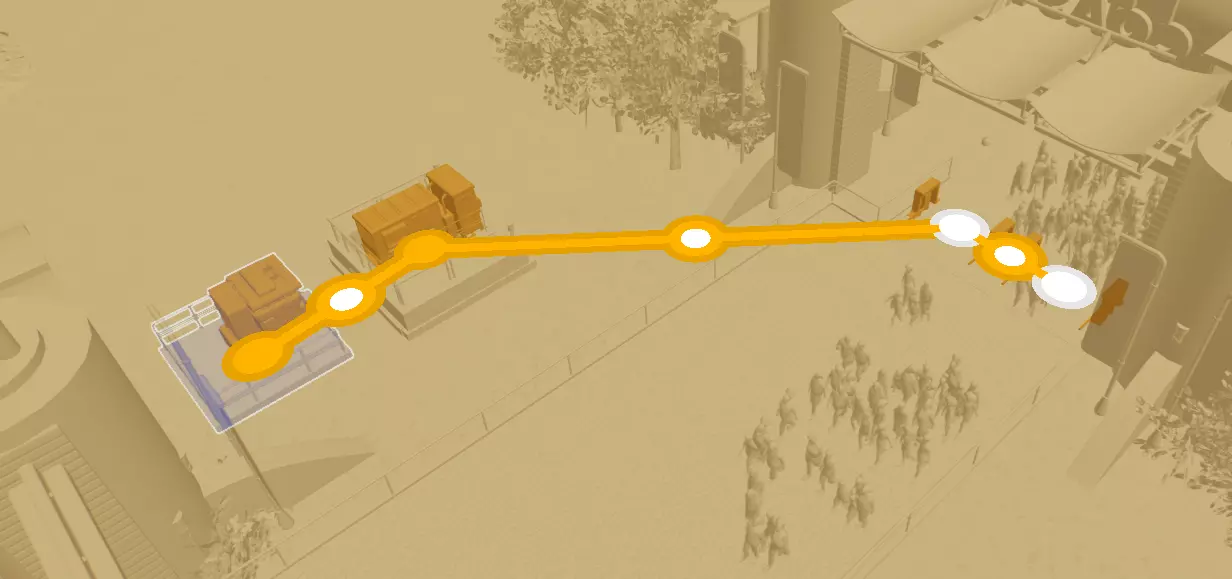
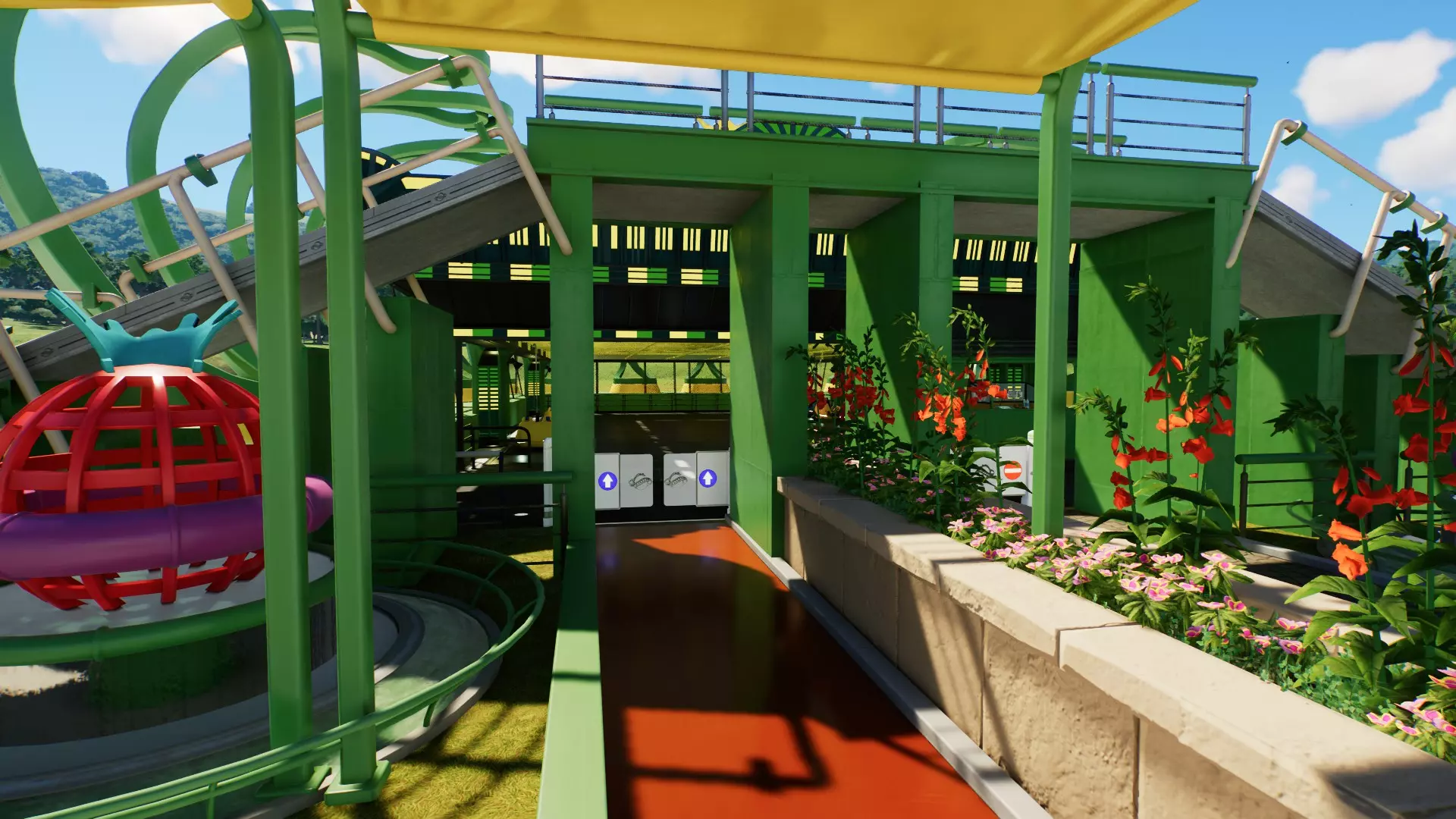
《过山车之星2》路径与广场概述 概述 路径是公园的动脉,为游客和员工提供前往景点、商店和设施的通道! 路径类型 标准路径 标准路径供游客和员工共同使用,可灵活连接,甚至能直接连接到游乐设施入口。 排队区 游客通过排队区路径从标准路径前往游乐设施入口。每个排队区路径只能有两个端点:一个入口和一个出口。 游客在等待乘坐游乐设施时会加入排队队伍。如果等待时间过长,队伍可能会延伸到排队区外的普通路径上。建议设计蜿蜒的排队区,并装饰景观,以增加其容量并让等待的游客保持愉悦。员工通道 员工通道仅供员工使用,可快速连接无需景观来维持游客满意度的区域。 观看关于排队类型和员工通道的视频指南
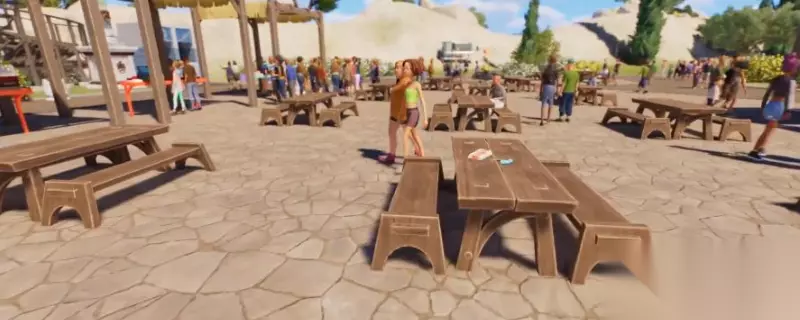
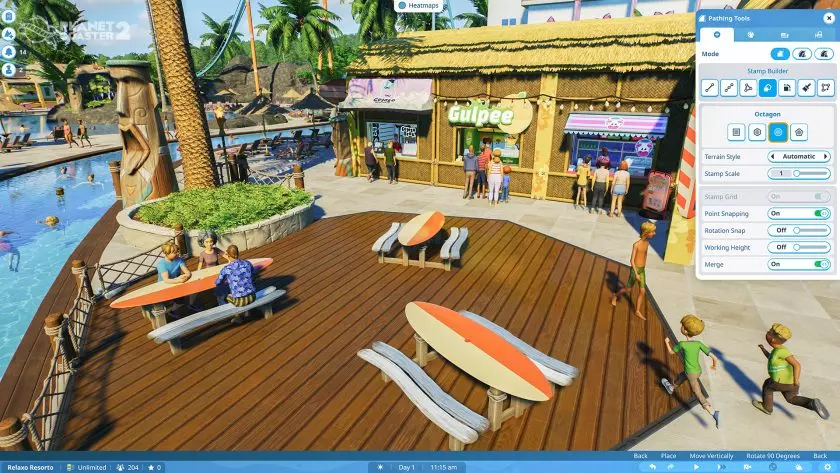
Did you know? You can build paths over obstructions by using sloped and elevated walkways. When using the Line Builder or Classic Paths, you can create slopes and stairs quickly by moving your path up and down while holding Shift. If a path passes through terrain, it will automatically deform to fit the path – you can use this method to create tunnels around your park. Plazas New to Planet Coaster 2, plazas are larger paved spaces created using either Standard paths or Staff Paths. Plazas allow you to create wide areas for your guests or staff to move around in, removing the restrictions of paths and creating a true to life theme park experience. Path Building 101 Planet Coaster 2 features a variety of tools for creating paths, each with different advantages for certain scenarios. Path Building Tools Line BuilderThe default path tool, the Line Builder allows you to place paths using a series of points – each time you place a point, the path extends to meet it. This simple, intuitive tool, enables you to very quickly place paths around your park. The Line Builder features customisation tools which allow you to customise the style and shape of the path being placed: Line Style – switch between straight and curved paths. Terrain Style - switch between paths suspended from terrain or choose when terrain follows the path that you are building. Connection – switch between Angled or Square connections to choose how the new path joins and leaves other paths. Line Width – adjust to increase or decrease the path width. Fixed Length – toggle a fixed length for each part of your path. Great for creating symmetrical paths. Angle Snap – allows you to place paths with consistent curves. Working Height – sets the height of your paths so you can cut through terrain or build over water with consistent placement. Snap Height – allows you to snap the path to a fixed height. Perfect for making consistent staircases. Merge – choose if you want your new paths to merge with existing paths or come to an end. The path Line Builder tool is excellent at crossing gaps and connecting plazas. Classic PathsThe Classic Paths tool returns from the original Planet Coaster, with some quality-of-life improvements. Rather than creating automatically connected larger paths, the Classic Path tools allow you to place each segment of the path individually. The main differences from the Line Builder are: All paths are constructed with a single action. All paths are a fixed length. Straight and curved paths are both available on the same tool. Draw ToolThe Draw Tool creates shapes one side at a time, completing the shape when you connect back to its starting point. Mix and match your curves with straight lines for great looking paths and plazas. Snap to existing corners to fill any gaps between paths, or to overwrite existing path sections. Stamp BuilderThe Stamp Builder creates precise geometric shapes chosen from a selection, that snap together to make excellent plazas. Stamps can be scaled to quickly make larger shapes, ideal for intersecting other shapes with the Merge setting. If you’re a seasoned builder the Stamp Builder can be used with the Advanced Move Tool to create raised platforms and then combined with other pathing tools such as the Line Builder to make completely custom pathways. Edit ToolTweak existing paths a border at a time, adjusting their position or height. This tool is very useful for tweaking paths to get them just right, or if you want to make a particular extension to an existing path. Selecting the Edit Tool will give you two options. Launch back into the Draw Tool for freeform pathing changes or select the move button to drag your path border to your desired point. Rounding ToolSmooth and round off any corners on your existing paths with the Rounding Tool brush. The strength and size of the brush can customised so you can make tiny tweaks or massive changes. How To Build a PathThanks to multiple easy-to-use options, building a path is simple! Toggle the Paths Tool using a shortcut, the radial menu or with the Multi-Select button in the bottom bar. Using the mode of your choice place paths connecting the park entrance to a destination, whether that’s an attraction or a shop. The Paths Tool will automatically connect your paths to any intersecting path if the Merge option is enabled. Change the size of your path to fit the needs of your park. Create thin, winding queues for your rides or wide, open walkways for guests to easily navigate around. Raising or lowering the elevation of your paths will cause supports and stairs to appear. This is great for creating bridges, elevated pathways or tunnels. Don’t forget to decorate your path with scenery to keep guests happy and path extras to provide them a place to rest or dispose of their rubbish. Path CustomisationWhen building a path, you can customise its appearance through the Customise Style tab of the Path menu, choosing from a wide variety of colours and textures, some of which are supported by flexi-colour. Choose to automatically add bins and benches as you lay down paths, adjusting the style and distance between the objects in the Customisation menu. You can also copy an existing path’s style by using the Copy Existing Texture button and selecting the path you want to copy. You can change the material, colour, edge style, and turn supports on and off using the customisation options for paths. Paths can be further customised with the addition of Path Extras, like bins and benches. Customise BrushWish the park had a different colour path? Easily paint your current path or pool style over any existing paths with the Customise Brush. Adjust the size of the Customise Brush to make sweeping changes across your theme park or shrink it to make precise edits. Painting over the curbs of your pathways will also add or change railings depending on which custom options you have chosen. Delete BrushAmbitious pathing plans not worked out? No problem! The Delete Brush gives you two options for tidying up. The standard Delete Brush can be sized up or down, much like the Customise Brush, allowing you to remove large areas of pathing or make tiny edits. The Stamp Delete Brush works just like the Stamp Builder... only in reverse. Remove specific shapes from your paths to create custom designs; perfect for plazas! How To Build a Plaza Building a plaza is as simple as building any other path: Toggle the Paths Tool using a shortcut, the radial menu or with the Paths button in the bottom bar. Using either the Draw Tool or the Stamp Builder, create a large, paved area. The Line Builder and Classic Paths tool can also be used but are less suited to this purpose. Cut out precise stamps or freeform shapes and fill in with exciting scenery and foliage for a realistic theme park look. You now have a plaza!
视频指南 前往过山车之星2官方网站获取更多实用指南!