换一换
换一换 


This guide explains in detail all of the Counter-Strike and Counter-Strike: Condition Zero console commands and server configuration file settings that are useful for "Clan Match" mode games. Description The following is a list of all of the Counter-Strike and Counter-Strike: Condition Zero console commands and server configuration file settings that are useful for "Clan Match" mode games. The list is organized alphabetically by command, in the format of "system_console_command value" (where "value" is Counter-Strike's default value for that setting). Commands List Automatic Bot and Human Players Team Balancing Team balancing in Counter-Strike and Counter-Strike: Condition Zero (when playing with bots in the game) can be a bit confusing. The following settings will allow the human players to switch teams, and then allow and force the bots to change teams to keep them balanced (at the beginning of the next round). bot_auto_vacate 1 mp_autoteambalance 1 mp_limitteams 0 bot_auto_vacate 1 This setting will force the bots in Counter-Strike: Condition Zero to automatically leave to make room for human players (set to "0" to disable). Refer to the "Automatic Bot and Human Players Team Balancing" section above for more information about team balancing. bot_quota # This setting will cause the given number of bots in Counter-Strike: Condition Zero to be maintained in the game. If a bot is kicked, a new bot will be added to maintain the quota (set to "0" to disable the quota). bot_quota_match # This setting sets the ratio of the number of bots in Counter-Strike: Condition Zero per human player (i.e. "number_of_bots = number_of_human_players * bot_quota_match_ratio"). As human players join or leave the server, the number of bots in the game will be adjusted accordingly. Note that this command overrides the "bot_quota" command. changelevel <MAPFILENAME> Ends the current game, loads the specified map filename (without the ".bsp" file extension), and starts a new game on it. The main difference between the "changelevel" and the standard "map" command is that the players are not kicked from the server when changing to the new map. Note that this command can access maps contained in mounted Game Cache Files, as well as in the game's local "Maps" folder. condebug Toggles the saving of console logs to the filename "QConsole.log" in the directory "C: Program Files Steam SteamApps <USER_NAME> Counter-Strike" or "C: Program Files Steam SteamApps <USER_NAME> Condition Zero". The default is "disabled". dem_forcehltv 0 Set to "1" to enable "Half-Life TV" (HLTV) mode for demo playback. HL.exe -condebug Saves console logs to the filename "QConsole.log" in the directory "C: Program Files Steam SteamApps <USER_NAME> Counter-Strike" or "C: Program Files Steam SteamApps <USER_NAME> Condition Zero". To enable the saving of console logs, start Counter-Strike or Counter-Strike: Condition Zero with the "-condebug" command line parameter (e.g. "C: Program Files Steam SteamApps <USER_NAME> Counter-Strike HL.exe -condebug" or "C: Program Files Steam SteamApps <USER_NAME> Condition Zero HL.exe -condebug"). hostname "Counter-Strike Server" Sets the host name of the server. hud_takesshots 0 Set to "1" to enable taking an automatic screenshot when the final scores are displayed when the current map ends (after the duration of the "mp_timelimit" setting). The screenshots will be located in the directory "C: Program Files Steam SteamApps <USER_NAME> Counter-Strike CStrike" or "C: Program Files Steam SteamApps <USER_NAME> Condition Zero CZero" with the filenames "MapName####.bmp". Note that this command is listed within the game's advanced multi-player options menu as "Automatically Take End-Game Screenshots". listmaps Displays a list of the maps contained in the current server map rotation file "MapCycle.txt", and is used for Counter-Strike's and Counter-Strike: Condition Zero's player map voting system ("mp_mapvoteratio" and "votemap"). log off Set to "on" to enable saving detailed server logs (lMMDD###.log). logsdir logs Directory to save detailed server logs. The default directory is "C: Program Files Steam SteamApps <USER_NAME> Counter-Strike CStrike Logs" or "C: Program Files Steam SteamApps <USER_NAME> Condition Zero CZero Logs". map <MAPFILENAME> Ends the current game, loads the specified map filename (without the ".bsp" file extension), and starts a new game on it. The main difference between the standard "map" and "changelevel" command is that the players are kicked from the server when changing to the new map. mapcyclefile MapCycle.txt Sets the file which will be used for the current server map rotation. maxplayers 32 Maximum number of allowed players. Note that this cannot be set after a game has started. mp_autokick 0 Set to "1" to enable the automatic kicking of idlers (campers) and team-killers. Note that this command is listed within the game's multi-player setup menu as "Kick Idlers and Team-Killers". Also note that friendly-fire mode ("mp_friendlyfire") must be enabled to use this command. mp_autoteambalance 0 Set to "1" to enable auto-balancing of teams. Note that the default for Counter-Strike is "1", and the default for Counter-Strike: Condition Zero is "0". Refer to the "Automatic Bot and Human Players Team Balancing" section above for more information about team balancing. mp_buytime 1.5 This setting controls the amount of allowed time (in minutes) that players can buy weapons and equipment after a round has started (Minimum = .5 minutes, Maximum = none). The setting also supports partial minutes (e.g. "1.3" = 78 seconds, "1.5" = 90 seconds, "1.8" = 108 seconds, etc...). Note that this command is listed within the game's multi-player setup menu as "Buy Time (Minutes)". mp_c4timer 45 Sets the duration (in seconds) until the detonation of the C4 bombs (Minimum = 15 seconds, Maximum = 90 seconds). mp_chattime 10 Sets the duration (in seconds) that players can chat after a map is complete (before the next map is loaded, based on the "mp_timelimit" setting). A lower value means a faster map change. mp_fadetoblack 0 Set to "1" to fade the player's screen to black when killed. Note that this command is listed within the game's multi-player setup menu as "Disable Chase/Death Cam". mp_flashlight 0 Set to "1" to allow players to use the flashlight. mp_footsteps 1 Set to "0" to disable hearing players' footsteps. mp_forcecamera 0 Set to "0" to spectate anyone (which is the default), "1" to spectate teammates-only (with no free-look), "2" to spectate first-person only, or "3" to spectate teammates-only (with free-look). Note that this command is listed within the game's multi-player setup menu as "Death Camera Type" and selected using a dropdown box, and that setting "3" is not displayed within that dropdown box. Also note that any setting other than "mp_forcecamera 0" will disable the "Half-Life TV" (HLTV) "Picture-In-Picture" spectator mode. mp_freezetime 6 This setting controls the length (in seconds) of the game freeze/pause period at the beginning of a round. Set to "0" to disable the game freeze/pause period. Note that this command is listed within the game's multi-player setup menu as "Freeze Time (Seconds)". mp_friendlyfire 0 Set to "1" to enable friendly-fire mode. mp_hostagepenalty 5 Maximum number of allowed hostage kills before the player is kicked from the game (set to "0" to disable). Note that this command is listed within the game's multi-player setup menu as "Kick After (X) Hostage Kills". mp_limitteams # This setting limits the maximum number of players that one team can have over the other. To entirely disable team limiting, set to "0". Note that the default for Counter-Strike is "2", and the default for Counter-Strike: Condition Zero is "0". Refer to the "Automatic Bot and Human Players Team Balancing" section above for more information about team balancing. mp_logdetail 0 This command sets the level of detail for logging attacks in the "QConsole.log" console log file, as well as the "lMMDD###.log" detailed server log files. Set to "0" to log no attacks, "1" to log enemy attacks, "2" to log teammate attacks, or "3" to log enemy and teammate attacks. mp_logmessages 1 Set to "0" to disable player chat messages from being logged and saved in the "QConsole.log" console log file, as well as the "lMMDD###.log" detailed server log files. mp_mapvoteratio 0.66 Sets the ratio of players required to vote on the same map before the sever will cycle to the new map. The default value is "0.66", which means that 66% of all of the players on the server must vote on the same map in order for the server to cycle to the new map. mp_maxrounds # This setting will cycle to the next map contained in the current server map rotation file "MapCycle.txt" after "#" number of rounds have been played. The default is "0" (no round limit), in which case maps will rotate based on the "mp_timelimit" setting. Note that this command is listed within the game's multi-player setup menu as "Round Limit (Rounds)". mp_roundtime 5 This setting controls the length (in minutes) of the rounds (Minimum = 1 minute, Maximum = 9 minutes). The setting also supports partial minutes (e.g. "1.3" = 78 seconds, "1.5" = 90 seconds, "1.8" = 108 seconds, etc...). Note that this command is listed within the game's multi-player setup menu as "Time Per Round (Minutes)". mp_startmoney 800 Sets the amount of money that the players start with (Minimum = 800, Maximum = 16000). mp_timelimit 20 Duration (in minutes) of map. mp_tkpunish 1 Set to "1" to prohibit team-killers from playing during the next round. Note that this command is listed within the game's multi-player setup menu as "Kill Team-Killers On Next Round". Also note that friendly-fire mode ("mp_friendlyfire") must be enabled to use this command. mp_winlimit # This setting will cycle to the next map contained in the current server map rotation file "MapCycle.txt" after one team reaches "#" number of wins. The default is "0" (no win limit), in which case maps will rotate based on the "mp_timelimit" setting. Note that this command is listed within the game's multi-player setup menu as "Win Limit (Rounds)". playdemo <FILENAME.dem> Play demo filename "<FILENAME.dem>". record <FILENAME.dem> Start demo recording, saved to the filename "<FILENAME.dem>" in the directory "C: Program Files Steam SteamApps <USER_NAME> Counter-Strike CStrike" or "C: Program Files Steam SteamApps <USER_NAME> Condition Zero CZero". stop Stop demo recording. stopdemo Stop demo playback. sv_alltalk 0 Set to "1" to allow the Counter-Terrorist and Terrorist teams to hear the other team's voice chat messages. sv_restart # Enter "sv_restart #" to start (or restart) a game, where "#" is the duration (in seconds) before the server restarts the game. This will reset all deaths, money (based upon the "mp_startmoney" setting), scores, and weapons, and then restart the game after the given amount of seconds. Note that this command is identical to "sv_restartround". sv_restartround # Enter "sv_restartround #" to start (or restart) a game, where "#" is the duration (in seconds) before the server restarts the game. This will reset all deaths, money (based upon the "mp_startmoney" setting), scores, and weapons, and then restart the game after the given amount of seconds. Note that this command is identical to "sv_restart". timeleft Displays the current time left for the map (based on the "mp_timelimit" setting). viewdemo <FILENAME.dem> Play demo filename "<FILENAME.dem>" using VCR styled controls. votemap # Allows the players to vote on the next map to play. Enter "listmaps" in the console to display the list of maps available to vote on. Then, enter "votemap #" (where "#" is the corresponding number of the map as shown within the list of maps as displayed with the "listmaps" console command). After a certain number of players (set by the "mp_mapvoteratio" command) have voted for a map which one player has started a vote on, the server will cycle to the new map. "Clan_Match.cfg" Configuration Template "Clan_Match.cfg" Configuration Template The following example clan match template can be saved to the file "Clan_Match.cfg" to the directory "C: Program Files Steam SteamApps <USER_NAME> Counter-Strike CStrike" or "C: Program Files Steam SteamApps <USER_NAME> Condition Zero CZero", and then executed within the game's console (e.g. "exec Clan_Match.cfg"): // Clan Match Template for Swamp Buzzards Clan // http://steamcommunity.com/groups/SwampBuzzardsClan // Usage: exec Clan_Match.cfg // changelevel Weeds_CS_Orange // map Weeds_CS_Orange // condebug logsdir logs log on bind i "say Current Game Time Remaining:;timeleft" bind o "sv_restartround 30" bot_auto_vacate 0 dem_forcehltv 1 hostname "Buzzard Shootout" hud_takesshots 1 // mapcyclefile Weeds_CS_Orange_MapCycle.txt // maxplayers 32 mp_autokick 0 mp_autoteambalance 0 mp_buytime 1.5 mp_c4timer 45 mp_chattime 60 mp_fadetoblack 0 mp_flashlight 1 mp_footsteps 1 mp_forcecamera 1 mp_freezetime 6 mp_friendlyfire 1 mp_hostagepenalty 0 mp_limitteams 0 mp_logdetail 3 mp_logmessages 1 mp_mapvoteratio 0.66 mp_maxrounds 0 mp_roundtime 5 mp_startmoney 800 mp_timelimit 30 mp_tkpunish 0 mp_winlimit 0 sv_alltalk 0 Contacts, Downloads, Files, and Links Contacts, Downloads, Files, and Links Rich ¥Weeds¥ Nagel[www.richnagel.net] http://www.richnagel.net Steam Profile Swamp Buzzards Clan Plain-Text Version of this Guide[jasonwilliams400com.startlogic.com] Counter-Strike Downloads and Files[jasonwilliams400com.startlogic.com] WeedsBot v1.20 for Counter-Strike v1.6[jasonwilliams400com.startlogic.com] | More Information[forums.absurdminds.net] The CSBot Unofficial Archive[csbot.csnavcentral.com]
反恐精英:零点行动 战队比赛模式指令列表

2026-02-19 07:00:30

导读
这是《反恐精英:零点行动》战队比赛模式的指令指南,详细罗列了该模式及《反恐精英》适用的控制台指令与服务器配置设置,含团队平衡、人数设置、回合规则等多类指令,还附战队比赛配置模板,助力玩家搭建战队比赛服务器。
评论
共0条评论

专用服务器使用指南
托管选项 首先,你需要选择托管专用服务器的方式! 专用服务器可通过以下方式托管: - 在你自己拥有的家用电脑上 | ---- | ---- | ---- | -…
2026-03-30 17:000赞 · 0评论
方舟:飞升 专用服务器Windows PC搭建指南
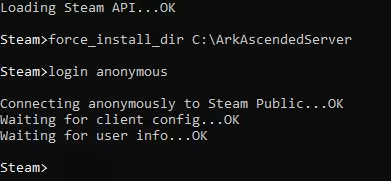
How to set up Ark: Survival Ascended Server for PC using Command Line interface …
2026-02-15 22:000赞 · 0评论
幻兽帕鲁闪迹云游戏清明新服开服时间 服务器配置与BOSS掉落调整 帕鲁词条修正增强攻略
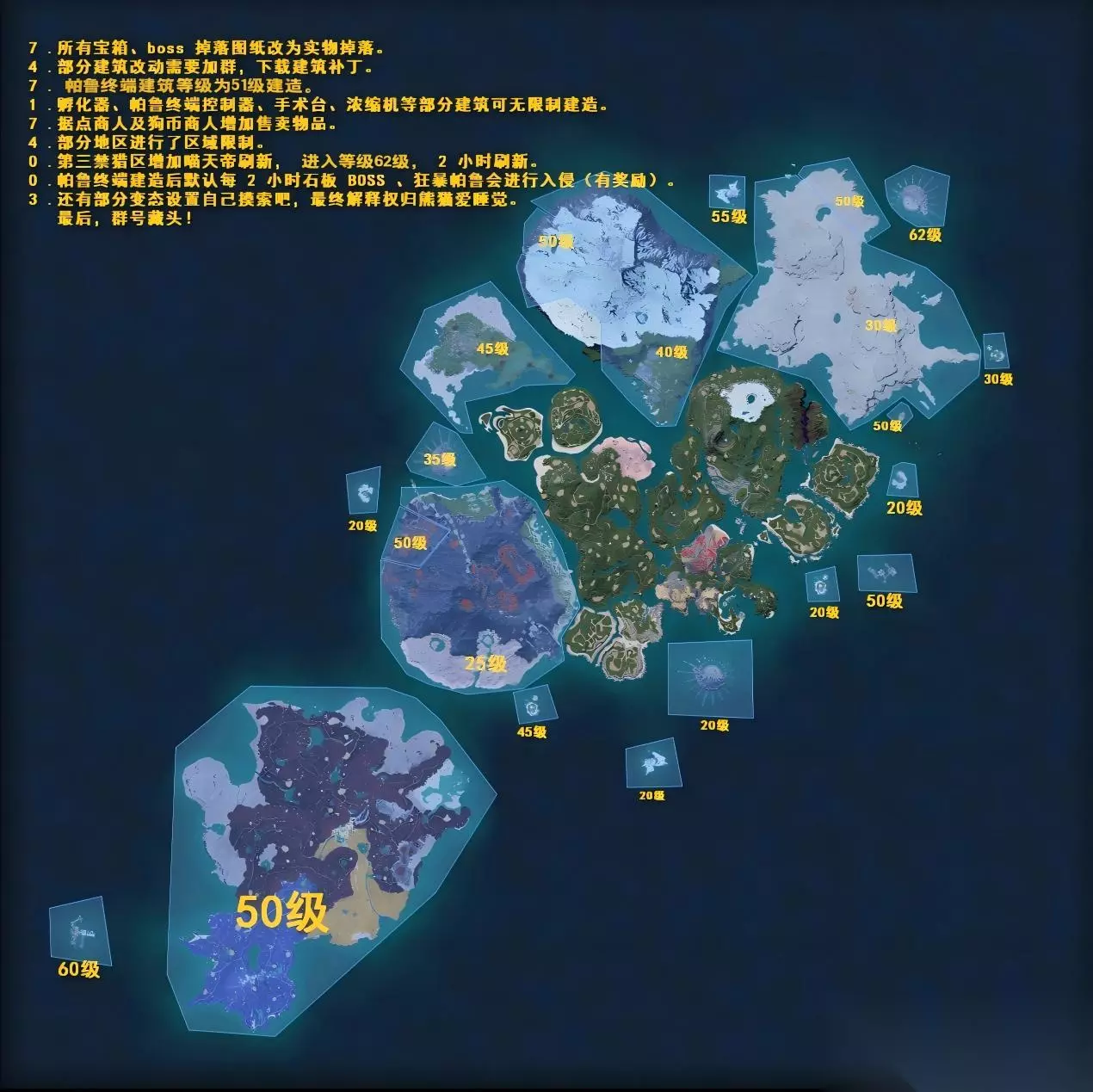
幻兽帕鲁闪迹云游戏清明新服4月4日14:00开服!服务器严打外挂,后台查到直接封禁并挂乐园公示!服务器IP每周日上午开放,具体游戏设置如下: 1、地图宝箱、地下…
2026-05-21 10:010赞 · 4评论
专用服务器测试版 - 说明文档
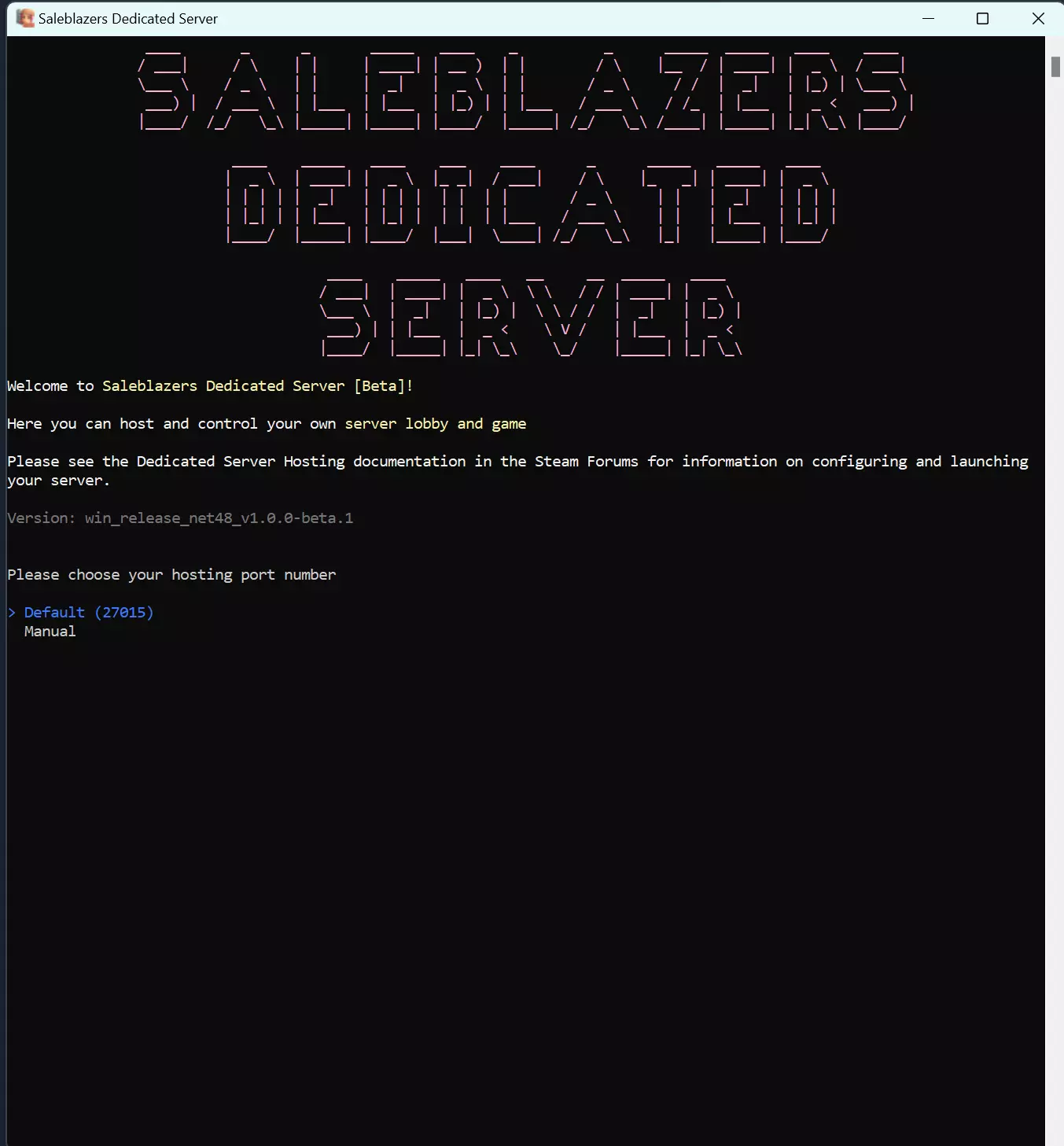
《拓荒商客》专用服务器官方文档 本文档包含拓荒商客专用服务器的安装、配置、启动及使用方法。 简介 各位店主好! 欢迎使用拓荒商客专用服务器控制台的测试版!
2026-03-17 13:000赞 · 0评论
专用服务器 || 传染病
熟悉Source引擎服务器的搭建,但想了解更多《传染病》特有的控制台变量和设置?本指南将尝试汇总相关数据,同时也会提供搭建服务器的基本说明。 简介、免责声明及其…
2026-04-05 10:000赞 · 0评论

《创世理想乡》(SteamCMD) [英语] [Windows]
本指南将展示如何使用SteamCMD搭建服务器。 以下端口必须开放: TCP:6587、27015-27030、27036-27037 UDP:4380、658…
2026-03-22 04:000赞 · 0评论
Ricochet的原始WON菜单
一个由我为《反恐精英:零点行动》特别重现的WON(世界对手网络)时代原版菜单,采用了相同的字体、颜色和几乎相同的效果。 简介 众所周知,Valve去年为纪念《半…
2026-03-21 13:000赞 · 0评论
如何创建你自己的服务器
通过本指南,你将学会创建自己的服务器,以便在互联网上与你想一起玩的人进行游戏。你的服务器将出现在互联网服务器列表中。 步骤1:开放端口。 开始之前,必须确保已开…
2026-02-20 04:000赞 · 0评论
《反恐精英:零点行动》自定义任务系统
The Custom Mission System allows users to create their own Missions for use with…
2026-02-19 22:000赞 · 0评论
如何为《反恐精英:零点行动》下载新任务
介绍。
2026-02-18 16:000赞 · 0评论

暂无更多
最新更新
- 如何更改机器人的能力 — 本指南介绍如何将团队中的新手BOT转变为真正的老手。 步骤1 打开“CZERO”文件夹
- 合作模式补丁 + YaPB机器人 — 《反恐精英:零点行动》合作模式补丁 + YaPB机器人支持
- 反恐精英:零点行动 - 简单和普通难度勋章 — 欢迎来到这份休闲玩家指南! 在《反恐精英:零点行动》中,你总共可以获得四枚勋章,对应四个难度等级。本指南将聚焦于简单和普通难度的勋章——这两个都很容易完成。 我…
- 《反恐精英:零点行动》机器人指令与导航网格编辑...权威指南 — 本指南详细介绍了《反恐精英:零点行动》中所有游戏内AI机器人控制台命令和变量,以及所有AI机器人导航网格编辑控制台命令。 机器人命令与队伍平衡 机器人命令 bo…
- 本指南将介绍武器/玩家皮肤及其安装方法。 — 对于想要安装一些自定义皮肤的玩家,本指南会有所帮助。它介绍了武器/玩家皮肤以及安装方法。 武器皮肤/模型
- 《反恐精英:零点行动》自定义任务系统 — The Custom Mission System allows users to create their own Missions for use with…
- 如何避免友军火力误伤 — 本指南将教你如何避免友军伤害。 简介 本指南仅适用于《反恐精英:零点行动》(CZ)的默认机器人(电脑玩家)模式。 CZ不应用于《反恐精英1.6》前的练习,因为这…
- 《反恐精英:零点行动》俄语化(由Фаргус制作) — 由法格斯制作的文本本地化补丁。 说明 本本地化补丁包含《反恐精英》《反恐精英:零点行动》及《反恐精英:零点行动 deleted scenes》的文本翻译。 《零…
- 合作模式补丁 + YaPB 机器人 — 《反恐精英:零点行动》合作通关模式补丁(支持YaPB机器人) 反恐精英:零点行动·合作游戏补丁+YaPB机器人
- FlashDeck 动画 机器人档案 — 所有看过FlashDeck Animations的人,都会知道这是什么。BOT配置文件(需复制粘贴) 困难+狙击手 蹲点型 武器偏好 = AWP 皮肤 = 1 …