换一换
换一换 


本指南介绍了如何使用PAM。 获取脚本链接:https://steamcommunity.com/sharedfiles/filedetails/?id=1507646929 ### 概况 - 由于我已停止游玩《太空工程师》(Space Engineers),PAM的开发工作也已终止。 - 该脚本可在最新版本的《太空工程师》中正常运行,若出现问题,可能是由模组导致。 - 请理解我不会再活跃于此解答各位的问题。 - 若未来《太空工程师》的更新导致PAM无法使用,我会尽力进行修复。 - 非常感谢大家的支持,祝各位游戏愉快!
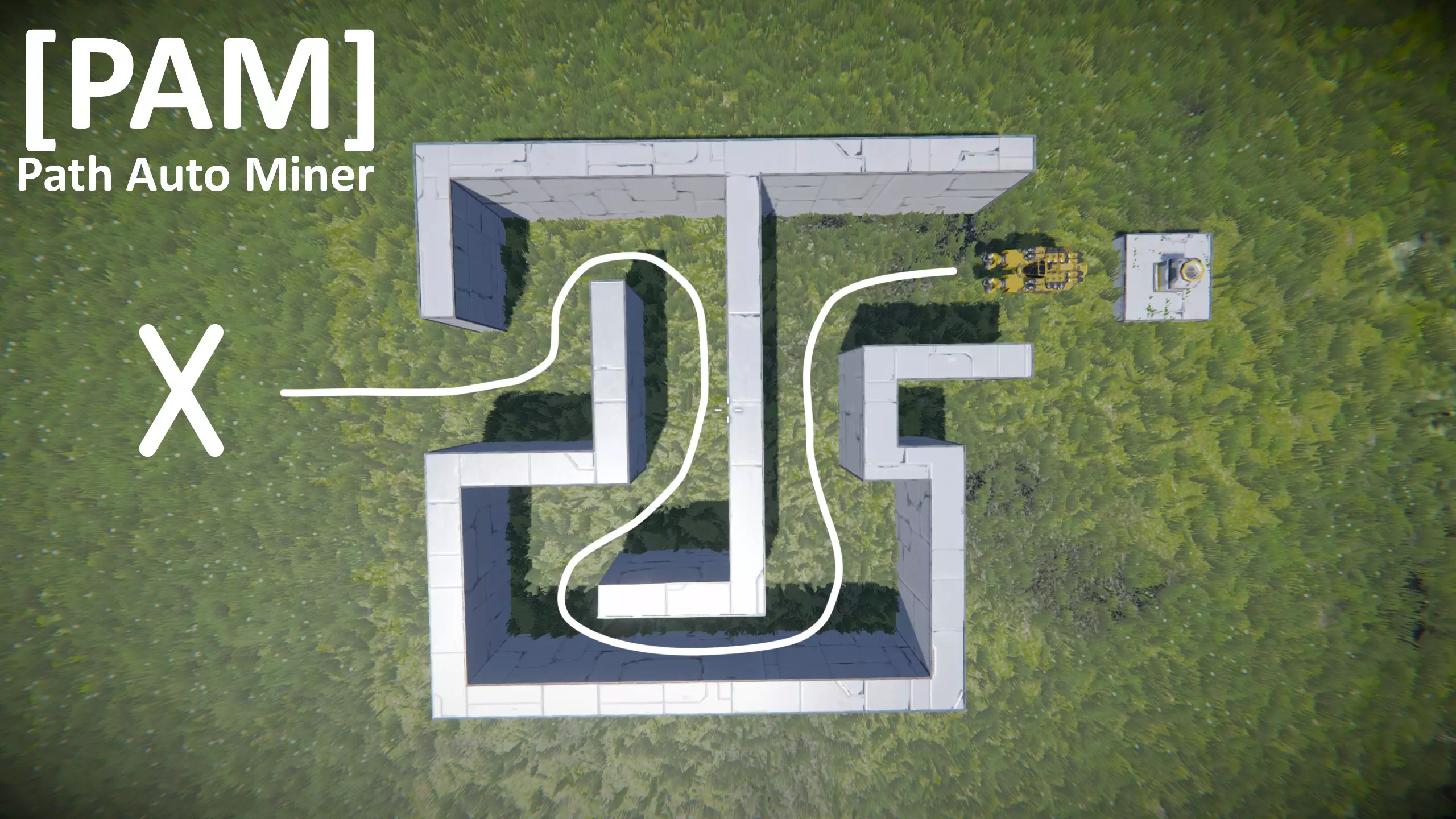
此脚本最初是作为“纯挖矿”脚本开发的(这也是它名为“Auto Miner”的原因),但在此期间我添加了越来越多的功能,现在它已成为适用于不同任务类型的多功能脚本。 目前有4种不同的脚本模式: - **挖矿模式**:全自动挖矿 - **刷怪模式**:全自动刷怪 - **穿梭模式**:全自动物品和玩家运输 - **空间站模式**:针对您舰船的固定式监控系统 该脚本使用指定路径在您的停靠站和作业位置之间飞行(它不使用远程模块的问题路径查找功能)。其设计适用于行星和太空环境,可在小型和大型舰船上运行。使用方法非常简单,且所有脚本模式的操作类似: - 将飞船停靠到连接器上 - 开始记录路径 - 飞往作业区域 - 停止记录 - 设置作业并启动流程 就是这么简单。 脚本会开始执行已配置的作业,并利用记录的路径在各个位置之间进行全自动飞行。 **主要功能** - 沿路径在基地和作业区域之间自动行驶(必须先记录路径) - 适用于太空、行星环境,支持小型和大型飞船 - 实用的监控设置 - 实用的行为设置 - LCD菜单,通过3个指令控制(上、应用、下) - 多种远程控制指令 **注意事项** - PAM仅能连接到固定连接器,不支持移动连接器。- 你可以将航母/母舰转换为空间站,使其与PAM兼容。 - 可记录路径:从停靠点到作业位置,或从作业位置到停靠点,均可。 脚本模式概述 本脚本有4种不同模式,适用于不同任务。 激活的模式取决于你的舰船工具或名称标签: - **采矿模式**:舰船配备钻头 - **研磨模式**:舰船配备研磨机 - **穿梭模式**:舰船未配备钻头和研磨机 - **控制器模式**:可编程方块(PB)名称标签为:[PAM-Controller] 首次运行可编程方块(PB)时,模式将自动启用。 你可以通过运行“RESET”命令重置模式。 任何舰船都可通过运行“SHUTTLE”命令手动启用穿梭模式。### 采矿模式功能 - **全自动采矿流程** - **可调整挖掘的宽度、高度和深度** - **带有传感器范围区域的可视化效果** ### 使用方法 1. 首先完成飞船设置 2. 进入采矿模式: - 在配备钻头的飞船上加载脚本,采矿模式将自动启用 - 若要重置模式,运行“RESET”命令 3. 设置路径和连接器: - 停靠至连接器(主连接器) - 开始记录 - 飞往作业区域 - 停止记录 4. 设置作业: - 选择“设置采矿作业” - 设置作业尺寸(宽度、高度、深度) - 开始作业 - 飞船随即开始采矿 - 若飞船立即返回基地,请检查能源/燃料行为设置(LCD屏幕会显示错误信息) ### 注意事项 - 可以在未设置路径的情况下开始采矿,但此时飞船已满时,它会停止运行。更改正在进行的任务尺寸会导致进度丢失,任务将从头开始。传感器仅能可视化以下尺寸范围:宽度/高度100米,深度50米。研磨模式
功能特点 - 与采矿模式基本相同,但将钻头替换为研磨机 注意事项 - **需要配备传感器,且不可省略(传感器名称需带有[PAM]标签)** - **需将待研磨的网格转换为空间站,或通过其他方式固定** - **部分方块(如炮塔、机库门和激光天线)的研磨效果欠佳**。这是由于这些方块的碰撞箱问题,可能导致无人机卡在其中。- 研磨大型网格的效果比研磨小型网格好得多 穿梭模式(仍在开发中) 功能 - 在两个连接器之间往返 - 可实现穿梭任务自动化(自动货船、出租车等) - 独立且可调整的离坞条件 - 对接事件触发计时器 使用方法: 先完成飞船设置 进入穿梭模式: - 在无工具(钻头、研磨机)的飞船上加载脚本,穿梭模式将自动启用 - 或运行“SHUTTLE”命令手动进入模式 - 若要重置模式,运行“RESET”命令 设置路径和连接器: - 对接至一个连接器(主连接器) - 开始记录 - 飞往另一个连接器并对接(任务连接器) - 停止记录 设置任务: - 选择“设置”“穿梭任务” - 在“离开连接器1”和“离开连接器2”下方,你可以更改离坞条件 - (可选)在第二页为对接事件设置计时器 - 开始任务 - 飞船将飞往最近的连接器,任务现已激活。如果相应连接器的离坞条件配置满足,飞船将离坞并飞往另一个连接器。 注意: - 飞船必须有足够的能量/燃料(取决于行为设置),否则无法开始离坞。 - 如果穿梭任务正在运行且飞船正在等待离坞条件,你可以执行“UNDOCK”命令以跳过条件检查。计时器事件 - 在你的飞船上放置一些计时器方块 - 在“任务设置”菜单(第2页)中为特定事件选择相应的计时器方块 注意: - 只有在任务运行时计时器才会触发。使用“飞往基地/任务位置”时不会触发计时器 控制器模式
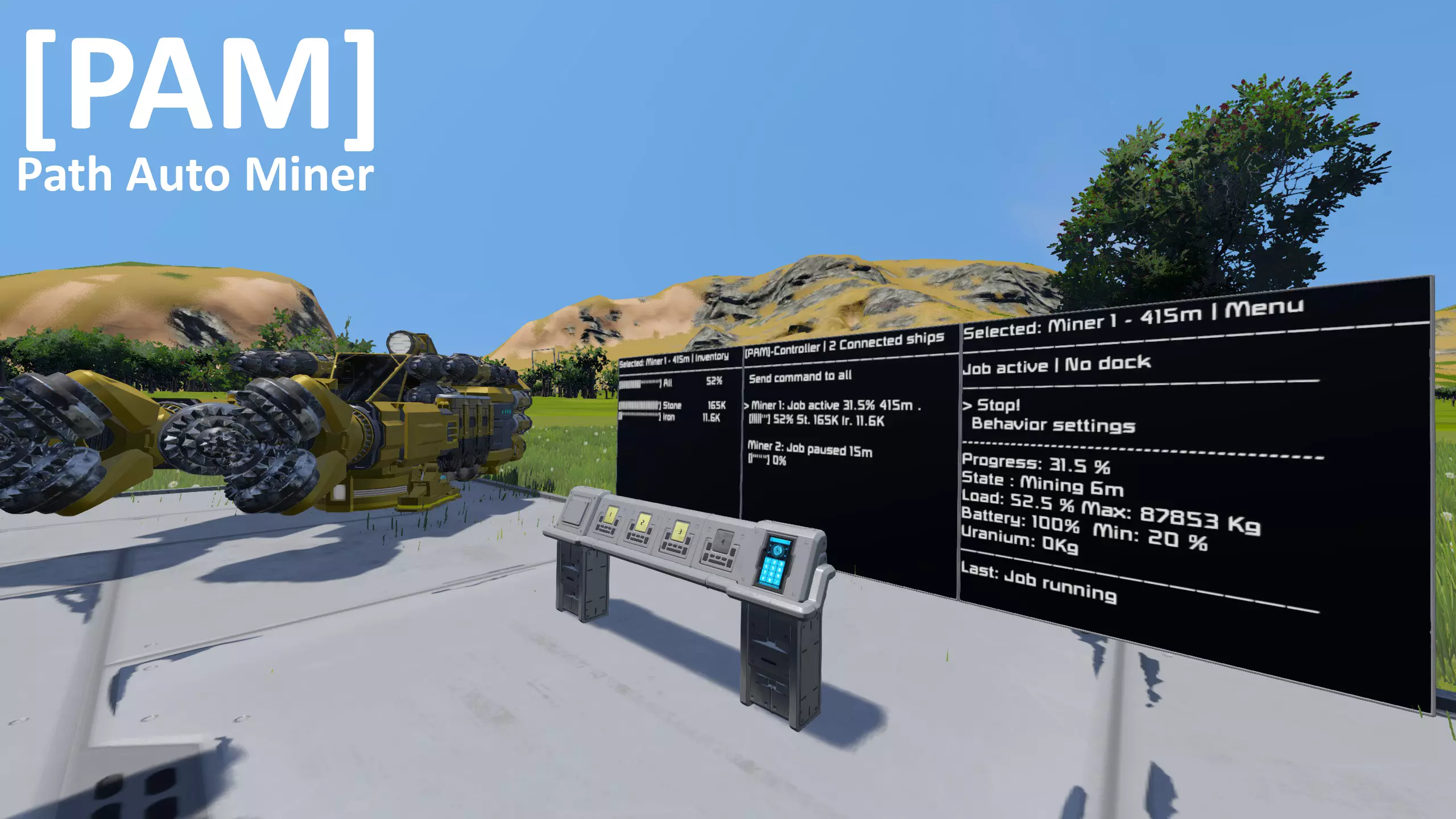
PAM控制器是一种可放置在基地或母舰中的系统,它能为你提供一些关于PAM控制舰船的特殊远程控制功能。该系统通过天线广播与你的舰船进行消息的发送和接收。功能: - 在单个LCD上查看你的舰船状态 - 远程控制舰船的PAM菜单 - 显示舰船当前的库存 - 向所有或指定舰船发送指令 - 设置具有不同内容模式的LCD 设置 请先完成舰船设置 常规:(舰船与空间站) 天线: - 启用广播 - 确保范围足够大 PAM版本: - 舰船与控制器需使用相同的PAM版本 - 若版本不同,则无法正常工作 空间站: 可编程方块: - 在名称中添加标签:[PAM-Controller] - 加载PAM脚本或重新编译 - 将UP、APPLY、DOWN指令设置到按钮面板、驾驶座等设备上- 若要更改广播频道,请查看PB自定义数据 LCD: - 在名称中添加标签:[PAM] - 在自定义数据中定义显示模式(需先运行PB) 座位及其他方块的LCD: - 为带有LCD的方块添加此标签:[PAM:<LCDIndex>] - <LCDIndex>为此方块的LCD面板列表中的LCD编号 - 例如:驾驶舱 [PAM:1] 重要事项: - 当前需手动调整字体大小 飞船:可编程方块: - 打开现有PAM-PB的自定义数据 - 设置“Ship_Name”,例如“Miner 1” - 将“Enable_Broadcast”设为“true” 几秒钟后,飞船信息应显示在控制器的LCD上 注意:- 若矿机未进行任何操作,与控制器的通信将减少(刷新时间延长) 控制器模式 - 操作方法如何远程控制采矿机菜单: - 将主显示屏上的光标移至采矿机的第一行(例如:采矿机 1:任务已完成 10分钟) - 使用“应用”按钮选择采矿机 - 按“向下”按钮3次:1=跳至“发送命令”,2=激活远程模式,3=移动远程光标 - 多次按“向上”按钮退出远程模式 如何设置多个PAM控制器与各自连接的飞船: - 当多个控制器和飞船处于同一天线范围内时,可设置单独的通信频道 - 只需定义自定义频道名称,即可将指定控制器与指定飞船配对 - 在PB(飞船和控制器)的自定义数据中可找到“Broadcast_channel”变量 - 飞船和控制器的频道名称必须相同 例如:控制器A -> 频道名称:#default 控制器B -> 频道名称:#earthMiners 控制器C -> 频道名称:#moonMiners 矿机A -> 频道名称:#default 矿机B -> 频道名称:#default 矿机C -> 频道名称:#earthMiners 控制器A已连接2艘飞船 控制器B已连接1艘飞船 控制器C已连接0艘飞船 (频道名称前的“#”符号非必需) 如何在同一网格上使用多个PAM控制器?- 按常规方式设置一个PAM控制器(PB + LCD + 例如按钮面板) - 在网格上放置第二个 PAM 控制器(带有 [PAM-Controller] 标签) - 修改脚本中的此行: "const String pamTag = \"[PAM]\";" 改为 "const String pamTag = \"[PAM2]\";" - 添加第二个带有 [PAM2] 标签的 LCD - 放置第二个按钮面板,并像往常一样为第二个可编程方块设置命令 - 完成 - 现在您可以使用“Broadcast_Channel”将舰船分配给特定控制器 舰船设置 注意:此脚本未在模组环境下测试,您可以尝试使用,但可能无法正常运行。通用要求: - 必需模块:遥控块、可编程块、连接器、推进器、陀螺仪、钻头(采矿模式)、研磨机(研磨模式) - 可选模块:LCD 屏幕、传感器(研磨模式时必需) - 你的停靠站需要启用“排空所有”设置的分类器,以便为飞船排空或填充物资 遥控块: - 必须沿飞行方向对齐 - 遥控块的下方必须与飞船的下方朝向一致 - 当存在多个可用遥控块时,需添加 [PAM] 标签 - 若遥控块被摧毁,脚本将停止所有任务。请注意保护它。
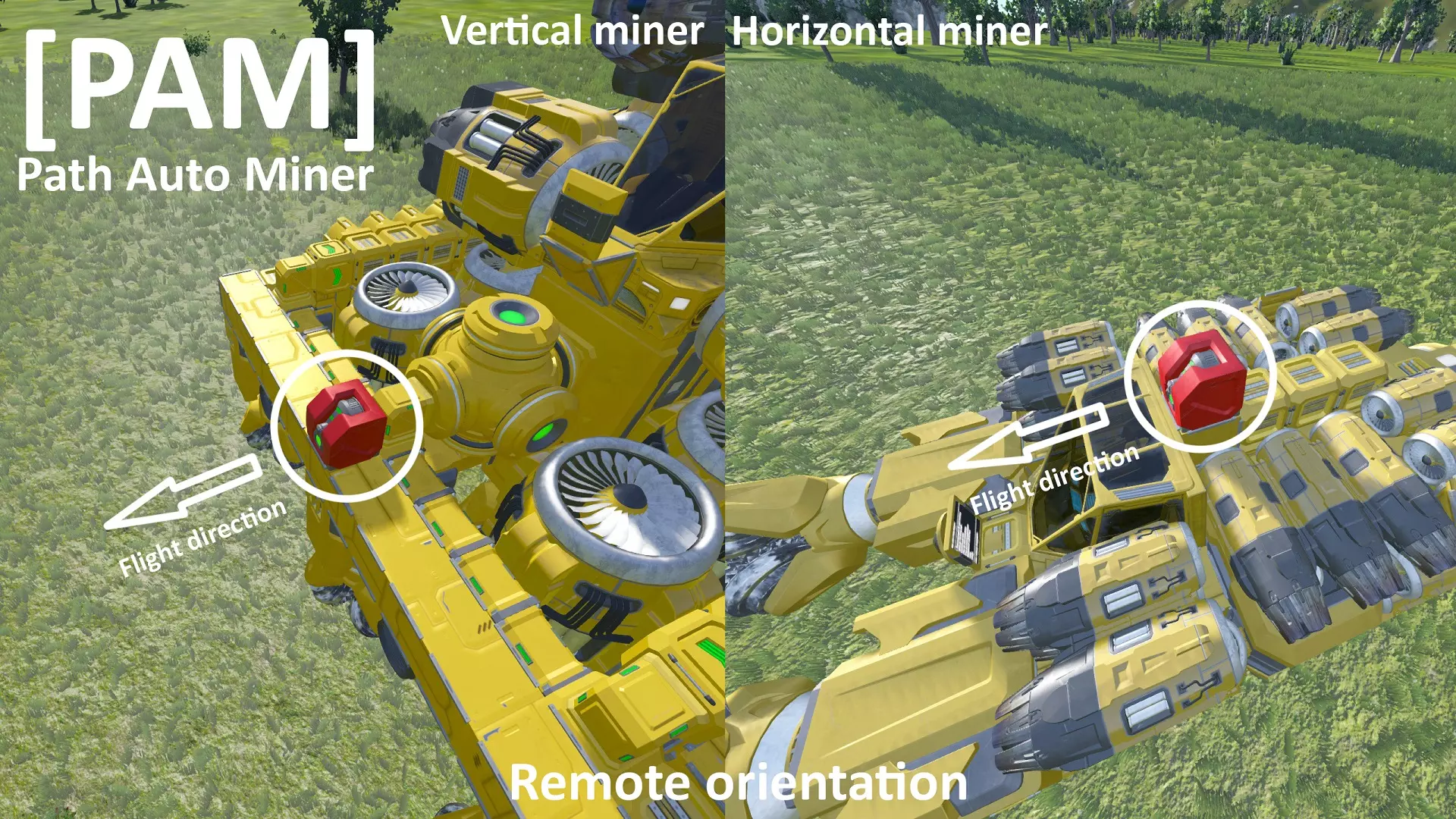
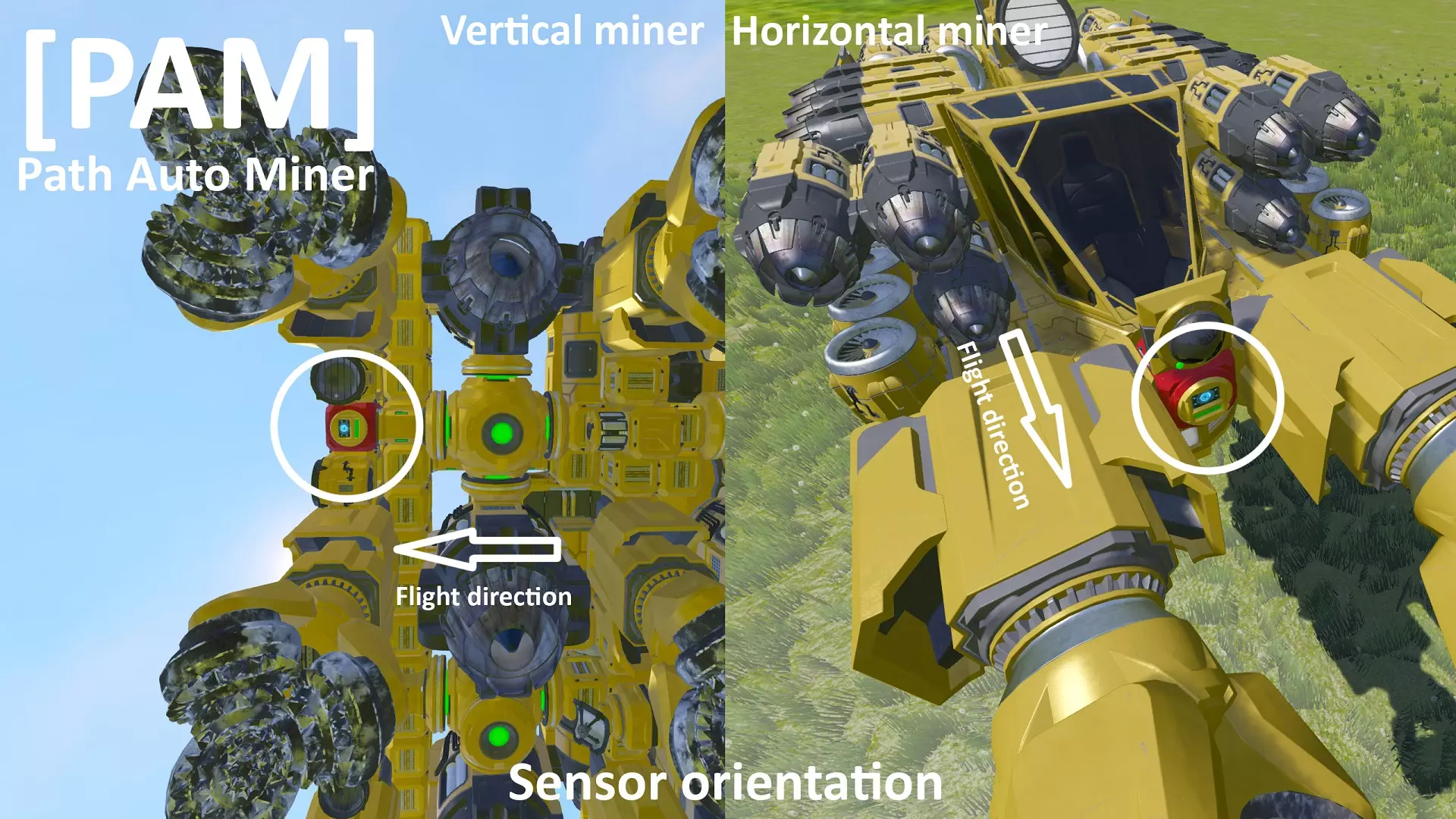
LCD - 添加 [PAM] 标签 - 你可以拥有多个 LCD 驾驶舱和其他方块的 LCD - 为带有 LCD 的方块添加此标签:[PAM:<LCDIndex>] - <LCDIndex> 是此方块的 LCD 面板列表中的 LCD 编号 - 例如驾驶舱 [PAM:1] 重要提示: - 当前需手动调整字体大小 - **起落架**:根据所需功能添加 [PAM] 标签: - 若未标记任何起落架:PAM 控制飞船的所有起落架 - 若标记一个或多个起落架:PAM 仅控制带有该标签的起落架 - **电池**:根据所需功能添加 [PAM] 标签: - 若未标记任何电池:PAM 控制飞船的所有电池 - 若标记一个或多个电池:PAM 仅控制带有该标签的电池 - **分类器**:根据所需功能添加 [PAM] 标签: - 若未标记任何分类器:PAM 控制飞船的所有分类器 - 若标记一个或多个分类器:PAM 仅控制带有该标签的分类器 - 注意:需在行为设置中启用“切换分类器”功能连接器 - 根据所需功能添加【PAM】标签: - 若未标记任何连接器:PAM 将控制飞船的所有连接器 - 若标记一个或多个连接器:PAM 仅控制带有该标签的连接器(未标记标签的连接器将无法用于对接) 氢气罐 - 根据所需功能添加【PAM】标签: - 若未标记任何氢气罐:PAM 将控制飞船的所有氢气罐 - 若标记一个或多个氢气罐:PAM 仅控制带有该标签的氢气罐 传感器(仅采矿与研磨模式) - 必须沿采矿方向对齐(见下方截图,注意传感器旋转角度) - 在飞船上的位置无关紧要 - 在名称中添加【PAM】标签 - 在 K 菜单(信息选项卡)中启用“显示传感器范围”
Drills / Grinders (Only Mining & Grinding mode) (Only when using drills aligned in different directions:) - Add the [PAM] - tag to one or more drills which are aligned in the mining-forward direction - Do not add the tag to drills which are aligned in the other directions - Drills with tag are acting as reference for the "working" direction - The sidewards aligned drills will not count in the shaft size calculation Programmable block- Load the script, check and run it (no timer needed) - Run the "RESET" command if the script is in the wrong mode - Add 3 commands to toolbar: UP, APPLY, DOWN and navigate through menus Important:- All blocks have to be placed on the same grid as the PB, blocks on subgrids are going to be ignored. - Make sure your ship has enough energy to supply the thrusters with 100% in every direction - When adding a lot of blocks then PAM has to do a lot of operations to control these blocks. The maximum amount of operations is limited by Space engineers, so you have to keep an eye on your "Max instruction count" (Its displayed in the menu: Info -> 2nd page -> Max. instructions). If you reach the limit then Space engineers will stop the script with a "Script too complex error" and your ship will drift away. Job Setup (Mining/Grinding) Depth Mode: Default: - The ship mines till the depth is reached, then it returns Auto: - The ship mines till the minimum depth is reached - then it continues mining as long as the ship flies through the configured material - Auto (Ore): continues mining if the ship mines through ores - Auto (+Stone): continues mining if the ship mines through ores or stone Note: - Auto (Ore) is usable with ice - Auto mode works with grinding ships too Start Pos Top-Left: - Ship starts at the top-left corner of the job area, then it mines row by row Center: - Ship starts in the center of the job area, then it mines in a spiral from the center to the corners Note: - "Center" works best with a quadratic job area - If the ship starts in the Bottom-Right corner then your RemoteBlock is upside down ;) Behavior settings Max load: [10...95]- If the storage becomes fuller than this limit then the ship will retrun to base and unloads the resources - Blocks which counts as usable storage: Drills/Grinders, cargo containers, cockpits & connectors Weight limit: [on, off]On planets: - The script calculates a maximum weight depending on the actinng gravity, the maximum thrust and the ship orientations along the path and during the job - If the weight exceeds the limit then the ship will retrun to base and unloads the resources In space: - It checks if the acceleration becomes too low because of too much load - The acceleration limits are adjustable in the head section of the script - If the ship becomes too heavy then it will retrun to base and unloads the resources Unload ice: [on, off]- if off then the ice can remain in the ship during unloading. Ejection: [Current pos, Drop pos, In motion, Off]- PAM does not throw out stone automatically - PAM does not configure sorters or ejectors for you - You need a normal independent ejection setup on your ship (sorter+ejectors) which is turned on - PAM does only check if the stone amount in the inventory is sinking - When the ship becomes full then it will wait till all stones was ejected - When the ejected amount is > 25% (of total cargo) then the job will be continued without returning to base 2 material modes: > Stone: it waits till all stones was ejected > Stone + Ice: it waits till all stones and ice was ejected 3 movement modes: > Current pos: Stays at the current ship position and just waits for the stone ejection > Drop pos: Flies to a position outside of the shaft. When there is a acting gravity it tries to not stand above the shaft (requires a min job width and height of 2!) > In motion: Flies slowly in cycles above the shaft, this avoids the ejector to become blocked by ejected stones. Toggle sorters [on, Off]- If this is enabled PAM disables the sorters as long as the ship is in the hole - if this is disabled PAM does not toggle the sorters at all. - Note: This does not configure the filter list for you Uranium: [< 1 ...25, Ignore]- if your ship uses a reactor and the uranium amount is less than this limit then the ship will return to base immediately - every reactor on the ship must have the minimum amount of uranium. - when the ship is docked to base and the uranium amount is less then the limit, then it will wait till the uranium was refilled. - You can set it to ignore to disable this function Note: PAM itself does not move uranium into the ship Battery: [< 5 ...30, Ignore]- if your ship uses batteries and the battery charge is less than this limit then the ship will return to base immediately - when the ship is docked to base then it will charge the batteries to 100% - You can set it to ignore to disable this function Hydrogen: [< 10 ...90, Ignore]- if your ship uses hydrogen and the hydrogen level is less than this limit then the ship will return to base immediately - when the ship is docked to base then it will refill the tanks up to 100% - You can set it to ignore to disable this function When done: [Return home, stop]- there you can choose the behavior when the job is done, either the ship will return to base or it flies to the job position On damage: [Return home, stop, job pos, ignore]- there you can choose the behavior when damage during the job is detected - it detects if a block is destroyed or the health sinks below the functional level - you can see the damage there: Main menu -> Info -> Damage Drill inv. balancing: [on, off]- this is for a even distribution of inventory items of the drills / grinders - it can avoid that a single drill is overloading (and don't collect the resources) while other drills have still enough space in inventory Enable drills: [Fwd+Bwd, Fwd]- Fwd+Bwd: Drills are enabled while the ships flies forwards and backwards - Fwd: Drills are enabled while the ships flies forwards Work speed fwd: [0.5...10]- this is the forward speed during mining or grinding Work speed bwd: [0.5...10]- this is the backward speed during mining or grinding Acceleration: [10...100]- this is a general acceleration factor for every movement that the ship will make, it affects also the negative acceleration at braking Width / Height overlap [0...75%]- You can define how much the holes are overlapping - This is useful for non-rectangular shaped ships - It will preview the new shaft size with the sensor range - Note: This will reset the current job progress Commands
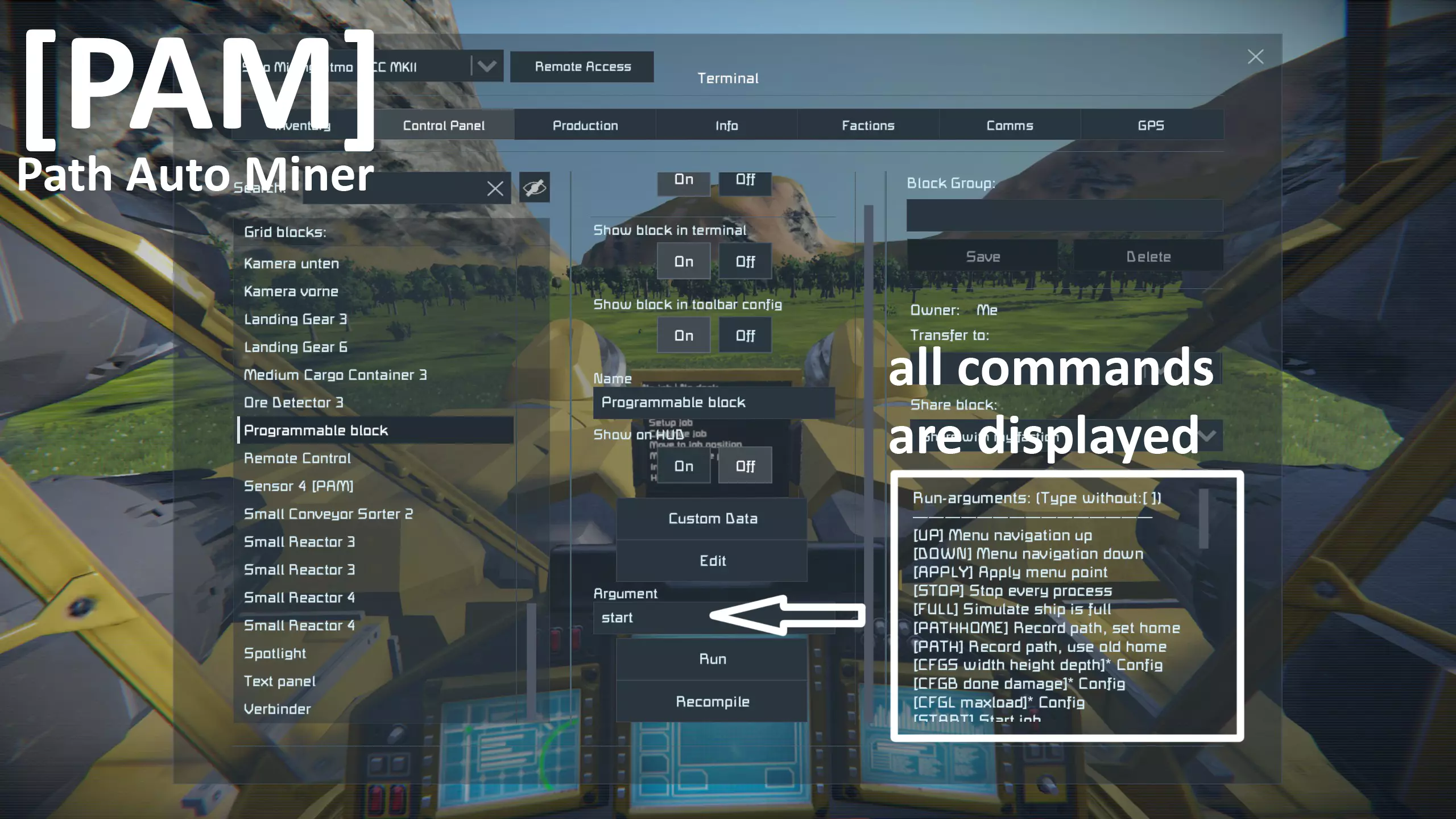
所有指令会在游戏内选择可编程方块时显示。底部还有CFG指令的示例。注意:部分设置取决于已激活的脚本模式是否可用 > 重要操作: [UP] 菜单导航上移 [DOWN] 菜单导航下移 [APPLY] 应用菜单项 > 可选操作: [UPLOOP] 上移+循环 [DOWNLOOP] 下移+循环 [START] 开始任务 [STOP] 停止所有进程 [CONT] 继续上次任务 [JOBPOS] 移动至任务位置 [HOMEPOS] 移动至初始位置 [PATHHOME] 记录路径,设置初始点 [PATH] 记录路径,使用旧初始点 [UNDOCK] 在穿梭机模式下开始离港 [CFGS width height depth] 设置尺寸 [CFGB done damage] 设置行为模式 [CFGL maxload weightLimit] 设置最大负载 [CFGE minUr minBat minHyd] 设置能源行为 [CFGW forward backward] 设置工作速度 [CFGA acceleration] 设置加速度 > 额外功能: [ALIGN] 将飞船与行星对齐 [FULL]模拟飞船已满 [重置] 重置数据和脚本模式 [穿梭机] 激活穿梭机模式 常见问题 问:能否使用钻头的右键模式? 答:不能。无法通过脚本激活此模式。 问:能否使用跳跃引擎? 答:不能。无法通过脚本使用跳跃引擎。 问:能否添加相对路径功能以在移动的母舰中导航? 答:不能。这会破坏PAM的简洁性,而且由于其余路径仍是静态的,效果也不会很好。 问:能否为PAM添加战斗/无人机模式? 答:不能。通常我玩《太空工程师》时不带敌人,所以我不需要这个功能,也就不会添加;) 问:能否同时配置多个任务并在它们之间切换? 答:或许可以。这会是一个不错的功能,但它会产生大量必须保存在服务器上的数据,而每PB的数据存储是有限的。 故障排除 传感器范围未显示 - 请在名称中添加[PAM]标签(必须是:[PAM],不能是(PAM)、PAM或其他形式)。- 在 K 菜单中启用“显示传感器字段” - 该选项仅在“设置采矿任务”菜单中显示 显示“传感器方向错误”时,请按以下方式检查: 对于水平采矿机(钻头在正面): 传感器前方方向 = 飞船前进方向 = 钻头前进方向 传感器上方方向 = 飞船上方方向 传感器下方方向 = 飞船下方方向 对于垂直采矿机(钻头在下方): 传感器前方方向 = 飞船下方方向 = 钻头前进方向 传感器上方方向 = 飞船前进方向 传感器下方方向 = 飞船后退方向 如果传感器已正确对齐但错误仍然存在,请检查远程方向。
显示“遥控器方向错误”——遥控器对齐错误可能会导致许多其他问题,因此请确保其正确对齐 - 遥控器必须沿飞行方向对齐 - 遥控器的下侧必须与飞船的下侧朝向相同
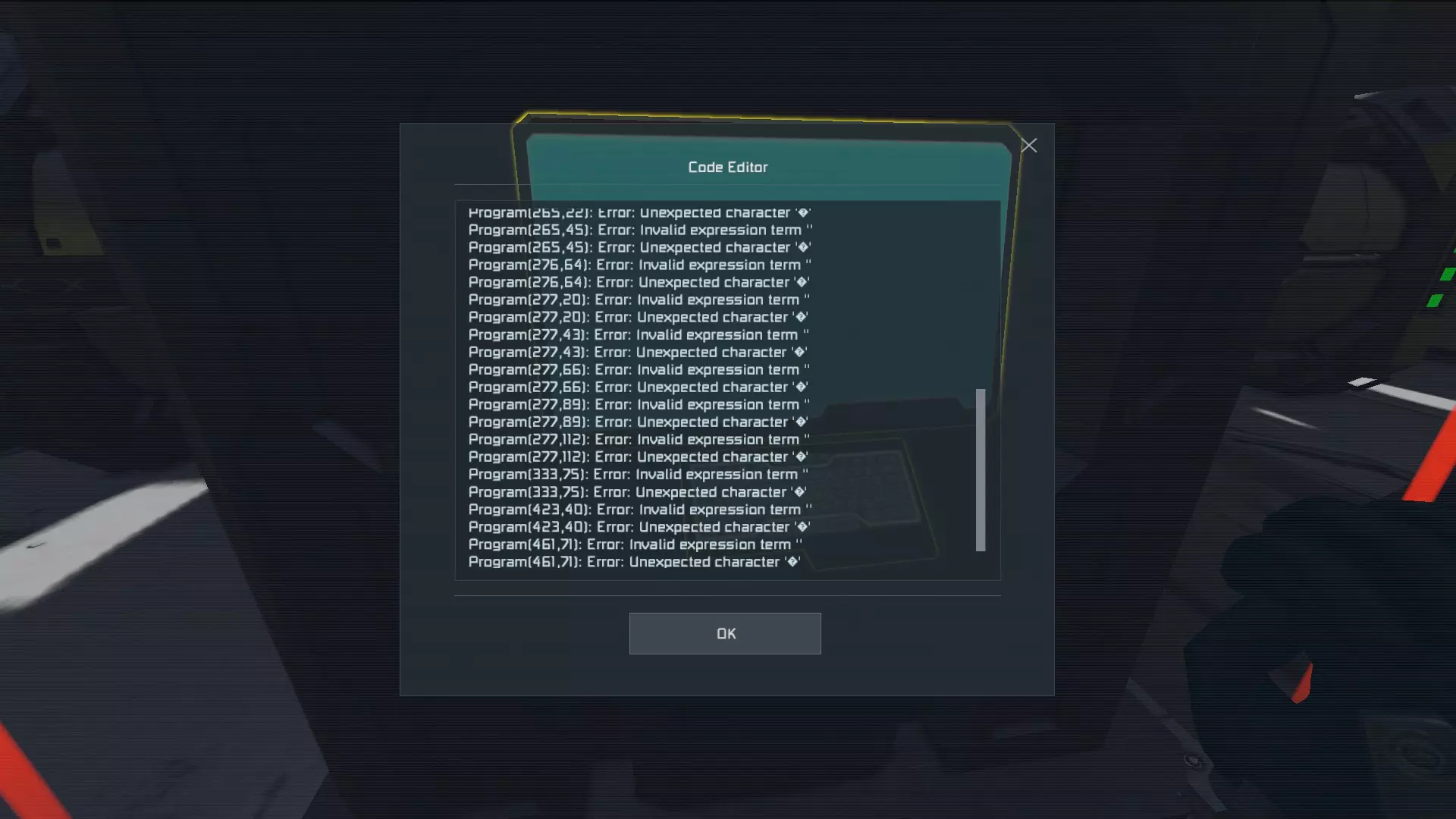
显示“Script too complex”(脚本过于复杂)错误或“Max. instructions >90%”(最大指令使用率>90%)——此错误可能由模组导致 - 例如:Nanites 模组是已知会随机导致可编程方块崩溃的模组 - 也可能是你的飞船方块数量过多,导致脚本需要过多指令来控制它们 - 你可以在此处查看指令计数:菜单 -> 信息 -> 第 2 页 -> 最大指令使用率(应低于 20%) - 尝试减少飞船的方块数量,尤其是推进器、陀螺仪和钻头 显示“Inventory balancing failed”(库存平衡失败)——当脚本无法在钻头之间移动物品时会出现此提示。- 可能原因: > 传送带损坏 > 钻井机之间的分拣器 > 某些情况下能量不足(此时传送带会停止工作) - 你可以在以下位置禁用库存平衡功能: 行为设置 -> 钻井机库存平衡 -> 关闭 “弹射失败”显示 - PAM 不会自动抛出石头 - PAM 不会为你配置分拣器或弹射器 - 你需要一个正常的独立石头弹射设置 - PAM 仅检查库存中的石头数量是否在减少 - 如果石头数量没有减少,你就会收到此错误 脚本无法编译,代码中存在未知字符 - 安装最新版本的 .NET Framework(当前版本:4.7.2)并重试
船只未对接至主连接器——只需按以下步骤重新设置主连接器: - 停靠至你的连接器 - 选择“记录路径并设置主连接器” - 选择“使用旧路径” - 选择“停止路径记录” - 重试 船只未显示在PAM控制器的LCD上——你需要在船只和控制器的自定义数据中分别启用广播功能 示例船只
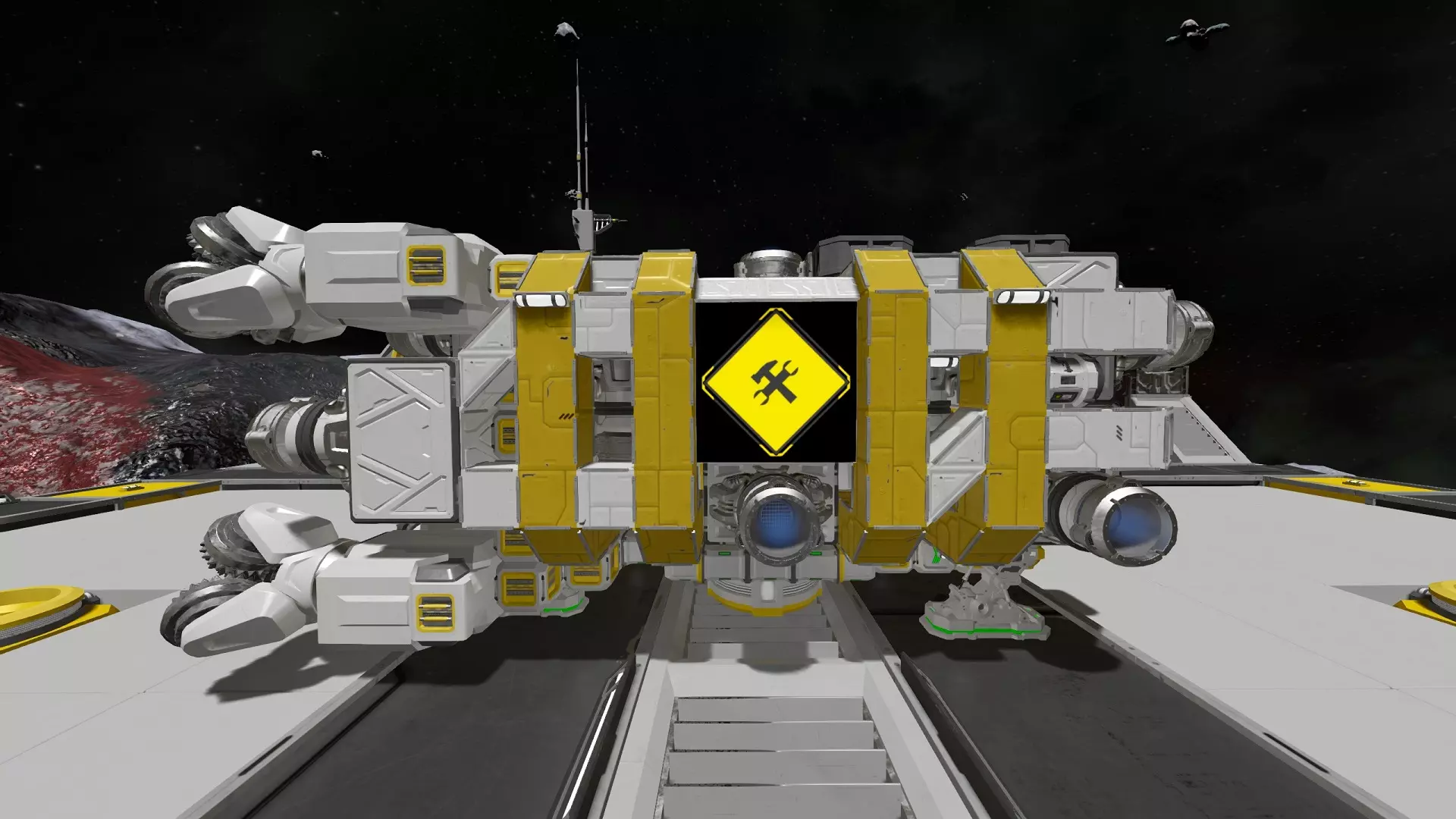
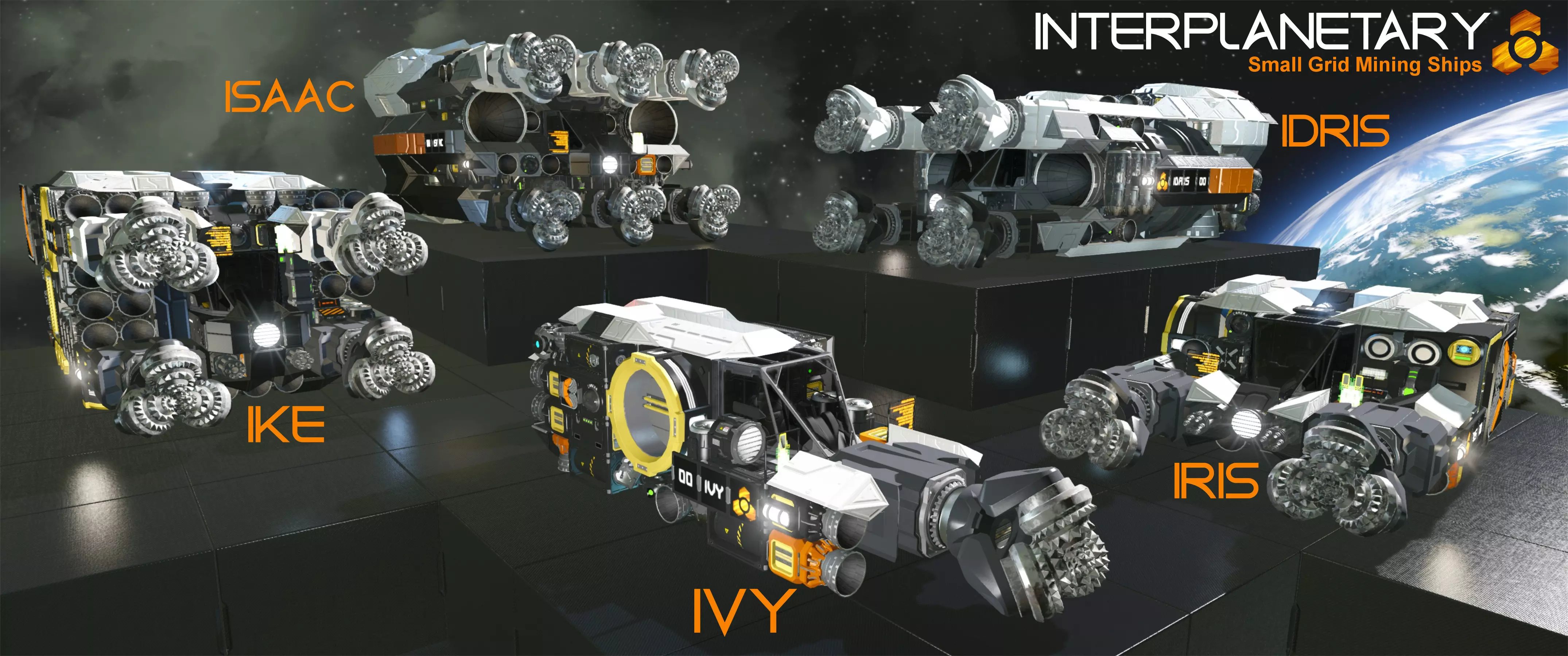
更新内容:现已将反应堆替换为电池。
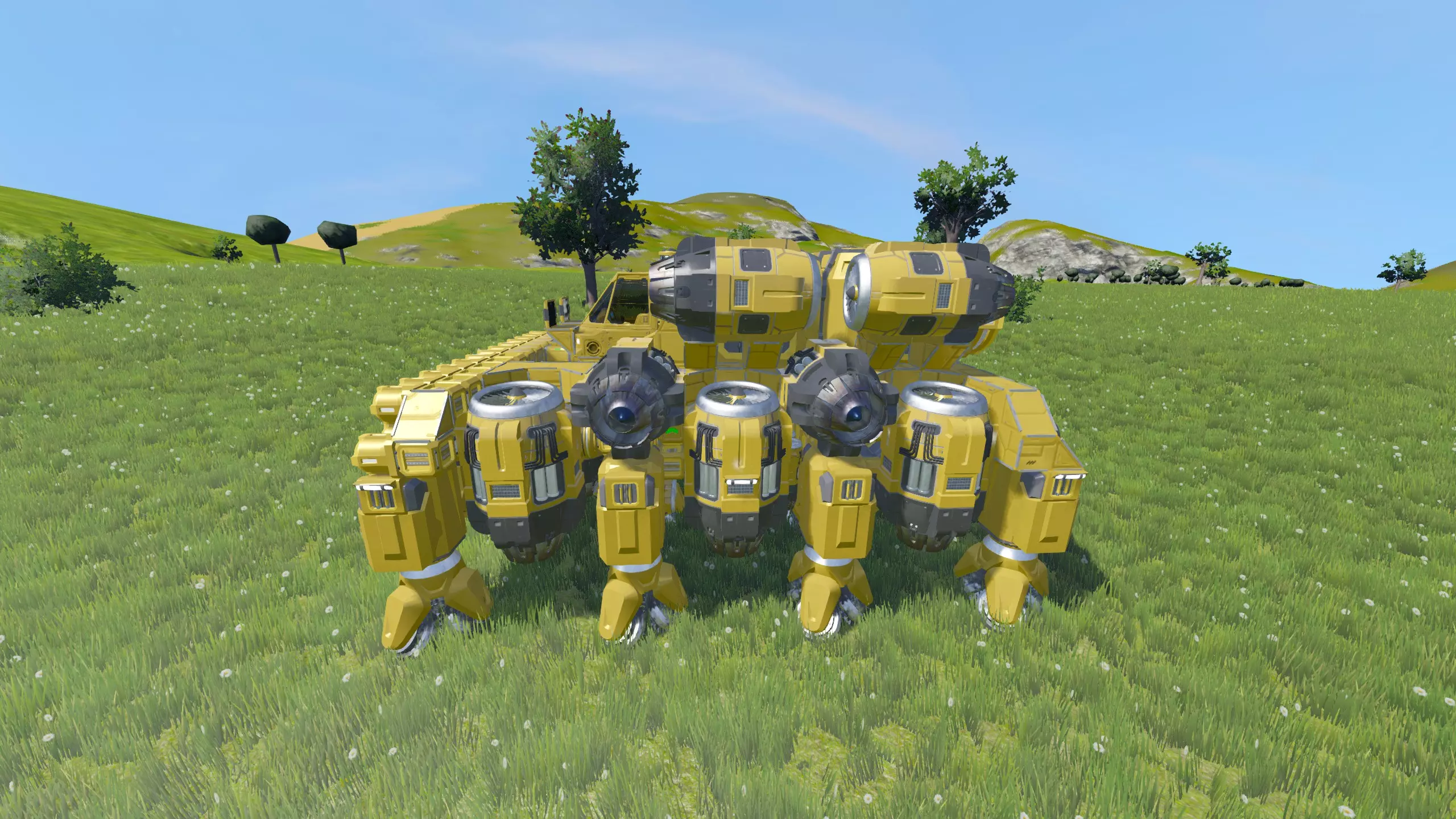
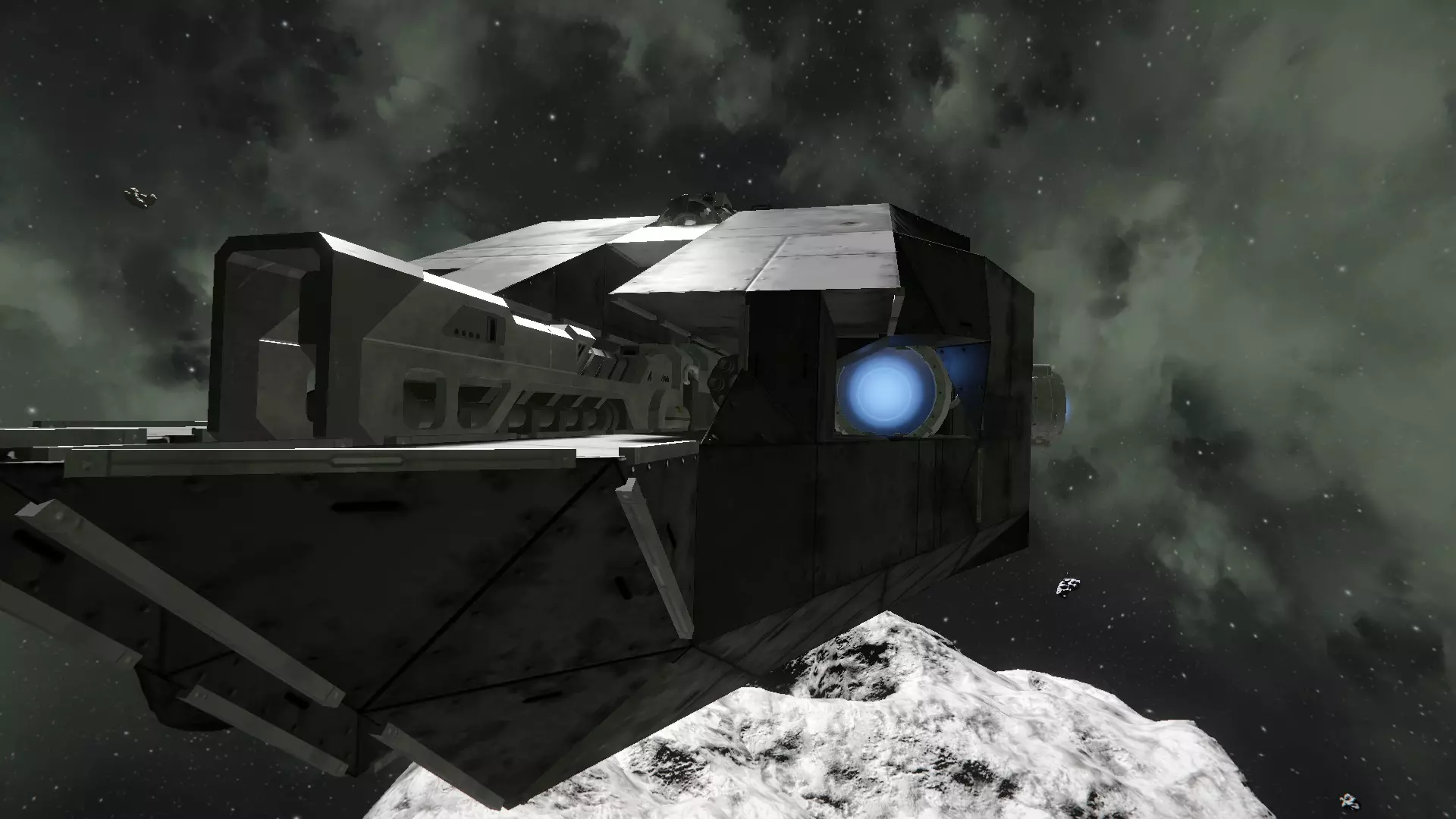
用于视频和截图的创意工坊舰船: T42 Tessa Bee https://steamcommunity.com/sharedfiles/filedetails/?id=1245198489 9-drill Light Hover-Miner https://steamcommunity.com/sharedfiles/filedetails/?id=688424879 large drill Mk II https://steamcommunity.com/sharedfiles/filedetails/?id=639351687 El Grindo https://steamcommunity.com/sharedfiles/filedetails/?id=725525771