换一换
换一换 


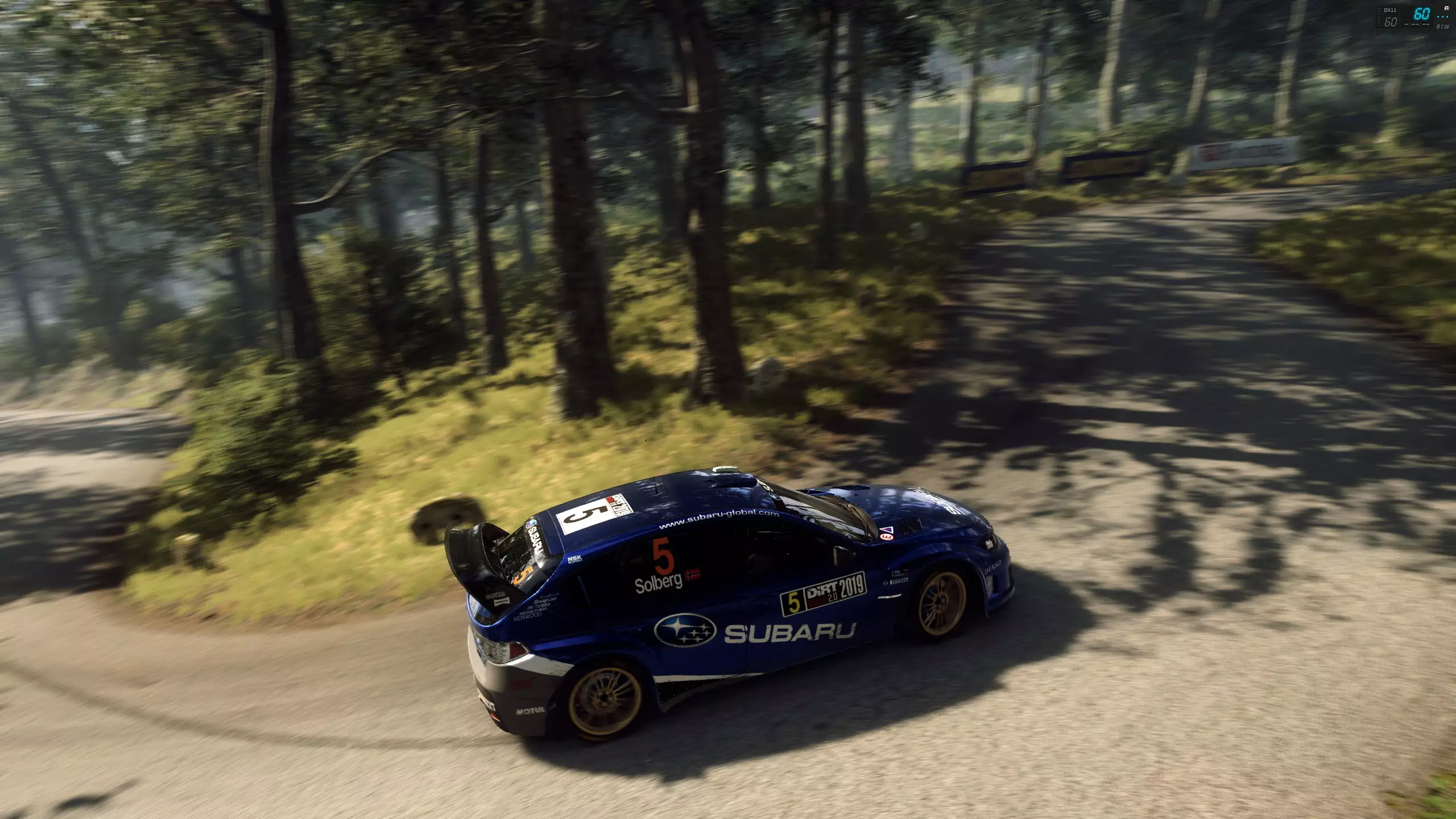
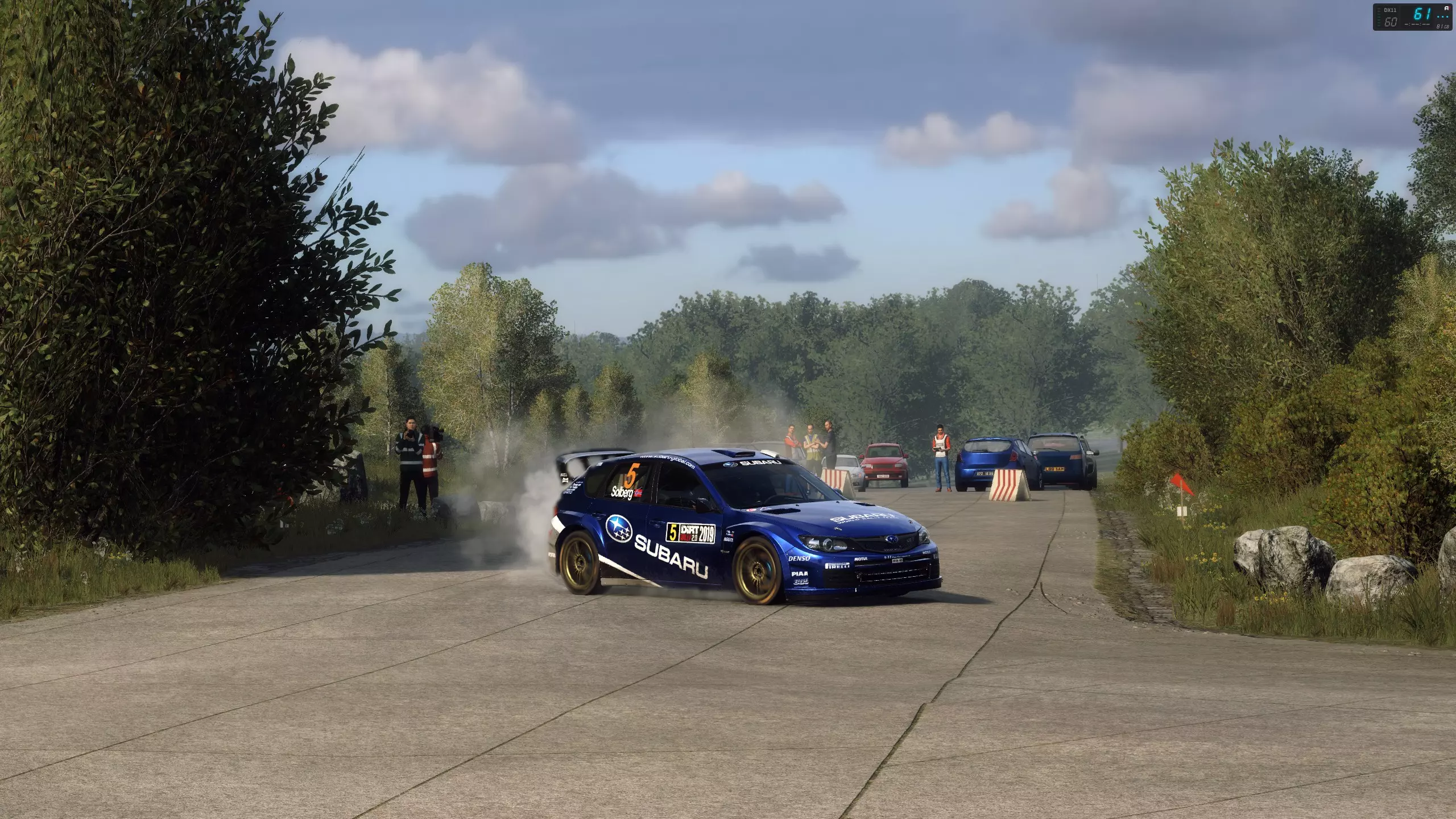
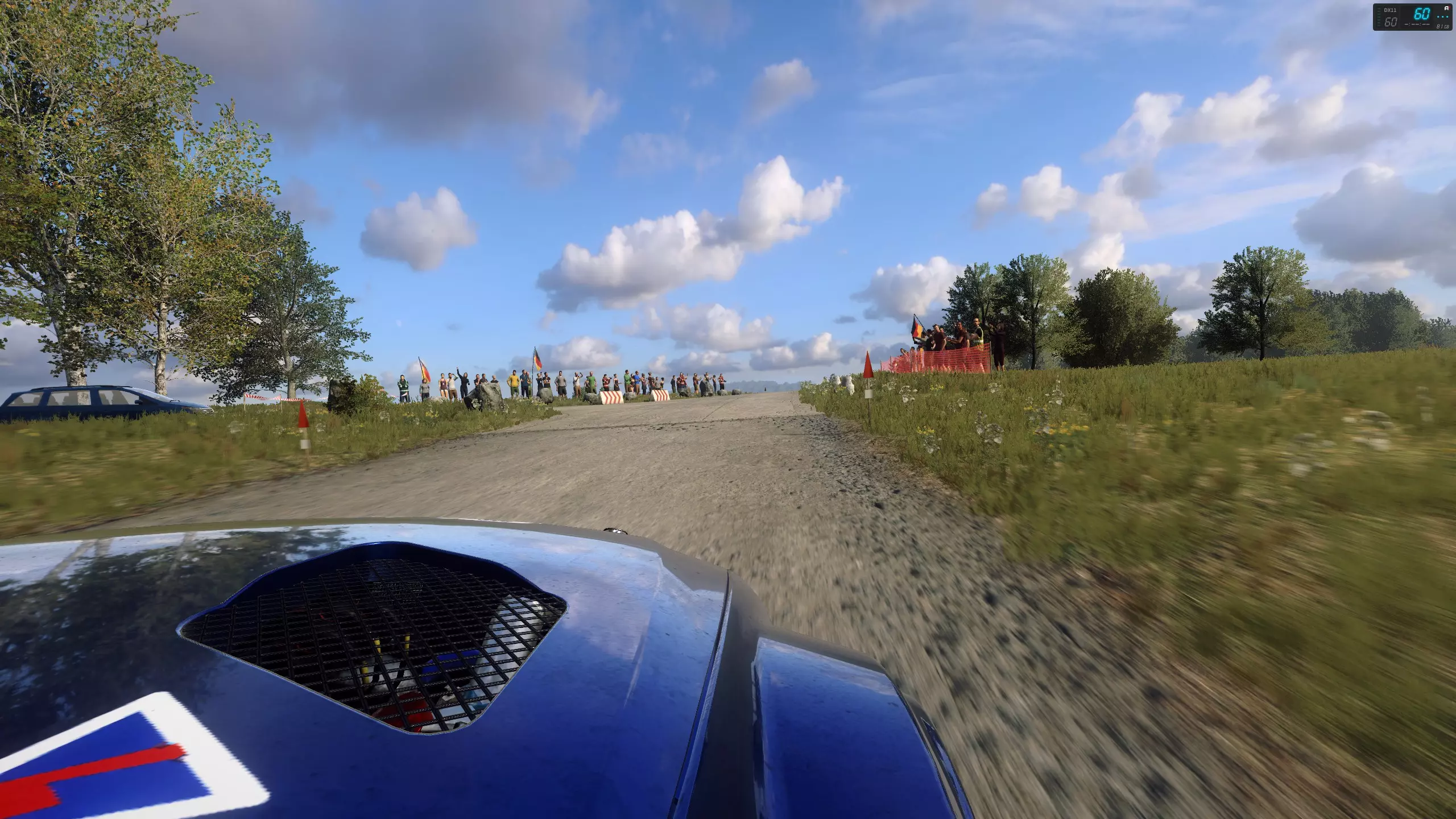
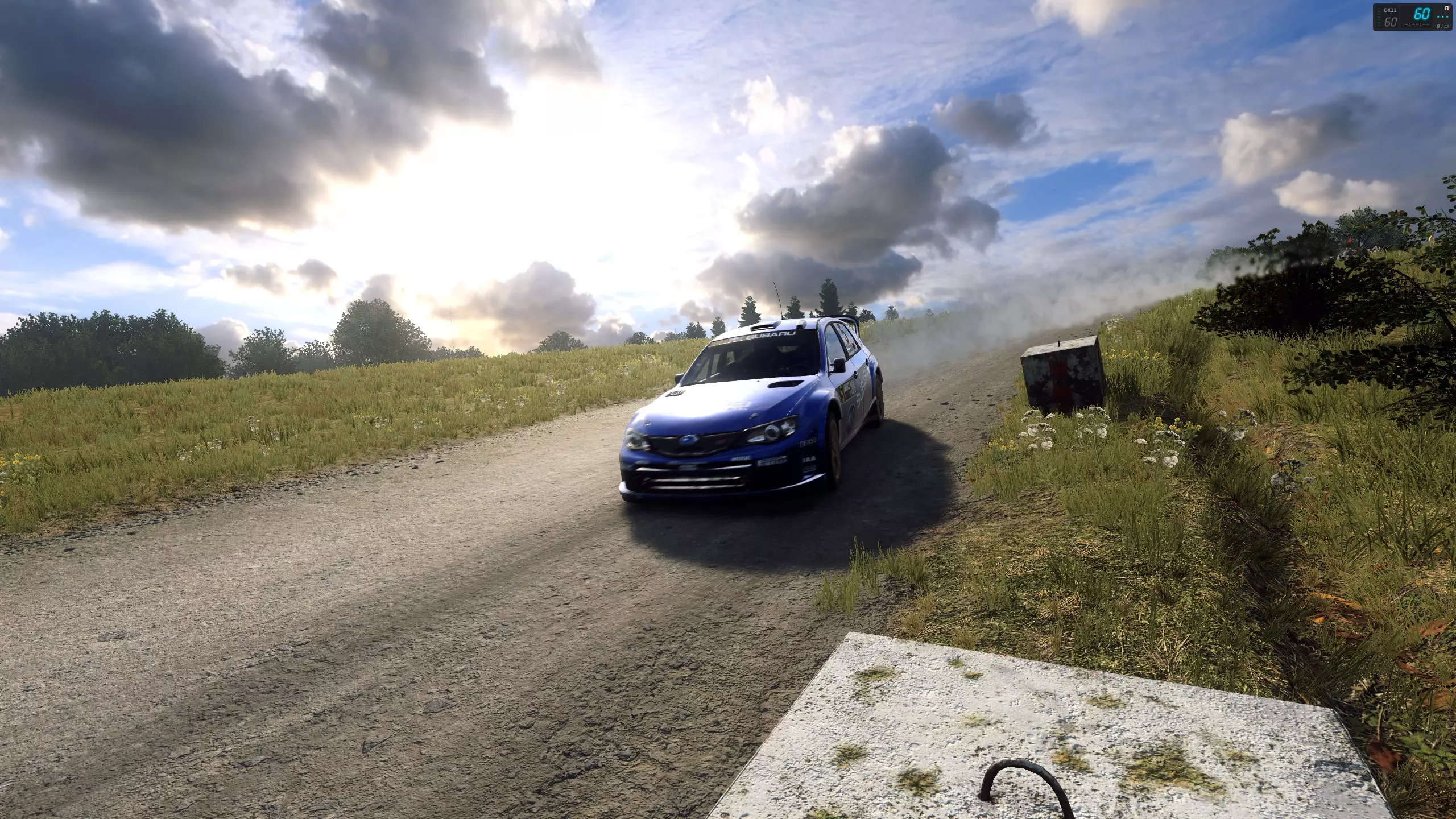
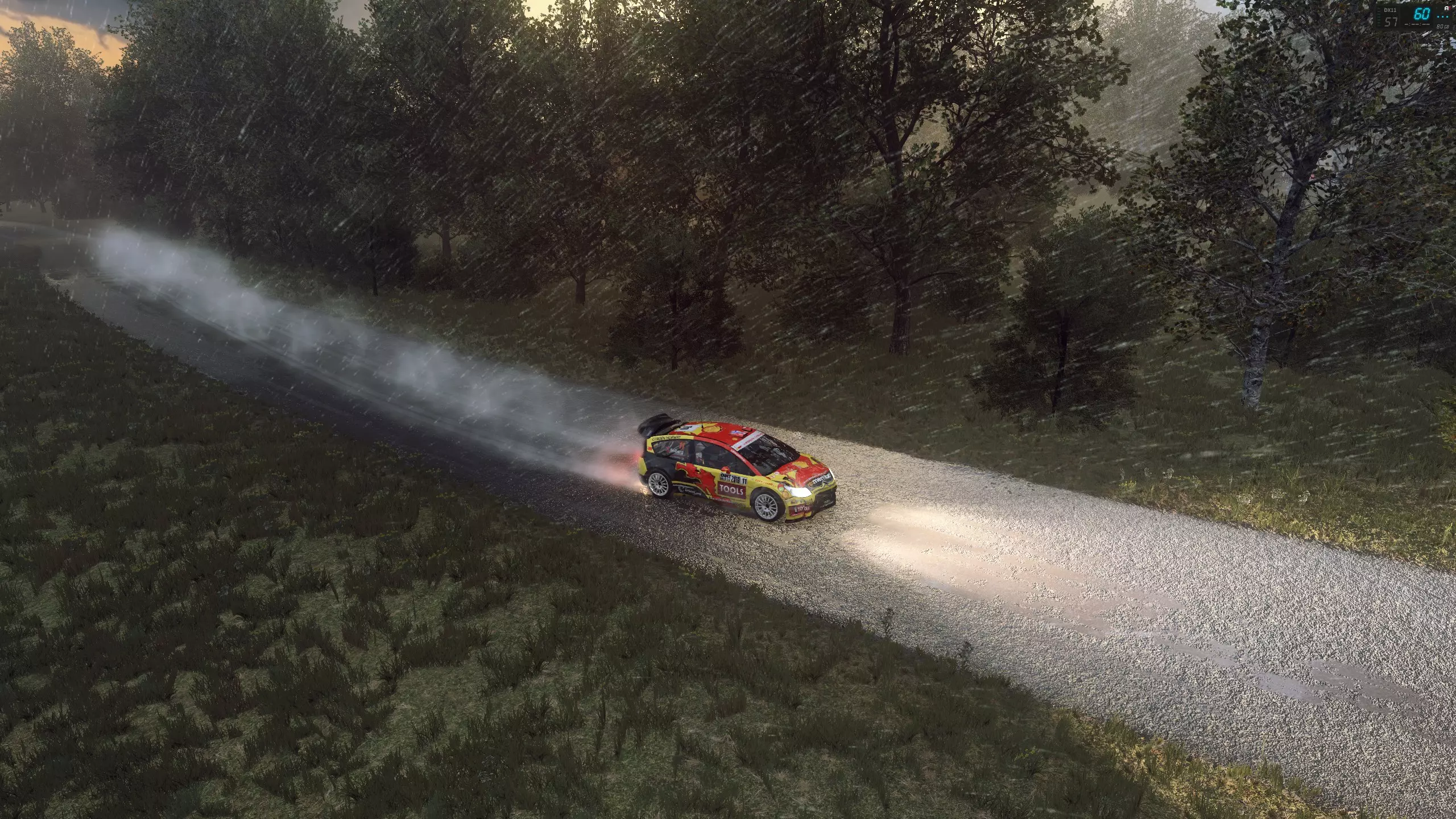
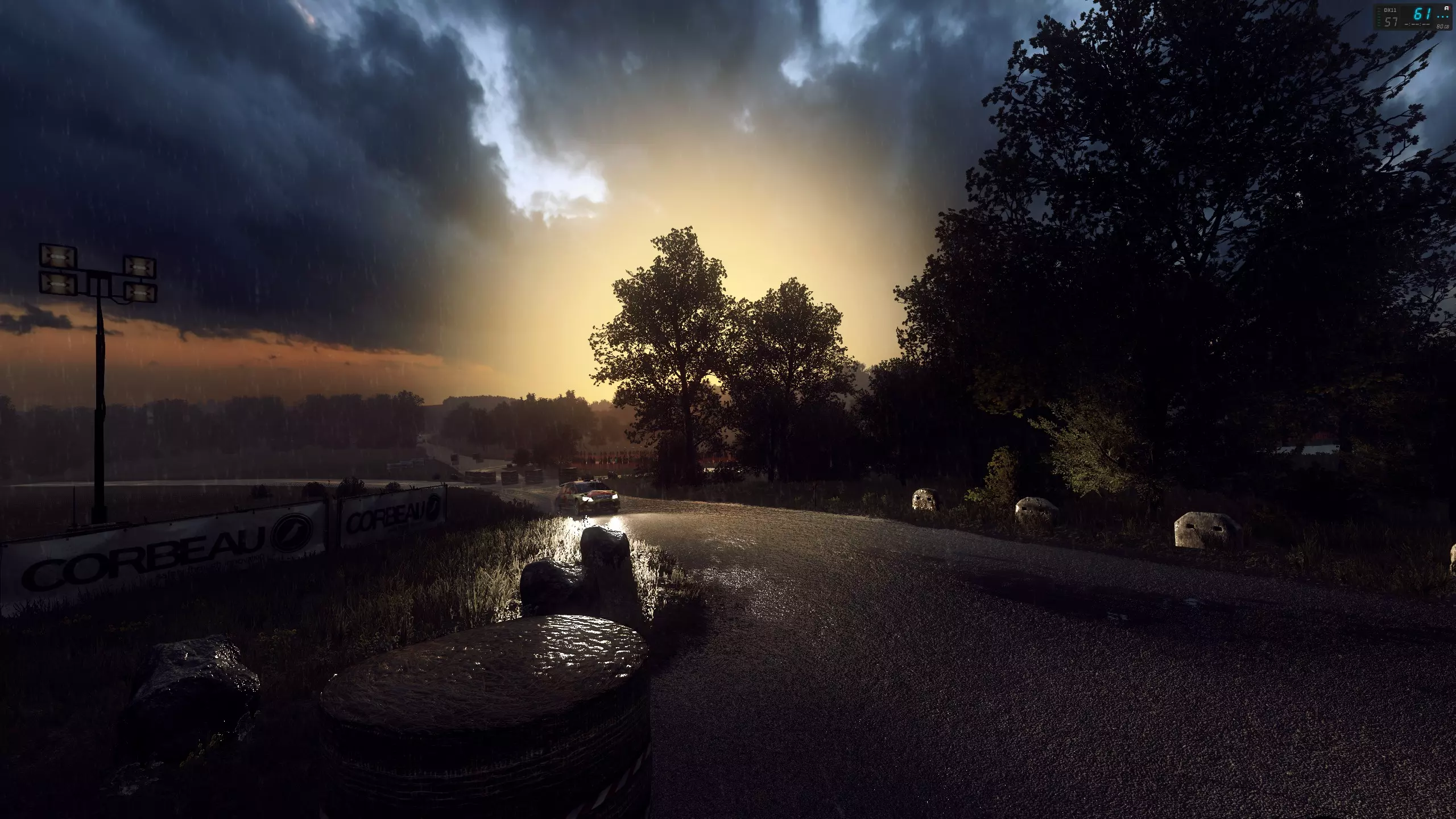
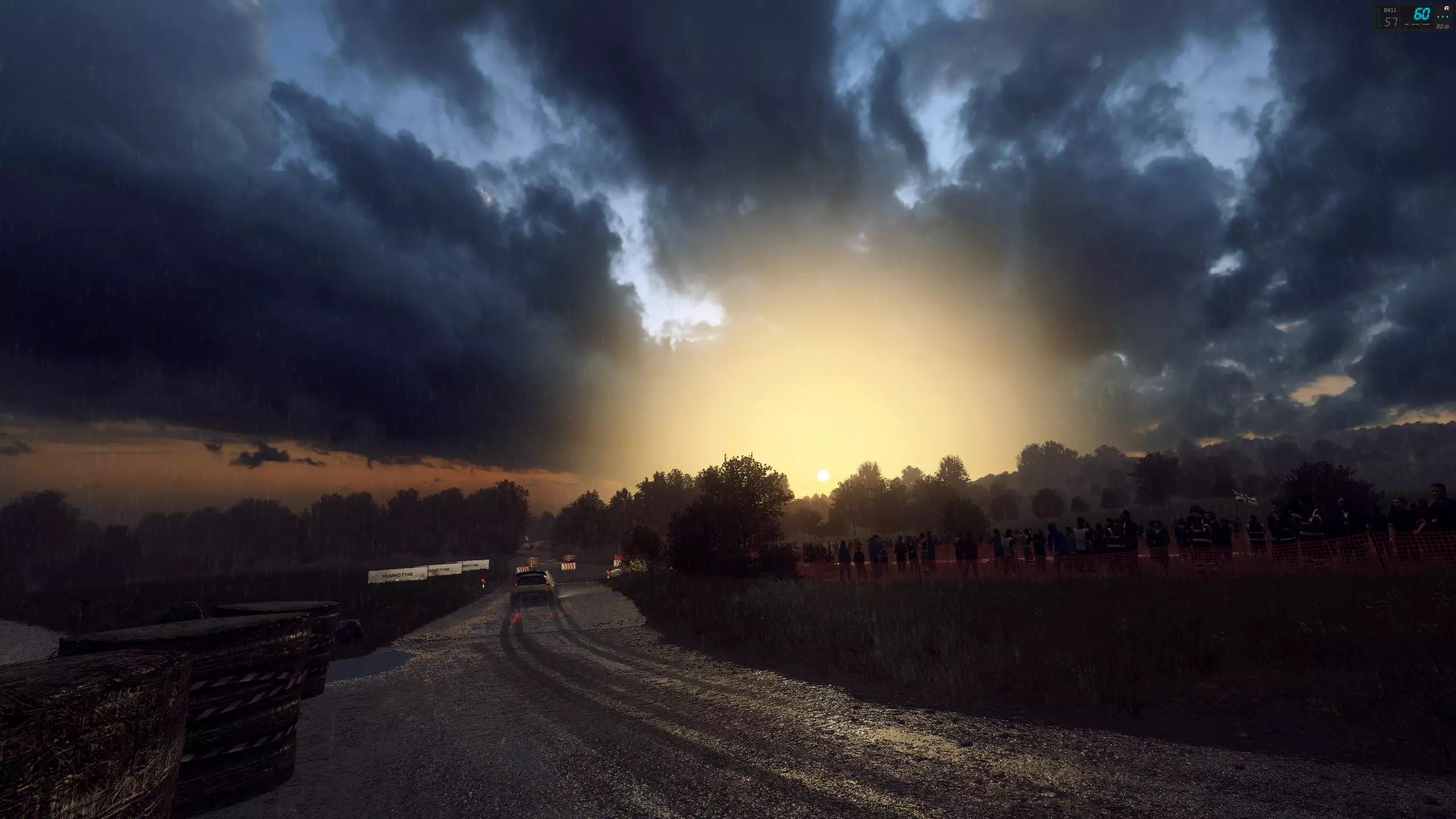
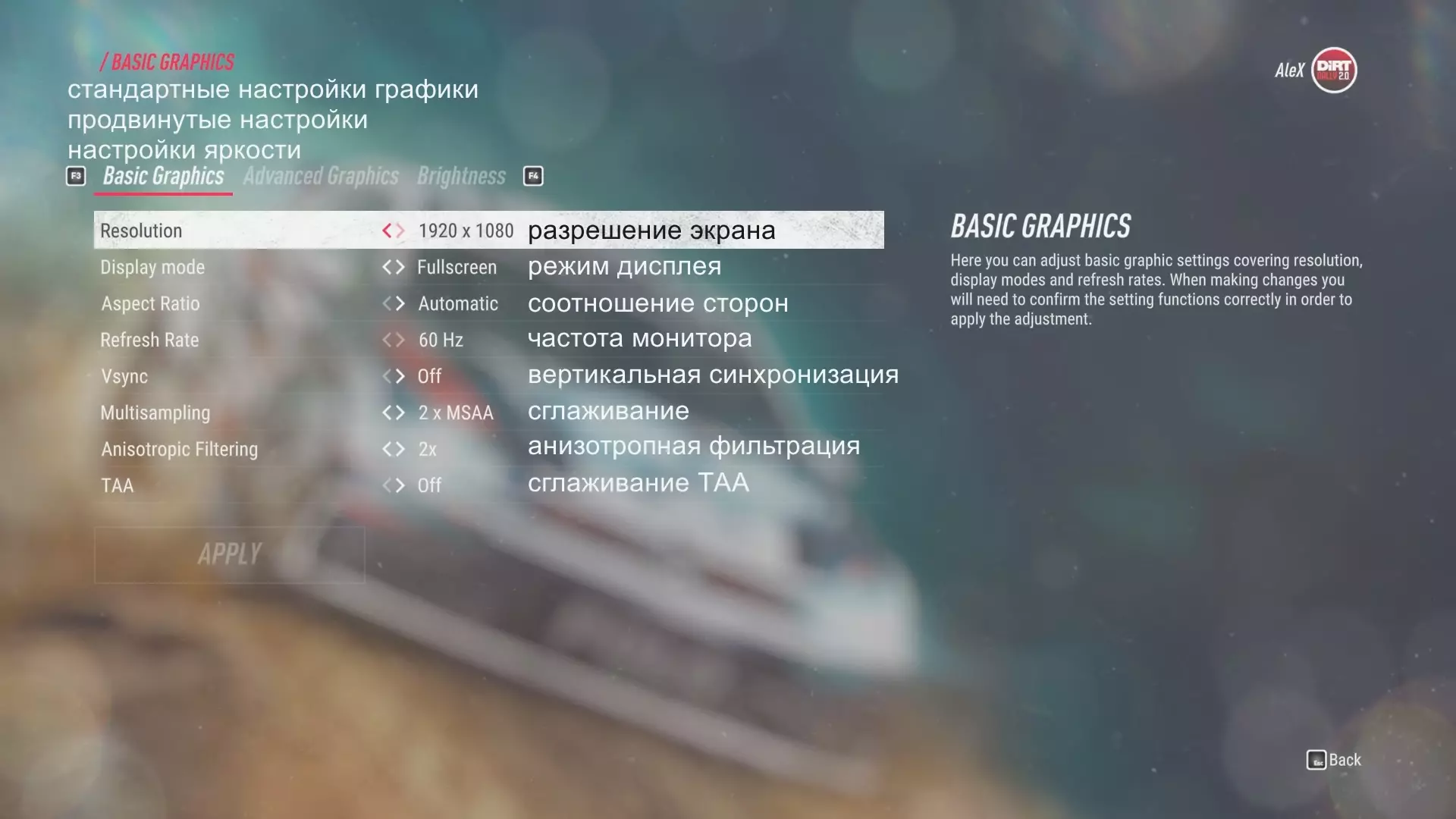
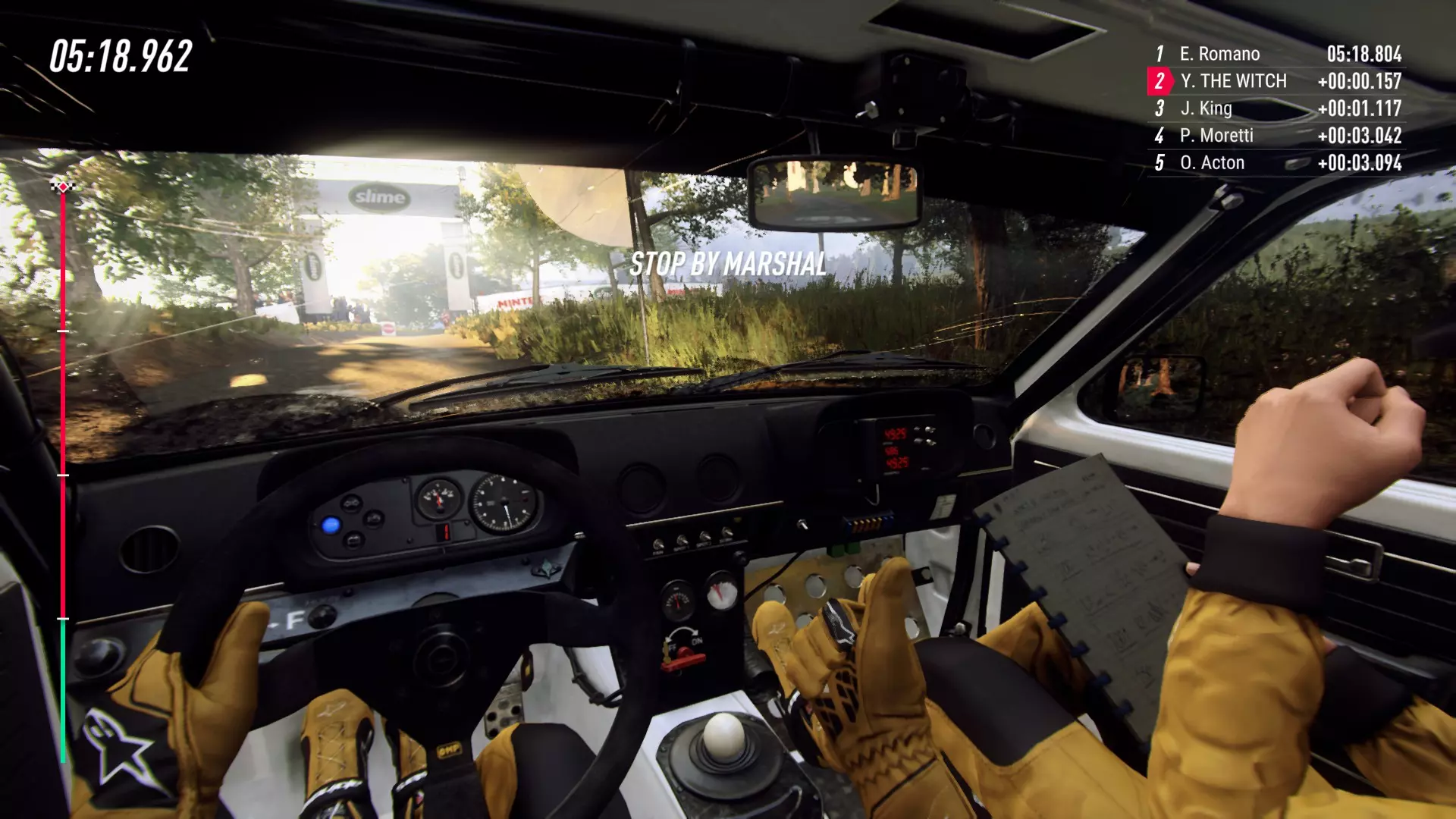
Finding the sweetspot between nice looking graphics and fast-enough framerate can be a chore. This is my findings and optimal settings Introduction The goal is to get a stable framerate of 60+ fps. while making the picture quality as pretty to look at as possible. I'm tweaking on the following hardware (which i consider avarage these days) - Intel Core i7 3770K @ stock - NVidia GTX 1070 - 16GB DDR3 - Resolution: 2560x1440 I've tested and tweaked settings using multiple stages to make sure that they are pretty solid. I already wrote a guide for Dirt Rally 1 and I encourage you to have a look at it for hints and tweaks i might omit in this guide: https://steamcommunity.com/sharedfiles/filedetails/?id=442912192 Graphic Settings Display Mode I prefer to use Windowed Borderless, this has the advantage of making it easy to switch between gaming and other programs like Sound Mixer, Recording tools, Youtube or whatever.. VSync ON - My monitor doesn't support higher hz/fps then 60 and on my machine it doesn't look good when VSync is off. Using VSync ON also has the benefit of lowering the power usage / noise of the GPU Multisampling 4x MSAA looks really nice on 2560x1440 , especially rocks and trees has less hysteresis / sharp edges Use CMAA if you need more performance, though its not as nice as 4x MSAA TAA OFF ... ALWAYS OFF !!! I don't know what this foul setting from hell is supposed to do, but the whole game looks like Nintendo if you enable it. !!! EDIT: TAA = Temporal Anti-Alias and combines a sequence of images to detect moving objects, the Anti-Alias engine will then only care about the edges that these objects contain. In the perfect world / implementation, this would look good - but CodeMasters did something wrong so it looks terrible. I advice NOT to enable it for better image quality. PS: never enable TAA and normal AA in the same time. To Codemasters: Why did you allow this ? 34" Wide 3440x1440 settings So i upgradede my monitor and had to change a few settings to make it run optimally: - My new monitor has G-SYNC so i Disabled VSYNC - Aspect ratio in game changed to 21:9 - AA changed to CMAA With the GTX 1070 i'm now getting 60 to 100 fps. Advanced Graphics Quality Preset: Custom Shader Detail HIGH - Never use LOW, it will break all shadow effects and make textures look like crap. Texture Detail ULTRA - This setting mostly consume GPU RAM and if you have plenty, just turn it up. Reflections HIGH - using ULTRA has a high cost in rain weather, while High looks plenty good. Screen Space Reflections ON Shadows Medium - You wont notice the difference when driving, and Medium looks quite good. Anything higher just ads finer detail and cost much performance. Night Lightning (edited) LOW - I ran into a perf. issue and found that i had to tweak it all the way down to LOW. There seems to be no difference between LOW and ULTRA (at least in Germany) other than frames per second ? ULTRA - You might tweak this down if you get bad performance at night. Ambient Occlusion HIGH - I couldn't tell the difference to ULTRA, and High looks plenty good. Advanced Ambient Occlusion OFF - It cost too much and didn't add enough detail. Particles ULTRA - This makes smoke and effects look good, tweak it down a notch if you need performance Advanced Blending OFF - This feature cost a LOT of performance and only makes trees look better. 4x MSAA is much cheaper to use. Weather High Crowd Medium - anything higher cost A LOT of performance, but medium looks good. I think there is a performance bug because i dont see much difference, only in frames per second. Cloth High Mirrors High Vehicle Detail High - it doesn't seem to cost much to run high, but you might get more fps in replay mode. Track Ultra - you might find some performance here, but not a lot. Object Ultra - also a bit of performance to gain from lower settings... Trees Ultra - It seems that there is little difference between lower settings and ultra. I found that there is a performance bug with trees that cant be solved by lowering tree-details. just keep it high. Ground Cover High - makes the game look pretty and doesn't cost much to have on High Edit: This option seems to be CPU bound, so set to low if your CPU is slow. Skidmarks ON - they dont cost much and makes the game look more real. Motion Blur ON - This is mostly a preference thing. only a few fps if turned off. God Rays OFF - I found them very distracting Chromatic Aberration ON - Makes some details look nicer Bloom ON - VERY IMPORTANT !! to keep this ON. Without it the light-engine doesn't work properly Lense Flares OFF - I don't like them, my eyes are not a camera... turn on if you like. Light Streaks OFF - Also dont like these.. Lens Dust OFF - I prefer off to get clean screenshots .. hehe.. clean... get it ? Brightness The optimal setting is when the darkest logo is BARELY visible. I have a calibrated monitor and can easily see the black logo at 1.00 At 0.8 it's pretty much gone, so for me it's between 0.8 and 1.00 I find that 0.8 can be a bit too dark at times, but also wish that contrast was higher in the game. Most of the game has a very flat contrast curve. Sadly the game doesn't offer any tools to adjust lightness and contrast so you might need to find tweaks elsewhere for better contrast. Results The game hasn't been optimized fully yet and i bet that there might come small performance upgrades in the future. My tweaks has given me a very nice looking picture and an almost stable 60 frames per second. the fps dips below 60 at non-optimized places and i haven't found a solid way to eliminate them. Believe me i've tried every logical tweak with lower settings and haven't found the root cause. Some times in replay, the car will come out of a non-dense forest (Poland) and the fps dips to 56 for no reason at all.. Using CMAA instead of 4xMSAA is the easiest boost when the track demands higher fps. Samples