换一换
换一换 




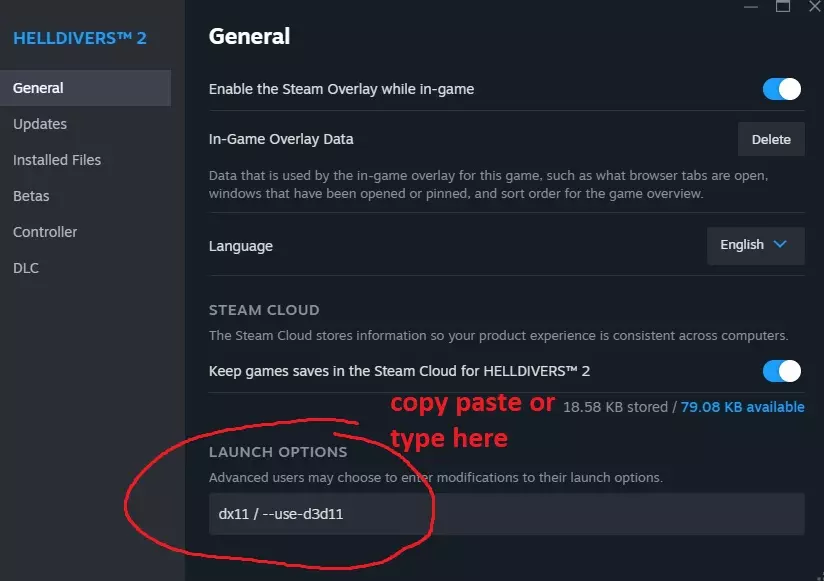
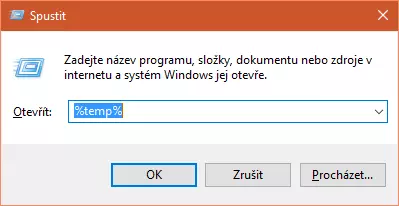
Description of settings in configuration files that affects graphics quality and fps Introduction I tried many settings, reading all kinds of unreal engine documentation below settings really helpful, just works and you can set them yourself how you like Do not forget to add guide to your favorites or look here again, the guide will be updated constantly as far as possible Launch options From a game's library page, select Manage > Properties. On the General tab you'll find Launch Options section. Enter the launch options you wish to apply (be sure to separate each code with a space). -norhithread (DO NOT USE ON DX12 OR VULKAN)disabling multithreaded rendering commands, gives smoother frame rate and frame time, does not affect FPS, but has a positive effect on FPS stability on dx 11 -NOTEXTURESTREAMING disables texture streaming, helps with stuttering, highest quality textures are always loaded, cons increase loading time, require minimal 8GB video memory -NoVerifyGC flag skips that safety check of GC, which allows the garbage collector to work more quickly, can helps with stuttering, require above 8GB RAM -nothreadtimeout the dead rendering thread check can be skipped if "-nothreadtimeout" appears in the command line for UE4Game, can be helpful avoid crash to desktop (CTD) -dx11 Forces DirectX 11 to be used -dx12 Forces DirectX 12 to be used -vulkan Forces Vulkan to be used Description of settings Engine.ini All settings you can tried in the game console before applying to in Engine.ini just open in-game console for this need to press CTRL+SHIFT+L and then press ~ show default dev settings you can press double time ~ and then enter for example r.ViewDistanceScale An example of how to set your own value in the console r.ViewDistanceScale 3 File Engine.ini located on the path %userprofile% AppData Local FactoryGame Saved Config Windows After add options in Engine.ini, be sure to set "read only" in the properties of file Engine.ini Common settings: r.ViewDistanceScale draw distance multiplier, multiplier for how far away all things will be drawn low (0.1) to high (10), default(1) strong performance impact r.ViewDistanceQuality quality of draw distance low (0) to high (4) r.SceneColorFormat affects performance, quality especially with translucency low (0) to high (5) default 4, optimally 3 average-low performance impact r.FinishCurrentFrame improve latency, but slow down overall performance (1), switch off can improve fps (0) r.OneFrameThreadLag increases input lag, but boost fps(1) r.RenderTargetPoolMin low 100 to high 5000 and above, rendering pool - non-freed memory needed for processing if it is not enough lags are possible, for default 400, but if you look at the log (C: Users %userprofile% AppData Local FactoryGame Saved Logs FactoryGame.log) and there are errors like: LogRenderTargetPool: Warning: r.RenderTargetPoolMin exceeded 675/400 MB (ok in editor, bad on fixed memory platform) then increase the value to the desired value, for example, in this case 1000 will be more than enough, but do not forget that this way you use up the video memory required for textures r.Streaming.MipBias quality of textures when streaming from low (2) to high (0) r.MaterialQualityLevel quality of materials low(0), high(1), medium(2), epic(3) r.Fog fog disable (0), enable (1) r.StaticMeshLODDistanceScale level of distance at which meshes will be used from low (1) to high (0.25) has average effect on fps r.MipMapLODBias sets the sharpness of textures from more blurry (15) to sharper (-15) has little or no effect on fps r.DetailMode current detail mode from low (0) to high (2) medium impact on fps r.Color.Mid color correction by default 0.5(50%) by changes is similar to gamma correction or contrast does not affect fps at all r.ScreenPercentage increasing or decreasing the rendering resolution (supersampling, downsampling), 100 means 100% of the selected screen resolution, in extreme cases, to increase the fps, you can try to decrease the value Anti-aliasing setting: r.DefaultFeature.AntiAliasing AA mode 3-MSAA, 2-TAA, 1-FXAA r.TemporalAASharpness at 1 enables the ability to adjust the sharpness of the picture r.Tonemapper.Sharpen the strength of the sharpness of the whole picture, gives good clarity at 1 or higher r.TemporalAACurrentFrameWeight at 0 there will be perfect anti-aliasing without flickering, the lower the value, the less ladders at the edges of objects and better anti-aliasing, the higher the value, the more noise,flickering from anti-aliasing r.TemporalAAFilterSize filter size for AA, the parameter is selected experimentally r.TemporalAASamples the number of samples for TAA anti-aliasing, does not greatly affect the FPS more than 16 does not make sense Vegetation, buildings and grass settings: the quality and range of buildings are tied to the foliage parameter foliage.LODDistanceScale distance to draw vegetation, the higher the value then less trees will suddenly pop-in when approaching them from low (0) to high (10) r.SkeletalMeshLODBias distance to draw buildings, the higher the value then less buildings will suddenly pop-in when approaching them (0) to high (-10) foliage.DensityScale vegetation density,vegetation on trees? low (0) to high (10) up to 2 the effect on fps is not large further fps decrease more foliage.MinimumScreenSize Clipping, culling distance of grass, trees and parts of buildings from high (0.00000001) to full culling (1), examples of how it works [docs.unrealengine.com] foliage.ForceLOD sets the maximum distance for drawing vegetation from no LOD (-1) to everything will be cardboard consisting of LOD (1) strongly affects the fps grass.MaxUpdateFrequency the frequency of how quickly the grass will appear when approaching from low (1) to high (60) and more has little or no effect on fps, decrease value can decrease hitching,stuttering when moving grass.DensityScale grass density from no grass (0) to high (10) up to 2 the effect on fps is not large further fps decrease more Shadow settings: r.ShadowQuality quality of shadows from 0 without shadows to 5, the optimal value is 3 r.Shadow.DistanceScale distance of drawing shadows from low (0.1) to high (10) the effect on FPS is not large and depends on the higher the value, the stronger the effect r.Shadow.PreShadowResolutionFactor distance at which the shadow quality will decrease from 0.1 to 5 r.Shadow.MaxResolution maximum shadow resolution. Higher = better quality shadows but at a performance cost, optimally 1024 r.Shadow.MaxCSMResolution=1024 Max square dimensions (in texels) allowed for rendering Cascaded Shadow depths. Range 4 to hardware limit. Higher = better quality shadows but at a performance cost, optimally 1024 Removing restrictions on textures stored in memory or you can set your own values: r.TextureStreaming enable (1) disable (0) texture streaming when disabled, the game will load longer, but all textures will be stored in memory, and not loaded from disk gradually, you will need at least 8GB of video card memory and 16GB of RAM r.Streaming.UseFixedPoolSize use static pool of allocated memory (1), dynamically allocated memory (0) r.Streaming.FullyLoadUsedTextures (1) turns on all used textures to their maximum resolution and stores them in memory as long as the application is open. This should be used as an alternative to completely disabling r.TextureStreaming r.Streaming.LimitPoolSizeToVRAM if this parameter is enabled (1), the texture pool size will be limited by the video card memory. PoolSizeVRAMPercentage is specified as a percentage of the video card memory, infinitely (0) OR PoolSize is specified in megabytes, infinite (0) Experimental options can improve fps:AllowAsyncRenderThreadUpdates=1 AllowAsyncRenderThreadUpdatesDuringGamethreadUpdates=1 r.SupportDepthOnlyIndexBuffers=1 r.SupportReversedIndexBuffers=1 r.DBuffer=0 r.GPUCrashDebugging=0 FX.AllowAsyncTick=1 FX.BatchAsync=1 FX.BatchAsyncBatchSize=9999999 FX.MaxCPUParticlesPerEmitter=50 FX.MaxGPUParticlesSpawnedPerFrame=2048 AudioThread.BatchAsyncBatchSize=9999999 AudioThread.UseBackgroundThreadPool=1 AudioThread.EnableBatchProcessing=1 Additional Engine.ini settings [/script/engine.garbagecollectionsettings] gc.MaxObjectsNotConsideredByGC=476499 gc.SizeOfPermanentObjectPool=100378488 gc.ActorClusteringEnabled=True gc.BlueprintClusteringEnabled=True Full info here[ikrima.dev] Recommended client network settings Increased bandwidth and increased tickrate, higher tick rate increase CPU usage After add options in Engine.ini, be sure to set "read only" in the properties of file Engine.ini Engine.ini [/script/engine.player] ConfiguredInternetSpeed=104857600 ConfiguredLanSpeed=104857600 [/script/onlinesubsystemutils.ipnetdriver] MaxClientRate=104857600 MaxInternetClientRate=104857600 NetServerMaxTickRate=30 LanServerMaxTickRate=30 MaxNetTickRate=30 InitialConnectTimeout=300.0 ConnectionTimeout=300.0 [/script/engine.gamenetworkmanager] TotalNetBandwidth=104857600 MaxDynamicBandwidth=104857600 MinDynamicBandwidth=104857600 [/script/socketsubsystemepic.epicnetdriver] MaxClientRate=104857600 MaxInternetClientRate=104857600 [/script/engine.engine] NetClientTicksPerSecond=30 Game.ini [/script/engine.gamenetworkmanager] TotalNetBandwidth=104857600 MaxDynamicBandwidth=104857600 MinDynamicBandwidth=104857600 Scalability.ini [NetworkQuality@3] ConfiguredInternetSpeed=104857600 ConfiguredLanSpeed=104857600 TotalNetBandwidth=104857600 MaxDynamicBandwidth=104857600 MinDynamicBandwidth=10485760 MaxClientRate=104857600 MaxInternetClientRate=104857600 Dedicated servers and host settings Satisfactory take only 1 core, this core is main render which process ticks and uses for save game, you need free load in that core as possible, my recommendation for this from high priority to low server need high cpu frequency per core lower your tick rate on server, 15 is should be ok, maybe lower if it feels fine for you set CPU Affinity for game server processes on specific processor cores get rid of hardware interruptions and others load from that cores tinkering with gamenetworkmanager (can't say it really helps)if you anyway bothering about save lag set ClientAuthorativePosition=true (in Update 8 working fine but be careful) with this option server tick rate can be set on 5 with no worries Engine.ini [/script/engine.engine] bSmoothFrameRate=true bUseFixedFrameRate=false SmoothedFrameRateRange=(LowerBound=(Type=Inclusive,Value=5.000000),UpperBound=(Type=Exclusive,Value=30.000000)) MinDesiredFrameRate=15.000000 Highly recommended enable Smoothing Frame Rate for servers and vsync. Set Exclusive,Value equal your tickrate NetClientTicksPerSecond=30 is actually how many client connections the server will tick on each of its frames. Similar for the NetUpdateFrequency values, those control how often the server will consider the actor’s properties for replication. [SystemSettings] r.VSync=1 net.UseRecvMulti=1 !BREAK SERVER SINCE UPDATE 0.5.1.10 If true, and if running on a Unix/Linux platform, multiple packets will be retrieved from the socket with one syscall, improving performance and also allowing retrieval of timestamp information. net.RecvMultiCapacity=8192 When RecvMulti is enabled, this is the number of packets it is allocated to handle per call - bigger is better, but keep an eye on memory cost. net.IpNetDriverUseReceiveThread=1 !BREAK CLIENT AND SERVER SINCE 0.5.1.10 Support for the IP net driver to optionally use a separate thread to receive packets. This is a useful optimization for platforms where the socket system calls can take a while. These, in theory, can reduce the CPU consumption of the servers net.IpConnectionUseSendTasks=1 IP connections to optionally make the socket send call on a background thread. It helps platforms where the socket send system calls can take a while These, in theory, can reduce the CPU consumption of the servers net.IpNetDriverReceiveThreadQueueMaxPackets=8192 If net.IpNetDriverUseReceiveThread is true, the maximum number of packets that can be waiting in the queue. Additional packets received will be dropped. net.MaxNetStringSize=67108864 Maximum allowed size for strings sent/received by the netcode (in bytes). net.MaxRPCPerNetUpdate=8 Maximum number of RPCs allowed per net update tick.AllowAsyncTickDispatch=1 If true, ticks are dispatched in a task thread. tick.AllowAsyncTickCleanup=1 If true, ticks are cleaned up in a task thread. AllowAsyncRenderThreadUpdates=1 AllowAsyncRenderThreadUpdatesDuringGamethreadUpdates=1 End of frame updates now optionally can do the gamethread updates while we are doing parallel updates. The relevant cvars are AllowAsyncRenderThreadUpdates and AllowAsyncRenderThreadUpdatesDuringGamethreadUpdates. net.AllowAsyncLoading=1 Allow async loading of unloaded assets referenced in packets. If false the client will hitch and immediately load the asset, if true the packet will be delayed while the asset is async loaded. net.DelayUnmappedRPCs can be enabled to delay RPCs relying on async loading assets. net.DelayUnmappedRPCs=1 If true delay received RPCs with unmapped object references until they are received or loaded, if false RPCs will execute immediately with null parameters. This can be used with net.AllowAsyncLoading to avoid null asset parameters during async loads. Game.ini [/script/engine.gamenetworkmanager] MAXPOSITIONERRORSQUARED=32.0f default 3.0f is the square of the max position error that is accepted (not corrected) in net play ClientAuthorativePosition=true in Update 8 working fine but be careful! Can help with rubber banding in situation of high amount of players There is a config option for “ClientAuthorativePosition” on the GameNetworkManager that changes the rules: the server will accept client movement as authoritative and not force a correction if it’s within a squared distance (MAXPOSITIONERRORSQUARED) from where the server last saw it. So in this case, the server would warp the character to where the client tried to move, and the client’s position is the authority. The server can still replicate movement to the client normally, this just handles rogue client movements. MoveRepSize=512.0f default 42.0f Average size of replicated move packet (ServerMove() packet size) in bytes from player contains client movement and view info CLIENTADJUSTUPDATECOST=512.0f default 180.0f is the bandwidth cost in bytes of sending a client adjustment update. 180 is greater than the actual cost, but represents a tweaked value reserving enough bandwidth for other updates sent to the client. Increase this value to reduce client adjustment update frequency, or if the amount of data sent in the clientadjustment() call increases ClientErrorUpdateRateLimit=0.015f default 0.000f Minimum delay between the server sending error corrections to a client, in seconds. Increasing value can help in situation of high amount of players Movement update intervals tuningYou can increase this update intervals in situation with high amount of players to avoid hitching, rubber banding or decrease to get smoother movement, this settings accordingly decreases and increases the load on the server MAXCLIENTUPDATEINTERVAL=0.55f ; is the maximum time between movement updates from the client before the server forces an update. MaxMoveDeltaTime=0.250f ; Should be less than or equal to MAXCLIENTUPDATEINTERVAL, otherwise server will interfere by forcing position updates. MaxClientSmoothingDeltaTime=1.1f ; is the maximum delta time between server updates that clients are allowed to smooth between for position interpolation. defaul 0.5f MaxClientForcedUpdateDuration=1.5f ; is the maximum time duration over which the server will force updates, after MAXCLIENTUPDATEINTERVAL is initially exceeded. ClientNetSendMoveDeltaTime=0.0332 ; is the default minimum time delta of CharacterMovement client moves to the server. 30fps(ticks) movement update, default 0.0166 60fps(ticks) ClientNetSendMoveDeltaTimeThrottled=0.0444 ; is used in place of ClientNetSendMoveDeltaTime when player count is high or net speed is low. ClientNetSendMoveDeltaTimeStationary=0.0664 ; is used when players are determined to not be moving or changing their view. ClientNetSendMoveThrottleAtNetSpeed=60000 ; When player net speed (CurrentNetSpeed, based on ConfiguredInternetSpeed or ConfiguredLanSpeed) is less than or equal to this amount, ClientNetSendMoveDeltaTimeThrottled is used instead of ClientNetSendMoveDeltaTime. ClientNetSendMoveThrottleOverPlayerCount=4 ; When player count is greater than this amount, ClientNetSendMoveDeltaTimeThrottled is used instead of ClientNetSendMoveDeltaTime. ServerForcedUpdateHitchThreshold=0.350f ; Ignore forced client movement updates when server hitches for longer than this duration. ServerForcedUpdateHitchCooldown=0.300f ; Ignore forced client movement updates when server hitch was detected within this amount of time in the past. Recommended server settings Game.ini [/script/engine.gamenetworkmanager] TotalNetBandwidth=104857600 MaxDynamicBandwidth=104857600 MinDynamicBandwidth=104857600 MAXPOSITIONERRORSQUARED=32.00f MoveRepSize=512.0f CLIENTADJUSTUPDATECOST=512.0f ClientAuthorativePosition=true bMovementTimeDiscrepancyDetection=false bMovementTimeDiscrepancyResolution=false bMovementTimeDiscrepancyForceCorrectionsDuringResolution=false MAXCLIENTUPDATEINTERVAL=2.20f MaxMoveDeltaTime=0.700f MaxClientSmoothingDeltaTime=2.20f MaxClientForcedUpdateDuration=1.0f ClientNetSendMoveDeltaTime=0.0332 ClientNetSendMoveDeltaTimeStationary=0.0664 ClientNetSendMoveThrottleOverPlayerCount=99 ServerForcedUpdateHitchThreshold=2.800f [/script/engine.gamesession] MaxPlayers=10 Engine.ini [CrashReportClient] bAgreeToCrashUpload=false bImplicitSend=False [Engine.ErrorHandling] bPromptForRemoteDebugging=False bPromptForRemoteDebugOnEnsure=False [/script/onlinesubsystemutils.ipnetdriver] MaxInternetClientRate=104857600 MinInternetClientRate=104857600 MaxClientRate=104857600 MinClientRate=104857600 LanServerMaxTickRate=15 NetServerMaxTickRate=15 ConnectionTimeout=20.0 InitialConnectTimeout=30.0 [SystemSettings] t.MaxFPS=15 AllowAsyncRenderThreadUpdates=1 AllowAsyncRenderThreadUpdatesDuringGamethreadUpdates=1 net.UseRecvMulti=0 net.RecvMultiCapacity=8192 net.IpNetDriverUseReceiveThread=0 net.IpConnectionUseSendTasks=1 net.IpNetDriverReceiveThreadQueueMaxPackets=8192 net.MaxNetStringSize=67108864 net.MaxRPCPerNetUpdate=8 tick.AllowAsyncComponentTicks=1 tick.AllowConcurrentTickQueue=1 tick.AllowAsyncTickDispatch=1 tick.AllowAsyncTickCleanup=1 net.SubObjects.DefaultUseSubObjectReplicationList=1 net.Iris.UseIrisReplication=1 net.EnableDetailedScopeCounters=0 [/script/engine.player] ConfiguredInternetSpeed=104857600 ConfiguredLanSpeed=104857600 [/script/socketsubsystemepic.epicnetdriver] MaxClientRate=104857600 MaxInternetClientRate=104857600 [/script/engine.engine] bSmoothFrameRate=true bUseFixedFrameRate=false SmoothedFrameRateRange=(LowerBound=(Type=Inclusive,Value=5.000000),UpperBound=(Type=Exclusive,Value=15.000000)) MinDesiredFrameRate=8.000000 FixedFrameRate=15.000000 NetClientTicksPerSecond=15 [/script/engine.garbagecollectionsettings] gc.MaxObjectsNotConsideredByGC=476499 gc.SizeOfPermanentObjectPool=100378488 gc.ActorClusteringEnabled=True gc.BlueprintClusteringEnabled=True [/script/engine.streamingsettings] s.EventDrivenLoaderEnabled=True s.AsyncLoadingThreadEnabled=True [/script/engine.networksettings] net.MaxRepArraySize=65535 net.MaxRepArrayMemory=65535 Logs settings Disable logs, no logs will be written to disk, may improve slightly FPS [Core.System] +Suppress=Scriptwarning +Suppress=Error +Suppress=Scriptlog +Suppress=Warning [Core.Log] LogPluginManager=all off LogOnlineIdentity=all off LogOnlineSession=all off LogMemory=all off LogPakFile=all off LogTemp=all off LogLinker=all off LogOnline=all off LogOnlineGame=all off LogAnalytics=all off LogConfig=all off LogInteractiveProcess=all off LogInput=all off LogOnlineEntitlement=all off LogOnlineEvents=all off LogOnlineFriend=all off LogOnlinePresence=all off LogOnlineTitleFile=all off LogOnlineUser=all off Global=off Other settings Disable AI plugin debugging, I don't know why it is enabled by default Enable multithreading for the Wwise sound engine which is used in the game, if you have problems with the sound, turn it off [/script/akaudio.aksettings] bEnableMultiCoreRendering=True Number of autosaves [/script/factorygame.fgsavesession] mNumRotatingAutosaves=5 My settings for example The below settings provide the best quality of drawing, graphics and anti-aliasing without falling FPS, above there are descriptions of the settings so that you can customize it for yourself. Screenshot on the left are ultra settings available in the game, screenshot on the right ultra plus my settings, in order to see the difference, open the full screen, with my settings you can see that the draw distance, the amount of grass and the quality of anti-aliasing are increased, while FPS remains the same
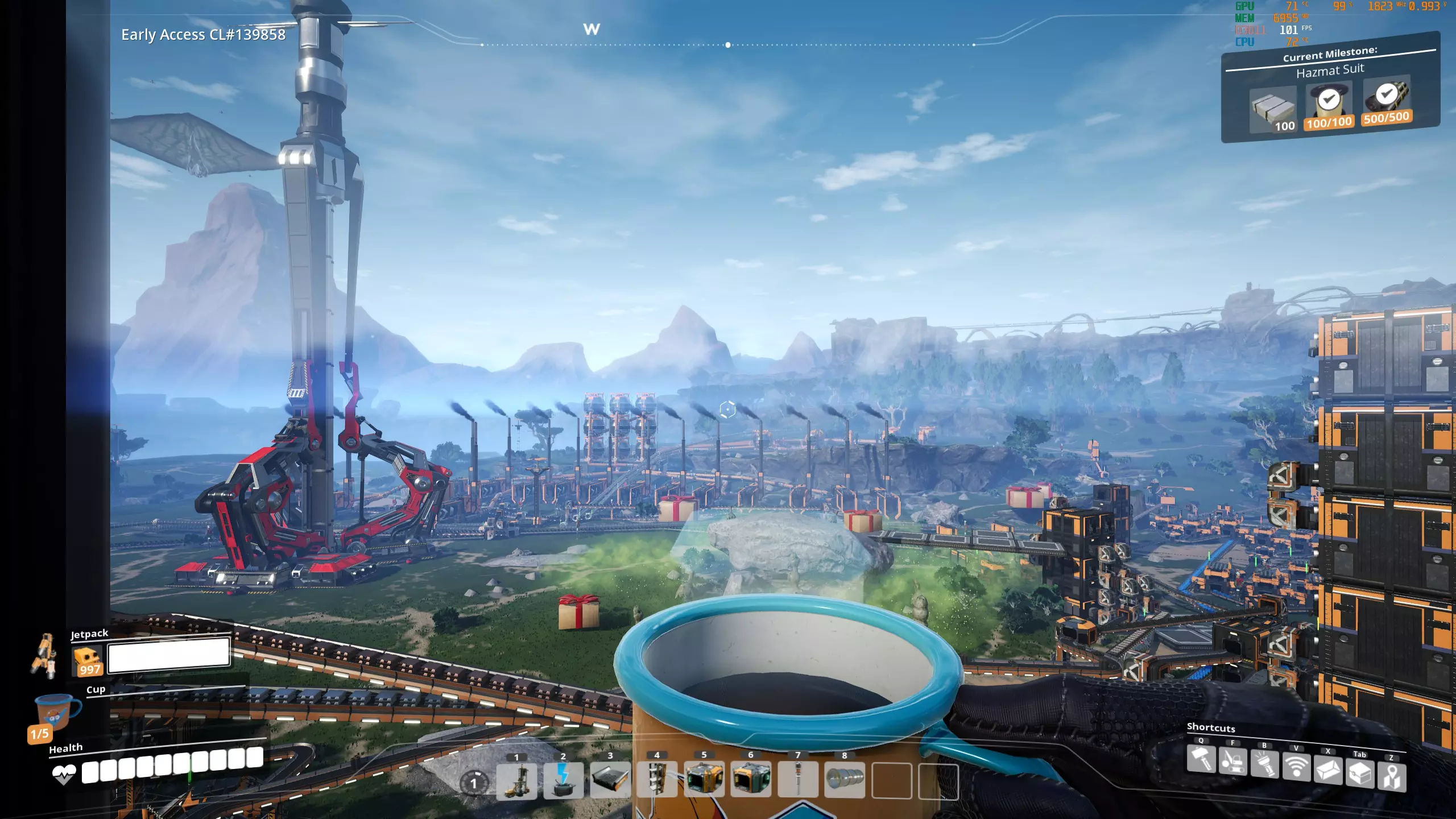
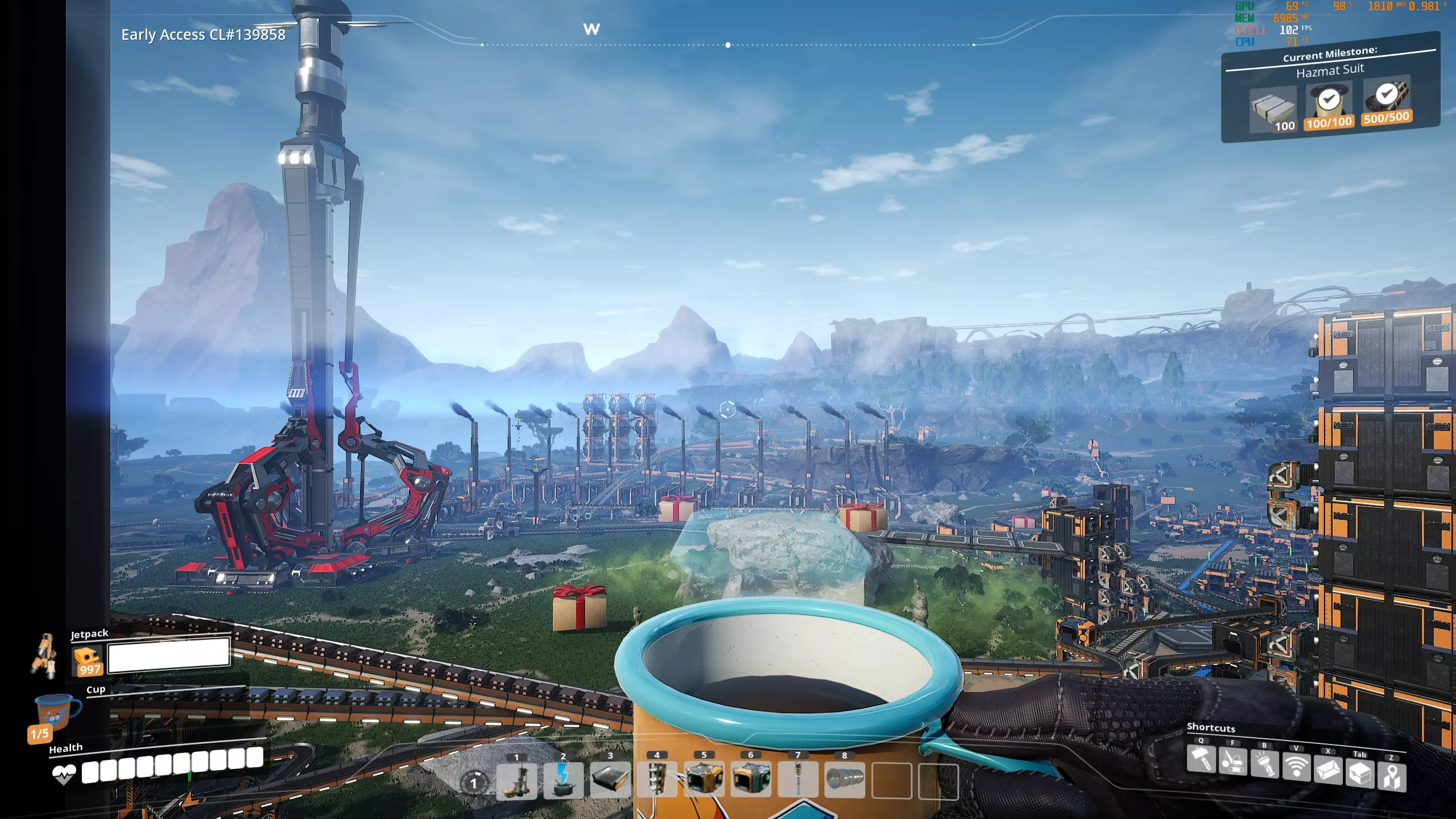
All actions are performed in the file Engine.ini is located on the path %userprofile% AppData Local FactoryGame Saved Config Windows After add options in Engine.ini, be sure to set "read only" in the properties of file Engine.ini This is how my Engine.ini looks like (example does not includes some default paths in [Core.System]]): [Core.System] +Suppress=Scriptwarning +Suppress=Error +Suppress=Scriptlog +Suppress=Warning [Core.Log] LogPluginManager=all off LogOnlineIdentity=all off LogOnlineSession=all off LogMemory=all off LogPakFile=all off LogTemp=all off LogLinker=all off LogOnline=all off LogOnlineGame=all off LogAnalytics=all off LogConfig=all off LogInteractiveProcess=all off LogInput=all off LogOnlineEntitlement=all off LogOnlineEvents=all off LogOnlineFriend=all off LogOnlinePresence=all off LogOnlineTitleFile=all off LogOnlineUser=all off Global=off [/script/engine.player] ConfiguredInternetSpeed=104857600 ConfiguredLanSpeed=104857600 [/script/onlinesubsystemutils.ipnetdriver] MaxClientRate=104857600 MaxInternetClientRate=104857600 NetServerMaxTickRate=30 LanServerMaxTickRate=30 MaxNetTickRate=30 InitialConnectTimeout=300.0 ConnectionTimeout=300.0 [/script/engine.gamenetworkmanager] TotalNetBandwidth=104857600 MaxDynamicBandwidth=104857600 MinDynamicBandwidth=104857600 [/script/socketsubsystemepic.epicnetdriver] MaxClientRate=104857600 MaxInternetClientRate=104857600 [/script/engine.engine] NetClientTicksPerSecond=30 [SystemSettings] AllowAsyncRenderThreadUpdates=1 AllowAsyncRenderThreadUpdatesDuringGamethreadUpdates=1 r.SupportDepthOnlyIndexBuffers=1 r.SupportReversedIndexBuffers=1 r.DBuffer=0 r.GPUCrashDebugging=0 FX.AllowAsyncTick=1 FX.BatchAsync=1 FX.BatchAsyncBatchSize=9999999 FX.MaxCPUParticlesPerEmitter=50 FX.MaxGPUParticlesSpawnedPerFrame=2048 AudioThread.BatchAsyncBatchSize=9999999 AudioThread.UseBackgroundThreadPool=1 AudioThread.EnableBatchProcessing=1 r.ShadowQuality=3 r.ViewDistanceScale=1.5 r.ViewDistanceQuality=4 foliage.MinimumScreenSize=0.009 foliage.LODDistanceScale=1.4 foliage.DensityScale=1.5 grass.DensityScale=2 grass.MaxUpdateFrequency=40 r.MaterialQualityLevel=2 r.DefaultFeature.AntiAliasing=2 r.FinishCurrentFrame=0 r.Streaming.UseFixedPoolSize=0 r.Streaming.PoolSize=0 r.Streaming.FullyLoadUsedTextures=1 r.Streaming.LimitPoolSizeToVRAM=0 r.Streaming.AmortizeCPUToGPUCopy=1 r.Streaming.MaxTempMemoryAllowed=10 r.MaxAnisotropy=16 r.TemporalAACurrentFrameWeight=0.02 r.TemporalAAFilterSize=0.2 r.TemporalAASamples=16 r.Shadow.MaxResolution=1024 r.Shadow.DistanceScale=2 r.Shadow.PreShadowResolutionFactor=0.5 r.Upscale.Quality=6 r.PostProcessAAQuality=6 r.MipMapLODBias=0 r.Color.Mid=0.47 r.TemporalAA.Upsampling=1 r.TemporalAASharpness=1 r.Tonemapper.Sharpen=1.6 r.TonemapperFilm=1 r.Tonemapper.Quality=5 r.TemporalAACatmullRom=1 r.OneFrameThreadLag=1 r.HZBOcclusion=0 r.RenderTargetPoolMin=1000 r.AllowOcclusionQueries=1 r.SceneColorFormat=3 r.D3D11.Depth24Bit=0 r.DefaultFeature.MotionBlur=0 r.MotionBlurQuality=0 [/script/engine.garbagecollectionsettings] gc.MaxObjectsNotConsideredByGC=476499 gc.SizeOfPermanentObjectPool=100378488 gc.ActorClusteringEnabled=True gc.BlueprintClusteringEnabled=True Additional mods Potato mode Thats all

已删除外部链接内容