换一换
换一换 


A-10C系统概念新手飞行员简易指南——献给不想阅读800页手册的玩家 驾驶A-10C 首先,请确保你在【模拟/真实模式】下运行游戏(可从选项界面设置)。
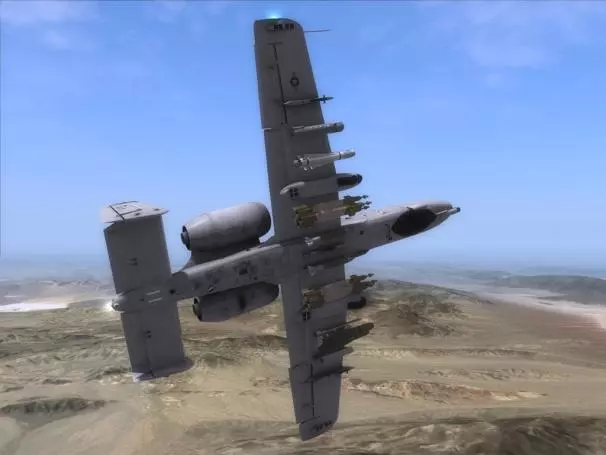
A-10C是一种非常容易驾驶的飞机。但它并非战斗机,更像是滑翔机或无人机(实际上其外形与这些飞行器颇为相似)。当然,如果滑翔机和无人机配备了巨型加特林机炮、智能炸弹以及导弹——那么它们看起来就会像A-10C。 这意味着我们必须像驾驶滑翔机或无人机那样驾驶它——缓慢且平稳地移动操纵杆。例如在转弯时,我们需要将飞机向一侧倾斜,然后轻轻向后拉操纵杆。如果你听到哔哔声,说明转弯过急,应减小操作幅度直至哔声停止。 其宽大的机翼使我们能够完成非常小半径的转弯——这是战斗机无法做到的。我猜你已经连接了某种摇杆并在设置界面中进行了配置——毕竟,我实在无法想象没有最基本的摇杆该如何驾驶《数字战斗模拟世界》(DCS)中的任何飞行器。(别忘了为X轴和Y轴添加适当的曲线——大约20左右就很不错) 自动驾驶 A-10C还内置了出色的自动驾驶功能,可以保持飞机直线平飞。 因此,当你需要长时间按压多个按钮或查看屏幕时: 按【A】键启动自动驾驶。 这样你就可以随意切换开关,而不用担心撞山了。 只有在飞机保持相当平稳的直线飞行时,自动驾驶才能接管。 主要操作区域 A-10C的大多数功能可以通过3个主要区域进行控制或查看。
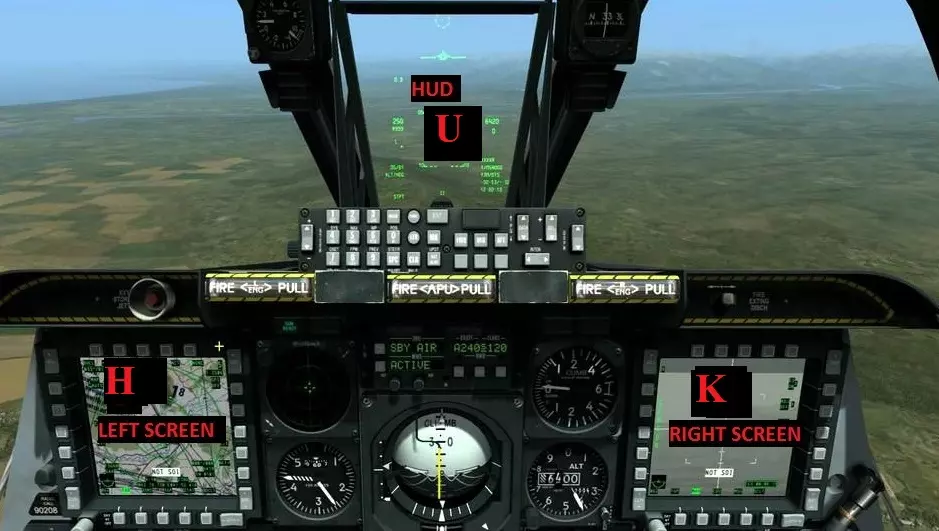
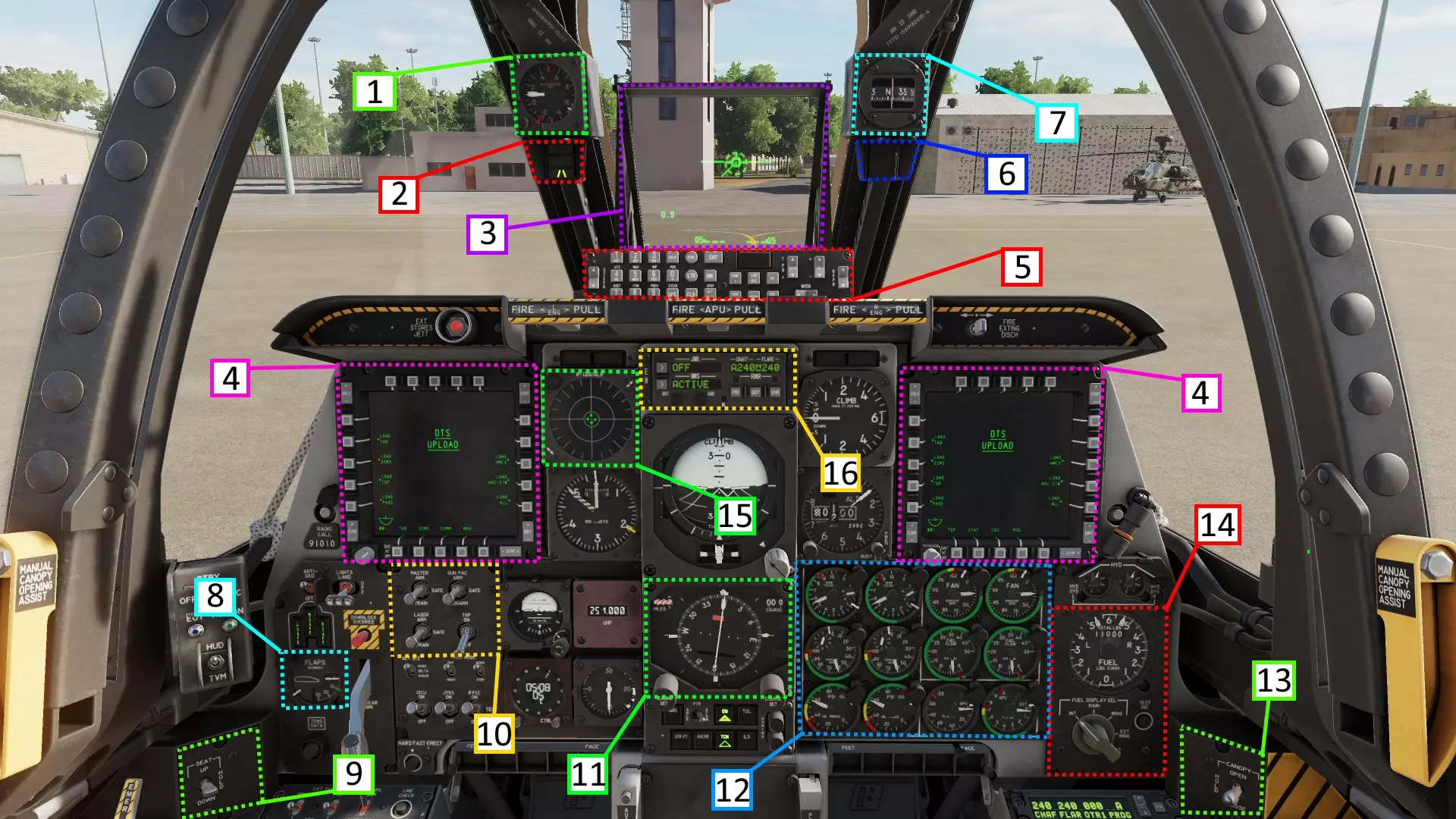
HUD(平视显示器)- 主要用于显示飞行信息(速度、高度等) 左MFD屏幕 - 主要用于导航和武器配置 右MFD屏幕 - 主要用于显示瞄准吊舱视图和导弹视图 A-10C中这些系统的操作方式是通过两个摇杆或小操纵杆实现的 一个摇杆(选择摇杆)用于选择你想要控制的这3个区域中的哪一个 另一个摇杆( slew摇杆)用于控制当前选中的屏幕 要在这3个区域之间切换控制,需使用U、H、J、K键,这些键类似于方向键,即上、下、左、右。可以将其想象成一个用于选择要操作的屏幕或HUD的小操纵杆 轻按H键将循环切换左屏幕的不同页面 轻按K键将循环切换右屏幕的不同页面按下U键将选中HUD,选中状态会在HUD中左中部以一个小星号标识。 按住J键将在双屏幕上显示武器信息。 不过,按住H键(持续整整一秒)会在左侧屏幕高亮当前页面并显示绿色边框,表明你可以控制该屏幕。 按住K键的作用相同,但针对的是右侧屏幕。 一旦你选择了想要操作的屏幕或HUD,就可以使用<、>、?、:键(用于光标功能,其布局模拟方向键的上下左右)以及V、C键(根据不同屏幕执行各种功能)来对其进行控制。 虽然这种按键组合看似有些特别,但它是在模拟真实HOTAS摇杆/油门上的两个四向 hats 开关和一个摇杆开关。一个帽子开关用于光标(视角控制),另一个用于选择屏幕(苦力帽),还有摇杆开关(中国帽)用于各种点击操作。(所以如果你有一个至少有4个帽子开关的优质摇杆,可以充分利用它们,绑定苦力帽、视角控制、TMS和DMS以及中国帽(任意两个相邻按钮即可),因为这些按钮使用频率很高)。如果你只有几个帽子开关,那么视角控制的<、>、?、:以及中国帽的V、C是最常用的。平视显示器
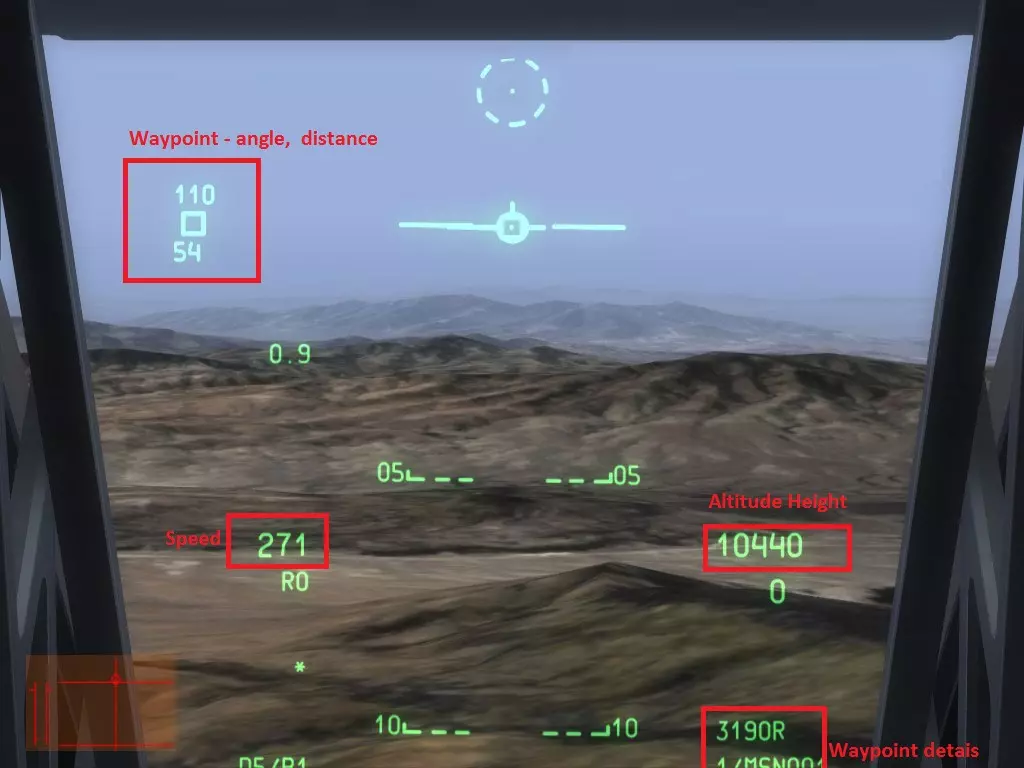
它能为你显示飞行所需的几乎所有信息,无需低头查看那些令人困惑的仪表盘 :) 我们需要关注的信息如下: 速度:保持在150以上即可,当速度超过200时飞机操控性最佳。无需担心最大速度,因此实际上应始终将油门保持在最大位置。 高度指示器:显示当前高度。在你有信心进行低空飞行之前,建议最低保持在8000英尺左右。 航点:HUD上的浮动方块会显示当前航点位置、应转向的方向以及距离。上方数字表示你需要转向的角度,以朝向航点,当你将机头对准航点时,该数字会自动倒计时至0。 下方数字表示到达航点前剩余的飞行距离。 HUD右下角还会显示有关航点的更多详细信息,其中最重要的是航点编号和名称。在图片中我们可以看到显示为“1 / MSN001”,这表示一号航点,名称为“MSN001”,这将帮助你追踪飞行目的地! 飞机上有与这些数字对应的模拟表盘,但除非飞机受损,否则你可以依靠HUD。 TAD TAD类似于我们如今常用的GPS设备。
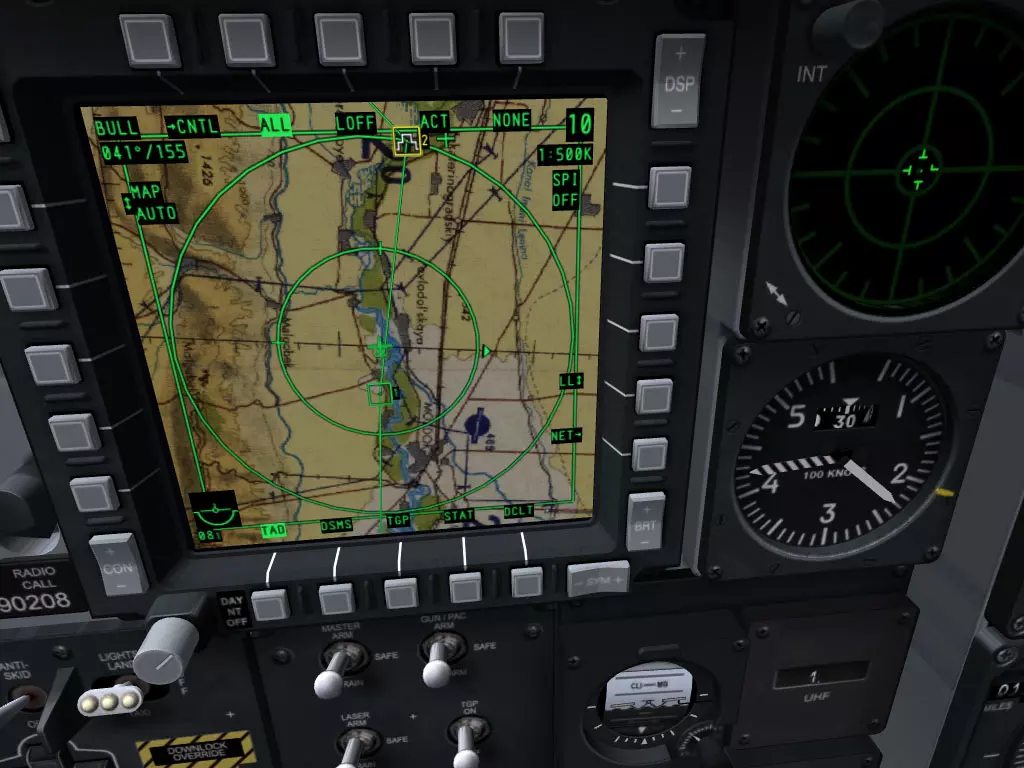
TAD显示在左侧屏幕上——如果没有显示,按下屏幕底部第一行的第一个按钮——上面标着(你猜对了)TAD。 TAD上的方块是你的航点,黄色方块是当前航点。就像GPS一样,沿着线条走就不会迷路。 你可以通过按下HUD正下方的操纵杆上下按钮来更改想要飞往的航点。
目标瞄准吊舱摘要(TGP)
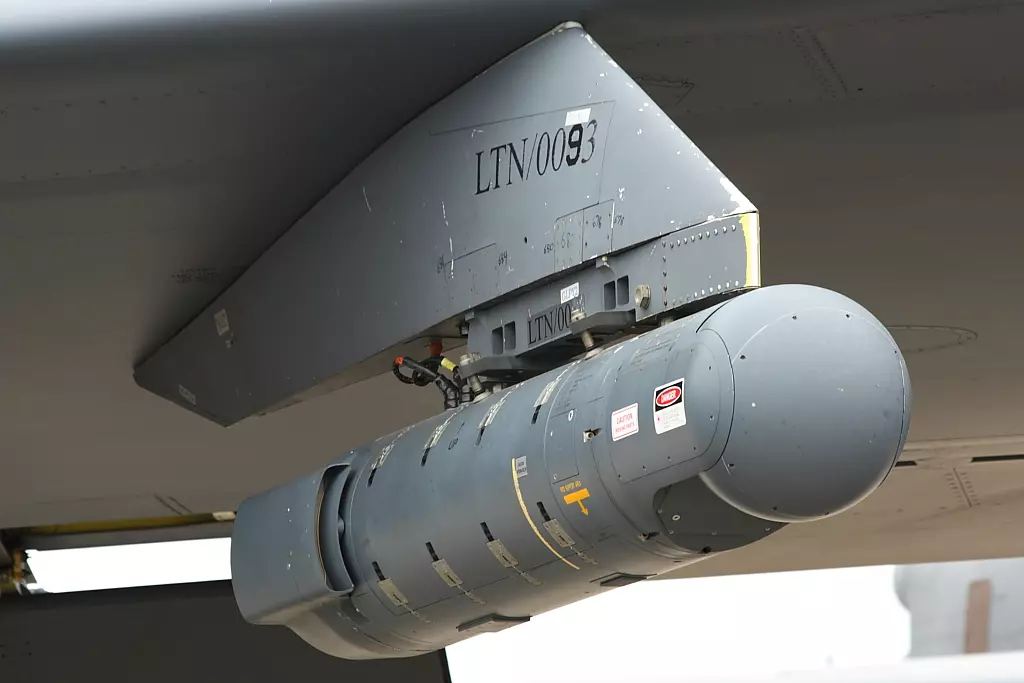
A-10C的所有武器系统都围绕着瞄准吊舱(简称TGP)展开。因此,理解瞄准吊舱能让你轻松掌握该机型的大部分武器及其他系统。 瞄准吊舱(TGP)本质上是一个安装在右翼的摄像头,能让飞行员在极远的距离观察地面目标。最棒的是,它会自动调整,确保目标始终可见(除非在你转弯时机身挡住视线)。 其使用思路是:用TGP找到目标,然后创建一个传感器兴趣点(SPI)。这其实就是告诉A-10C的所有武器和系统,使用瞄准吊舱当前指向位置的坐标。 例如:TGP使用方法 如果你投放GPS或激光制导炸弹,它们将精确命中TGP(目标指示吊舱)所瞄准的位置。 TGP的作用是标记感兴趣的区域或点,以告知制导武器打击位置,并在HUD(平视显示器)上生成指示菱形,帮助你发射非制导武器或机炮。这非常有用,因为你通常飞得太高太快,无法用肉眼完成瞄准。
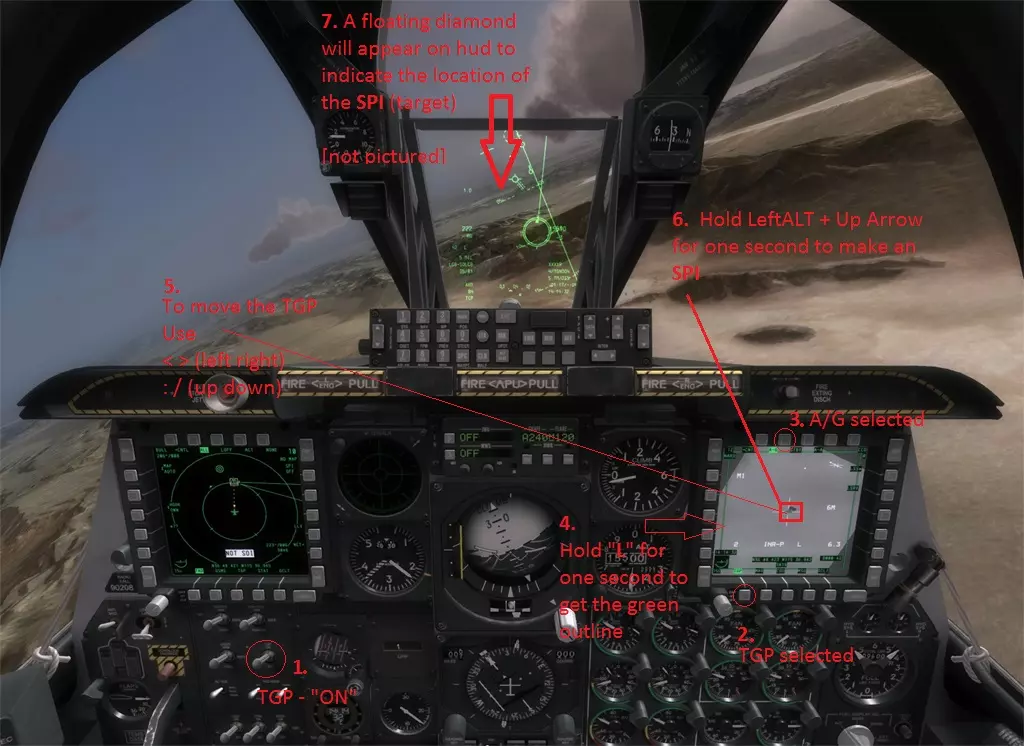
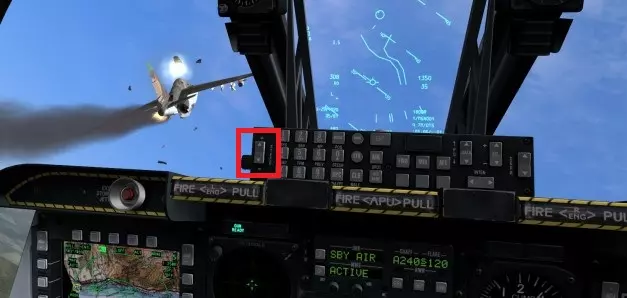
1.Turn on the TGP - silver switch under the left screen - put it in the up(on) position. It will take some time to start up. 2. Press the TGP button on the right MFD screen 3. Press the A-G (air to ground mode) button on the right MFD screen (you generally will have done these steps before you enter the combat area) 4. If the screen does not have a green border around it, it means that you are not controling that screen. You will need to hold "K" for 1 second which will highlight that screen in a green border to indicate you are now controling it. 5. The following keys will let you move it around Up - : Down - / Left - < Right- > zoom in - Home zoom out - End toggle between narrow view mode (zooms in even further) - Tap "V" ( tap, not hold) center the TGP to look forwards - Tap "C" As you move the TGP around you will also notice that there is a small diamond moving around your hud to help indicate which direction it is looking. The TGP can also perform some quick snap functions that allow you to make it point to specific coordinates, which saves a lot of time, since in the instant action missions the waypoints are where the enemies are. Holding down "C" for 1 second will make the TGP snap to your current waypoint Holding down "V" for 1 second will will make the TGP snap to another SPI created by another device other than the TGP (by a wingman or coordinates you have selected from your map etc) Through out the A-10C many of the buttons have different functions depending if you are tapping or holding the button - this doesn't really seem logical on a keyboard with so many buttons. But in the real plane the joystick and throttle only have so many buttons and hats, but also the functions are related so it makes a lot of sense if you ever see the real controls (or are lucky enough to have bought a TM Warthog HOTAS, or simply using something that is similar enough) TGP creating an SPI Creating SPI means that you are using the current sensor (which is currently the TGP) to create a point of interest. This does a few things: 1. Puts a nice little diamond the hud for us to help us see where the TGP is pointing, and it also has two numbers on it. The top number indicates the angle of degrees you will have to turn in order to fly towards the target (horizontally only). The number under the diamond is the distance to the target (in miles) 2. The SPI becomes a point of reference for all of the weapons and systems, e.g. so the bombs know where to hit. To create an SPI with the TGP simply point it to what you want to see/destroy, then hold Left CTRL + Up Arrow for 1 second. You will notice that your WayPoint square has disappeared and you now have a diamond indicating the SPI area instead. TGP Practice Time So lets practice this - load up the Instant Action Mission - Easy-East Georgia-Spring Unpause the game with the Pause/Break key if needed or just click FLY. Turn on your TGP and make sure the right screen is selected (with the green border - [Hold K]) and hold "C" to snap it to the 2nd (current) waypoint - or aim it manually if you can see the green smoke infront of you. In the TGP you should see two trucks. Adjust your TGP so that you are centered on one of the trucks. hold Left ALT + UP Arrow for 1 second. Now in your HUD, the waypoint square is gone, and you now have the diamond indicator with angle and distance written on it. That all there really is to it. finding targets and creating an SPI to tell the plane - "hey this spot here is what I want to do something with" (i.e. blowing it up). P.S. Pressing (instead of holding) Left ALT + Up Arrow will change the TGP mode from area tracking to point tracking. Area tracking means it will keep looking at the area where you are currently looking - basically for stationary targets. Point tracking means the TGP will follow a moving target - like a truck for example. This is useful if someone is trying to make a get away so you don't have to keep moving the TGP manually. And if you for example want to drop a laser guided bomb on a moving truck, it will keep the truck painted with the laser even while it is driving away. The TGP can do a whole lot more than just this, but this is a basic guide to help you get familiar with the main functions of the A-10C. Weapons Training Coming soon. but for now - press M - to change the master mode of the HUD to guns mode. Aim with circular reticle and press spacebar to fire. Also there is already a fantastic guide at simHQ http://simhq.com/forum/ubbthreads.php/topics/3171145/all/How_to_use_weapons_Picture_gui Disclaimer This is by no means a complete guide - there is an 800 page manual and tons of videos on YT for a reason. But hopefully this guide will introduce you to some concepts which will then allow you to learn the more complex systems with ease and confidance. If I have done this right you won't feel lost in a sea of acronyms and technology of the A-10C.