换一换
换一换 


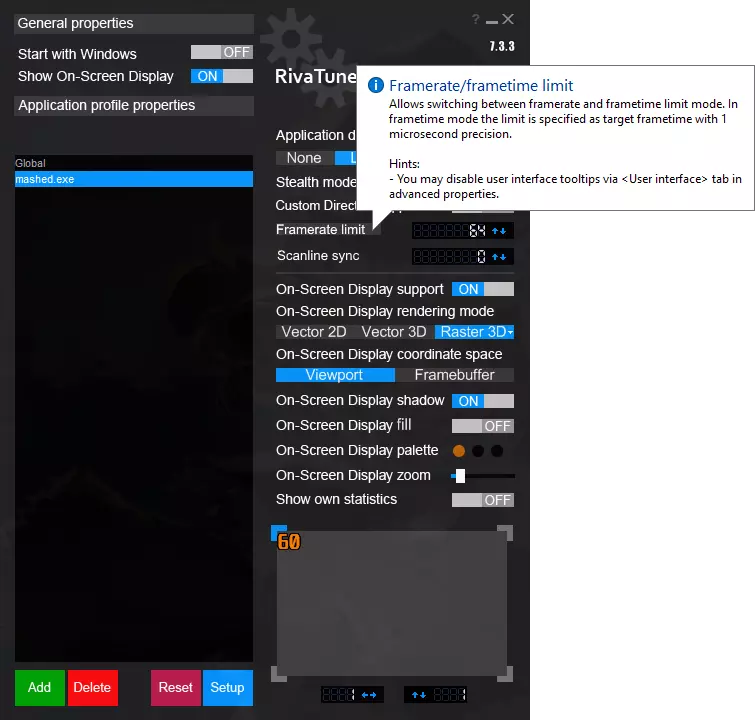
A comprehensive guide that almost anyone can follow to improve performance Introduction Hello everyone, I'm sure everyone here loves this game, but like me does not love how their brand new PC's seem to struggle with it. Searching this forum, Google, and Reddit I've finally figured out how to get this game to run well, and also keep my graphics card from sounding like it's preparing for lift off. The Biggest Performance Fixes This first tip is absolutely easy and it improves performance drastically. Pick one of the two video modes. Try them both out to see which one works for you best. Option A - Play in Full screen Borderless window mode: Thanks so much to Steve who posted in the original comment of this post, and Boltergeist who actually originally wrote what is bellow. It was intended to make the mod RogueTech run better, but adapted by Steve to apply to Vanilla. According to Boltergeist, Borderless Window is better than Exclusive Full Screen mode for performance and also not wearing out your video card. I have tested both and found performance & heat to be similar, but found Borderless Window makes alt tabbing out of the game more convenient. According to Steve, this is the preferred, tried, tested, and proven way RogueTech ( a mod that is amazing but very well known to be more demanding on your system VS Vanilla ) players play the game. Set your in game video options to WINDOWED Set your resolution to match your desktop resolution Exit the game To launch from steam, add -popupwindow to the battletech launch options When launching from the BattleTechLauncher, select "Borderless WIndow (when in window mode)" and hit Save, then Play. Regarding steam launch options and multiple displays : If you're getting it on the wrong monitor, add -adapter N where N = your monitor number - 1, so monitor 1 is 0, 2 is 1, etc. Option B - Play in Exclusive Full screen Mode: Warning - Initially I had suggested using this mode and in fact used it myself. According to Boltergeist, this mode was actually responsible for taxing video cards so hard they burned out while playing the game in the early days. Personally I found a performance increase, and in addition to everything else I've done included in this guide, have not noticed heavy GPU loads or increase in GPU heat. For now I'm going to continue with Borderless Window because of Boltergeist's warning, but in case you want this, here are the instructions. In game, make sure you do not have "windowed mode" checked in video preferences Exit the game. Run the game from the launcher located in the game directory ( default : C: Program Files (x86) Steam steamapps common BATTLETECH ) Go to the display tab and click the checkbox for "Full Screen Exclusive Mode (when in full screen)", hit save, and then hit play. In game make sure you do not have "windowed mode" checked under preferences ( gear button at bottom left in the main menu ). Exit the game. If you prefer to run the game through steam : Right click on your battle tech icon at the left hand side of your steam library and hit properties Hit set launch options Copy and paste the following in there : -window-mode exclusive Hit okay You should notice immediate and drastic improvements in performance by doing one of the two options. From various Reddit posts, I'm led to believe this is an issue with the game engine itself, Unity. This fix alone is great, however my video card was still pushing high temps and the fans were going crazy. I was worried this game was shortening the life of my card, so onto the next fix. Change Windows Pagefile Settings I was hesitant to try this one at first, because I honestly didn't know what this even does. I even read another Reddit post suggesting you disable this entirely - not a good idea. Increasing the Pagefile setting however, completely fine and also dramatically improved performance for me. Thank you again to Boltergeist who actually first suggested this in their performance guide meant for RogueTech, and Steve who adapted it in the comments to my original post to apply to Vanilla BattleTech. Update 15/05/2021 - I have since reverted my PageFile settings to windows default. From my understanding, if you have enough RAM this is largely unnecessary. I will leave this part in this section because there may be those who will get value out of changing these settings. Here's the instructions on how to get to where you to need to go : https://mcci.com/support/guides/how-to-change-the-windows-pagefile-size/ Instructions from the website : Press the Windows key Type “SystemPropertiesAdvanced” Right Click on SystemPropertiesAdvanced and “Run as administrator Click on “Settings Select the “Advanced” tab Select “Change…” Make sure the checkbox “Automatically managing paging file size for all drives” is not checked, as shown above. Then select “Custom size:” and fill in an appropriate size in both the "Initial Value (MB)" and "Maximum Size (MB)" fields According to Boltergeist's guide, "Make sure you have a pagefile similar or larger (1 to 1.5 the size) then your physical ram on your fastest drive". The easiest way to do this is to simply start with your ram in GB, and multiply by 1500. ( Or RAM X 1.5 x 1000 ). For example, the author of this guide has 32 GB of ram. My page file size is set to 48000. Steve has his set to 40000. Bro tip : in windows, hit the windows key, type calc, and hit enter if you're not super good at math. Press “Set”, press “Ok”, then exit from the Virtual Memory, Performance Options, and Systems Properties Dialog. Reboot your system ( you should be prompted to do so if you have done the above correctly ) Here's additional reading I did to help understand what this actually does : https://www.howtogeek.com/196238/how-big-should-your-page-file-or-swap-partition-be/ Limit the FPS PCMasterRace subscribers probably got their pitchforks out, but trust me on this one. Before doing this, I'd have to restart the game anytime I used the Mech Bay to customize a Mech, or after a few missions. It seriously felt like it had a memory leak. Google searches seem to think there's an uncapped shader somewhere that's running at 300+ FPS that doesn't actually contribute to the visuals, but just cripples performance. I'm not a programmer, so not only do I not know what this means, but I have no idea if this is true or even plausible. Don't forget to let me know in the comments section below, and be sure to hit like and subscribe and the little bell /s Now for how to do it, I like to use a third party program. MSI afterburner has RivaTuner Statistics Server built right into it, but I use it as a standalone. It's a lightweight program that will not hog your resources. Here's a link : https://www.guru3d.com/files-details/rtss-rivatuner-statistics-server-download.html Once you install it, it's as simple as going to the "Framerate Limit" field, hitting a number, and then hitting enter. I suggest setting the limit to your monitors refresh rate. See my heat management section for more details.
You may choose to limit FPS across all games ( global setting ), or create a profile for BattleTech specifically. So far this game is the only game I've ever needed to limit the FPS for. Use Process Lasso to change the priority of Battletech Thanks so much to Steve who commented on my original post in the comment section, and thank you to Boltergeist who actually wrote this originally. Steve adapted a FAQ / Guide from RogueTech that Boltergeist wrote to apply to this to Vanilla battletech. I found it to have a major impact on game performance. Get process lasso https://bitsum.com/ ( You only need the free version ) Make sure it autostarts Launch BattleTech ( it needs to be running while you do this ), then in process lasso, right-click Battletech.exe and set the following: Priority Class>Always>High CPU Affinity>Always>Deselect CPUs 0 and 1 IO Priority>Always>High This should fix most stutters according to many users Additional Small Improvements Doing everything above will give you amazing results, but if you're like me, you just can't stop making small adjustments. Here's a few other things I noticed that seem to help : Disable Vsync This appears to be on by default, so be sure to check the in game settings. What you want to do is disable this in game, and have your video card software manage it instead. See the heat management section for screenshots and software links. Be advised, based on what I've read on other discussions, Radeon Software and Nvidia Control Panel may have trouble properly implementing Vsync unless the game is running under full screen exclusive mode. Try both borderless window and full screen exclusive modes, and see what works for you. I found that Radeon Software and borderless window with Radeon Enhanced Sync works for me. Add BattleTech to windows defender exclusions Thanks again to Steve and the Boltergeist for this tip. https://support.microsoft.com/en-us/help/4028485/windows-10-add-an-exclusion-to-windows-security add battletech folder to exclusion list for windows defender add battletech.exe process to exclusion list for windows defender I personally went ahead and individually added both the BattleTech.exe and the BattleTechLauncher, just in case. They should bee added already by adding the folder, but I didn't want to take the chance they somehow get missed. Disable Ambient Occlusion You'll need to head to the advanced tab under graphics settings to find this. Uncheck the box and apply. I haven't noticed any difference visually, but I have noticed reduced temps on my graphics card by disabling this. Reduce Urban Environment Props I hate urban environments both for in game mechanics (lack of cover without committing mass murder or at bare minimum blowing up people's homes or livelihood), and because of how badly it affects performance in game. There is now an in game setting under video to reduce the props in urban maps. Simply have this enabled and you'll notice a difference on urban maps. Limit the number of save games When I first saw this suggested, I asked myself "what year was this game made again?". However, it seems to help. Use the in game load game button ( I suggest you save your game first because it's extremely easy to accidentally hit load game ), and hit the little X beside each old save game. If you want to back up your save games, disable steam cloud for this game ( right click on the BattleTech icon at the left hand side of steam library, properties, updates, uncheck "Enable Steam Cloud Synchronization" ), and head over to : C: Program Files (x86) Steam userdata [random number] 637090 remote C0 SGS1 Copy your saves into a backup folder and good to go. Be advised disabling steam cloud means your saves won't appear on other machines. Limit the number items you have sitting in storage Yeah, again I was thinking "...really?". Apparently another quirk of the Unity Engine is that it is really bad at handling lists, hence the save game suggestion previously. This one is as simple as selling your your components you won't ever be using. For example, in the late game, my Mechs will never be seen using standard medium lasers. My play style also means I don't need gryos that reduce stability damage, or leg mods that increase DFA damage ( the ones that cost tonnage anyway ). On modding If you're going to be modding the game, here's some important information that I wish someone told me before I started. GitHub Modtek, which is the program used to inject mods, is found on a popular website GitHub. Additionally, many mods are updated here faster than on NexusMods. This website seems to be made for technically minded people with zero regard for the everyman. Anyway, if you search ModTek on Google, the result you will get is actually the source code. When I first tried to mod battle tech, I was extremely frustrated as the instructions say to do a bunch of things, and then finally run the .exe file I downloaded. The sourcecode which I unknowingly downloaded doesn't contain the .exe. If you go to GitHub, make sure you hit the TINY "releases" button. You'll be taken where you need to go in order to download the actual .zip file containing the mod. Modtek This is still the way to go I have found to load mods into the game. Many of the mods I use simply don't get recognized by the built in battle tech mod loader. They do show up inside the game's mod menu when using ModTek, though. Here's the proper place to download the user version of Modtek, which you'll likely need if you want to use mods for the game. https://github.com/BattletechModders/ModTek/releases NexusMods This is where you'll find the majority of mods, not just for BattleTech, but for many other games too. I found it most useful to be in the updated tab, and that's the link I'll include for you all. You may also want to check the most popular of all time / most downloaded / most endorsed though. https://www.nexusmods.com/battletech?tab=updated Installing Mods By no means is this a comprehensive guide on how to mod the game, but this is what has worked for me. If something goes wrong, or it just doesn't work for you, I suggest consulting the mods discussion sub thread or a specific modders discord if they allow that / provide support for their mod in that regard. Lets start by saving 3 locations in Windows Explorer ( Yeah I realize it's called File Explorer now but I don't care, it's going to be called Windows Explorer from here on out ). BattleTech Directory : C: Program Files (x86) Steam steamapps common BATTLETECH ( default location ) This is where Battletech is installed by default. It's where you're going to create a folder called Mods if it isn't already there. That Mods folder are where you're going to put mods. My Documents Mod Folder: C: Users [Your PC UserName] Documents My Games BattleTech This is the Mods folder that the HBS Mod Loader wants you to place mods. We're not going to be using it for that for the purpose of this guide. We will literally just be deleting the mods folder when ever we want a clean slate as far as mods go. Save File Location ( optional but highly recommended ) C: Program Files (x86) Steam userdata [random number] 637090 remote C0 SGS1 The random number is unique to you and your steam account. 637090 is assocated with BattleTech. We're going to go here to back up our saves if you want to try out new mods that *should* be okay to load in the middle of a campaign or career. You can also go here to manually make back up saves, or to backup your ironman save you filthy cheater. You may need to disable steam cloud saving for this game. ( in steam, right click BattleTech in library, properties, updates tab, uncheck at the bottom for steam cloud synchronization ) Actually modding the game Create a backup of your save files In your BattleTech directory, create a folder called Mods In this new Mods folder, place the mods in there Note - most mods come as ZIP files. You will need to unzip them, and often times go into the folder to pull out the actual folder you need. For example, the mod "Mighty Charging Juggernaut" in my Mods folder should be the "MightyChargingJuggernaut" folder, not the first folder which came out of the zip, which was called "MightyChargingJuggernaut-322-1-9-0-001R-1582482936". An easy way to tell that you're got the correct folder is to look inside. If all you see is another folder, its that single folder you want. If you see a bunch of folders and one or more .json files, then you've got the correct folder. Place the ModTek folder inside your Mod folder in the BattleTech directory Go inside the ModTek folder, and run the modinjector.exe Watch the DOS prompt Open the game. If you followed everything before this section, the game is going to open super fast. Click on the in game Mods button at the bottom left. You may need to enable mods at the top right of that screen. Enable any individual mod you want to run. Close the game, and re-open it. Enjoy your newly modded game! If something goes wrong, or if it doesn't work...don't ask me! My quick and dirty way to revert to Vanilla After modding BattleTech, I don't see why you'd want to go back to Vanilla unless something just isn't working. But this is also useful when you want to go from one major overhaul mod to another and are worried there may be bugs. Much of what is below is just my personal process and may be entirely unnecessary. However I have never had any mod conflicts or issues doing it this way. Open BattleTech In the main menu, open the mods menu and individually disable each mod Exit the game Delete the Mods folder in MyDocuments ( BattleTech will remake this for you ) If applicable, move or delete any savegames that you used with your previous mods For example, your RogueTech Save games are definitely not going to work with BattleTech Extended If you're just adding a simple mod that brightens the headlamps of your mechs, that's probably going to be savegame compatible. Probably. Except for Modtek, delete or move every mod folder out of the BattleTech directory Mods folder to a nearby backup folder, Run the ModTek Injector Revalidate your installation of BattelTech through steam ( right click, properties, local files tab ). It should fine 1 file that didn't validate and re-download and fix it for you. Your game is now Vanilla and ready to play that way or install a fresh set of different mods. Enjoy! Mods that may help performance These mods help with performance, however be sure to check when the last time is that they were updated, read their readme and descriptions, and try to ensure they're compatible with your version of the game. Obligatory I am not the author of these mods, do not receive compensation for mentioning these, cannot provide technical support for them, and am not responsible for anything that happens by using the mods. Use at your own risk. There are a few guides on how to use mods already, so I won't cover that here. Performance Fix https://github.com/m22spencer/BattletechPerformanceFix/releases It does exactly what it says. I just found this one recently while looking at Galaxy at War on Nexus Mods. Performance Fix is is a requirement of that one, due to the scope of it. At the time of writing, it is updated for 1.9, however I am playing it on 1.91 and it seems to be okay. My personal experience is that it sharply reduces load times and slightly in mission stutter. This combined with the other suggestions earlier in this guide should have a noticeable impact on performance. Update - after further testing this may cause issues in the Mechlab, especially when using mods that add items or mechs. Use with caution, have back up save files, and test it yourself if you're curious. As with all mods, be prepared to disable or uninstall the mod if it doesn't work for you. Crystalclear https://www.nexusmods.com/battletech/mods/273 This one turns off various graphical settings not available to be toggled through the in game menu. Use with caution. I did notice improved performance, however certain parts of the game ( most noticeably urban areas ) looked really bad. I specifically thought it made urban environments look straight out of the early 2000s in terms of graphics. Additionally, at the time of writing this mod has not been updated for 3 months / 2 patches. Use with caution. Skip Intro https://github.com/mad2342/SkipIntro/releases Skips the intro and gets you immediately into the game upon launch. For me it's absolutely required, because even with performance fixes, I find myself needing to restart the game every so often as performance still seems to degrade over time. Non-mod Alternative ( Thank you Mudpony ): You can just set two variables in the settings.json file (found in the debug folder in data) to achieve this now. "disableSplashScreens": false, "disableIntroMovie": false, Set those both to true and boom, done. Mind you, still not a bad idea to have that done with a mod, but it doesn't need to be a dll based one. Personally I perfer to keep it as a mod, as I am very often re-validating my steam install as part of the process I follow when I want to add, remove, or change my setup for mods. However, if you do not wish to mod the game at all, this may be helpful for you. Skip Travel Cut scenes https://github.com/BattletechModders/SkipTravelCutscenes/releases Does exactly what you think it does. Paired with the in game setting in patch 1.9 to speed up how fast days pass, this eliminates a lot of wasted time between missions. Heat Management Just like the game and the source material, managing the heat of both your PC and Battle Mechs is a pretty important part of your performance. If your computer just overheats and shuts down, it doesn't matter how well its running because at that point, its not running anymore. Furthermore, managing the heat on your computer and improving performance are not mutually exclusive. By no means is this a comprehensive guide to heat management on your PC, but will cover some absolute basics. I encourage you to do further reading on your own if you are curious. Software and Settings The first thing you're going to need to do see what your temperatures actually are. If you don't already have something to do this, I suggest HWMonitor. https://www.cpuid.com/softwares/hwmonitor.html
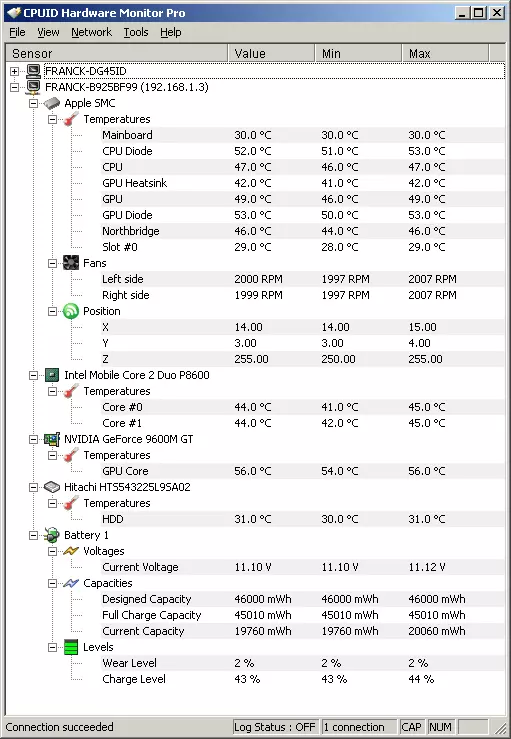
*非本人硬件,仅为谷歌搜索结果* 在之前的指南中,我们提到过使用诸如Riva Tuner(riva调谐器)之类的软件来限制帧率,以及Process Lasso(进程lasso)来提升多核性能。除此之外,我最近也开始运行Radeon Software(radeon软件),并为《暴战机甲兵》设置了自定义参数,这显著改善了我电脑在运行该游戏时的温度和性能表现。 对于使用英伟达显卡的玩家,本节内容仅在概念层面适用。并非这里讨论的所有内容都能直接套用。英伟达有一些功能相似或相同的设置,但据我所知,也有一些设置没有对应的功能(比如Radeon Chill(radeon Chill))。 Radeon SoftwareGeForce Experience(英伟达) ***接下来将只讨论Radeon Software,因为这是我正在使用的,也是我所了解的全部内容***
对于Radeon Software,安装完成后,你应该能找到类似上图的界面来调整设置。下一张图显示的是我的设置,具体细节将在下方提供。
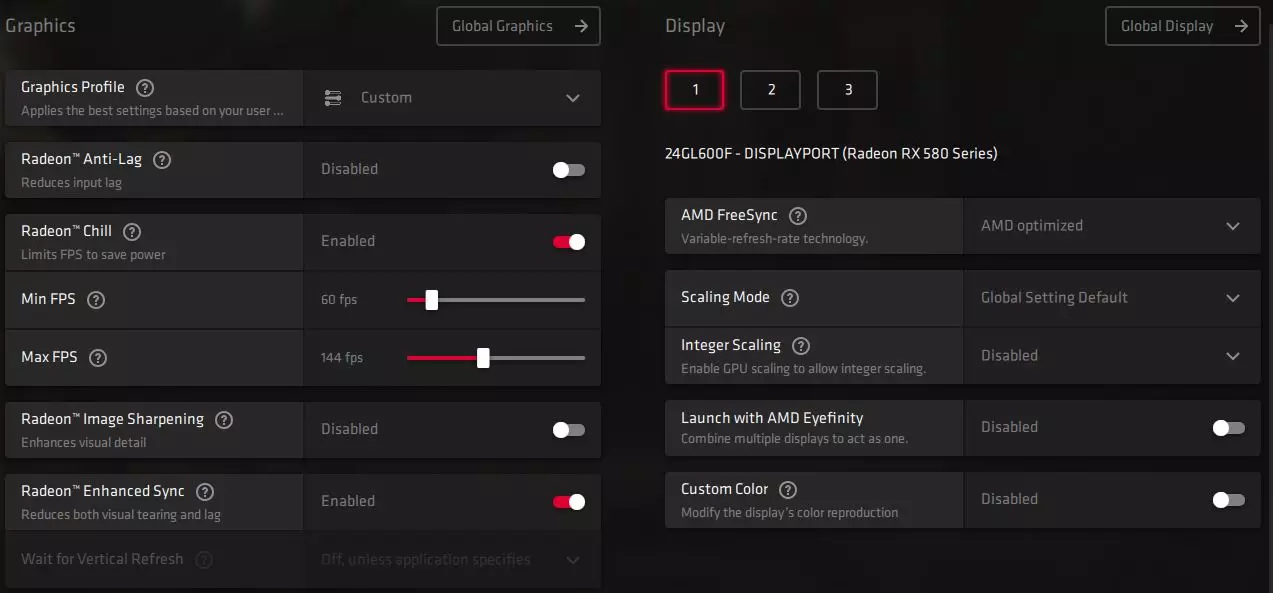
图形配置文件 - 已更改为自定义,因为以下设置已被修改 Radeon Anti-Lag - 暂未发现使用需求,你可以自行尝试 Radeon Chill - 这可能是本指南此部分中最重要的设置。虽然我们已经在使用Riva Tuner,但它确实让我的温度降低了约20摄氏度(我是加拿大人,抱歉了美国朋友们)。我的温度并非直接降低20度,而是从之前稳定的70摄氏度,变为现在在“阿尔戈号”、“机甲舱”和加载界面时约50度,仅在战斗期间为60-70度。战斗结束后,温度会立即回落至约50度,这比一直保持70度要好得多。最小/最大帧率 - 此设置取决于您的硬件,尤其是显示器。您的最小和最大帧率应相应调整。 首先,确定您显示器的刷新率。您可以查阅显示器文档,或在谷歌上搜索品牌、型号以及“刷新率”一词,操作非常简单。
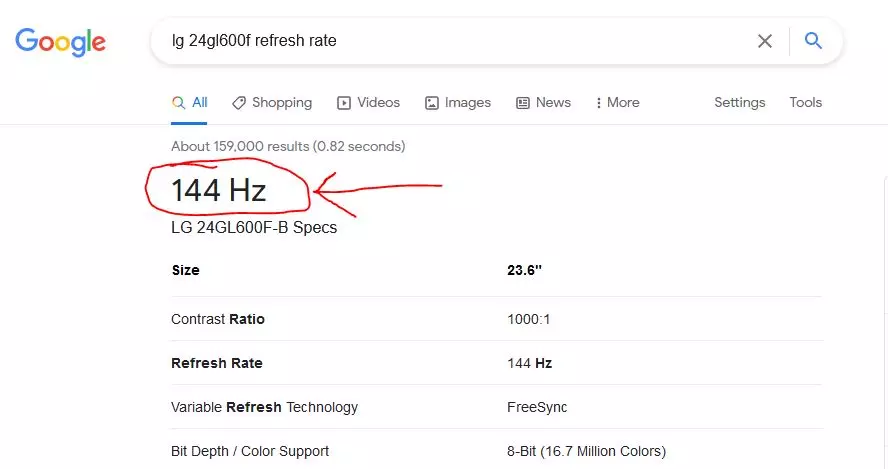
My suggestion is that if your monitors refresh rate is 60 or below, set your minimum to 30. If it is greater than 60, set your minimum to 60. Your maximum should be whatever your monitors refresh rate is. At the original writing of this guide, I had a 60hz monitor. Since then, I have upgraded to a FreeSync compatible 144hz monitor. Therefore, my minimum is 60 and maximum is 144. Radeon Enhanced Sync - This is an alternative Vsync. Remember earlier in the guide, we disabled the in game Vsync so that we can let external software manage it. Well, there it is. AMD FreeSync - In short, many newer monitors have the ability to change their refresh rate to match what the video card is outputting. Traditionally the opposite would happen; the monitors had a fixed refresh rate and the video card had to adjust. Now the video card can just output what it can, and monitor will adjust accordingly. AMD FreeSync from what I understand uses the open source model, where as Nvidia's equivelant technology, Gsync, is fundamentally the same but they went with a proprietary system. I digress. Long and short, if you have an adaptive sync compatible monitor, enable this. HOWEVER you need more than just a compatible monitor. You need : A compatible monitor A compatible graphics card A DisplayPort connection or a newer HDMI cable connecting the two together While it may seem like a lot and you have to go out of your way, its actually not. Most video cards used for games will be compatible and will offer both display port and compatible HDMI ports. If you get yourself a compatible monitor, it will also come with a compatible cable. Just do some quick searches on your hardware to find out if it is compatible. Just wanted to cover this in case anyone was wondering about it since its enabled in my screenshot. I cannot say with any certainty if it plays a factor in performance or heat management, but I figure matching my monitors refresh rate is just one less thing my video card has to do and therefore is that much more efficient. Other Settings - I did not find them necessary to change or adjust. This software also lets you set a custom fan curve, as in, allow you to change how fast your fans spin at any given temperatures. You can play and experiment with that all you want, I personally found it fine at the default setting. Hardware This is probably the first thing anyone thinks of in terms of heat management and their PCs. Its probably also the most obvious. Again, by no means is this going to be a definitive guide on PC cooling. This entire part of this section should just serve as a reminder, if your temps are high, consider maxing out the number of fans your case allows if you have not already done so. Or, upgrade or replace your old fans with higher airflow volumes. Here's a couple of things to consider when buying fans: How many - My personal preference is, as many as my case has slots for. Just max them out - fans are cheap and easy to install yourself. Unless you want RGB and flashing lights, in which case, I don't know what to tell you. Size - Generally case fans come in 120mm, but many cases have at least one larger fan of 140mm or even 200mm. (4.7, 5.5 and 7 Freedom Units for Americans) Noise - In general, with case fans you are choosing a balance between how much cooling they provide vs how loud they are. Fan Direction - Most case fans have two arrows somewhere on them. These arrows indicate which way the air will blow, and which direction the fan will spin. Generally, you want some intake fans and some exhaust fans. Try to adjust it to your PC and what your internal hardware has. If your video card or CPU has fans blowing out, do not have a fan directly facing and blowing against it. Instead, have that case fan blowing air out as well to help it, and have some intake fans elsewhere on your case. I like to have any fan slots on my case that are on the top or upper parts as exhaust fans, and any front and lower side fans to be intake fans. But again, pay attention to what the inside of your computer is doing first. Adjust accordingly. Power Supply or Motherboard? - You can hook up your fan to either. However, if you hook up your fan directly to the power supply, your fans will spin at 100% speed all the time. Hooking up to your motherboard allows your PC to adjust the fans as needed. Unfortunately, there can be limited fan spots on your motherboard to do this. If you still want this functionality but have limited space, you can look into getting a fan controller. Not covered in the scope of this guide. Off Topic - More BattleTech Content! If all you wanted was increasing the performance of BattleTech and you have zero interest in the subject outside the scope of this game, please go enjoy the game and ignore this section. But if you're like me, you LOVE BattleTech and want to get your hands on even more content across any media. Books At this time, I am only just now in 2020 reading my first BattleTech book. It's the first book mentioned in this list. If like me, you want more BattleTech but do not know where to start with the books, here is the common consensus I have found : Decision at Thunder Rift https://www.sarna.net/wiki/Decision_at_Thunder_Rift This book takes place in 3024 ( conveniently for us, right around the era of this game! ) and centers around Grayson Carlyle of the Gray Death Legion. I'm about 2/3 through it, and I only started it a few days ago. It's a great, easy well paced read. The Warrior Trilogy https://www.sarna.net/wiki/Warrior_Trilogy Taking place from 3022 to 3029, this also takes place in the same rough era of this game, however this is from my understanding more focused on introducing you to the Clans who don't actually appear for a few more decades in the Inner Sphere. Articles https://www.sarna.net/ The most complete online resource for BattleTech general information. For more in depth reading, check out at the bottom of the citations of where the information is sourced, and read that. YouTube Tex talks BattleTech...oh man. This content is AMAZING. The youtube channel is called BlackPantsLegion, but I specifically only go for Tex content. He has a video here and there about individual mechs, but oh man his videos covering The Amaris Civil War, the Fall of The Star League, and the Kerenski's exodus give you the context you need to understand the lore of this game so much better. WARNING! NSFW language from this guy, as well as extreme prejudice against Clanners. Tex talks Battletech PlayList : https://www.youtube.com/playlist?list=PLR5zhFCFVb9Ul5DLGzgQ6k4OeYjy2daZ3 The Amaris Civil War : https://www.youtube.com/watch?v=c71x68uWd5k&list=PLR5zhFCFVb9Ul5DLGzgQ6k4OeYjy2daZ3&index=12&t=0s https://www.youtube.com/watch?v=ZQVrAdhCfc4&list=PLR5zhFCFVb9Ul5DLGzgQ6k4OeYjy2daZ3&index=13&t=1500s The Exodus : https://www.youtube.com/watch?v=CDR_Zpb05uk&list=PLR5zhFCFVb9Ul5DLGzgQ6k4OeYjy2daZ3&index=17&t=6567s The Battle of Tukayyid : https://www.youtube.com/watch?v=QffouI6OA00&list=PLR5zhFCFVb9Ul5DLGzgQ6k4OeYjy2daZ3&index=9&t=355s The 90's Cartoon It's so good...it's so bad. It's cannon, but at the same time not really cannon! ( It's treated as an in universe holovid cartoon / propaganda due to the number of inconsistencies between the cartoon and source material ) https://www.youtube.com/watch?v=XbnyJhKqJJU Update on this, it seems these are now available remastered! I wish this was available when I did a recent re-watch. https://youtu.be/zPtt0O9RIGc Revisions 03/06/2020 - Major revision of this post and my guide - removed my preference mods, added actual performance enhancing mods. Included proper Modtek Github link. Added Borderless Window and Pagefile Settings as #1b and #2 tips, respectively as they had that much impact on my performance. 03/07/2020 - Updated the mod section. Created a basic guide on how to install mods and how to revert back to vanilla 05/15/2021 - Added YouTube link for BattleTech remastered (the most important revision obviously). Added an entire section for heat management. Updated section on Riva Tuner regarding maximum FPS cap. Updated Vsync under additional improvements and suggested to disable it entirely in game, and have video card software manage it instead. Added the reduce urban environment props setting tip. Conclusion Hopefully you found all this information as helpful as I have. Following the instructions above, I have been able to get my frames to be consistently around 60 FPS, while my graphics card temps have gone from a consistent 70-75 C / 158-167 F to around 50-60 C / 122-140 F. Special thanks to Steve for helpful information he adapted from a RogueTech Guide, and Boltergeist who originally wrote that guide. Thank you Mudpony for the alternative on the SkipIntro Mod