武装突袭3


为什么你应该选择《武装突袭3》VTG 为什么值得在VTG游玩? VTG是一个乌克兰游戏社区,在这里每个任务都像真实的故事。在这里你是大团队的一员,而不只是服务器上的一名玩家。 1. 团结的社区 • 完全乌克兰语环境,氛围友好 • 不仅仅是游戏——我们形成真正的凝聚力 • 帮助新手,相互尊重,充满幽默,拥有共同价值观 2.大规模任务,可容纳数百名玩家• 超过130名参与者定期参与战斗任务 • 高度协调、团队合作、无线电通讯和战术运用 • 任务场景多样,从防御到大规模进攻 【3. 稳定的模组整合与本地化】• 精心配置的模组整合,无冗余内容 • 通过Resilio Sync实现快速安装 • 支持乌克兰语本地化,带来沉浸式体验 【4.】加入部门,团队作战 • 在VTG,每个玩家都是部门的一份子 • 加入已组建的、有明确角色和指挥官的团队 • 与队友协同作战,默契配合 • 这不仅仅是射击游戏——这是团队协作,每个人都至关重要 5. 拒绝 toxicity 和混乱 • 规则明确,氛围文明,交流友善 • 任务始终有明确目标——杜绝随意行动或“捣乱” 6.任务类型多样,从过去到未来:VTG中没有固定模式,每个任务都是独一无二的。从60年代,到现代行动,再到不远的未来。主题每周变化,告别单调重复。这是体验不同时代、战术和游戏风格的机会。VTG是那些寻求有内涵游戏、友好社区和乌克兰空间的玩家的选择。


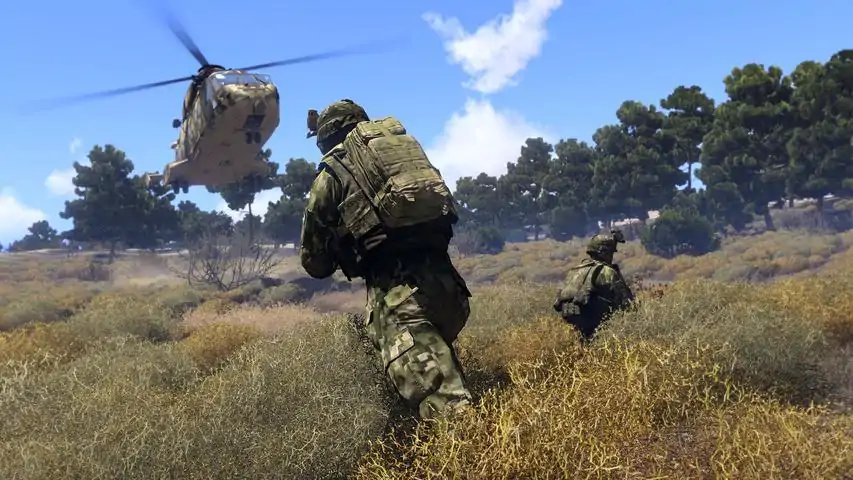
虚拟战术游戏——乌克兰《武装突袭3》团队对团队社区。我们举办玩家对战(团队对团队)活动,形式为大规模战斗场景。我们将来自乌克兰语地区各地的玩家聚集在一起,共同参与有组织、有氛围的任务。该项目已存在两年多,活动稳定吸引100多名参与者。我们拥有自己的基础设施和团结的团队,确保服务器和整个社区的稳定运行。我们的项目专注于什么 Virtual Tactical Games是一个乌克兰的《武装突袭3》PvP(团队对团队)社区。 我们组织大规模的团队对抗形式战斗场景,玩家以小组形式互动并在尽可能接近真实的条件下执行任务。 该社区已存在两年多,每周游戏活动定期吸引130多名玩家参与。我们的项目提供以下内容 - 包含模组包的服务器,涵盖游戏的各个方面并提供大型场景——从20世纪60年代到不久的将来。 - 稳定的技术支持和定期更新 - 友好的乌克兰社区,帮助新手快速适应并轻松加入游戏 如何开始在VTG服务器上游戏? 步骤1:购买游戏 要在VTG服务器上游戏,您需要《武装突袭3》的正版版本。步骤2. 加入Discord社区 进入VTG的Discord频道 需要做什么: - 在同名频道中点击验证按钮。 - 进入“如何开始游戏”频道,其中包含安装模组以及参与活动所需的所有必要组件的详细说明。- 若有问题,请联系版主,他们会乐意帮助您完成所有必要的设置。 - 在安装模组期间,建议您查看“项目资源规则”频道,以避免与管理员产生误会。 步骤3. 游戏准备 几乎一切就绪!只需等待管理员宣布开始集合。 需要做的事情: - 进入TeamSpeak的“单身人士”频道。等待管理员通知您需要坐在哪个位置。 附加信息 活动在每周五和周日举行: - 集合时间:19:30 - 游戏开始时间:20:00


Universal and complete performance guide for ARMA 3 based on personal experience and performed testing. 1. Basic Information Let's start with basic info: setting cpuCount, exThreads or most other parameters does nothing, they are correctly recognized and set by ARMA on it's own (and exThreads overrides cpuCount anyway, so if someone says to set both then you know how much he knows about optimizing ARMA ;) ). If you set them manually you are just overriding something that was set correctly anyway. In this guide I'm going to show you how to really improve performance. However don't expect miracles, in ARMA limiting factor in 99% of cases is CPU. ARMA puts 90-95% of work on one thread, so what you need the most to get good FPS is CPU with high IPC and high clocks. Mods also reduce performance, so if you use many mods you should disable them one by one, check which one reduces performance the most and then decide if it's really worth to use it. In my case all mods I use are reducing performance by 20fps (!) when compared to vanilla. Important: Advice given by author in this guide were personally tested by him and are used by him. However this not mean they will not cause issues on different configurations or different PCs. Author of this guide is not responsible for any issues or damages caused by use of any or all advice in this guide. Any changes to game, system and your PC are applied on your own responsibility. Please also see EULA. 2. Editing game files There are few things you will need to edit in game files to make it run better. 2.1. Editing Arma3.cfg Go to C: Users [your_username] Documents Arma 3 Open Arma3.cfg with text editor of your choice (I recommend notepad++) Find GPU_MaxFramesAhead and set it to 1 (GPU_MaxFramesAhead=1;) Find GPU_DetectedFramesAhead and set it to 1 (GPU_DetectedFramesAhead=1;) (Optional) If you have monitor with refresh rate above 60Hz set refresh to your refresh rate (for example: refresh=144;) Save changes and close fileWhy do you change these things? It will reduce input lag, it can increase performance. However fps drops will be more noticeable, but overall performance should be better. 2.2. Editing *.Arma3ProfileThis is optional, it's not going to improve performance, but it's recommended anyway. Go to C: Users [your_username] Documents Arma 3 Open [your_username].Arma3Profile with text editor of your choice (I recommend notepad++) Find mouseSmoothing and set it to 0 (mouseSmoothing=0;) Find mouseAcceleration and set it to 0 (mouseAcceleration=0;) Find fovTop and set it to 1.03 (fovTop=1.03;) Find fovLeft and set it to 1.83 (fovLeft=1.83;) Save changes and close fileWhy do you change these things? First two will allow game to accept raw input from mouse instead of game trying to correct mouse movement. Second one will increase FOV from claustrophobic 70° to 90°. You can set FOV how you prefer, just use any of these two for calculators so you will know how to set values: Metalman's calculator[hia3.com] OLoKo64's calculator[gamecalculator.netlify.app] You will find comparison of different FOV settings in my other guide: https://steamcommunity.com/sharedfiles/filedetails/?id=1731376270 3. Changing settings in launcher If you are one of guys that rely on setting parameters for exe instead of using ARMA 3 Launcher then you have to apply appropriate changes on your own. There is no need to make it harder than it is, ARMA 3 Launcher is great GUI tools so if you want to be stuck in DOS era that's your choice. Start ARMA 3 Launcher Open Options (upper right corner) Select Launcher Options Set "Action after game start" to "Close Launcher after clicking Play" Select PARAMETERS and go to ALL PARAMETERS tab Set platform, if you have 64-bit OS pick 64-bit and if you have 32-bit OS pick 32-bit Tick "Enabled Large-page Support" checkbox Tick "No Logs" checkbox Tick "No Pause" checkbox (this one just allows ARMA 3 to run in background when it's minimized/not active) 4. Performance binary and memory allocator Dwarden (ARMA 3 developer at Bohemia Interactive) is releasing improved exe files after every patch. I highly recommend using them as they do make a noticeable difference. There are two ways to download them, automatic (many thanks to Greenfist/Sams for pointing this out as I wasn't aware!) and manual. It's safe to use manual, but please remember to ALWAYS download files straight from Dwarden's dropbox or google drive, never use some 3rd party reuploads as they may not be legit performance exes, but may contain malware. You can find Dwarden's post that links to new exe files here[forums.bohemia.net]. IMPORTANT: When new arma version comes out you will need to switch back to default branch from performance one (see 4.1 but select default instead of profiling) or otherwise game will crash. 4.1. Performance exeAUTOMATIC (Recommended): Open Steam Open ARMA 3 Properties (right mouse button on ARMA 3 in library) Go to BETA tab Enter following code and confirm it: CautionSpecialProfilingAndTestingBranchArma3 Select "profiling - Performance Profiling Build"This will automatically download newest performance exe once they are available. MANUAL: NOTE: You will have to redo this after every ARMA 3 update as every update will replace exe. You need to pick proper exe for your OS version (32-bit or 64-bit) and your game version (currently 2.00). Go to Dwarden's google drive[drive.google.com] or dropbox[www.dropbox.com] and download newest performance exe (currently: 200perf -> perf09 -> performance exe). If you use 64-bit OS and 64-bit ARMA client download arma3client_x64_performance and if you use 32-bit ARMA client download arma3client_performance. Unpack downloaded exe to Steam steamapps common Arma 3 Rename your current exe, for 64-bit: arma3_x64.exe to arma3_x64.exe.backup, for 32-bit: arma3.exe to arma3.exe.backup Rename your performance exe, for 64-bit to arma3_x64.exe, for 32-bit to arma3.exe 4.2. Memory allocatorNOTE: Armaholic shutdown, I don't have alternative link for blub's malloc. You can either check offical forums[forums.bohemia.net] for mallocs and try few of them or use system one (-malloc=system) - if you are using Windows 10 this might be best option for now Download custom malloc, e.g. xtbbmalloc by _blub Unzip downloaded archive Copy config file to Steam steamapps common Arma 3, for 32-bit: copy xtbbmalloc.ini from malloc 32-bit Configurations LargePages, for 64-bit: copy cma.ini from malloc 64-bit Config WithLargePages Copy dll file to Steam steamapps common Arma 3 Dll, for 32-bit: copy xtbbmalloc.dll from malloc 32-bit , for 64-bit: copy cma_x64.dll from malloc 64-bit Default Start ARMA 3 launcher Go to PARAMETERS and open ALL PARAMETERS tab Enable "Memory allocator" checkbox and set it to one matching previously copied one (for 32-bit: xtbbmalloc, for 64-bit: cma_x64) 5. Process priority and CPU affinity Download and install Process Lasso by Bitsum[bitsum.com] Start Process Lasso Start ARMA 3 (game, not launcher) In Process Lasso click with right mouse button on Arma process -> Priority class -> Always -> Above normal (do NOT ever set it to realtime priority) Click with right mouse button on arma process -> CPU affinity -> Always -> Untick CPU 0 (do this only if you have 4 or more cores)NOTE: Alternatively if you don't want to use 3rd party software you can use Task Manager to set priority and affinity, but you will have to do it EVERY time you start game (while with Process Lasso you do it once) 6. Windows optimizations 6.1. Drivers updateKeeping your driver up-to-date is important, because that way you always get new fixes and performance improvements for games. However it's especially important to update your drivers if you are using Windows 10 as May Update will be released shortly and with it WDDM 2.6 (windows drivers architecture). On drivers that don't support WDDM 2.6 there is a performance decrease, but updating drivers to ones that support WDDM 2.6 fixes it (info based on Windows 10 Insider Preview with May update) Download newest drivers for you GPU and you OS, NVIDIA cards: drivers[www.nvidia.com], AMD cards: drivers[www.amd.com] Download and unzip DDU by Wagnard[www.wagnardsoft.com] (only for Windows 10) Disconnect PC from Internet (otherwise after you will delete drivers Windows will attempt to download and install new ones automatically) Start DDU, close windows that will pop up Open Options, tick "Enable Safe Mode dialog" checkbox Restart DDU Select Safe Mode and allow to reboot into safe mode Windows will boot in safe mode, DDU should start automatically - if it won't then start it manually Open Options, ticks all NVIDIA specific or AMD specific options (depending on card you own) Close options Select GPU as device type Select NVIDIA or AMD as device (depending on card you own) Click Clean and restart After your PC will restart install previously downloaded drivers. For NV cards I recommend do install "light" pack of drivers, during installation select NVIDIA graphic driver (without GeForce Experience) -> Custom install -> untick everything but Graphics driver, PhysX System Software, NVIDIA NGX. You can tick HD Audio Driver if you use HDMI/DP to transmit audio from PC to monitor. Restart PC (only for Windows 10) Connect PC to Internet 6.2. NVIDIA Control Panel Open NV Control Panel Go to Manage 3D Settings Set Power management mode to Optimal Set Maximum rendered frames to 1 Go to Program Settings tab Add arma exe file (for 32-bit: arma3.exe, for 64-bit: arma3_x64.exe) Set Power management mode to Prefer maximum performance 6.3. (Optional) Disable NV Telemetry ContainerIf you will do this you CANNOT use NV Experience software. Open services.msc Find NVIDIA Telemetry Container Click with right mouse button on it and open properties Click Stop button Set launch mode to disabled 6.4. Windows 10 - DVR Start regedit Go to HKEY_CURRENT_USER System GameConfigStore Set GameDVR_Enabled value to 0 Go to HKEY_LOCAL_MACHINE SOFTWARE Policies Microsoft Windows Create new key and name it GameDVR Inside create new DWORD 32-bit and name it "AllowGameDVR" Set AllowGameDVR value to 0 6.5. Standby list cleaner Download and unzip ISLC by Wagnard[www.wagnardsoft.com] Start ISLC Set "The list size is at least" value depending on your available RAM (less RAM = set it to lower value). For 16GB of RAM I recommend 1200MB, for 8GB probably 800MB should be good. Set "Free memory is lower than" value depening on your available ram. For 16GB of RAM I recommend 2000MB, for 8GB probably 1500MB should be good. Press Start button DO NOT close the app (it needs to be running in background)Clearing standby list is performed by CPU, so do NOT set values too low as it will just force CPU to clean standby list very often and can negatively impact performance in game. You want it to be cleared as rare as possible but before you will be left with small amount of free RAM. 7. Mods If you are using low-end or high-end machine you may want to download Enhanced Video Settings mod by Sams. It allows to set graphic settings lower than it's normally possible and higher than it's normally possible. It adds Super Low and Ultra+ settings in game. If you get very low FPS you can set Textures and Object to super low. https://steamcommunity.com/sharedfiles/filedetails/?id=1223309664 8. In-Game settings 8.1. General tabDO NOT reduce sampling unless you have tried other options and still struggle to maintain playable FPS. If you struggle with performance you should start decreasing settings in following order: Cloud, Shadow, Particles, Terrain, Objects. Try to keep Objects as high as possible, they are quite taxing, but important (they decide how complex a scene can be). PIP: If you have performance issue in vehicles or in any other situation where there are mirrors or dashboard cameras you should reduce or even disable PIP. It basically render another scene (what you see in car mirror in game is not a reflection, is new scene rendered from different camera position and displayed in game) Textures: If you have enough vram (4GB and above) you are free to set it on v. high or ultra. Unless you don't have enough vram there is no need to set it differently. When it comes to visibility IMO there is no need to go over 5000 with overall (I recommend 4000), 4000 with object (I recommend 3000) and 100 with shadows (I recommend 50). 8.2. Display tabDisplay mode: Fullscreen (or Fullscreen window if you are using more than 1 monitor) Resolution: Set it to native resolution of your monitor (usually 1920x1080) Aspect Ratio: Set it to match your monitor (usually 16:9) VSync: Disabled 8.3. AA & PP tabBloom: 0 Radial blur: 0 Rotation blur: 0 Depth of field: 0 Sharpen: 100 Most taxing here is PPAA, FSAA (especially when paired with ATOC) and AO. If you struggle with performance disable PPAA, reduce FSAA and AO (or even disable if needed). Anisotropic filtering have minimal performance impact so I recommend to leave it at least on high. NOTE: If you are decreasing graphic settings, samapling, etc. and still can't get playable FPS that means CPU is limiting you. 9. Summary That's all. After you completed everything ARMA should be running better. FPS improvement largely depends on hardware you own, mission you play, mods you use. For me on average it was 5FPS while using fully modded game (almost 80GB of mods) and up to 10FPS while playing KotH. On the top of that stuttering issue I had is completely gone, but bear in mind that freezes/fps drops caused by loading terring while you move are not same as stuttering (to fix/reduce those you need SSD). Your results may be different. If you still struggle to get good FPS then it may be a result of too slow CPU (GPU is rarely an issue in ARMA), unoptimized mission, unoptimized/too many mods. I would like to thanks creators of all software that allows to perform these optimizations (in random order): Dwarden from Bohemia Interactive for continuous work to improve game and it's performance _blub from Armaholic for custom memory allocator Wagnard from Wagnardsoft for DDU and ISLC Jeremy Collake from Bitsum LLC for Process Lasso Greenfist/Sams for Enhanced Video Settings mod and pointing out easier way to get performance exe filesMany thanks for all your hard work! 10. EULA Under no circumstances shall author of this guide be liable for any direct, indirect, incidental, consequential, special or exemplary damages arising out of or in connection with your access or use of this guide and third party content or services or software, whether or not the damages were foreseeable and whether or not author was advised of the possibility of such damages. You (user) are using any or all advice posted in this guide solely on your own responsibility. Use of any or all advice posted in this guide requires you to accept that author cannot be held responsible for any damages and accept this EULA. It is forbidden to copy, edit or repost this guide without author's permission and without crediting author


A guide to the Across the Fence servers for SOG Prairie Fire General Notes Disclaimer: Some of the information regarding AI behavior may be incorrect. The gamemode is new and I am still learning, but I have learned the below information from personal experience and people who have worked and played with the development team for this gamemode. How to create/join a mission: There are several map stands inside the TOC. Each one relates to an Area of Operations. If an operation is already underway in an AO you will not be able to create a mission on that particular map stand. In this case, physically move to a different map stand and try to create a mission there. After your mission is created other players will have the scroll wheel option on any map to "Join mission x" where x is a number. After joining, you will have the scroll wheel option to "Leave mission x" where x is a number. The person who created the mission will have the option to start the mission and should do so when their Recon Team is ready. (Highly recommended: All members should be in voice comms together in a program such as discord or teamspeak.) Core Mechanics: - Sites: There are up to 24 enemy sites you can report in the 2km square. Accurately reporting a site can yield up to 250 experience. There are 3 components to a good site report: a picture, a map mark, and classification. You must be within 100m (this distance may very or be incorrect) and have full vision of a site for it to be captured in the camera. Then take out your 35mm camera by hitting 'b' (you are given a camera in your binocular slot by default) and take a picture with left mouse button. You are given no feedback in the camera if you have gotten a picture or not, you will only know if you have taken a picture with the 'click' sound. After taking your picture open your map and click add item on the recon report paper. Then click add picture. If you took a good picture the picture and classification will automatically populate on the recon sheet. Then using your best approximation mark the site on your map by clicking once. It should mark a red diamond with a label of the site classification. - Sites are usually guarded by at least 1 (up to 3 or more) static enemies. - Glimmers/Glints/Sparkles: While walking around the AO you will see a white star icon appear in your vision occasionally. If you walk over to it, you will find a prop and be given the option to inspect it. Doing so will tell you tracks lead in [compass direction]. If you head in this direction from this point it will lead you in the vicinity of one of the objectives. - Stop, Focus: This is an ability everyone has that allows them to see better and pin point where sounds (such as enemy footsteps and voices) are originating from. This is crucial to helping you locate and avoid enemy patrols. - Patrols and tracker teams: Enemy patrols will walk in a circle around most site objectives. Tracker teams wander the AO and will begin following your tracks if they encounter them. The only indication that you are being tracked is if your toe poppers go off behind you (this does not kill them). Tracker teams do not shoot occasionally as they do in other gamemodes, they will follow your tracks and will only shoot when they find and engage you. - Skills and abilites: Two abilities that you can select from the skills radio in the TOC and use in missions. Skills give you passive bonuses to the selected tree. - Medical: On the lower right quadrant of your screen you will see a representation of your character's well being. You can hit the key combination above this open the medical menu which will allow you to apply First Aid Kits or Medical kits (locked behind medic skill which costs 8 skill points) to wounds to heal them. - Desperate Escape: This is a mechanic whereby a downed player can revive themselves with no wounds with the drawback that you lose your backpack and half of your magazines, grenades, and other equipment in your clothes and vest storage slots. Dealing with trackers and contact: You have several options with varying levels of noise and effectiveness for dealing with enemies. RTO Airstrikes/Mines: These are effective at eliminating enemies without attracting the attention of others directly to your position. Doglegging: Walking single file and making harsh course adjustments of 90 degrees every 50-100m. IE: walking North, then East, then North again. Try to use land marks such as rocks or trees and your squad ping (hit '.' till your push-to-talk/text chat is green, then hit 'shift+t') to make it easier for your team to identify the point you use to turn and take the same path. If anyone 'cuts the corner' the NVA will have an easier time following you since then will be following an easy curve or two 45 degree course changes. A successful dogleg will find your trackers continuing off the end of your track and losing your trail. Staging an Ambush: This is the most dangerous and difficult way to lose a trail. A successful ambush should start by leading the squad into an open area and finding cover and concealment to shoot from. Every team member should be Stop, Focusing and holding their fire. There are 2 methods to the ambush: The Walk Past and Full Loud. - The Walkpast: There is a small but distinct chance that the enemy will not see and entirely bypass the team. This is a success and should be followed by immediately breaking contact in the direction they came from. - The Full Loud: Create a wide arc centered on the point that you entered the clearing (this is the path the enemies will follow). Put mines and explosives in this area and have your RTO (if available) set-up but not call in an airstrike on this location. When the enemies enter this open area kill zone have everyone open up at once and take out the whole following team. As soon as you have taken out everyone, immediately break contact. All NVA in the vicinity will start converging on your location, unless you were able to eliminate the whole patrol with suppressed weapons without receiving return fire. Calling for Extraction: There are three situations in which you should call for extract. 1. The team decides it's time to go. 2. You are having trouble breaking contact and can't lose your tail. 3. You just suffered a squad wipe and everyone had to use their withstand. In this case you will be scattered and need to regroup. It is easiest to have everyone high tail it to the chopper and hold there until everyone is present. Alternate Rally Points have the downside of not being near the extract and having to travel or fight an additional distance when you are already depleted of resources. Starter Loadouts Roles and Loadouts: Odds are when you get into a server you will have the basic loadout, but will still want to get into a mission quick. To save you from hours of playing combat barbie here are a few loadouts to get you started - Pointman: Guns: M45 suppressed, m1911 suppressed, flare -- BDUs: any, fill this with First Aid Kits -- Vest: fill with 1-3 secondary mags and the rest primary mags -- Backpack: fill with role equipment, then 3-10 grenades of choice, followed by extra mags and FAKs - Tail: Guns: xm177e1, m1911 suppressed, flare -- BDUs: any, fill this with First Aid Kits -- Vest: fill with 1-3 secondary mags and the rest primary mags -- Backpack: 80-130 toepoppers, (if you have them 10-30 proximity claymores), then 3-10 grenades of choice, followed by extra mags and FAKs - Middle (medic) Guns: Any gun, m1911 suppressed, flare -- BDUs: any, fill this with First Aid Kits -- Vest: fill with 1-3 secondary mags and the rest primary mags -- Backpack: Medical kit (without access to infinite use medical kit from 8SP medic skill, 70% filled with FAKs), then 3-10 grenades of choice, followed by extra mags - Middle (RTO) Guns: Any gun, m1911 suppressed, flare -- BDUs: any, fill this with First Aid Kits -- Vest: fill with 1-3 secondary mags and the rest primary mags -- RTO Backpack: 3-10 grenades of choice, followed by extra mags, and FAKs - Middle (Machine Gunner) Guns: Any gun, m1911 suppressed, flare -- BDUs: any, fill this with First Aid Kits -- Vest: fill with 1-3 secondary mags and the rest primary mags -- Backpack: Extra mags/belts, 3-10 grenades of choice, and FAKs - Middle (Grenadier) Guns: Grenade Launcher, m1911 suppressed, flare -- BDUs: any, fill this with First Aid Kits -- Vest: fill with 1-3 secondary mags and the rest primary mags -- Backpack: More boom, 3-10 grenades of choice, and FAKs - Middle (Generic) Guns: Any gun, m1911 suppressed, flare -- BDUs: any, fill this with First Aid Kits -- Vest: fill with 1-3 secondary mags and the rest primary mags -- Backpack: Ask your squadmates if they need help carrying anything and take it for them, 3-10 grenades of choice, and FAKs Team Composition You should not do these missions alone if at all possible Minimum roles: - Pointman - Tail Additional helpful roles: - Team lead - RTO Nice to haves: - Medic Ideal team: - Fire team 1 1. Pointman 2. Pointman 2 3. Team leader - Fire team 2 4. RTO 5. Tail 1 6. Tail 2 The duplicate Pointman and Tail should choose different weapons that their counterparts to fill in gaps in the team Pointman Tips - dogleg frequently (turn 90 degrees - Mark glimmers on map with compass direction - dogleg single file around rocks and trees (tail leaves backtrail here) - Stop and focus frequently to get picture of battlefield - try to take a suppressed submachinegun Team Lead - Should be the person creating the mission - Keep every person in mind and mentally check in - Call the op and call extract when you sense you are being followed too much and too heavily or when you think you have hit enough sites. (20 is a lot, but 2 or 3 is also fine if you are really feeling the heat.) Tail - Lay toepoppers frequently - If you start to hear your backtrail get triggered, lay a few claymores in addition to the toepoppers - Keep an eye on following enemies and listen attentively Credits I had the privilege to play with Rob (eggbeast) who was my sherpa for my first patrols Across the Fence. If you have any tips you want to share comment them below and I will add them to the guide Version 1: 9/13/2025 Version 2: 9/15/2025


《武装突袭3》步兵控制完整列表步行移动 冲刺 - Shift(蹲下或卧倒时也可使用) 蹲下 - X 卧倒 - Z 抬高姿态 - Ctrl + W(可多次按下) 降低姿态 - Ctrl + S(可多次按下) 向左探身 - Q 向右探身 - E 向左跨步 - Ctrl + A 向右跨步 - Ctrl + D 向左翻滚 - 卧倒 + Q 向右翻滚 - 卧倒 + E 鱼跃卧倒 - 冲刺 + Z 武器 瞄准镜瞄准 - 鼠标右键 稳定瞄准/缩放 - 按住鼠标右键 切换瞄准镜 - Ctrl + 鼠标右键 射击模式 - F 投掷手榴弹 - G 切换武器 - 空格 快速切换至手枪 - 双击空格 收枪 - 双击Ctrl 视角 自由视角 - 按住左Alt(双击可自动保持) 切换视角 - 小键盘(右)Enter 动作 物品栏 - I 显示地图 - M 望远镜 - B 互动菜单 - 滚动选择(在互动中)菜单 - 鼠标中键