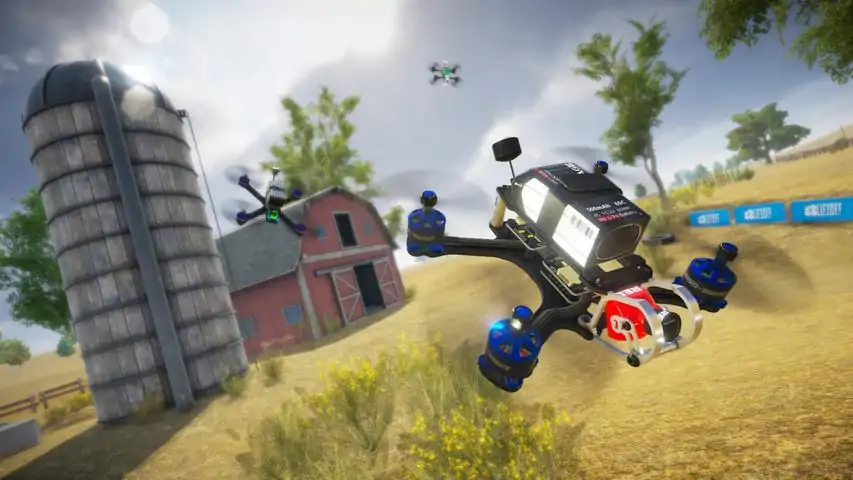
Liftoff®: FPV Drone Racing

Liftoff®: FPV Drone Racing

Liftoff®: FPV Drone Racing

欢迎来到Liftoff®: FPV Drone Racing社区! 
关注
50帖子·--新帖
游戏详情
全部
官方资讯
攻略创作
组队交友
问题反馈
4
--
--
--
--
--

大家好!我制作了一个快速视频,内容是关于如何将Fr-Sky Taranis遥控器与Liftoff模拟器进行基础设置的步骤。将Taranis连接到Liftoff

此致, 杰克

--
--

模拟器中四轴飞行器感觉飘的常见原因及一些减少或解决该问题的方法。 四轴飞行器感觉飘的原因: 四轴飞行器感觉飘是许多新手(包括我自己)可能遇到的常见问题。原因有以下几点: 【缺乏真实四轴飞行经验】,因此很难与模拟情况进行比较。 【电脑无法处理过高的图形设置】,导致微卡顿,从而产生飘的感觉。 【鱼眼/镜头效果可能会加剧飘的感觉】,尝试将其调至最低或关闭。 【在没有参考物体的情况下,难以判断比例、大小和距离】:如果你飞得太高并收油门,会开始下落,这需要一些时间,但由于没有物体来判断下落速度,会感觉像是在漂浮甚至悬浮。上升时也是如此。试着靠近物体飞行。尝试悬停在离树、灯杆或房屋非常近的地方,然后减小油门,这样在下落时你就能看清它。感觉轻飘飘的吗?试着在建筑物内部飞行。感觉轻飘飘的吗? 某些四轴飞行器相对轻巧且动力强劲,因此它们很容易获得高度和速度,尤其是在没有精细油门控制和管理的情况下。所以竞速四轴飞行器的预设通常可能会给人这种轻飘飘的感觉。另外不要忘记动态怠速:当你减小油门时,电机不会完全停止,只有在你解除武装时才会停止。 如果你更改了默认物理设置,也可能会增加轻飘飘的感觉。 很多时候,“轻飘飘”只是一种主观感受。我认为视场角、屏幕分辨率、相机角度和发动机声音等因素都可能产生影响。同时别忘了,这只是一个模拟,并不完美。你在模拟器中飞行的时间越长,就会越熟悉飞行的感觉,四轴飞行器也会显得不那么飘。一个模拟器比另一个更飘?你在某个模拟器中没有飘动感,而在另一个中有,原因可能是你在其中一个模拟器上花费了更多时间,对其物理特性更熟悉。此外,你在该模拟器中的图形设置可能提供了更好的性能,总体对硬件要求更低,所以试着降低“飘的模拟器”的图形设置,以获得至少稳定的75帧每秒。此外,你的“不飘”模拟四轴模型可能与其他模拟器中感觉飘的模型有很大不同,不同的地图以及你在其中的飞行方式也可能是影响因素。尝试设置相同的相机角度、屏幕分辨率、视野(FOV),甚至操控速率。在两个模拟器中尝试相同的飞行条件,例如在大小相近的建筑物内飞行,尝试绕树盘旋,围绕相似物体做一些简单的半滚倒转和横滚动作,然后进行比较。顺便说一下,当我切换模拟器时,即使没有感觉到飘,也能感受到差异,需要一些时间来适应。 如何解决 我的第一个建议是更频繁地飞行,并尝试近距离飞行,而不仅仅是在空中悬停。你飞行的次数越多,就会越熟悉模拟物理系统,那种飘忽的感觉过一段时间就会消失。 如果可能的话,尝试使用不同的更重或动力较弱的四轴飞行器。可以通过调整螺旋桨尺寸、电池、电机KV值(如果有这些选项的话)来降低四轴飞行器的动力。 另外,可以尝试稍微增加重力和质量,如果有相关设置,也可以调整空气摩擦力和阻力。 你的油门可能有点敏感。如果可以的话,尝试使用【曲线调整】和/或【油门限制】。享受飞行吧。

--
--

以下是我在搭载旧版RealFlight控制器的Mac上使用《Liftoff》的步骤。该控制器是随RealFlight 3.5一同推出的InterlinkPlus。 为InterLink Plus/RealFlight控制器配置《Liftoff》 所需条件: - 搭载Mac OS 10.11.1系统的Mac - 带USB接口的InterLink Plus控制器(RealFlight 3/3.5附带) - 已在Mac上成功安装Steam和《Liftoff》 步骤: 1. 安装《Liftoff》,然后退出游戏 2. 将InterlinkPlus连接到Mac的USB端口 3. 控制器上的USB指示灯应闪烁或亮起。如果没有,请断开控制器并将其插入Mac上的其他端口将所有四个微调滑块(两个摇杆的左右和上下)设置到中心位置 启动Liftoff 在主菜单中,点击选项 点击控制 点击校准 点击校准,然后将左右摇杆完全向上、向左、向下、向右、向上、向左等方向旋转 应该会出现“下一步”。如果没有出现,说明你的Interlink未正确连接 点击下一步 这是最重要的技巧。在进行其他操作之前,先将左摇杆完全向上推,然后再点击设置油门。如果不这样做,你的四轴飞行器的油门控制将会与真实控制器的正常情况相反 点击设置油门,将摇杆向下再向上移动几次 点击下一步 点击设置偏航 将左摇杆向左移动,然后向右移动,再左右移动一次 点击下一步设置摇杆。 点击下一步。 点击保存并退出。 现在你应该可以使用控制器在【Liftoff】中操控四轴飞行器了,包括使用滑块/微调片进行微调设置。 控制器偶尔会出现校准失效的情况,此时你需要重新执行上述步骤。

--
--
1
--
--
--
--
--
139
--

Liftoff: FPV Drone Racing allows you to stream drone telemetry data to external locations. That way, you can analyze flights, or diagnose issues with external programs that interface with Liftoff. Introduction Liftoff: FPV Drone Racing allows you to stream drone telemetry data to external locations. This way you can analyze flights or diagnose issues with external programs that interface with Liftoff. Who is this for? The Drone Telemetry feature is not something the average Liftoff: FPV player will find a use for. It is however, useful to players wanting some extremely detailed feedback or researchers interested in analyzing a drone's behavior, to plot out data in other software, or to train certain data models for A.I. Setup The Drone Telemetry feature can be enabled by placing a file in a specific directory. This location depends on the operating system running Liftoff: Windows: C: Users %userprofile% AppData LocalLow LuGus Studios Liftoff macOS: ~/Library/Application Support/LuGus Studios/Liftoff/ Linux: ~/.config/unity3d/LuGus Studios/Liftoff/ Linux (when Steam is installed as a flatpak): ~/.var/app/com.valvesoftware.Steam/.config/unity3d/LuGus Studios/Liftoff Within this directory, create a new file named TelemetryConfiguration.json to enable the drone telemetry. Currently there is no way to enable or configure this feature from within Liftoff itself. This might be added in a future update. Configuring the telemetry data The Drone Telemetry data stream is configured using the TelemetryConfiguration.json file. We'll go over each of the parameters in this section. The example configurations section below provides a few practical examples. Before diving into the different configuration possibilities, first let's define the types of data you can expect to receive on the data stream. Each component will state what type of value it will be. This will be important for when you parse the data on your end. So let's sum them up below: float - a single precision floating point number, 4 bytes long. int - an integral number, 4 bytes long. byte - a single byte. There are two main parameters that can be configured: The data end point: all telemetry data are sent over a UDP packet stream. The EndPoint value allows you to configure where it is sent to. This value is formatted in IP end point notation, e.g. 127.0.0.1:9001, where you specify the intended IP address and port number. The stream format: you can configure which telemetry data points you're interested in, as well as the sequence in which they are sent. The StreamFormat string array defines the sequence. The supported data points and their data layout are listed below. Note: Liftoff uses a left-handed, Y-Up coordinate system: the positive x-axis points to the right, the positive y-axis points up, and the positive z-axis points forward. Timestamp (1 float) - current timestamp of the drone's flight. The unit scale is in seconds. This value is reset to zero when the drone is reset. Position (3 floats) - the drone's world position as a 3D coordinate. The unit scale is in meters. Each position component can be addressed individually as PositionX, PositionY, or PositionZ. Attitude (4 floats) - the drone's world attitude as a quaternion. Each quaternion component can be addressed individually as AttitudeX, AttitudeY, AttitudeZ and AttitudeW. Velocity (3 floats) - the drone's linear velocity as a 3D vector in world-space. The unit scale is in meters/second. Each component can be addressed individually as SpeedX, SpeedY, or SpeedZ. Note: to get the velocity in local-space, transform it[math.stackexchange.com] using the values in the Attitude data stream. Gyro (3 floats) - the drone's angular velocity rates, represented with three components in the order: pitch, roll and yaw. The unit scale is in degrees/second. Each component can also be addressed individually as GyroPitch, GyroRoll and GyroYaw. Input (4 floats) - the drone's input at that time, represented with four components in the following order: throttle, yaw, pitch and roll. Each input can be addressed individually as InputThrottle, InputYaw, InputPitch and InputRoll. Battery (2 floats) - the drone's current battery state, represented by the remaining voltage, and the charge percentage. Each of these two can be addressed individually with the BatteryPercentage and BatteryVoltage keys. Note - these values will only make sense when battery simulation is enabled in the game's options. MotorRPM (1 byte + (1 float * number of motors)) - the rotations per minute for each motor. The byte at the front of this piece of data defines the amount of motors on the drone, and thus how many floats you can expect to find next. The sequence of motors for a quadcopter in Liftoff is as follows: left front, right front, left back, right back. Note that this data stream is only available for drones that are actively being simulated by Liftoff. It won't work for drones being spectated in multiplayer or during a replay session. Modifying the configuration while in-game Each time the drone is reset, Liftoff will check whether the telemetry configuration file has been changed, and reload it if so. This allows you to tweak and change parameters without restarting Liftoff. If the configuration file contains an error, Liftoff will display a popup message after the drone has been reset. Fix the error, reset the drone again, and the new telemetry configuration will be loaded. Example configurations Some example configurations of the TelemetryConfiguration.json file. Everything A configuration that will send over all telemetry data to a local end point. { "EndPoint": "127.0.0.1:9001", "StreamFormat": [ "Timestamp", "Position", "Attitude", "Velocity", "Gyro", "Input", "Battery", "MotorRPM" ] } The total size of each data frame being sent would be 97 bytes. Horizontal position over time A configuration that will only send the position of the drone in the XZ-plane, along with the timestamp, to an end point in the local network. { "EndPoint": "192.168.1.6:6808", "StreamFormat": [ "Timestamp", "PositionX", "PositionZ" ] } The total size of each data frame being sent would be 12 bytes. From input to gyroscope A configuration that correlates input axes to the drone's gyroscope, without a timestamp. { "EndPoint": "127.0.0.1:9001", "StreamFormat": [ "InputPitch", "GyroPitch", "InputRoll", "GyroRoll", "InputYaw", "GyroYaw" ] } The total size of each data frame being sent would be 24 bytes.

--
--

你只需在一个场景中找到这些物品即可解锁成就!大多数物品都不难找。如果你很难找到它们,建议查看“Hall 26”地图。该地图视觉干扰很少,很容易搜寻。 成就: Heart Collector Leprechaun Madness Fool's Gold Easter Egg Hunting(编者注:每张地图有1个金色大蛋和5个小蛋篮)物品隐藏的方式十分简单,任何人都能轻松藏匿。 LuGus Fest - 在LuGus节活动期间,在单个场景中激活所有LuGus立方体。 Trick or Treat - 在万圣节活动期间,在单个场景中让所有南瓜都给你糖果。 Snow Spotter - 在圣诞节活动期间,在单个场景中找到所有雪人。 日期: 2月14日 - Heart Collector 3月17日 - Leprechaun Madness 4月1日 - Fool's Gold 4月15日 - Easter Egg Hunting 8月1日 - LuGus Fest 10月31日 - Trick or Treat 12月25日 - Snow Spotter 你不必在列出的日期当天游玩,活动通常会持续一周左右,且通常在指定日期前几天开始。

--
--

以下是获取成就的简易指南,我发现巴德韦尔庭院很容易找到全部6个物品。获取顺序不限,可按任意顺序收集,我会为它们编号。 指南 1号篮子 - 在车道尽头的大门旁。 2号篮子 - 沿着车道向上,在白色汽车前方,房子的地下室门旁边。 3号篮子 - 在门廊上的白色秋千上。 4号篮子 - 找到这个最简单的方法是飞到车道上白色汽车的高空,然后看向汽车后方、树木的左侧。从那里你应该能看到两个并排的黑色轮胎,离房子最近的那个轮胎上有一个难以发现的篮子。 5号篮子 - 在马厩内,楼梯底部。金蛋 - 我猜是在后院有一个敞开的干草储藏棚,蛋就在棚子的右侧。前往所有六个地点就能获得这个棘手的成就,祝你玩得开心!

--
--